
Migrating data from MSSQL to PostgreSQL
Last updated on:
In this page
Overview
This page explains how to migrate ManageEngine Log360's data from a Microsoft SQL (MSSQL) database to a PostgreSQL database. This guide outlines the prerequisites, migration steps, and required post-configuration actions, especially for environments using Log Processor setups.
Steps to migrate data from MSSQL to PostgreSQL
- Pre-configuration
NOTE If your Log360 deployment includes Log Processors, complete the following step before starting the migration. If your deployment does not include Log Processors, you may skip this step.
- Navigate to %Log360_HOME%\conf\service.properties
- Add the following entry at the end of the file: ads.change_db.enable_cluster_check=false
- Launch the database configuration utility
- Go to the following directory: %Log360_HOME%\tools\
- Run the batch file: changeDBServer.bat
- This will launch the Database Setup Wizard.
- Configure the PostgreSQL database
In the Database Setup Wizard:
- From the Server Type drop-down, select Postgres Server.
- Enter connection details:
- Host Name: Hostname or IP address of the PostgreSQL server
- Port: PostgreSQL port (default: 33335)
- Database Name: Enter the database name
- Username: PostgreSQL username
- Password: PostgreSQL password
- Click Test Connection to validate the credentials.
NOTE If the connection fails, review and correct the details.
- Select the checkbox beside Migrate Existing Data.
- Click Configure DB to save and apply the PostgreSQL setup.
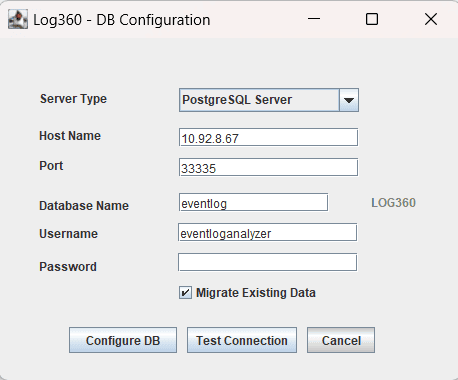
Figure 1: Database configuration
- Post-configuration
NOTE If your environment includes Log Processors, copy the updated database configuration files from the Primary Server to each Log Processor machine. This ensures all nodes use the updated PostgreSQL database configuration.
- In each Log Processor machine, back-up the following files:
%LOG360_HOME%\conf\customer-config.xml
%LOG360_HOME%\conf\database_params.conf
- Copy the following files and paste them into the corresponding directory on each Log Processor machine:
%LOG360_HOME%\conf\customer-config.xml
%LOG360_HOME%\conf\database_params.conf
- In each Log Processor machine, back-up the following files:
Read also:
This page explained how to migrate data from MSSQL to PostgreSQL. To learn about migrating data from PostgreSQL to MSSQL, refer to the following page: