Migrate EventLog Analyzer Data from MySQL to MS SQL Database
Last updated on:
EventLog Analyzer allows you to migrate the existing EventLog Analyzer data available in MySQL database to MS SQL database.
This procedure is applicable only if you are already using EventLog Analyzer with MySQL and you want to change the database to MS SQL.
Re-registering the Managed Server after the database has been changed:
- When the Managed Server is installed, it is registered with Admin Server as Managed Server with MySQL.
- If the database of the Managed Server is changed from MySQL to MS SQL, the database of the Admin server also needs to be changed from MySQL to MS SQL.
- Then, the managed server has to be re-registered with Admin Server with the help of <EventLog Analyzer Home>/troubleshooting/registerWithAdminServer.bat file (or registerWithAdminServer.sh file)
After changing the database, when the Managed Server is started as a service, there will not be any prompt to re-register. The user has to ensure that the Managed Server is re-registered with the Admin Server.
If the user is migrating a distributed setup, the user needs to migrate the entire distributed setup to MSSQL. All Managed servers along with the admin server should be migrated to MSSQL.
If you want to configure MS SQL for a fresh installation of EventLog Analyzer server, please refer the Configuring MS SQL Database page and follow the procedure given there.
The steps to migrate and run the EventLog Analyzer server with SQL SERVER as the database is given below:
- Stop the EventLog Analyzer Server/Service.
- From the installed MS SQL SERVER, copy the files bcp.exe and bcp.rll to <EventLog Analyzer Home>/bin folder.
- Invoke the <EventLog Analyzer Home>/tools/changeDBServer.bat in command prompt to configure the MS SQL SERVER credentials like ServerName, Port, User Name and Password.
- Database Setup Wizard pops-up.
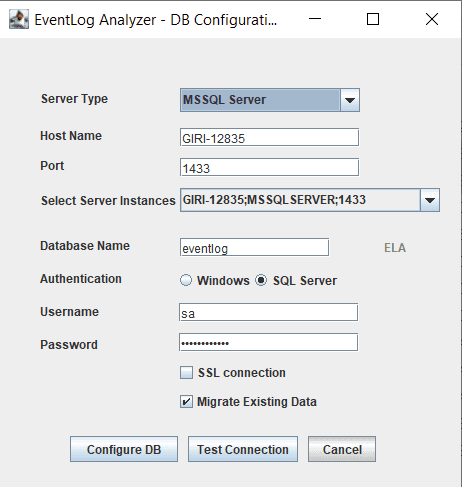
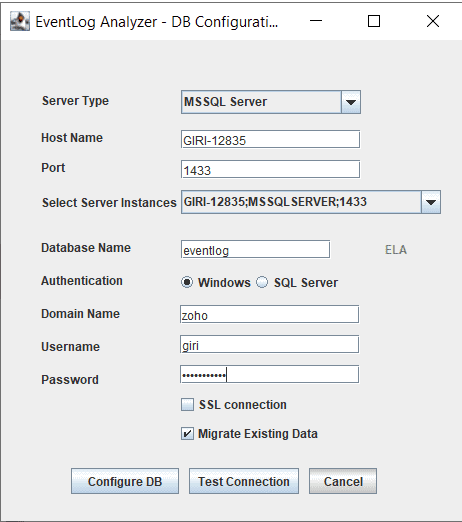
- In the wizard screen, select Server Type as SQL Server. Available SQL Server Instances are listed in a combo box. Enter the Device Name and Port of the SQL Server from the instances.
- Select the authentication type using the "Connect Using:" option.
- The options are:
- Click the Test Connection button to verify the correctness of the credentials. If the test fails, recheck and enter the correct credentials.
- Click the Configure DB button to save the SQL Server configuration. Note that configuring the settings of the SQL Server database may take a few minutes.
- The product will start automatically after the configuration is complete.
For MSSQL version 2012, install the native client and for the remaining versions of MSSQL, install the ODBC driver (links given below).
MSSQL 2012
https://www.microsoft.com/en-us/download/confirmation.aspx?id=50402
MSSQL 2014
https://www.microsoft.com/en-us/download/details.aspx?id=36434
MSSQL 2016
https://www.microsoft.com/en-us/download/details.aspx?id=50420
MSSQL 2017
https://www.microsoft.com/en-us/download/details.aspx?id=53339
MSSQL 2019
64bit link: https://go.microsoft.com/fwlink/?linkid=2137027
32bit link: https://go.microsoft.com/fwlink/?linkid=2137028
MSSQL 2022
64bit link: https://go.microsoft.com/fwlink/?linkid=2249006
32bit link: https://go.microsoft.com/fwlink/?linkid=2249005
Windows Authentication
For EventLog Analyzer version 8.0 (Build 8010) onwards,
SQL Server Authentication
For SQL Server Authentication, enter the User Name and Password.