Create an EventLog Analyzer Support Information File (SIF)
Last updated on:
In case you face an issue with log collection or any other aspect of EventLog Analyzer, please create a SIF and send it to support@eventloganalyzer.com. The SIF will help us analyze the issue and propose a solution. This article gives you the steps to generate SIF in different scenarios:
Creating SIF automatically
- Login to the EventLog Analyzer web client and go to Settings -> System Diagnostics -> System Info tab.
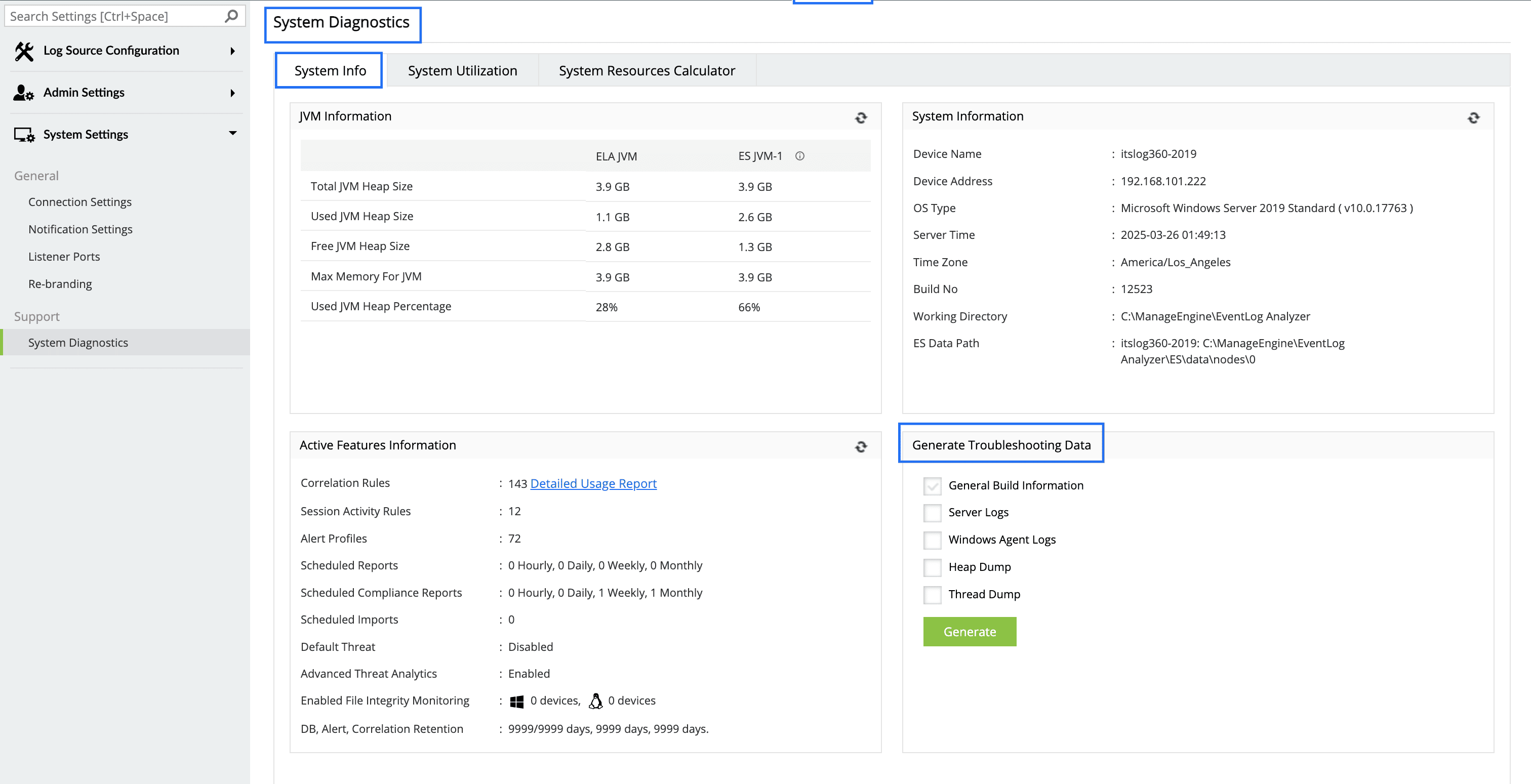
- Under the Generate Troubleshooting Data window, you will see the following log upload options:
- General Build Information (Selected by default)- Provides general information about the server and product configuration.
- Server Logs- Compiles logs of the EventLog Analyzer instance, including Elasticsearch logs.
- Windows Agent Logs- Collects logs from Windows agents managed by this server. Requires access to the agent installed machine and credentials to collect the agent logs automatically.
Note: Logs from manually installed agents must be collected manually.
How to collect agent logs manually?
- Log in to the agent-installed machine.
- Navigate to the installation folder of the agent (e.g., C:\Program Files (x86)\EventLogAnalyzer_Agent).
- Locate the logs folder and compress it.
- Upload the compressed logs to https://bonitas.zohocorp.com/.
- Heap Dump & Thread Dump- Logs are collected by the support team upon request when the server encounters performance issues.
Note The generated logs will be present under: ManageEngine\EventLog Analyzer\server\support folder in ZIP format.
Steps to upload logs: Auto and Manual SIF creation
After selecting the required logs and clicking 'Generate', you can create a SIF file using either the Auto or Manual upload option.
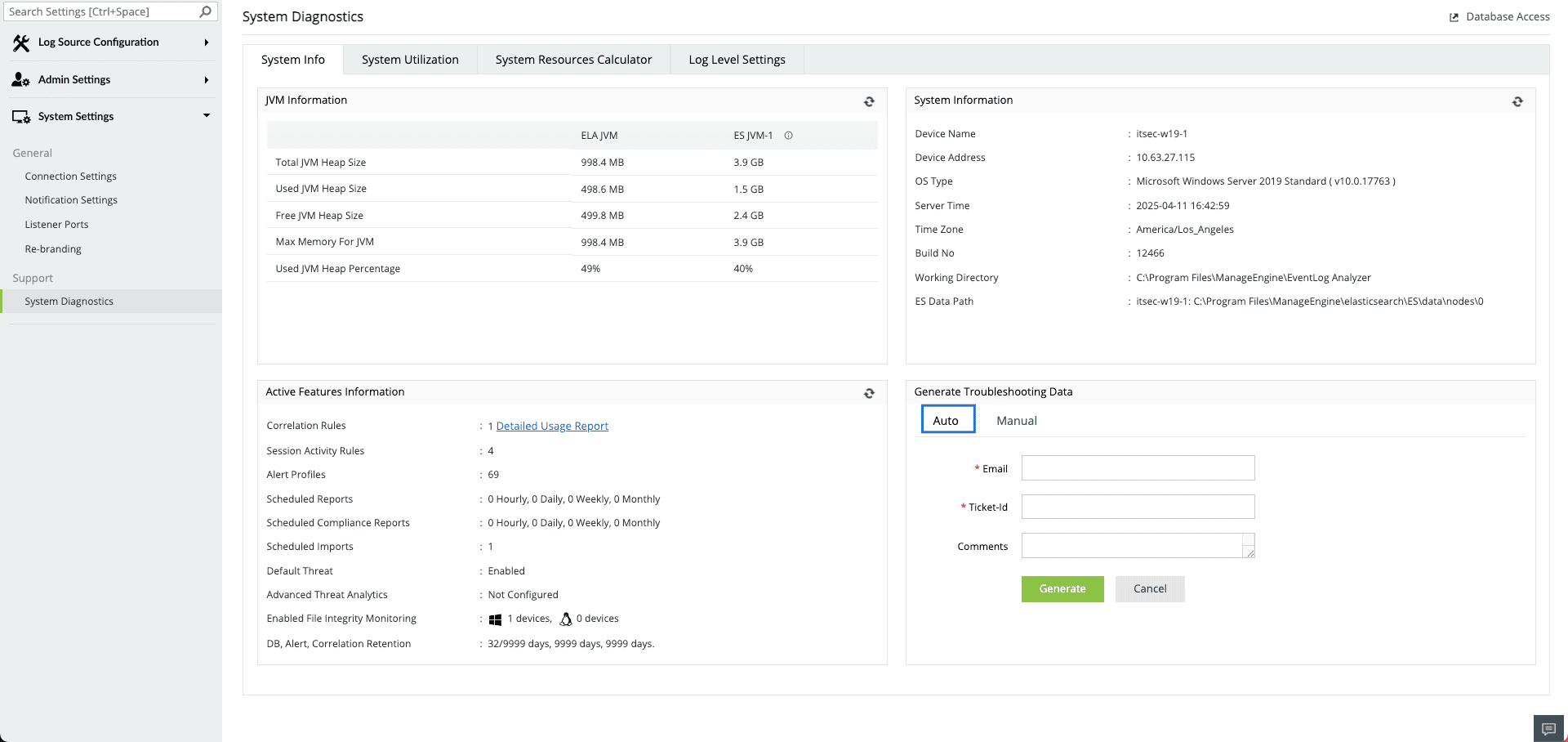
Automated upload process:
- Utilize the Auto option to compress and upload logs directly to the support team.
- Provide the necessary details, such as your email ID and ticket ID (can be left blank if unavailable).
- Upon uploading, an acknowledgment mail will be sent.
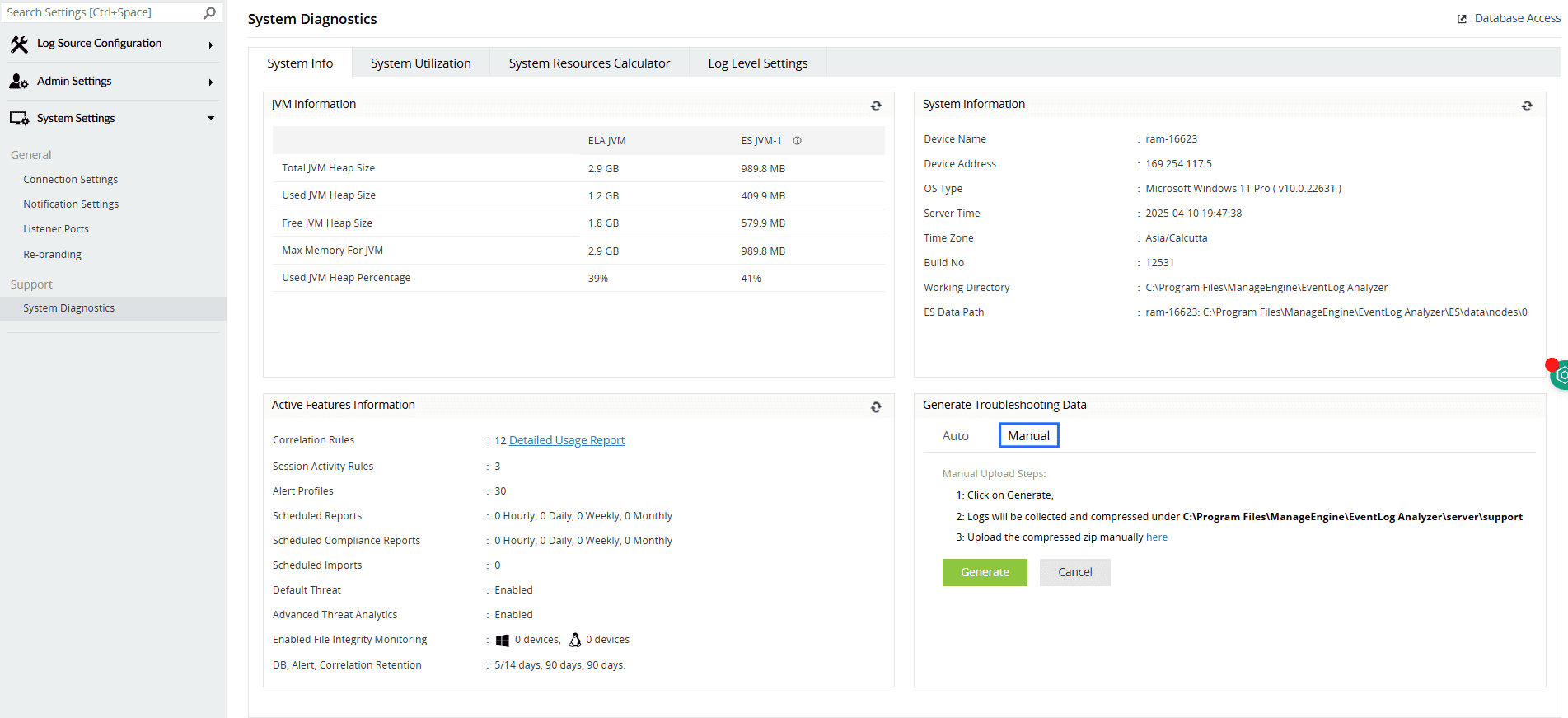
Manual upload process:
- Click on Generate.
- Logs will be collected and compressed under C:\Program Files\ManageEngine\EventLog Analyzer\server\support.
- Upload the compressed ZIP manually on the bonitas website.
Procedure to create a SIF when the EventLog Analyzer server or web client is not working
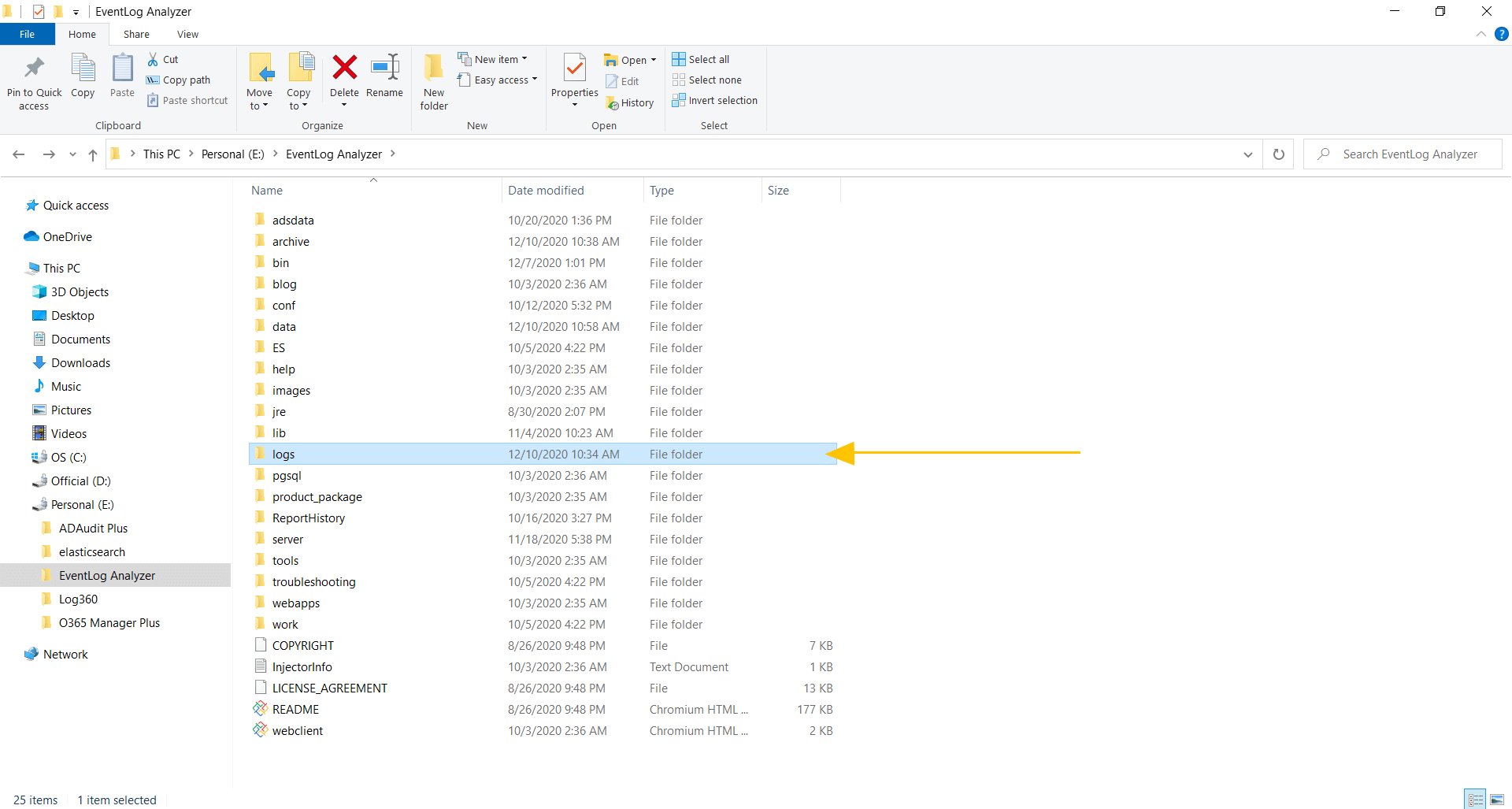
If you are unable to create a SIF from the EventLog Analyzer GUI, you can zip the files under 'logs' folder, which is located in <EventLog Analyzer Home>/logs (default path) and upload the ZIP file using the following link: https://bonitas2.zohocorp.com/#to=eventlog-support@manageengine.com