
Object filtering for Active Directory for rule fine tuning
Last updated on:
In this page
Overview
The object-filter based rule fine-tuning for Active Directory enables you to optimize the detection rules by applying it specifically to certain AD objects to reduce false positives, alert fatigue and improve the rule accuracy. Using this intuitive object-filtering interface, the solution lets you to you can define users, groups or OU (Organizational Units), interactive through GUI (Graphical User Interface). This ensures monitoring adapts automatically to directory changes, simplifies rule deployment, and improves alert relevance.
With re-engineered detection, object filters reduce alert fatigue for SOC teams by helping them fine-tune detections to specific users, groups, or OUs, reducing false positives and ensuring alerts stay actionable.
NOTE Currently, the object filter capability is available only for pre-defined Active Directory rules.
Feature scope
The Object FIlter feature is accessible from the below modules:
Object selection and filtering
Object selection methods
1. Direct object selection
- You can select objects directly using Active DirectorySync data.
- The selection remains static for the chosen objects unless modified again.
2. Group or OU (Organizational Unit) based object selection
- Instead of selecting objects directly, you can assign specific OUs or groups.
- Membership objects within the OU or group are dynamically assigned based on the Active Directory sync data.
3. Manual values
- You can define manual values apart from value selection in the domain.
- The entered object name in manual values will be matched against criteria across all domains
Field specific object filters
| Field | Available object filter options |
|---|---|
| User | User, Group based user, OU based user |
| Computer |
|
| Group | Group, OU based group |
| OU | OU |
Active Directory object filter behaviors
1. Domain object sync in the filter
Object syncing behavior varies based on the selected tabs in the object filter:
- Direct object selection
- Sync is performed only for the selected object type.
- OU-based object selection
- Sync includes both the OU and the associated object types within it.
- For example, if it is OU-based user selection, both the OU and the user objects are synced accordingly.
- Group-based object selection
- Membership sync is required to resolve group memberships accurately.
- As per the framework design, this involves syncing User, Computer, OU and Group objects as mandatory components to complete the membership resolution process.
2. Domain selection in the Filter
Domain behavior in the object filter depends on the feature usage context:
- In Alert Profiles
- Domains listed in the object filter are based on the selected domains in the alert profile.
- In Rules
- All available domains are listed in the object filter.
Selection behaviors
- Empty checkbox
- If no objects are selected for a domain, No objects selected will be displayed with an empty checkbox.
- Partial selection
- If some objects are selected, the domain checkbox appears partially selected.
- The object count is displayed, and only those selected objects are used for object matching.
- Full selection
- If the checkbox is fully selected, it indicates that all objects from the domain are included for matching.
- All Users (or the applicable object type) is displayed.
- No domain configured
- If no domains are configured, Add Domain Manually will be displayed.
Prerequisites
License coverage details
- Direct object selection & manual values are accessible to those with Free and Basic plans.
- Group-based object selection and OU-based selection is accessible to those with a Standard plan subscription or higher tiers.
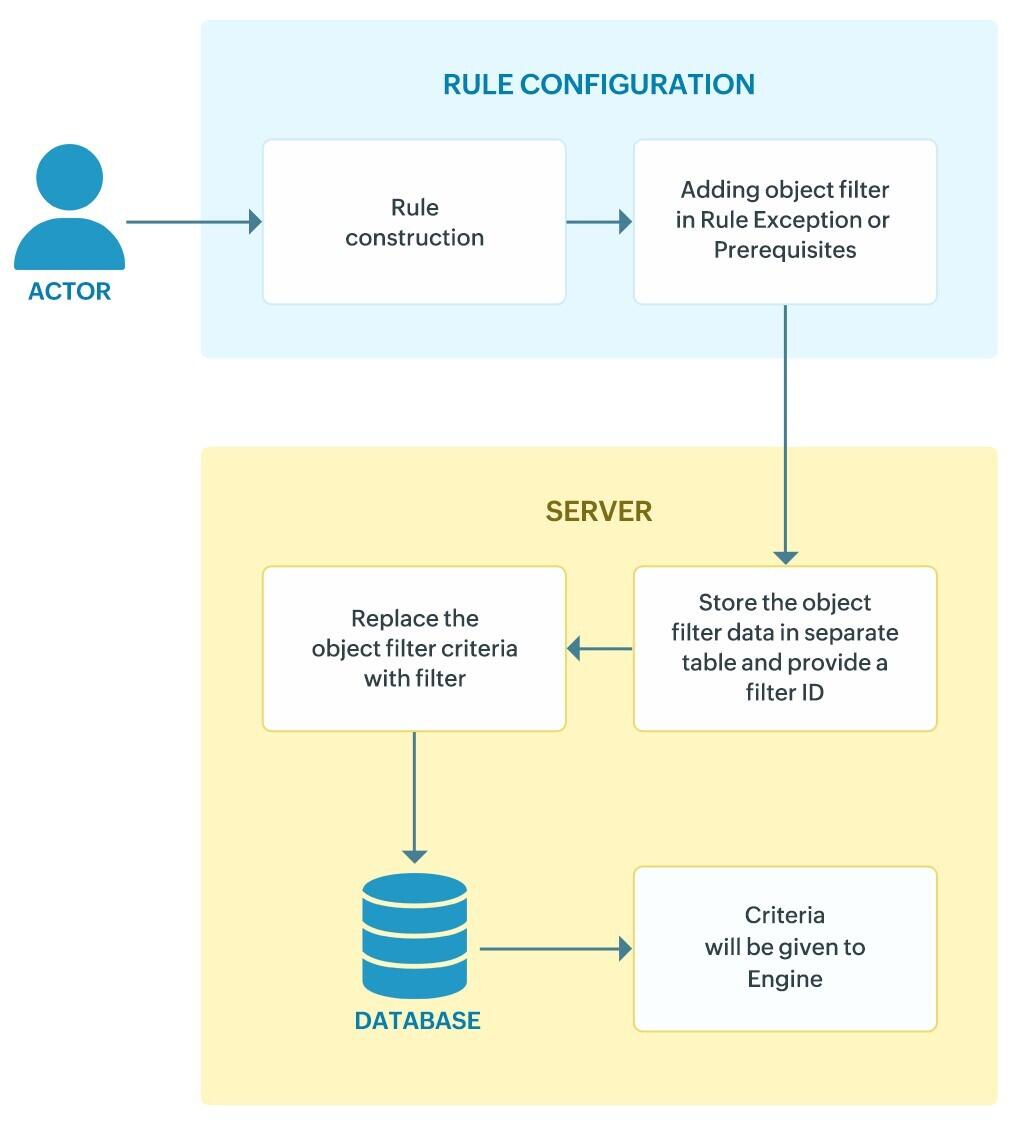
Workflow architecture
The following diagram illustrates the workflow of how the Object Filter operates. For clarity, the instance highlights its implementation within the Rule Management module.
Use cases
1. Automated alert customization with group & OU-based filters
Use case
Security teams and other key operational divisions often struggle with high alert noise because rules apply broadly across all users and devices, generating unnecessary signals from non-critical accounts.
With object filtering
Analysts can assign rules to specific OUs or security groups, ensuring only critical accounts and systems are monitored. Membership updates are synced dynamically via Active Directory, eliminating the need for manual rule edits. This allows the various operational teams to maintain focus on sensitive entities while cutting down false positives from routine operations.
2. Streamlined rule deployment across business units
Use case
Global organizations with distributed Active Directory environments face challenges when deploying uniform rules since objects vary across regions and business units.
With object filtering
Rules can be installed with OU-based user grouping, automatically pulling the correct set of objects per region. This enables region-specific monitoring without separate configurations, reduces administrative overhead, and ensures each division has accurate, localized detection coverage.
3. Exception handling for authorized administrative actions
Use case
Routine IT maintenance tasks (e.g., patching, group policy updates) frequently overlap with suspicious behavior patterns and trigger unnecessary alerts.
With object filtering
The Exceptions section lets teams exclude trusted accounts, devices, or OUs from rule conditions. By suppressing benign activity, SOCs can prioritize high-fidelity alerts without compromising visibility into sensitive changes elsewhere.
Limitations
- General
- Object filter is available only for the Equals and NotEquals operators.
- Object filter works on the latest synced domain data. If changes occur in Active Directory but are not yet synced, the filter processes data based on the last synced state.
- Alerts and rules
- Object Selection: Maximum of 25 objects per domain for a field
Read also
This document explained how the Active Directory-based object filtering works, including selection methods, behaviors, prerequisites, and common use cases. You also learned how it helps cut alert noise, streamline deployments, and handle exceptions effectively.