
Threat Whitelisting
Last updated on:
In this page
Threat whitelisting helps you to specify an index of approved IPs, URLs, and Domains.
How to whitelist a new source?
- Navigate to Settings > Admin Settings > Threat Feeds > Whitelisted Sources.
- Click the Whitelist Source option. (top right corner of Threat Feeds page).
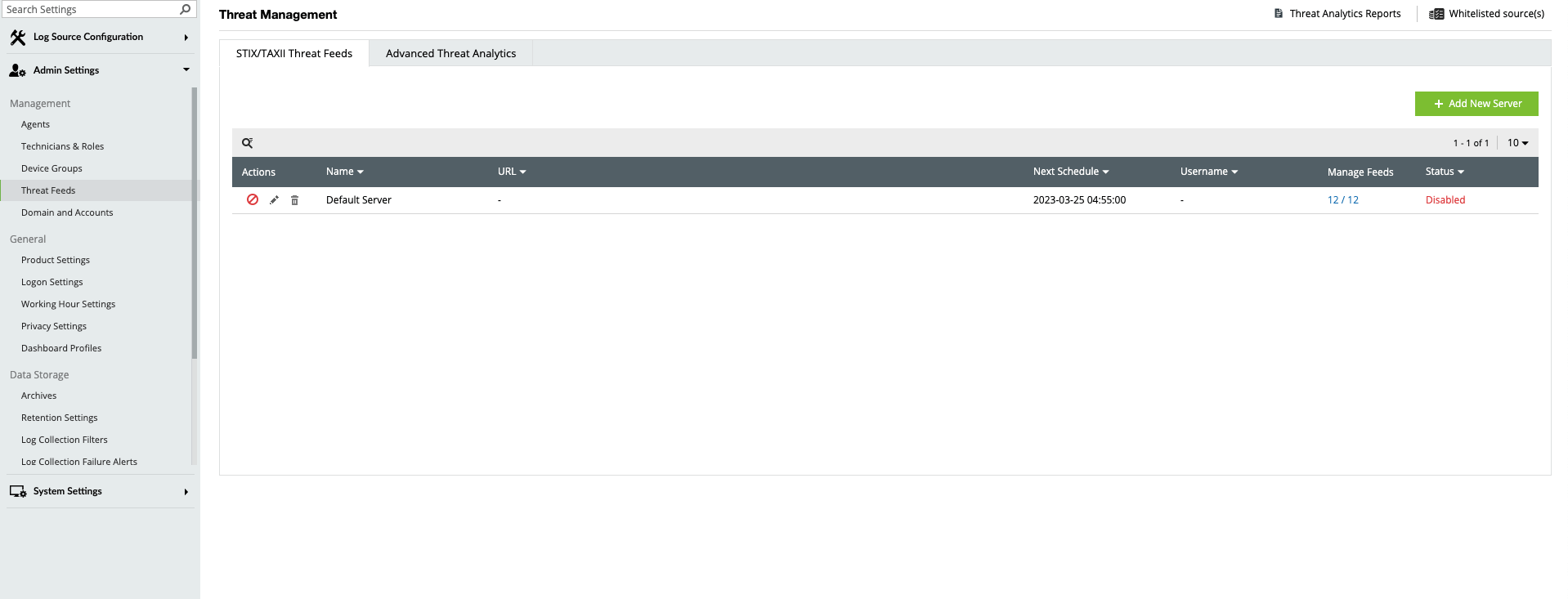
- Select the source type from the drop-down list.
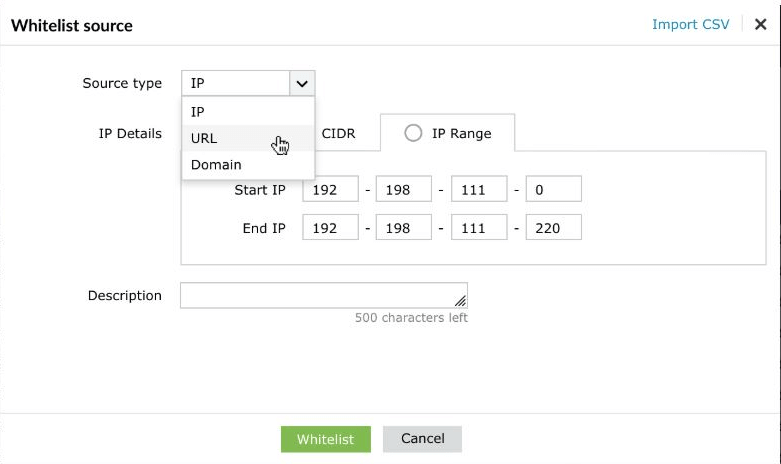
IP Details
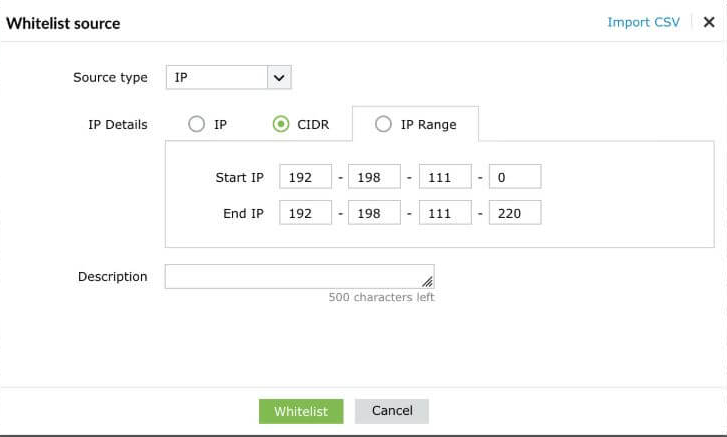
The value(s) entered should either be an IP address, CIDR, or an IP Range.
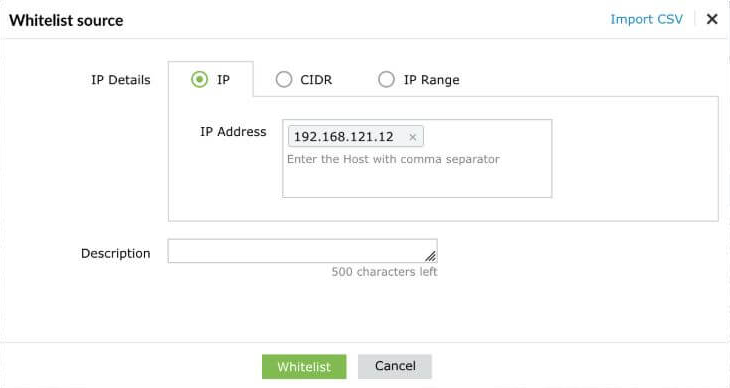
- The CIDR value can be entered using the '/' symbol. For instance, 192-198-111-0/220.
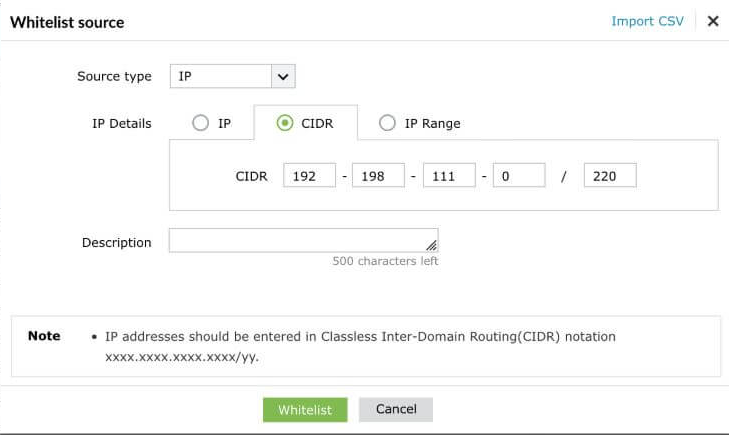
- IP Range can be entered by mentioning the Start and End IPs. For instance, 192-198-111-0 should be the Start IP and 192-198-111-220 should be the End IP, if you want the IPs in-between the range to be whitelisted.
URL
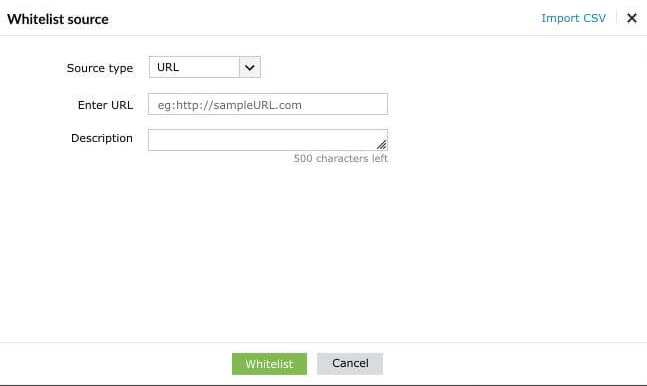
The URL can be whitelisted by mentioning the address in the text box. For instance, http://sampleURL.com
Domain
- A domain can be whitelisted by mentioning the domain address. For instance, 'mydomain'.
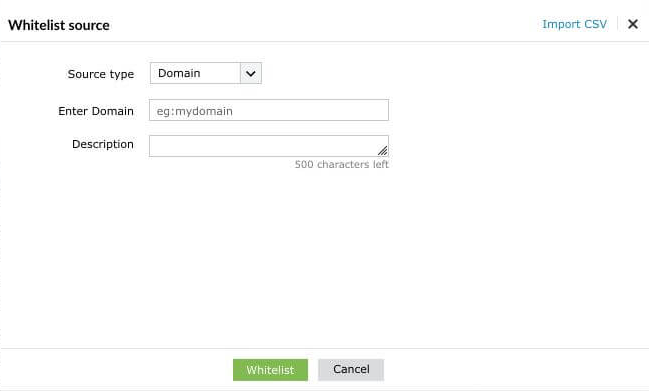
- Enter an appropriate value in the Description field. (Optional)
Import CSV
- To import an existing CSV file containing the source(s) to be whitelisted, click the Import CSV option on the top-right corner of the pop-up window.
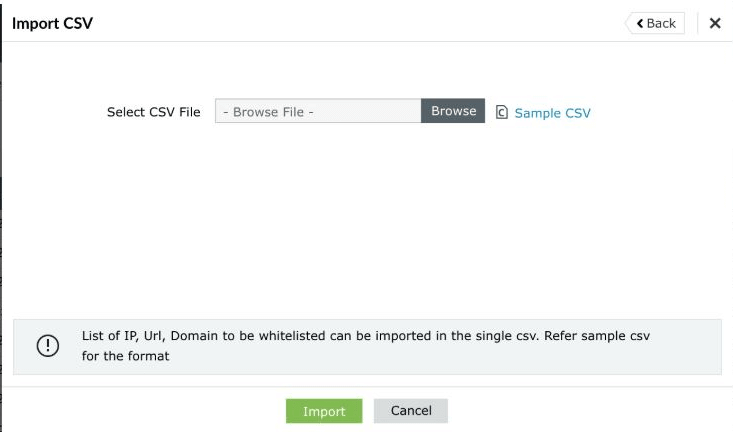
- Refer the sample CSV for the file format.
Note Only CSV files are supported.
- The imported source(s) will be displayed in the list.
- To delete an existing source, click the bin icon displayed near the respective source(s) under Actions. Click the Yes button in the confirmation box that appears.
Threat Alerting
Threat Whitelisting has been integrated with Advanced Threat Analytics with the aim of reducing false positive alerts.
- Navigate to Alerts > Threat Alerts.
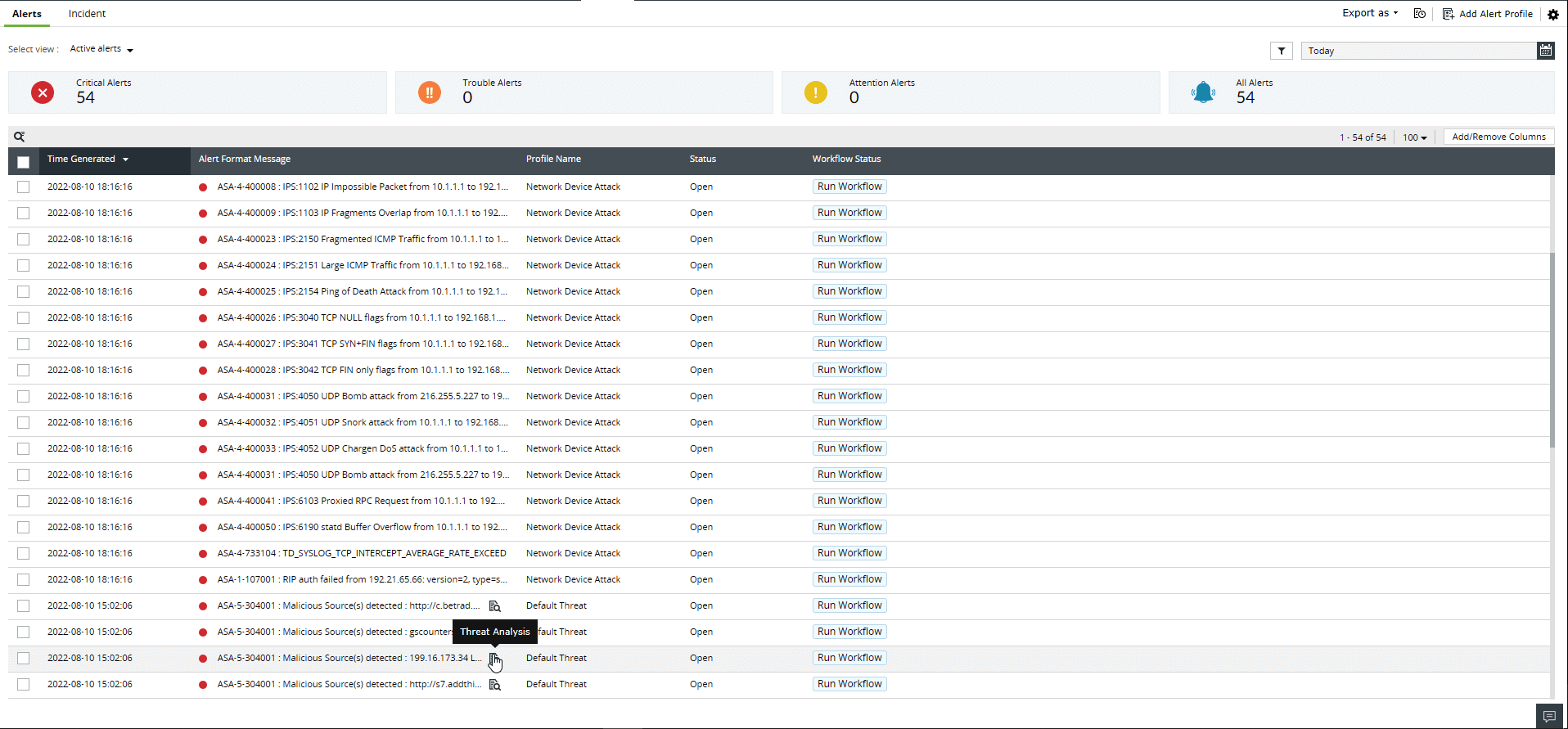
- To whitelist a particular source, select the desired source from the list (using checkbox) and click on the ellipsis (three dots stacked vertically) and select the Whitelist Source option.
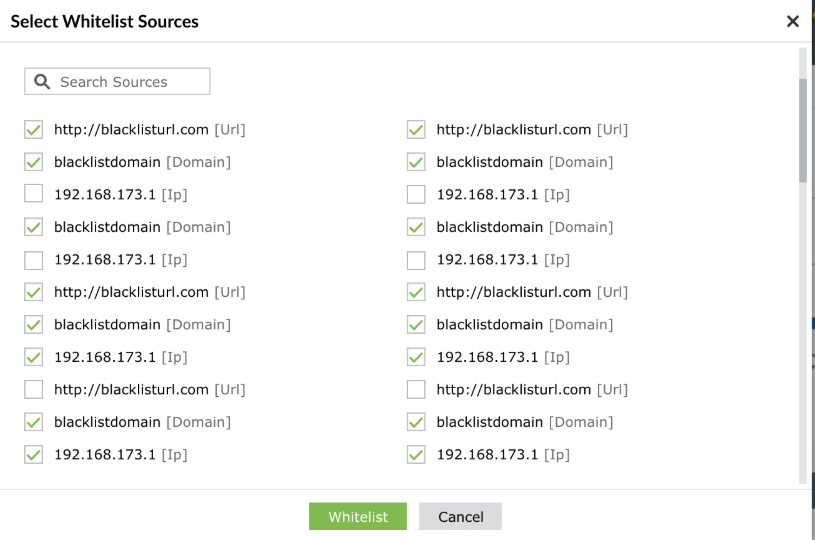
- Click the Whitelist button. Click the Yes button in the confirmation box that appears.
Note The whitelisted sources will be excluded from threat alerts and external threat reports.