
Setting up Zia Insights
Last updated on:
In this page
Overview
Zia Insights provides AI-powered actionable insights on incidents, alerts and logs using the Bring Your Own Key (BYOK) model, supporting integration with Azure OpenAI and OpenAI services. Only one provider can be active at a time, and all AI-driven features will use the currently enabled model.
This page explains the configurations required to enable Zia Insights, including setting up your chosen AI provider, retrieving the required credentials, and integrating the service with the product console.
Pre-requisites
Before beginning the setup, ensure the following:
- Zia Insights capability is only available for the Professional and MSSP plan subscription users.
- You must have an active Azure subscription with access to the Azure OpenAI service.
- The following credentials are required from your Azure portal:
- Endpoint URL
- API key
- Deployed model name
- The following credentials are required from OpenAI:
- Model
- API key
Accessing Zia Insights
- Log in to the product console.
- Go to the Settings tab.
- Navigate to Admin Settings. Under Zia, select Configuration.
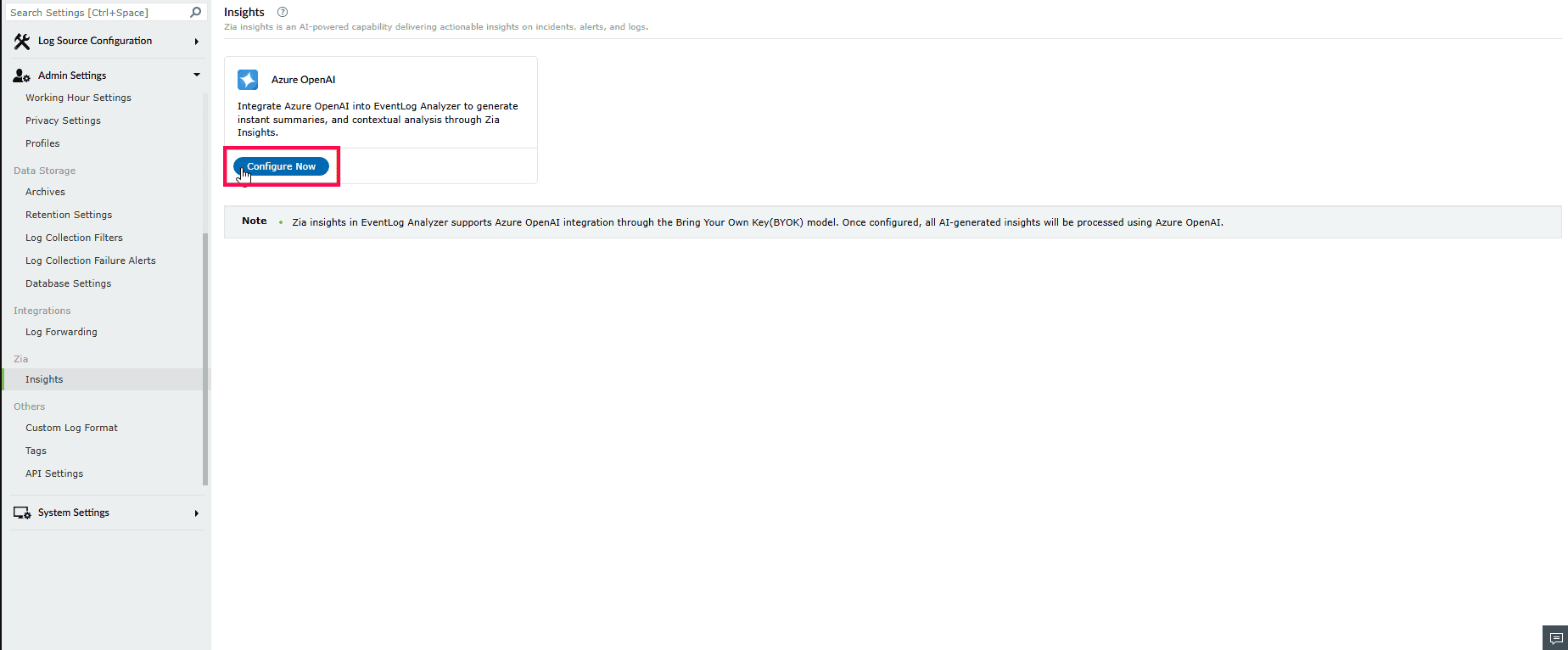
Figure 1: Navigating to Zia Configuration - In the Zia page, choose either Azure OpenAI or OpenAI and click Configure Now.
NOTE Only one provider can be enabled at a time.
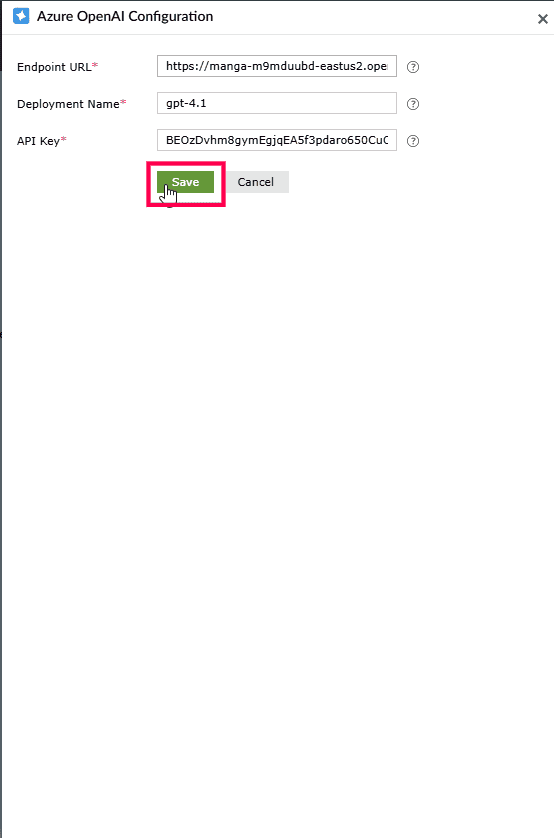
Figure 2: Configuring AI service - A configuration window appears.
- If you select Azure OpenAI, enter the following details obtained from your Azure Portal:
- Endpoint URL
- Deployment Name
- API Key
NOTE Refer to the following pages to configure Azure OpenAI: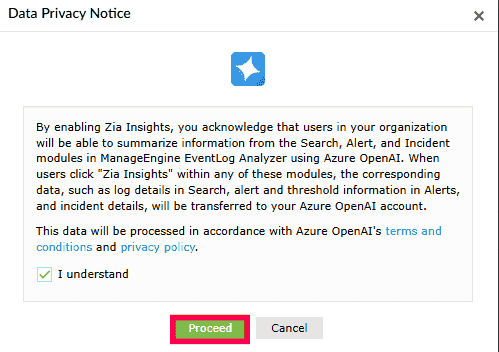
Figure 3: Configuring Azure OpenAI - Click Save to complete the initial setup.
- If you select OpenAI, select the Model from the dropdown.
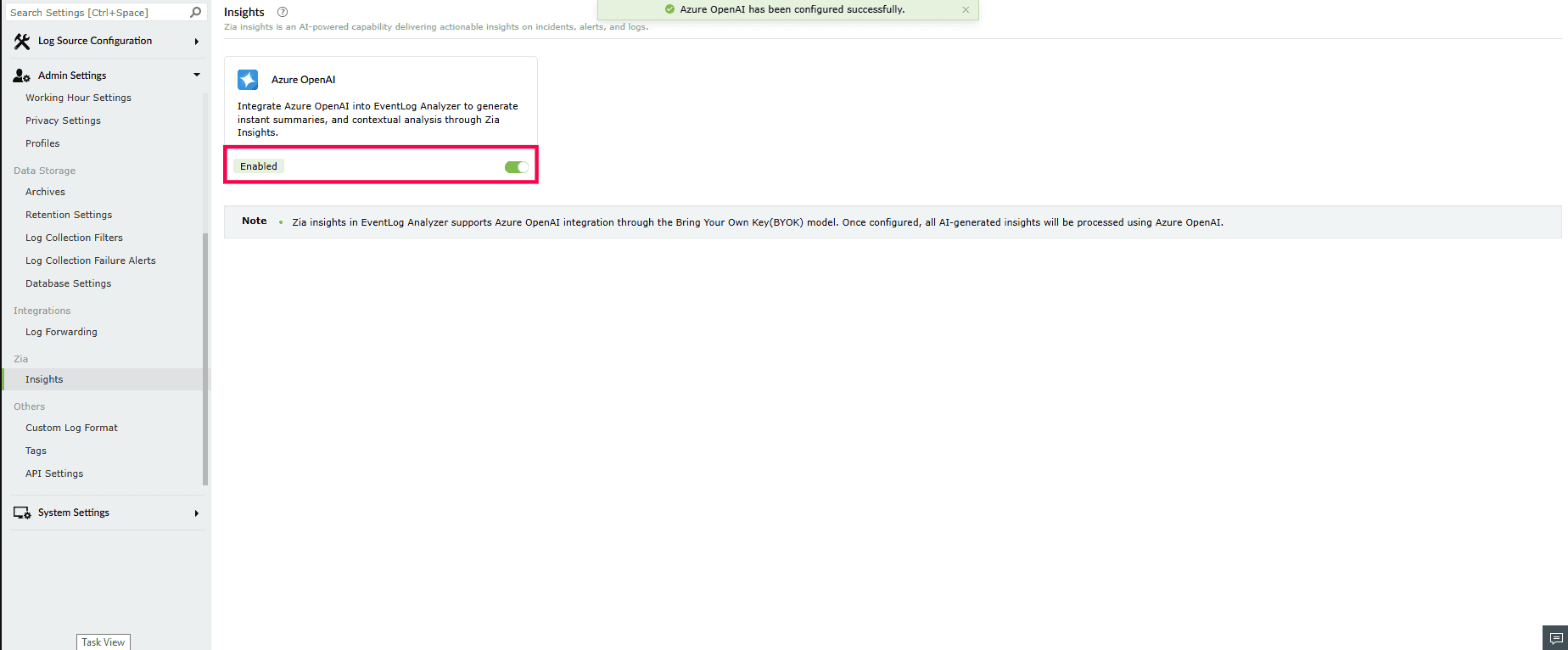
Figure 4: Selecting a model - Enter the API Key.
NOTE Refer to this section to configure OpenAI.
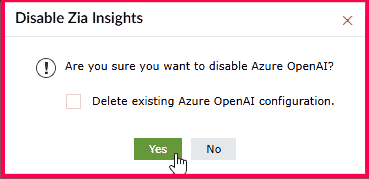
Figure 5: Entering API key - Click Save to complete the initial setup.
- After configuring Azure OpenAI or OpenAI:
- Use the Insights toggle to enable or disable Zia Insights.
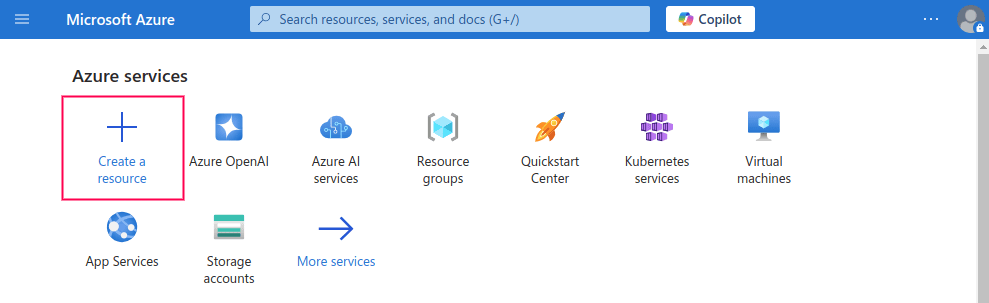
Figure 6: Enabling Zia Insights - When you enable Zia Insights, a pop-up window appears displaying the data privacy notice. Read the notice carefully, select the checkbox to acknowledge the terms, and then click Proceed to continue.
NOTE To generate AI-powered insights, the processes contextual data associated with logs, alerts, and entities. This includes the following types of information:
- User-related information: usernames, account names, email, phone number, department, group names, mailgroups, mailbox names, company names, user information, and security ID (SID).
- Device and directory information: hostnames, computer names, domain, distinguished path of AD object, and AD object names.
- Network and location information: IP address, region, and country.
- Request and URL information: URL links, HTTP requests, and HTTP request parameters.
- Application and database information: database name.
This data is processed only to support contextual analysis, correlation, and remediation guidance within the product.
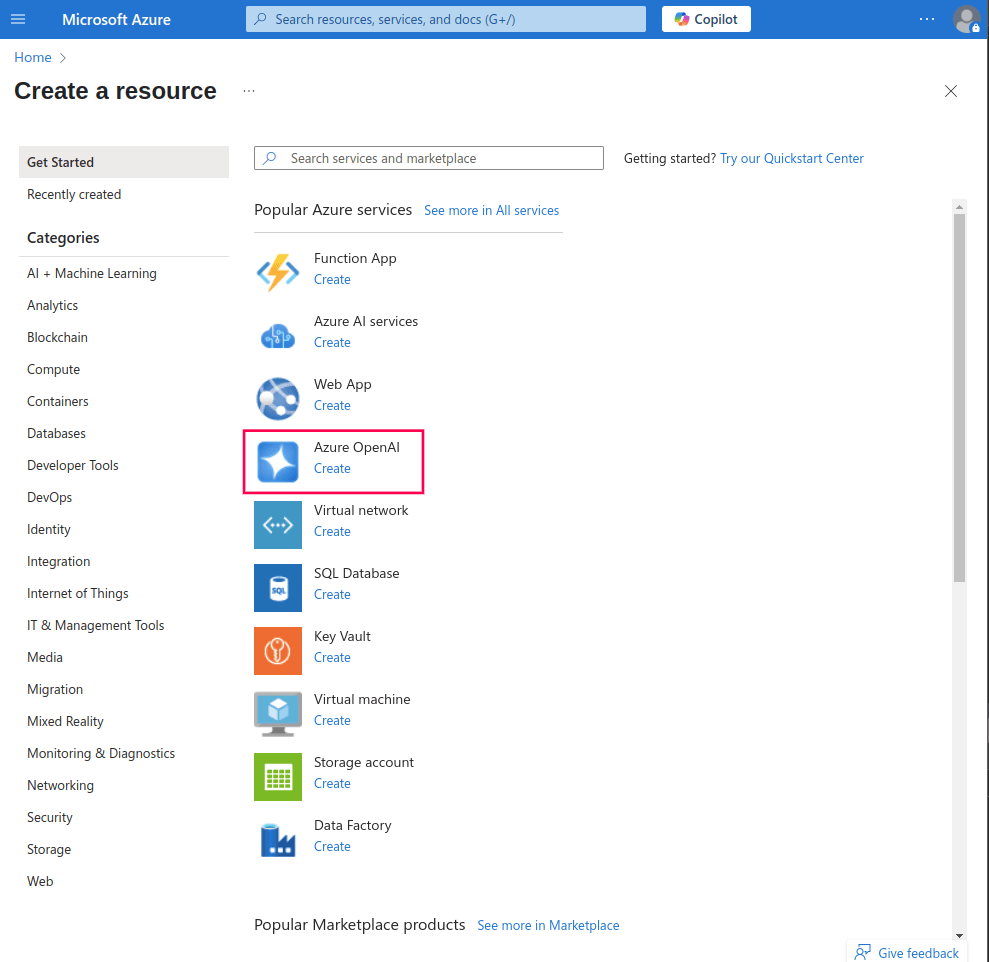
Figure 7: Data privacy note for Azure OpenAI 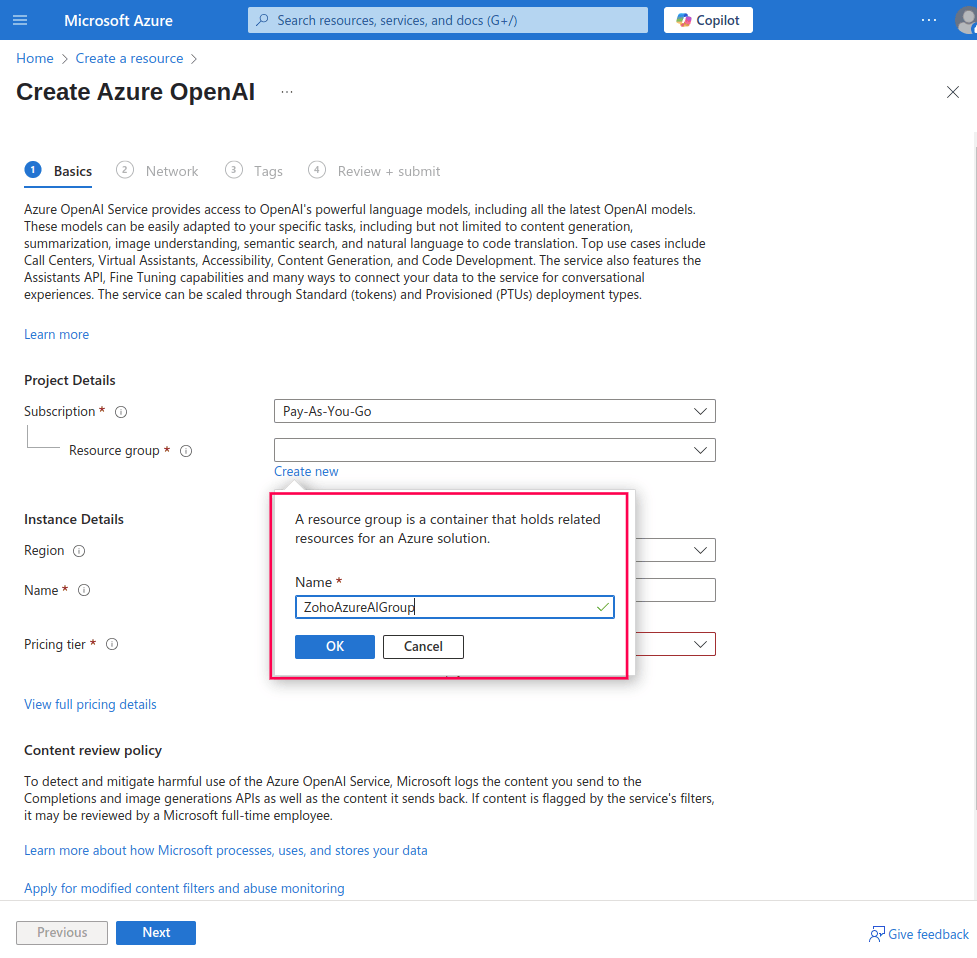
Figure 8: Data privacy note for OpenAI - To switch between Azure OpenAI and OpenAI, use the toggle to disable the currently active provider.
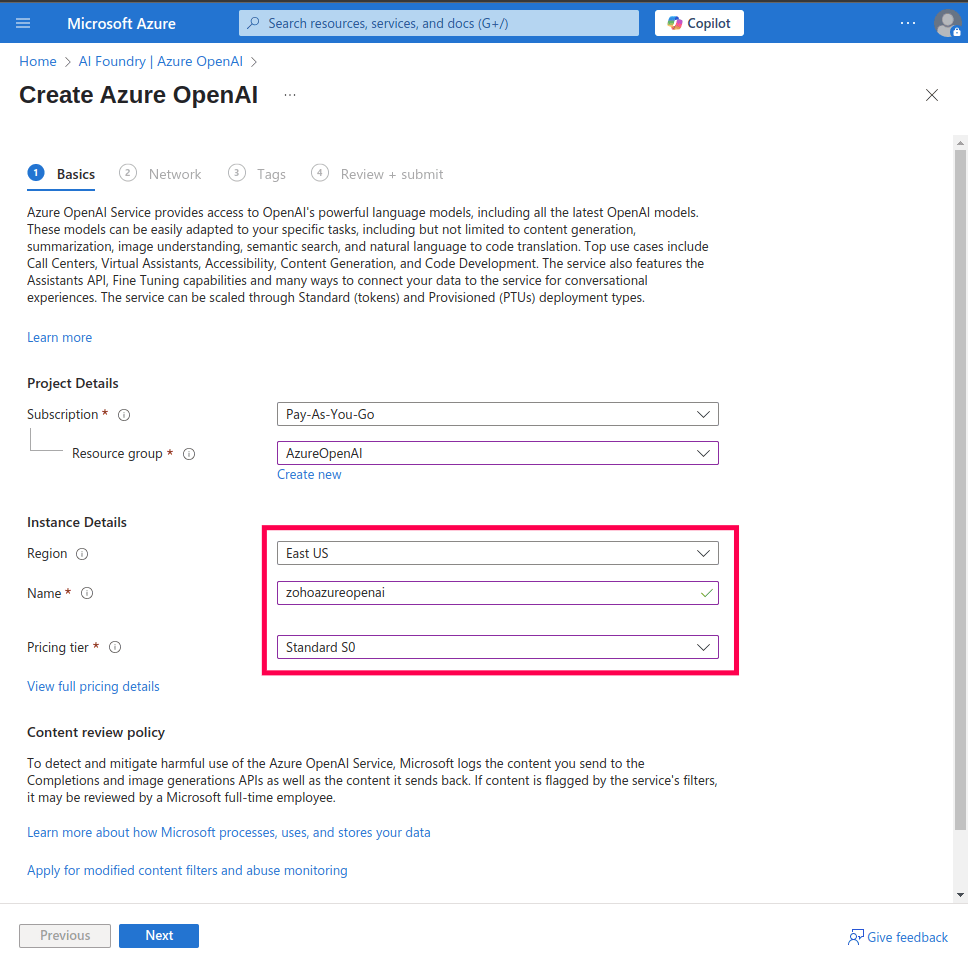
Figure 9: Disabling an AI service - A confirmation pop-up will appear. Click Yes to disable, and then configure the other provider.
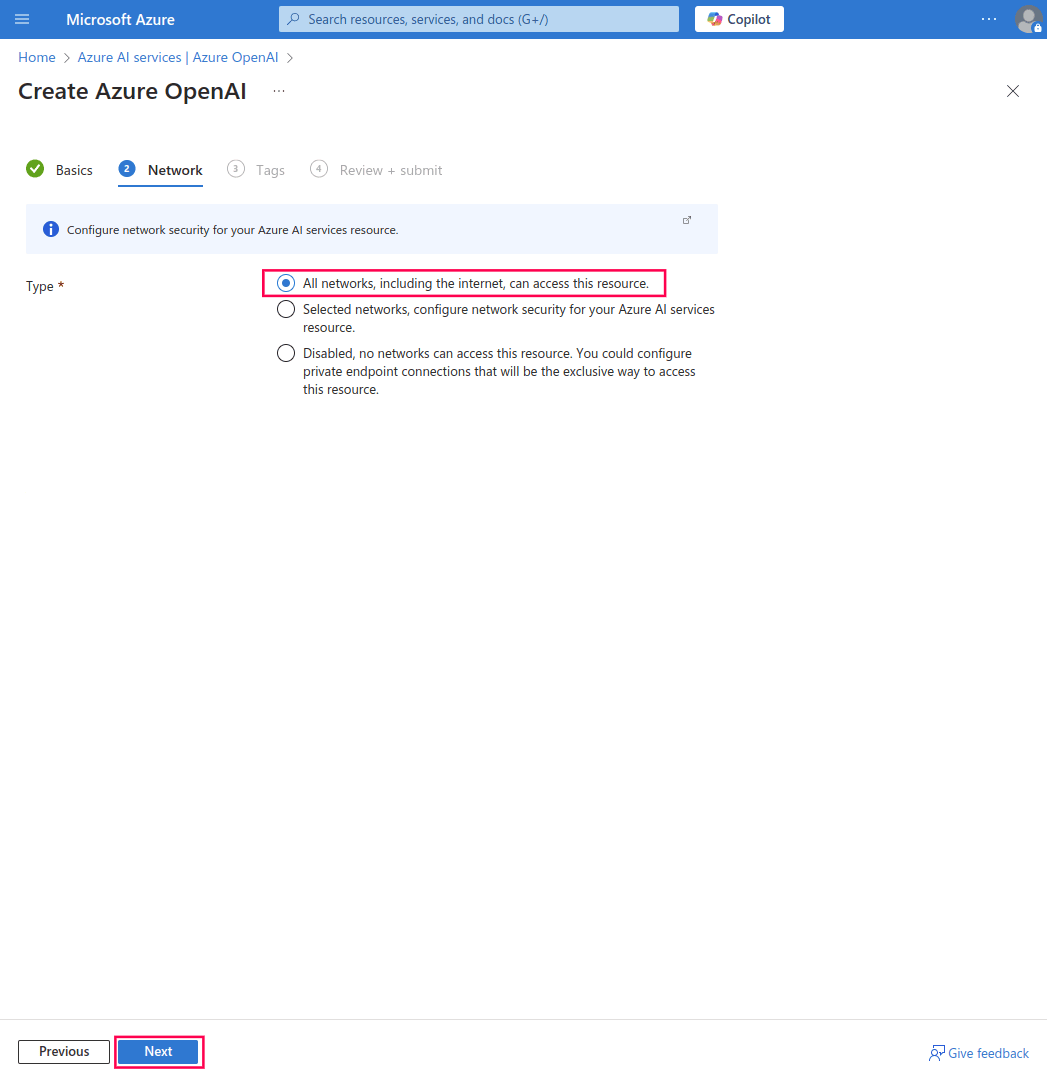
Figure 10: Disabling an AI service - To delete a configuration, select Delete existing Azure/OpenAI configuration and click Yes to confirm your deletion.
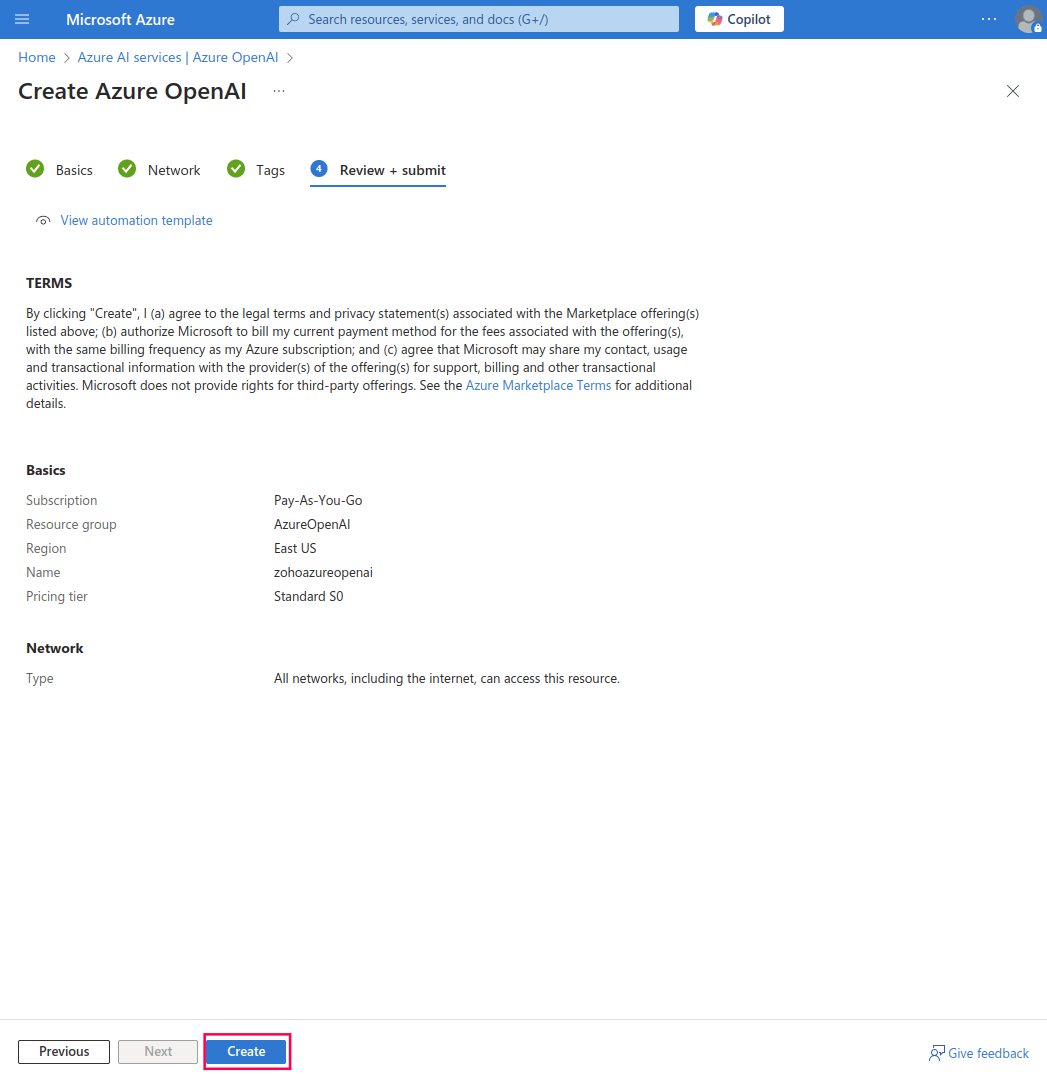
Figure 11: Deleting an AI service NOTE If you attempt to configure another provider while one is already enabled, the existing provider will be disabled automatically.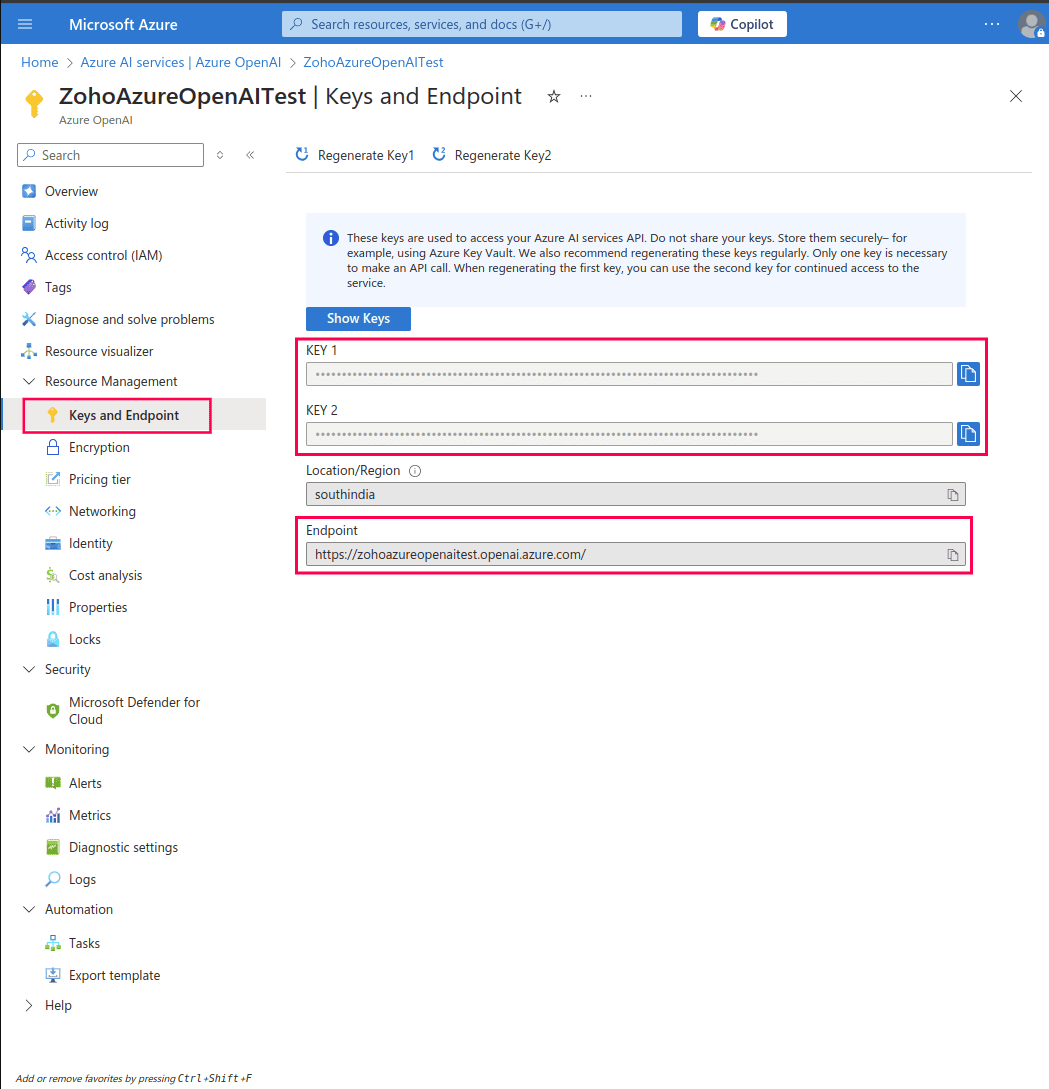
Figure 12: Configuring an AI service In the confirmation pop-up that appears, click Proceed to continue with the new configuration.

Figure 13: Configuring a new service
Creating an Azure OpenAI resource
If you do not already have an Azure OpenAI resource, follow these steps:
NOTE If you already have an Azure OpenAI resource, refer to this to obtain the API key and Endpoint URL.
- Log in to Azure portal and click Create a resource.
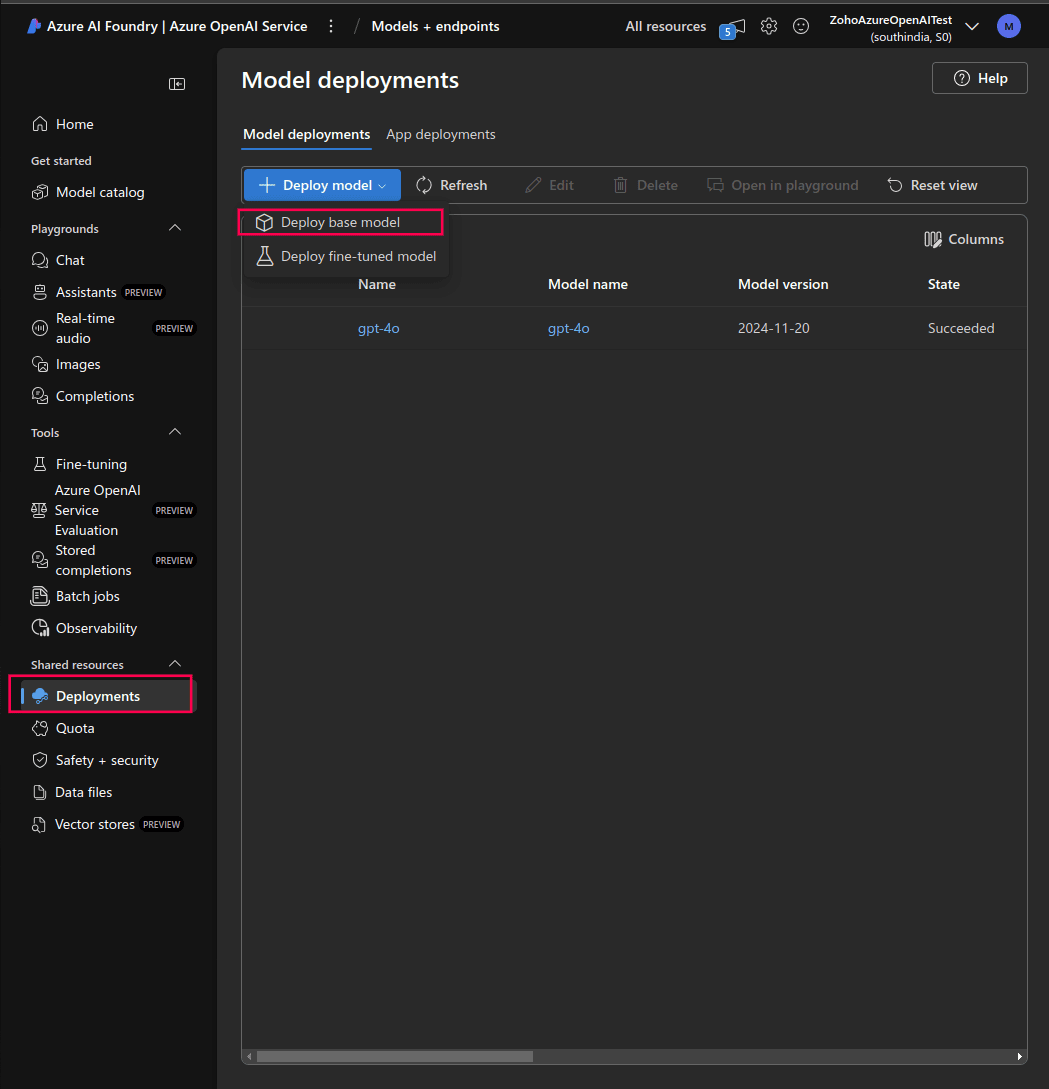
Figure 14: Creating a resource in Microsoft Azure Note If you open the Azure AI Foundry portal directly, the portal may load a different resource by default. In that case, you must manually switch to the Azure OpenAI resource you created before proceeding. To switch resources:- In the top-right corner of the Azure AI Foundry portal, click the resource selector, which displays the currently loaded resource name and region.
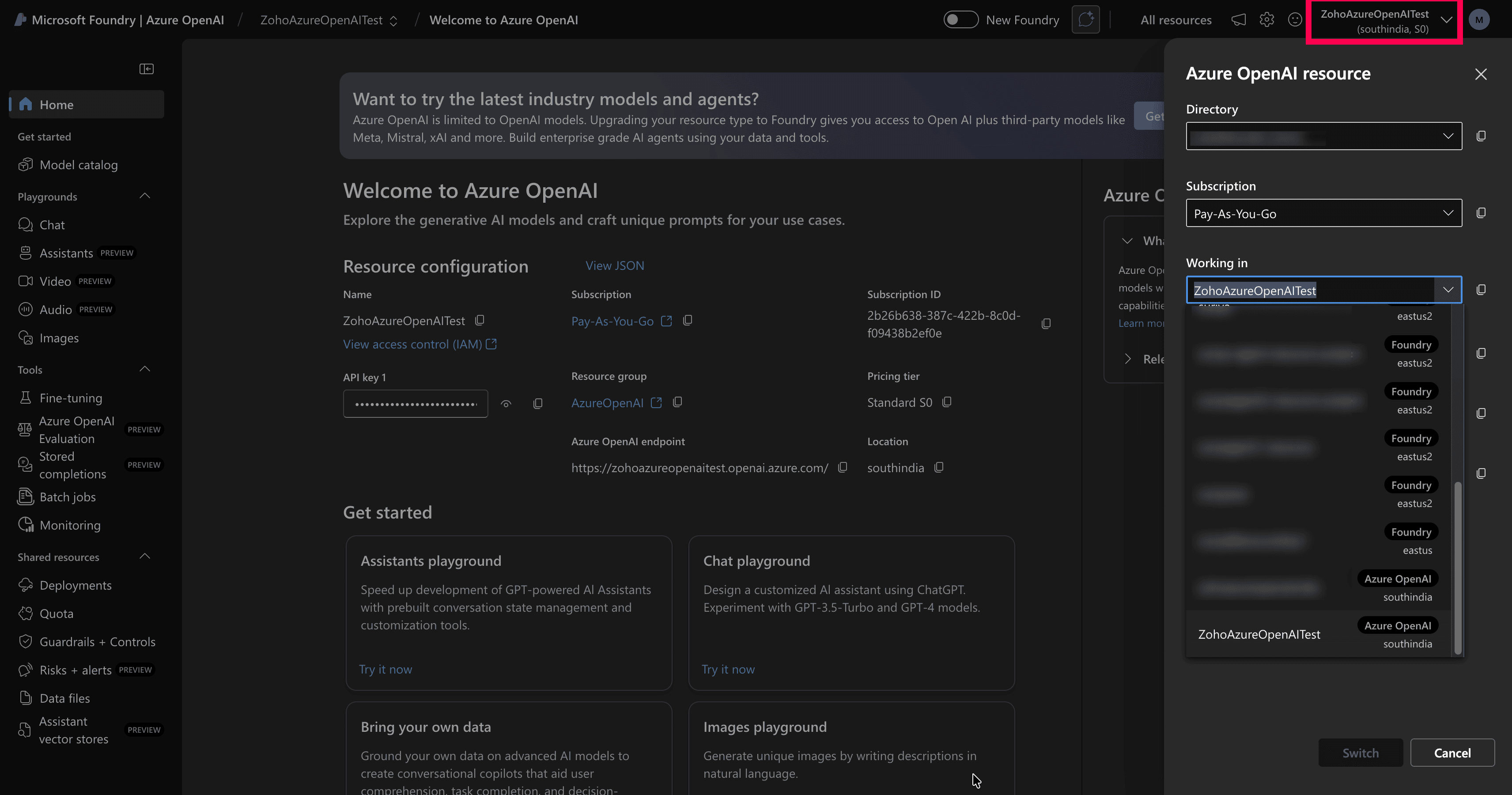
Figure 15: Locating the resource selector - In the Azure OpenAI resource pane, select the correct Directory and Subscription.
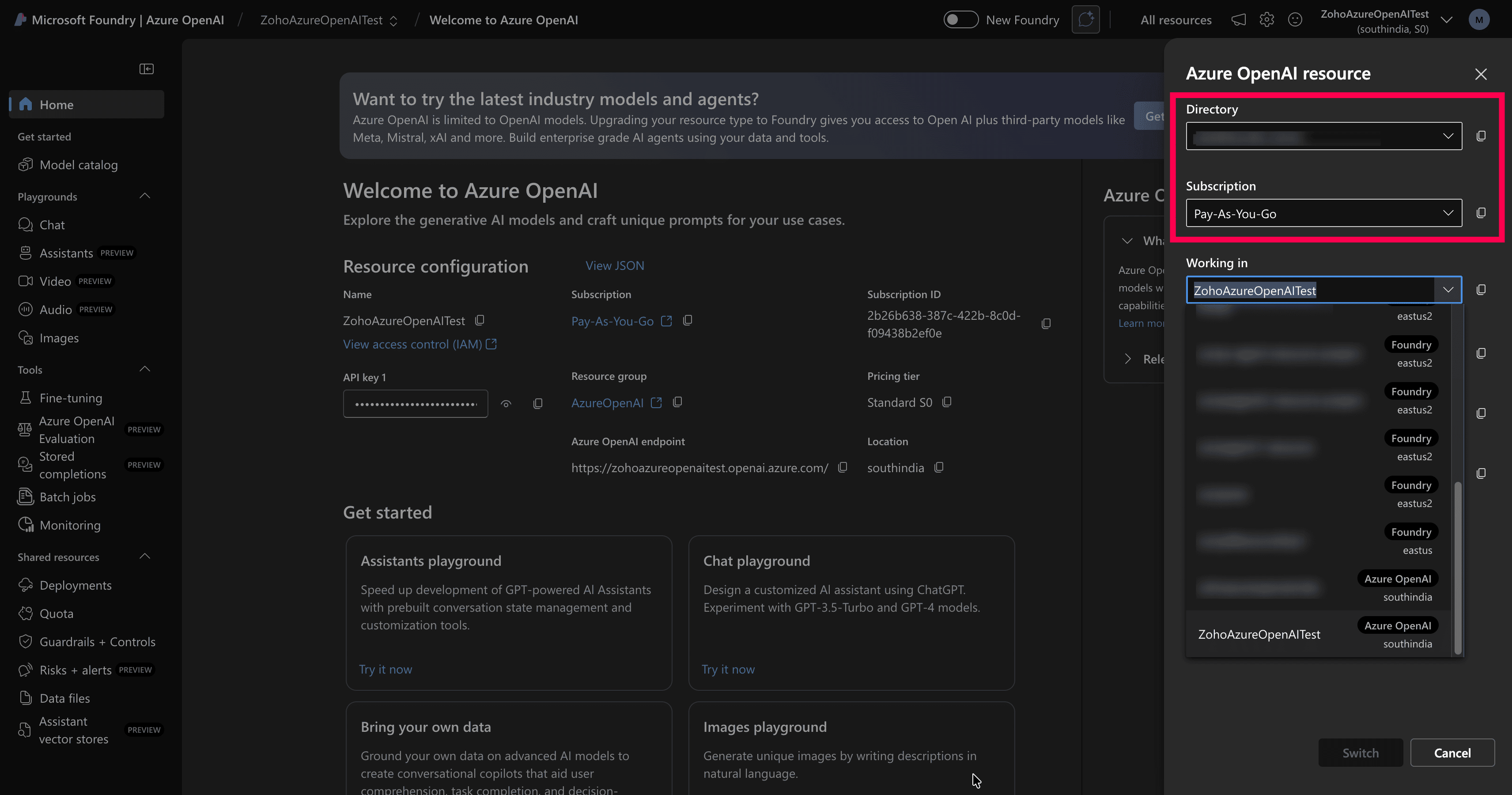
Figure 16: Selecting directory and subscription - Under Working in, choose the Azure OpenAI resource you created.
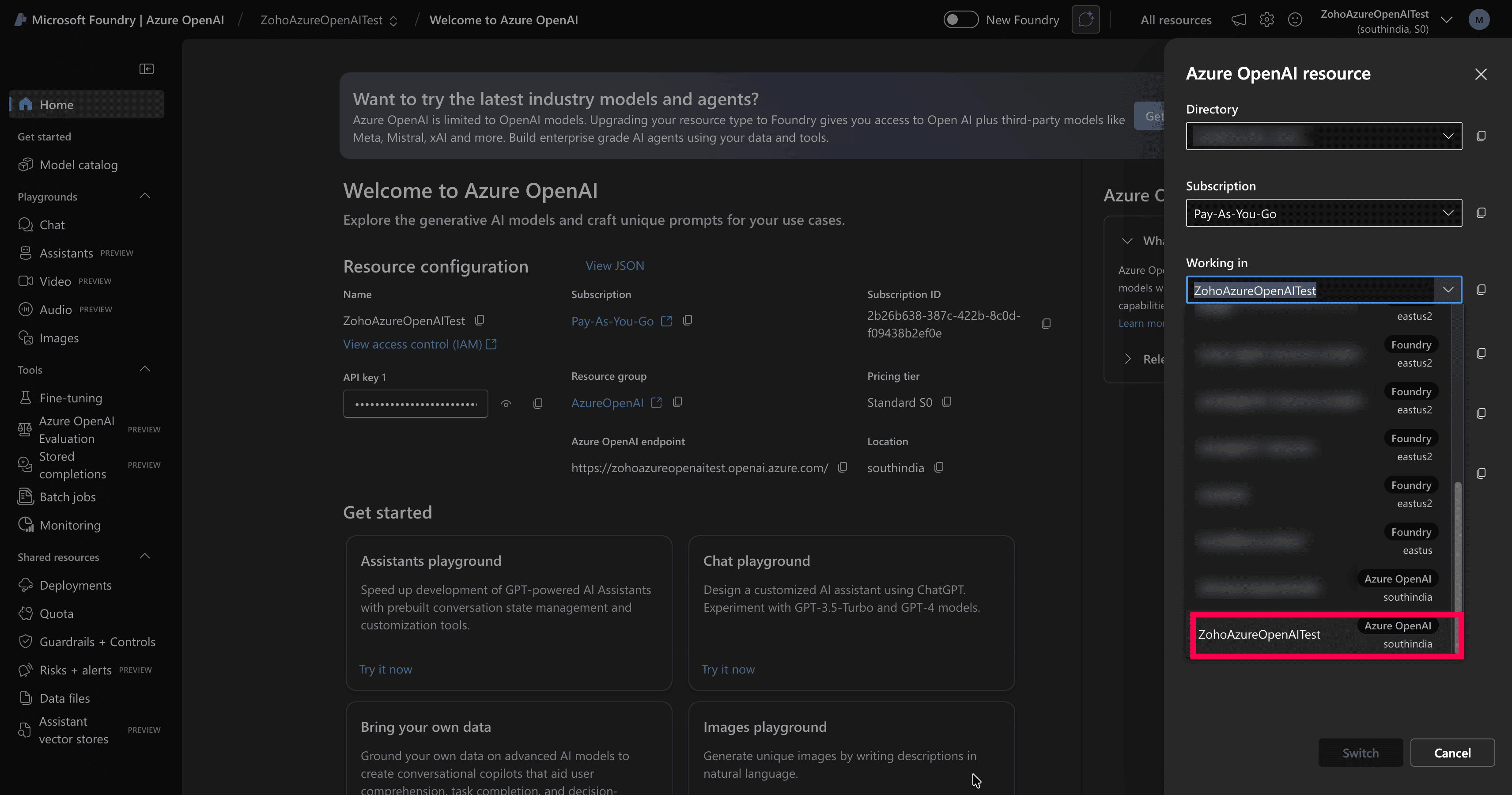
Figure 17: Selecting the Azure OpenAI resource - Click Switch to load the selected resource.
- In the top-right corner of the Azure AI Foundry portal, click the resource selector, which displays the currently loaded resource name and region.
- Select Azure OpenAI as the resource type.
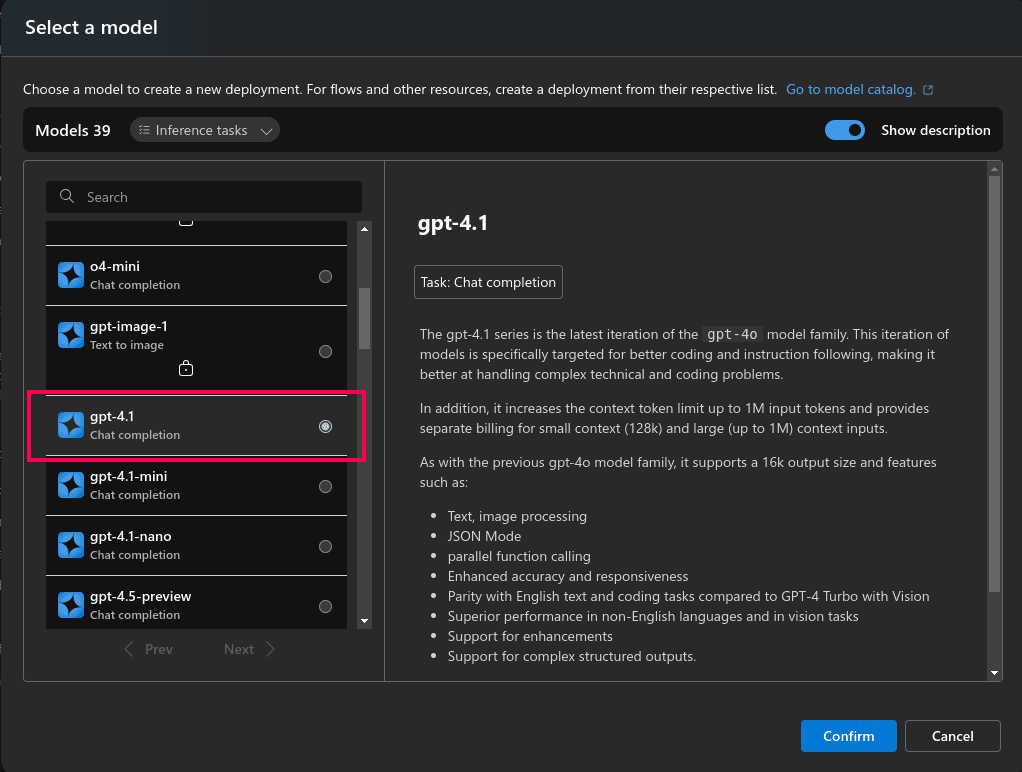
Figure 18: Creating an Azure OpenAI resource - Choose a Subscription of your choice.
- Select an existing Resource group or create a new one.
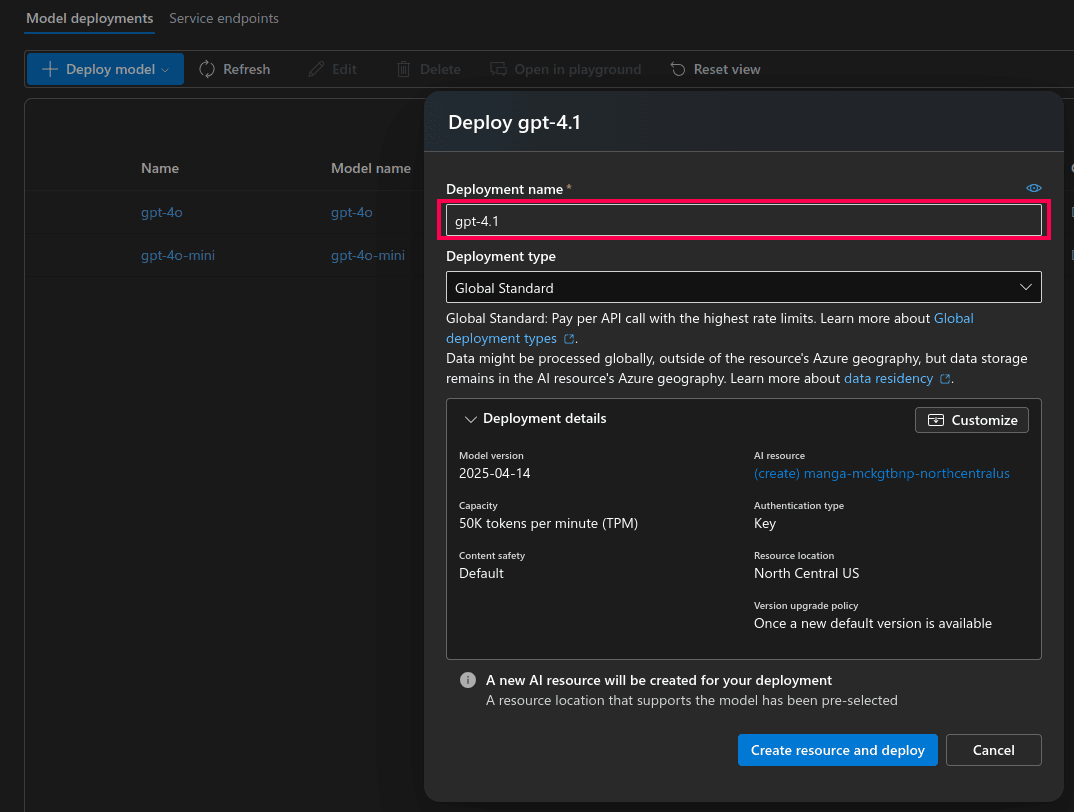
Figure 19: Creating a resource group in Microsoft Azure - Pick your desired Region and Pricing Tier.
- Enter a suitable Name for the resource.
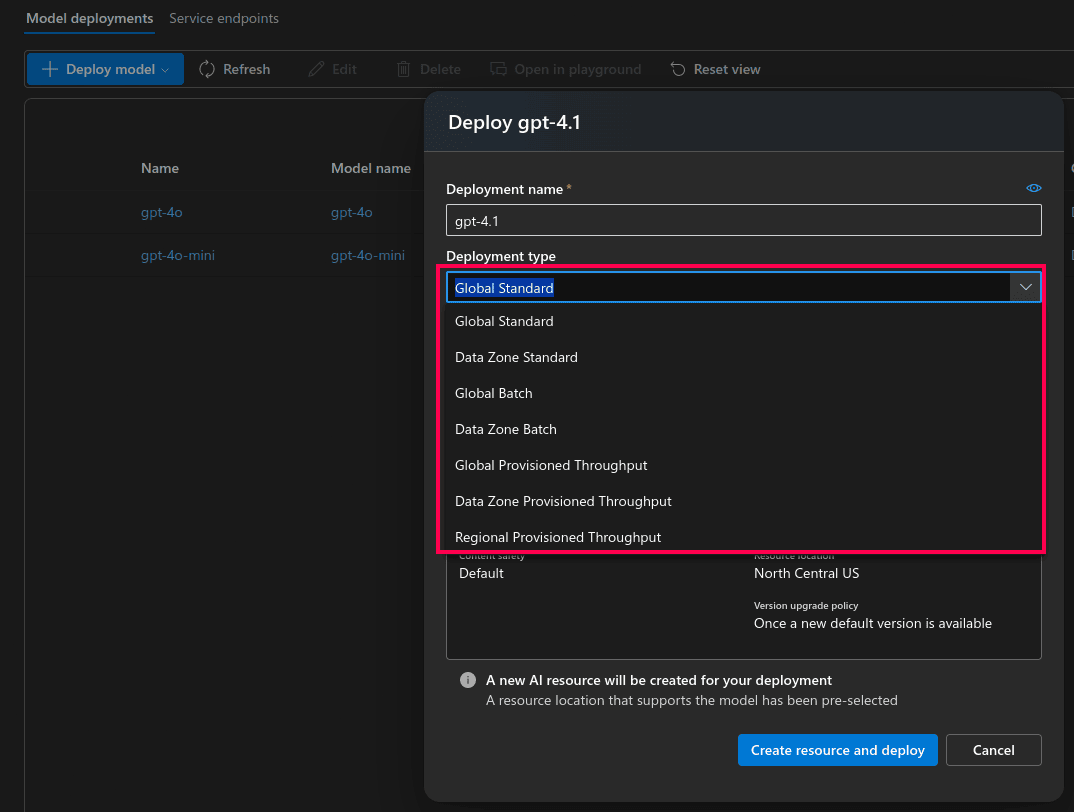
Figure 20: Instance details for Azure OpenAI service - Under Networking, select All networks, including the internet, can access this resource.
NOTE The Azure OpenAI resource must be publicly available on the internet so that the product console can access the endpoint.
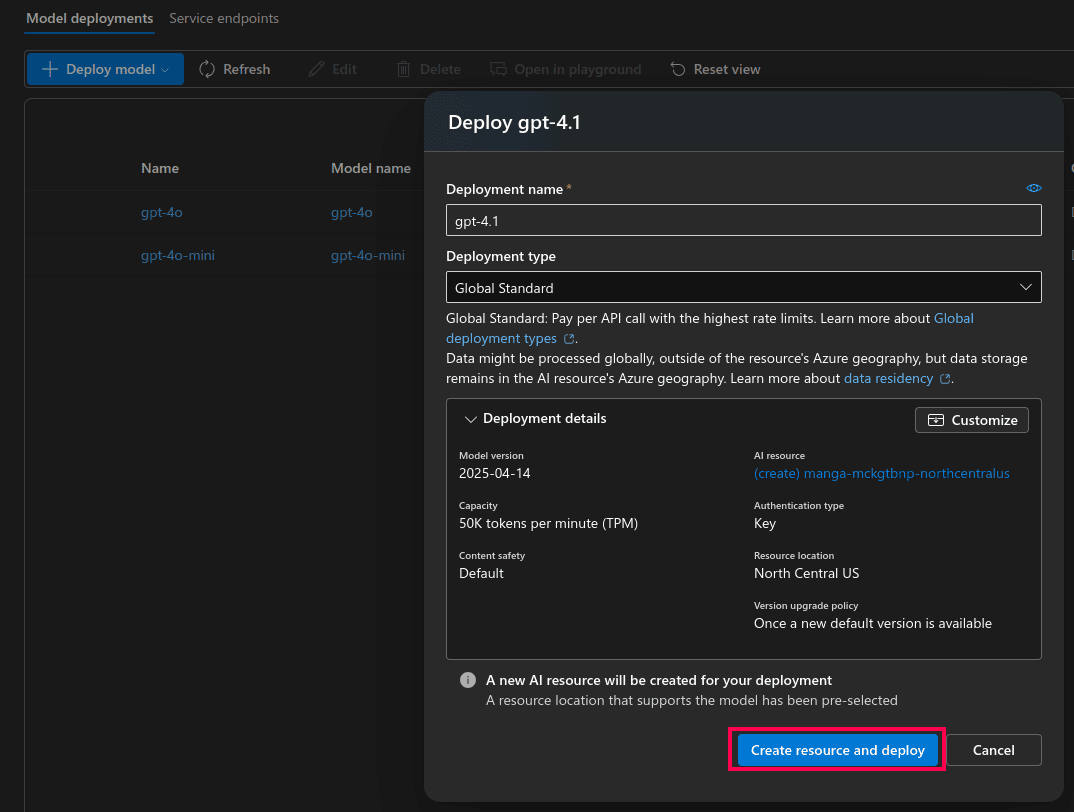
Figure 21: Configuring network security for Azure AI services resource - Click Next to configure Tags (optional).
- Click Next again to move to the Review + Submit page.
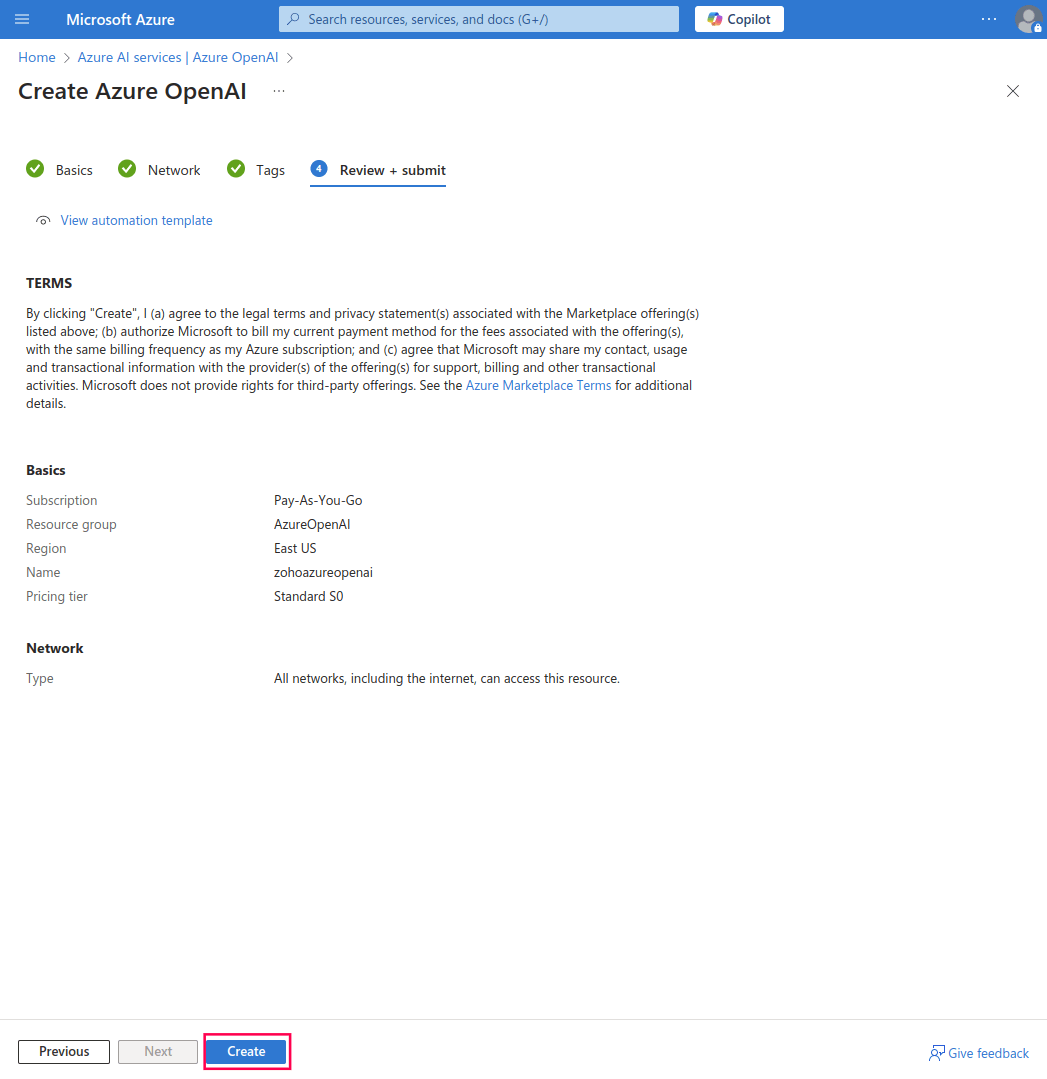
Figure 22: Final review to create resource - Review your settings and click Create to provision the resource.
Steps to obtain Endpoint URL and API key
If you already have an Endpoint URL and API key, skip to the next section. If not:
- Log in to Azure portal and navigate to your Azure OpenAI resource.
- In the left pane, under the Resource Management section, click on Keys and Endpoint. It will open Keys and Endpoint console.
- In this window, you will find the Endpoint URL and API keys for your Azure OpenAI resource. Copy these details for use in the product.
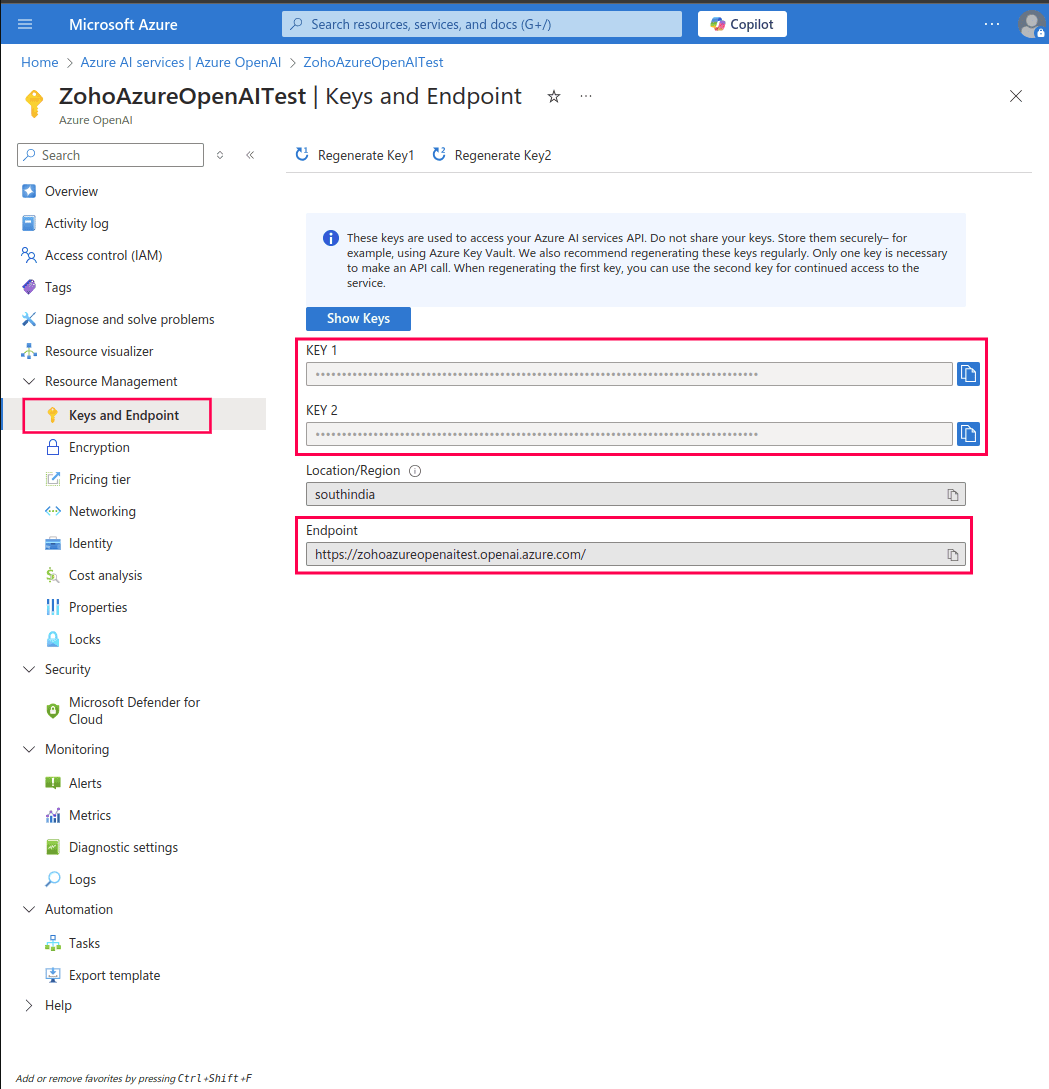
Figure 23: Obtaining API keys and Endpoint URL for Azure OpenAI resource
Deploying a model in Azure OpenAI
A deployed model is a version of an AI model (such as GPT-4o or GPT-4.1) that has been activated and made available for use within your Azure OpenAI resource. The product console will interact with the deployed model to generate AI-powered insights from your logs and alerts.
- The Chat Completion API model (models GPT-4o or newer). For better results, use latest available model such as GPT-4.1 or newer.
- A non-reasoning model, excluding versions like o1-preview and o1-mini.
If you do not have a deployed model, follow the steps below.
Steps to deploy a model
- Navigate to your Azure OpenAI resource and click Go to Azure AI Foundry portal.

Figure 24: Deploying a model in the Azure AI Foundry portal - On the Azure AI Foundry portal, navigate to the Deployments section, click Deploy model, and select Deploy base model.
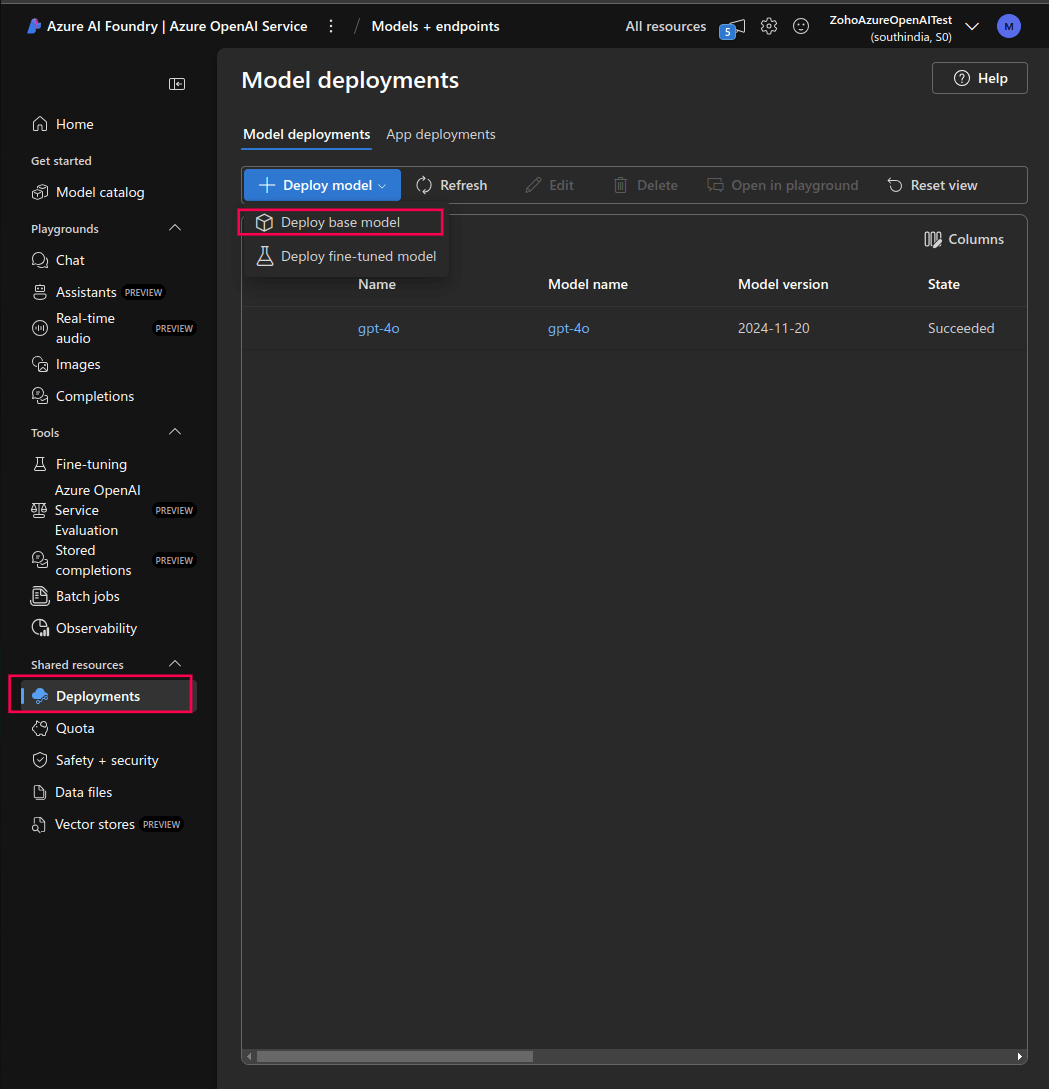
Figure 25: Deploying a model in Azure AI Foundry portal - Choose a model that meets the following constraints:
- Must support the Chat Completion API (models GPT-4o or newer). For better results, use latest available model such as GPT-4.1 or newer. Avoid reasoning models like o1-preview and o1-mini because they do not support system prompts.
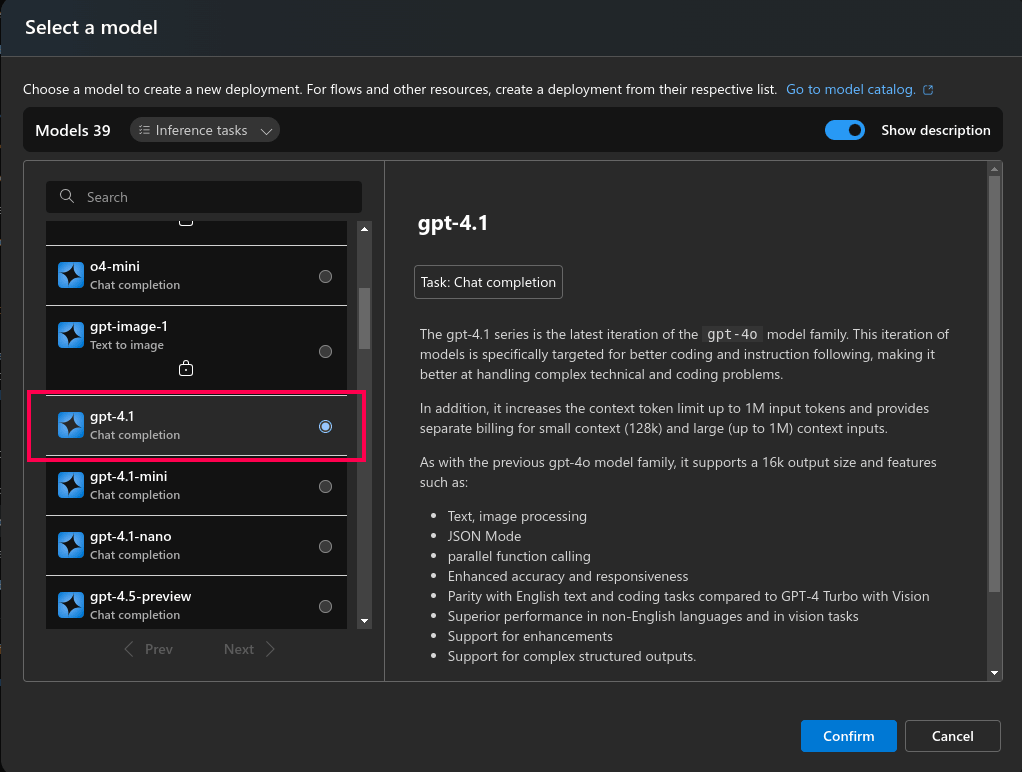
Figure 26: Available models for deployment in Azure AI Foundry portal - Enter a deployment name of your choice (defaults to the model name).
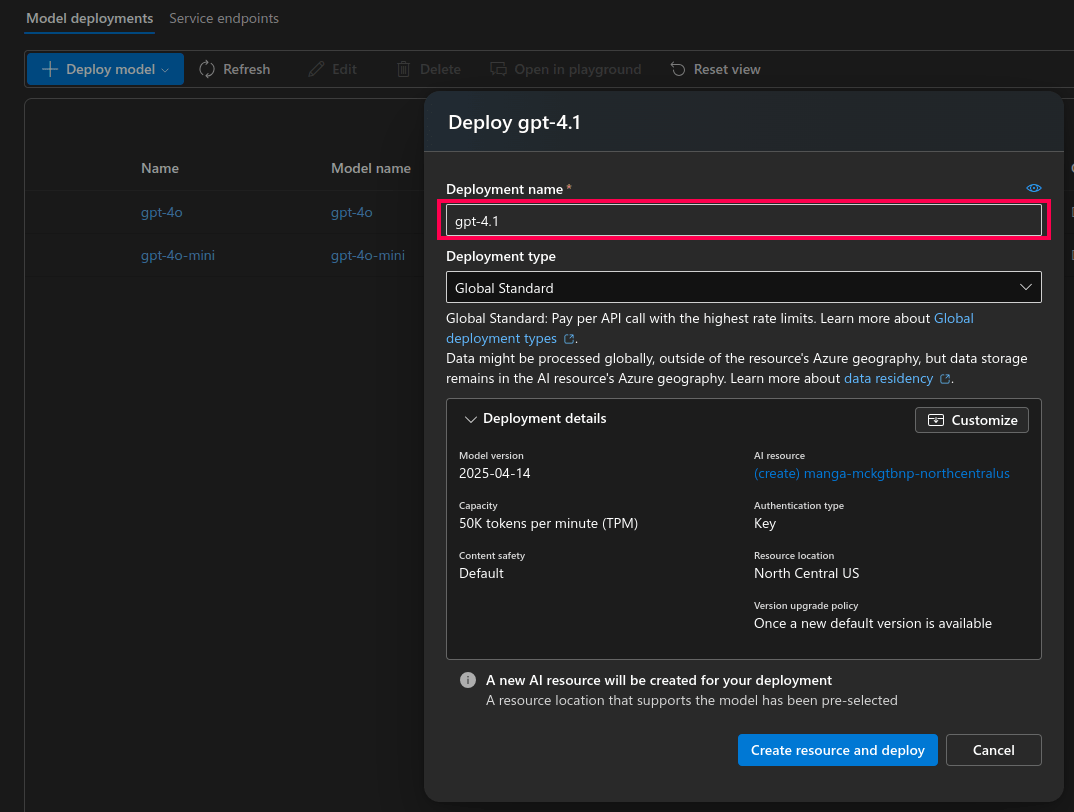
Figure 27: Deployment settings in Azure AI Foundry portal - Select the deployment type based on your data processing needs. Learn more about deployment types.
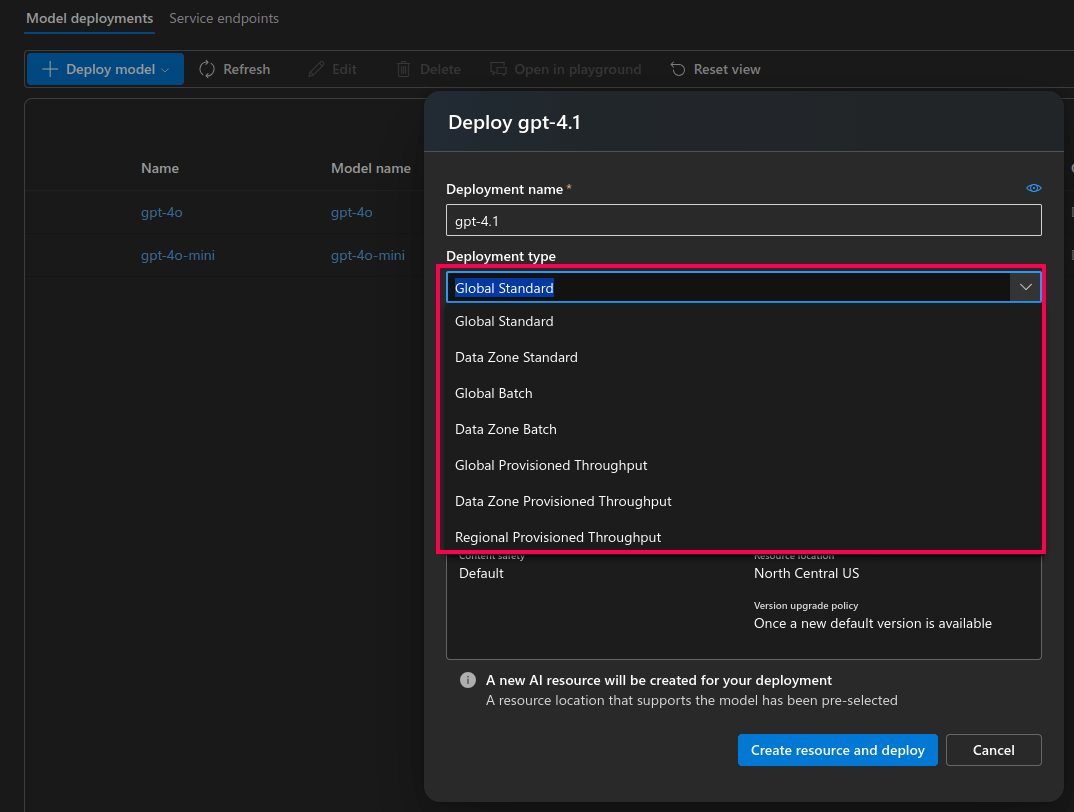
Figure 28: Deployment settings in Azure AI Foundry portal - Click Create resource and deploy to complete the model deployment.
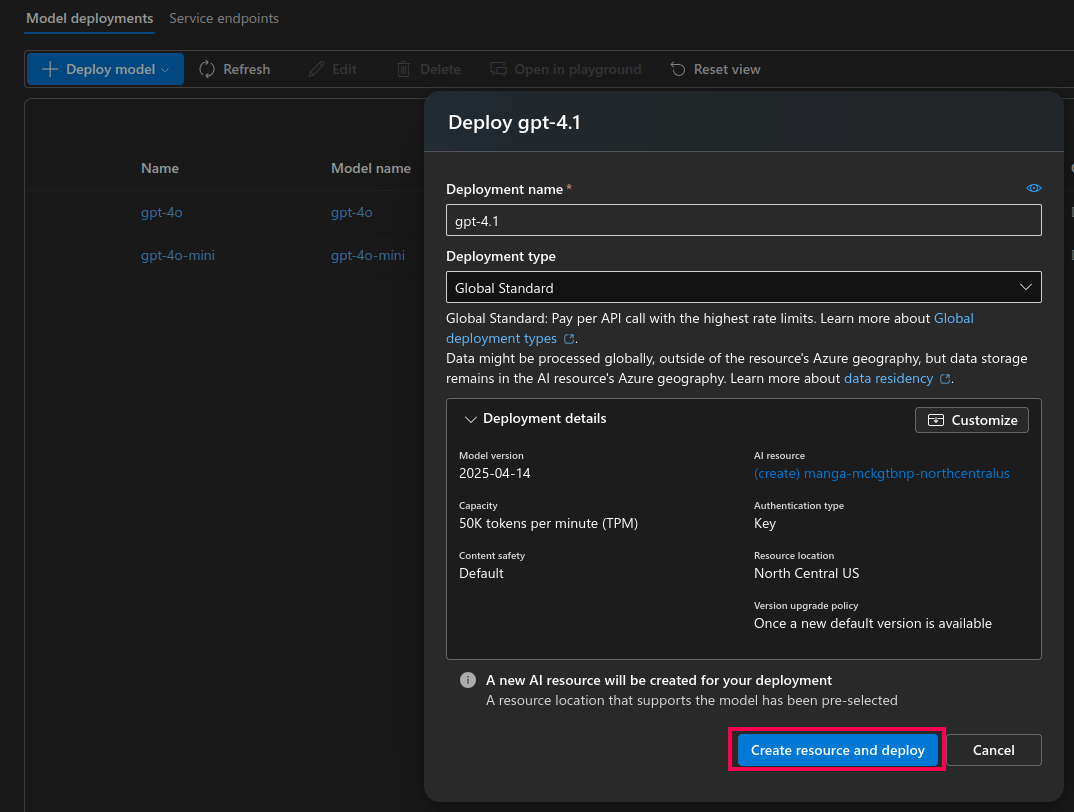
Figure 29: Model deployment in Azure AI Foundry portal
NOTE Once you've completed these steps and obtained your credentials, refer to this section to access Zia Insights.
Generating an OpenAI API key
- Log in to your OpenAI account.
- Click Create new secret key.
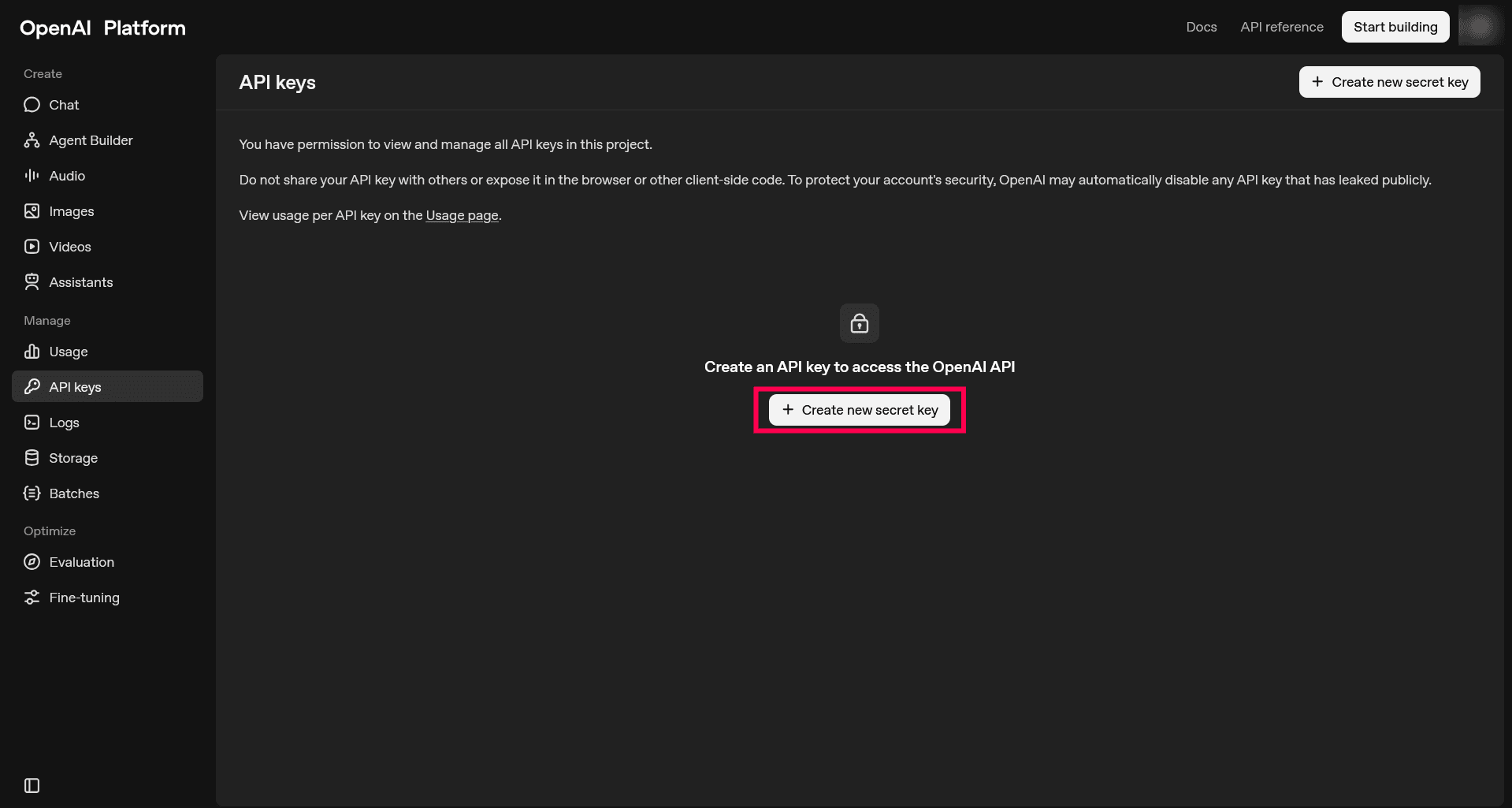
Figure 30: Creating a secret key - In the pop-up window, select the You tab.
- Enter a Name for the key (optional).
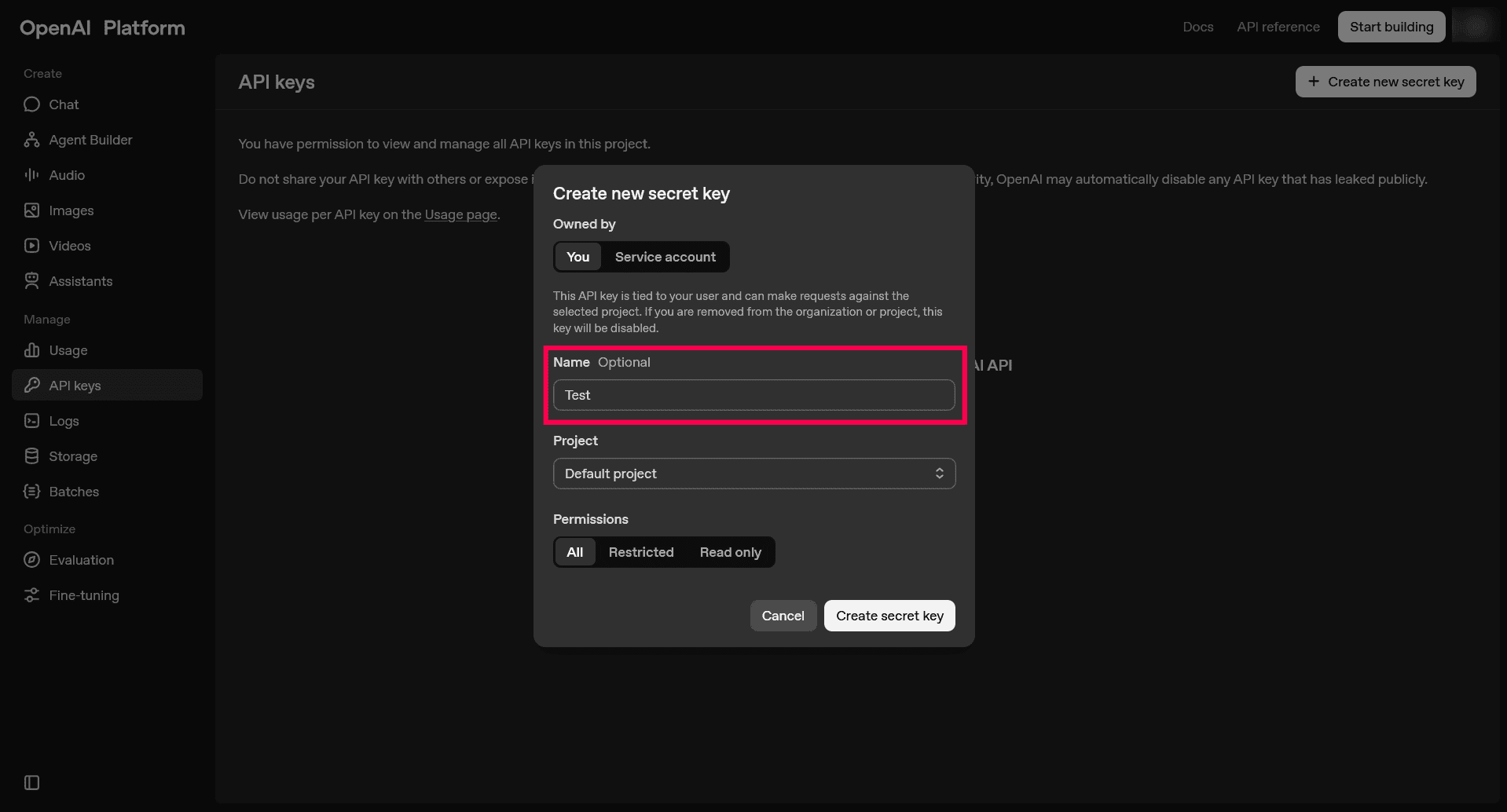
Figure 31: Entering a name - Select Default project from the Project drop-down.
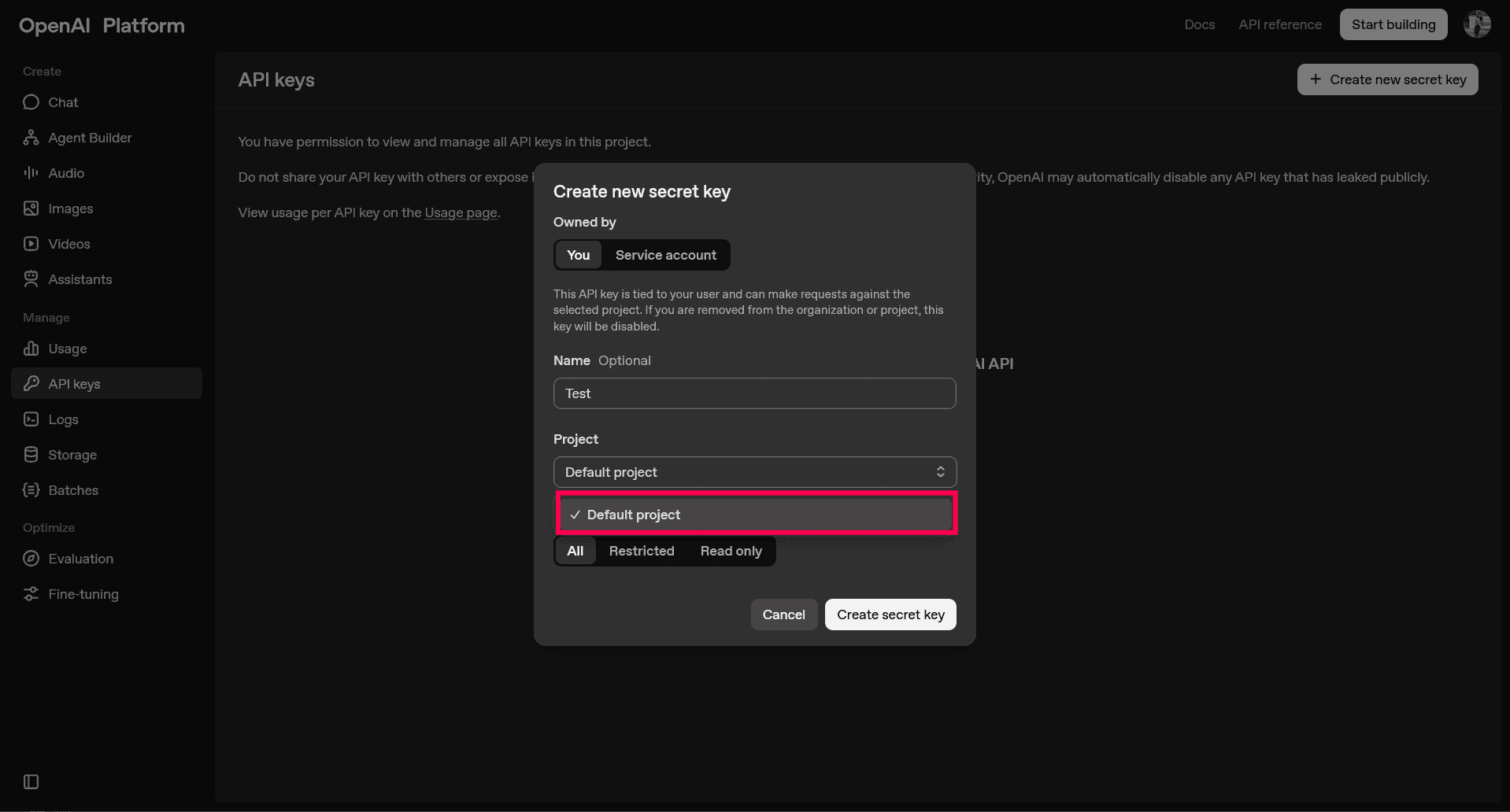
Figure 32: Selecting a project - Choose the appropriate Permissions based on your requirement.
NOTE For product integration, the key must have permission to read and write API resources.
- Click Create secret key.
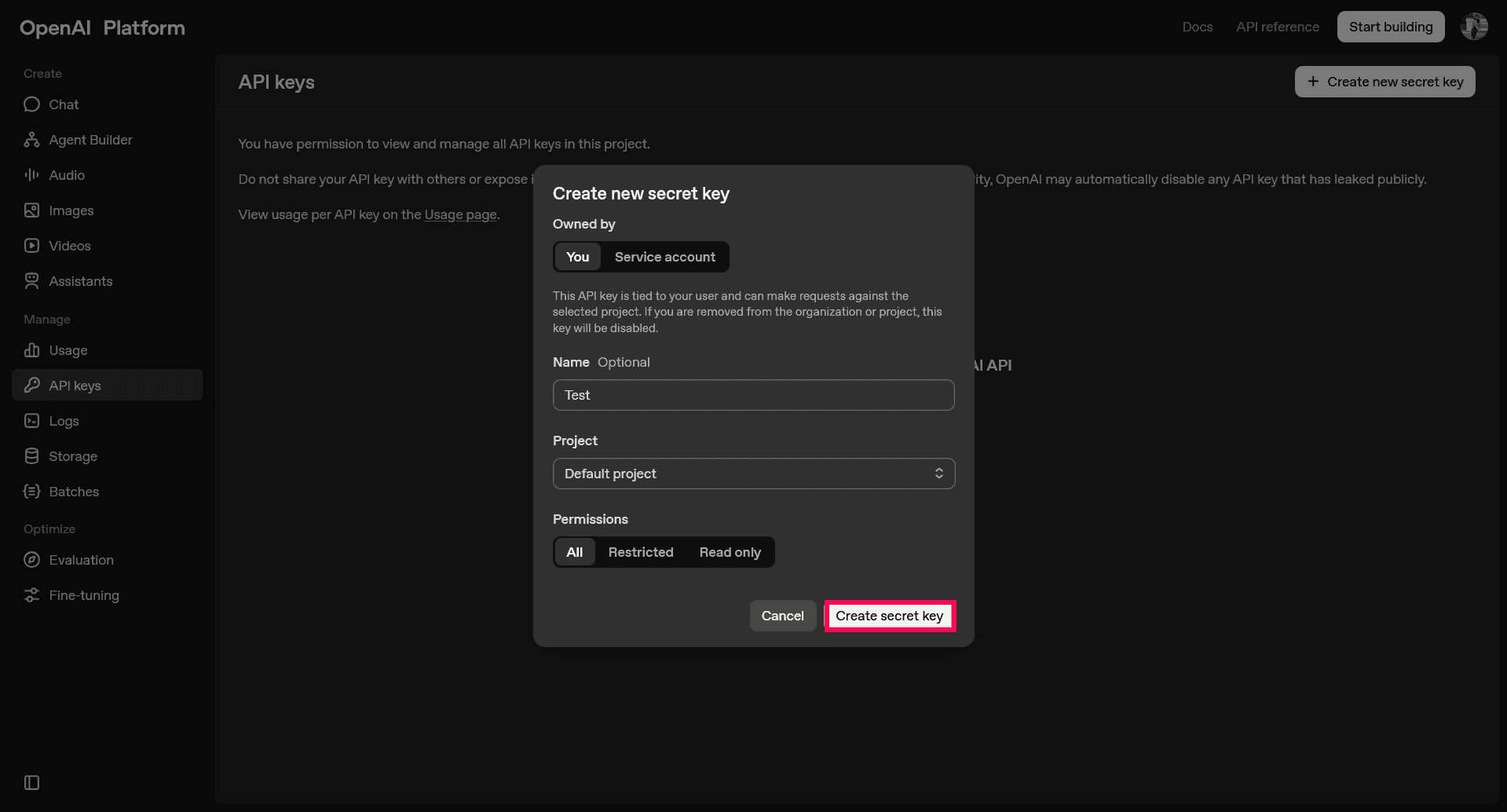
Figure 33: Creating a secret key - Copy the generated API key displayed in the Save your key pop-up.
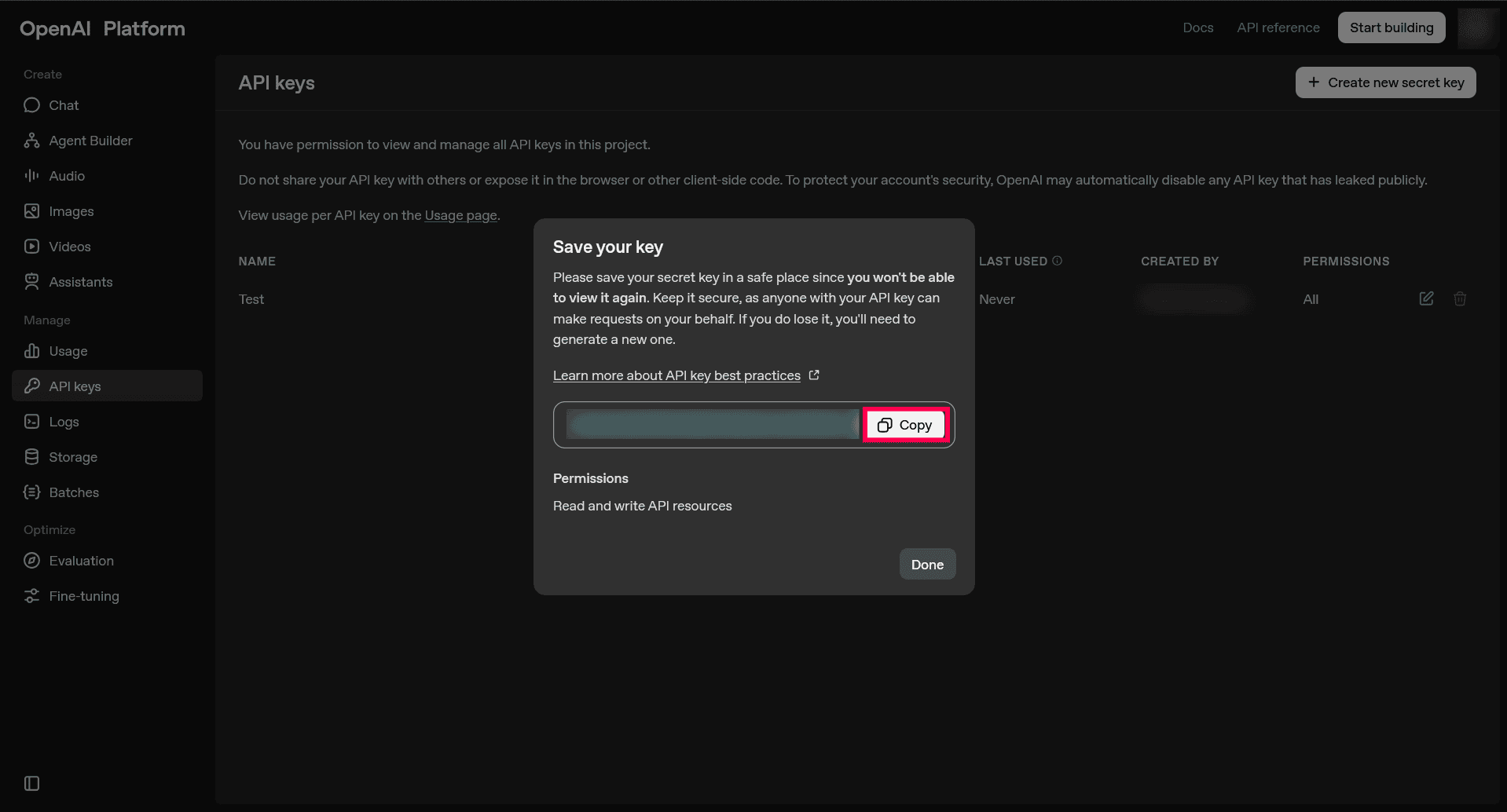
Figure 34: Copying the secret key - Use this API key in the product console when configuring the OpenAI option in Setting up Zia Insights
Read also
This document detailed the configuration steps required to enable Zia Insights, including Azure OpenAI resource creation, model deployment, and integration setup. To leverage the capabilities of Zia Insights, refer to the following articles: