
Device Summary
Last updated on:
Overview:
The Device Summary in ManageEngine Log360 is an analytical console used to view high-level device activity and contextual event data. It provides a consolidated view of the machine summary, event summary for the picked device for the selected period, device severity distribution, and alerts summary.
Viewing Device Summary
Users can view and access the Device Summary from multiple tabs within the product such as Reports, Log Source, Alerts, Incidents and others listed below. In addition to the device-level summary, users can also view the activity overview for the configured web servers, databases, endpoint security solutions, and vulnerability scanners listed below.
- Access to the Device Summary is not available for users with the Guest role.
- Refer to the Technician and Roles page to customize configurations.
From Log Source Configurations
- Navigate to Settings tab. Under Log Source Configurations, click Devices.
- In the Device Management page, locate and select the device for which you want to view the summary.
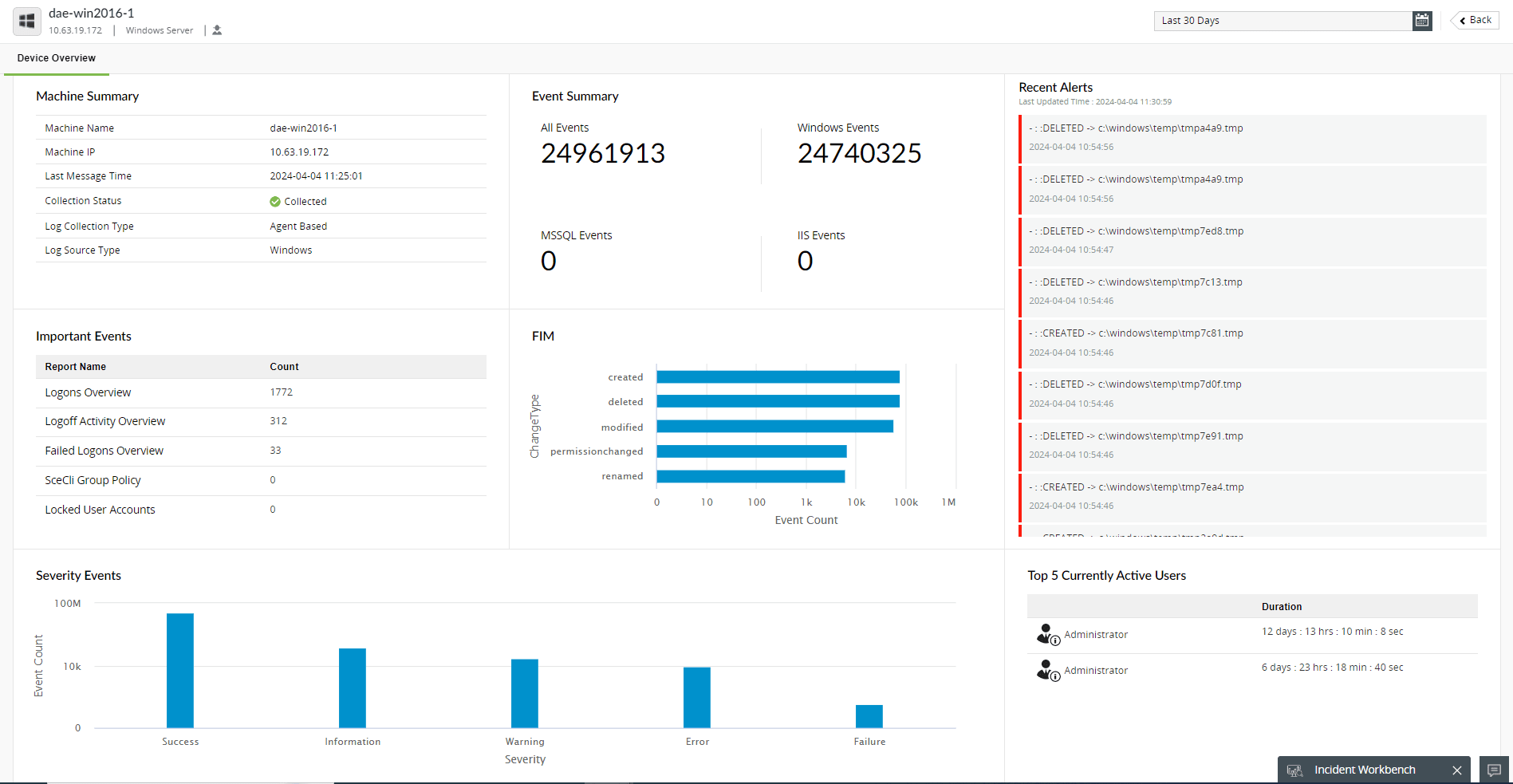
Figure 1: Viewing device summary - Click Device Summary to view the detailed information for the selected device.
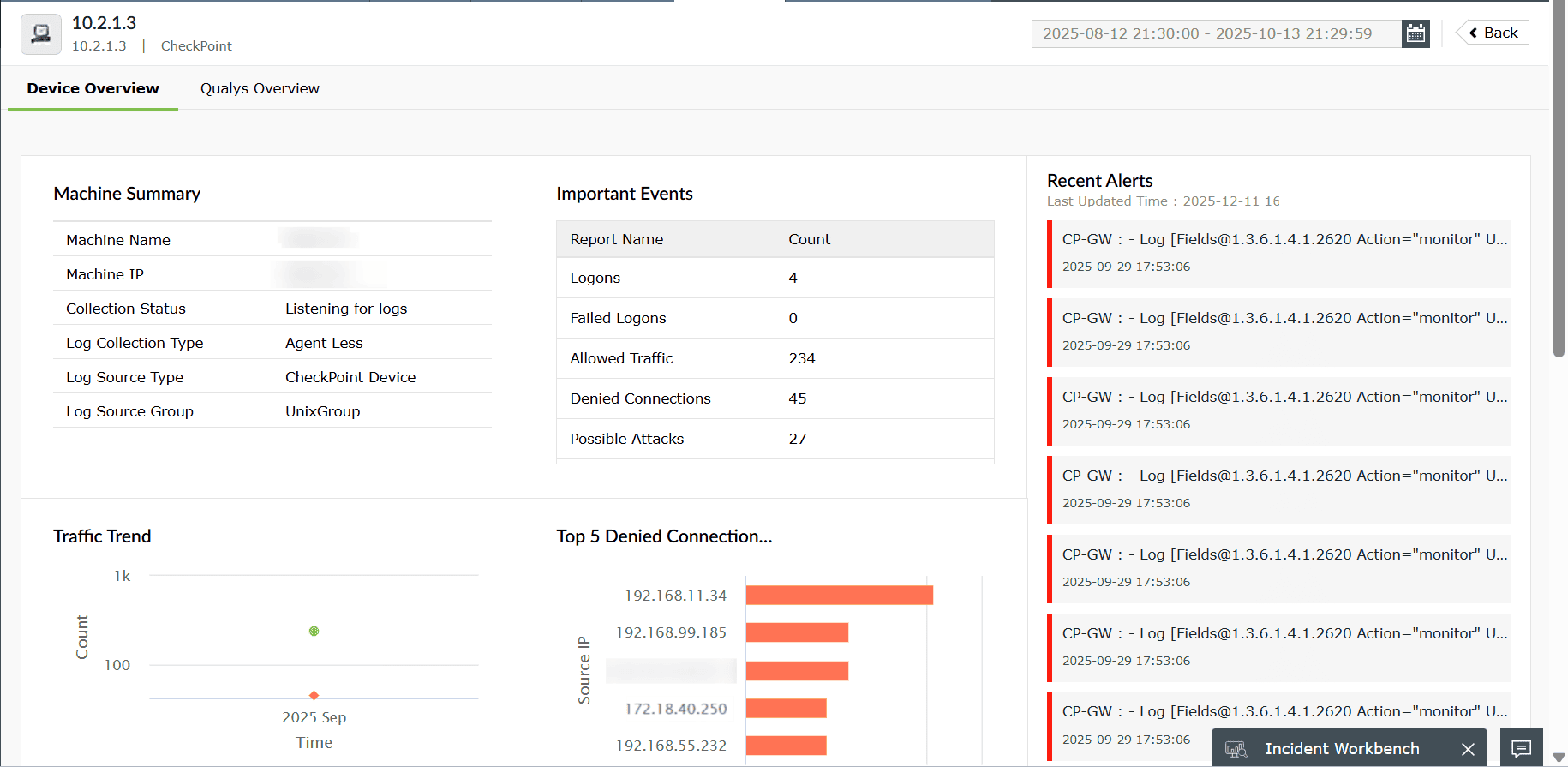
Figure 2: Viewing Device Overview
From Reports
- Navigate to Reports tab.
- Select any report category from the top menu.
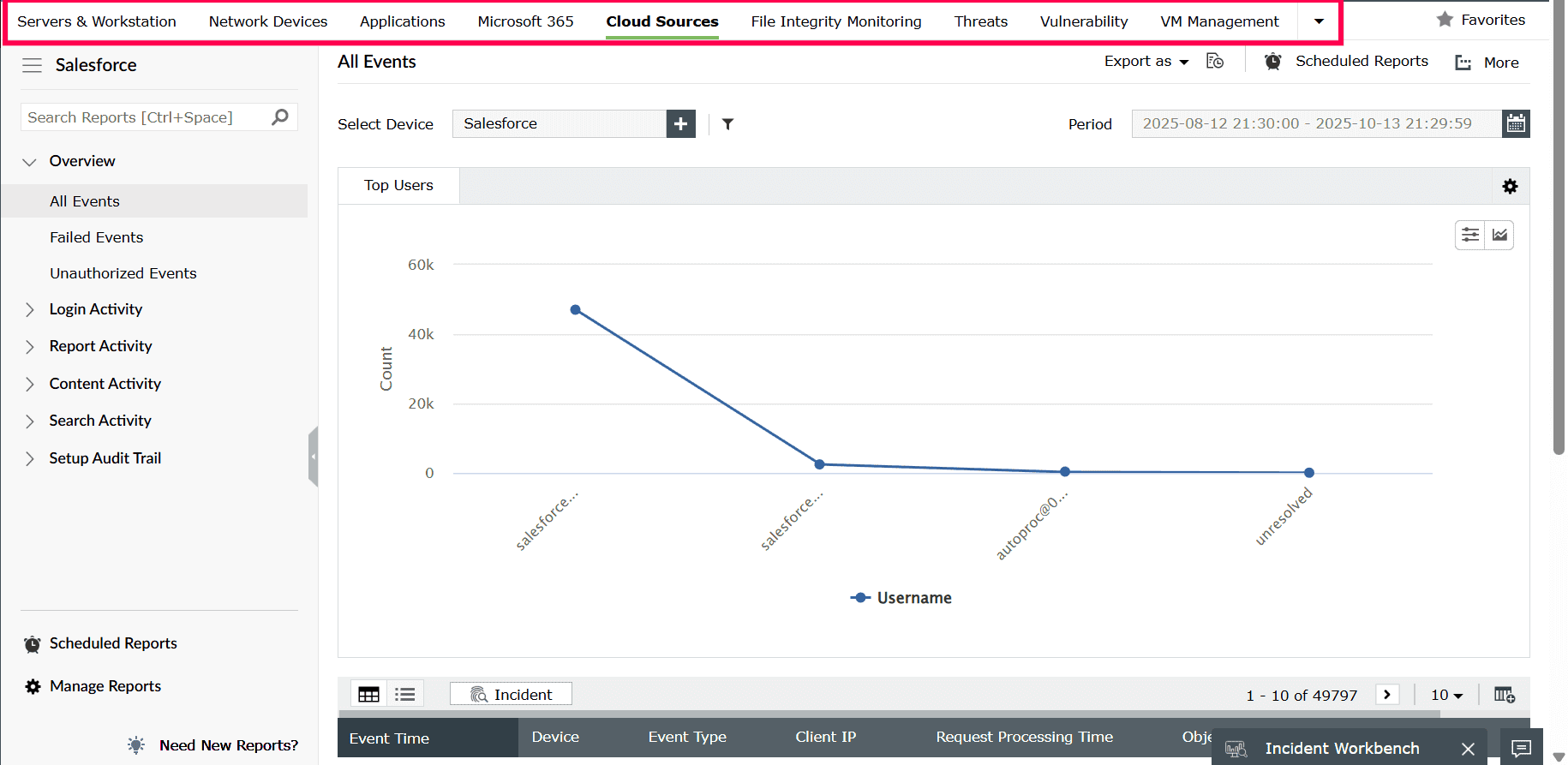
Figure 3: Selecting a report category - In the report table, click on a device listed in the results.
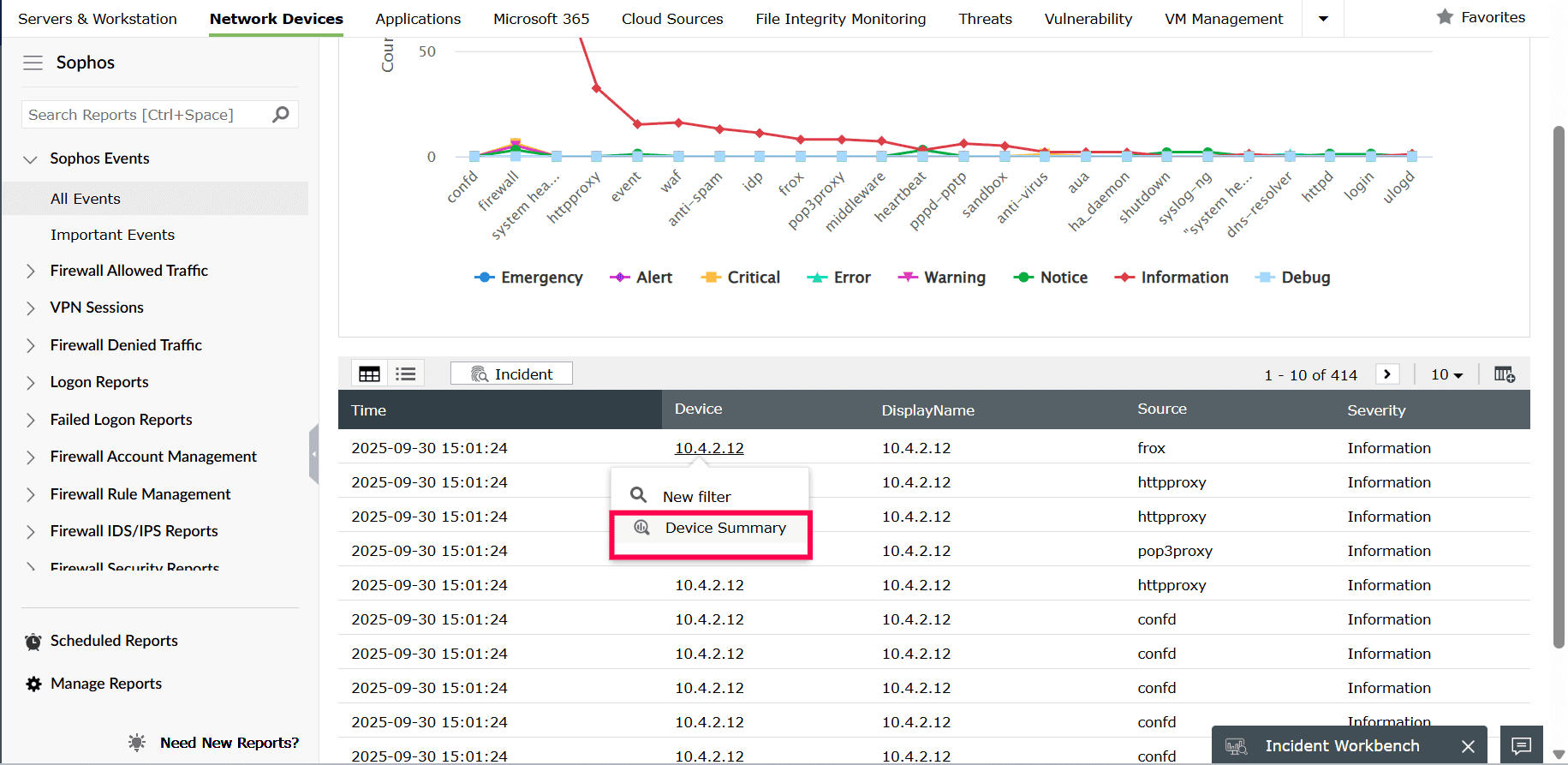
Figure 4: Viewing device summary - Click Device Summary to view the summary details for that device.
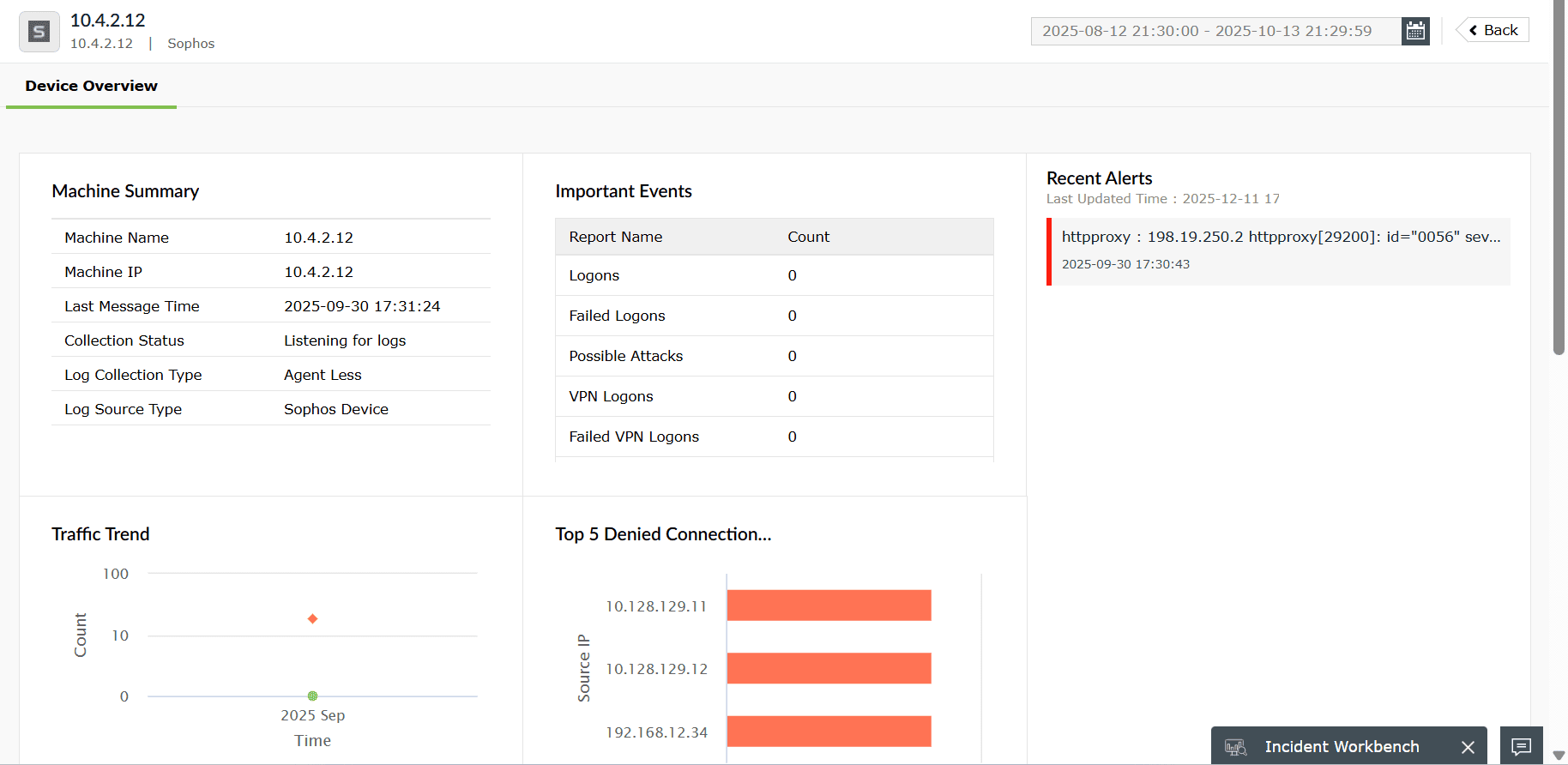
Figure 5: Viewing Device Overview
From Compliance
- Go to the Compliance tab.
- Under Configured Compliance, click View Reports for the compliance standard you want to view.
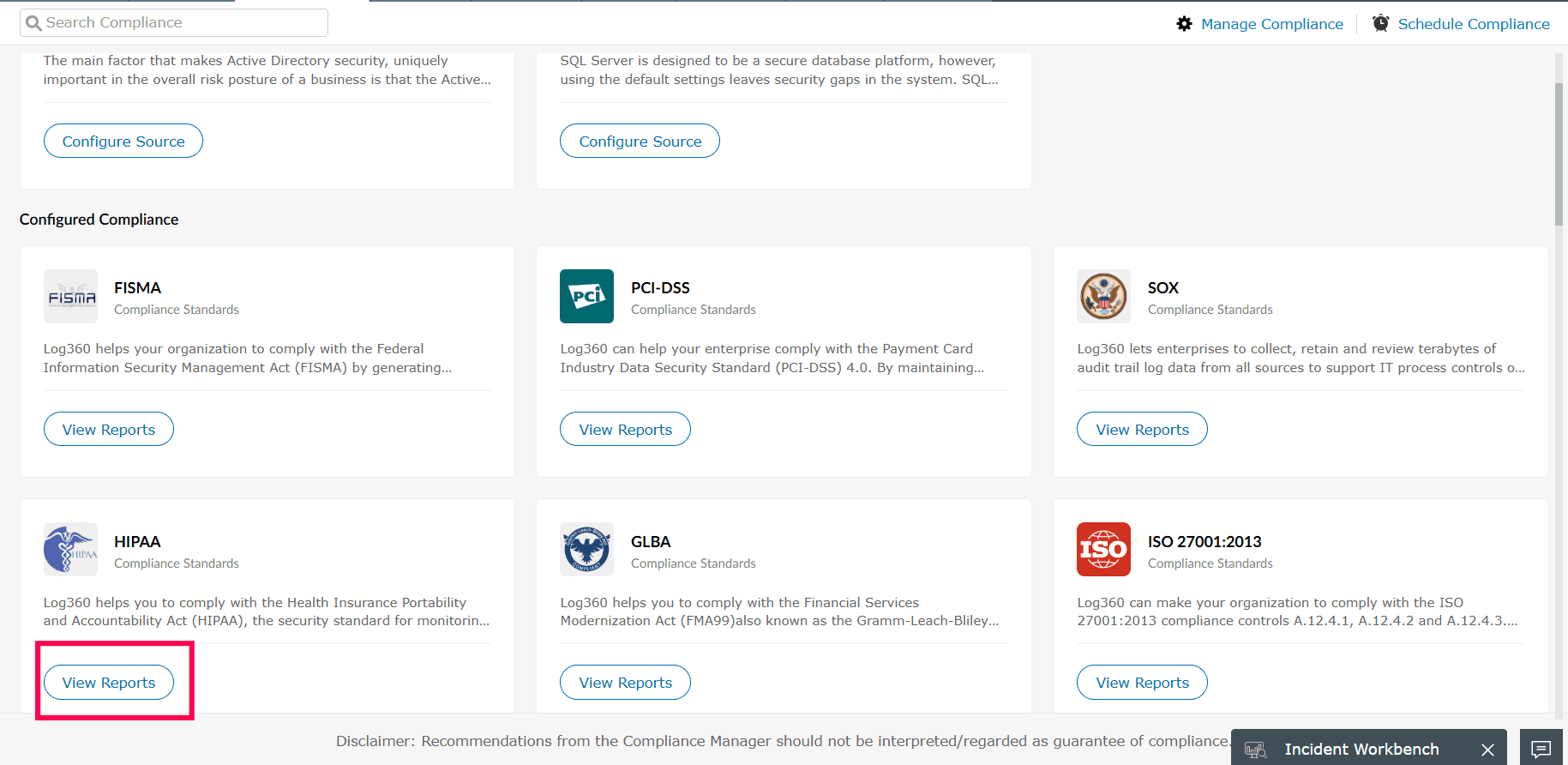
Figure 6: Viewing reports - From the list of reports under the selected compliance, open any report.
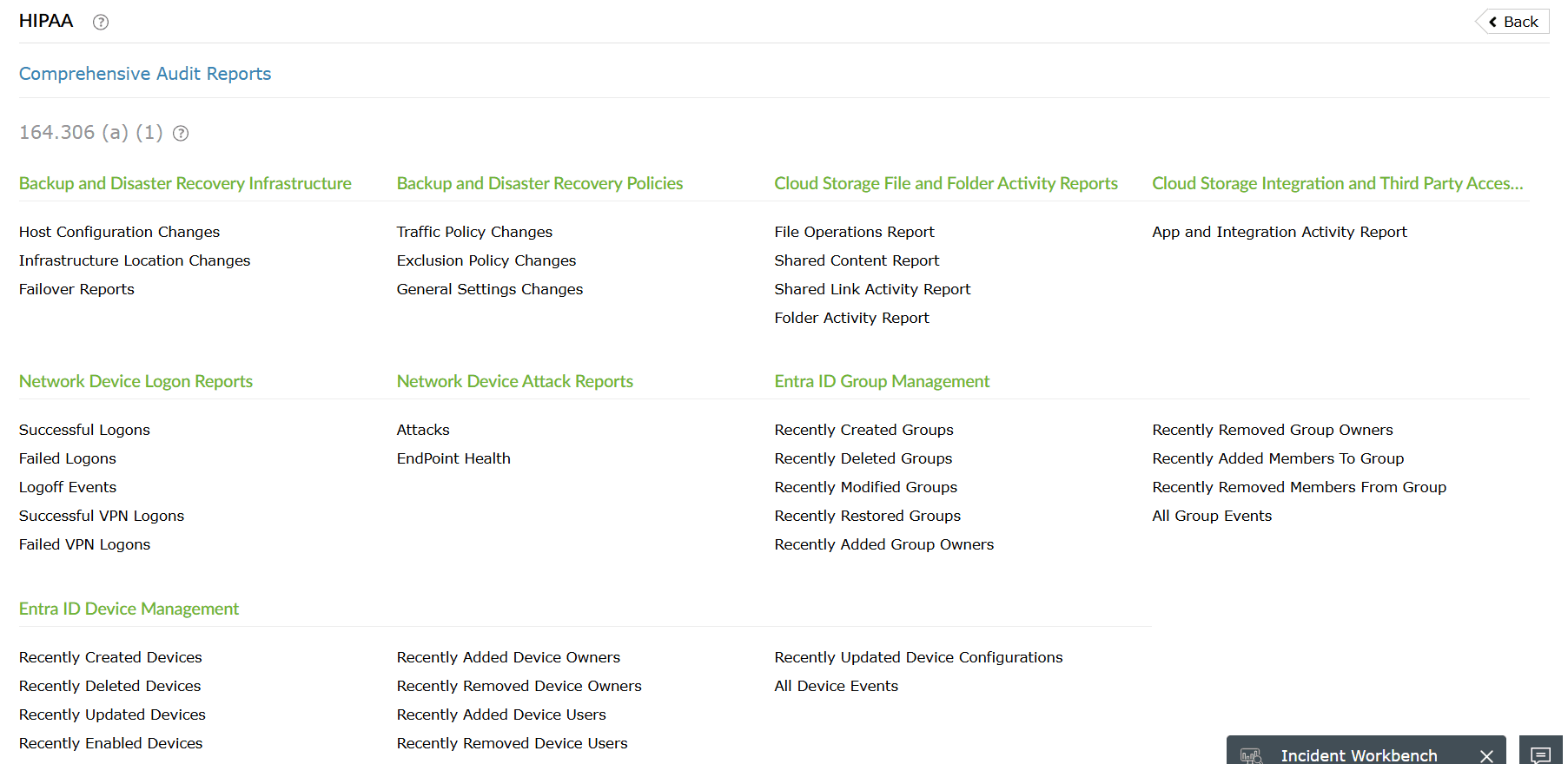
Figure 7: Selecting a report - In the report details, select a device listed in the results.
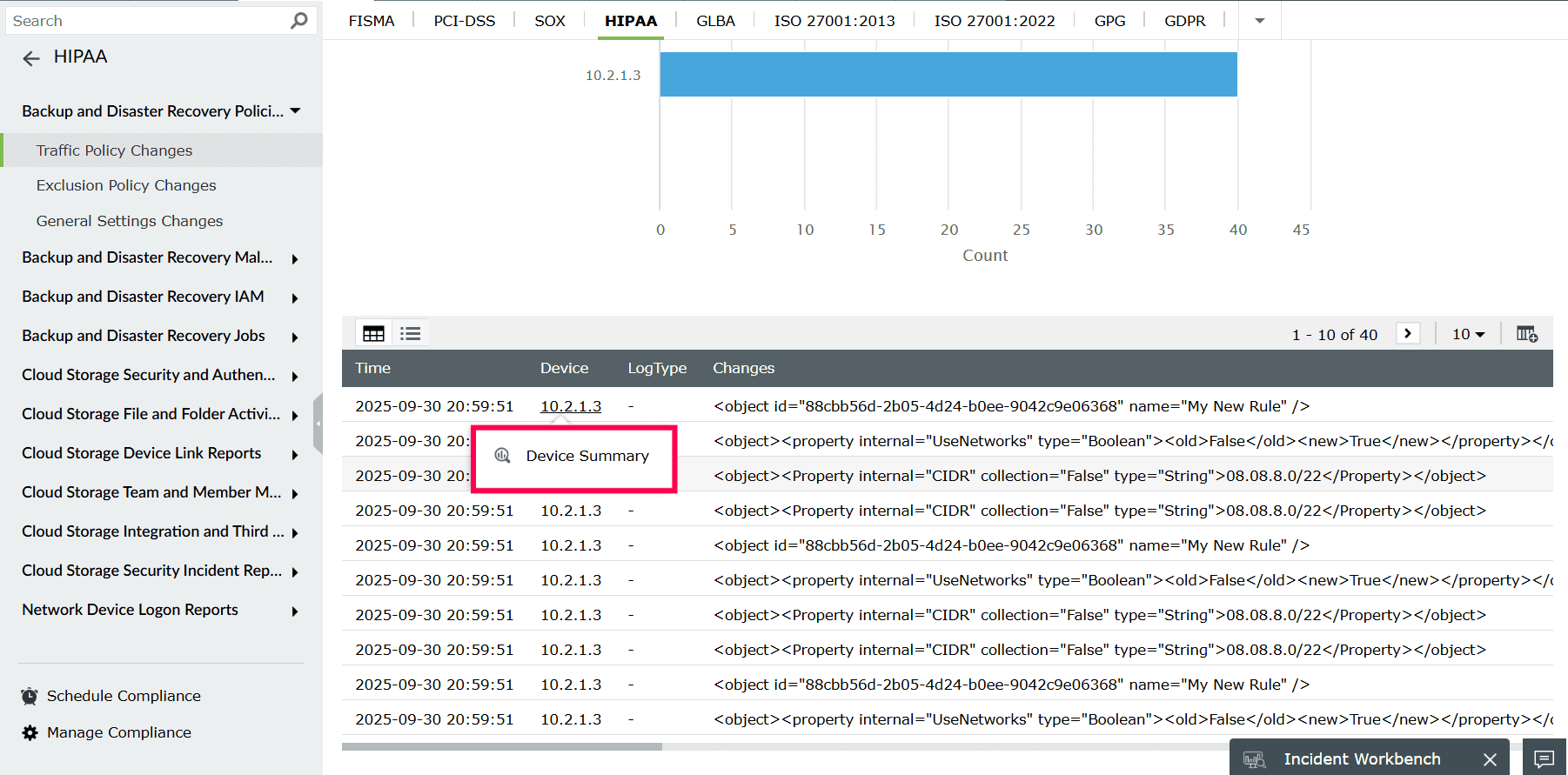
Figure 8: Viewing device summary - Click Device Summary to view the summary information for that device.
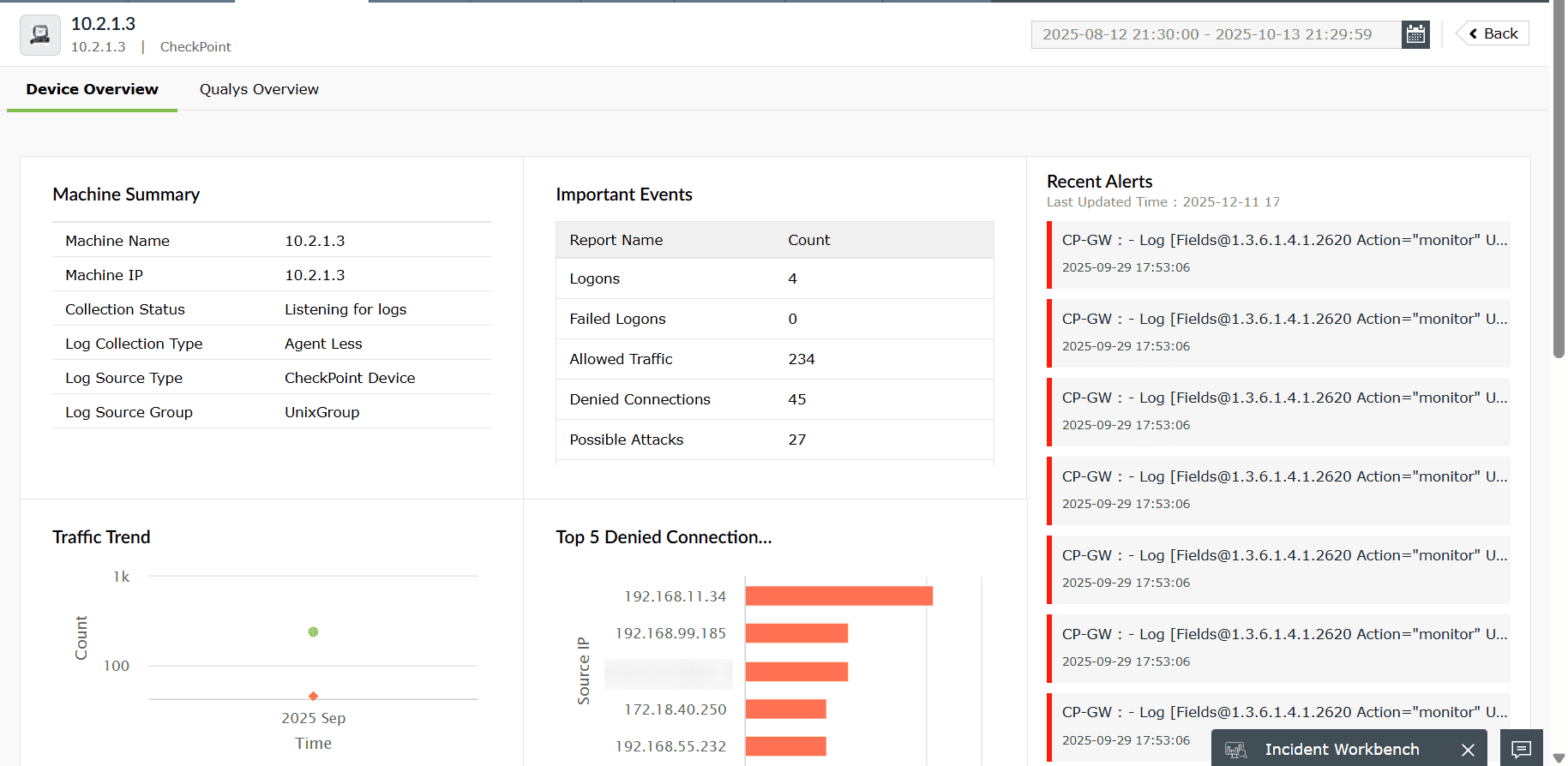
Figure 9: Viewing Device Overview
From Search
- In the Search tab, enter your query and click Search.
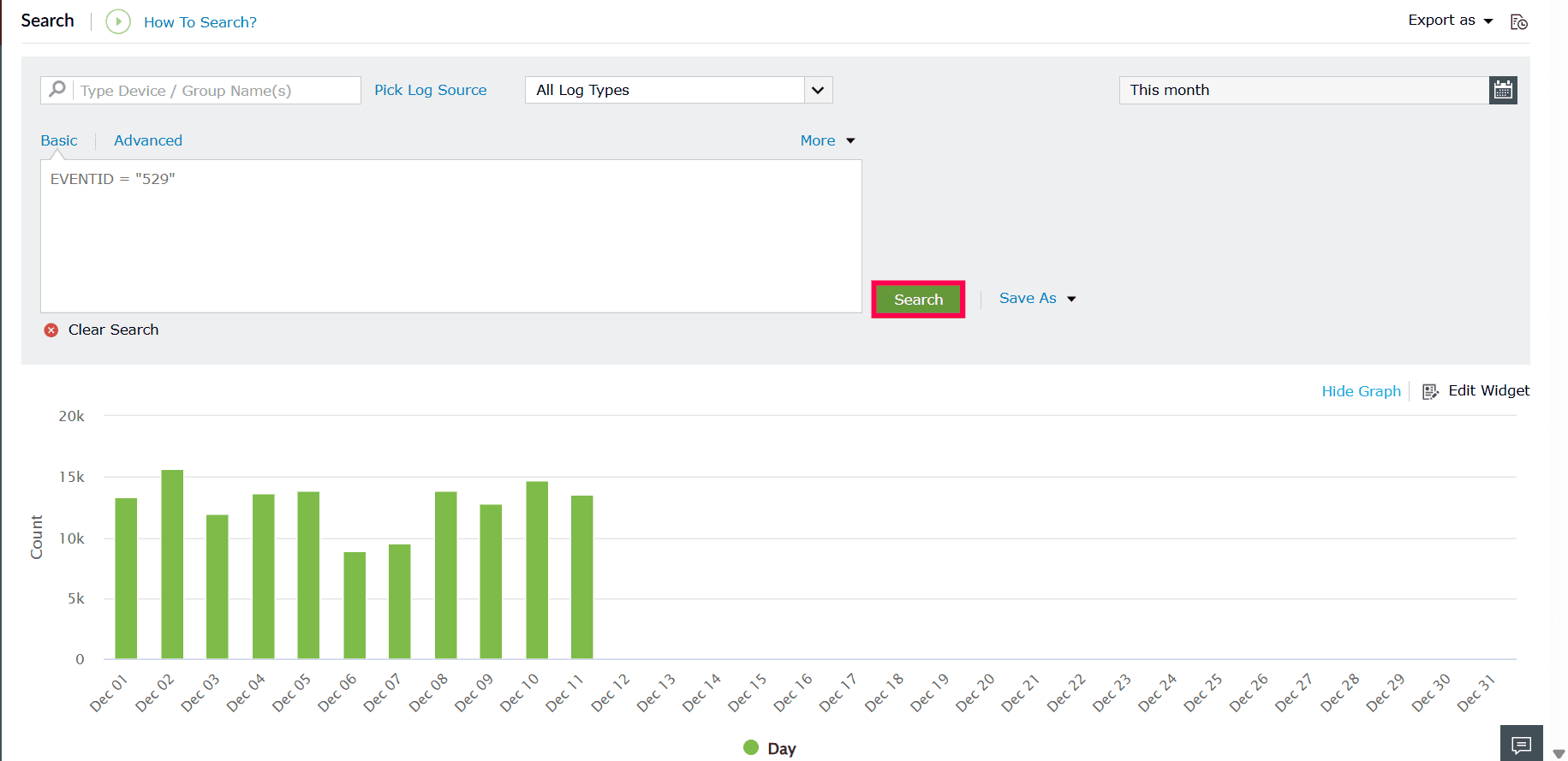
Figure 10: Log search - In the results table displayed below, locate the device listed for any log entry.
- Click the device name.
- Click Device Summary to view the summary details for that device.
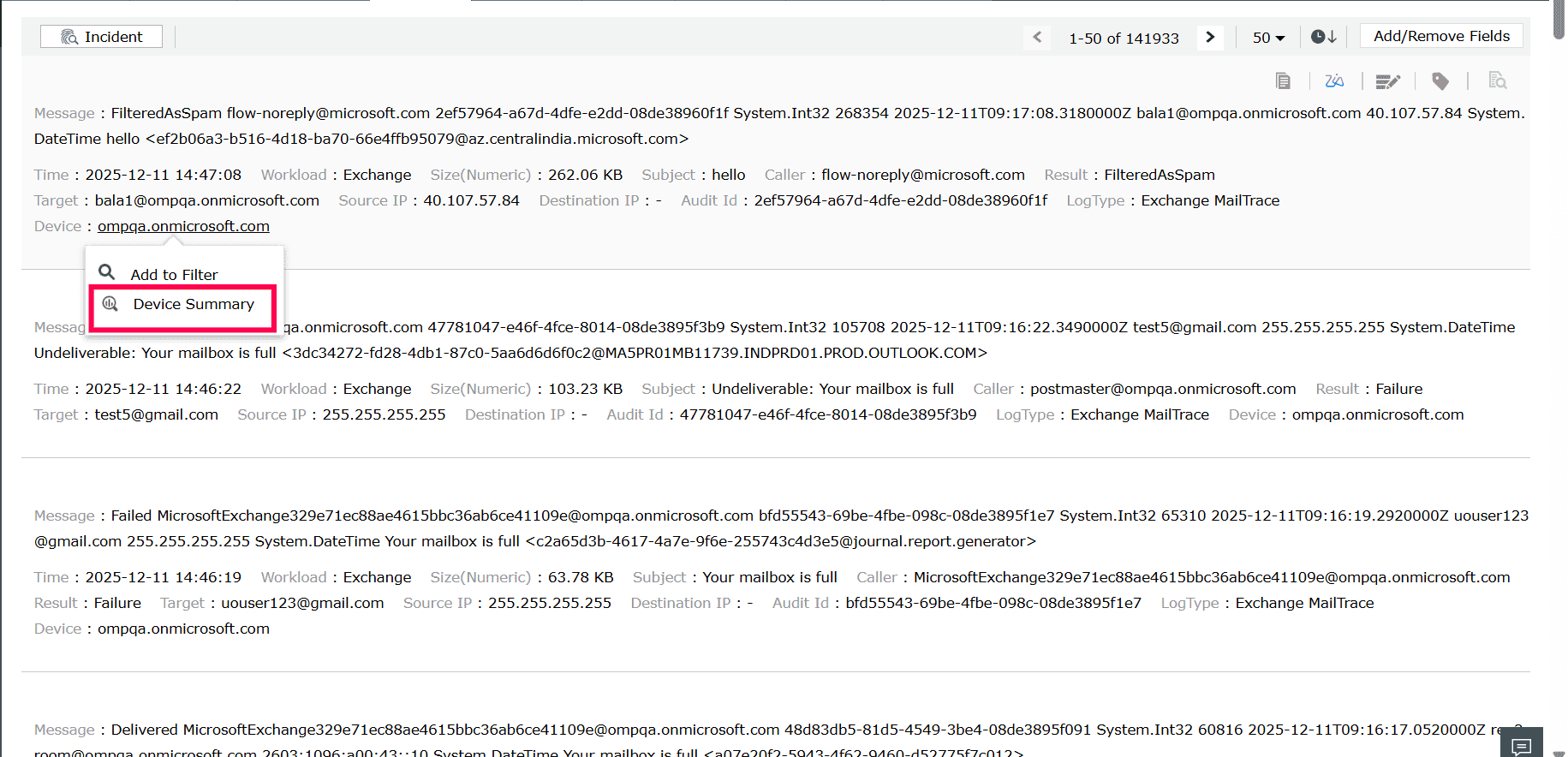
Figure 11: Viewing Device Summary
From Security
- Go to the Security tab.
- In the Recent Detections widget, select a detection associated with the device you want to review.
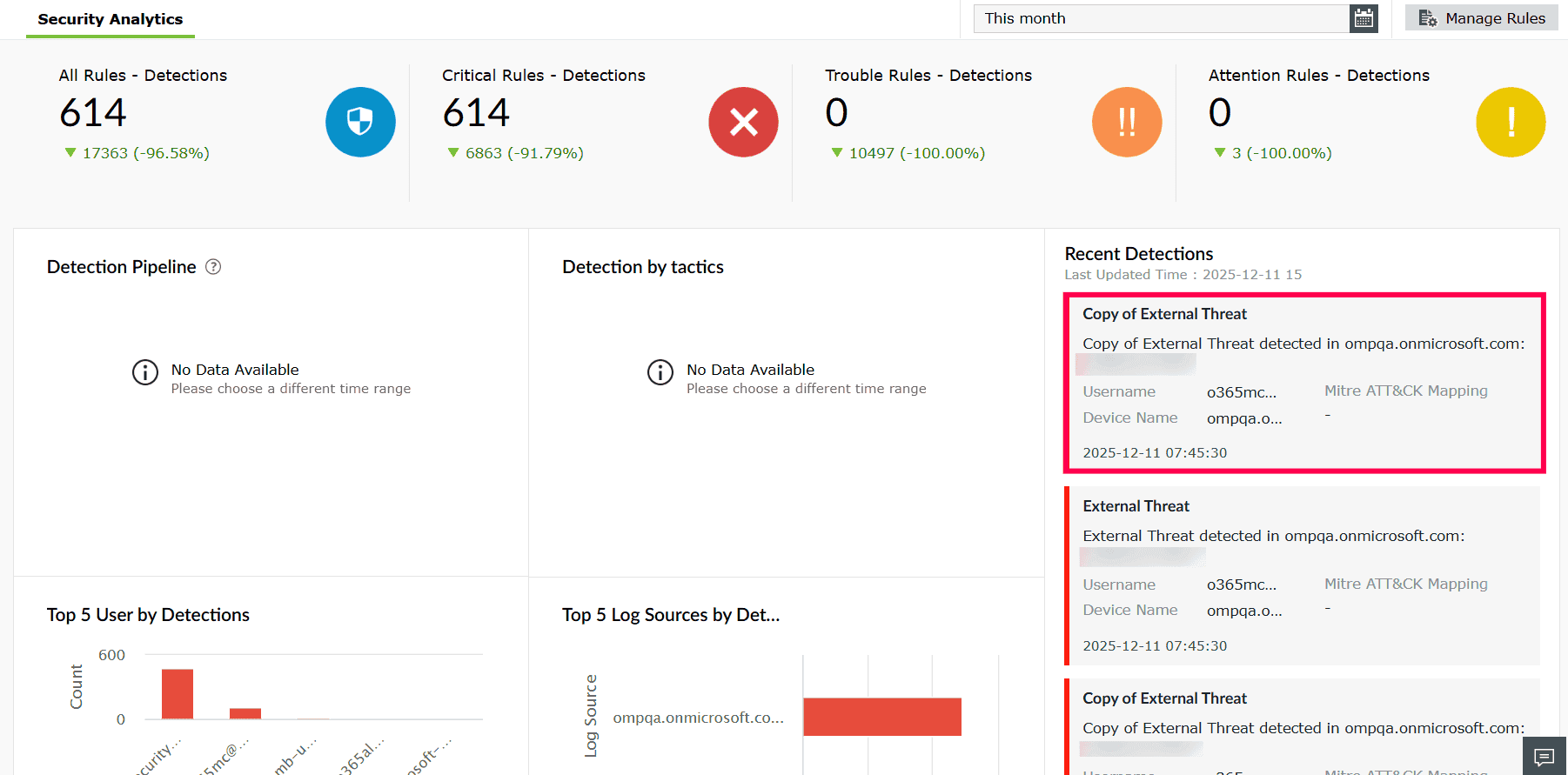
Figure 12: Selecting a recent detection - In the Analysis page, locate the Where section.
- Click the device name shown there.
- Click Device Summary to view the summary information for that device.
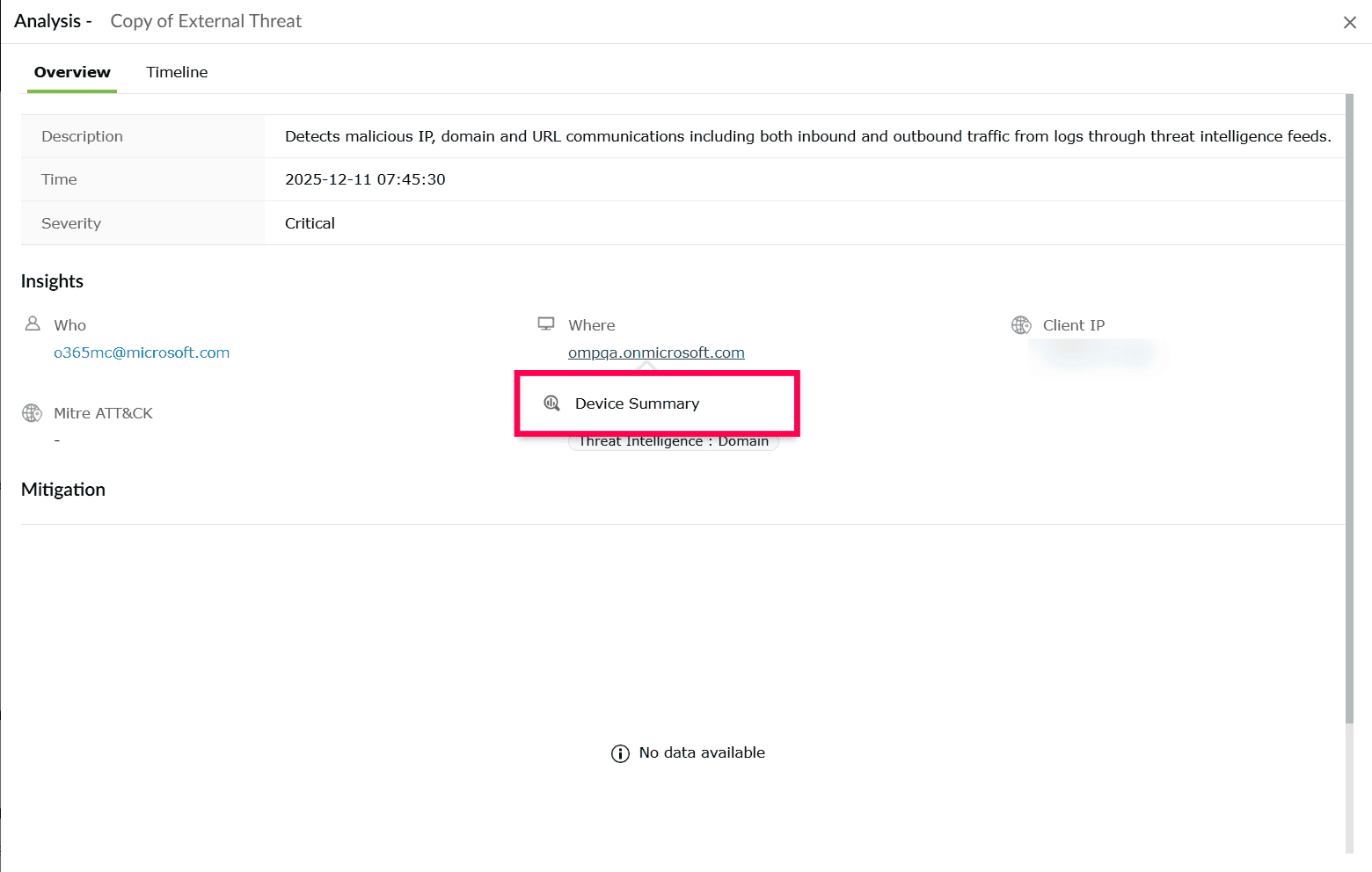
Figure 13: Viewing Device Summary
From Log Source
- In the Dashboard tab, click View All Devices under the Event Overview section.
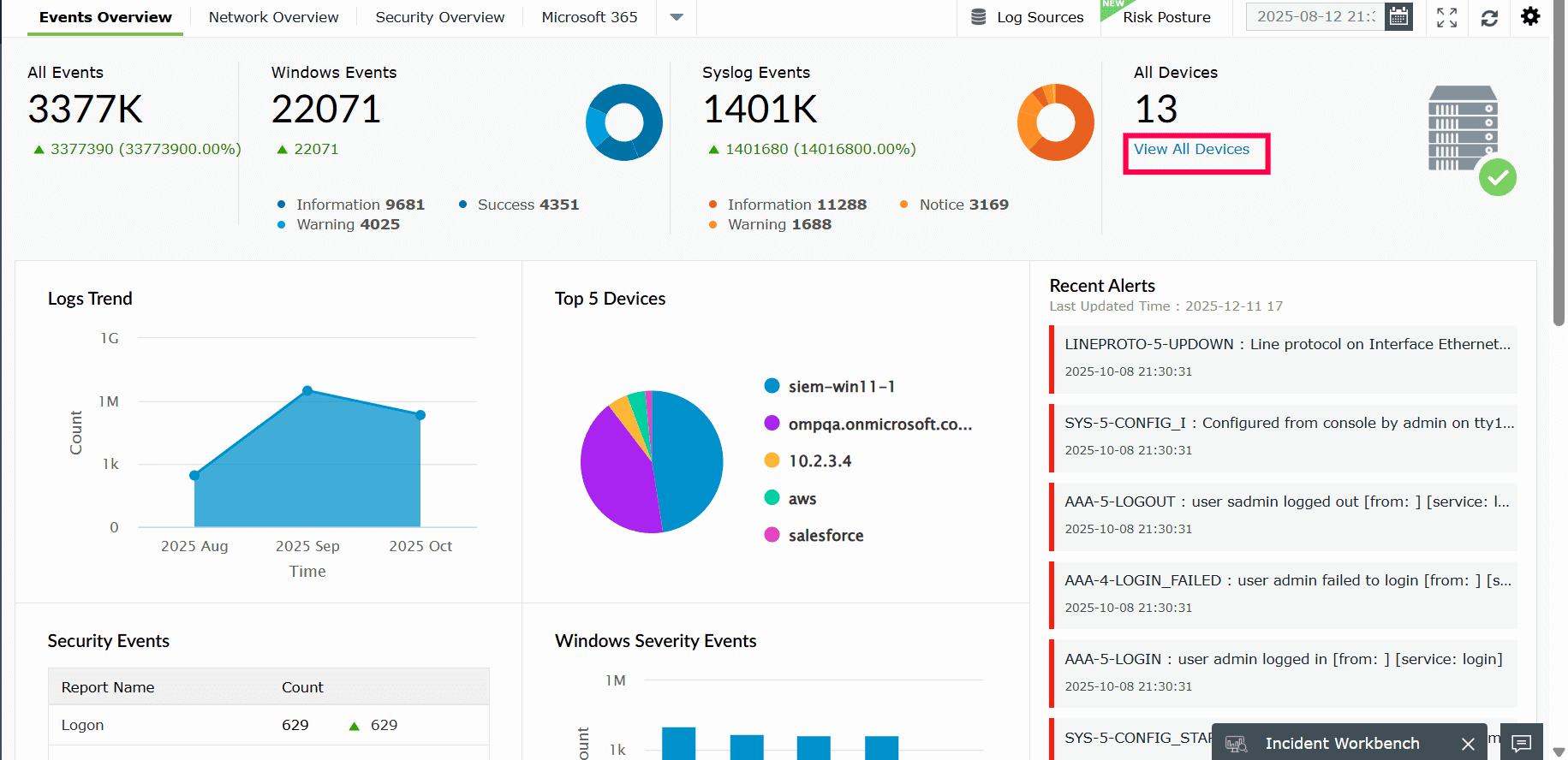
Figure 14: Viewing all devices - In the list of devices displayed, click the device you want to review.
- Click Device Summary to view the summary for that device.
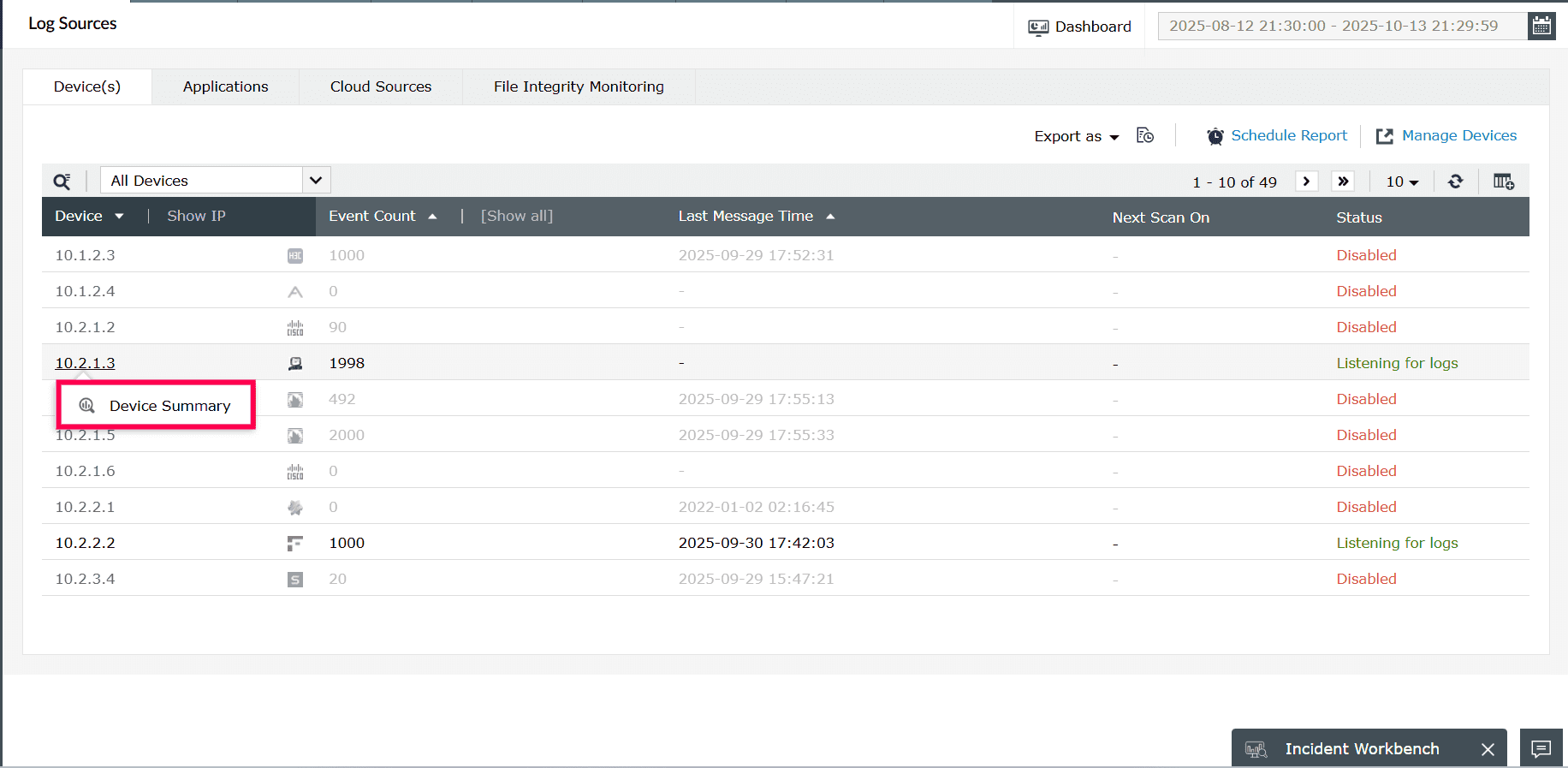
Figure 15: Viewing Device Summary
From Alerts
- In the Alerts tab, locate the alert for which you want to view device details.
- In the Device column, click the device name shown next to the alert.
- Click Device Summary to view the summary information for that device.
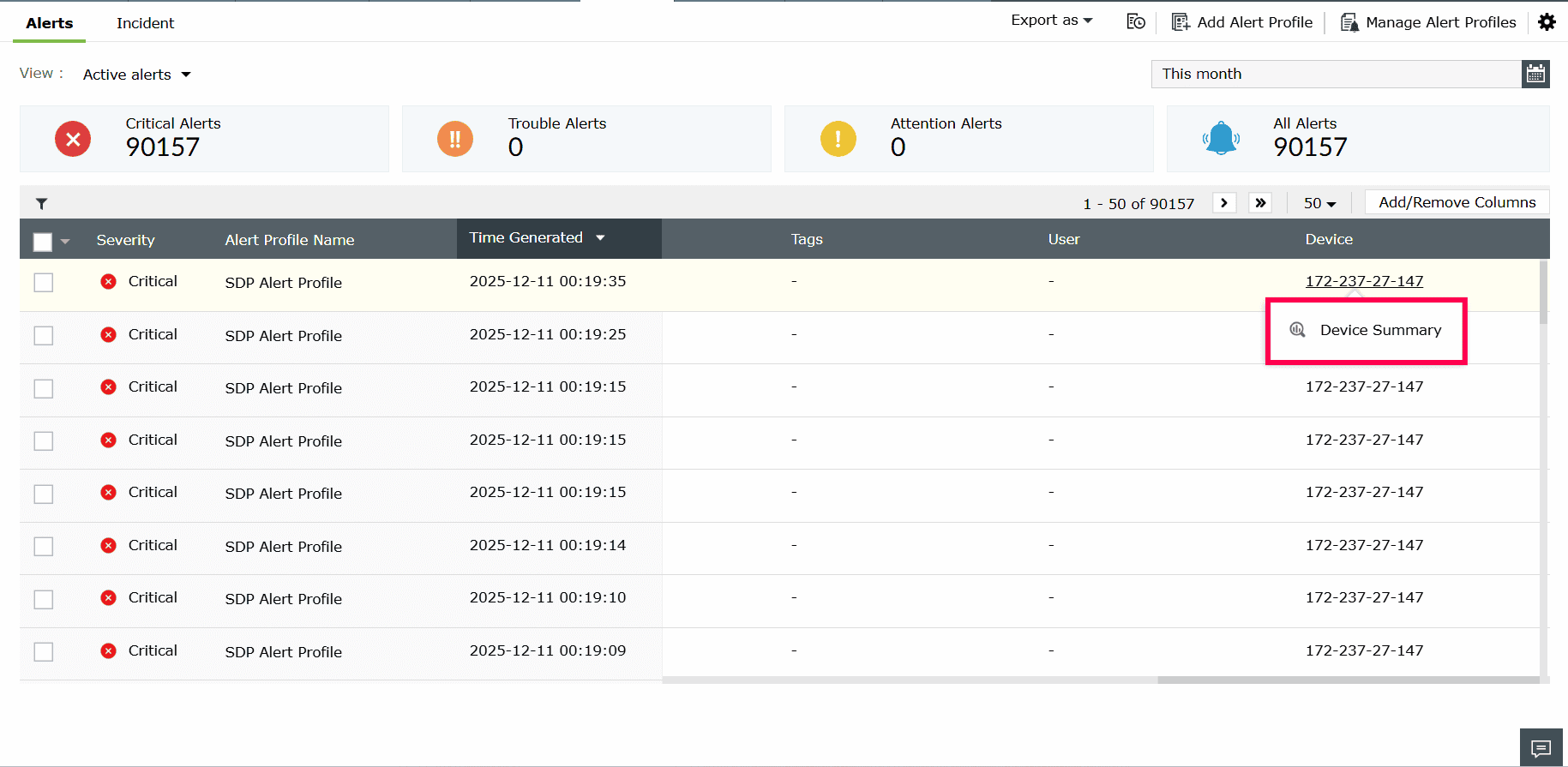
Figure 16: Viewing Device Summary
From Incidents
- Go to the Alerts tab and open the Incident sub-tab.
- Select the incident for which you want to view details.
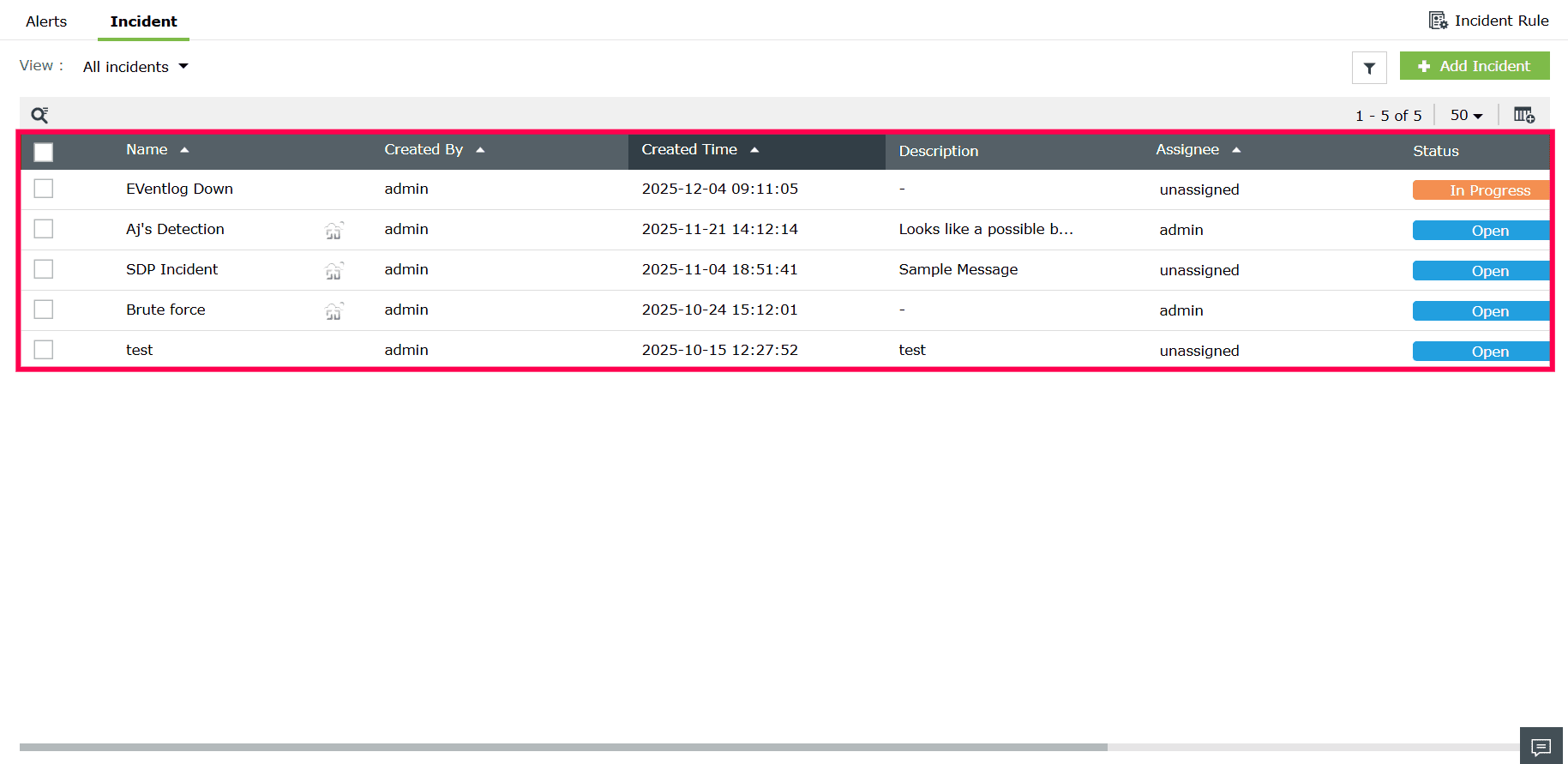
Figure 17: Selecting an incident - In the Actors section, click the device listed under Entity.
- Click Device Summary to view the summary information for that device.
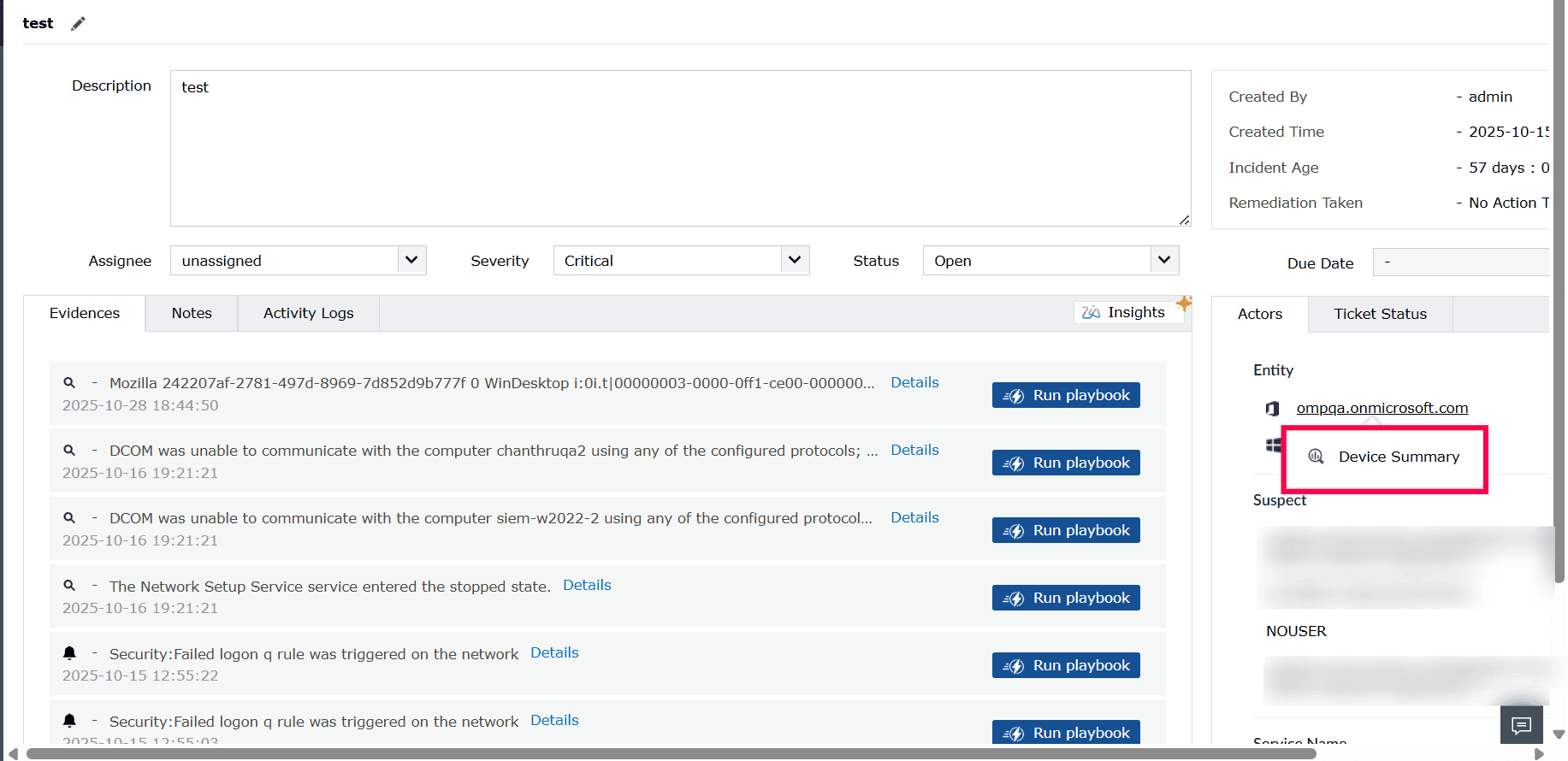
Figure 18: Viewing device summary
Using Device Summary
- Device list dropdown: Click the device dropdown to view all available devices and select the one you want to analyze.
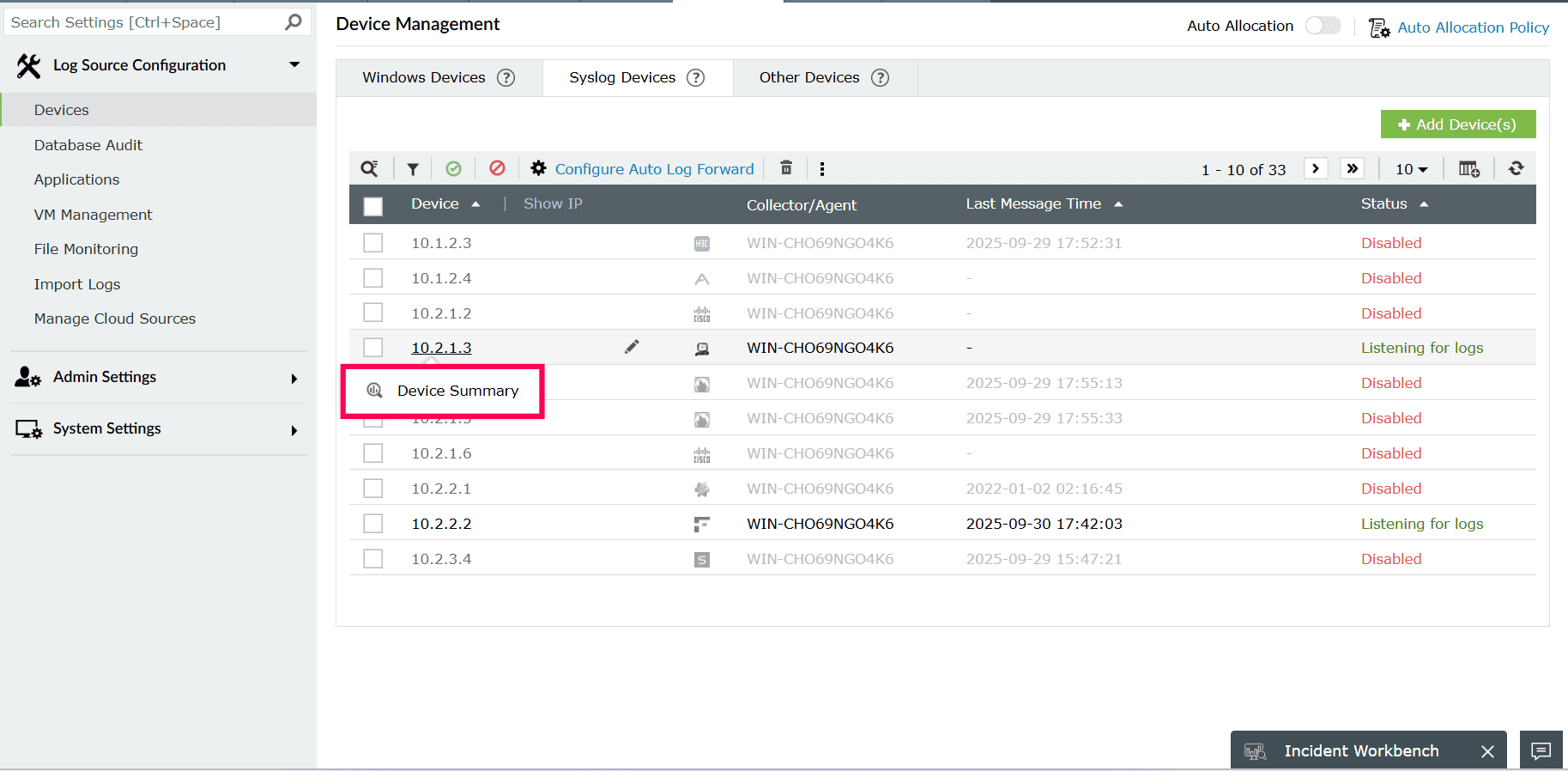
Figure 19: Selecting a device - You can also use search devices within the dropdown to quickly find a specific device.
- Switching between devices: Use the Previous and Next arrows to move to the previous or next device in the list.
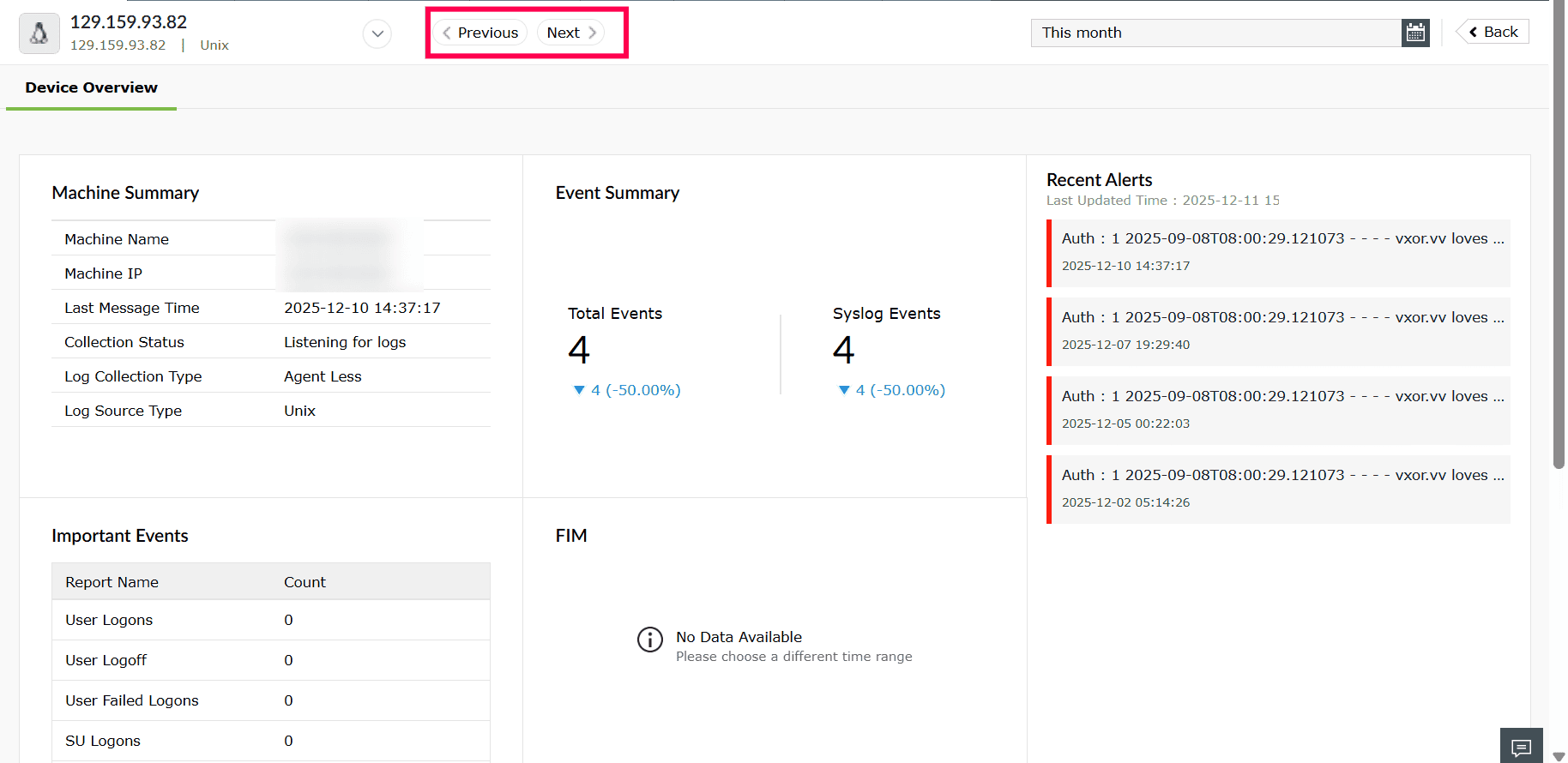
Figure 20: Switching between devices
Activity overview
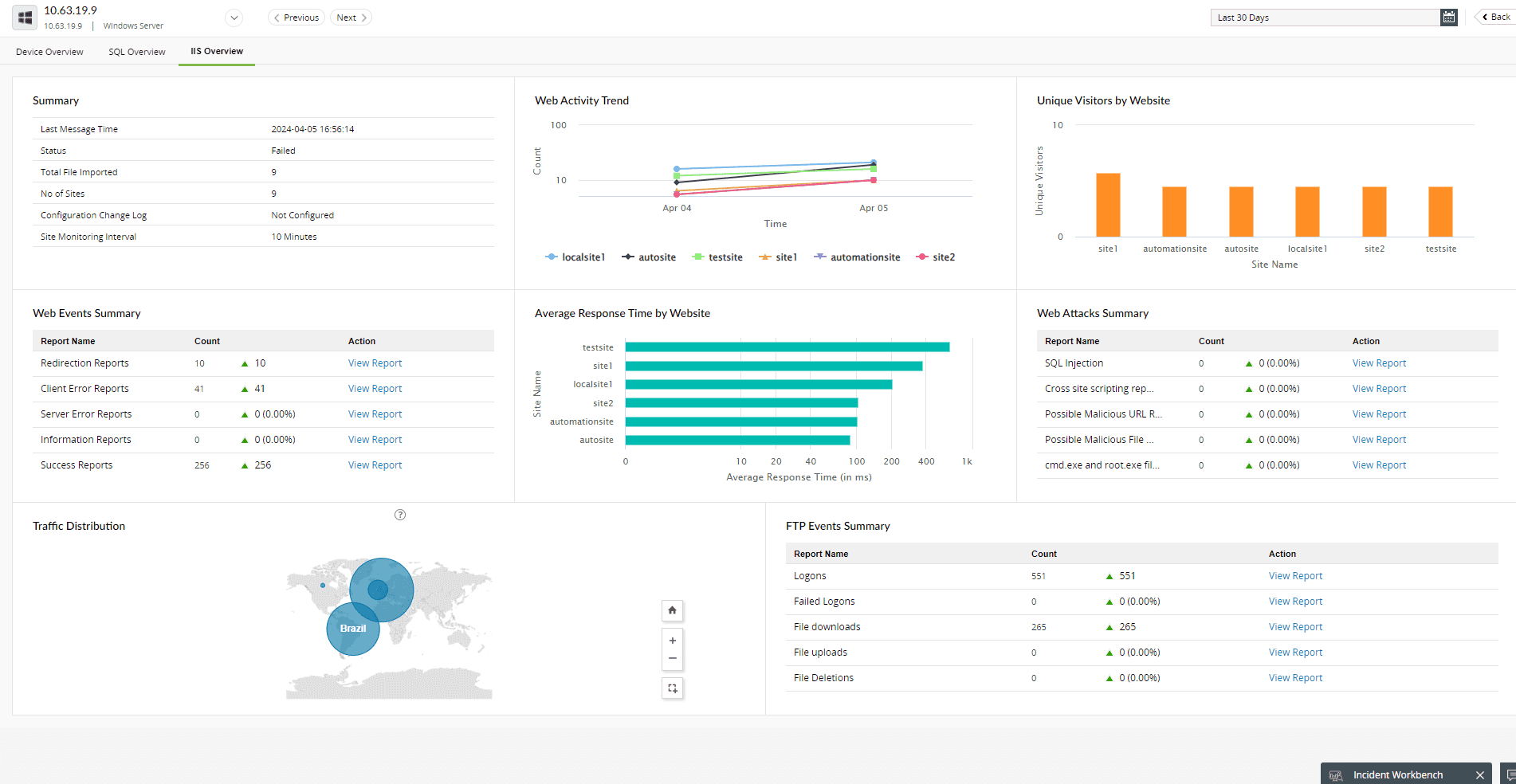
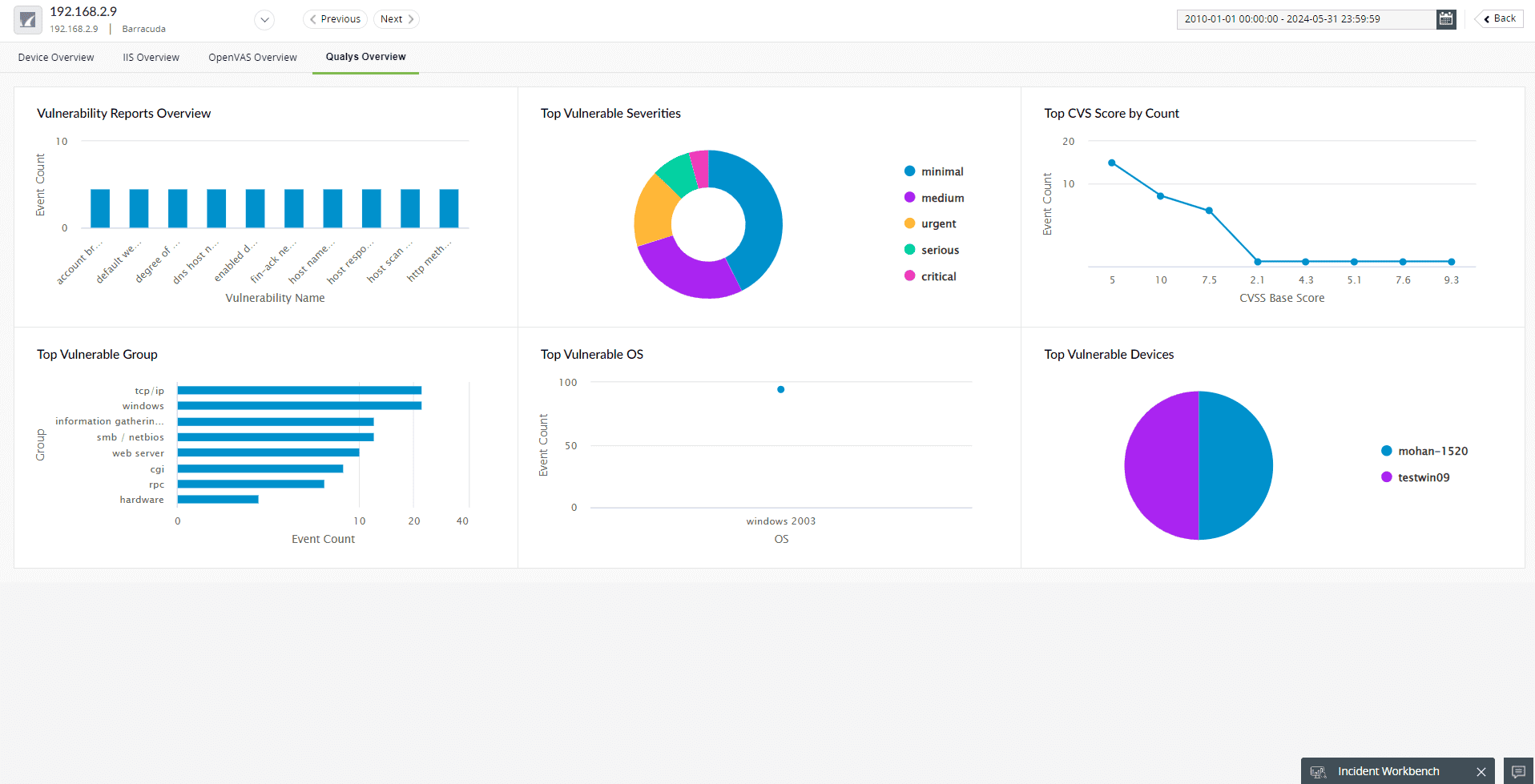
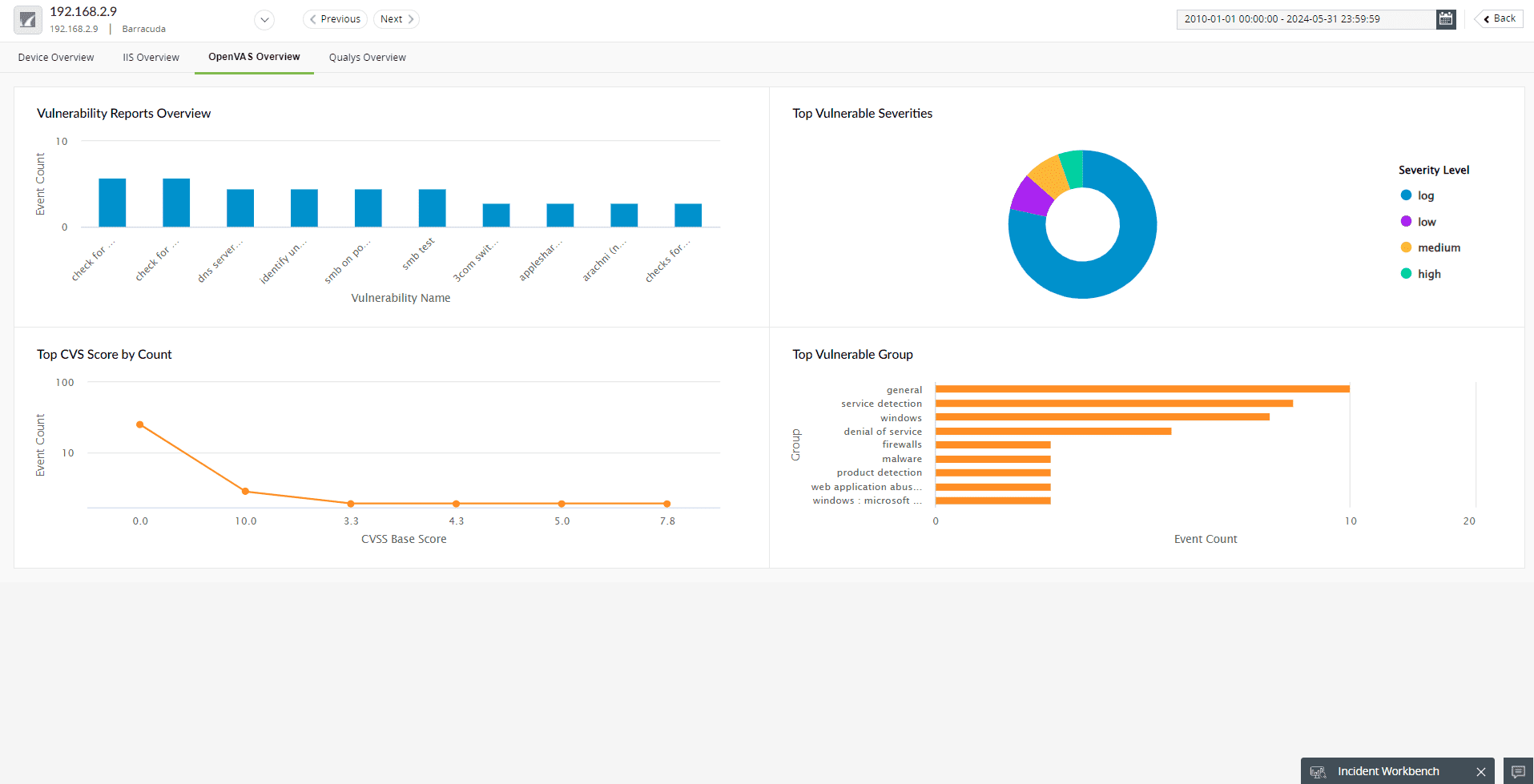
In addition to the Device Summary, the Activity Overview is available for configured web servers, databases, endpoint security solutions, and vulnerability scanners associated with the selected device.
SQL, IIS, Nessus, Nexpose, Nmap, OpenVAS, Qualys, Symantec DLP, CEF format–based sources, FireEye, Malwarebytes, McAfee, Symantec Endpoint Protection, and Trend Micro.
IIS Overview
Qualys Overview
OpenVas Overview
Read also
This page explained how to access Device Summary from multiple modules and how to navigate device-level insights. For more information on related features within the user interface, refer to: