
Zia Agent Studio
Last updated on:
In this page
Overview
Zia Agents are AI-powered assistants built using Zoho Agent Studio and deployed within Log360 Cloud. Each agent is configured with a defined role, a set of instructions, and integrated tools that determine the actions it can perform, along with a knowledge base that supports its responses.
Once deployed, agents are accessible to users through Ask Zia, the conversational interface of Log360 Cloud. The platform includes a set of prebuilt agents that can be enabled without additional configuration. Administrators can also create and deploy custom agents through Zoho Agent Studio to support organization-specific workflows.
Prerequisites
Before managing or using Zia Agents in Log360 Cloud, ensure the following requirements are met:
1) Ask Zia must be enabled
Zia Agents are part of Ask Zia. If Ask Zia is disabled, the Zia Agents page will display a warning and all agent controls will remain inactive.
2) Administrator role
Zia configuration settings are accessible only to Administrators. Custom Zia Agents created through Zoho Agent Studio are managed from the Zia Agents page by Administrators. Operators can interact with the agents assigned to them within the chat interface, but they do not have access to the Zia Agents settings page.
3) Zoho Agent Studio access for custom agents
Custom agents are created and managed in Zoho Agent Studio, a separate Zoho service. When you click Manage Agents or Build Agents in Log360 Cloud, you are redirected to Agent Studio. A Zoho account with access to Agent Studio is required to create or modify custom agents.
Before creating a custom agent, ensure that the following components are configured in Agent Studio:
- Tools - Tools are APIs that enable an agent to perform specific actions, such as retrieving data or executing operations in connected systems. To configure tools:
- Navigate to Tools in Agent Studio.
- The System Tools menu lists predefined tools published by applications. Log360 Cloud provides 12 predefined tools such as logs360_getIncident, and logs360_getAlerts.
- Click New Tool Group to add a custom tool.
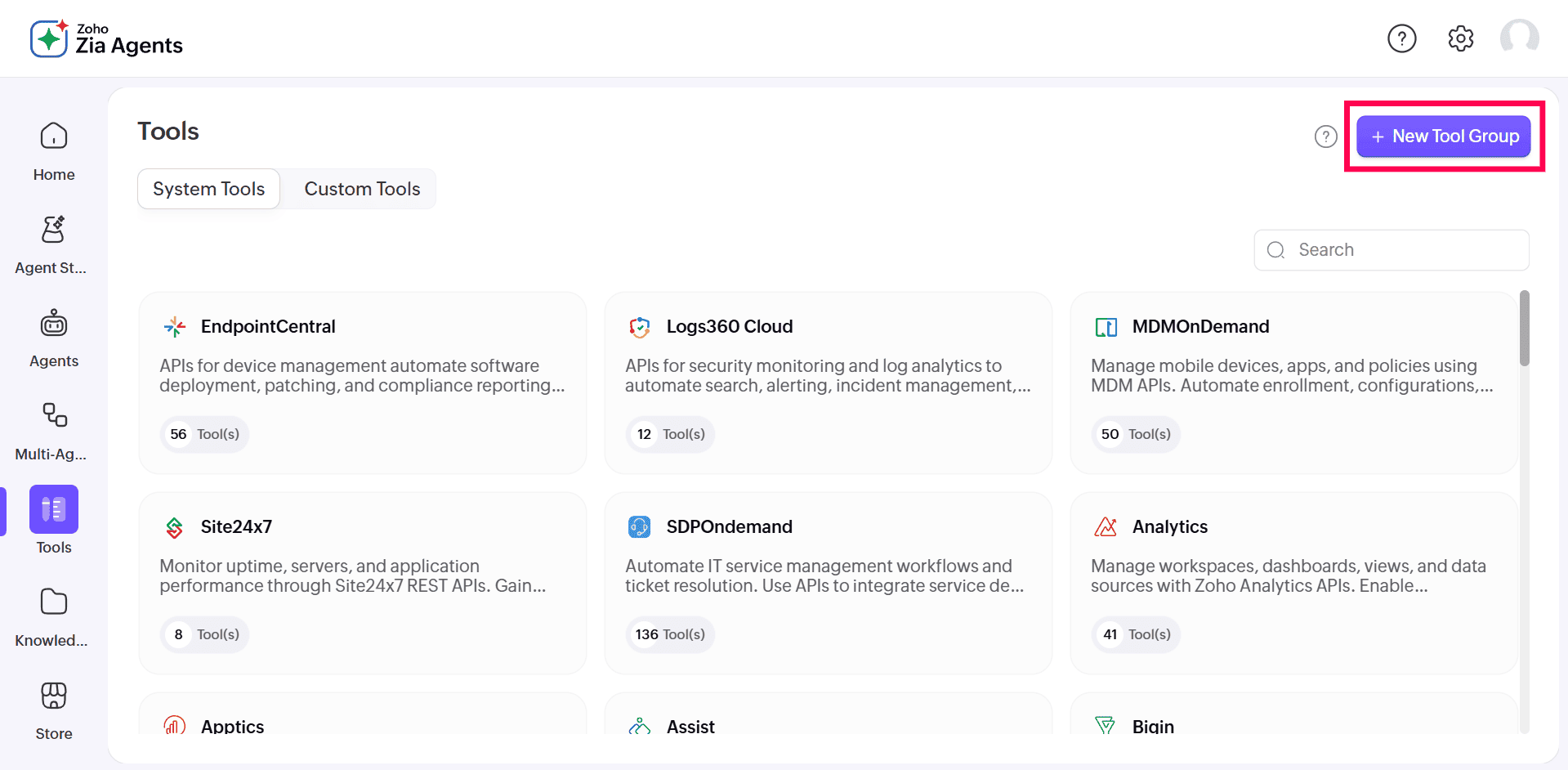
Figure 1: New tool group - In the Tool Group Name field, enter a name for the tool group.
- In the Description field, provide a brief description explaining the purpose of the tool group.
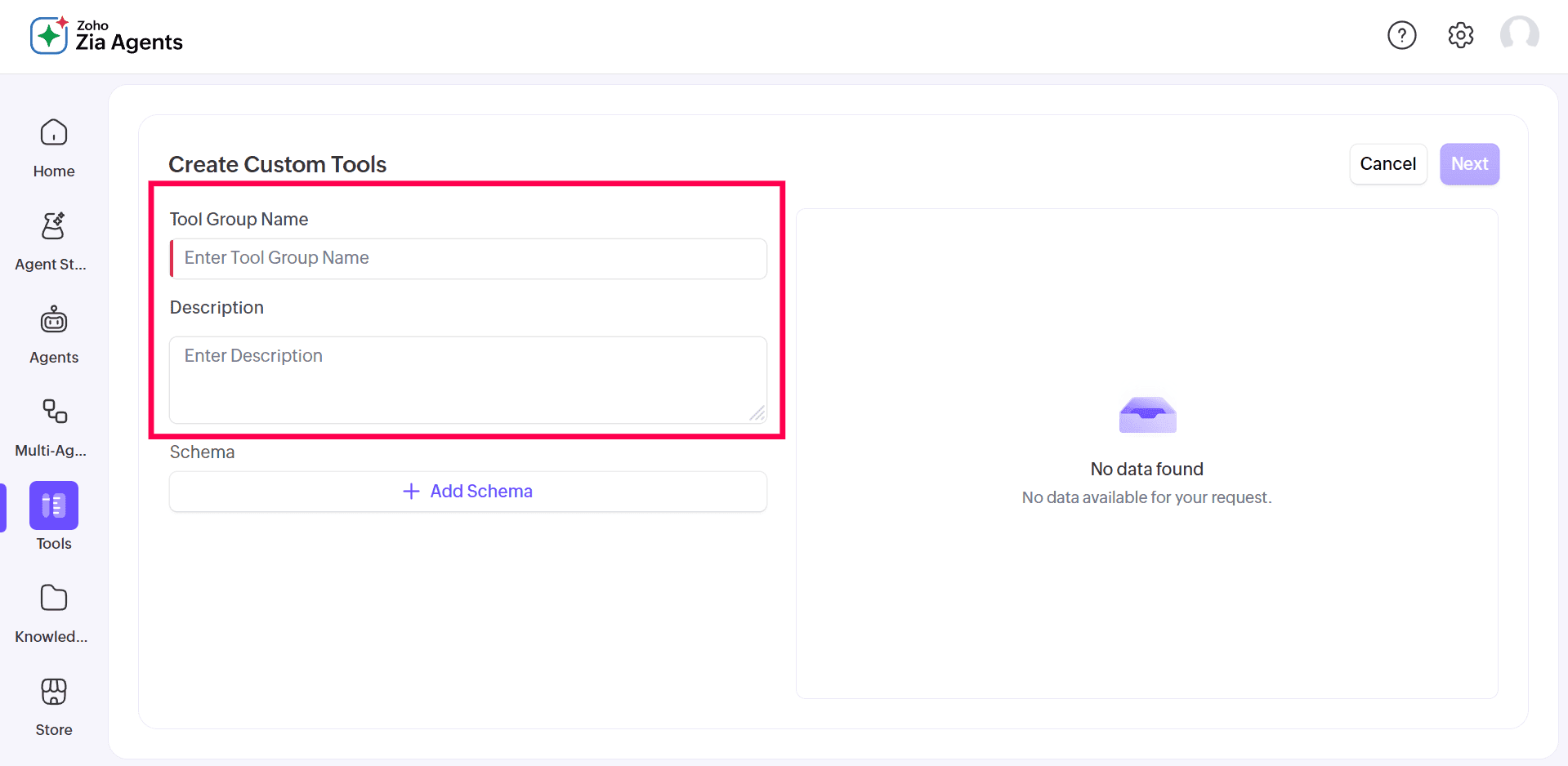
Figure 2: Entering tool group name and description - Under the Schema section, click + Add Schema.
- Choose one of the following options:
- Zoho Service: Select this option to use predefined Zoho services.
- Custom Service: Select this option to define your own service.
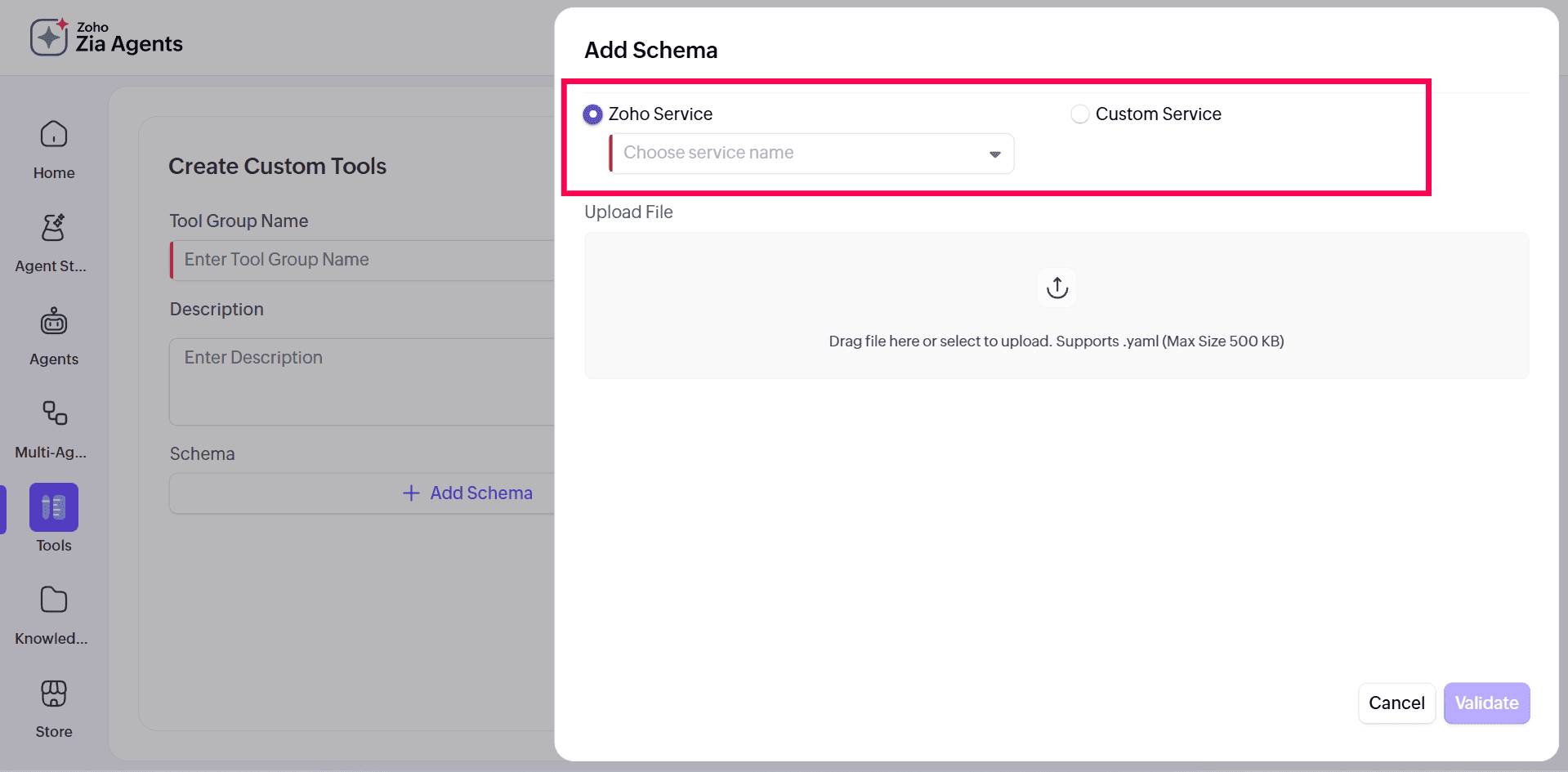
Figure 3: Selecting a service - If Zoho Service is selected:
- Click the Choose service name dropdown and select the required service from the list.
- You can use the search bar within the dropdown to locate a service.
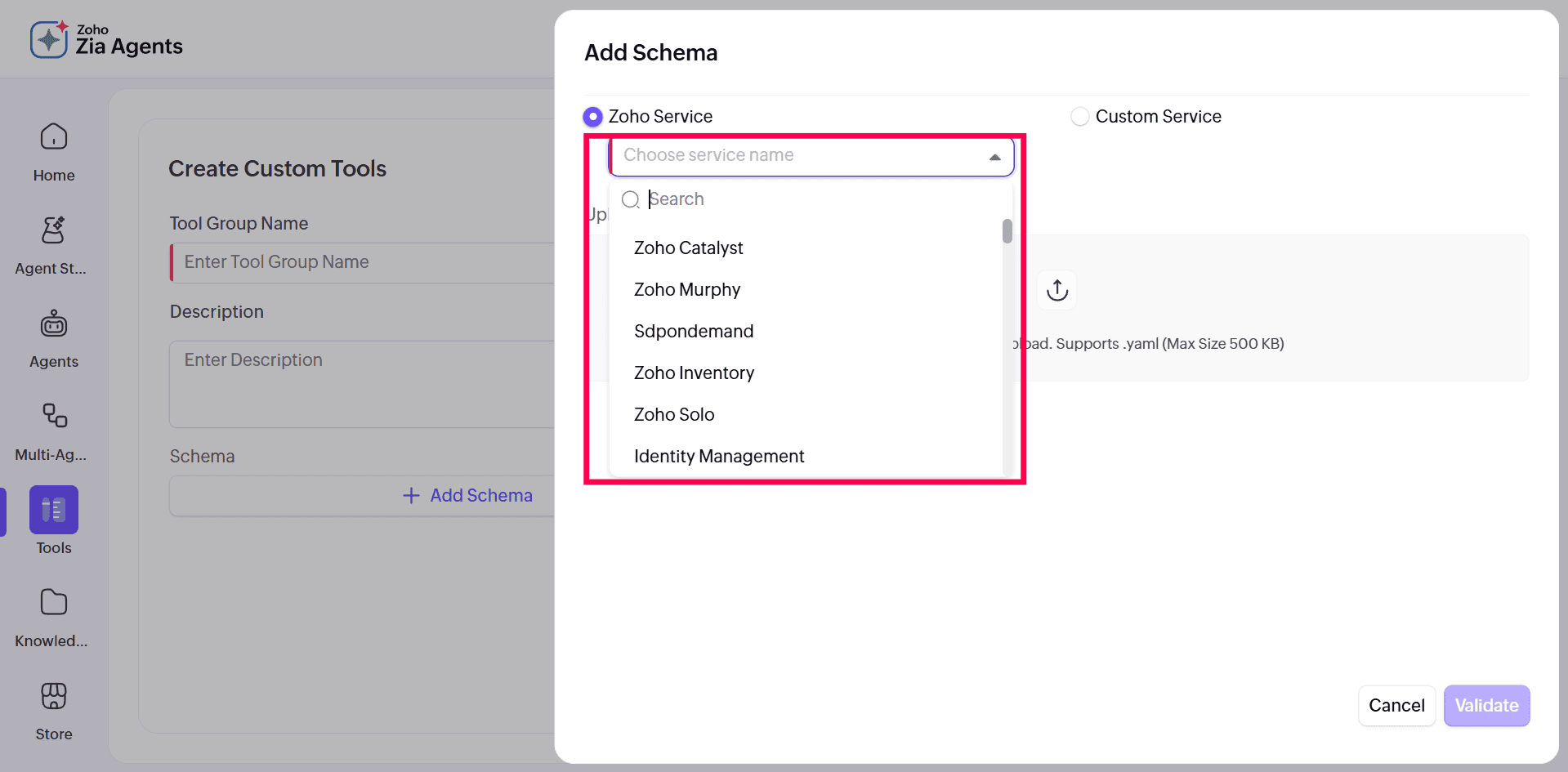
Figure 4: Selecting a service name - Browse and select the required schema file from your system.
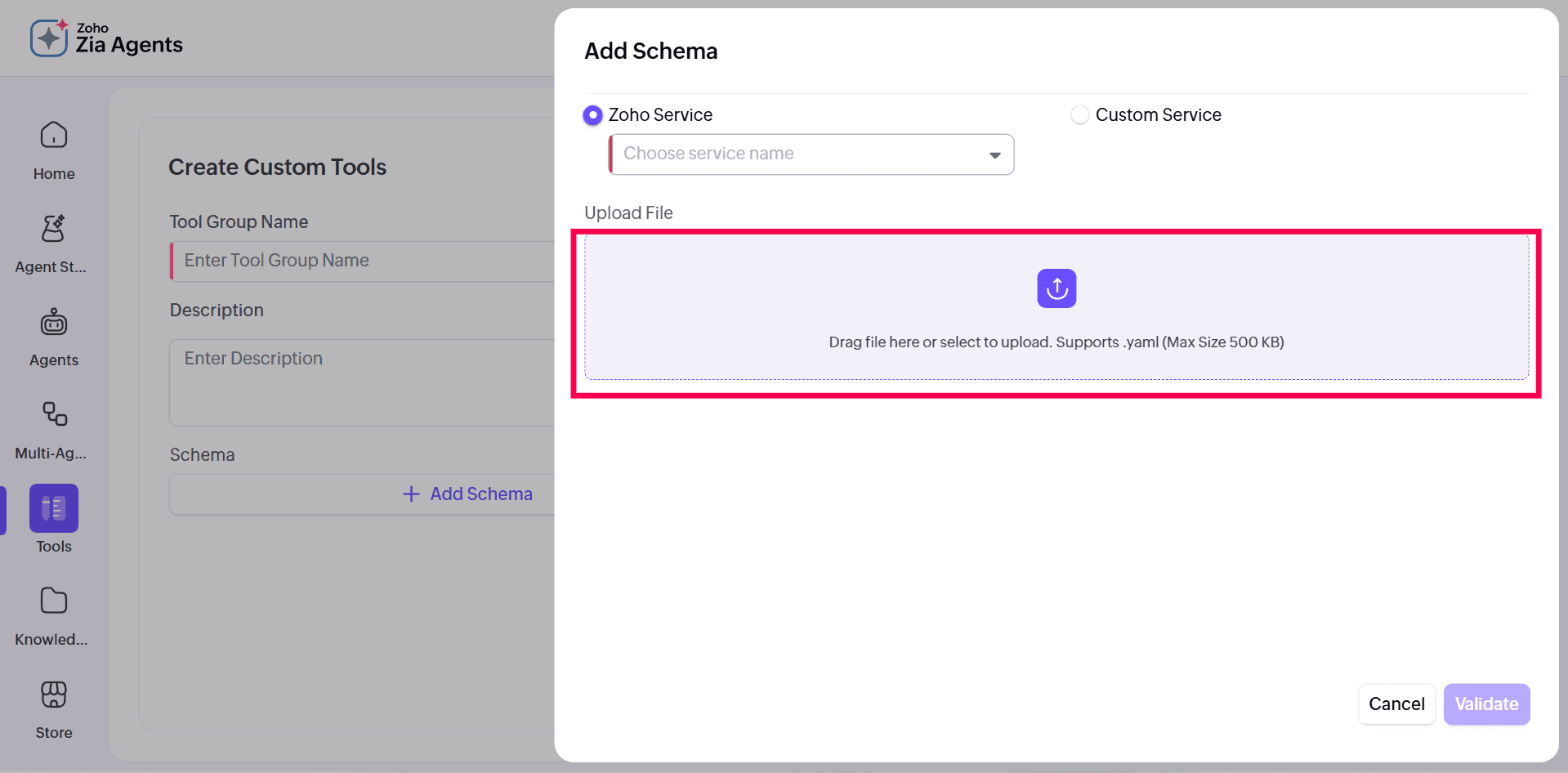
Figure 5: Uploading schema file - Click Validate to verify the uploaded schema.
- After successful validation, click Next to continue.
- Select the tools from the uploaded Schema and click Test Tools.
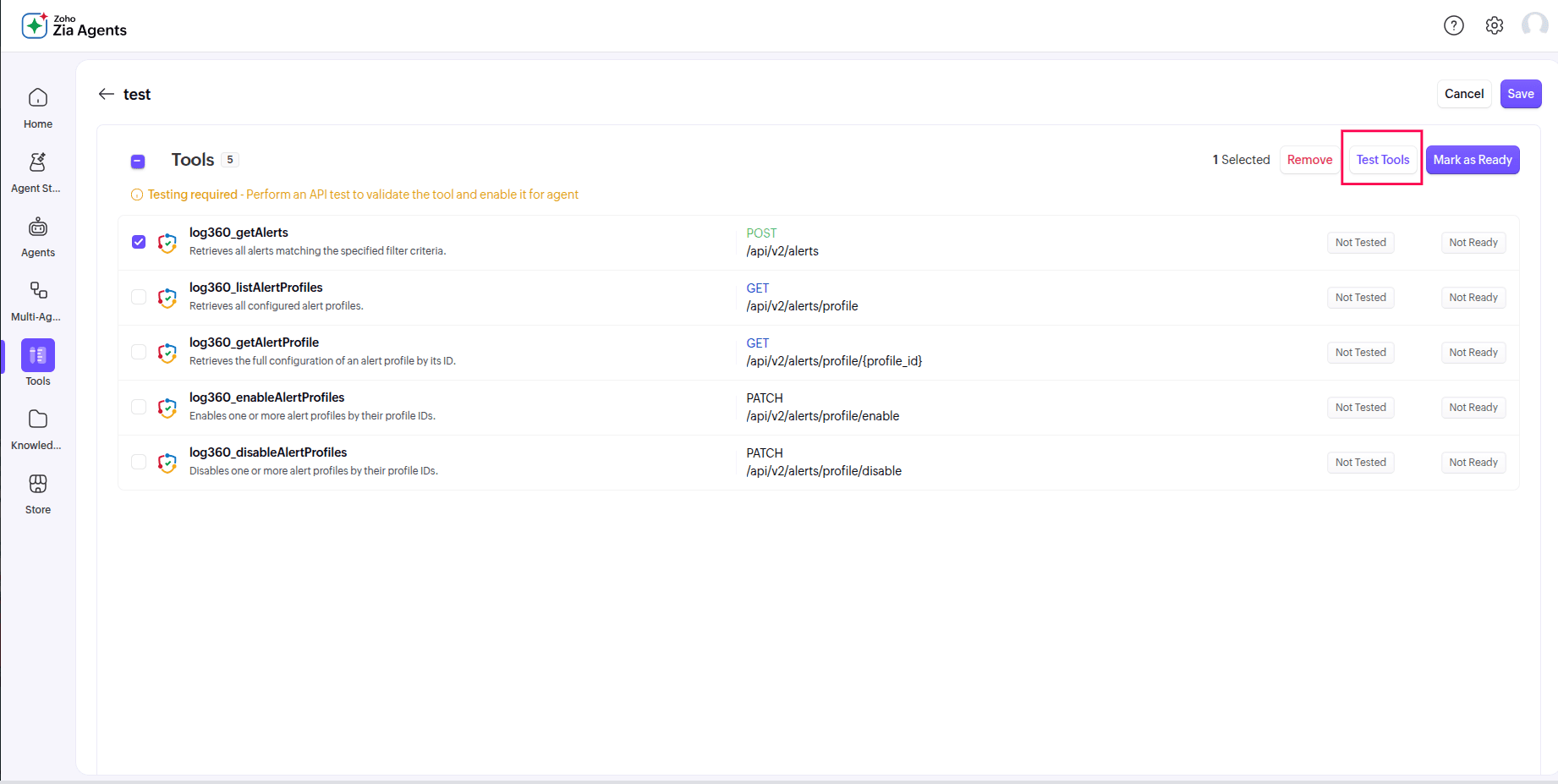
Figure 6: Test Tools for Custom Tools - Enter Values for the Parameters and click Test.
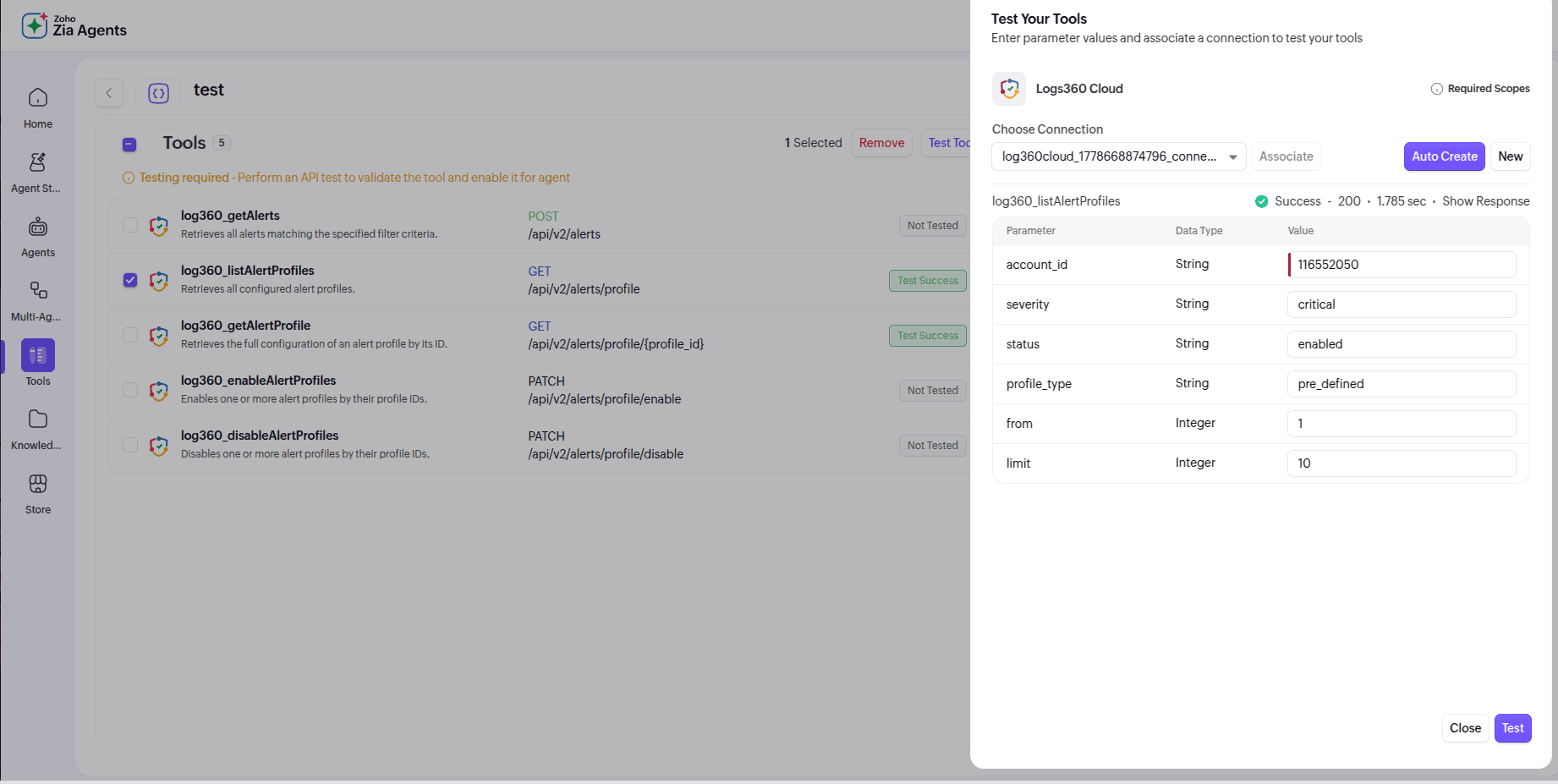
Figure 7: Parameter values for testing custom tools - Click Mark as Ready, then click Save. Only tools marked as ready will be available for use in Agents.
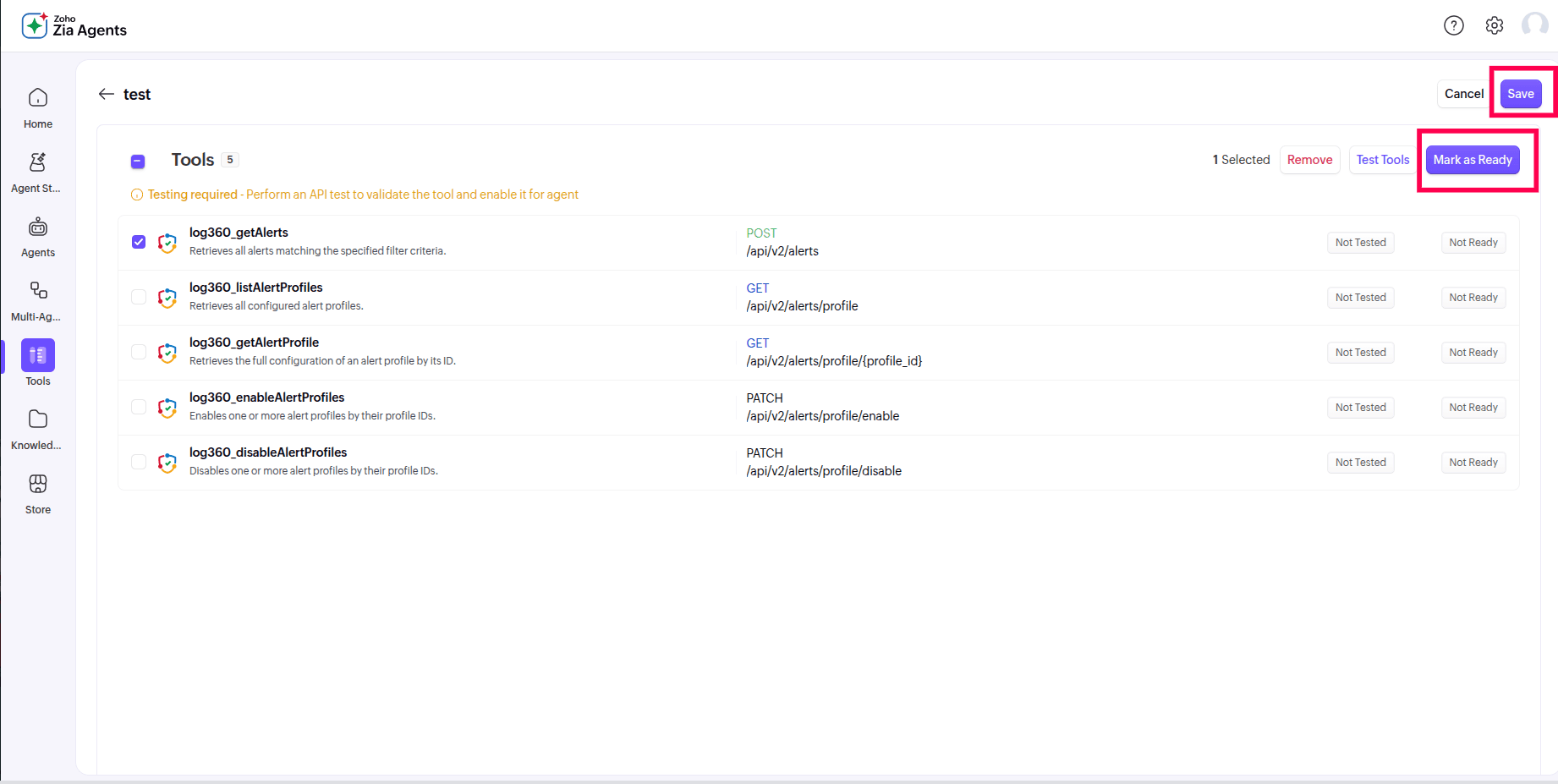
Figure 8: Mark as Ready for Custom Tools
- Knowledge Base - The Knowledge Base serves as a centralized repository of articles, FAQs, and documents that inform the agent's responses and behavior.
To configure the knowledge base:
- Navigate to Knowledge Base in Agent Studio.
- Click Upload Files.
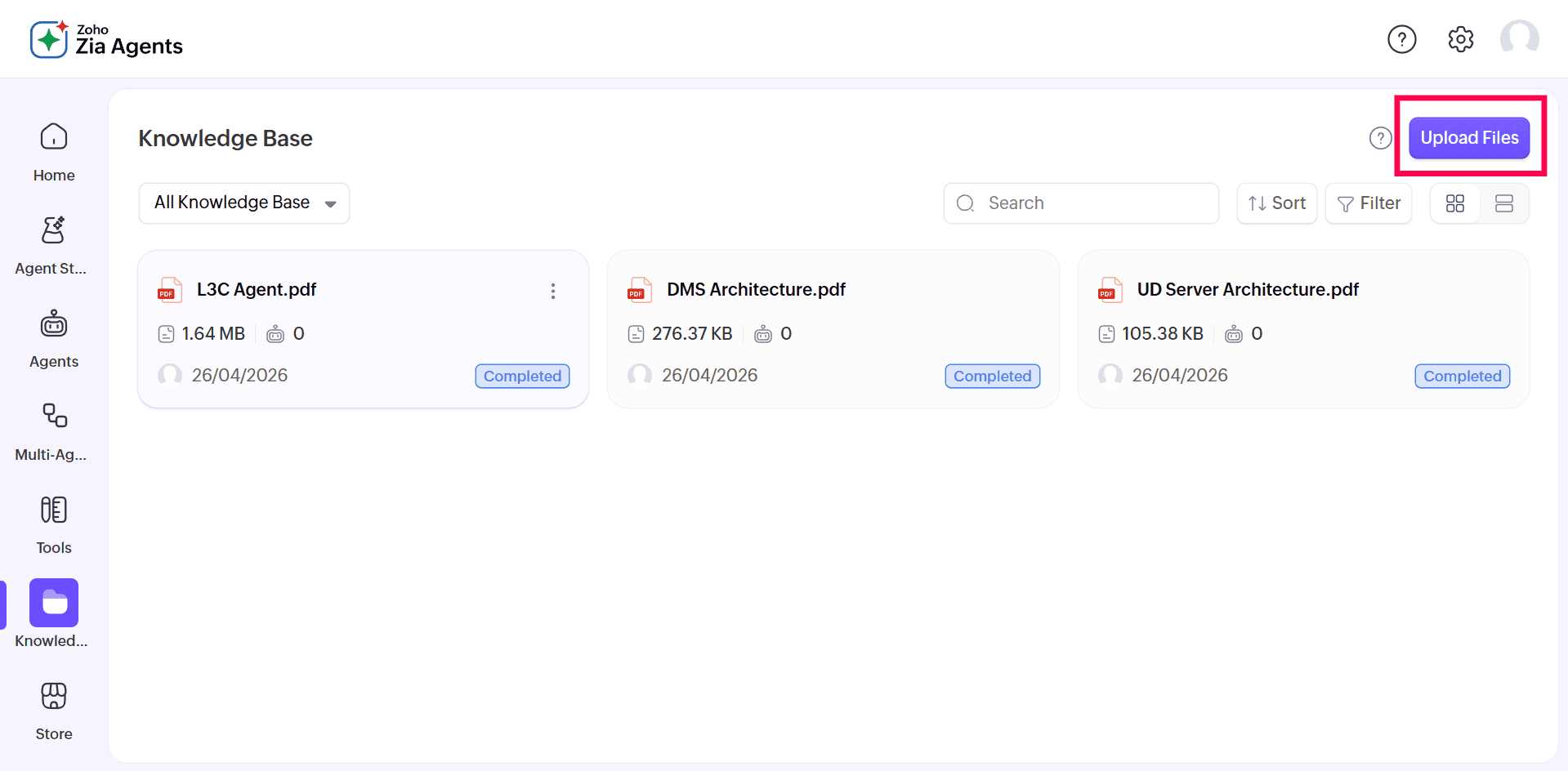
Figure 9: Uploading files - Upload content from your local system, Zoho WorkDrive, Zoho Learn, or via web scraping.
- Select the required files and click Upload.
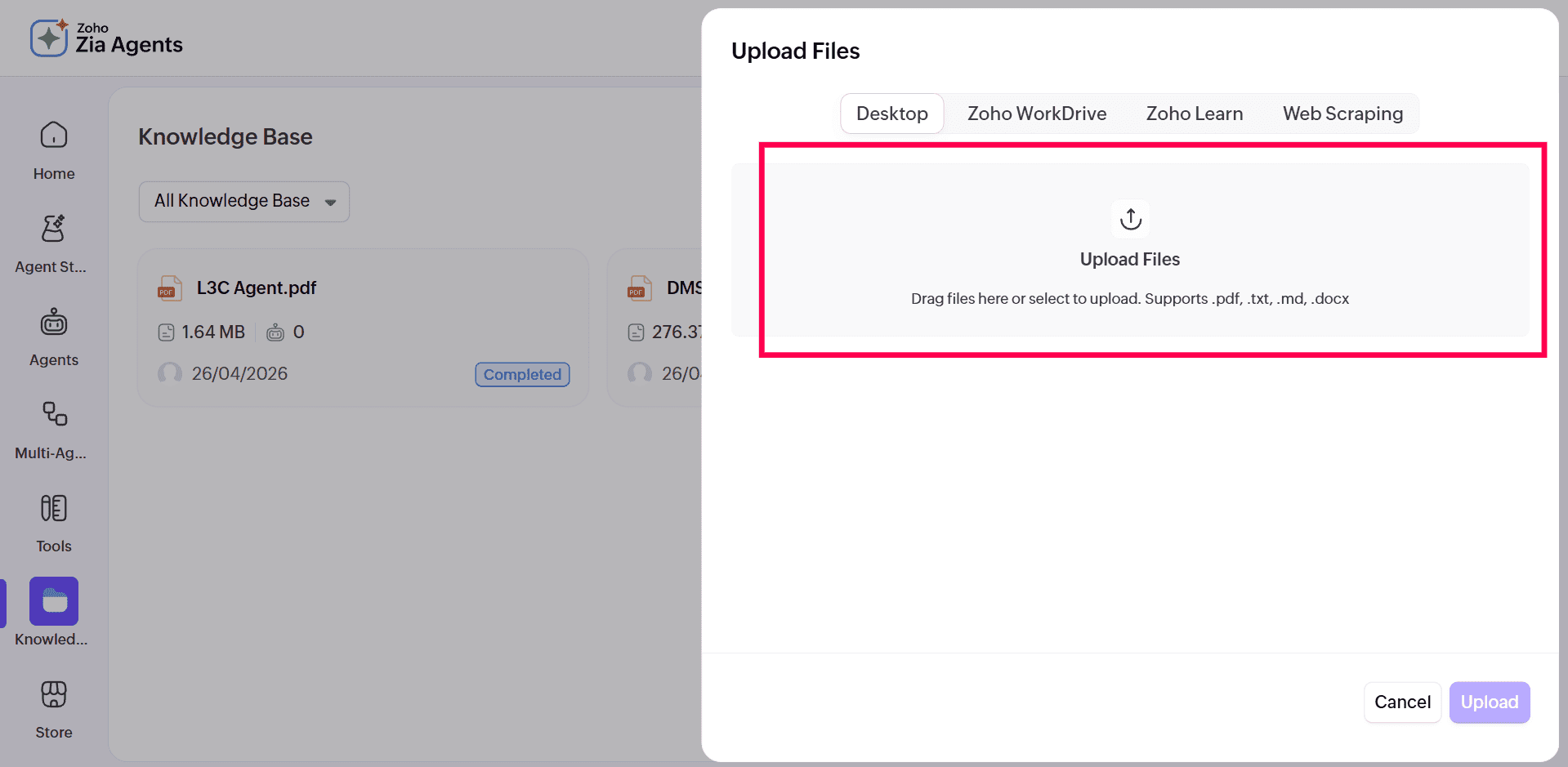
Figure 10: Uploading files
Read also
This page introduces Zia Agent Studio and the prerequisites for using Zia Agents in Log360 Cloud. To learn more about related configurations and usage, refer to: