
Using Ask Zia
Last updated on:
In this page
Overview
Ask Zia is available within Ask Zia in Log360 Cloud. This section explains how to access and use Ask Zia, manage conversations, interact with AI agents.
Accessing Ask Zia
The Ask Zia can be accessed from any page within Log360 Cloud. The steps to open and begin a session depend on whether an AI provider has been configured.
 icon will only be displayed if Ask Zia is enabled.
- Click the icon at the bottom-right corner of the Log360 Cloud interface. The Ask Zia panel opens.
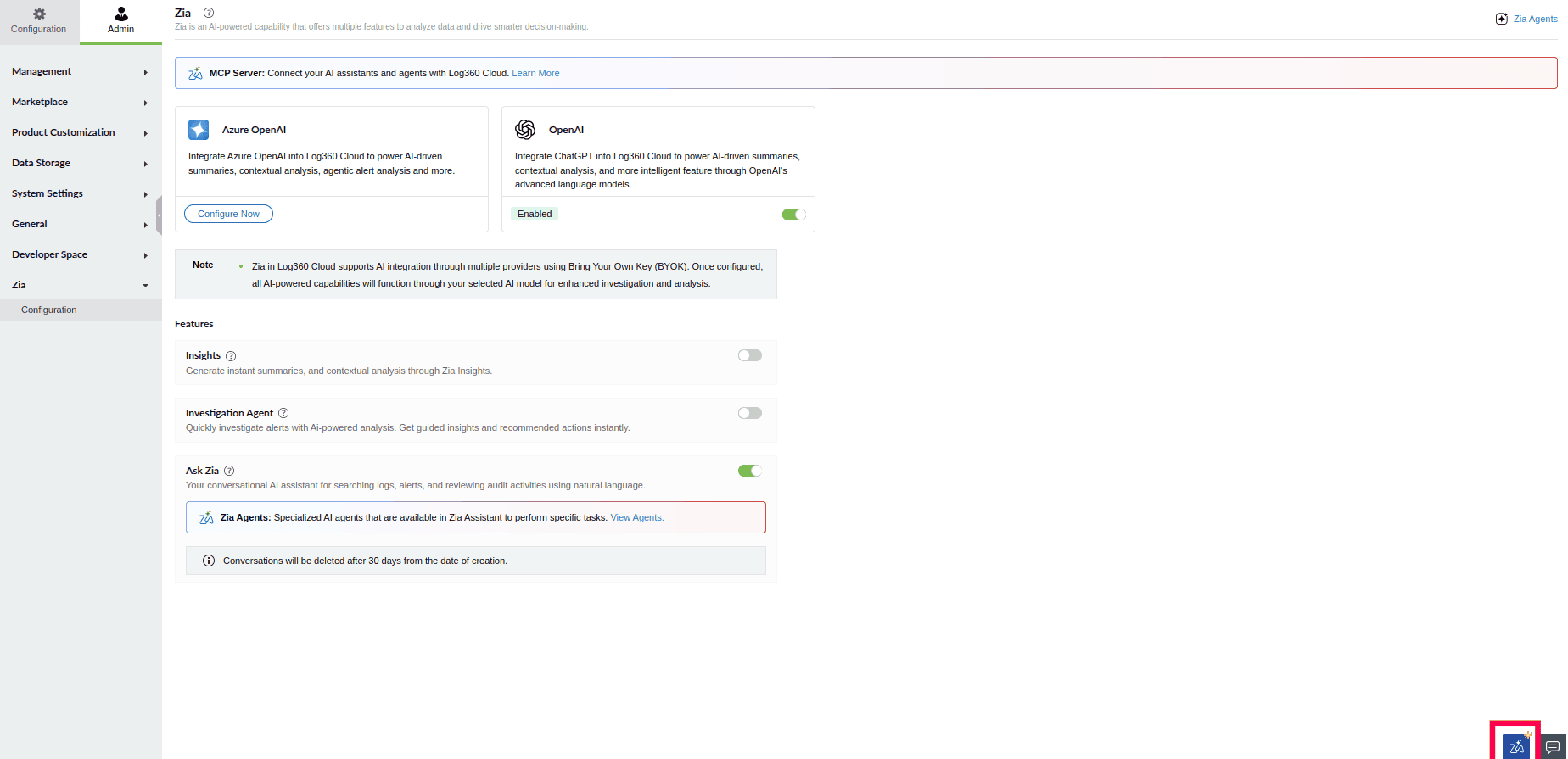
Figure 1: Accessing Ask Zia - If no AI provider has been configured, click Configure Now to set up an AI provider.
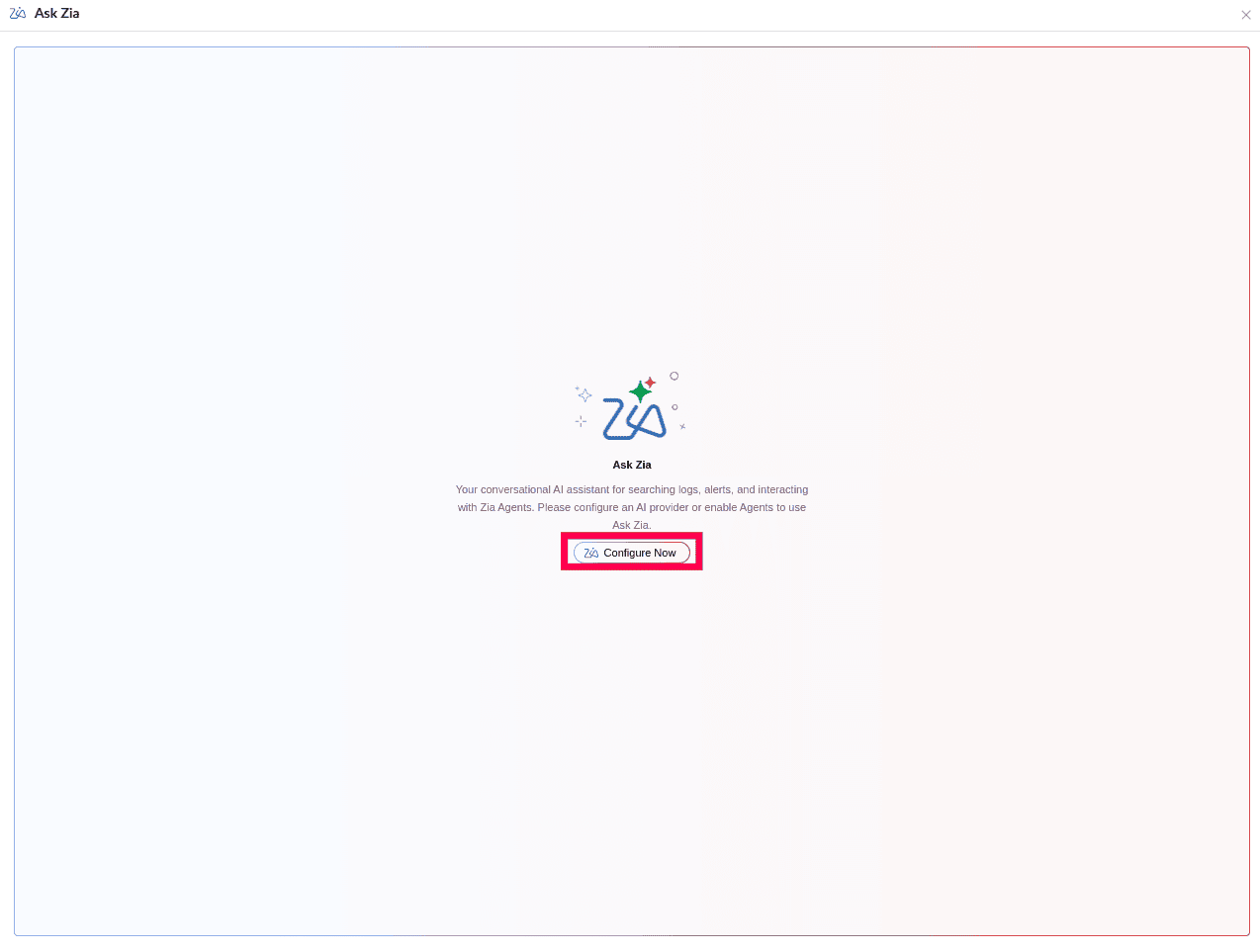
Figure 2: Configuring AI provider - If an AI provider has been configured and Ask Zia is enabled, the panel opens to the chat interface, ready to accept queries.
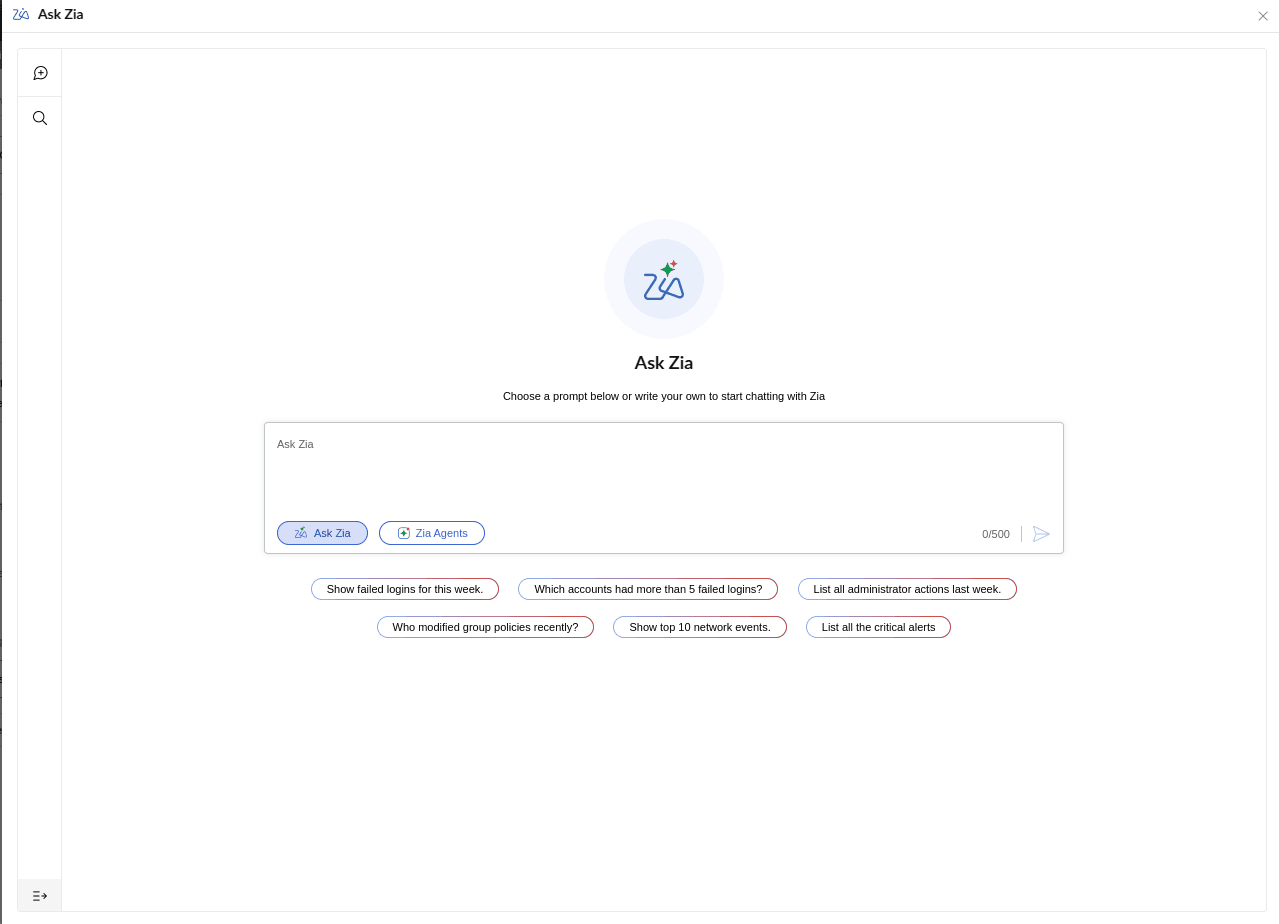
Figure 3: Viewing Ask Zia's conversational interface
Managing conversations
- The left sidebar displays all existing conversations, with the most recent at the top.
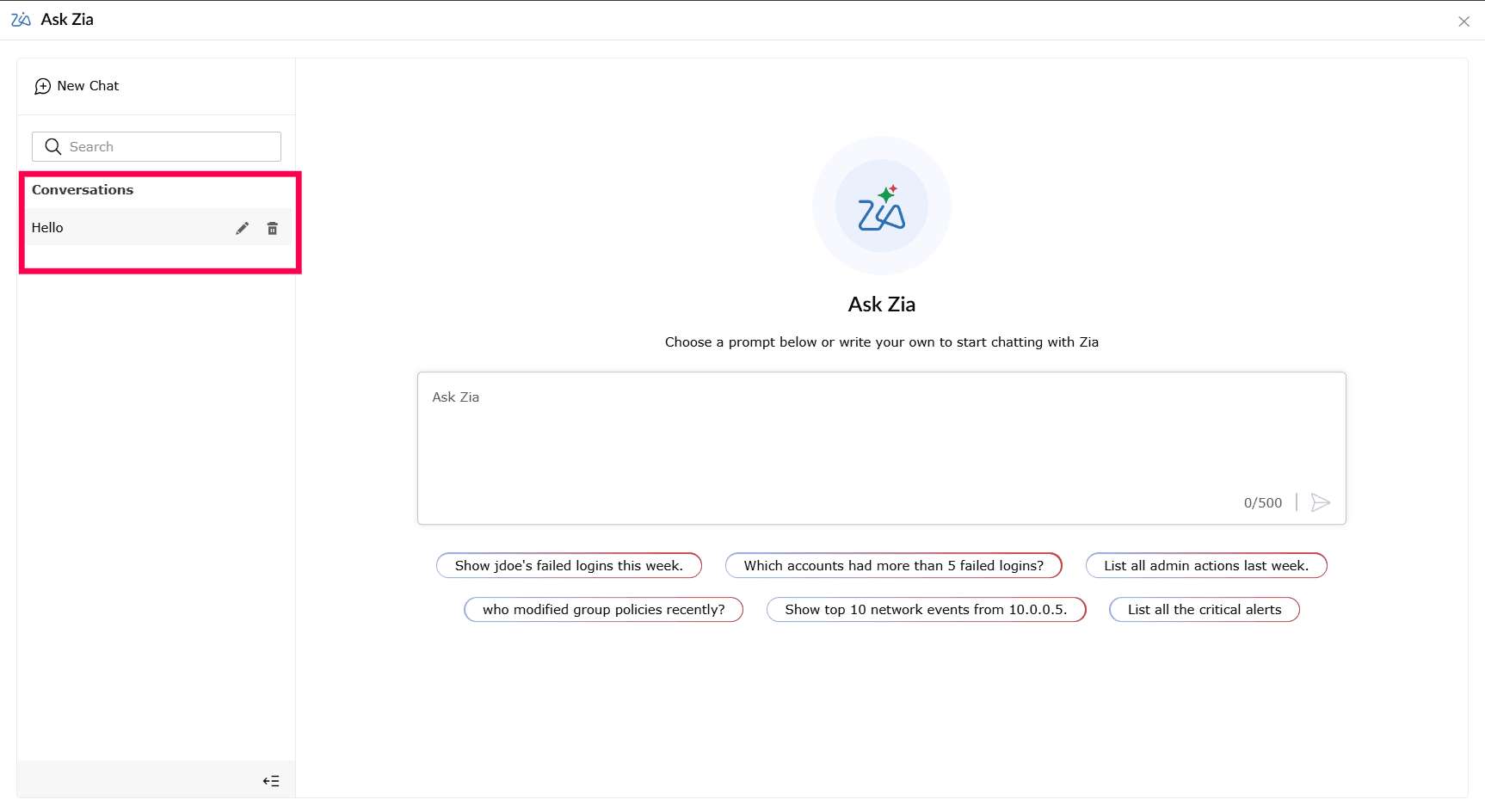
Figure 4: Viewing existing conversation - Click the
 icon in the sidebar to start a new conversation thread.
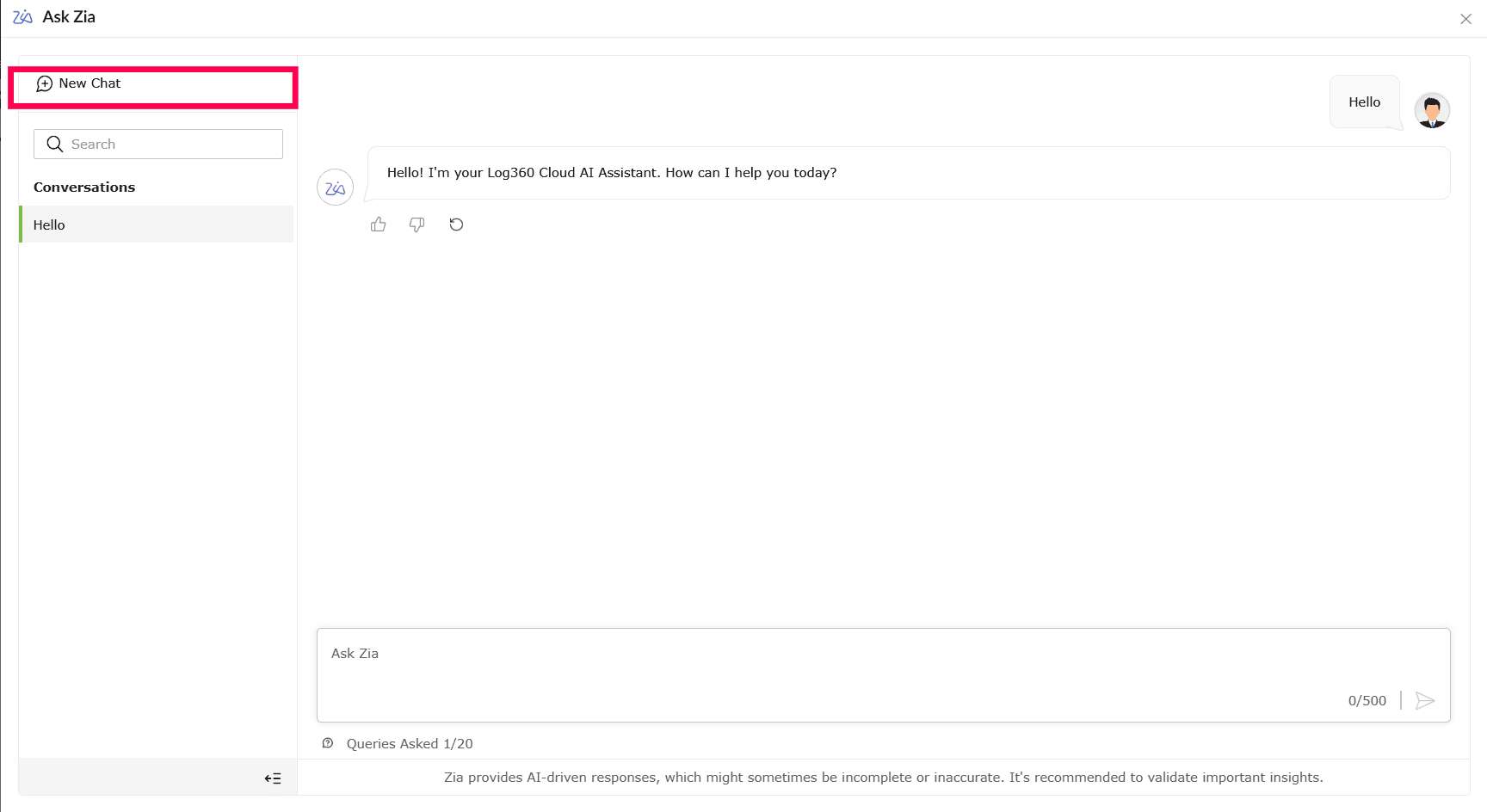
Figure 5: Starting a new conversation thread - After the first reply is received, Zia automatically assigns a title to the conversation based on the query.
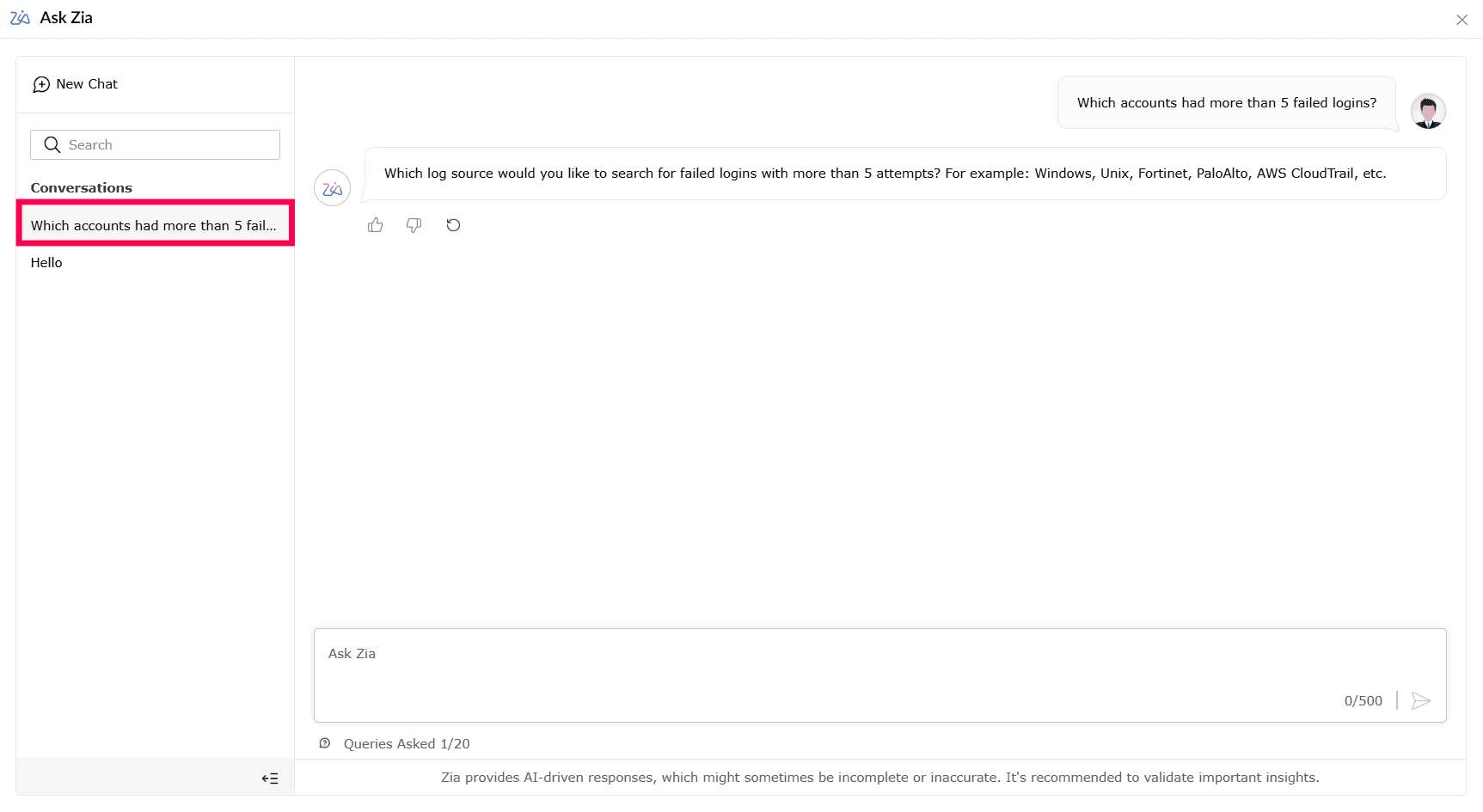
Figure 6: Auto-generated title - To rename a conversation, hover over the conversation title in the sidebar and click the
 icon.
icon.
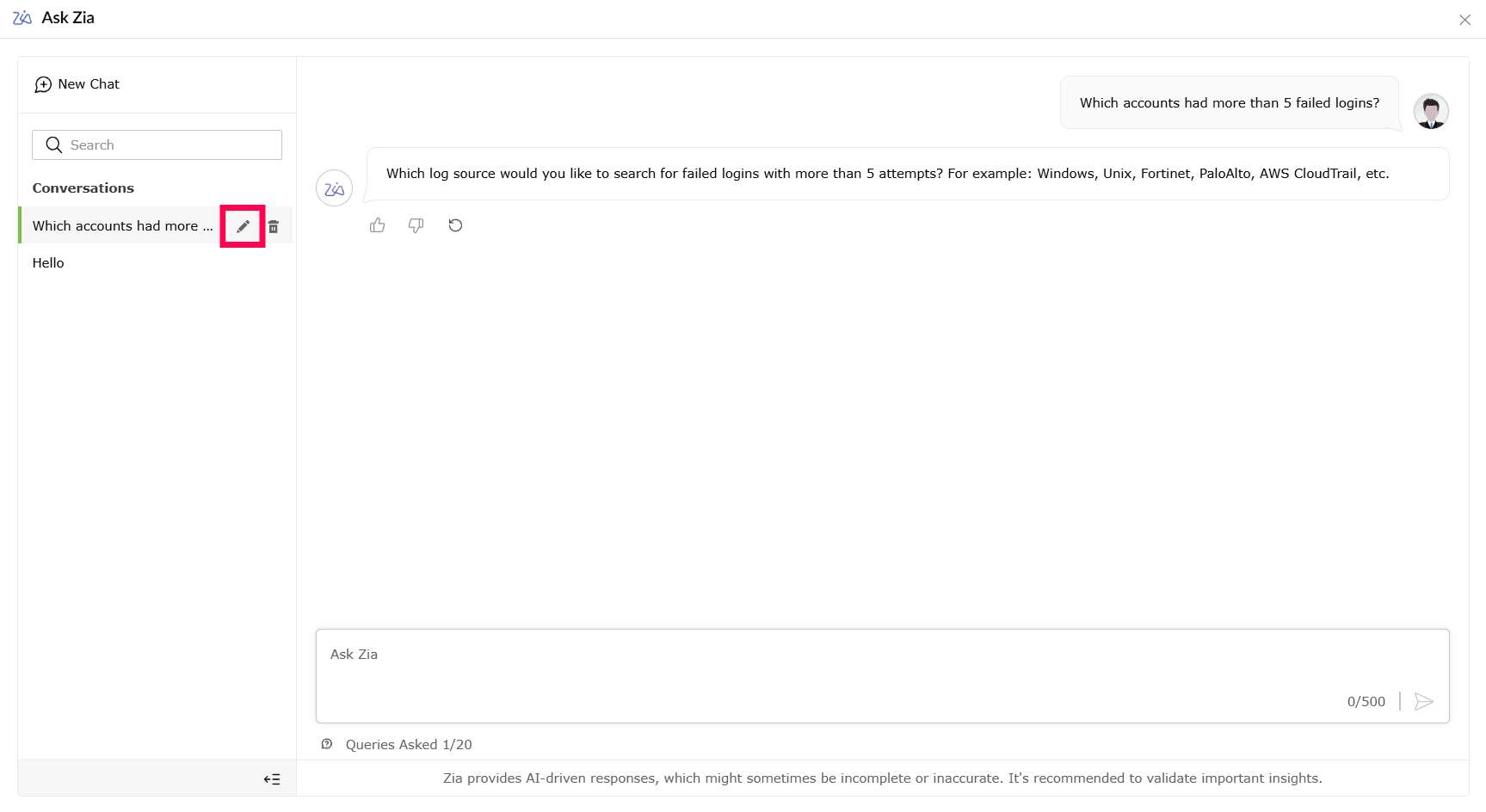
Figure 7: Renaming conversation thread - Enter a new name of up to 100 characters and click
 icon to save.
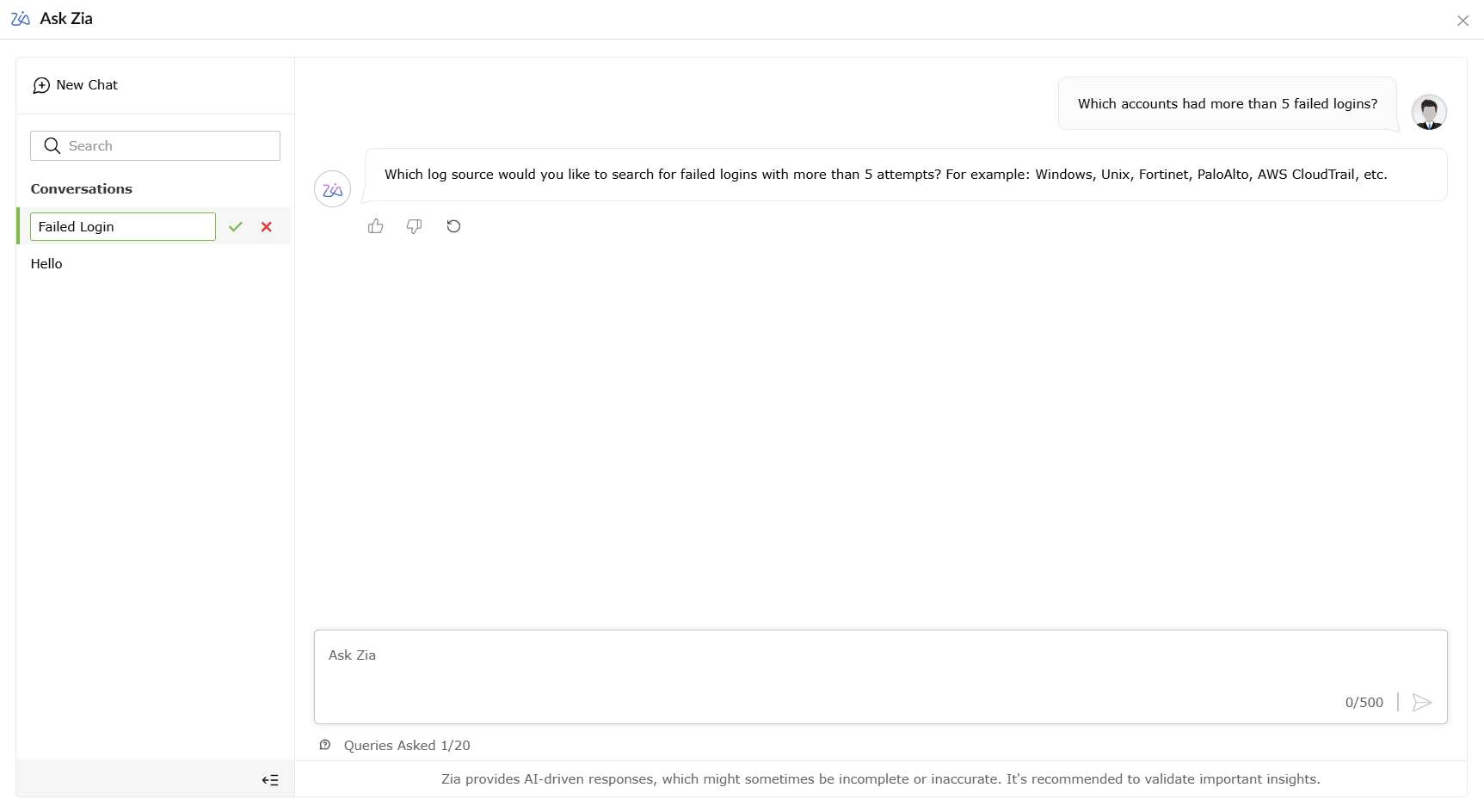
Figure 8: Renaming conversation thread - To delete a conversation, hover over its title in the sidebar and click the
 icon.
icon.
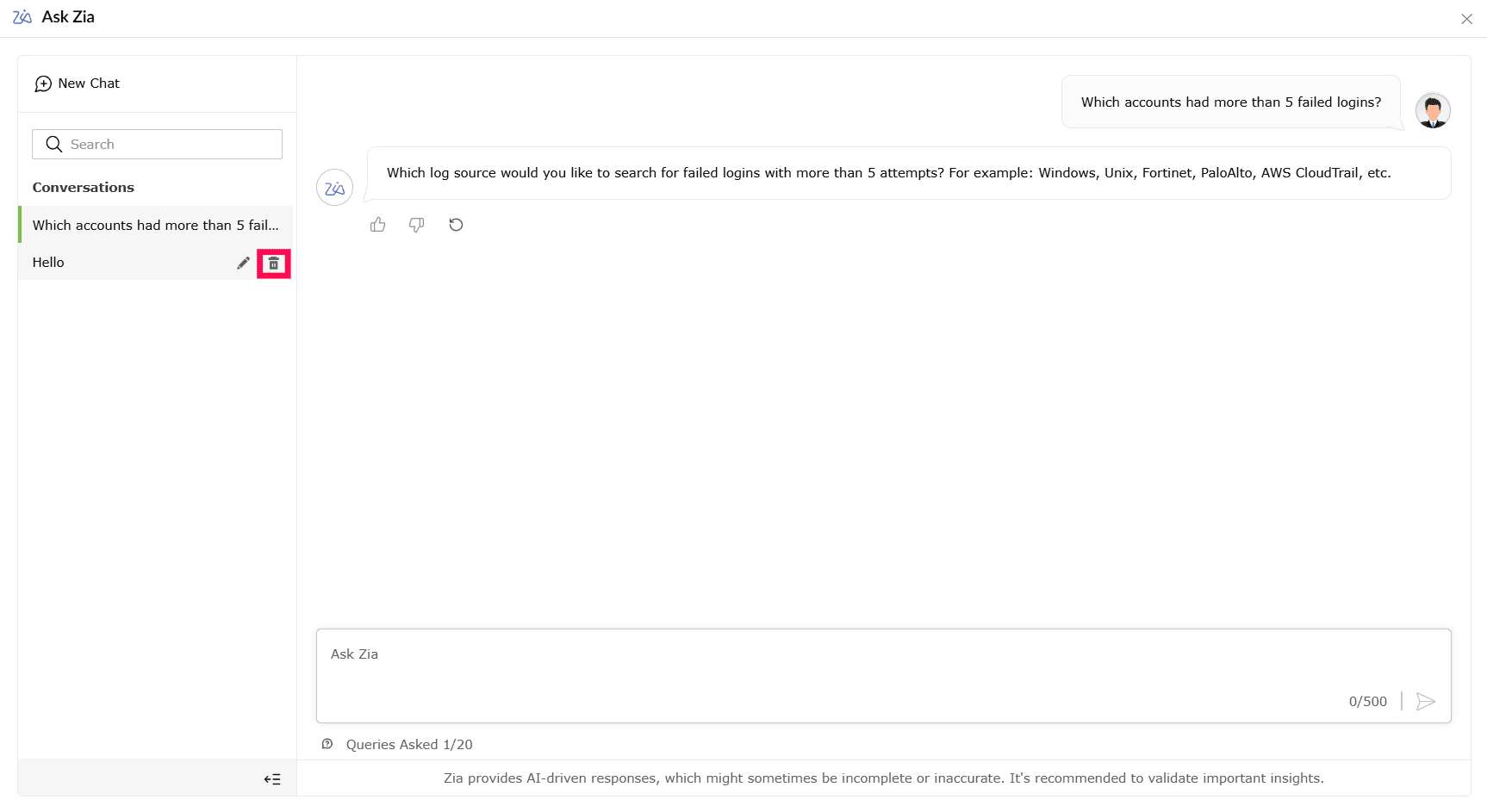
Figure 9: Deleting conversation thread - A confirmation pop-up appears. Click Delete to confirm.
Note Deleted conversations cannot be recovered.
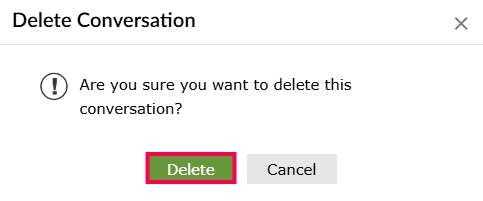
Figure 10: Deleting conversation thread Note A maximum of 50 conversations can be retained at any time. If the cap is reached, older conversations must be deleted before new ones can be created. Conversations are automatically deleted 30 days after their creation date. - To find a specific conversation, enter a keyword in the Search field at the top of the sidebar. Matching titles will be listed as text is entered.
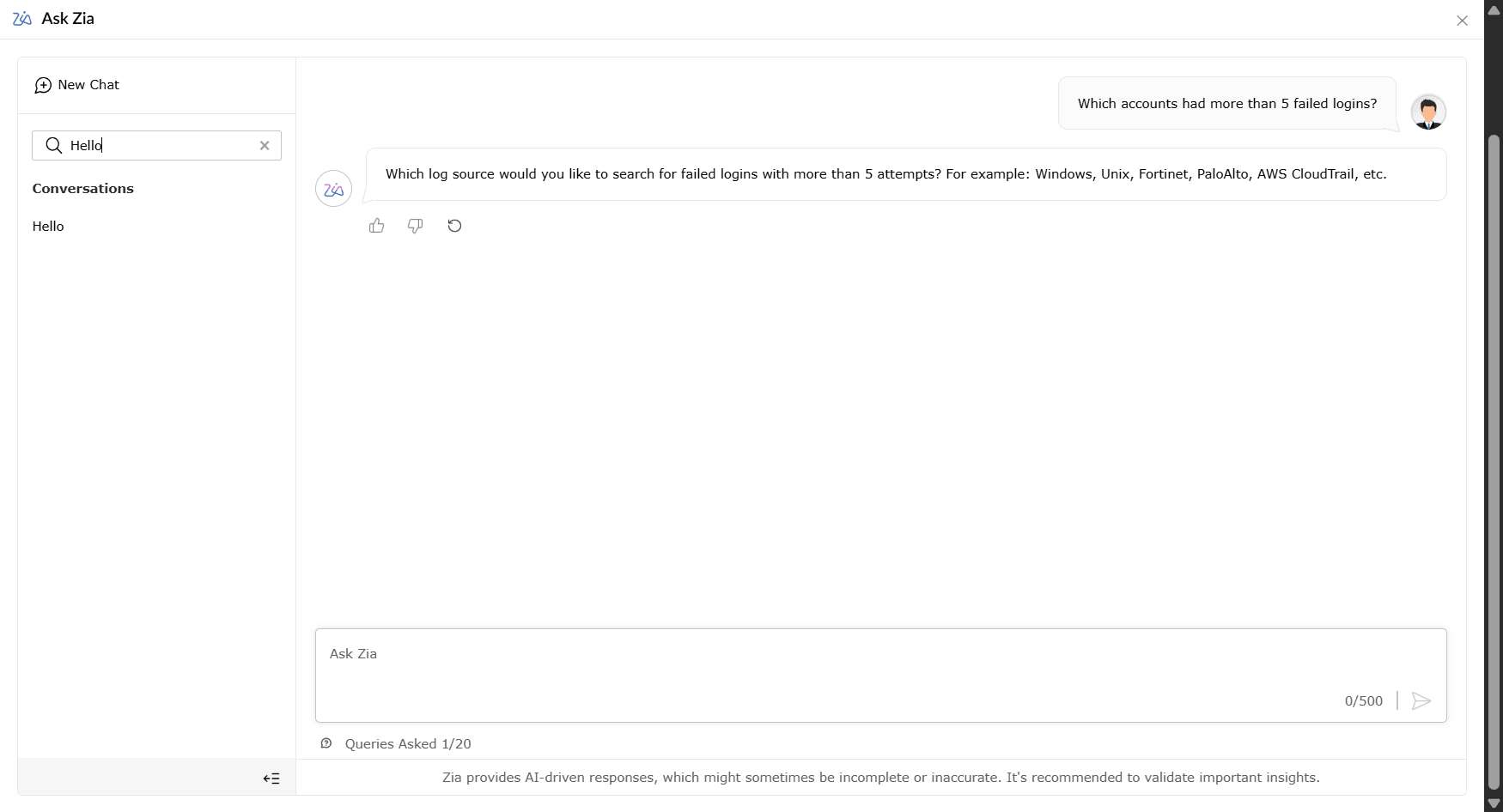
Figure 11: Locating a conversation thread - Click the
 icon to hide the sidebar and the
  icon to show the sidebar again.
Using Zia Agents
Zia Agents are AI-powered agents available within Ask Zia. When configured and enabled, they can be selected to handle queries within their defined scope.
Follow the steps below to use Zia Agents:
- In the Ask Zia page, locate the Ask Zia and Zia Agents at the bottom of the page.
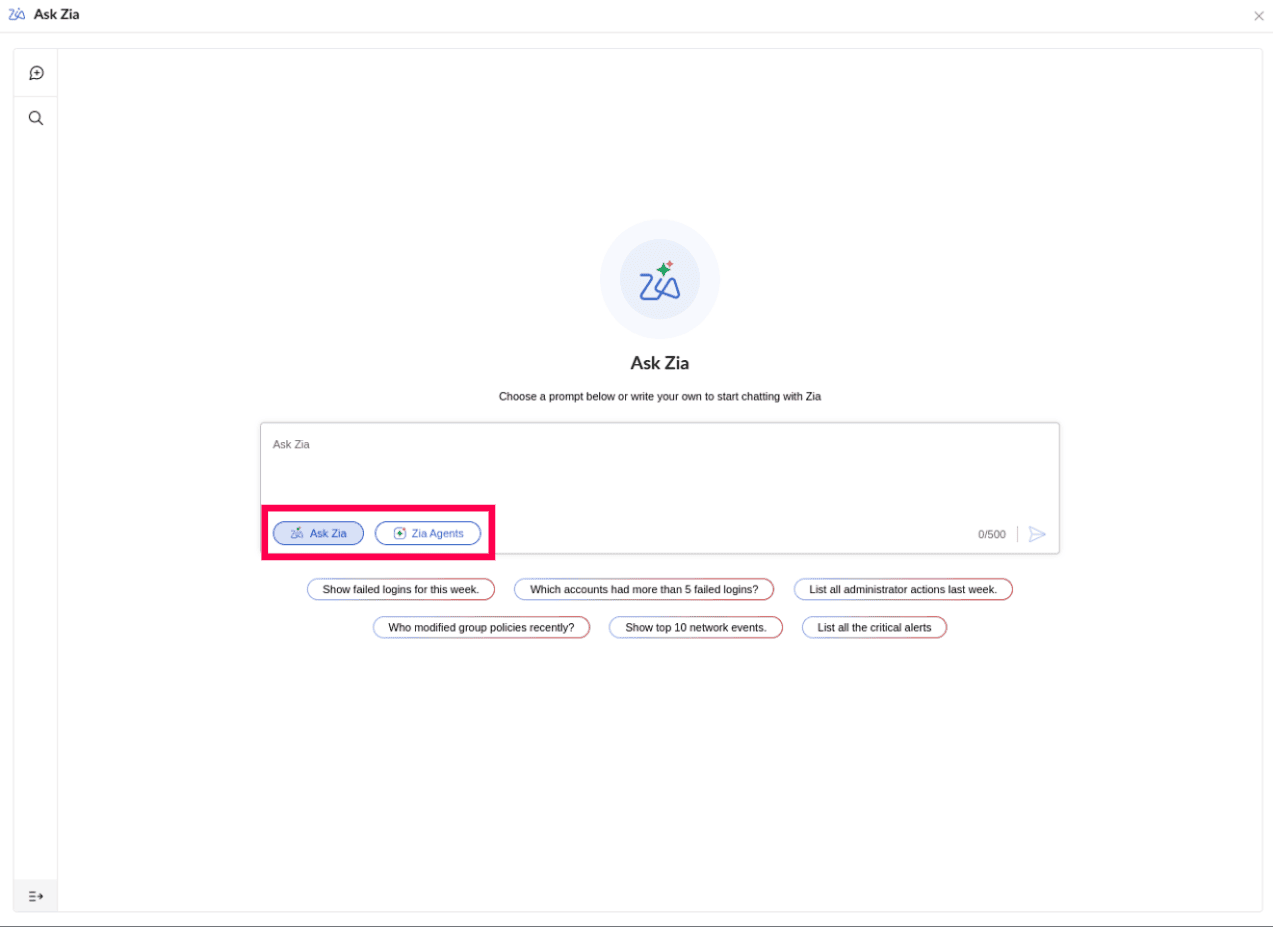
Figure 12: Selecting Zia Agents - Click Zia Agents to switch to agent mode.
- The available agents are displayed.
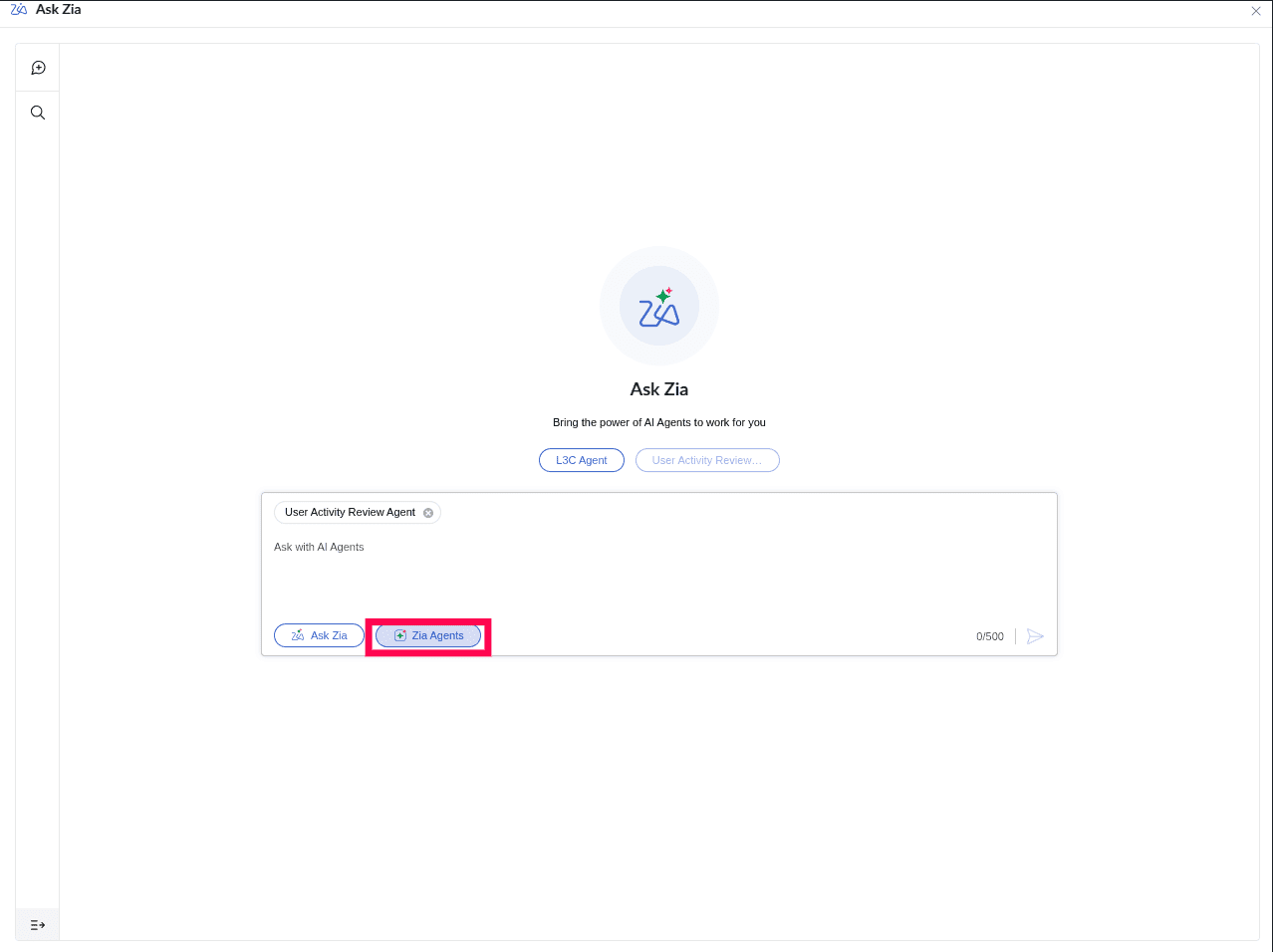
Figure 13: Zia Agents function in Ask Zia - Select an agent from the list.
- The selected agent name appears as a tag above the query box.
- Enter your query in the query box.
- Press Enter or click the
 icon to submit the query.
 - The response is displayed with the selected agent name shown above the reply.
- If the query is outside the selected agent's scope, the agent returns a message indicating it cannot assist and prompts for a relevant query.
Querying Log Search
Ask Zia can interpret natural language queries and run them against the Search module to retrieve log data.
Follow the steps below to query log data:
- Open Ask Zia.
- Enter a query in the Ask Zia field. For example, "Show me logs from the dev-agent1".
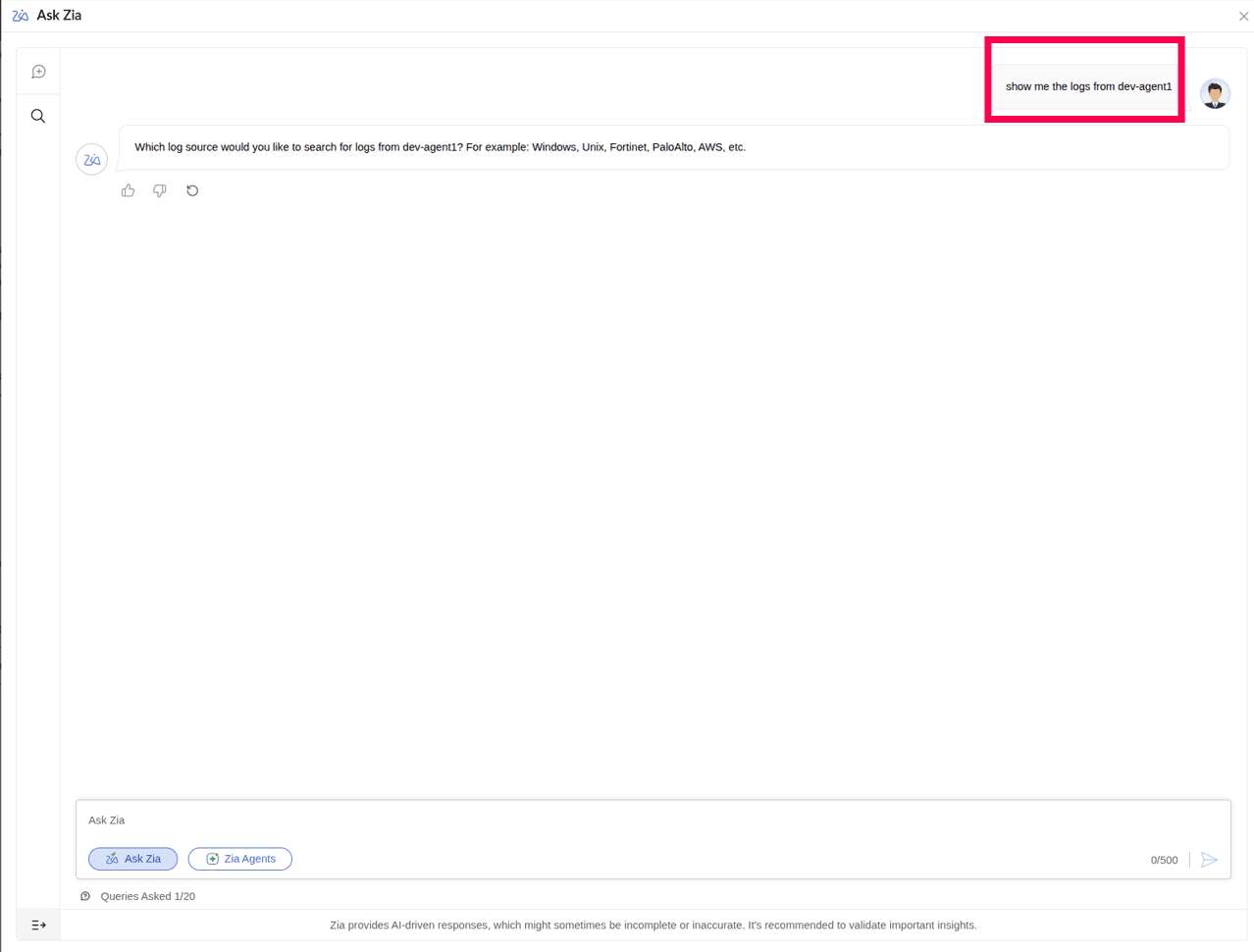
Figure 14: Entering a query - If the hostname exists under multiple log types, Zia displays a clarification message.
- Select a suggestion to continue with the required log type.
- Once results are returned, the generated query is displayed above the results.
- Click the
 icon at the top-right to copy.
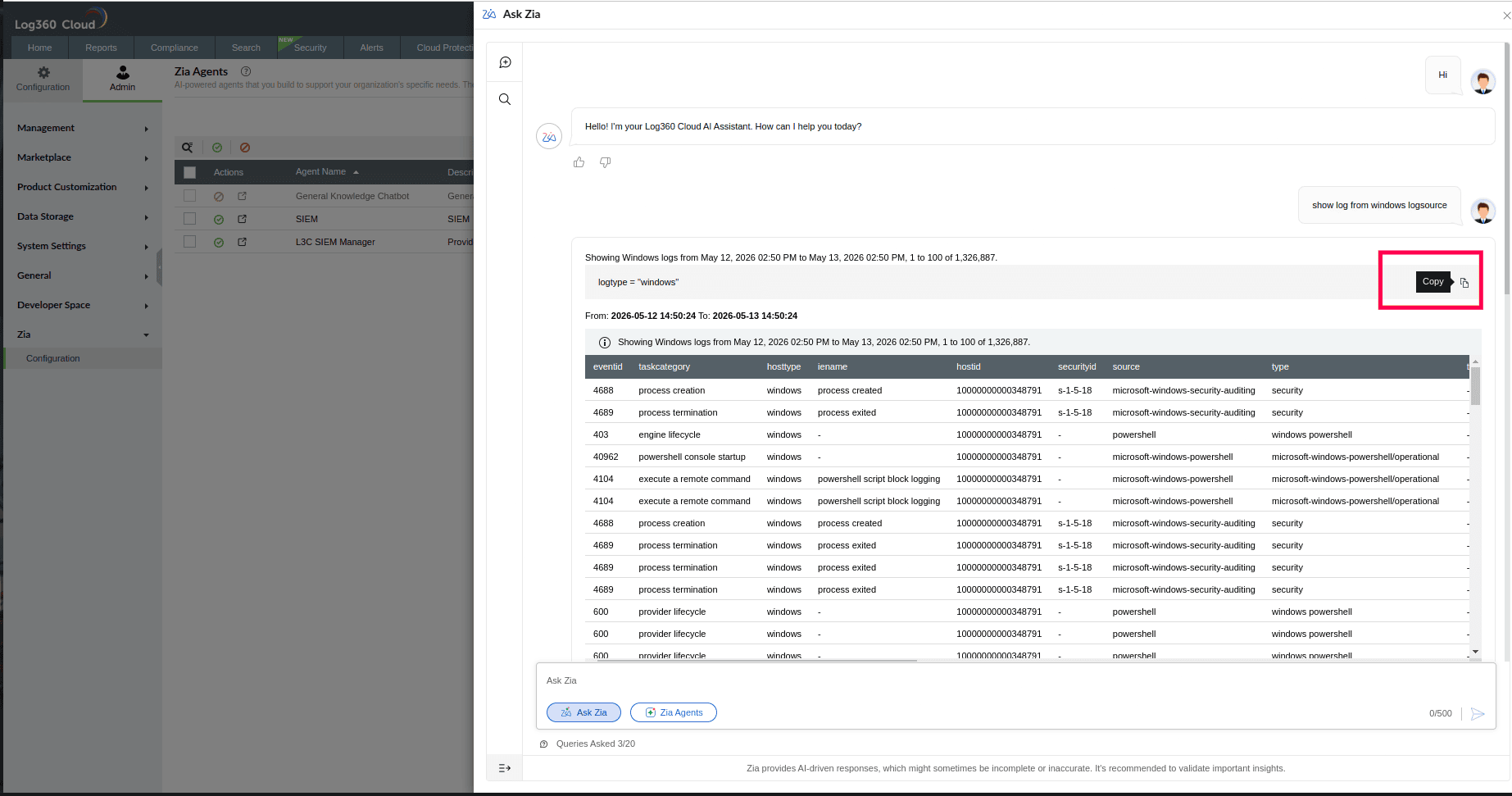
Figure 15: Copying the query
- Click the
- The time range used for the query is displayed above the results.
- If no time range is specified, the last 24 hours is used by default.
- Results are displayed in a table view by default.
- For grouped or aggregated queries, use the Table View and Chart View tabs.
- In Chart View, select a chart type using the icons at the top-right.
- Supported chart types include vertical bar, horizontal bar, line, and pie chart.
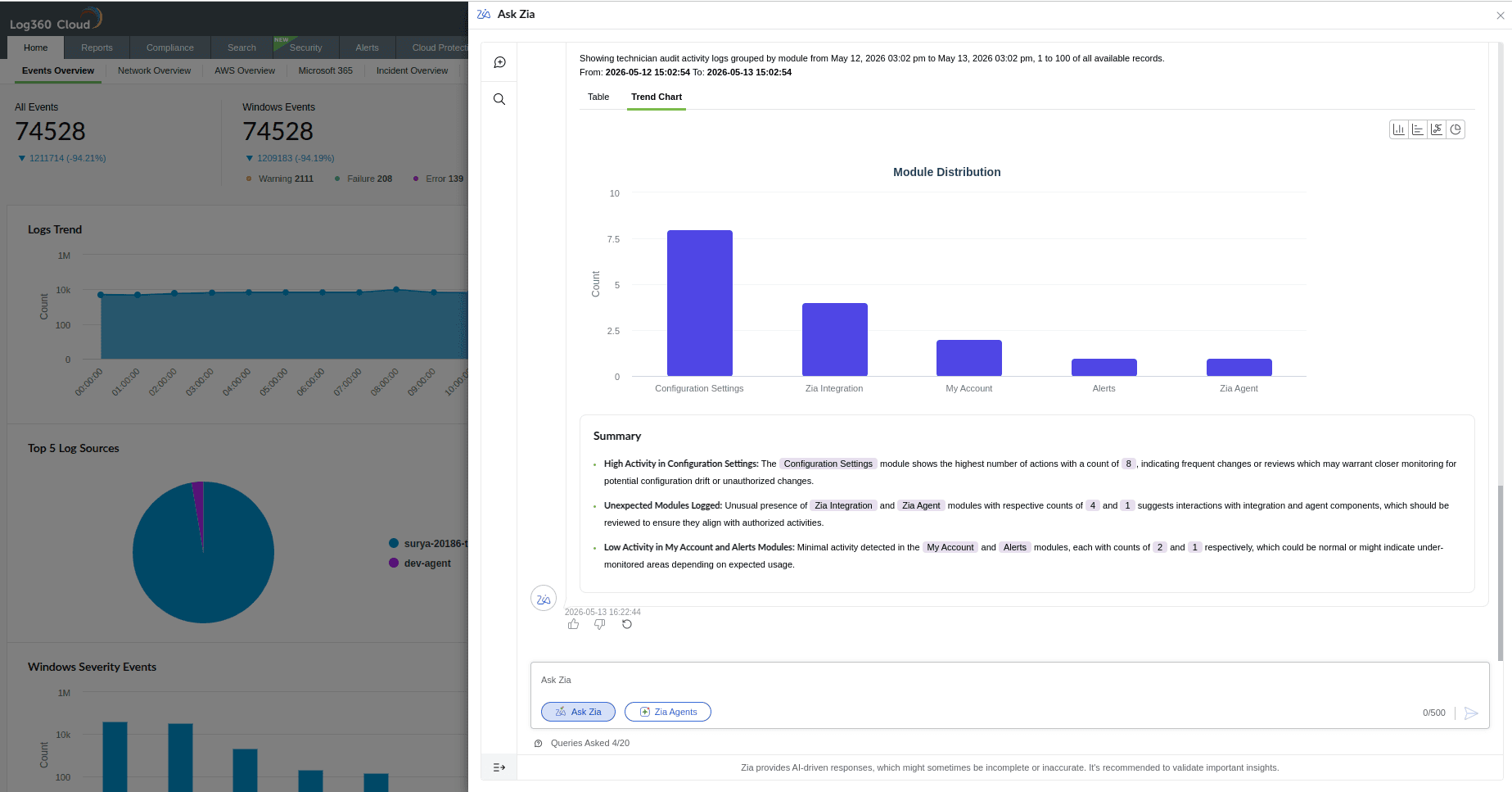
Figure 16: Chart view in Ask Zia results
- Supported chart types include vertical bar, horizontal bar, line, and pie chart.
- Grouping is supported for up to three fields.
- If more than three fields are used, Zia displays a message to refine the query.
- When logs are found, up to the first 100 matching records are displayed.
- A message indicating this limit is shown below the results.
- A Summary section is displayed below the results with key insights.
- Provide optional feedback using the
 or
or  icons. Click the reload icon to regenerate the response.
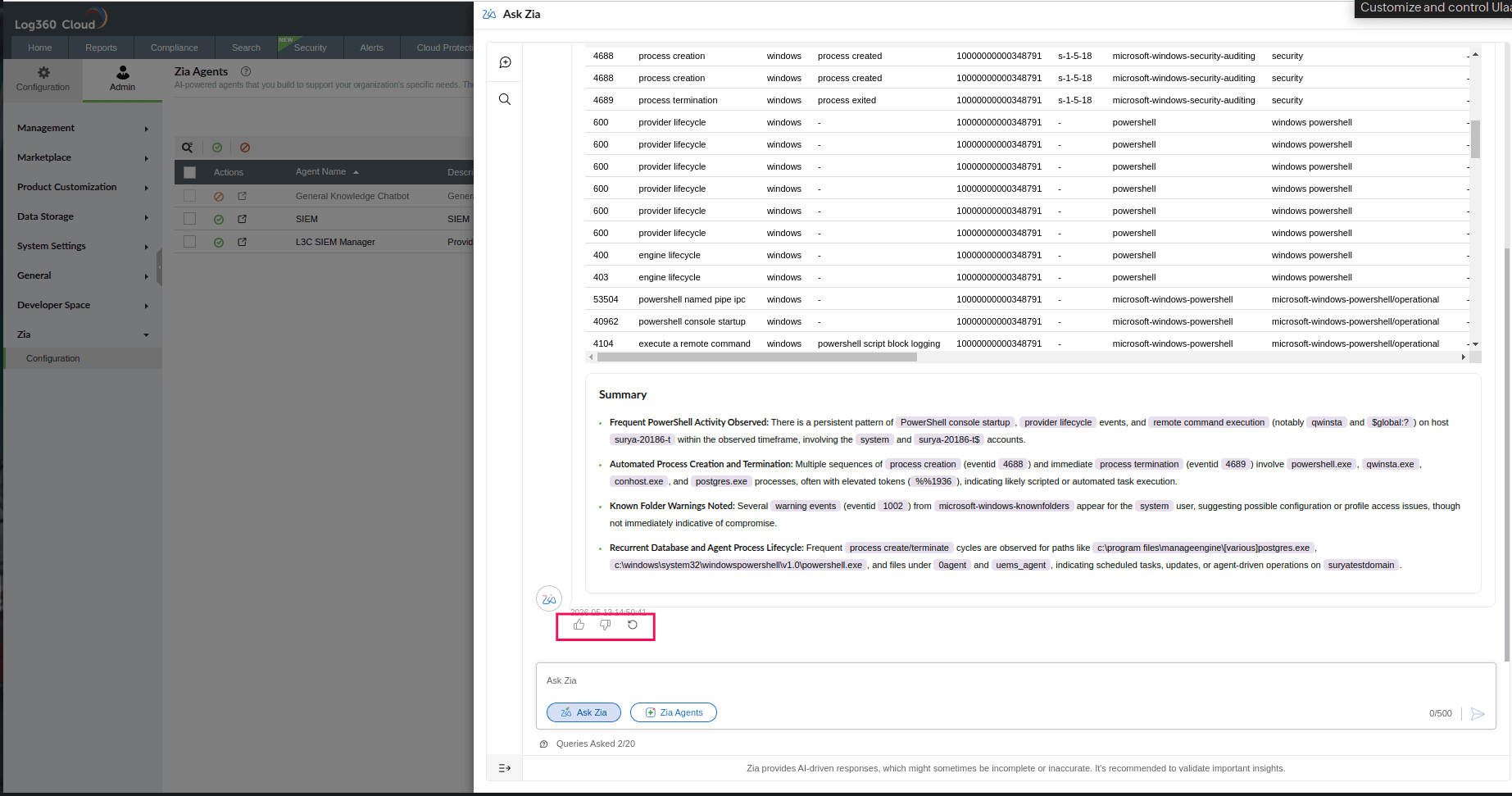
Figure 17: Feedback and Reload - If the query cannot be processed, Zia displays an error message and prompts for a different query.
- When the 20-query limit is reached, a notification is displayed.
- Click + New Conversation to start a new session.
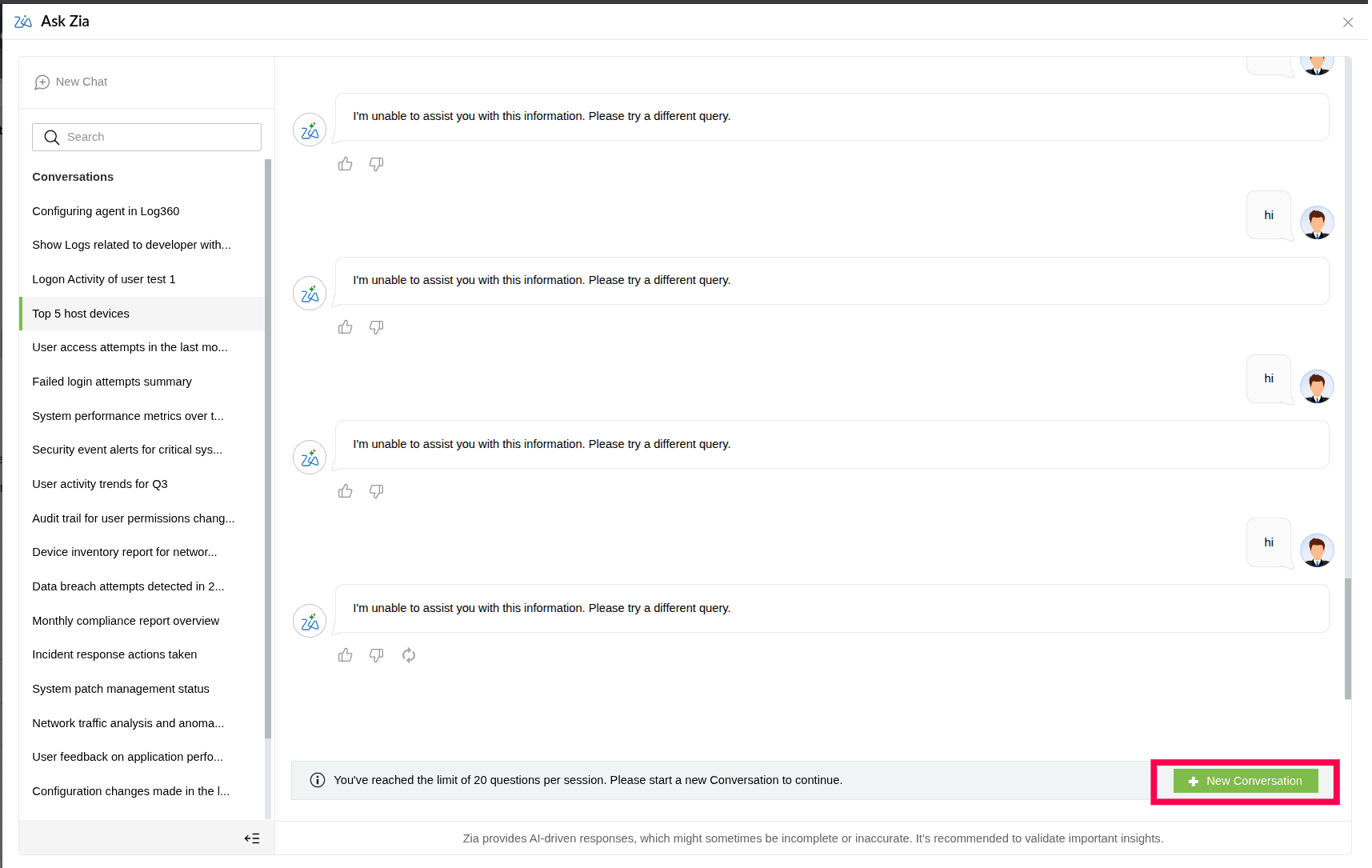
Figure 18: Starting a new conversation
Querying Alerts
Ask Zia can retrieve and analyze alert data from the Alerts module.
Follow the steps below to query alerts:
- Open Ask Zia .
- Enter a query.
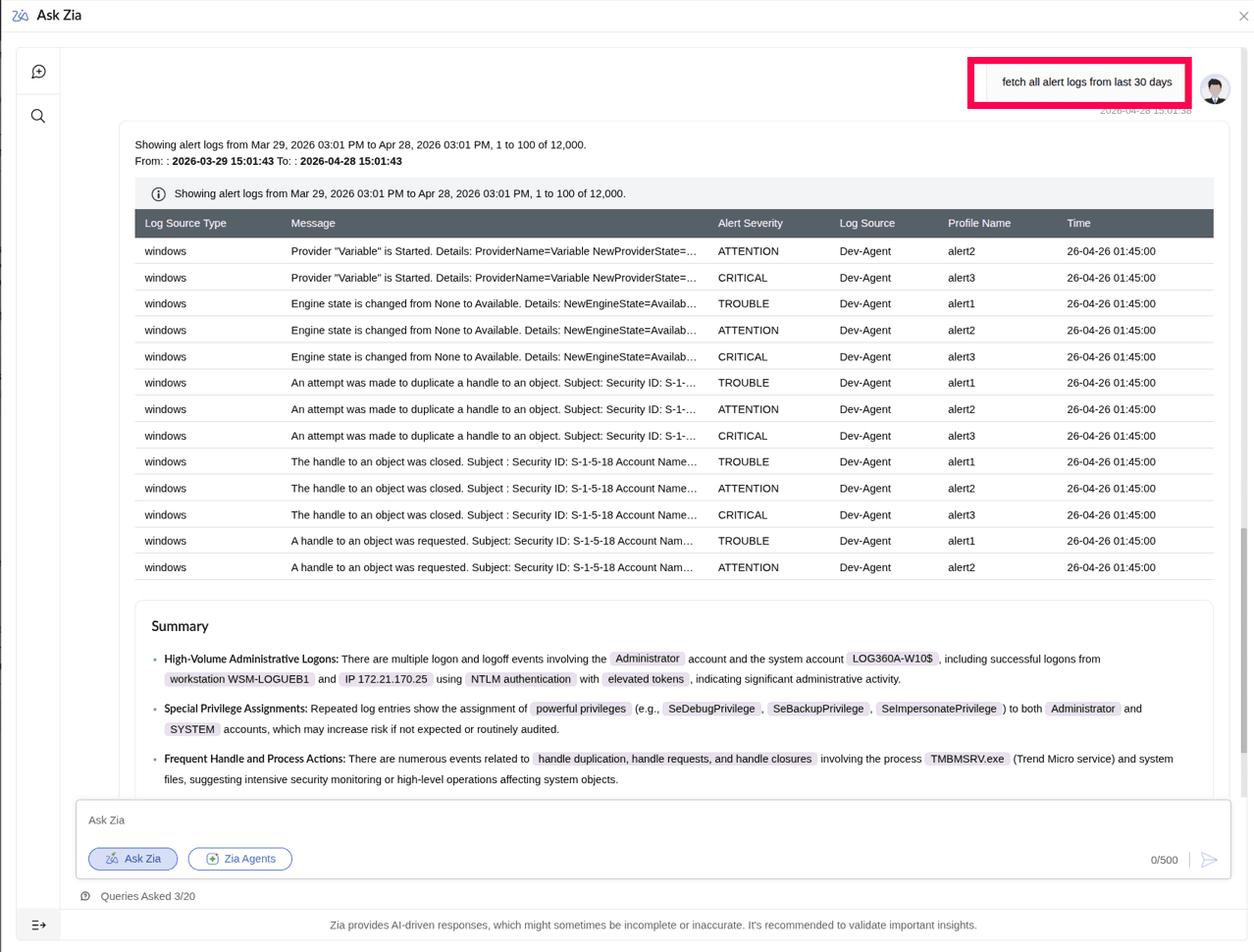
Figure 19: Entering a query - Results are displayed in a table with the following columns: Profile Name and No of Alerts.
- Select a value in the No of Alerts column to view detailed alerts.
- A slider panel opens displaying the following details.
- Severity - The severity level of the alert, such as Critical, Trouble, or Attention.
- Profile Name - The name of the alert profile that triggered the alert.
- Time - The date and time the alert was triggered.
- Alert Message Format - A summary of the log event that triggered the alert.
- Log Source - The name of the device or machine that generated the log.
- Username - The user account associated with the log event.
- Domain - The domain to which the user or device belongs.
- Process ID - The identifier of the process associated with the log event.
- Process Name - The name of the process associated with the log event.
- Log Source Type - The type of log source, such as Windows or Syslog.
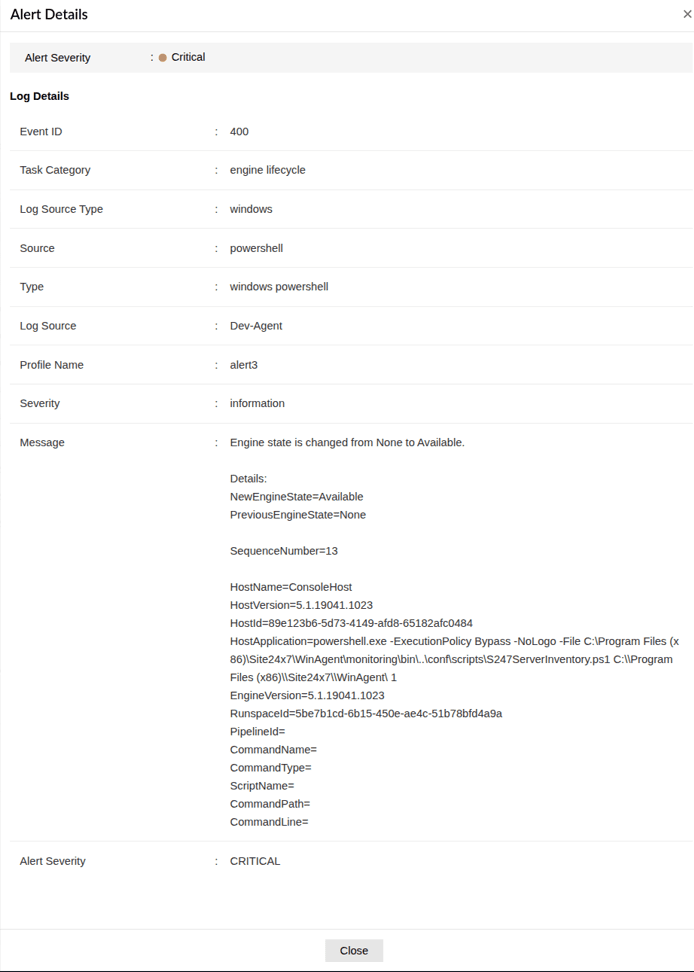
Figure 20: Viewing alert details - Select an alert message in the Alert Message Format column to open the Alert Details pane.
- The Alert Details pane displays complete log information.
- Click Close to return to the alert list.
Querying Technician Audit
Ask Zia can retrieve and analyze technician audit activities.
Follow the steps below to query technician audit data:
- Open Ask Zia.
- Enter a query.
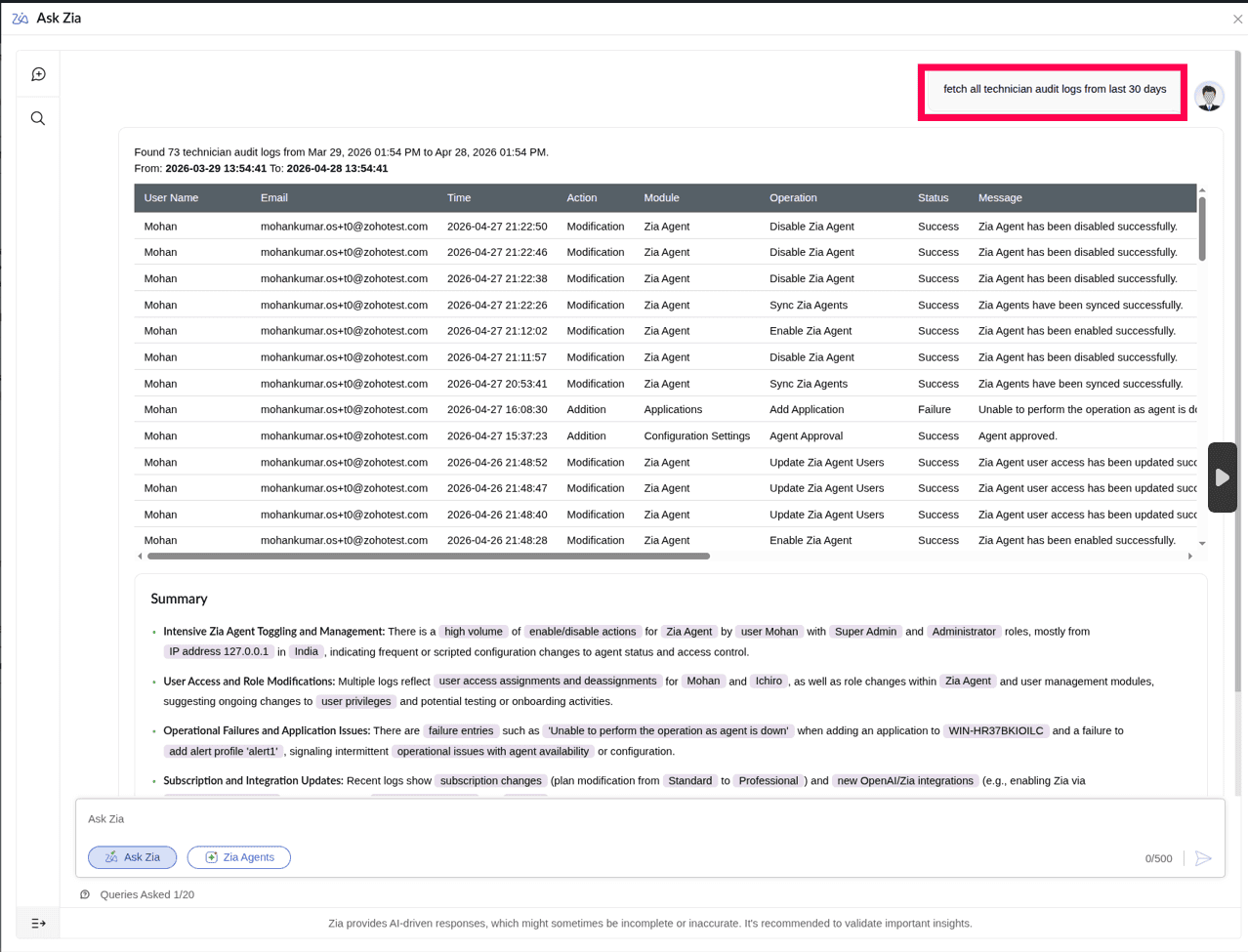
Figure 21: Entering a query - Results are displayed in a table with the following columns:
Field Description Username The username of the technician who performed the action. Role The role assigned to the technician, such as Administrator or Operator. Time The date and time the action was performed. Module The area of the product where the action was performed, such as Configuration Settings, User Management, or Export. Operation The specific action performed, such as Trigger New Export, Update Device Monitoring, Delete Devices, Enable or Disable Devices, Re Invite Users, Add Or Invite User, or Download Export. Action The type of change made, such as Addition, Modification, or Deletion. Status The outcome of the operation, such as Success or Agent Down. - The Technician Audit pane displays the following additional details
Field Description Username The username of the technician who performed the action. App Account Role The role assigned to the technician in the application. Time The date and time the action was performed. Module The area of the product where the action was performed. Operation The specific action performed. Action The type of change made, such as Addition, Modification, or Deletion. Status The outcome of the operation, such as Success or Agent Down. New Value The value after the change was applied. Old Value The value before the change was applied. Message A description of the outcome, such as "The Device added Successfully." IP Address The IP address of the machine from which the action was performed. Country The country associated with the IP address. User Agent The operating system or browser used to perform the action. 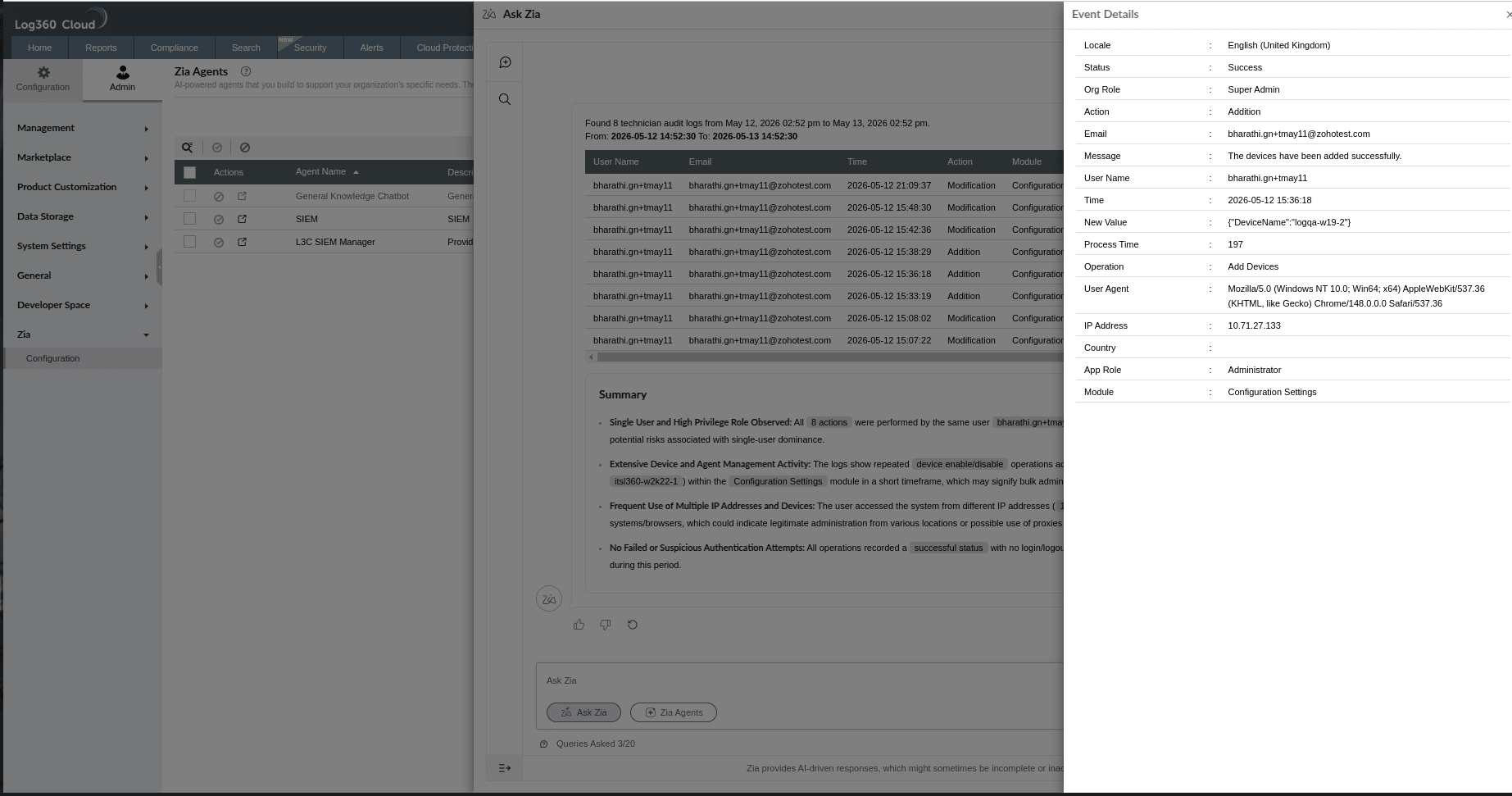
Figure 22: Technician Audit Event Details in Ask Zia - Click Close to return to the audit list.
Read also
This page explains how to use Ask Zia for querying data and interacting with AI agents in Log360 Cloud. To learn more about related configurations and features, refer to: