
Integrating your AI Stack to Log360 Cloud via Zoho MCP
Last updated on:
In this page
- What is an MCP server?
- Why should you integrate Log360 Cloud with Zoho MCP?
- Use cases
- Benefits of integrating Log360 Cloud with a Zoho MCP server
- Supported MCP clients
- How to integrate Log360 Cloud with a Zoho MCP server
- How to connect your Zoho MCP server with MCP clients
- Tracking MCP activity in Technician Audit
- FAQ
Integrating ManageEngine Log360 Cloud with AI assistants like Claude, VS Code, Cursor, Windsurf, etc., gives you real-time access to critical security insights directly from your preferred tools. By connecting your Zoho MCP server to Log360 Cloud, security analysts and administrators can search events, investigate alerts, track incidents, and retrieve log data using plain language, without navigating multiple dashboards or writing custom scripts.
What is an MCP server?
An MCP (Model Context Protocol) server is a service that acts as an integration layer between AI assistants and enterprise systems. It exposes tools, data sources, and operational capabilities that MCP Clients (AI assistants and agents) can discover and invoke—allowing them to retrieve information, perform investigations, and execute security operations actions using natural language commands.
Zoho MCP is built around this protocol, providing a standardized interface that connects AI agents to Zoho, ManageEngine, and other business applications, regardless of which underlying LLM they use.
Why should you integrate Log360 Cloud with Zoho MCP?
Log360 Cloud is available as a service in the Zoho MCP console. Integrating it allows your AI assistants to gain controlled access to Log360 Cloud's APIs across its core security modules — including alerts, incidents and log search.
Instead of writing API queries or building custom scripts, security analysts and administrators can simply ask questions in plain language. Whether it's about alert status, incident timelines, investigation insights, or potential mitigation steps, the MCP client contacts the MCP endpoints, which then translate the request into the correct Log360 Cloud API call and return the response seamlessly in natural language.
Use cases
- Alert investigation through conversation: An AI assistant can respond to queries like “Show me all critical alerts triggered in the last 24 hours” — prompting the MCP server to fetch real-time alert data from Log360 Cloud and return results instantly.
- Incident triage and analysis: During an active incident, you can ask an AI assistant to “Summarize the timeline for incident #1042 and list the associated Mitre ATT&CK techniques” — getting an instant summary, investigation results, and recommended mitigation steps without switching between consoles.
- Security posture reporting: Ask the AI to “Give me a summary of this week's security events grouped by severity” to get an instant overview without navigating dashboards or generating manual reports.
Benefits of integrating Log360 Cloud with a Zoho MCP server
- Investigate alerts and incidents faster by querying alert details, MITRE ATT&CK mappings, and mitigation steps directly through AI prompts.
- Access Log360 Cloud security insights on demand, without switching between tools or dashboards.
- Centralize security analysis through a single interface connected to your SIEM data.
- Correlate Log360 Cloud data with other enterprise tools, for example, link SIEM alerts with helpdesk tickets or feed investigation results into broader incident response workflows.
Supported MCP clients
Any MCP client that supports HTTP/SSE protocols can connect to Log360 Cloud using Zoho MCP. Some examples include:
| MCP Client | Type |
|---|---|
| Claude | AI assistant (web, desktop, API) |
| GitHub Copilot | AI coding assistant |
| Cursor | AI-powered code editor |
| Windsurf | AI-powered code editor |
| Visual Studio Code | Code editor with MCP extension |
| ChatGPT (GPT) | AI assistant |
How to integrate Log360 Cloud with a Zoho MCP server
To integrate your Zoho MCP server with Log360 Cloud, follow the steps below:
- Create your Zoho MCP account at zoho.com/mcp.
- Provide a name for your MCP server and click Create. The MCP server will be created and you'll be redirected to the MCP Tools view.
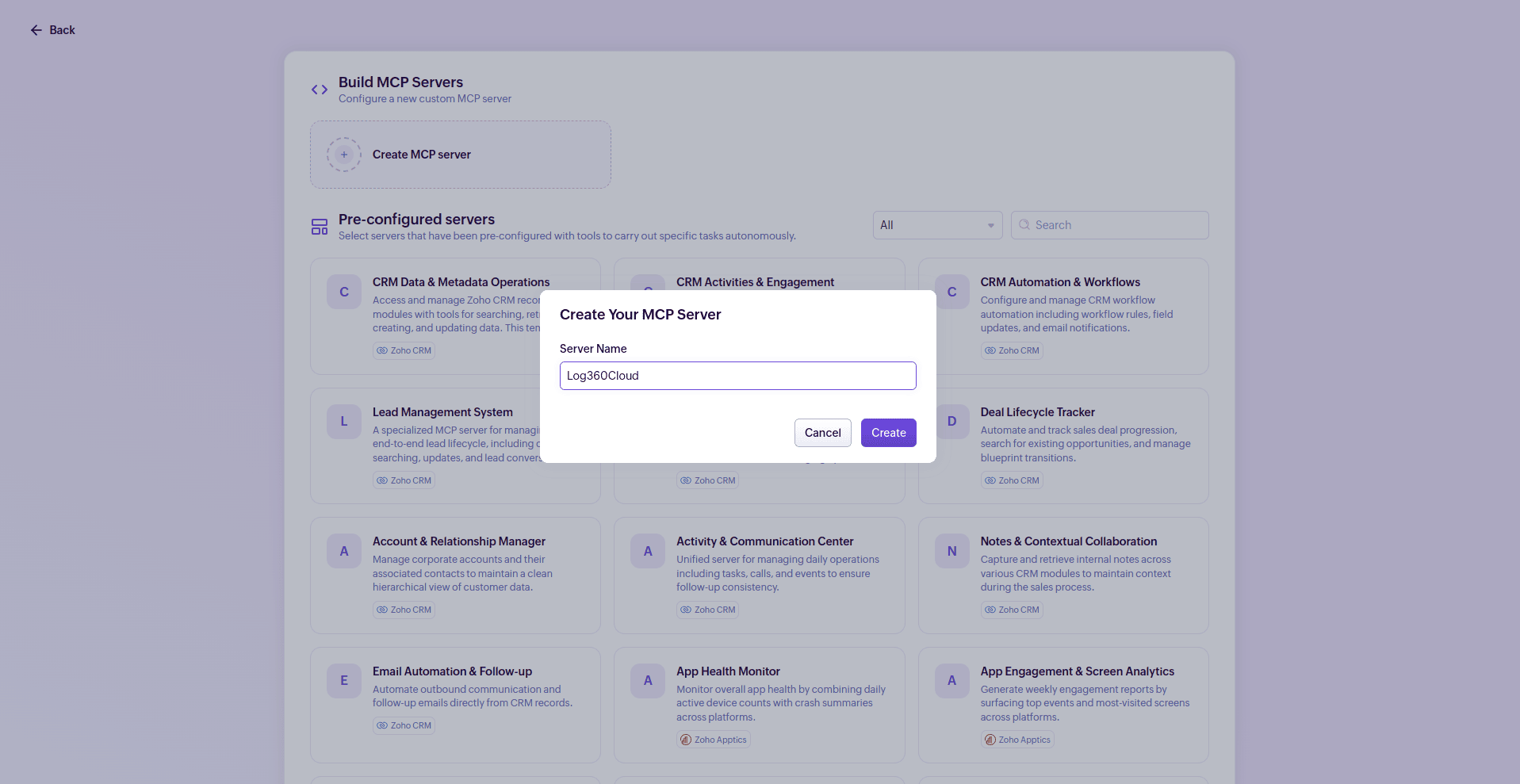
Figure 1: Creating MCP Server in Zoho MCP - Go to the Tools section, search for Log360 Cloud, and add the tools you want to expose to your AI assistants (e.g., getAlerts, getIncidents, createIncident).
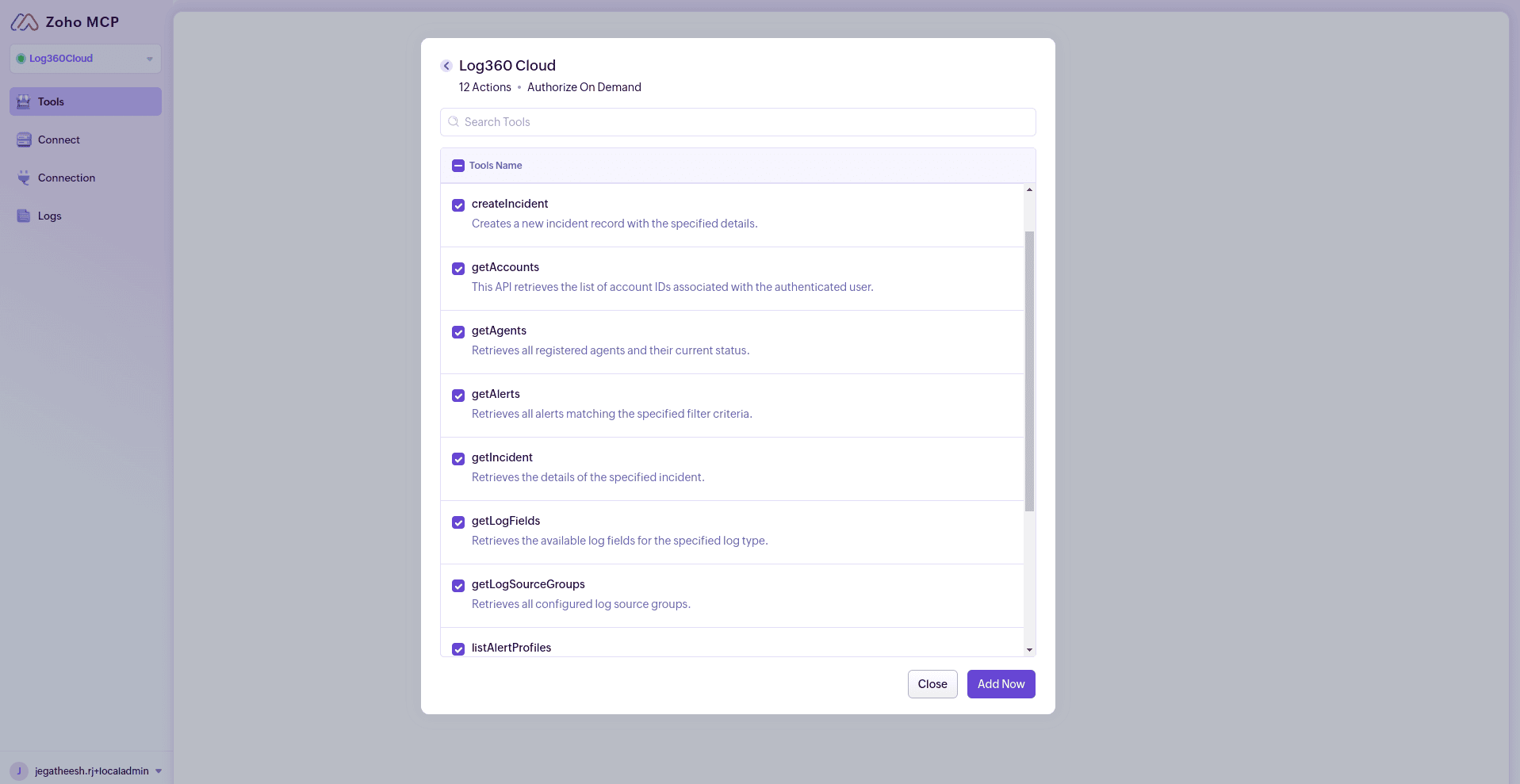
Figure 2: Adding tools to MCP Server - Navigate to the Connection tab in the left navigation and select your authorization method.
- Authorization on Demand: Each user authenticates individually with their own account. Recommended for teams where each member needs separate access control.
- Authorization via Connection: Uses a shared OAuth connection. Recommended when a Super Admin wants to allow trusted collaborators to authorize actions using a common set of tokens.
- Open the Connect page and copy the MCP server URL.
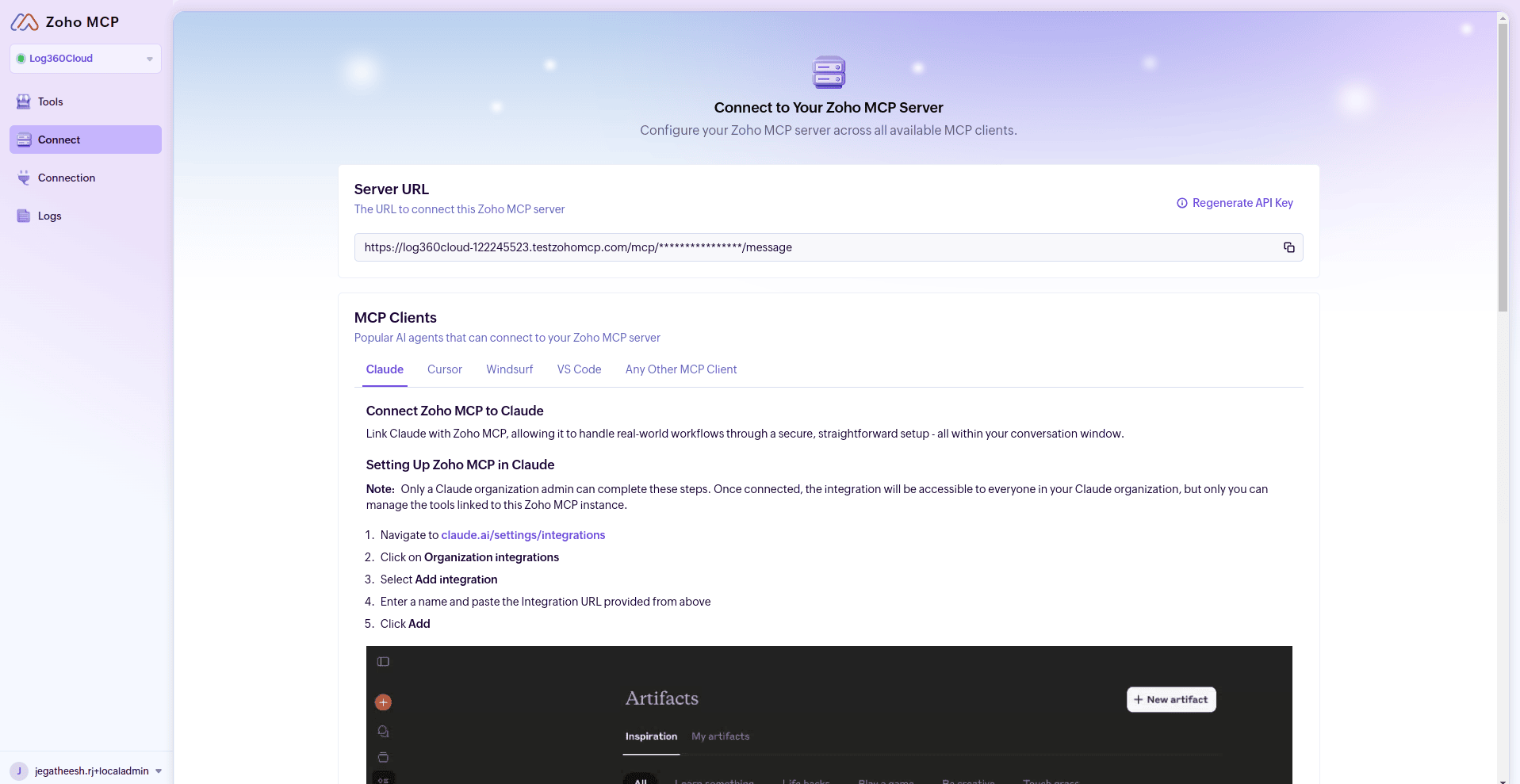
Figure 3: Connecting Zoho MCP Server with MCP clients - Add this URL to your MCP clients such as Claude, Cursor, Windsurf, or Visual Studio Code.
How to connect your Zoho MCP server with MCP clients
You can connect Zoho MCP with any supported MCP client. Below are the steps for popular clients.
Claude
Connect Claude with Zoho MCP to handle real-world security operations workflows through a secure, conversational interface.
- Navigate to claude.ai > Settings > Integrations.
- Select Connectors > Add Custom Connectors.
- Enter Zoho MCP as the integration name and paste the MCP server URL.
- Click Add.
To access the Zoho MCP tools in a Claude chat:
- Open a new chat.
- Go to Search and tools.
- Choose the Zoho MCP connection.
- Select the tools you want to use in the chat.
- Ask Claude to carry out the security operations actions you need.
Cursor / Windsurf / Visual Studio Code
For MCP-compatible code editors:
- Open the editor's MCP configuration settings (usually under Settings > MCP or via the command palette).
- Add a new MCP server entry and paste the Zoho MCP server URL.
- Authenticate when prompted using your Zoho credentials.
- The Log360 Cloud tools will be available for use within the editor's AI features.
Tracking MCP activity in Technician Audit
All actions performed via Zoho MCP are logged in the Technician Audit section under Settings > Admin Settings> Technicians and Roles. This ensures full visibility and accountability for any operations initiated through AI assistants.
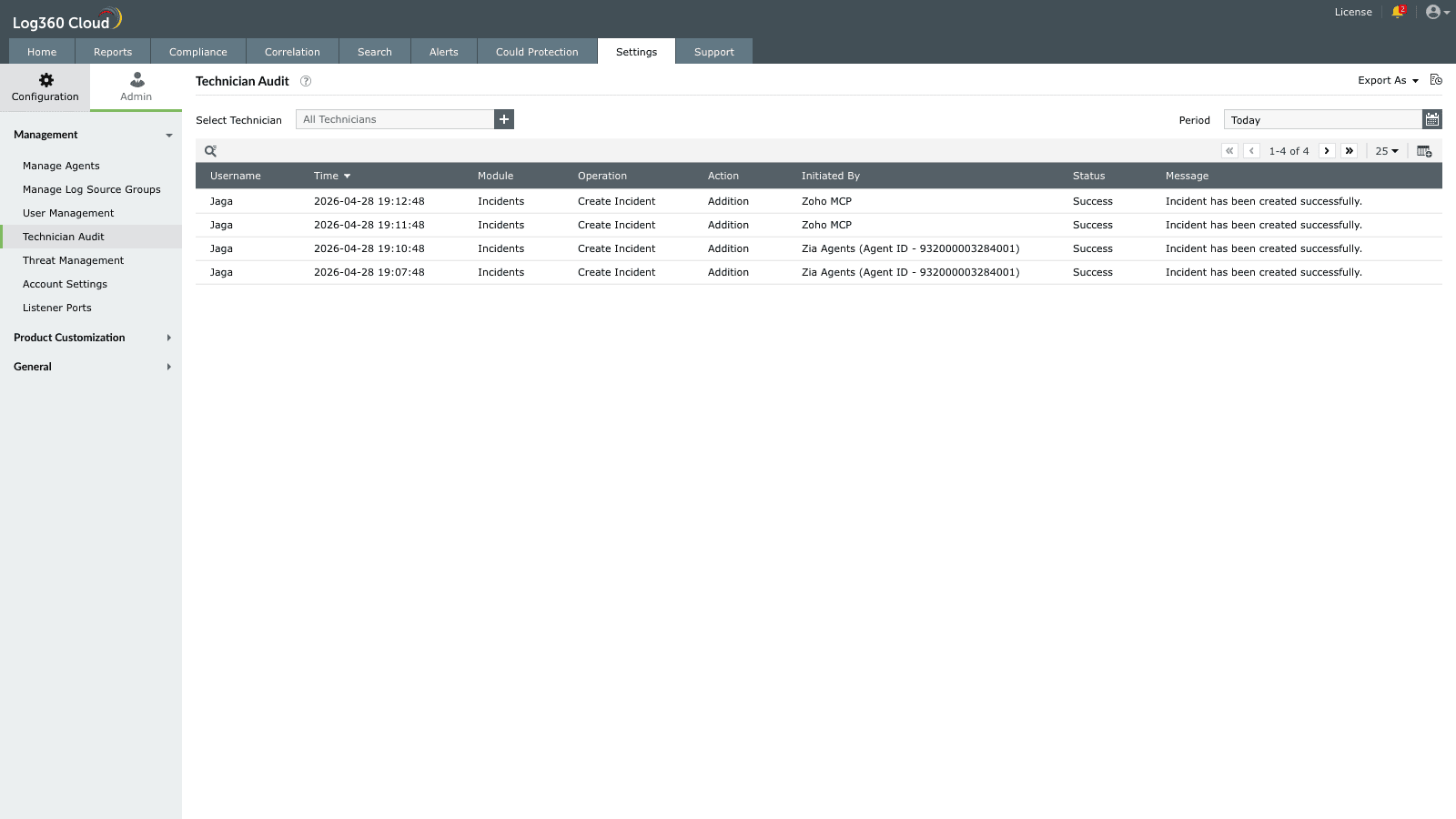
Each audit entry records the timestamp, username, module, operation, action type, and the initiating source. Actions triggered through the MCP integration will display Zoho MCP in the Initiated By column, making it easy to distinguish AI-initiated operations from manual ones.
FAQ
What types of MCP clients can connect with Log360 Cloud?
Any MCP client that supports HTTP/SSE protocols (e.g., Claude, Cursor, Windsurf, VS Code, GitHub Copilot) can connect to Log360 Cloud using Zoho MCP.
What is the difference between Authorization on Demand and Authorization via Connection?
When Log360 Cloud is configured via Zoho MCP, it requires authentication using the OAuth protocol. Zoho MCP allows you to establish authorization using two methods:
- Authorization on Demand (default): Each user authenticates and authorizes their actions individually with their own account. If you and a collaborator share the same MCP server, each of you authenticates separately.
- Authorization via Connection: Uses a common OAuth connection. If you're the Super Admin of trusted users in your organization, you can allow collaborators to authorize their actions using your OAuth access tokens and refresh tokens instead of authenticating individually.
Can AI assistants access all Log360 Cloud data?
No. Only the configured set of APIs you add inside the MCP console are accessible. You have full control over which modules and operations are allowed.
How can I limit the scope of the MCP server?
Every command passes through controlled Log360 Cloud API permissions. You can further restrict actions by:
- Allowing only read-only APIs in Zoho MCP.
- Using Authorization on Demand so each user's access is individually scoped.
- Selecting only specific tools (e.g., alert queries only) when configuring the MCP server.
How are MCP-initiated actions tracked?
All actions initiated through the Zoho MCP integration are logged in the Technician Audit under Settings > Admin Settings. The Initiated By column will show "Zoho MCP" for any operations performed via AI assistants, providing a complete audit trail.
What are the supported data centers?
Zoho MCP is available in the following data centers:
- US (United States)
- EU (Europe)
- IN (India)
- AU (Australia)
- CA (Canada)
- JP (Japan)