Last updated: August 14, 2026
Dynamic Groups
Dynamic Groups in MDM (available in the Professional edition) automatically organise iOS, iPadOS, and Android devices based on attributes such as platform, device model, manufacturer, and network information. IT admins can create up to 10 dynamic groups using AND/OR logical conditions, enabling automatic distribution of apps, profiles, OS updates, and content to the right devices. Group membership updates hourly or on-demand, ensuring policies are always applied accurately without manual intervention.
Dynamic Groups in MDM automatically organise devices based on the device attributes such as operating system, device model, location etc. Unlike static groups, they update dynamically—saving IT admins time and ensuring policies, apps, or profiles are always applied to the right devices, instantly. This feature is available only in Professional edition of MDM.
Note: Dynamic groups are supported only for iOS, iPadOS and Android devices.
Creating Dynamic groups
To create a dynamic group,
- On the product console, navigate to Groups and Devices.
- Under Groups, Click Create Group.
- From the dropdown, select Device Group.
- Specify a name for the Group.
- Select the type as Dynamic.
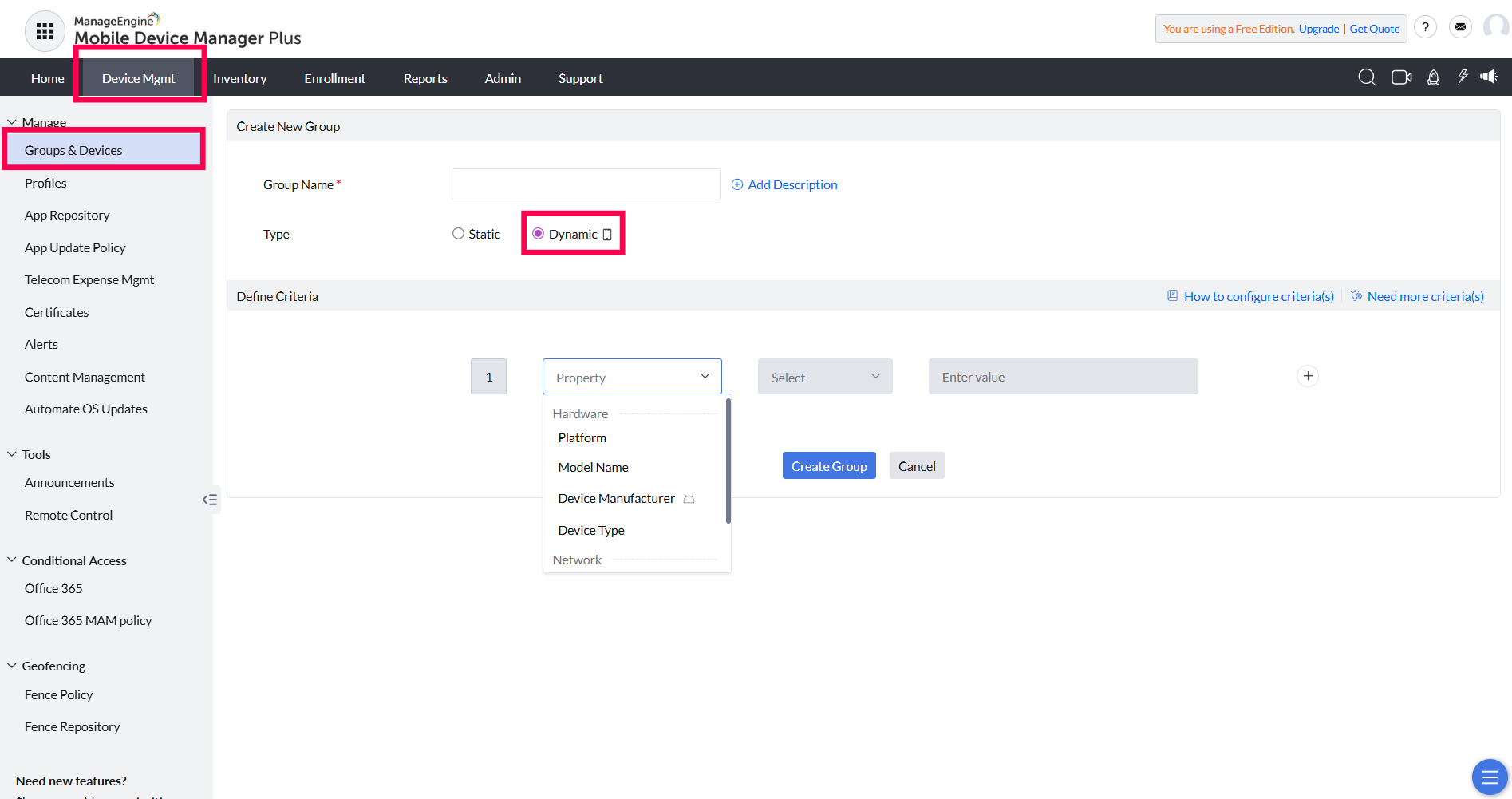
- Configure the required criteria to create a dynamic device group.
- Use the condition filters to specify the criteria required for grouping devices.
Configuring Group Criteria
Set the required device attributes to define how devices will be dynamically grouped. Devices matching these criteria will be automatically added to the group.
Add device attributes
- Use the + button to add multiple device attributes.
- Remove an attribute using the - button next to it.
Combine device attributes
Use logical comparators to refine grouping:
- AND: Devices must meet all specified attributes.
- OR: Devices can meet any of the specified attributes.
For Example:
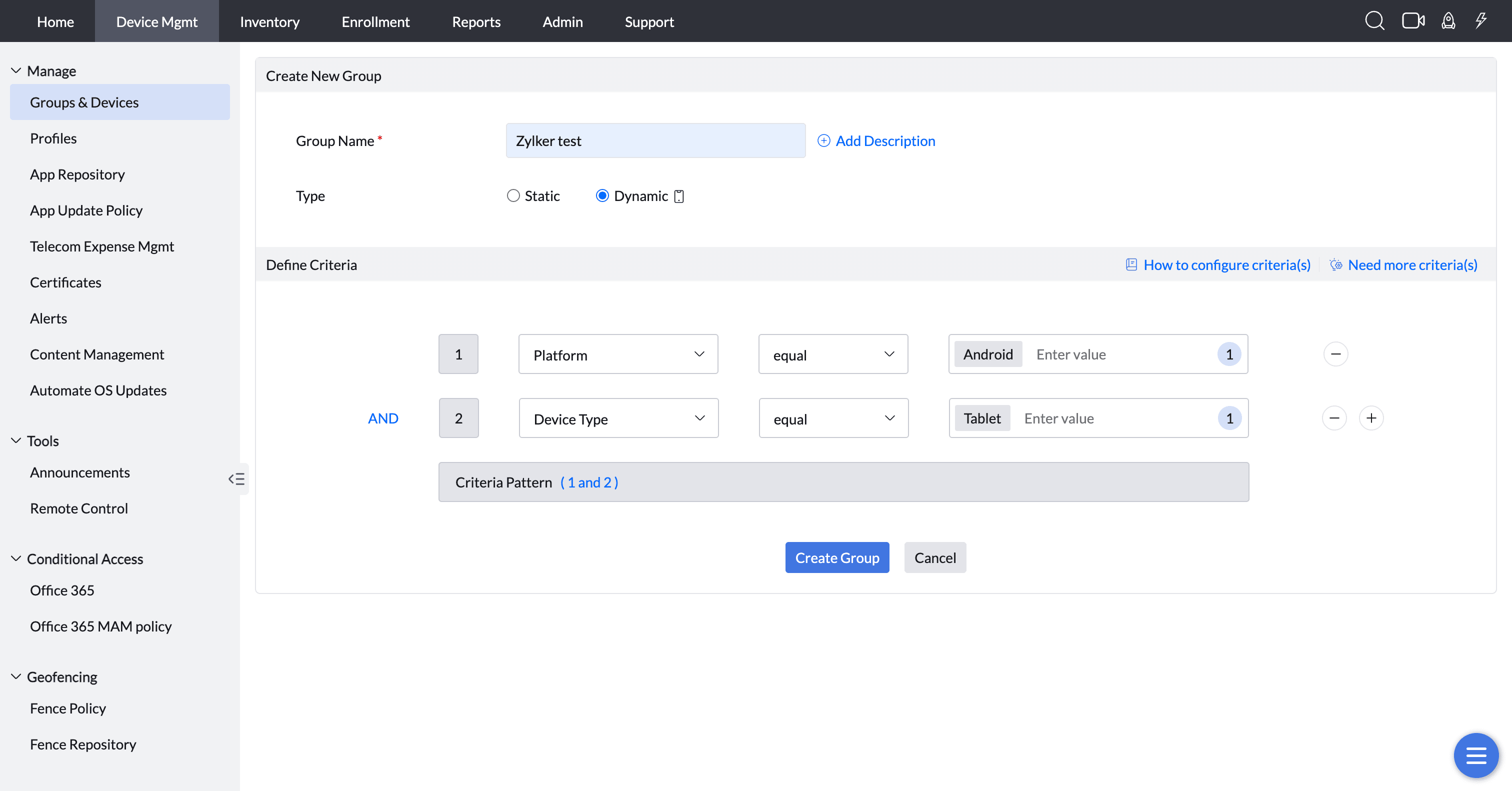
1. To group all Android tablets in one group, set:
Platform: Android AND Device type: Tablet
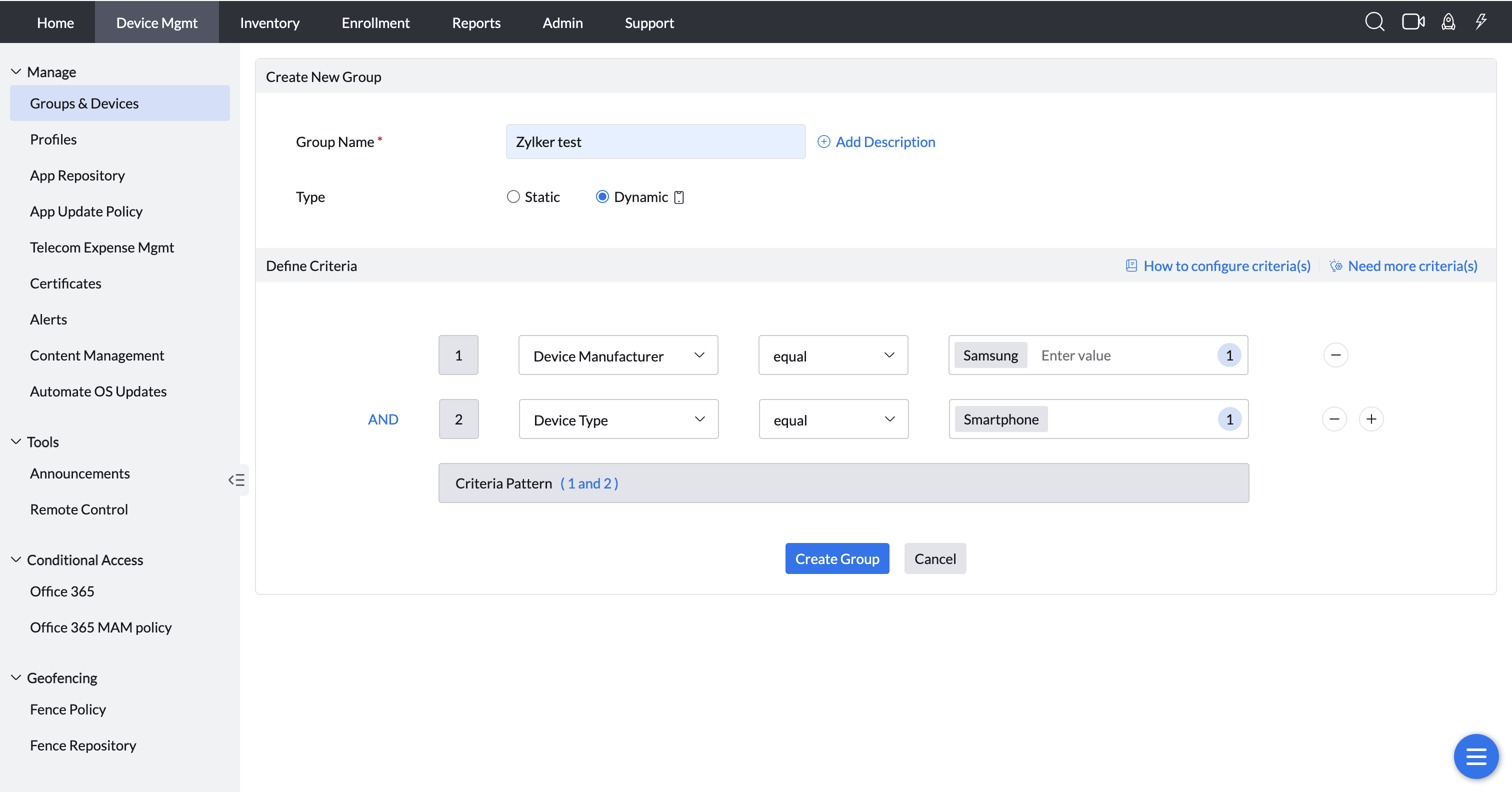
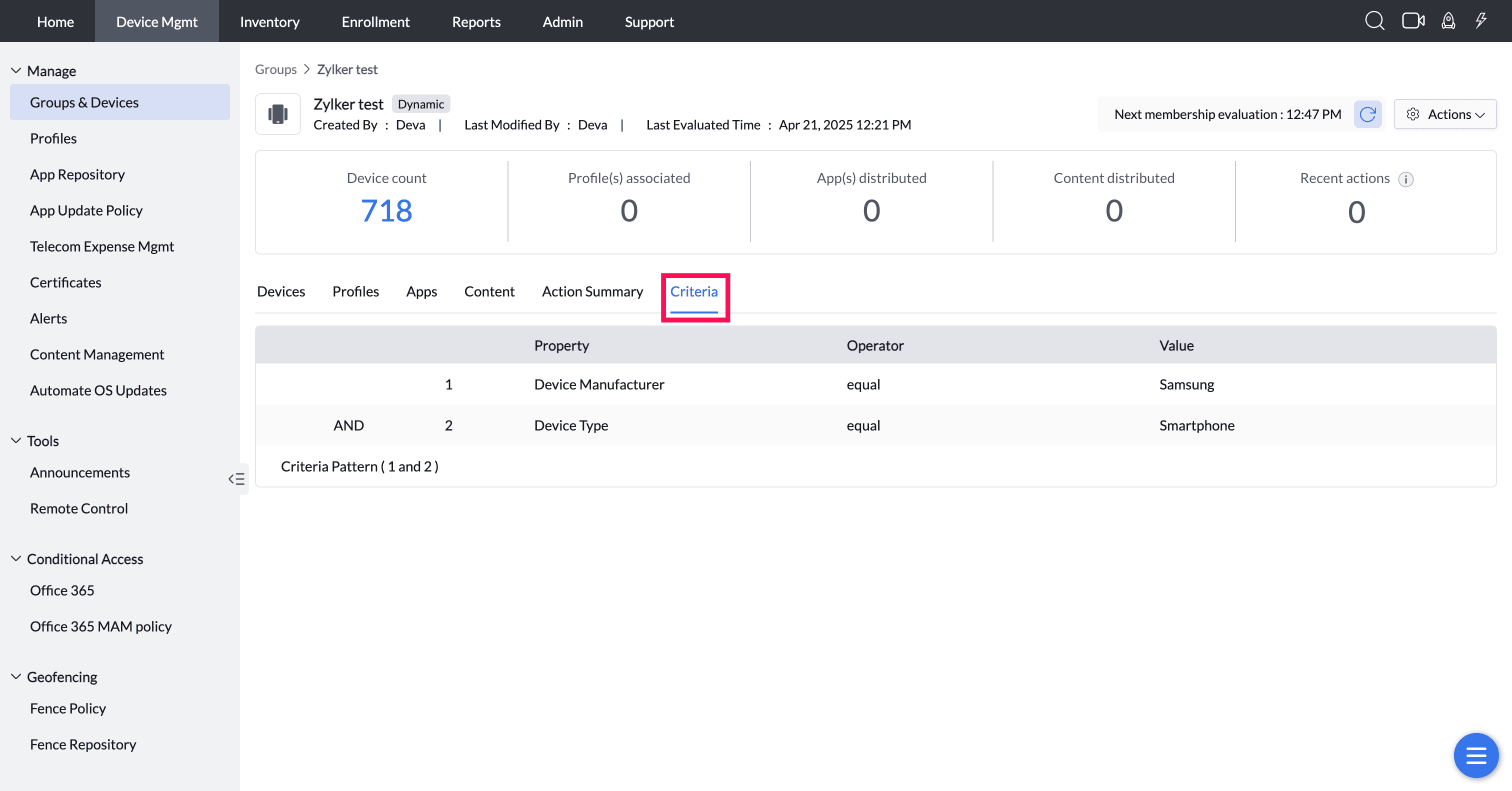
2. To group all Samsung Smartphones in one group, set:
Device Manufacturer: Samsung AND Device type: Smartphone
Supported device attributes for defining dynamic group criteria are listed below:
Device Properties
| Attributes | Operators | Values |
| Platform | Equal/not equal | Tablet/Smartphone |
| OS Version | Equal/Not equal/Greater than/Greater than or equal/Less than/Less than or equal | Specify the OS version |
| Model name | Equal/not equal/contains/not contains/starts with/ends with | Enter the device model name |
| Device manufacturer (Applicable only for Android) | Equal/not equal/contains/not contains/starts with/ends with | Enter the device manufacturer name |
| Device type | Equal/not equal | Tablet/Smartphone |
Application
| Attributes | Operators | Values |
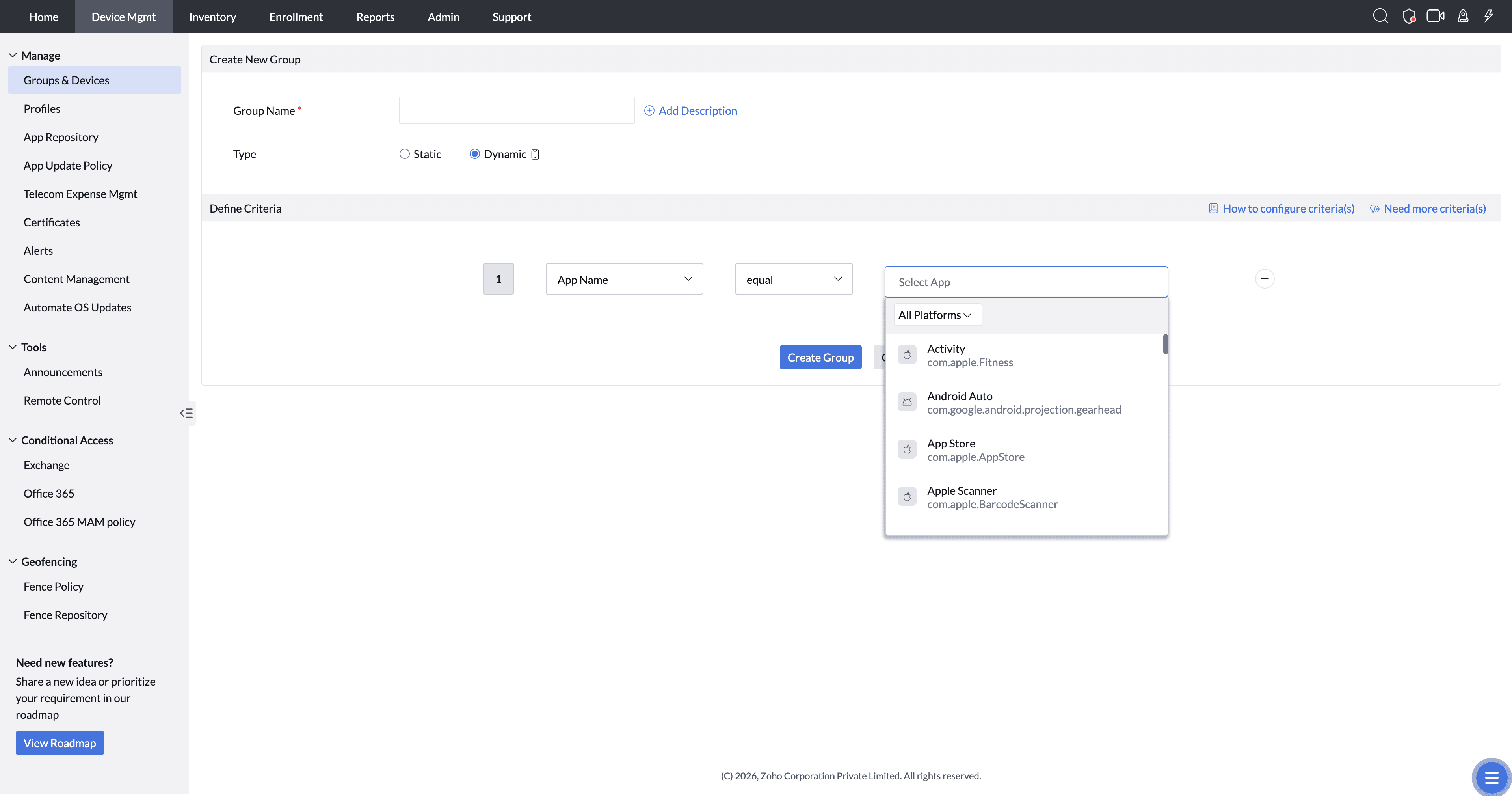
| App name | Equal/Not equal | Select the required app from the dropdown |
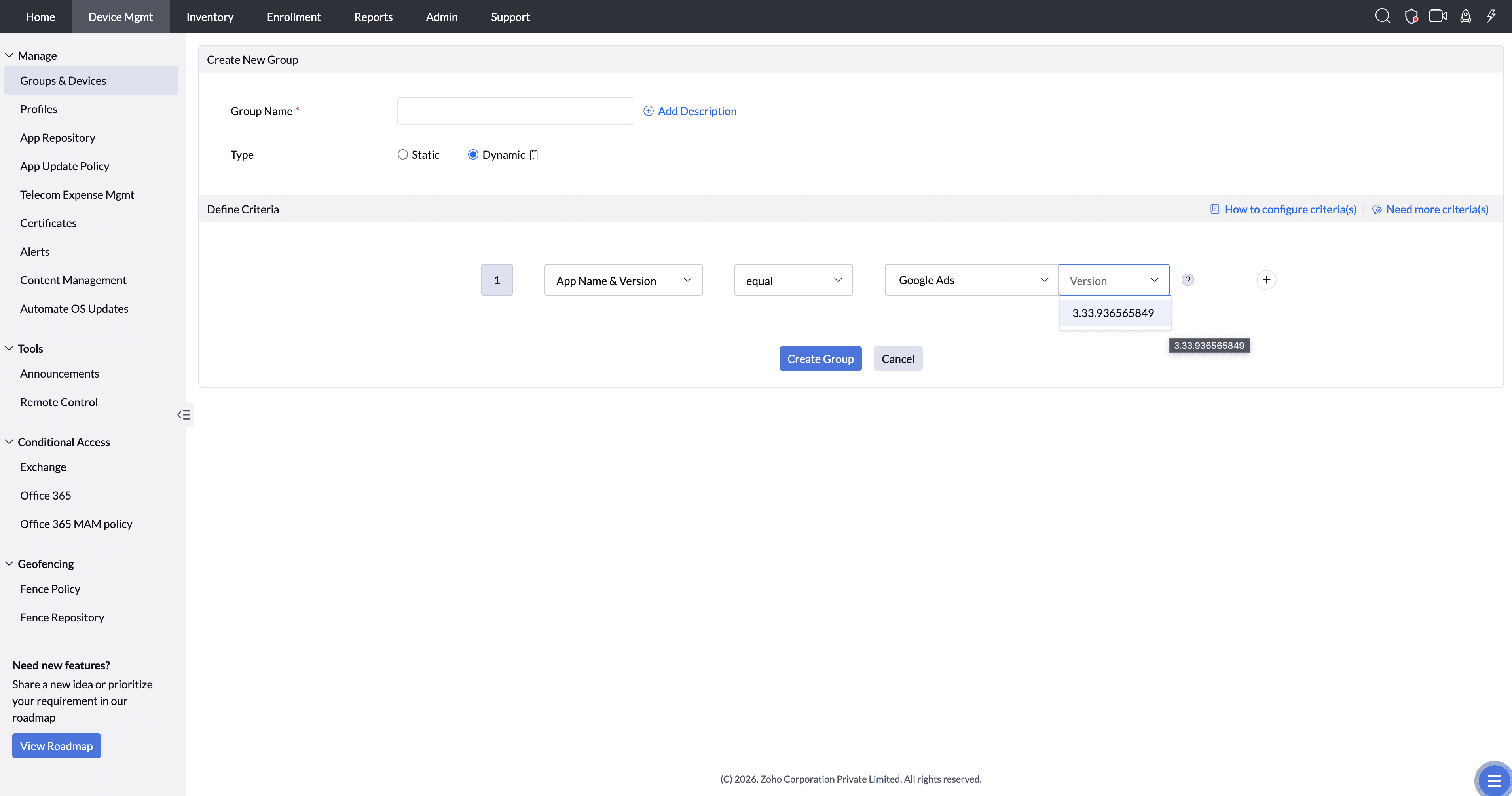
| App name & Version | Equal/Not equal/Greater than/Greater than or equal/Less than/Less than or equal | Select the app and specify the app version |
Note: Only apps available in the App Repository will be listed for selection under App Name and Version.
MDM Properties
| Attributes | Operators | Values |
| Device name | Equal/Not equal/contains/not contains/starts with/ends with | Enter the device name |
| Enrollment type | Equal/Not equal |
|
| Ownership type | Equal/not equal | Personal/Corporate |
Location
| Attributes | Operators | Values |
| Geo-fence policy | Compliant/Non-Compliant | Select the required geo-fence policy |
Network
| Attributes | Operators | Values |
| SIM MCC | Equal/not equal/contains/not contains/starts with/ends with | Enter the SIM MCC |
| SIM MNC | Equal/not equal/contains/not contains/starts with/ends with | Enter the SIM MNC |
Points to note:
- You can create up to 10 dynamic groups.
- Policies/apps associated to the group will deploy automatically.
- Enable Collect and display Cellular Network Information in Device Privacy Settings for SIM MCC/MNC conditions.
Now click Create Group. Once a dynamic group is successfully created, any devices that meet the specified criteria will be automatically added to the corresponding dynamic device group. This allows for streamlined management, including the distribution of apps, profiles, OS updates, and content. You can also send announcements, update apps, and block selected apps as needed. Additionally, dynamic groups support location tracking and battery level monitoring for enhanced device oversight.
Once the dynamic group is successfully created, you can review the defined criteria by navigating to the 'Criteria' tab.
Dynamic group sync
1. Group Creation
- When a new dynamic group is created, devices are evaluated against the group’s criteria.
- Eligible devices are automatically added, and associated policies are applied.
2. Automatic Sync (Hourly)
- Devices check for group eligibility every hour if:
- They are online and meet the group’s criteria (e.g., platform, device type etc., )
- If a device no longer meets the criteria, it is removed from the group.
- Policies are reapplied based on the latest group membership.
3. Criteria Change (Real-Time Update)
- If the group’s criteria are modified, devices are re-evaluated immediately.
- Membership updates happen in the next sync cycle (either auto or manual).
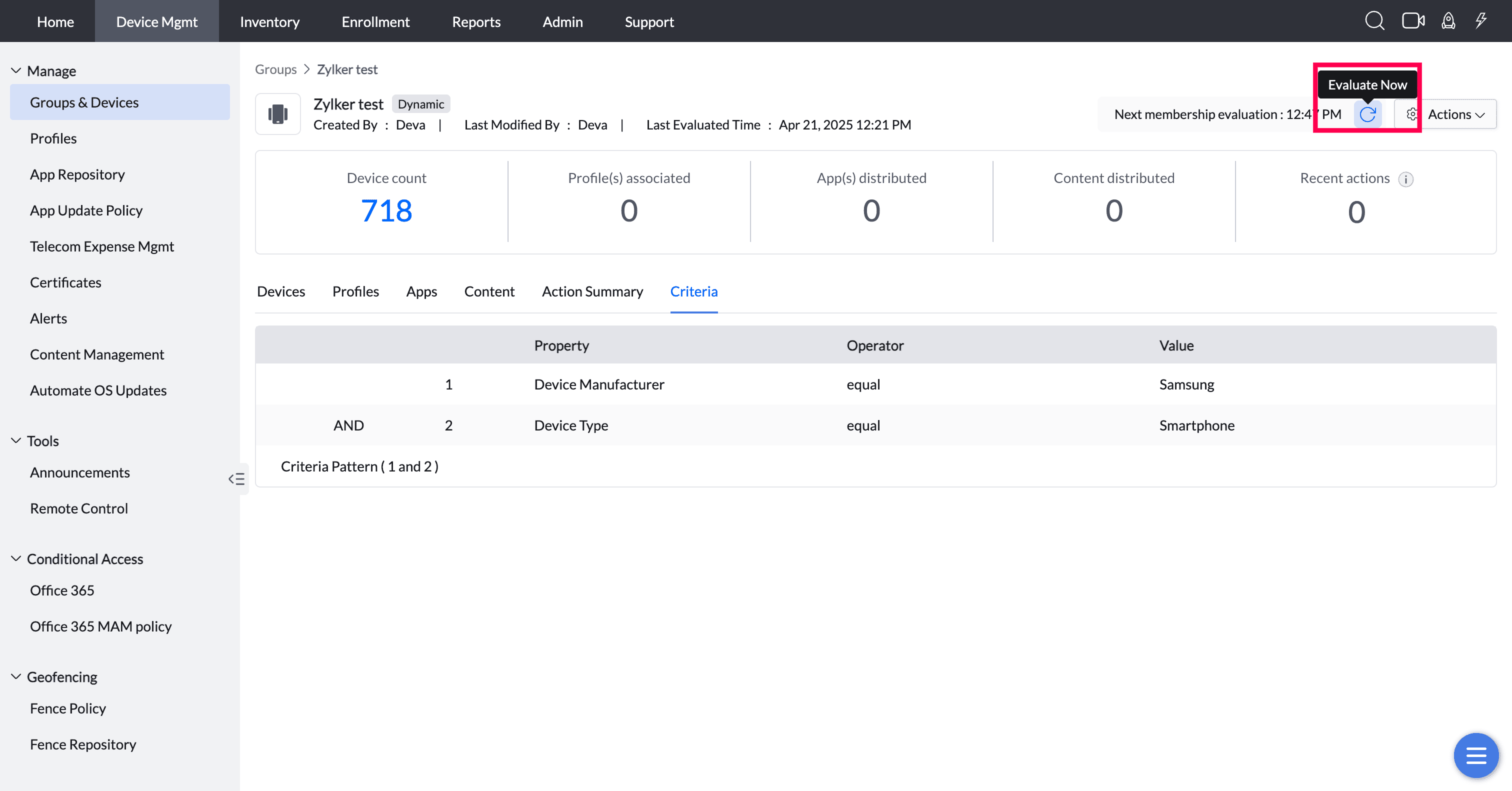
4. Manual Refresh (On-Demand Sync)
- You can force a sync to update group membership and policies instantly.
- Restriction: Manual sync is allowed only once every 20 minutes (to prevent server overload).
Modifying Dynamic groups
To edit a dynamic group:
- Select the dynamic group you want to modify.
- Click Actions > Modify.
- Make your changes.
- Click Save to update.
Modified changes will automatically update on devices. Existing devices that no longer meet the criteria will be removed, while new matching devices will be added to the dynamic group.
Deleting Dynamic groups
To delete a dynamic group:
- Select the dynamic group you want to modify.
- Click Actions > Delete group.
- Confirm the deletion when prompted.
Note: Deleting a dynamic group permanently removes it and revokes all assigned profiles, apps, and content from its devices.
Frequently Asked Questions
1. How many dynamic groups can I create in MDM?
You can create up to 10 dynamic groups. Each group can use device attributes like platform, model, manufacturer, device type, SIM MCC, and SIM MNC to define its criteria.
2. How often does MDM re-evaluate devices against dynamic group criteria?
Devices are automatically checked for group eligibility every hour if they are online. If a device no longer meets the criteria, it is removed from the group, and the associated policies are reverted.
3. Can I force a dynamic group to update immediately instead of waiting for the hourly sync?
Yes, you can trigger a manual refresh to update group membership and policies instantly. Manual sync is restricted to once every 20 minutes to prevent server overload.
4. Are dynamic groups supported for Windows devices?
No, dynamic groups are currently supported only for iOS, iPadOS, and Android devices.
5. What happens to a device's apps and profiles if I delete a dynamic group?
Deleting a dynamic group permanently removes it and revokes all profiles, apps, and content that were assigned through that group from its devices.