Last updated: August 14, 2026
Managed Apple Activation Lock for iOS and iPadOS Devices
This page explains how IT administrators can manage Apple Activation Lock on supervised iOS and iPadOS devices using Mobile Device Manager Plus. It covers the prerequisites for enabling Activation Lock management, how to configure Activation Lock profiles, and the three supported scenarios: disabled, organization-managed, and user-managed. The page also details how to clear Activation Lock using bypass codes, view and use organization and device bypass codes, and handle edge cases such as devices enrolled before this feature was available.
Activation Lock is Apple's built-in security feature that prevents unauthorized use of an iPhone or iPad after the device has been erased or factory reset. When Activation Lock is active, the device can only be reactivated with the Apple ID credentials originally used to enable the feature, or by using a management bypass code generated from the MDM console. Learn more
In a corporate environment, devices often need to be reassigned, re-provisioned, or repurposed. If Activation Lock is enabled by a user's Apple ID, it can block redeployment without that user's credentials. Mobile Device Manager Plus helps IT administrators control Apple Activation Lock for supervised iOS and iPadOS devices.
- In MDM, Activation Lock management is supported for iOS/iPadOS devices only.
- This feature is available only in the Professional edition of MDM.
Prerequisites for Managing Activation Lock
Before you can manage Activation Lock using ManageEngine MDM:
- Devices must be supervised: Enrollment via Apple Business Manager (ABM/ASM) or Apple Configurator is required. This ensures devices can accept Activation Lock controls.
- Apple service URL must be reachable: To clear Activation Lock, the following Apple service URL is used:
https://deviceservices-external.apple.com/deviceservicesworkers/escrowKeyUnlock
Ensure this URL is allowed in your proxy, firewall, or any other network gateway restrictions.
Configuring Activation Lock with MDM
- Go to Device Management > Profiles.
- Click Create Profile > iOS.
- Choose Activation Lock.
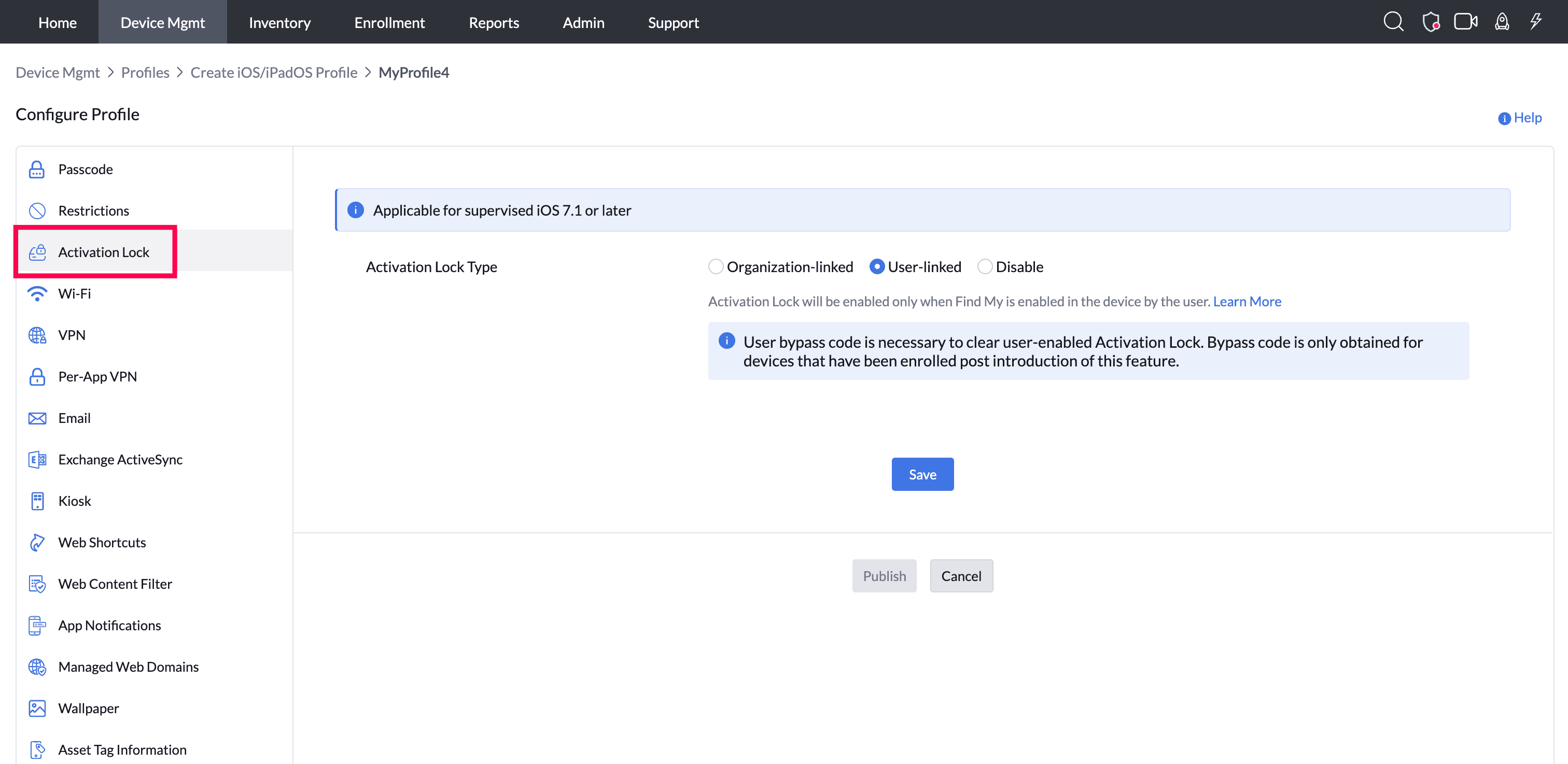
- Configure and save the profile.
- Publish and associate it to the required devices/groups.
Activation Lock Management Scenarios
Here are three Activation Lock scenarios with MDM:
1. Disabled
In this scenario, any supervised devices enrolled through Apple Business Manager (ABM), Activation Lock is disabled by default. Even though Activation Lock is turned off, the devices remain associated with the organization in ABM. If the device is wiped, it will automatically re-enroll into MDM during setup, preventing unauthorized use.
2. Organization-managed
Activation Lock is controlled centrally by IT through ABM/ASM and the MDM. It does not depend on a user's personal Apple ID, and admins can enable, disable, or bypass the lock at any time. This setup is ideal for fully corporate-owned or shared devices.
3. User-managed
Users enable Find My with their personal Apple ID to lock the device, usually when the device is used heavily for personal purposes. Even in this case, MDM can still recover the device using an Activation Lock bypass key without needing the user's Apple ID.
- Find My must be enabled after device enrollment in MDM. If enabled before enrollment, the Activation Lock bypass code may not be captured correctly.
- If Find My was enabled earlier, disable and re-enable it. The bypass code will update in MDM after the next device sync.
Clearing Activation Lock
To clear Activation Lock, the following Apple service URL is used:https://deviceservices-external.apple.com/deviceservicesworkers/escrowKeyUnlock
Ensure this URL is allowed in your proxy, firewall, or any other network gateway restrictions. If it is blocked, the Activation Lock clearance process may fail.
Here are three ways to clear Activation Lock on the device:
1. Using Apple Account password
If you have access to the device, on an iPhone or iPad, enter the device management service Activation Lock bypass code on the Activation Lock screen in the Apple Account password field, and leave the username field blank.
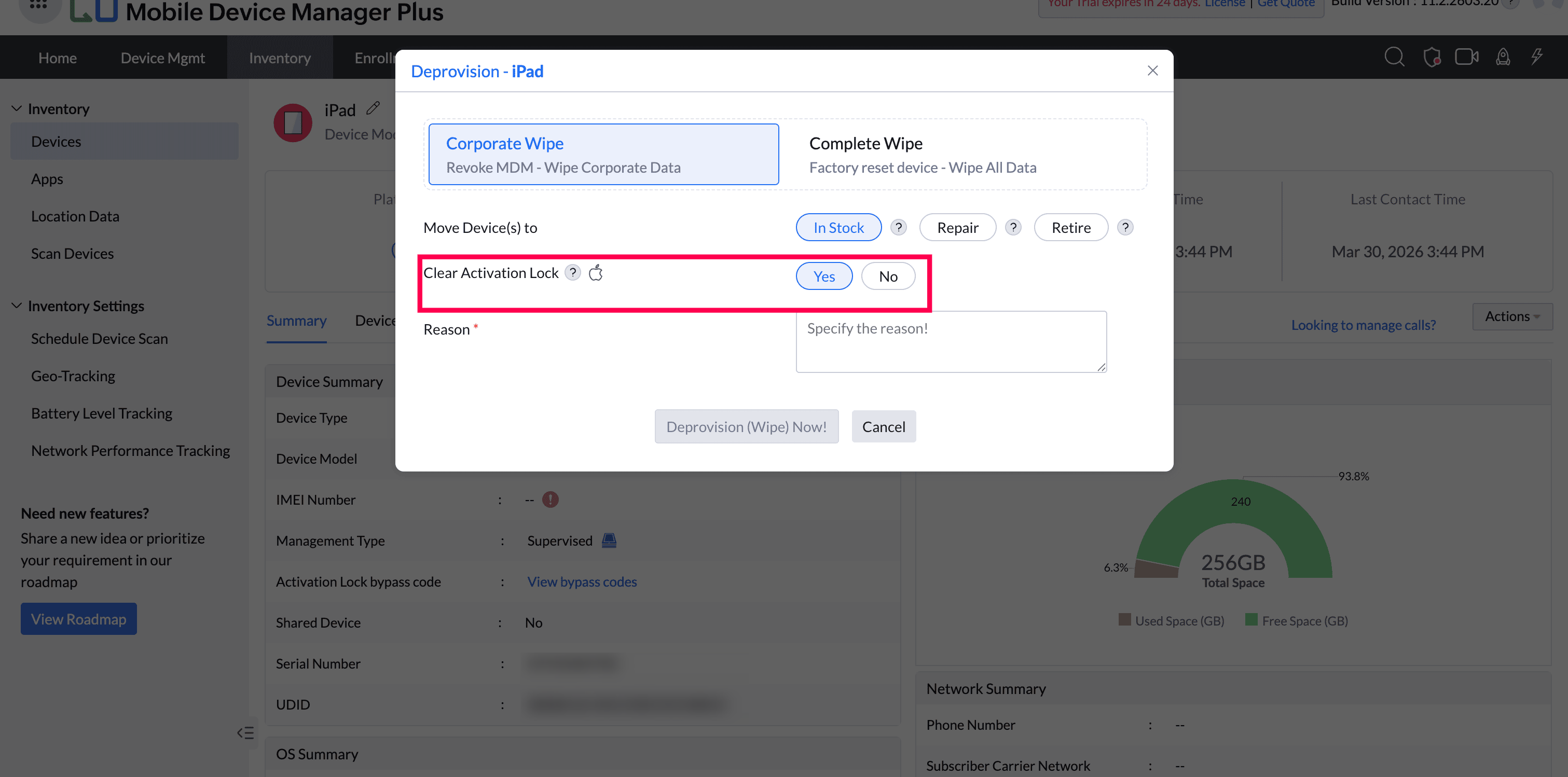
2. When a device is wiped or deprovisioned
If a device is wiped or deprovisioned while still connected to MDM, Activation Lock can be cleared. This ensures the device is ready to be set up again and reassigned without needing the previous user's Apple ID.
3. When a device is stuck in Activation Lock
Sometimes, the Activation Lock cannot be cleared using Method 1 and 2. This can happen if:
- The device is no longer connected to MDM
- The device was erased using recovery mode or other external methods
- The device was reset earlier but still shows the Activation Lock screen
In such cases, your IT team can:
- Use the Activation Lock bypass code saved in the MDM console and enter it directly on the device.
- For ABM-enrolled devices, clear Activation Lock through Apple Business Manager.
- For non-ABM devices, clear Activation Lock via Apple's API using the stored bypass code.
Previously enrolled devices with no device bypass code
If a device was enrolled before this feature was available, the device bypass code will not be present in MDM. If such a device has User-managed Activation Lock (Find My) enabled and is then reset using Apple Configurator or recovery mode, the device will show the Activation Lock screen tied to the user's personal Apple ID.
In this situation, the admin cannot remove the lock because no device bypass code is available. The possible recovery options are:
- If the device is enrolled in ABM/ASM: Clear the Activation Lock through the Apple Business Manager console.
- If the device is not in ABM/ASM: The only way to proceed past the Activation Lock screen is for the user to enter their personal Apple ID and password on the device.
- To avoid this situation, always ensure the device bypass code is available in MDM (by re-enrolling the device if needed) before allowing user-managed Activation Lock on supervised devices.
View Activation Lock Bypass Codes
To view Activation Lock bypass codes:
- Navigate to the Inventory tab and select the required device.
- Under the Device Summary section, click View Bypass Codes.
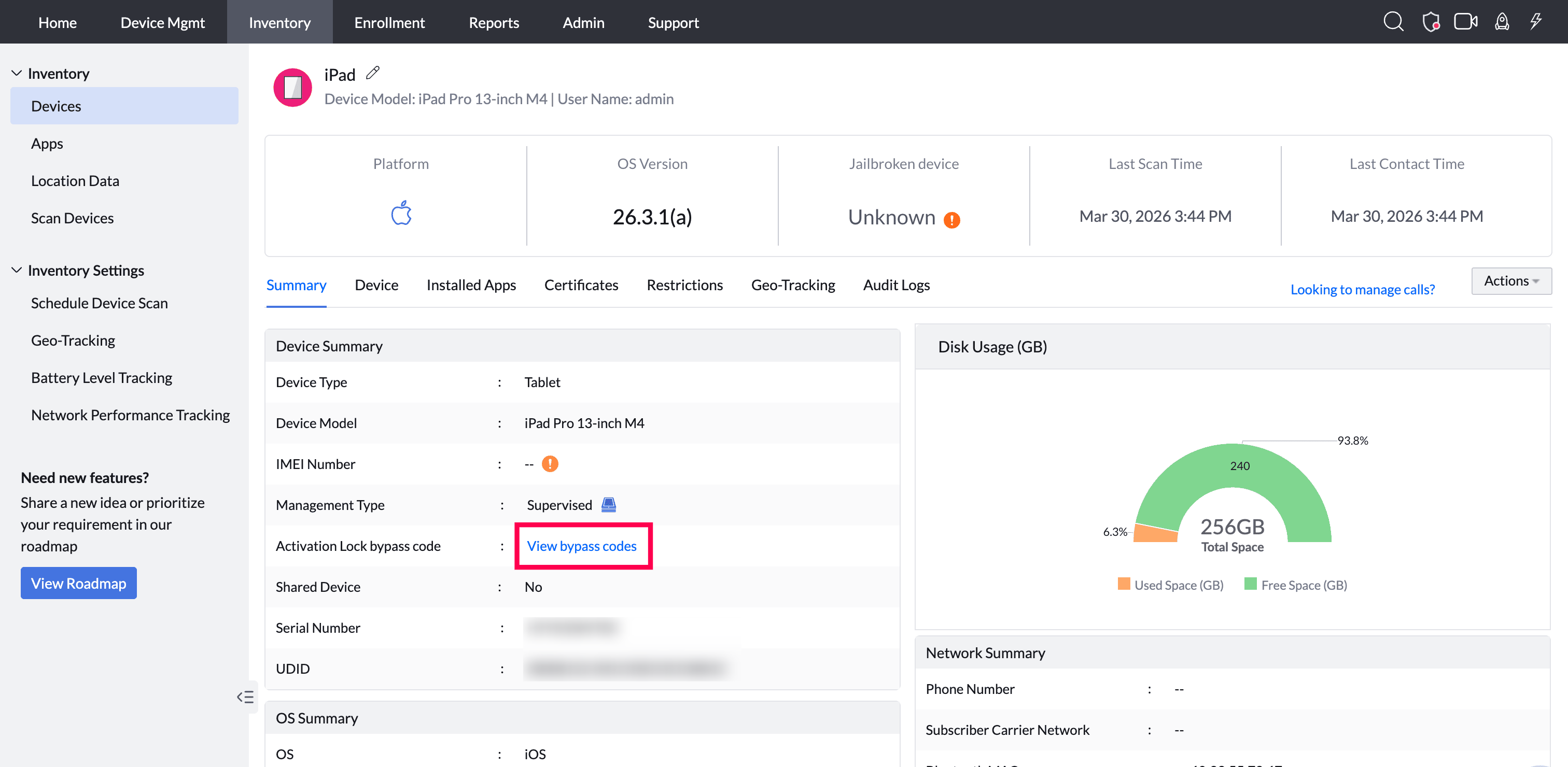
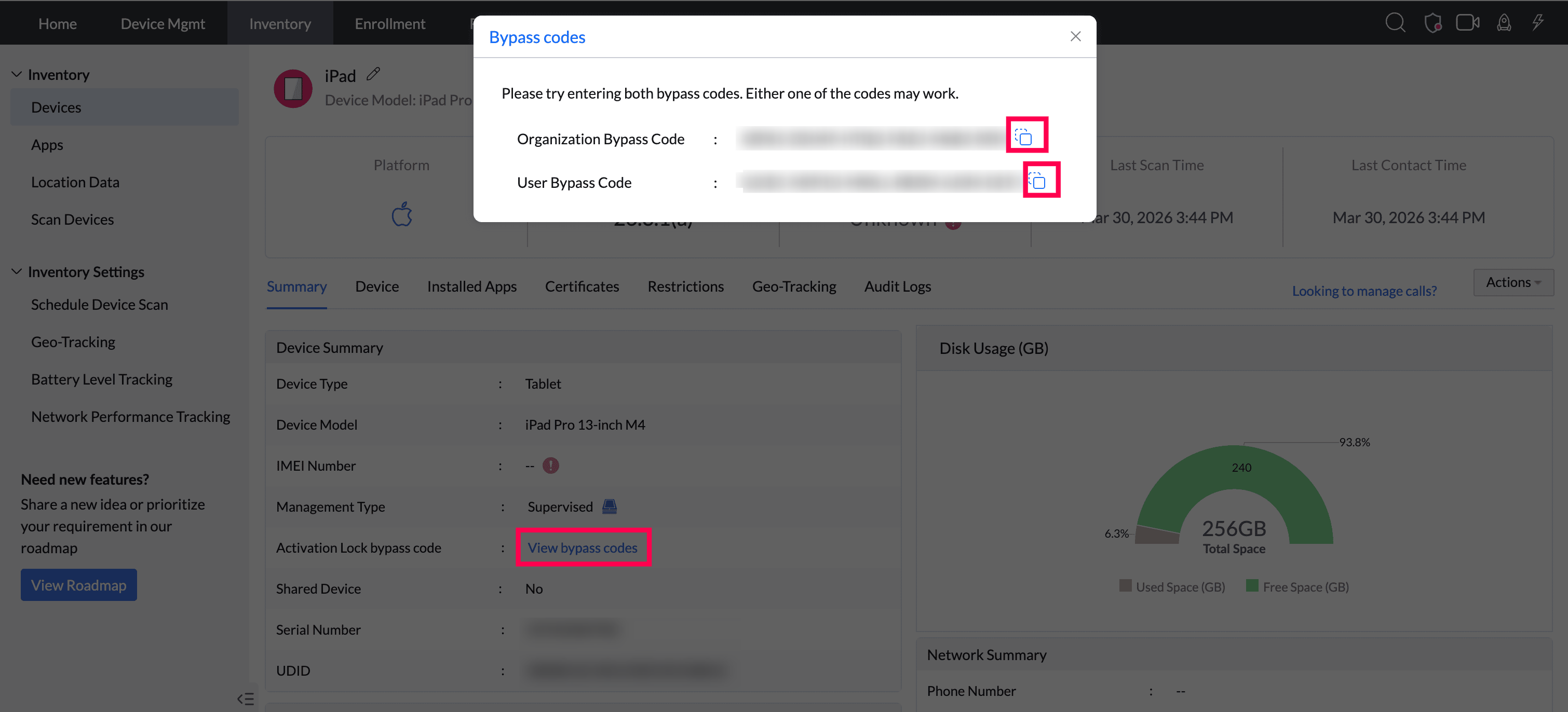
- Once submitted, both the Organization bypass code and the User bypass code will be displayed.
Using Activation Lock Bypass Codes
Bypass codes allow IT to unlock a device if it is activation locked and Apple ID credentials are unavailable.
Types of bypass codes
| BYPASS CODE TYPE | DESCRIPTION |
|---|---|
| Organization bypass code | Generated by MDM and registered with Apple's activation service when Organization-Linked Activation Lock is enabled. |
| Device bypass code | Retrieved from the device during enrollment via MDM command and used for user-managed locks. |
You can use these codes to unlock a device if it is locked and no Apple ID credentials are available. Learn more
To use a bypass code:
- On an iOS/iPadOS Activation Lock screen, leave the Apple ID field blank and enter the bypass code in the password field.
For Existing Devices
- Device bypass code: For devices enrolled before this feature was available, the device bypass code may be absent. This code is retrieved only during enrollment and is not re-triggered later.
- Organization bypass code: Generated when an Organization-Linked profile is distributed, so existing devices can receive this code when the profile is applied.
- If you upgrade to this build and then apply the Activation Lock policy, bypass codes will not be generated for devices that were already enrolled before the upgrade. The MDM console can generate and store bypass codes only for devices enrolled after the build upgrade.
- When a device is migrated from another server, it is treated as a new device. During enrollment, the bypass code is created or retrieved from the device. The Activation Lock will be triggered only after the profile is applied.
Frequently Asked Questions
- What happens to Activation Lock when I need to reassign a device that still has a user's Apple ID enabled?
If Activation Lock is enabled with a user's personal Apple ID, it can block redeployment of the device without that user's credentials. Mobile Device Manager Plus lets IT administrators clear Activation Lock using a management bypass code generated from the MDM console, without needing the original Apple ID.
- What is the difference between the organization bypass code and the device bypass code?
The organization bypass code is generated by MDM and registered with Apple's activation service when Organization-Linked Activation Lock is enabled. The device bypass code is retrieved from the device during enrollment via an MDM command and is used for user-managed locks.
- Why is there no bypass code available for a device I enrolled before this feature was released?
If a device was enrolled before Activation Lock support was available, MDM will not have its device bypass code. Re-enroll the device to generate one. If the device is enrolled in ABM/ASM, you can also clear Activation Lock through Apple Business Manager; for non-ABM devices, the user must enter their personal Apple ID and password on the device.
- Which devices does MDM support for managing Activation Lock?
MDM supports Activation Lock management for supervised iOS and iPadOS devices only. Devices must be enrolled through Apple Business Manager (ABM/ASM) or Apple Configurator, and this feature is available only in the Professional edition of MDM.