# FileVault Encryption Report
Last updated: August 14, 2026
The FileVault Encryption Report gives IT administrators a centralized dashboard to monitor macOS FileVault encryption compliance across all managed devices. It displays encryption status, categorizes devices by encryption type (Personal, Institutional, or both), and tracks personal and institutional recovery key availability. Administrators can drill into device-level data, securely export recovery keys, and apply best practices to maintain encryption compliance during security audits.
The **FileVault Encryption Report** offers a centralized view of macOS FileVault encryption compliance across all managed devices. It helps IT administrators monitor encryption status, validate recovery key availability, and ensure that sensitive data remains secure.
## Overview of Report
The dashboard provides three key visual insights:
### 1. Devices By Encryption Status
Displays the overall FileVault enablement across macOS devices:
- **Enabled:** Devices with FileVault successfully turned on.
- **Not Enabled:** Devices where FileVault is turned off.
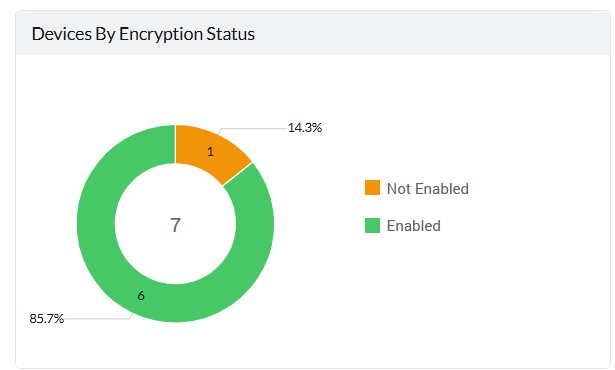
This chart shows how many devices have FileVault enabled or not.
**Example:**
- **Enabled:** 6 devices (85.7%)
- **Not Enabled:** 1 device (14.3%)
This helps identify non-compliant devices that require immediate attention.
### 2. Devices Grouped By Encryption Type
Categorizes **macOS devices** based on the **FileVault encryption type** used. Displays only the devices that were marked as **Encryption Enabled** in the previous chart.
- Personal & Institutional
- Personal
- Institutional
- [Unknown](https://www.manageengine.com/mobile-device-management/kb/encryption-type-unknown.html)

## Devices By Personal Recovery Key Availability
Represents the availability of **Personal Recovery Keys** for devices under **Personal** and **Personal & Institutional** categories in the previous chart:
- **Available:** The recovery key has been safely stored and can be used when needed.
- **Not Available:** This means the device’s FileVault encryption is **not managed by MDM**, and a **personal recovery key is not available**.
This chart shows whether the personal recovery key is stored and accessible.
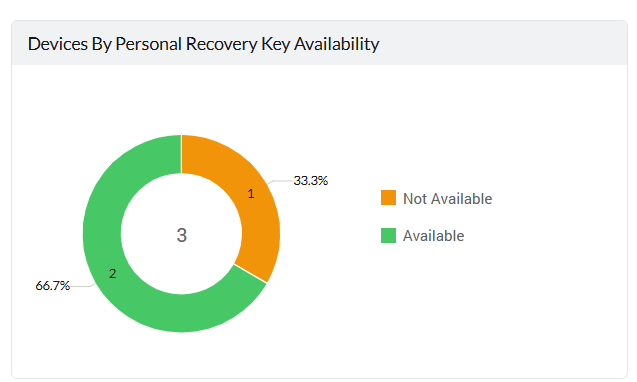
**Example:**
- **Available:** 2 devices
- **Not Available:** 1 device
**Personal Recovery Key Not Available — Next Steps:**
If the Personal Recovery Key (PRK) is not available, you can:
1. [Upload the previous PRK](https://www.manageengine.com/mobile-device-management/help/profile_management/mac/mdm_filevault_encryption.html#:~:text=To%20import%20the%20Personal%20Recovery%20Key%20for,the%20Existing%20FileVault%20recovery%20key%20details%20entered.) using a CSV file if the old recovery key exists.
2. [Enable automatic PRK rotation](https://www.manageengine.com/products/desktop-central/how-to/filevault-prk-rotation.html) to create and store a new recovery key for devices that are already encrypted.
## Device-Level Data Table
Beneath the widgets, a detailed table lists device-specific encryption data:
| Field | Description |
|---|---|
| Device Name | - Name of the managed macOS device. |
| Serial Number | - Unique serial number of the device. |
| FileVault Enabled | - Shows whether FileVault is active on the device.
- Indicates if disk encryption is currently turned on or off. |
| FileVault Encryption Type | - Displays the type of recovery key used for encryption.
- Possible values include Personal, Institutional, or both. |
| Personal Recovery Key | - Indicates the status of personal recovery key availability.
- Shows whether the personal recovery key is securely stored and retrievable when needed. |
| Institutional Recovery Key | - Indicates the status of institutional recovery key availability.
- Displays whether the organization’s shared recovery key is configured and accessible. |
The additional columns include **UDID** (Unique Device Identifier), **Email** (Associated user email), **OS Version** (macOS version running on the device), and **Model Name** (Hardware model of the device).
You can **sort**, **search**, or **filter** this table to locate specific devices or key attributes.
## Exporting Recovery Keys
Administrators can export all available personal and institutional recovery keys securely using the **Export All Recovery Keys** option.
### How to Export:
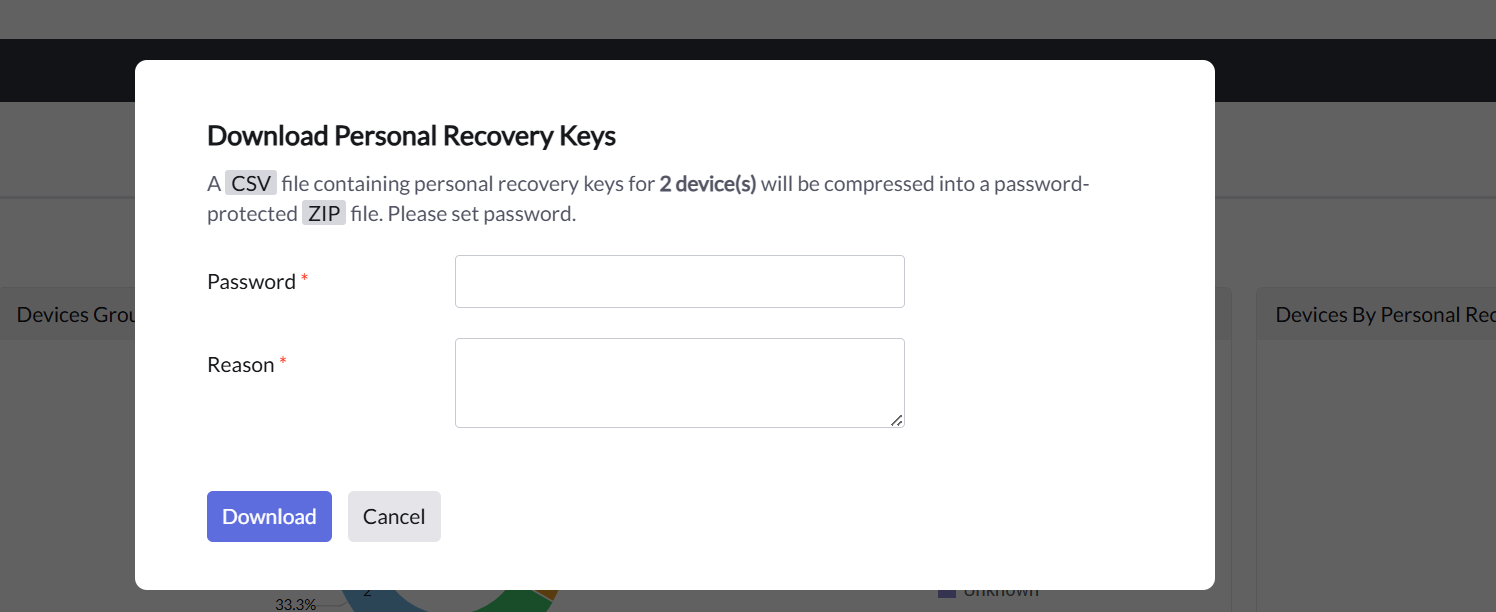
1. Click **Export All Recovery Keys** in the FileVault Encryption Report.
2. A pop-up appears asking for:
- **Password:** Used to encrypt the exported ZIP file.
- **Reason:** Mention the reason for downloading keys (for audit/compliance logging).
3. Click **Download**.
4. A CSV file containing the recovery keys will be compressed into a **password-protected ZIP file**.
## Best Practices
- Regularly monitor the report to ensure all corporate devices are encrypted.
- Verify that both **Personal** and **Institutional Recovery Keys** are available, depending on your organization’s policy.
- Use this report during security audits to validate encryption compliance.
## Frequently Asked Questions
**What does "Not Available" mean under Personal Recovery Key Availability?**
It means the device's FileVault encryption is not managed by MDM, so a personal recovery key has not been captured. Upload the previous key via CSV or enable automatic PRK rotation to resolve this.
**What is the difference between Personal and Institutional Recovery Keys?**
A Personal Recovery Key is unique to each device/user, while an Institutional Recovery Key is a shared certificate-based key that lets administrators unlock any encrypted device in the organization.
**How do I export recovery keys for multiple devices?**
Use the **Export All Recovery Keys** option, provide a password and reason for the export, and download the password-protected ZIP file containing the CSV of recovery keys.
**Why is a device shown as encryption "Not Enabled"?**
This means FileVault has not been turned on for that device. Distribute a FileVault Encryption profile to bring the device into compliance.