Last updated: July 24, 2026
How to enroll your first iOS device?
Enroll your first iOS device into Mobile Device Manager Plus by choosing an enrollment method for your use case: unsupervised for BYOD devices using QR codes or self-enrollment, or supervised for corporate-owned devices using Automated Device Enrollment or Apple Configurator.
Enrolling your first iOS device in ME MDM
Device enrollment is the process of registering and configuring devices to be managed centrally within a mobile device management system.
Understanding management of iOS
iOS Management Mode | Scenarios | Enrollment Methods |
|---|---|---|
| Personal device management (Device Enrolment or User Enrolment) (Unsupervised) |
|
|
| Company-owned device management (Device enrolment or Automated device enrolment) (supervised) |
|
|
To learn more about the different enrolment methods, Please refer to our Help Guide.
Evaluating iOS device management with Personal device enrolment:
This guide walks through quickly enrolling the first iOS device using a QR Code to initiate your MDM evaluation. For comprehensive device management features such as Kiosk mode or app lockdown, alternative enrollment methods are available as outlined in the preceding sections.
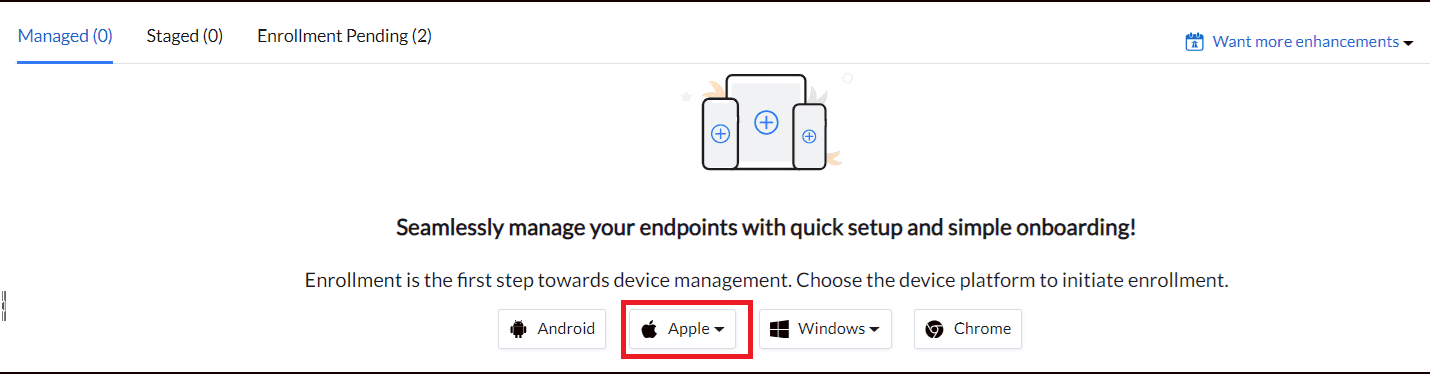
Pre-requisites:
- APNs:
Apple Push Notifications (APNS) is a mandatory to enroll an iOS device. MDM utilize APNs for continuous communication with devices. To know more about how to configure APNs Certificate please refer Create APNs Certificate.
If you are using the MDM Cloud version then please Configure the APNs Certificate and Skip the below steps and proceed directly to the enrollment steps to register your first iOS device.
- On-Premise Version:
- Firewall and Proxy Rules: To ensure proper functionality, the MDM (Mobile Device Management) server needs to connect to essential services such as Google Cloud Messaging. If you are utilizing a proxy or firewall, it's imperative to configure these settings within the MDM console.
- MDM server address: Devices need to access the server address even from the internet for remote management. You can configure NAT settings so your public domain directs to the MDM server and port. Alternatively, use the default address for evaluation. You can set up NAT settings later when you plan on enrolling more devices.

Ensure the device is part of the server network during testing.
To know more about the MDM On-Premise please visit our Help Guide.
Methods to enroll the first iOS device
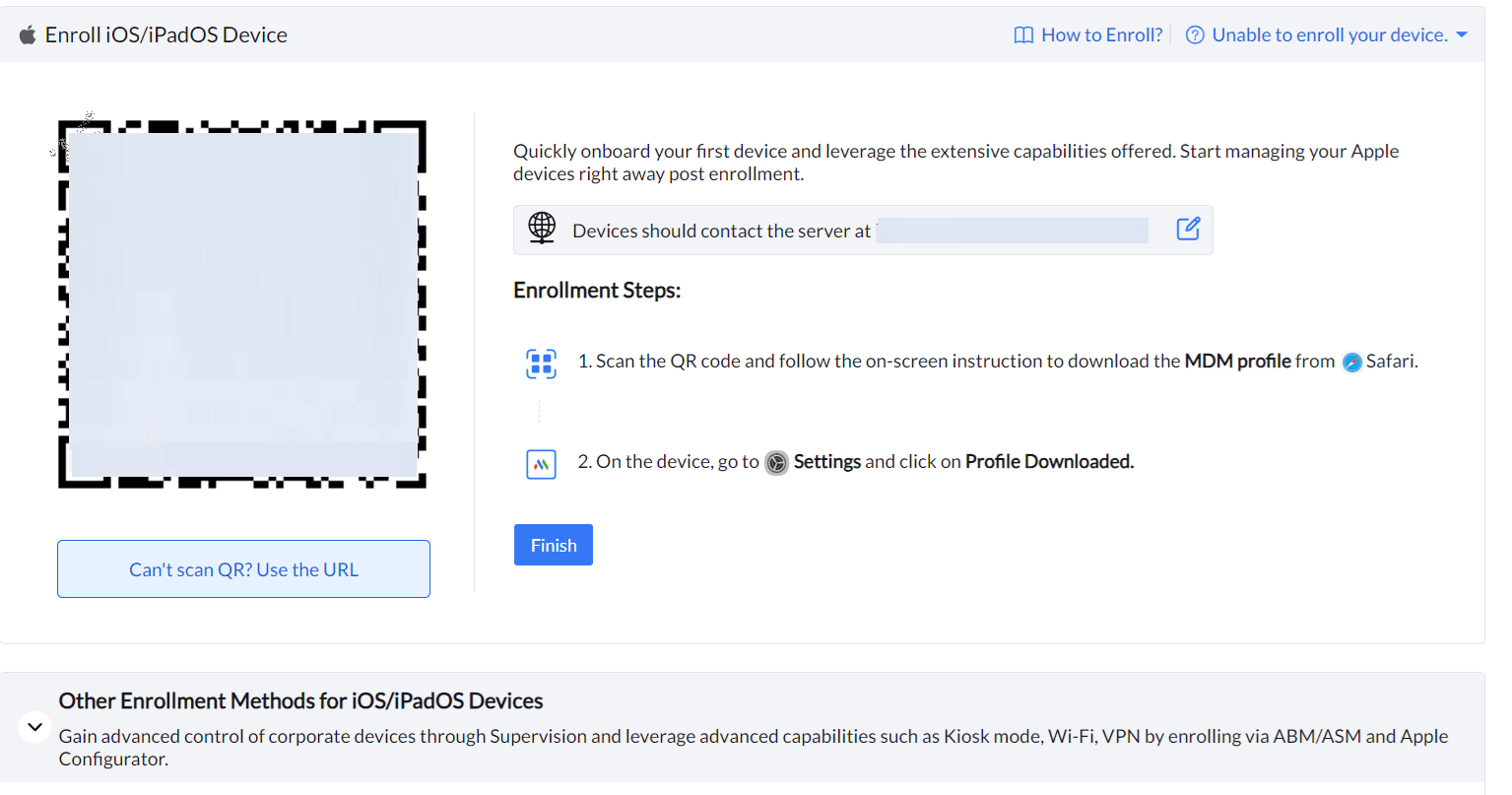
- Download and install MDM Profile::
- Scan QR Code using the camera to download the MDM profile in Safari Browser.
- User needs to allow to download the configuration profile. User will receive a notification of successful download.
- Users need to open Settings on the iOS device and install the MDM profile from the downloaded section. Once the MDM profile is installed, users will receive a notification.
- Self Service app (previously ME MDM app)::
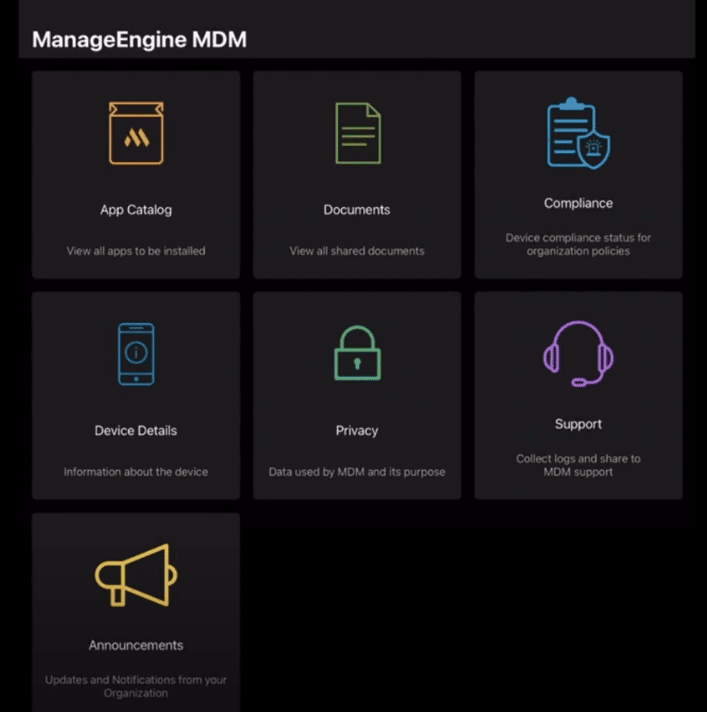
Once the MDM profile is installed, users will be prompted to install the ManageEngine MDM Self Service app (previously ManageEngine MDM app)lication. Within the Self Service app (previously ME MDM app), users can access organization announcements, compliance and policy details, shared documents, and organization-managed work applications in the App Catalog, which they can view or install.
- View and Manage Enrolled Device:
To access enrolled devices, users can navigate to the Devices section within the Enrollment Tab in the MDM Console, where the status of each device will be displayed as "Enrolled".
Furthermore, users can execute actions on enrolled devices not only from the Devices section within the Enrollment Tab but also from the Inventory Tab and Management Tab.
What's Next?
Configure Profile and Policies:
After installing the MDM profile on the device, users can customize profiles and policies to utilize the advantages of device enrollment. This includes establishing passcode regulations, implementing restrictions on data sharing between work and personal apps, configuring WiFi and VPN settings, and other measures to manage the device and enhance security.
To learn more about Configuring Profiles and Policies, please refer to Device Restrictions and Configurations.
Distribute Work Applications:
Following successful device enrollment, users can commence the distribution of apps to devices acquired from Apple Business/School Manager purchases, custom apps, and enterprise apps.
To learn about App Distribution, please visit App Management.
If you are encountering errors, please refer to these troubleshooting documents.
Frequently asked questions
Which enrollment method should I use for a personal (BYOD) iOS device?
Use unsupervised personal device management (Device Enrollment or User Enrollment) via a direct QR code or enrollment link, Self Enrollment, or user invitations. This keeps work apps and data protected separately from personal apps.
Which enrollment method should I use for a company-owned iOS device?
Use supervised company-owned device management through Automated Device Enrollment (ABM/ASM) or the Apple Configurator app. Supervised enrollment supports kiosk-mode deployments where devices are locked down to run only work applications.
Can a company-owned iOS device be used for both work and personal purposes?
Yes, supervised company-owned device management also supports devices used for both work and personal purposes, in addition to dedicated single-purpose deployments.