Last updated: July 24, 2026
How to migrate Apple VPP/DEP accounts to Apple Business Manager?
This guide explains how to migrate Apple VPP/DEP accounts to Apple Business Manager (or Apple School Manager for education), which Apple mandated to unify device, app, and content management under one console with stronger security and role-based access. Admins upgrade via the VPP/DEP portal, create a Managed Apple ID, set up two-factor authentication, migrate purchased apps and locations, and invite VPP purchaser accounts, after which existing tokens keep working until they expire.
To simplify managing Apple devices and apps, Apple has combined the capabilities of the Device Enrollment Program (DEP) and Volume Purchase Program (Apple VPP) to a single portal known as Apple Business Manager (ABM). As Apple mandated migration from Apple DEP and Apple VPP to ABM before December 1, 2019, organizations can migrate their accounts by following the steps given in this document. In case of an educational institution, you can upgrade to a similar portal known as the Apple School Manager.
Why should you migrate from Apple DEP/Apple VPP to Apple Business Manager?
Migrating to Apple Business Manager from Apple VPP/DEP also provides organizations multiple benefits such as:
- Unified console to manage your organization's devices, apps and content
- Enhanced corporate data security with ABM specific Managed Apple ID which cannot be used for iCloud, iTunes and other Apple services
- Granular control over devices with Role Based Access Control (RBAC), using which organization can associate the required role permissions to the administrators.
- App licenses can be transferred between pre-created Locations based on usage trends in the organization
- Default MDM servers can be configured for different device types, if your organization utilizes multiple endpoint management solutions to manage different devices
Steps to migrate Apple VPP/DEP accounts to Apple Business Manager
Follow the steps given below to upgrade Apple Volume Purchase Program and Device Enrollment Program portals to ABM/ASM by migrating from Apple VPP/DEP to ABM/ASM:
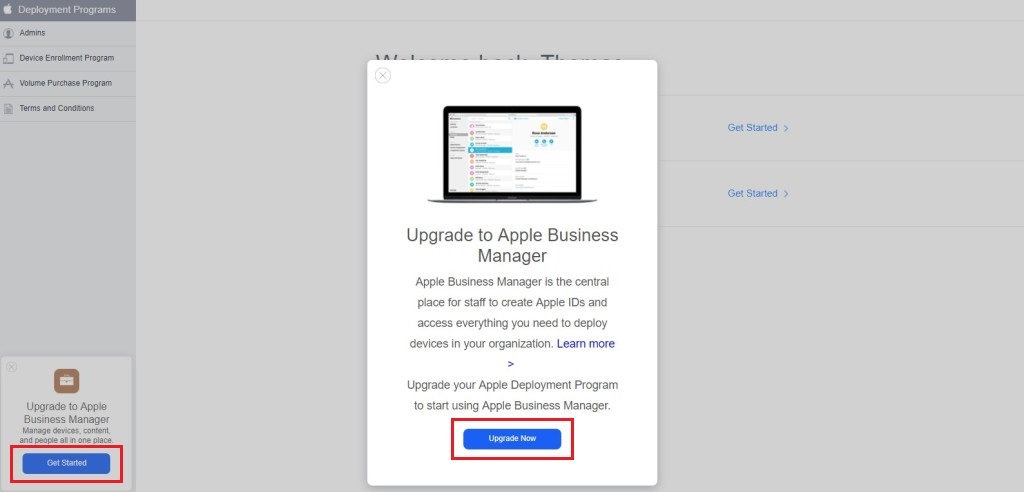
- Login to the Apple Volume Purchase Program portal or the Device Enrollment Program portal using your corporate Apple ID with administrative privilege. Click on Get Started or Upgrade Now when prompted to upgrade to ABM/ASM.
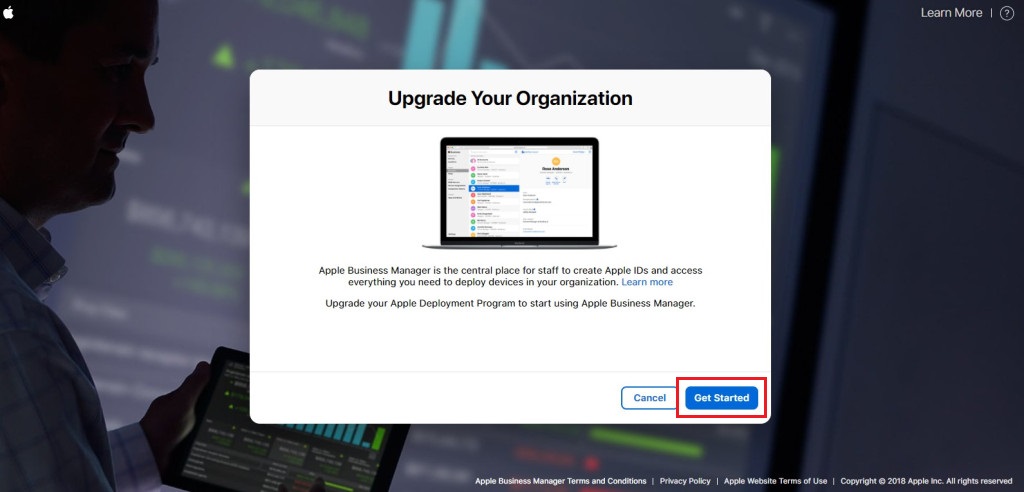
- Click on Get Started again when redirected to the ABM portal to initiate the migration process.
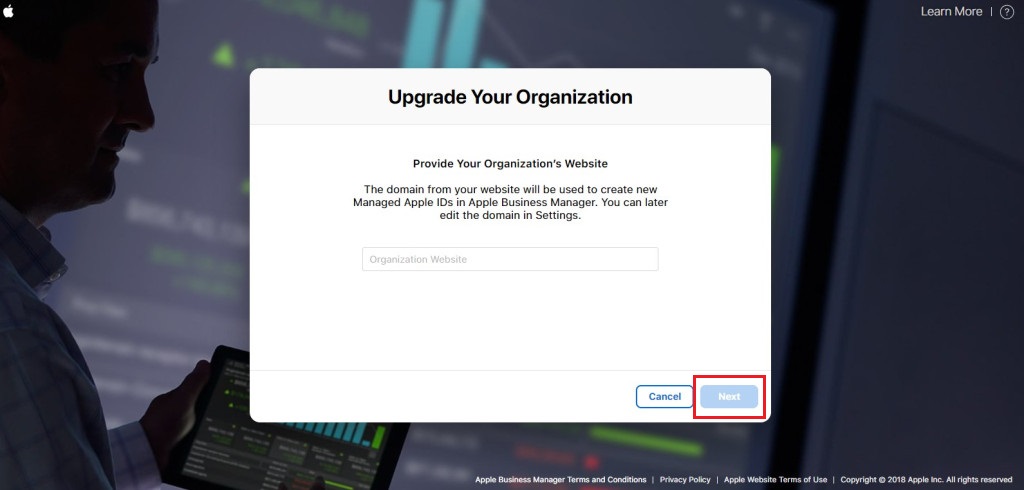
- Click on Next to agree to the changes and enter your organization's domain to create a new Managed ID.
- Agree to the terms and conditions after which your organization will be successfully upgraded to ABM.
- Once the upgrade is complete, log into the ABM portal and configure the Time and Language settings.
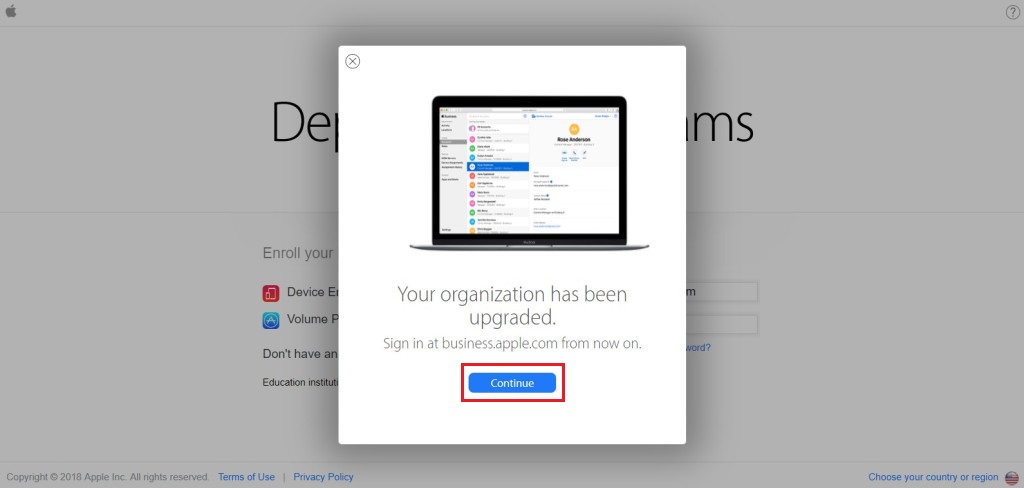
- If you are migrating from DEP to ABM, each DEP administrator will receive an e-mail prompting them to upgrade from their Apple IDs to Managed IDs. Clicking on Get Started from the mail, redirects to this page shown below.
- Once two-factor authentication is done, the upgrade is complete. Click on Continue.
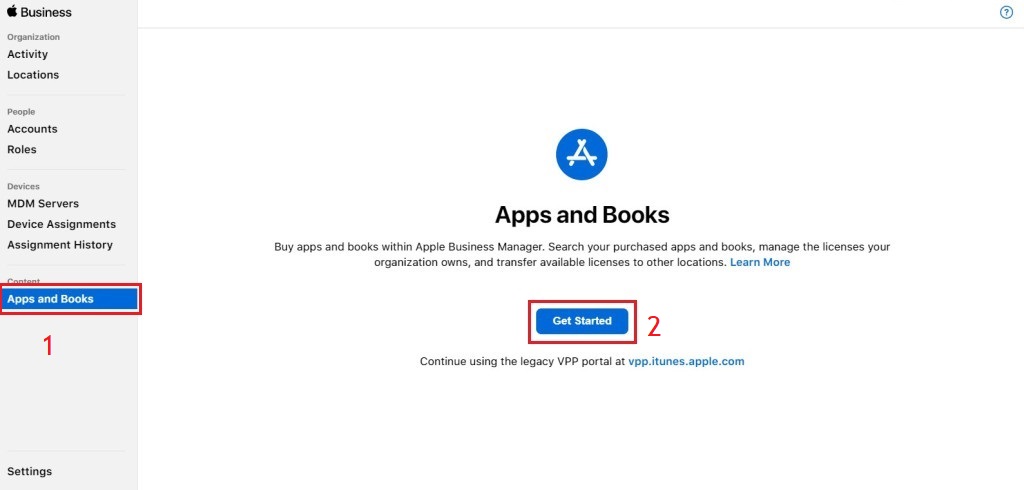
- If you are migrating from VPP to ABM, login to your ABM account, go to Apps and Books and click on Get Started.
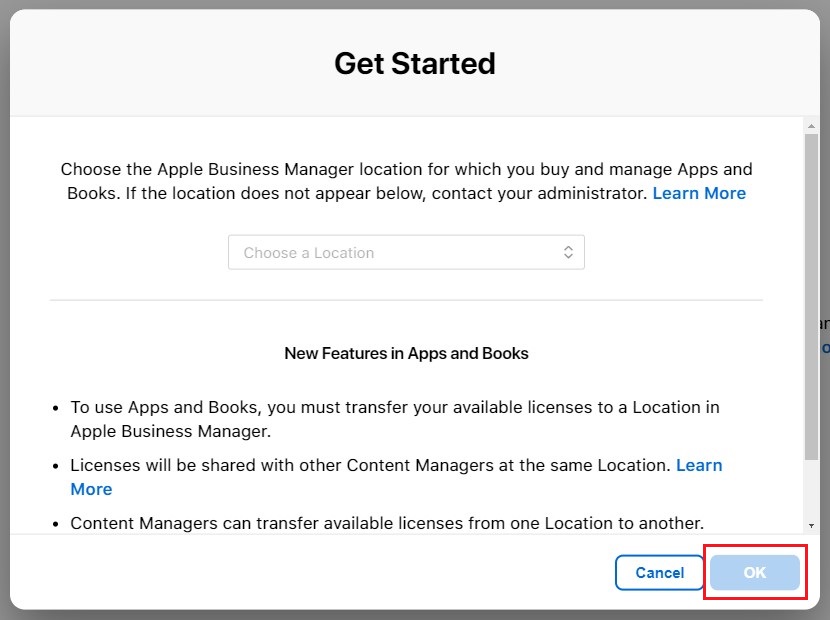
- In the next step, choose the ABM location to purchase Apps and Books before clicking on OK.
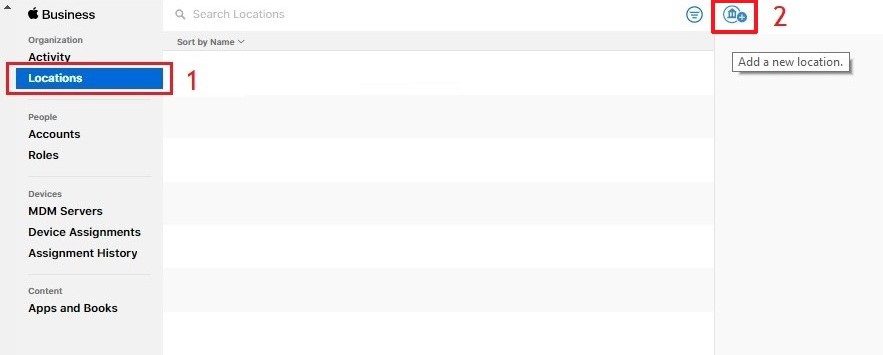
- If you want to create a new location for a specific department in your organization, go to Locations and click on the Add a new Location button from the top right. Fill in the required details on the form which appears.
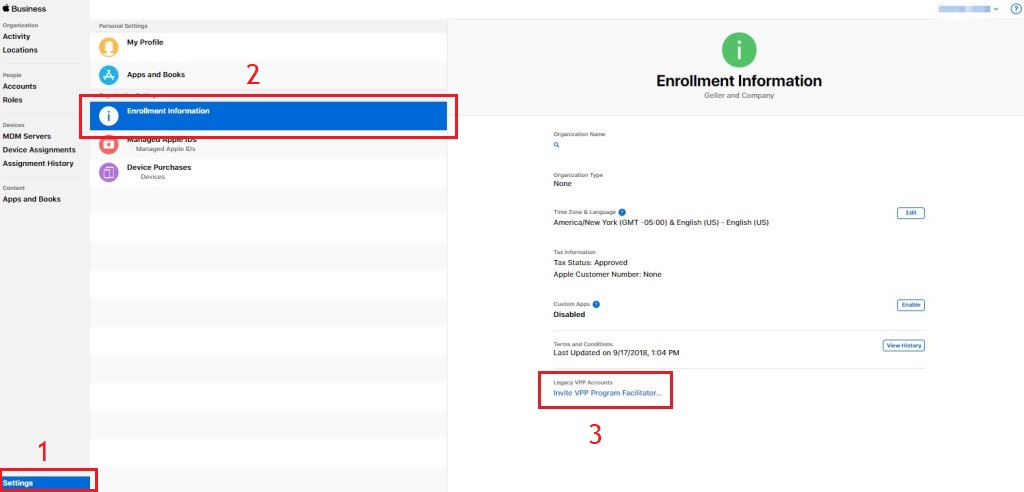
- Navigate to Settings -> Enrollment Information and click on Invite VPP Program Facilitator shown under Legacy VPP Accounts.
- Enter the Apple ID to be invited. Also, if the Apple VPP and DEP accounts are different, individual VPP accounts should be invited to the ABM portal. Once the admin accesses the link in the e-mail and completes the next few steps, the migration will be complete.
Note: Ensure two-factor authentication is enabled for the DEP account to access the ABM portal or set it up by logging in to Apple ID portal.
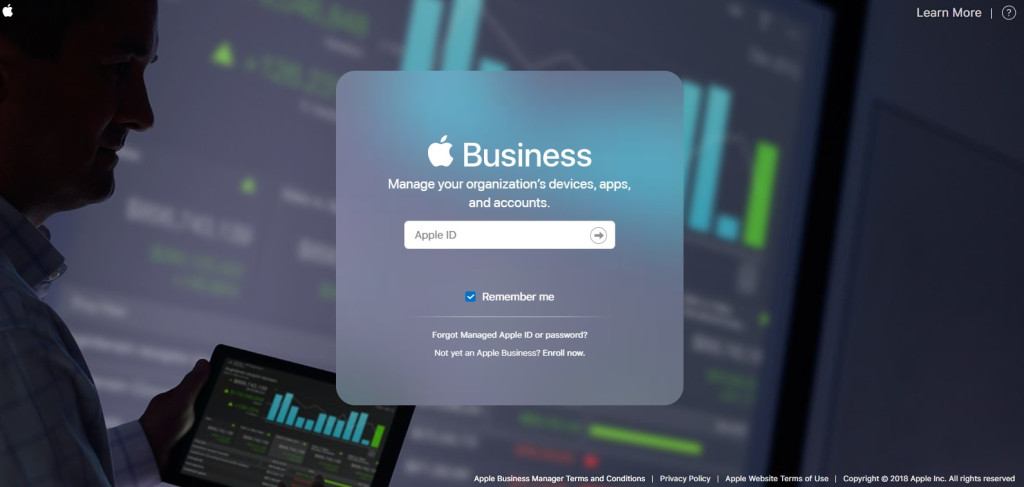
Once this is complete, all the previously purchased apps from legacy Apple VPP are visible on the portal.
Recommendations:
- Always migrate a single VPP account to a single location.
- It is always better to create a new location for every VPP purchaser account.
- Renew the Server Token, before associating a VPP purchaser account to a location.
For more information, click here.
Note:
- If you are evaluating Mobile Device Manager Plus, it is recommended to create a new location in the ABM portal for testing purposes instead of using the locations and tokens in production.
- The users created before 2014 will not automatically be migrated to ABM. You can send an invite to these users and assign them to a newly created location by following the steps given here.
What happens after upgrading?
Once you upgrade to the new portal, all your managed devices and apps will be available in ABM. You can continue managing these devices and apps using Mobile Device Manager Plus, without changing the tokens till it expires after which, you will have to regenerate the tokens from the ABM portal.
Roles and Privileges
On the ABM portal, the DEP agent is called the Administrator and there can be a maximum of five administrators. After migration to the ABM portal, you can find all your organization's accounts available there. You need to associate these accounts with locations and roles where each role has a set of privileges. If the account was already an admin in either DEP or VPP, these roles are automatically assigned to them. Additionally, the Device Manager role must be assigned to any other account managing the devices and Content Manager role to the accounts responsible for managing your organization's apps. Here, the admin capable of creating or editing other admin accounts is called the People Manager.
Server Tokens based on location
The Server Tokens for managing apps in the ABM portal are created based on different locations instead of users. This means that any apps added to that location can be managed by all the technicians responsible for that location.
Note: After upgrading, if any of your apps are not automatically available in Mobile Device Manager Plus, upload the Server Token from the ABM portal to sync all your apps. If the problem still persists, contact mdm-support@manageengine.com or mdmcloud-support@manageengine.com.
Frequently asked questions
Why should I migrate from Apple VPP/DEP to Apple Business Manager?
ABM gives you a unified console to manage devices, apps, and content, an ABM-specific Managed Apple ID that can't be used for iCloud or iTunes, role-based access control, and the ability to transfer app licenses between locations based on usage.
What happens to my existing Server Tokens after migrating to ABM?
Your tokens keep working without any changes until they expire, after which you'll need to regenerate them from the ABM portal.
What roles do I need to assign after migrating to ABM?
Accounts that were already admins in DEP or VPP get their roles carried over automatically; you'll additionally need to assign the Device Manager role to accounts managing devices and the Content Manager role to accounts managing apps.
What should I do if my apps don't automatically appear in Mobile Device Manager Plus after migrating?
Upload the Server Token from the ABM portal to sync your apps. If the problem still persists, contact mdm-support@manageengine.com or mdmcloud-support@manageengine.com.