Last updated: July 24, 2026
How to publish enterprise apps as private apps in Google Play Store?
Publishing enterprise apps privately in Google Play Store requires a Google Play Developer account, obtained with a one-time registration fee. After registering, create the app in Play Console, then link it to Managed Google Play by choosing the correct organization ID, optionally sharing it with other organizations. Ensure the app is approved as a managed app, then sync it so it can be distributed to devices.
Description
In order to make your enterprise apps exclusively available for users within your organization, you can publish them as private apps on Managed Google Play. For this, you will need to create a Google Play Developer account. A lifetime license for this account can be obtained with a one-time registration fee. This account provides the correct administrator privileges to upload and publish private apps to Managed Google Play. You can also publish enterprise apps as private playstore apps directly from MDM Console without creating developer account by following the steps provided here. These private, enterprise apps are published to the Google Play Store using Google Admin console or Google Play Console and can then be silently distributed to your managed devices using Mobile Device Manager Plus.
Steps
Register as a developer:
Create a developer account in Google Play Console by following the steps provided here.Add the application:
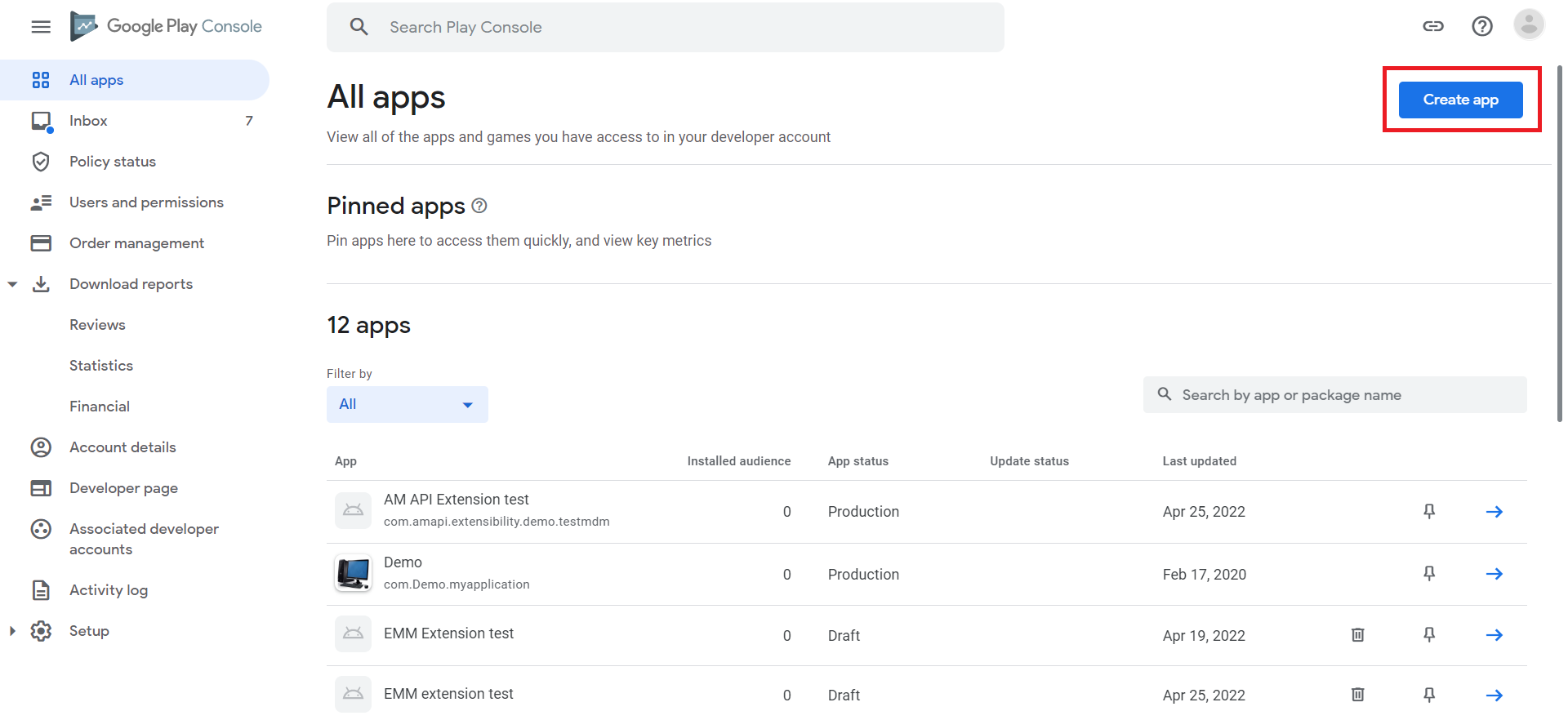
Go to https://play.google.com/apps/publish. Now, click on CREATE APP and add the enterprise application which you want to publish as a private app on Google Play Store. Following this, fill in the requisite details and click on Publish.Managed Google Play settings:
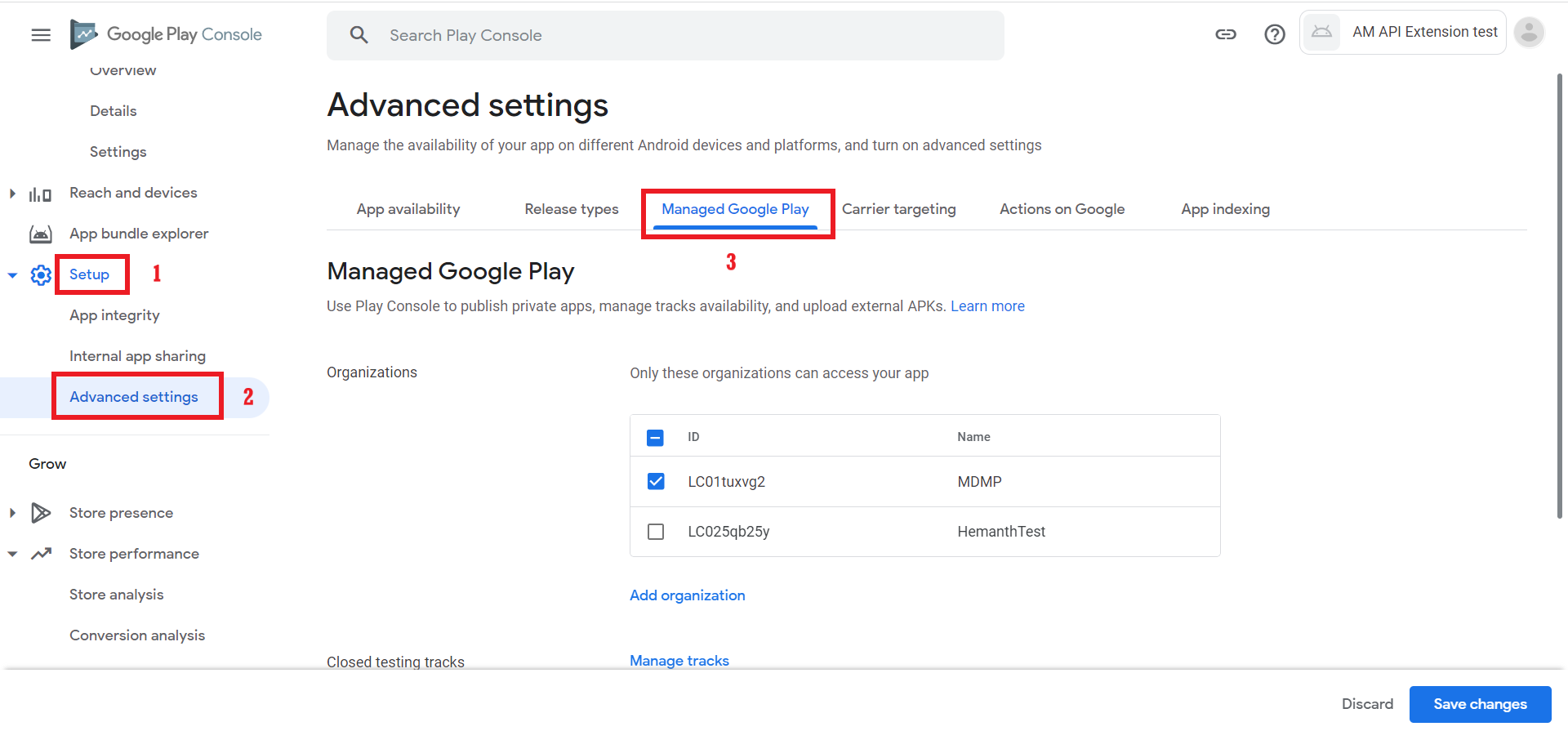
After publishing the enterprise app, click on it and go to Setup -> Advanced Settings and click on Managed Google Play.Choose organizations:
Here, choose the organization's name which is associated with the MDM server. You can additionally share private apps from one organization to another.
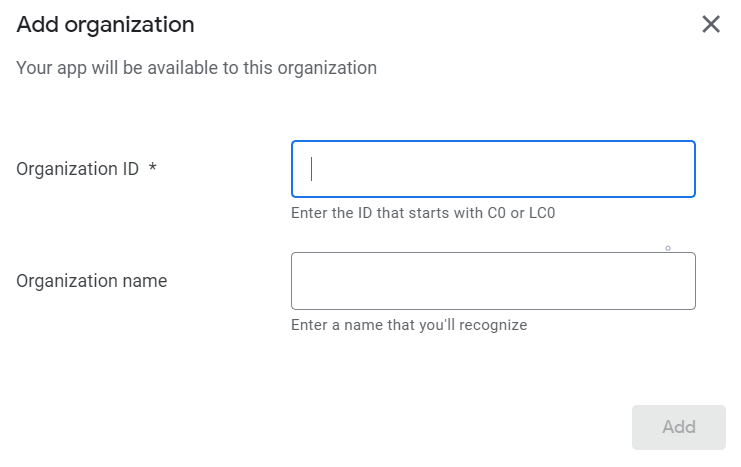
To do so, fetch and add the organization ID as explained below:- Sign In to the MDM server associated with the organization you want to share the app with.
- Go to Device Mgmt -> App Repository -> Managed Google Play. Under Details, you will find the Enterprise ID. Copy and paste it on Managed Google Play as the Organization ID. This can also be found in the Managed Google Play account of the corresponding organization.
- Click on ADD to finish.
Note: You can share your private apps with multiple organizations by repeating these steps.
Ensure the enterprise app is present as a managed app in your organization. Else, search and approve the app here.
Sync apps:
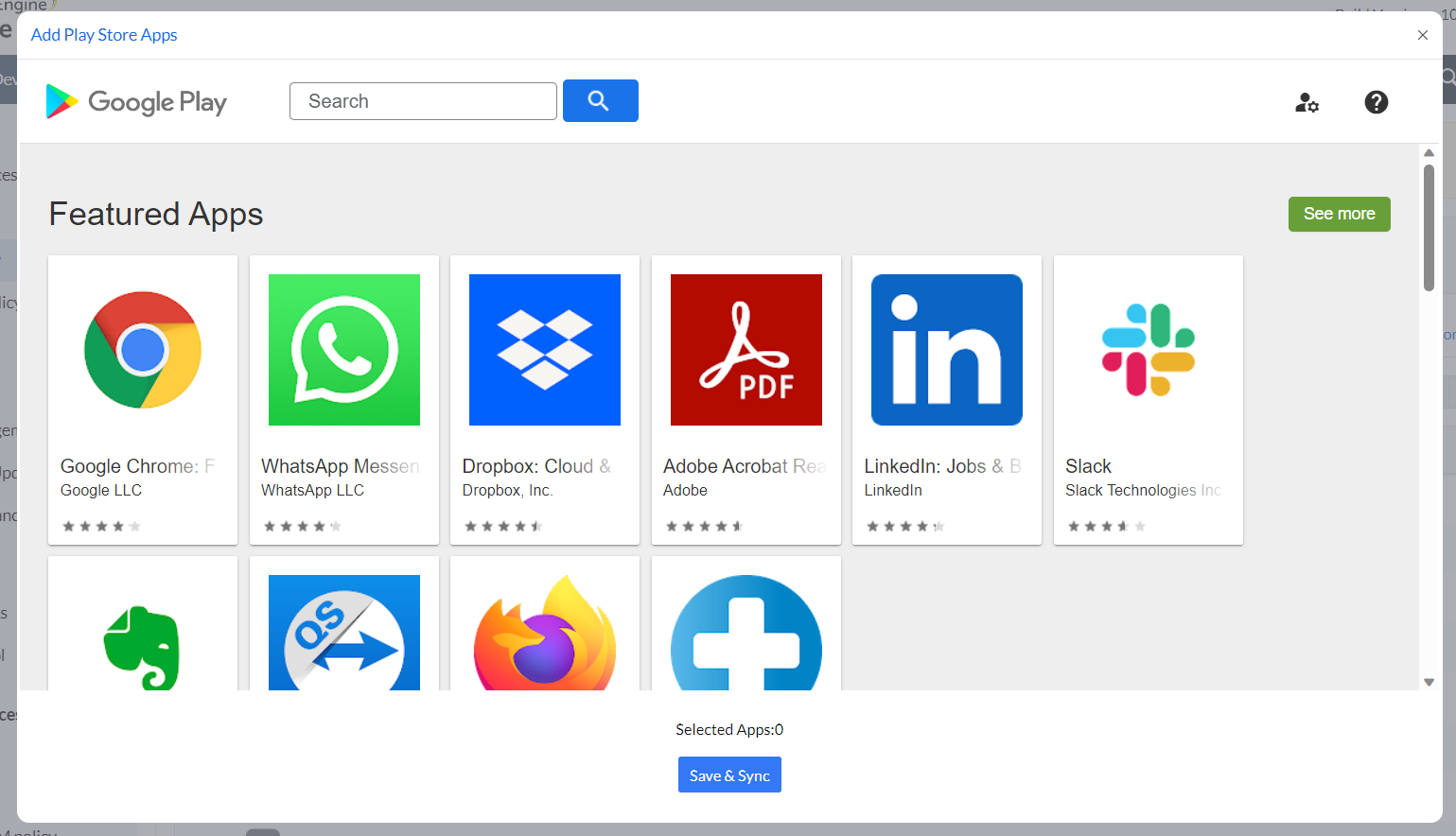
On the MDM server, go to the Device Mgmt tab and click on App Repository in the left pane. Now click on Apps > Add Apps > Playstore App. Search for the app that has to be added and click on Save & Sync .Distribute apps:
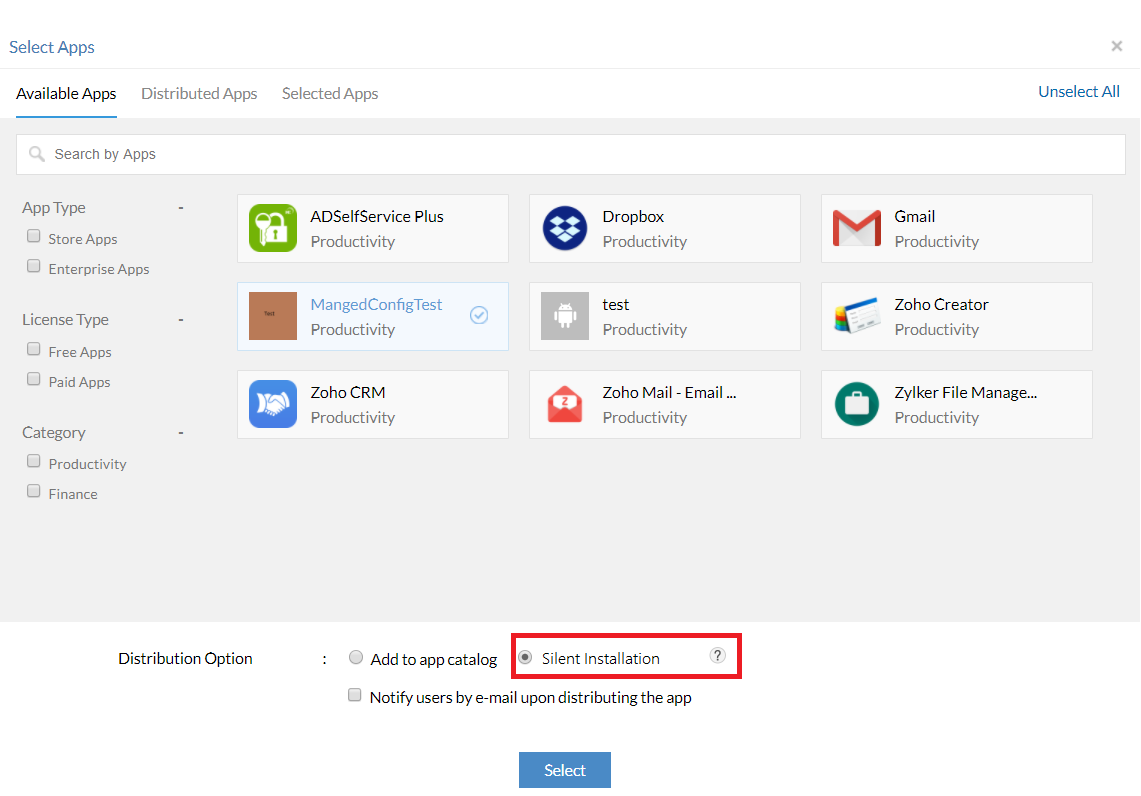
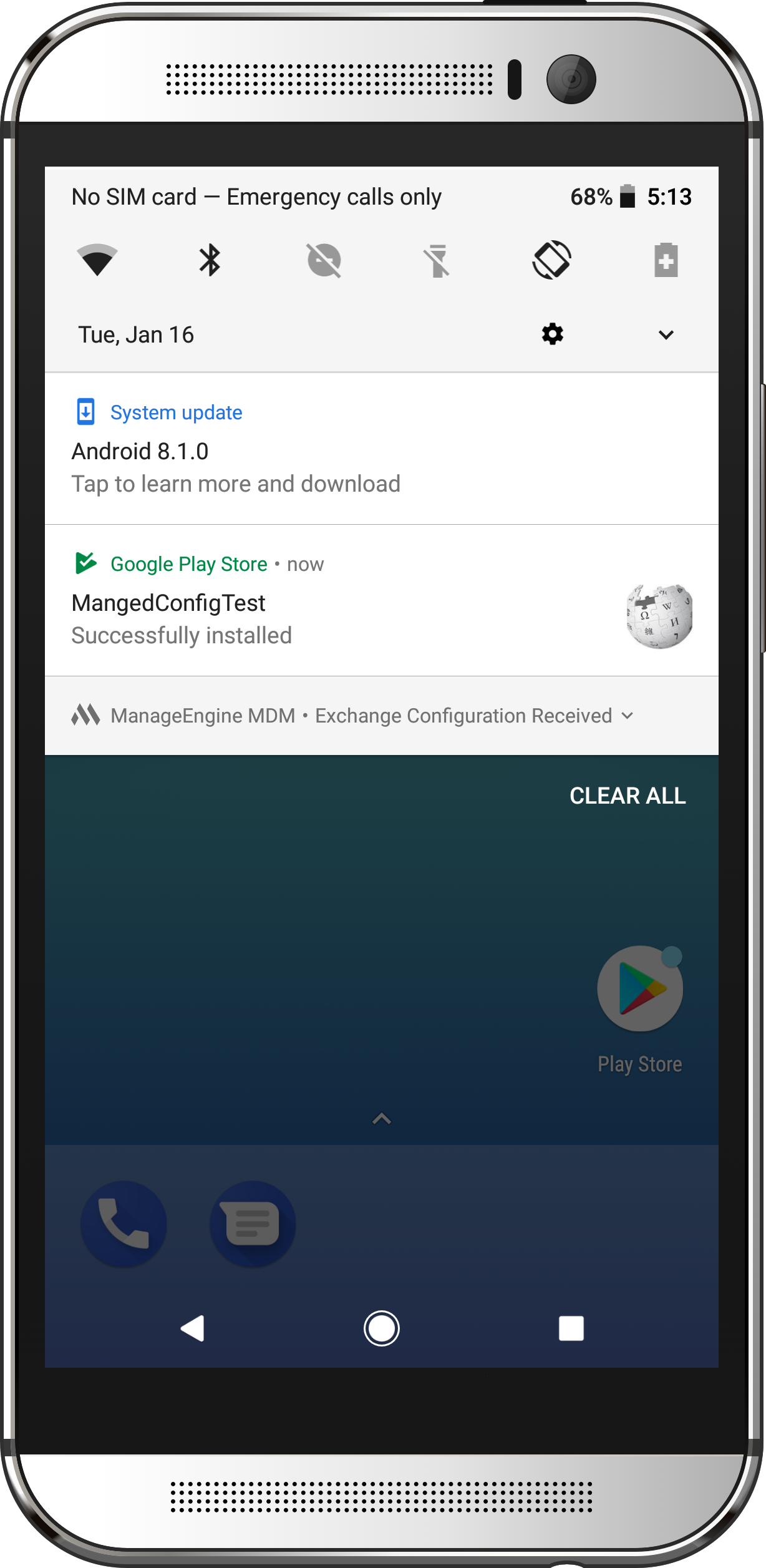
Now, distribute the app to devices or groups according to the requirement. On the MDM server, go to the Device Mgmt tab, choose the group(s)/device(s) to which the app needs to be distributed. Click on Distribute Apps. To ensure that the app is installed silently, choose Silent Installation and then, click on Select.- The enterprise app, published as a private app gets installed on the device(s).
Note: If you cannot find the app, ensure that the app is available in the Play Store by searching the app in this link. To know more about the app visibility, please refer to this document.
Troubleshooting Tips:
- Unable to install these apps (enterprise apps published as private apps) on managed devices.
The installation of the app might have failed due to one of the following reasons:
- Location-based : The associated devices may have moved to a different geographical region during app distribution, considering the app is country-specific. Before distribution, make sure that the app is available in all regions to avoid installation error.
- Incompatible APK : The distributed app may be incompatible with the associated device. For instance, an app designed only for tablets might have been distributed for a mobile device or vice versa.
Frequently asked questions
Do I need a Google Play Developer account to publish enterprise apps as private apps?
Yes, this method requires a Google Play Developer account, obtained with a one-time registration fee, which provides the privileges needed to upload and publish private apps to Managed Google Play. If you'd rather skip developer registration, you can instead publish enterprise apps as private apps directly from the MDM console.
Why might a published private app fail to install on managed devices?
Installation can fail if the app is location-based and the device has moved to a region where the app isn't available, or if the distributed APK is incompatible with the device - for example, an app built only for tablets being distributed to a mobile device, or vice versa.
How do I share a private app with another organization?
On the Managed Google Play settings for the app, add the other organization's Enterprise ID (found under Device Mgmt -> App Repository -> Managed Google Play on that organization's MDM server) as the Organization ID - you can repeat this to share the app with multiple organizations.