Last updated: July 24, 2026
How to attain Okta Device Attestation for Windows devices?
Mobile Device Manager Plus attests Windows devices for Okta by deploying management attestation certificates over SCEP. Admins generate an SCEP URL, secret key, and CA certificate in Okta, then create a matching CA server, template, and SCEP profile in the MDM console before associating it with target devices. After the Okta Verify MSI is distributed, the user signs in once to complete attestation.
Managed devices should be attested by Okta for provisioning SSO extension with Okta and Okta Device Trust. In the case of Windows devices ,attestation is achieved by Mobile Device Manager Plus by distributing management attestation certificates to the device through SCEP.
Overview
Device attestation is achieved for Windows devices by deploying Management attestation certificates. The administrator or technician must first generate an SCEP URL and Secret key in Okta, and then using it create a Certificate Authority (CA) server and Template in the MDM console. The devices should then be associated to this Certificate Server and Template using an SCEP profile. After that, the devices must be distributed to the Okta Verify app, and the user must setup the Okta Verify app and log in once to achieve attested status. Follow the detailed steps specified below to configure Okta Device Trust :
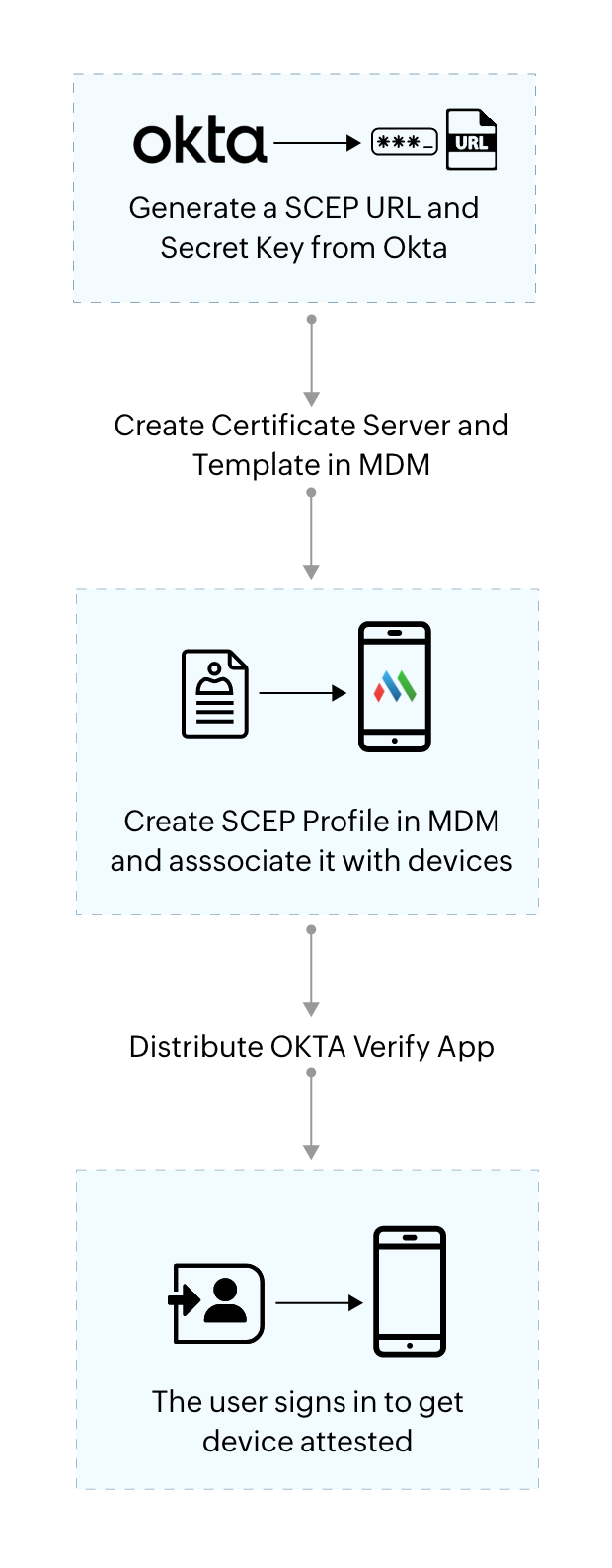
Step 1: Generate an SCEP URL and Secret key
First, generate an SCEP URL and Secret key in the Okta portal by following the steps provided below :
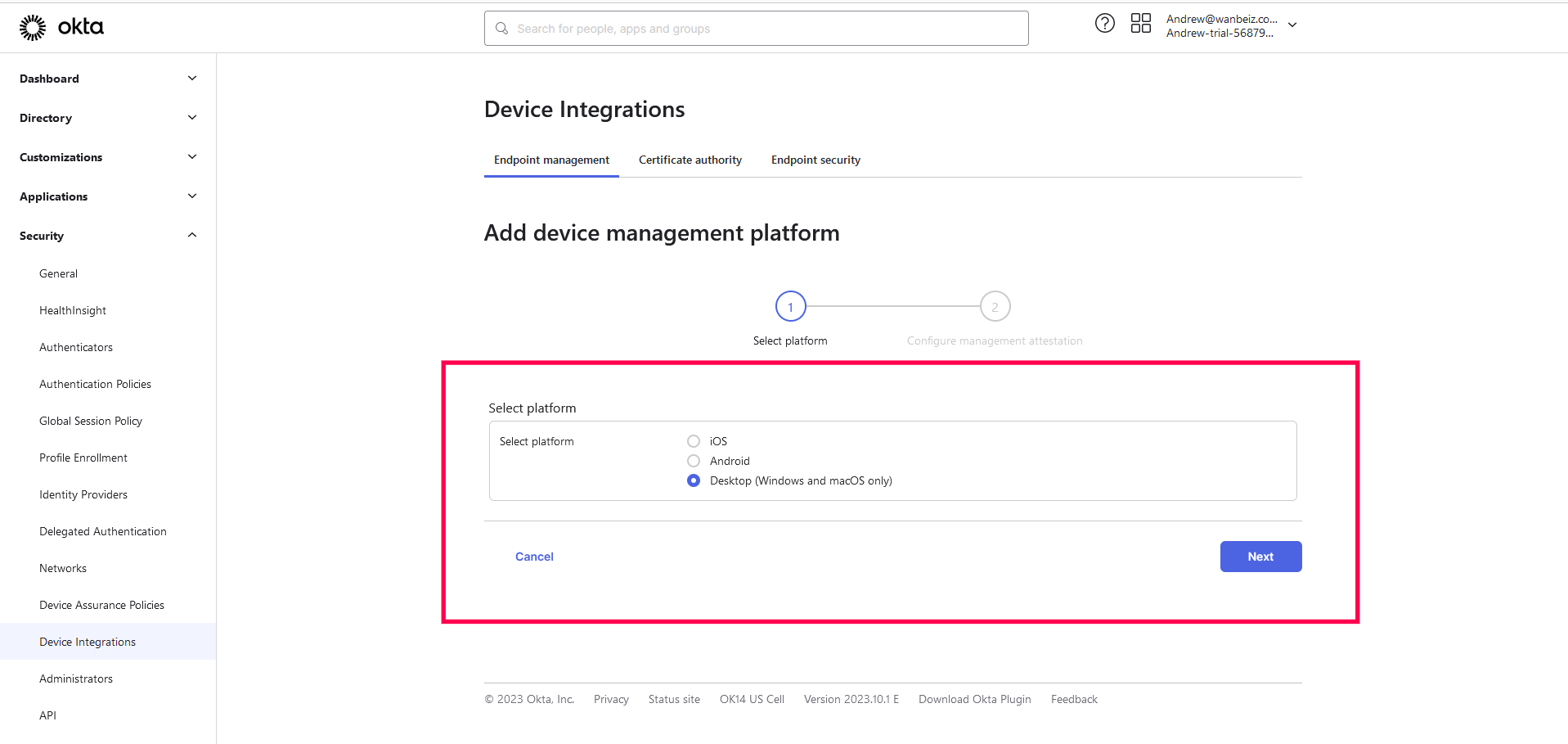
- Sign in to Okta and go to Security > Device Integrations. Here, select platform as Desktop, and click Next.
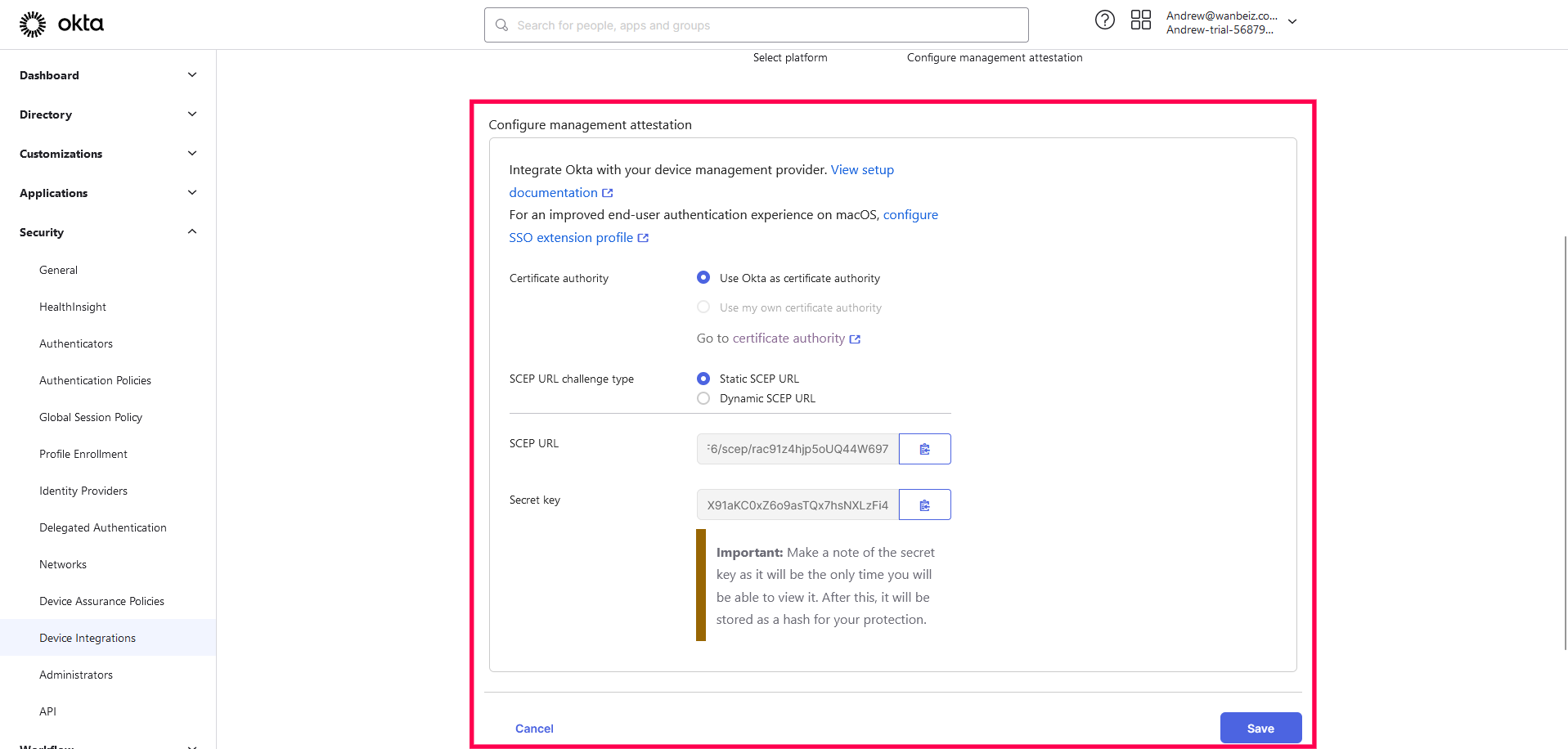
- In the next page, select SCEP URL challenge type as Static SCEP, and click Generate. Then copy the SCEP URL and Secret key generated to your clipboard.
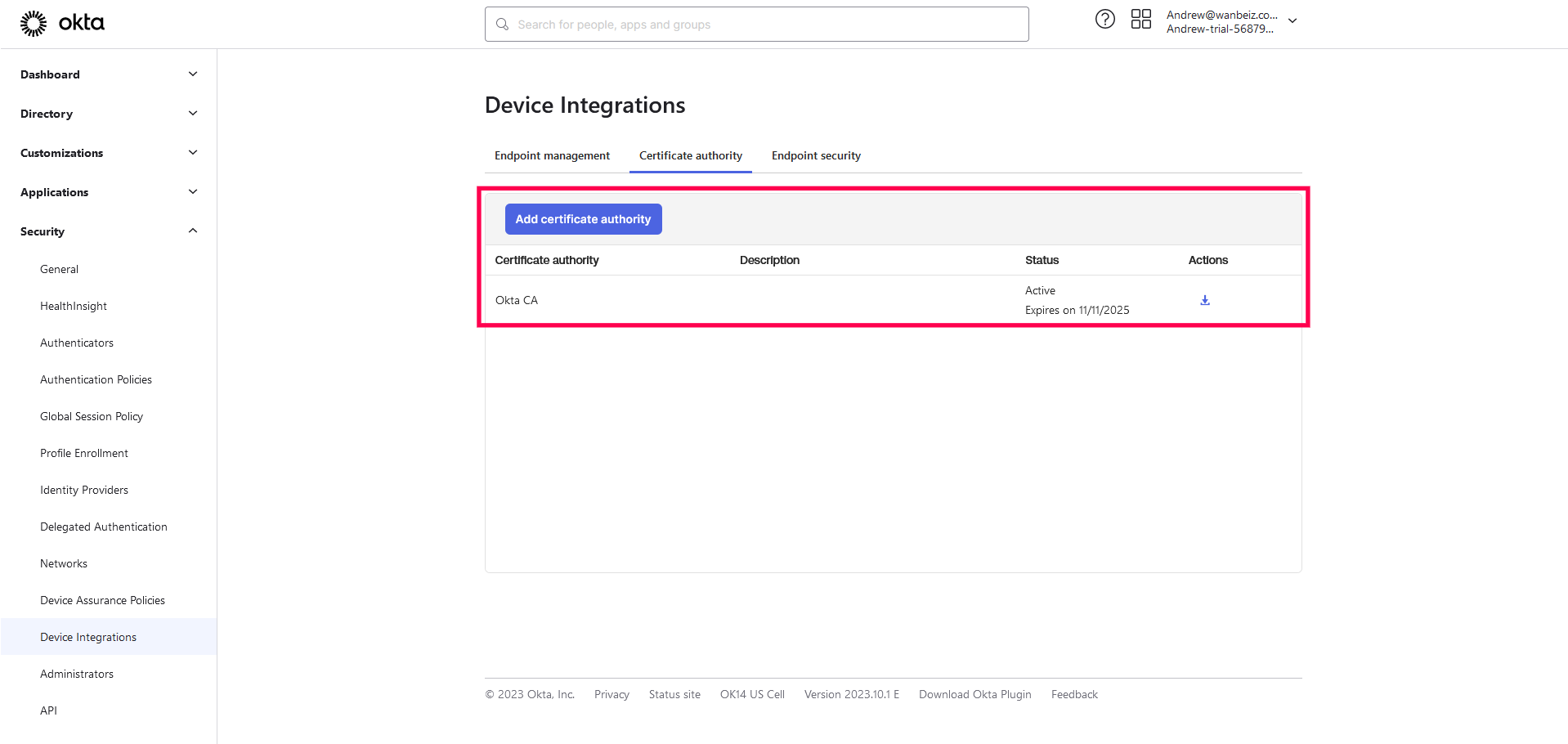
- Download the CA certificate as it will be required in succeeding steps. If your CA is Okta , then download it from Actions under Certificate authority.
Step 2:Create a Certificate Server and Template in MDM
After generating an SCEP URL and Secret key Okta, a Certificate Server and Template should be created in the MDM console .For this follow the steps provided below :
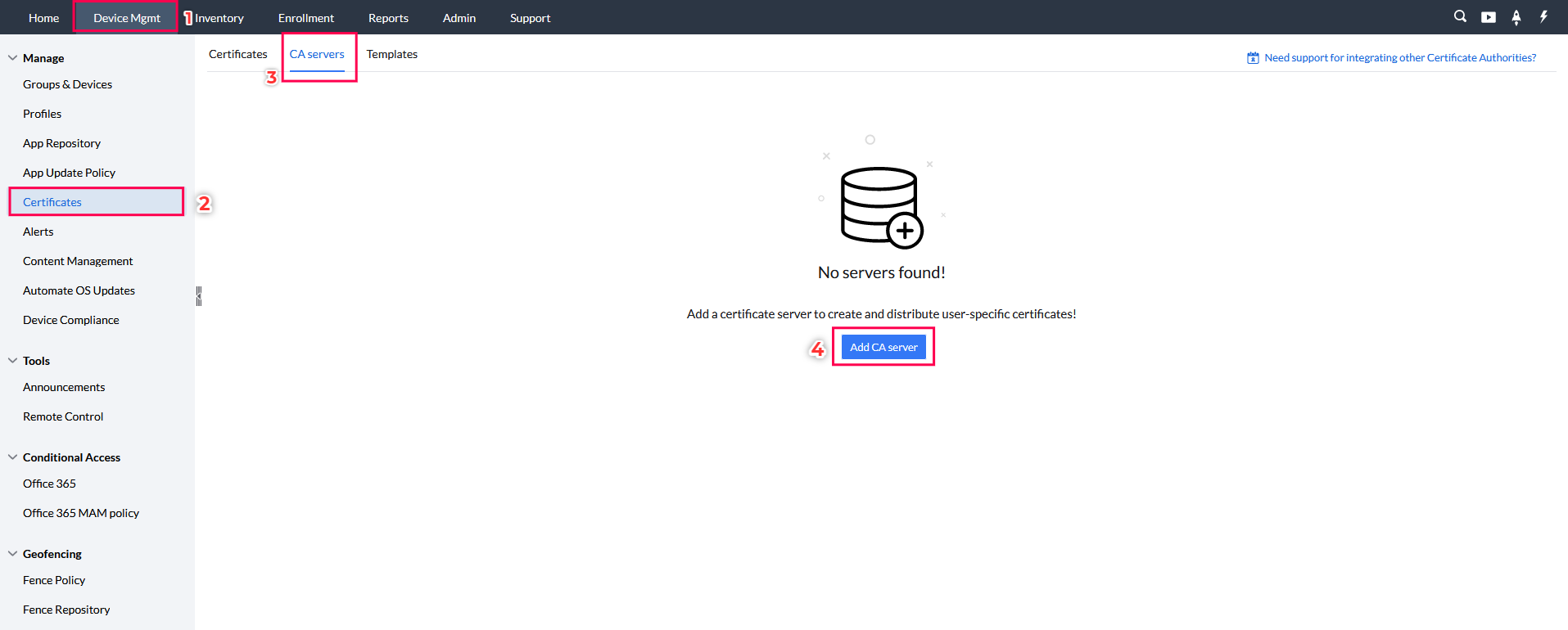
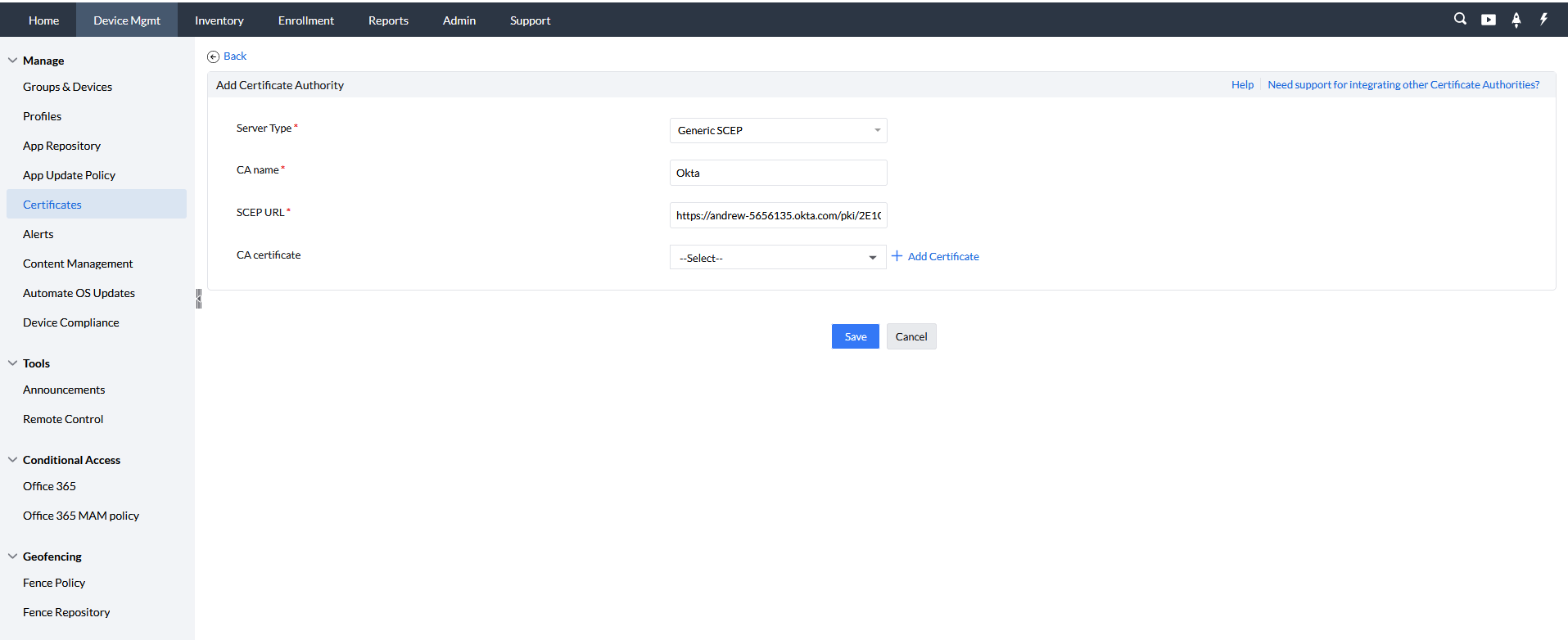
- In the MDM console, go to Device Management > Certificates > CA Server,and click on Add CA Server. Keep server type as Generic SCEP, and provide a name for the Certificate Authority.
- Paste the SCEP URL copied from Okta in the SCEP URL , and upload the CA certificate. Then click Save to proceed.
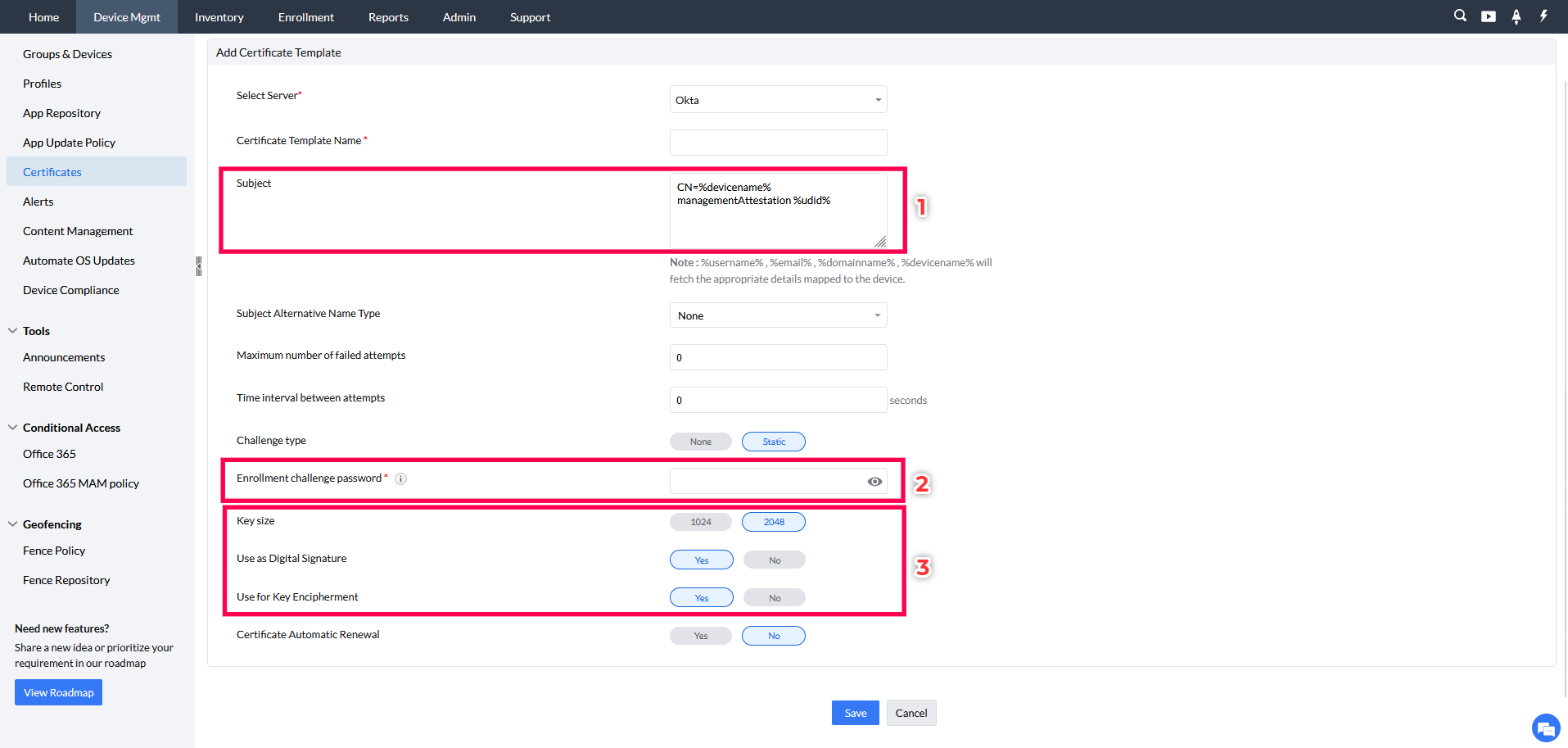
- Provide a name for the SCEP Template and under Subject, paste CN=%devicename% managementAttestation %udid%.Set the Challenge type as Static and for the Enrollment challenge password paste the Secret Key copied from Okta.
- Then set the Key Size as 2048 and choose Yes for the options Use as Digital Signature and Use For Key Encipherment.
- Finally click Save to create the CA Server.
Step 3:Create an SCEP Profile in the MDM console
Next we need to create an SCEP profile to distribute to your managed devices.For that:
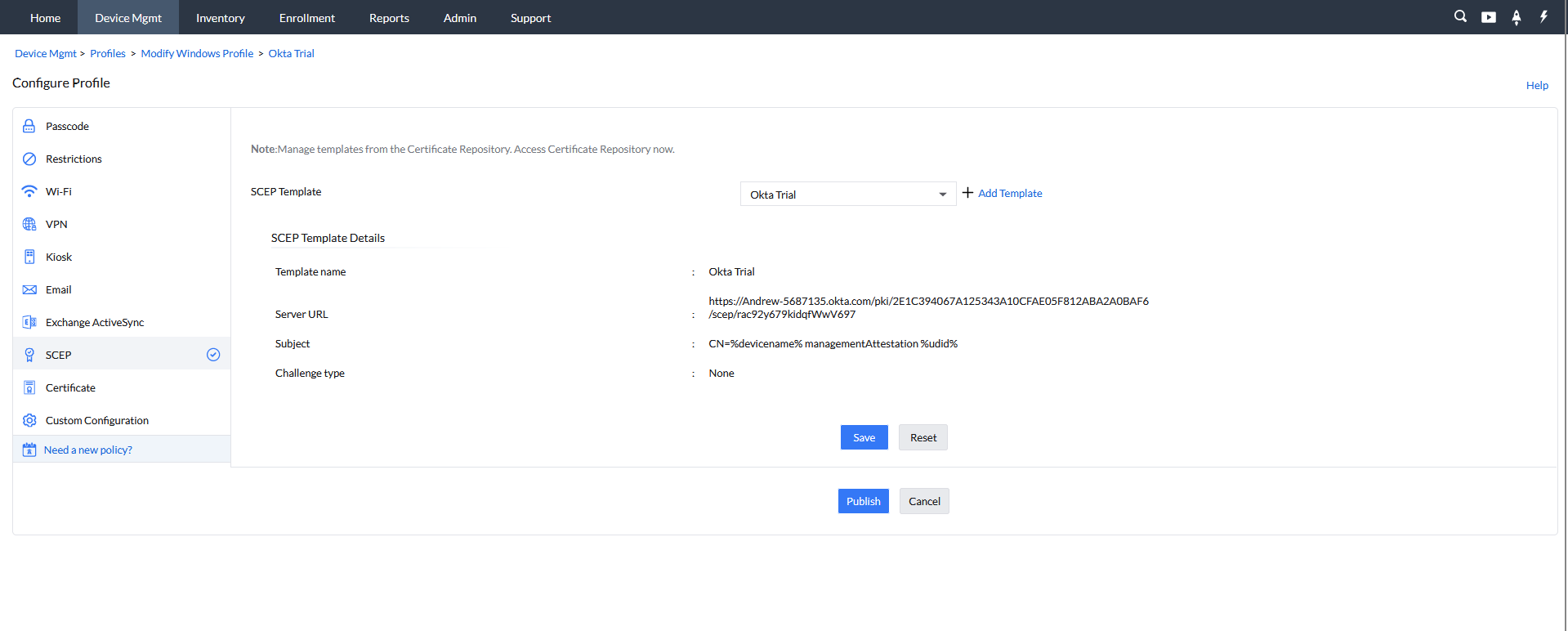
- Go to Device Mgmt > Profiles. Click on Create Profile and choose macOS.
- Choose the SCEP Template and select the CA server. Click Save and then Publish.
- Click Save and then Publish.
Step 4:Associate the SCEP Profile to the Devices
For associating SCEP profile with the devices follow the steps given below:
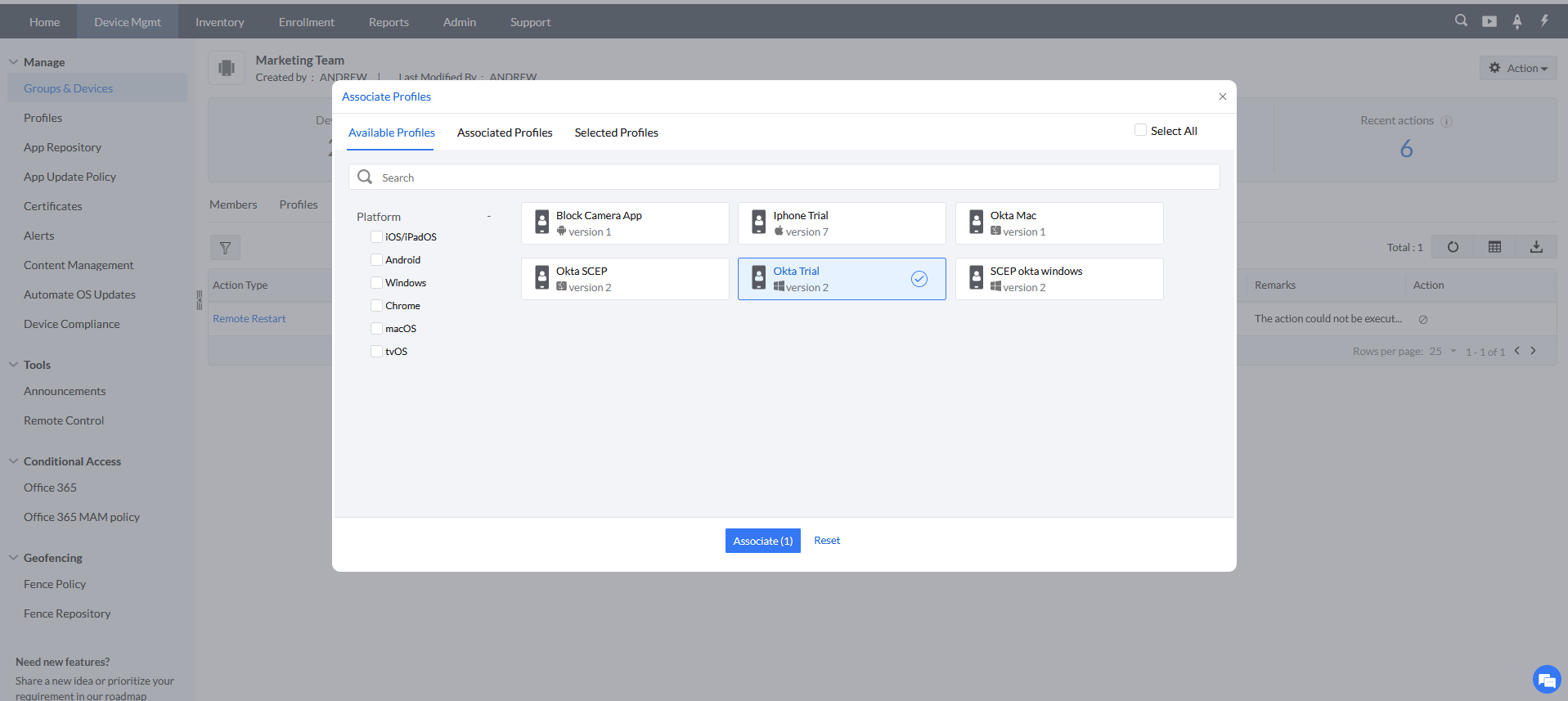
- In the MDM Console, navigate to Groups & Devices under Device Mgmt and select the respective group(s) or device(s).
- Then choose Actions and click on Associate Profile.Then select the SCEP profile and click Associate.
Step 5:Distribute Okta Verify App to the Devices
Once the SCEP profile has been associated to the devices, the Okta Verify app should be distributed to the devices. For Windows, the app can be added as an MSI package.
Finally for the device(s) to achieve the attested status, the User should Setup Okta Verify with your organisation allotted credential and sign up at least once.
Frequently asked questions
How does Mobile Device Manager Plus attest Windows devices for Okta?
It deploys a management attestation certificate over SCEP — generate an SCEP URL, secret key, and CA certificate in Okta, then use them to create a matching CA server, template, and SCEP profile in the MDM console before associating it with target devices.
Do I need to download anything extra from Okta for Windows attestation?
Yes — besides the SCEP URL and secret key, download the CA certificate from Actions under Certificate authority in Okta, since it's required when creating the CA server in the MDM console.
How is the Okta Verify app distributed to Windows devices?
It's added as an MSI package in Mobile Device Manager Plus and distributed to the devices once the SCEP profile has been associated.
How does a user complete attestation on a Windows device?
They set up Okta Verify using their organization-allotted credentials and sign in at least once.