Last updated: July 24, 2026
How to prevent sharing data from Office 365 apps in iOS devices ?
Office 365 apps behave as personal apps by default on iOS, so MDM's normal restrictions on data sharing don't apply to them. To fix this, admins confirm their Office 365 and Intune subscriptions, then create an Intune App Protection Policy in the Azure portal specifying the apps, required settings, and User Principal Name matching so the app treats the account as corporate. The policy is then assigned to the relevant Active Directory groups.
Description
In case of iOS devices, when an app is distributed using Mobile Device Manager Plus it is considered as a corporate app. This ensures that the data from this app cannot be shared with the apps that are not managed by Mobile Device Manager Plus. This means that the corporate data in these apps are completely secure. Whereas, when Office 365 apps like MS Word are distributed to devices, these apps by default behave as personal apps. This means that the restrictions applied on these apps will not work.
Steps
Along with distributing the apps to devices, we can distribute certain configurations to the apps. These configurations dictate the apps to treat which accounts as personal and which as corporate accounts. In the case of Office 365 apps, along with the app, the User Principal Name details are also distributed to the devices. So, when the user configures the app, if the User Principle Name matches the one distributed by MDM, then the app treats this said account as a work account, else it is a personal one. If it is considered as a corporate account, then all the selected restrictions will be applied to the apps as configured in Azure portal described below.
Follow the steps given here to distribute app configurations to devices:
Microsoft Intune Configurations
- Login to https://portal.office.com using your Office 365 credentials. Click on Subscription, under Billings in the left pane. Confirm if you have subscribed for Enterprise Mobility Suite Direct and Office Enterprise E3 or Office 365 Business Premium. If not, subscribe to the same.
- Login to https://portal.azure.com, and click on More Services and search for Intune. Select Intune App Protection.
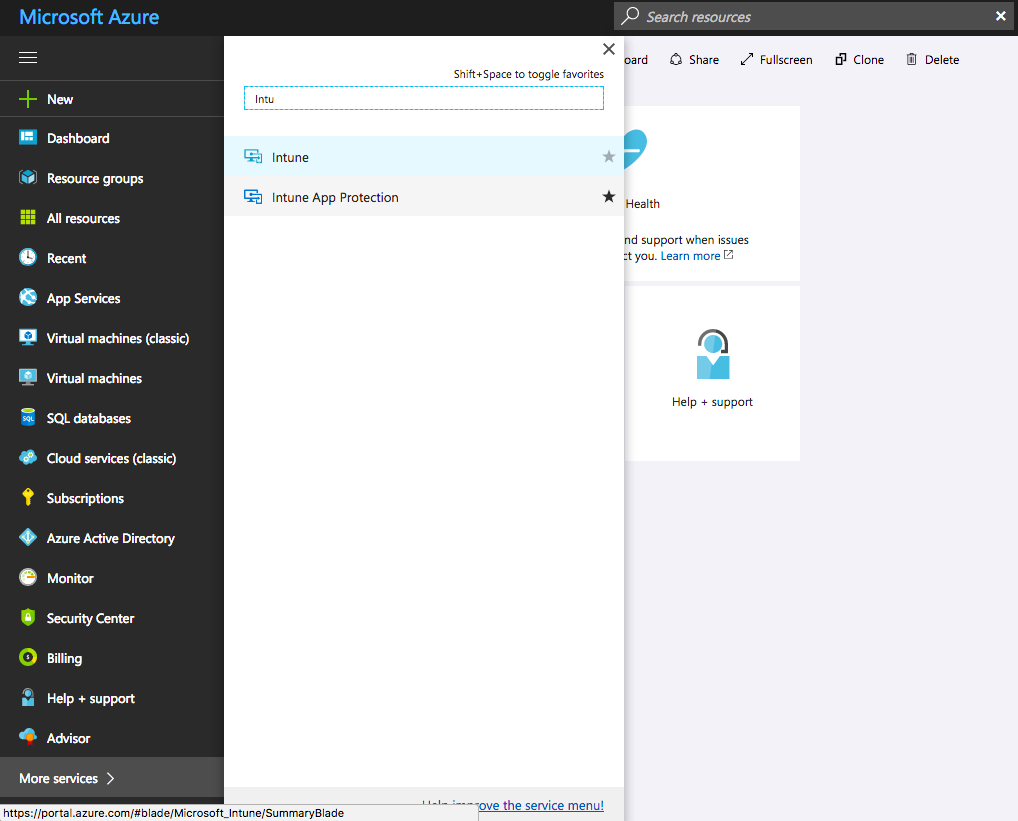
Create New Policies
- Click on App Policies to create to policies.
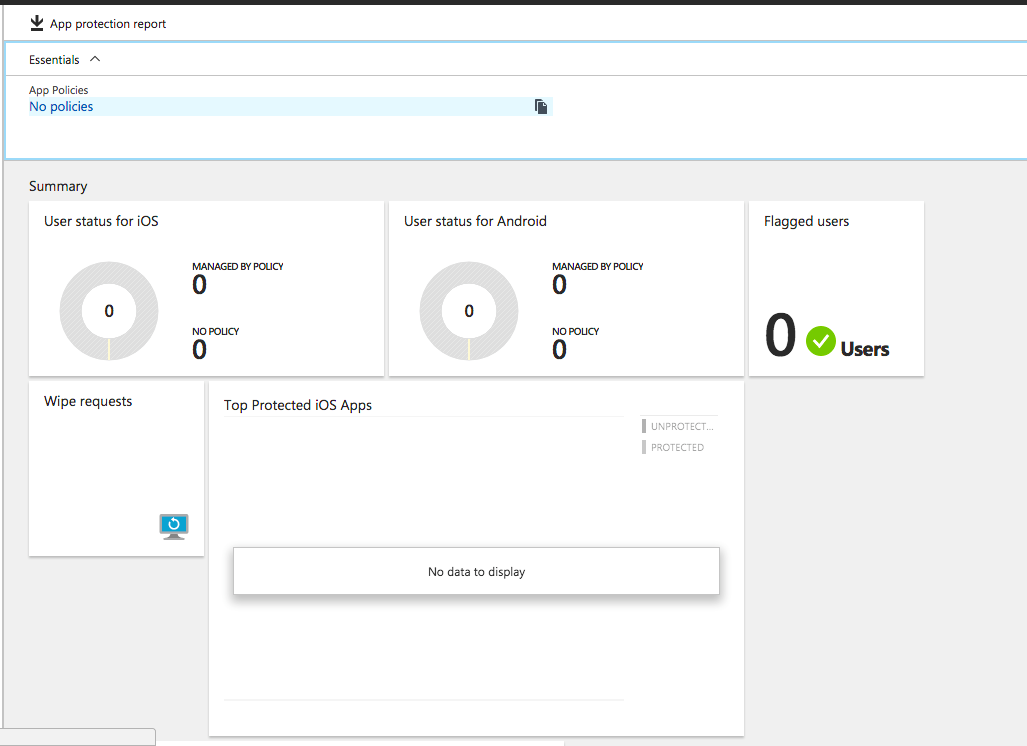
- Click on Add a New Policy to create a new policy.
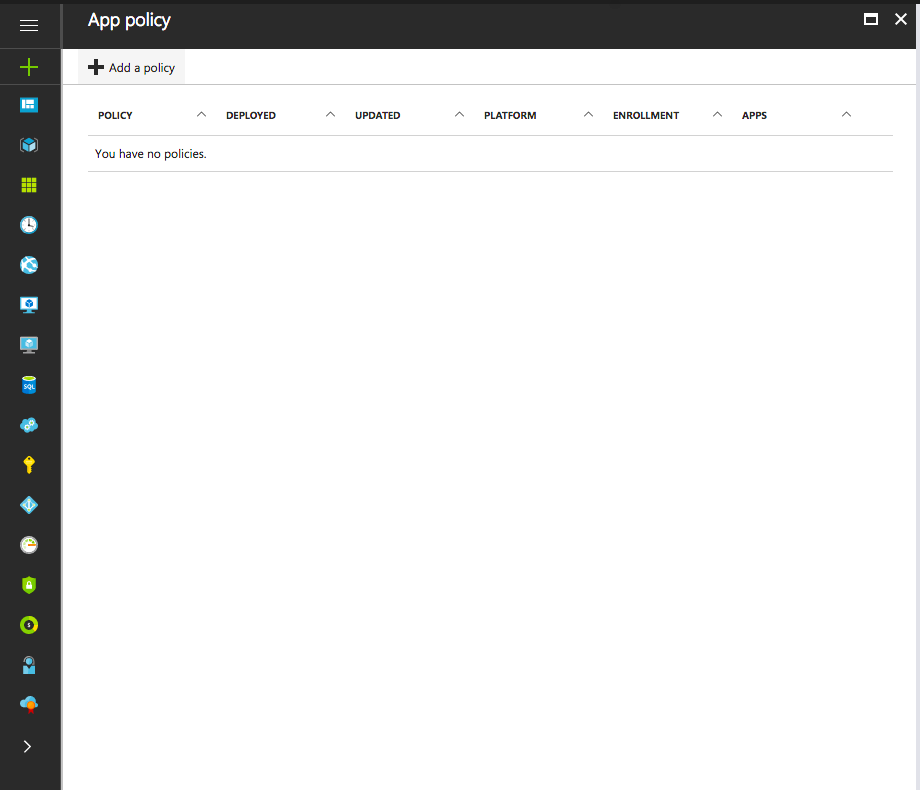
- Provide a Name, Description and Platform for the policy you are creating.
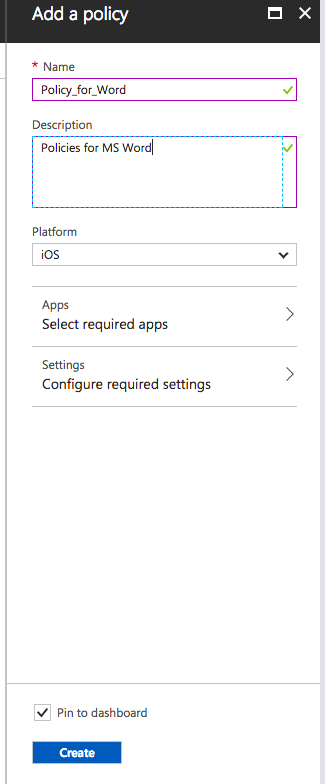
- Click on Select Required Apps and select the required apps, to which the policy is to be applied.
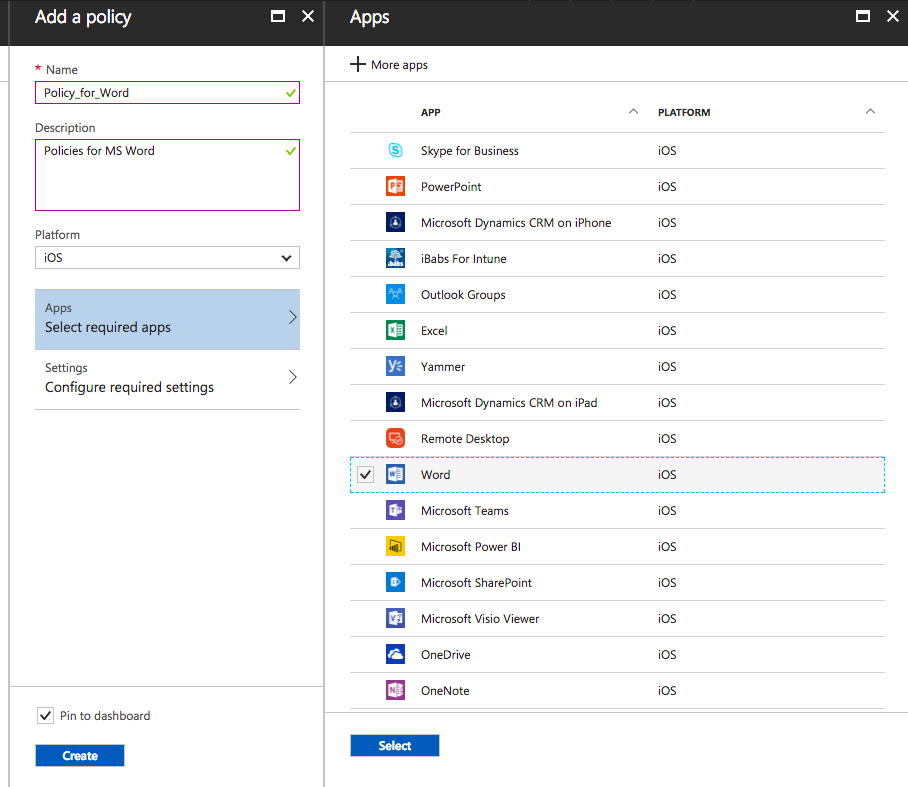
- Click on Configure required settings and make the required changes.
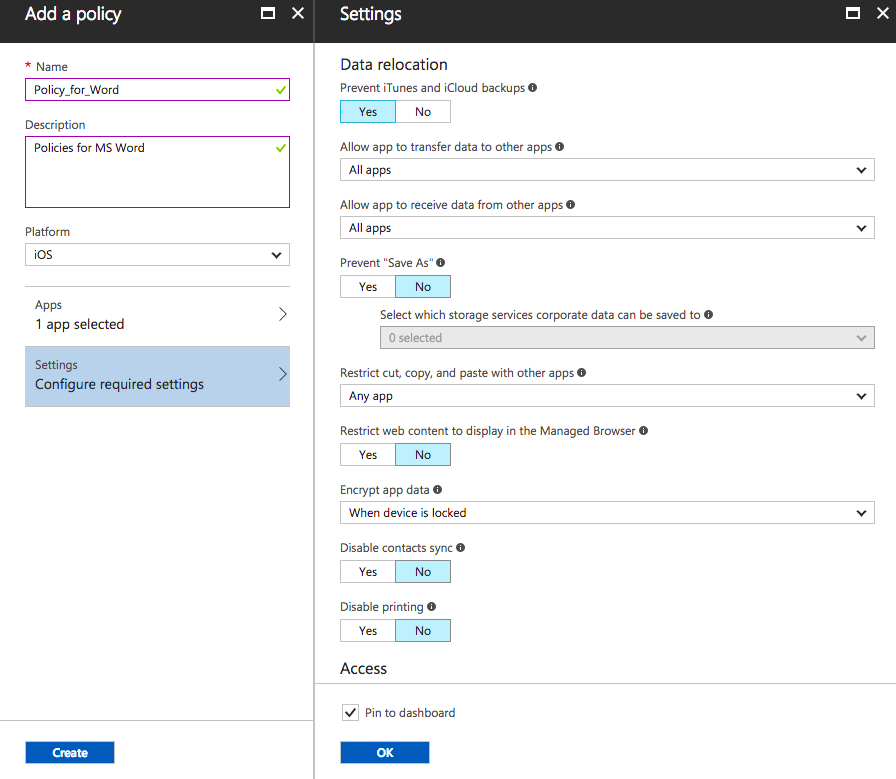
- Click on Create after making all the required changes.
Distribute the Policy to users
- Click on the policy, to distribute it to the users in your AD.
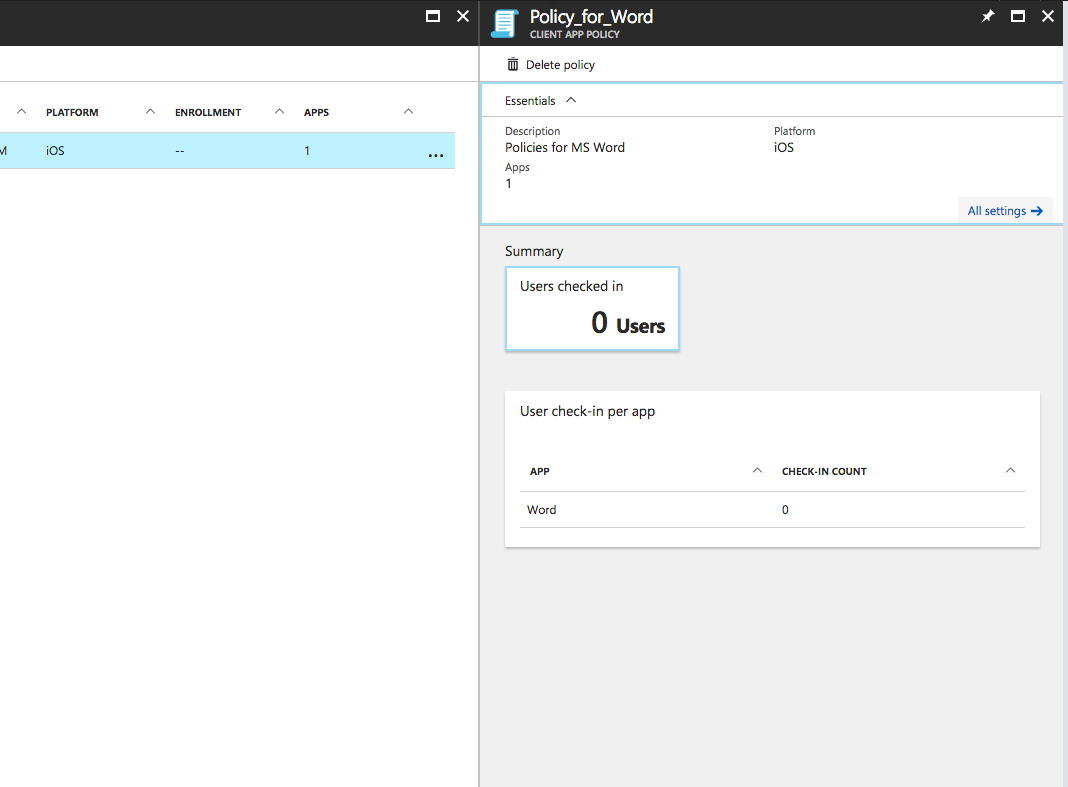
- Click on All Settings and select Assignments.
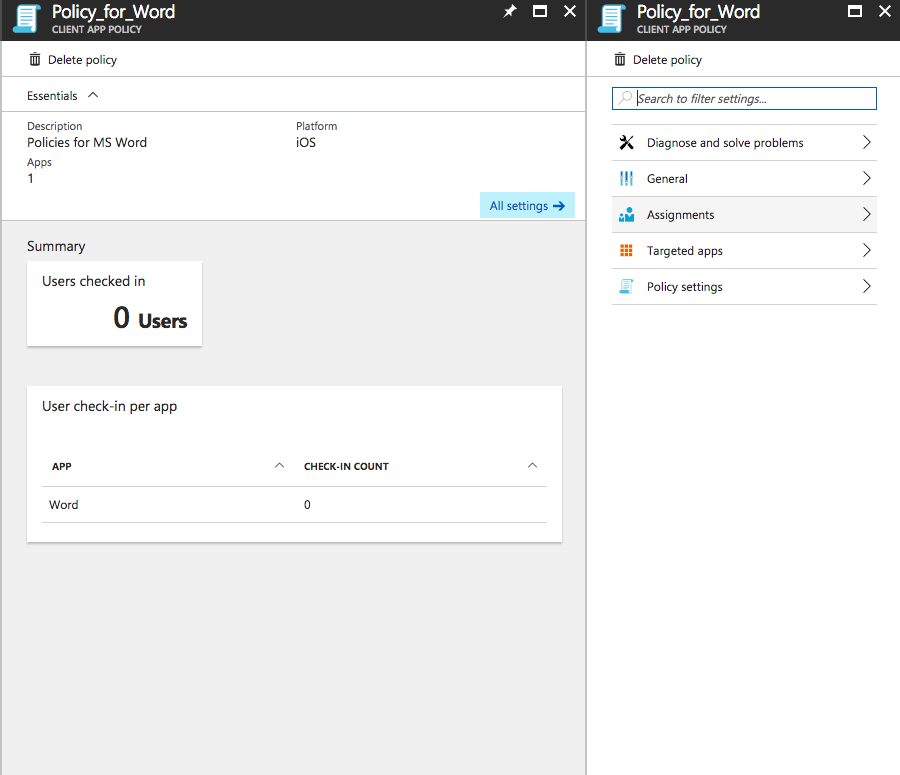
- Click on Select Groups to add new AD groups to which the policy is to be distributed.
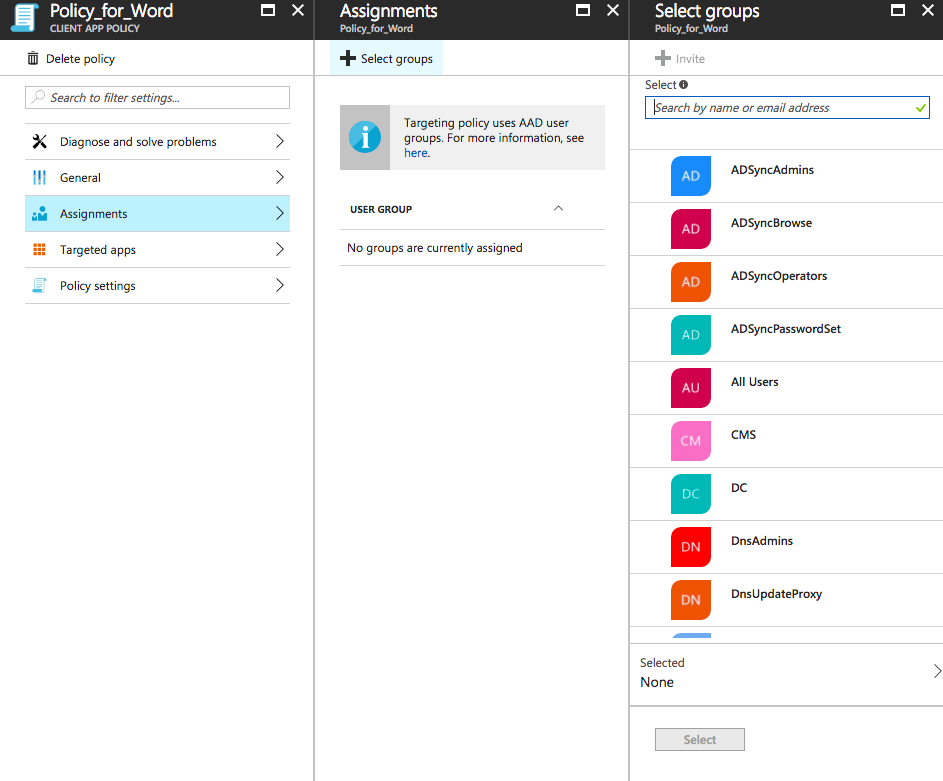
- Select all the groups and click on Select.
Frequently asked questions
Why doesn't Mobile Device Manager Plus's data-sharing restriction apply to Office 365 apps on iOS?
Office 365 apps like Word behave as personal apps by default on iOS, even when distributed as a corporate app through MDM, so the usual restriction on sharing data with unmanaged apps doesn't apply to them.
What do I need before creating the Intune App Protection Policy?
Confirm you're subscribed to Enterprise Mobility Suite Direct and either Office 365 Enterprise E3 or Office 365 Business Premium in the Office 365 portal (Subscription, under Billing) before configuring the policy in Azure.
How does MDM know to treat an Office 365 account as corporate instead of personal?
MDM distributes the User Principal Name to the device along with the app; when the user configures the app with a matching User Principal Name, the app treats that account as a work account and applies the restrictions configured in the Azure portal.