Apple's New Security Requirements for MDM Connections
Starting with Apple OS 27 (iOS, iPadOS, macOS, watchOS, tvOS, and visionOS), Apple requires all MDM connections to use modern and secure HTTPS communication.
For On-Premises customers, the MDM / Endpoint Central server must meet the following requirements:
- TLS 1.2 or higher enabled (TLS 1.3 recommended)
- Complete HTTPS communication between the device and the server
- Server certificates must use RSA 2048 or ECC 256 with SHA256 hashing
- Only strong cipher suites are allowed (AES 128 / AES 256 with ECDHE/RSA)
Prerequisite: Enable HTTPS on the Server
HTTPS must be enabled on the MDM / Endpoint Central server before you run any validation.
To enable HTTPS, go to:
Admin → Security Settings → Enable HTTPS

Once enabled, restart the server to apply the changes.
After HTTPS is enabled, you can validate the server using either of the two methods below. We recommend starting with Method 1, which uses a Mac device.
Method 1: Validate the Server Using a Mac
Follow the steps below to export the MDM / Endpoint Central server certificate, trust it on the Mac, and then run the validation command.
Export the Server Certificate
Method 1: Export the certificate from the browser
- Open Google Chrome on the Mac.
- Navigate to the MDM / Endpoint Central server URL.
- Click Not Secure in the address bar.
- Click Certificate is not valid.
- In the certificate window:
- Go to the Details tab.
- Click Export.
- Save the certificate to the Desktop.
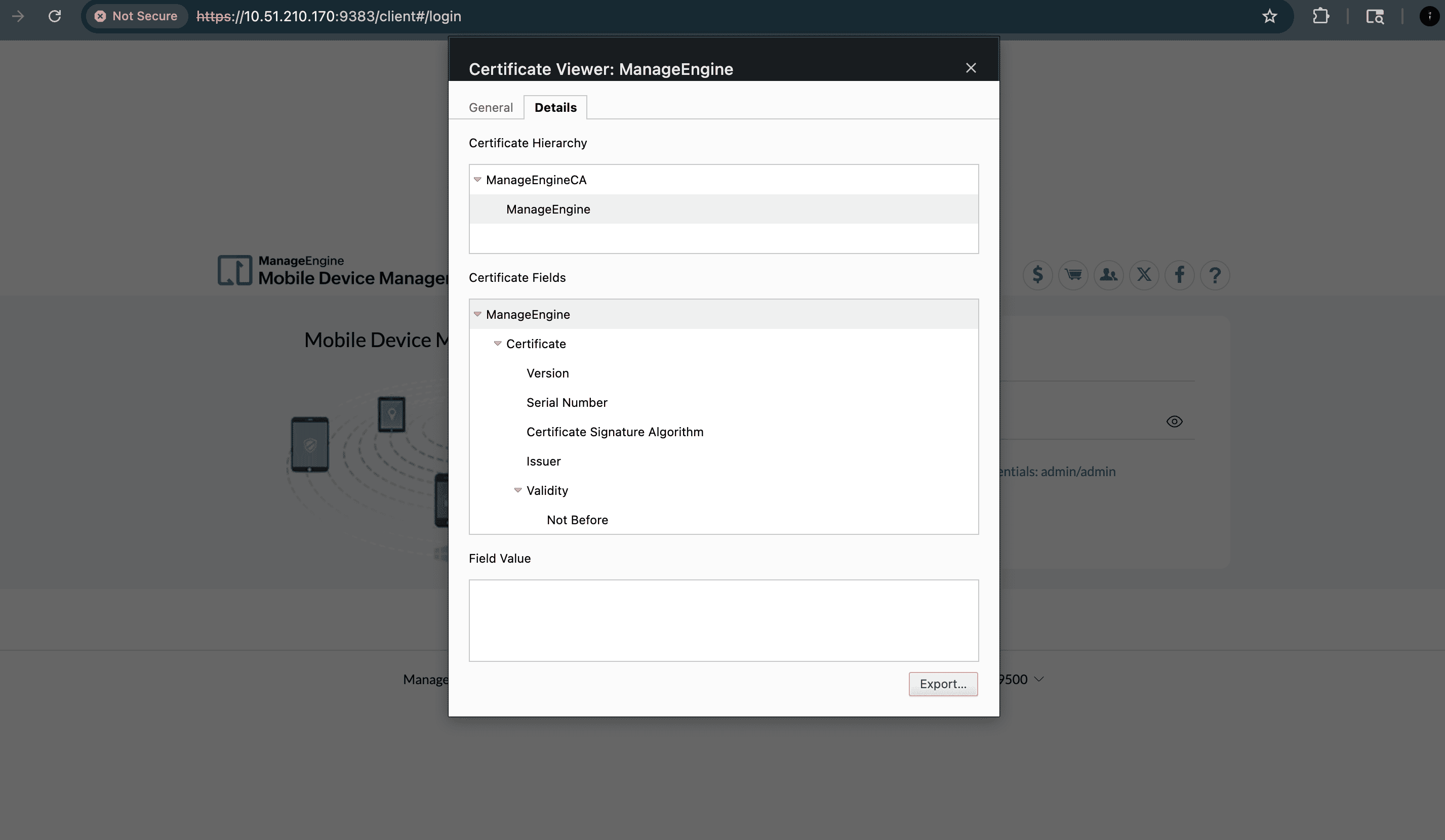
Method 2: Retrieve the certificate directly from the server
Navigate to the <Installation_Directory>\nginx\conf directory and copy the server.crt file, which is the server certificate file.
Trust the Certificate in Keychain
- Open Keychain Access on the Mac.
- Go to the System keychain.
- Drag and drop the exported certificate into the certificate list.
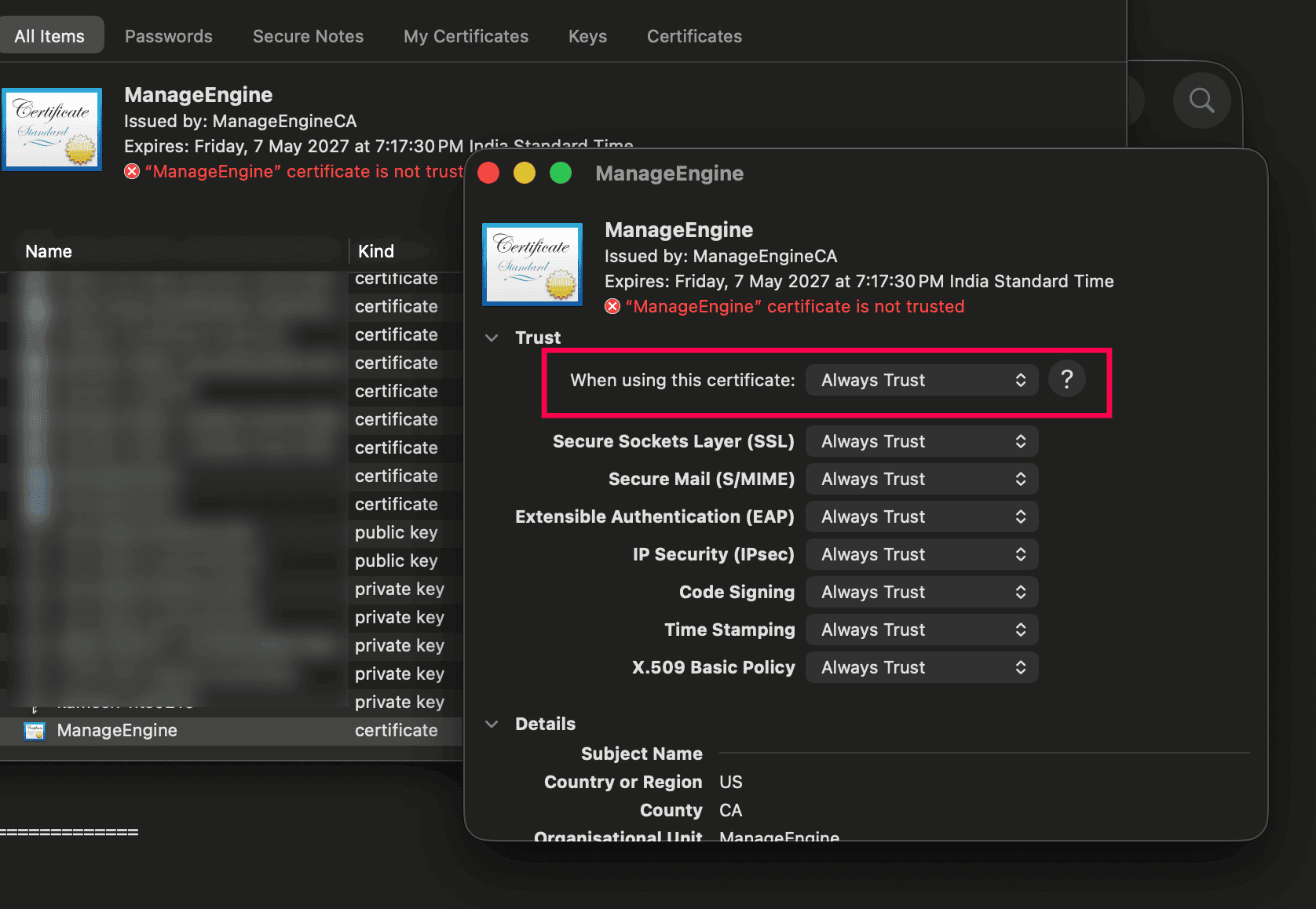
- Double-click the imported certificate.
- Expand the Trust section.
- Set When using this certificate to Always Trust.
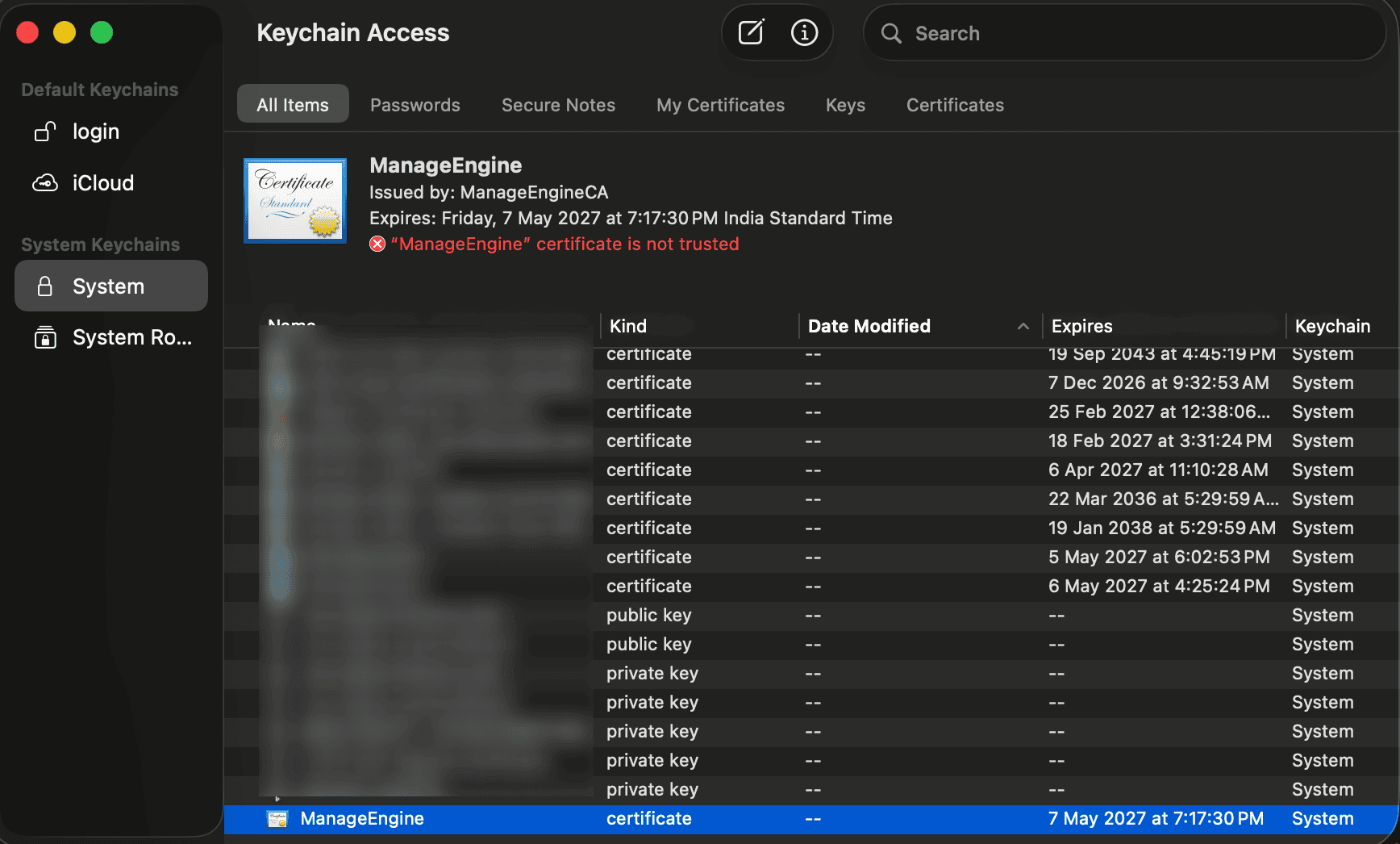
After trusting the server certificate on the Mac, open the Terminal application and copy-paste the following command to validate the server connection:
nscurl --ats-diagnostics https://<your-server>/Example:
nscurl --ats-diagnostics https://10.51.210.170:9383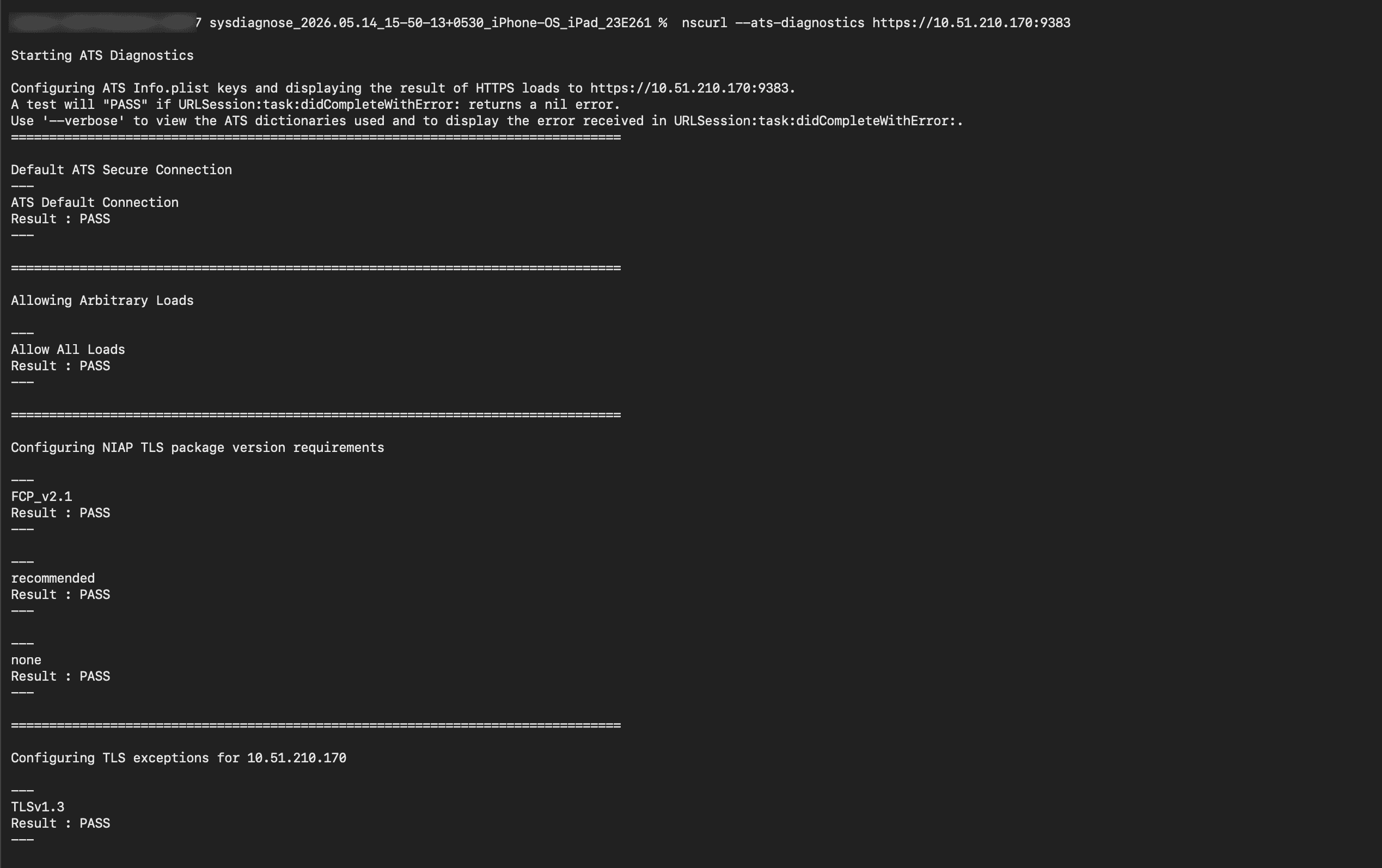
Method 2: Validate the Server Using an iOS or iPadOS Device
You can also validate whether the MDM / Endpoint Central server meets Apple's new TLS and HTTPS security requirements by using an iOS or iPadOS device and reviewing the generated network diagnostic logs.
Step 1: Install the Network Diagnostics Logging Profile
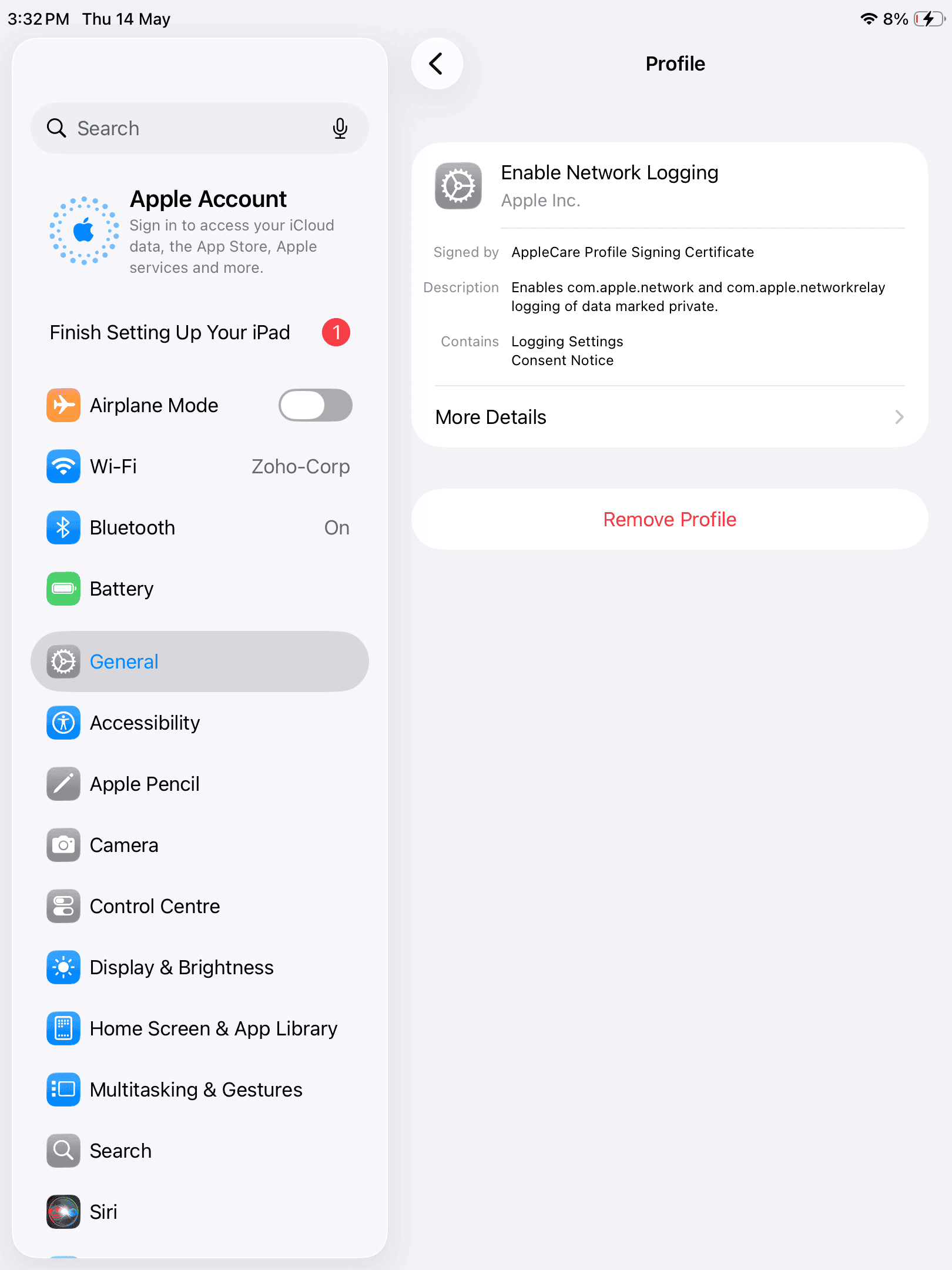
Download the Network Diagnostics Logging Profile for the respective iOS or iPadOS test device and install it on the device.
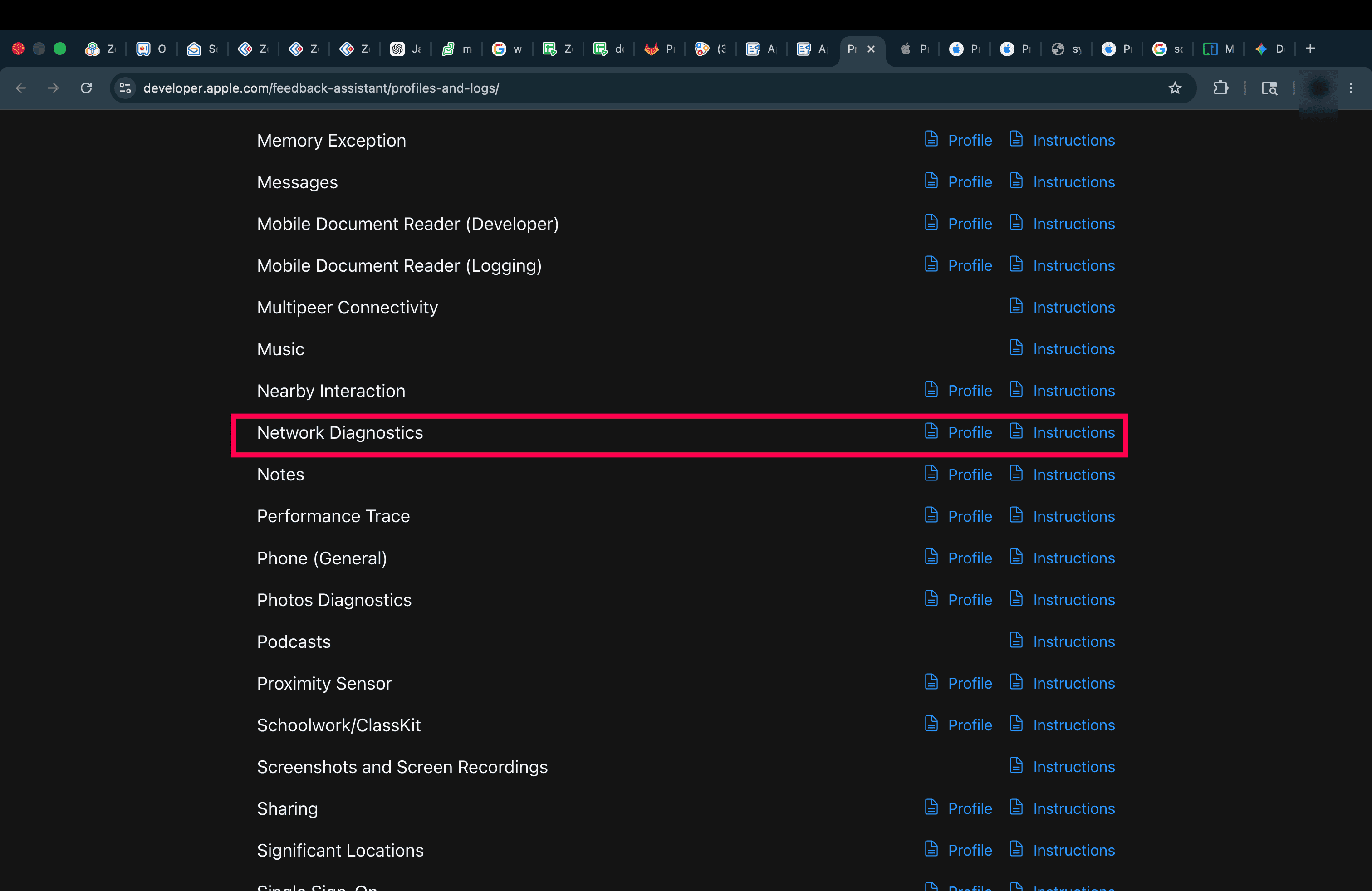
After installing the profile:
- Restart the test device.
- Restart the MDM / Endpoint Central server to apply the changes.
Step 2: Perform Normal MDM Workflows
Enroll the iOS or iPadOS device into the MDM / Endpoint Central server and perform regular management operations such as:
- Device Scan
- Remote Lock
- Associate/Dissociate profiles
- Distribute Apps
- Execute any other workflows commonly used in your environment
This generates the required MDM communication logs for validation.
Step 3: Collect a sysdiagnose Log
After completing the workflows, collect a sysdiagnose log from the iOS or iPadOS device.
To generate the sysdiagnose:
- Simultaneously press and release both Volume buttons and the Side (or Top) button for approximately 250 milliseconds.
Alternatively:
- Use AssistiveTouch to trigger the sysdiagnose collection.
Wait approximately 10 minutes for the diagnostic collection to complete.
For device-specific instructions, refer to Apple's documentation.
Step 4: Locate the sysdiagnose File
On the iOS or iPadOS device, navigate to:
Settings → Privacy → Analytics & Improvements → Analytics Data
Locate the generated sysdiagnose file near the bottom of the list.
The file name will be similar to:
sysdiagnose_YYYY.MM.DD_HH-MM-SS-XXStep 5: Transfer the sysdiagnose File
Transfer the sysdiagnose file to a Mac device using:
- AirDrop
- Any secure file transfer method
Step 6: Review the Logs
Extract the .tar.gz sysdiagnose archive on the Mac device.
Open Terminal inside the extracted sysdiagnose folder and run the following command to filter the relevant ATS and TLS validation logs:
log show --archive system_logs.logarchive --info -P "p=appstoreagent|appstored|managedappdistributionagent|managedappdistributiond|ManagedClient|ManagedClientAgent|mdmclient|mdmd|mdmuserd|MuseBuddyApp|NanoSettings|Preferences|profiled|profiles|RemoteManagementAgent|remotemanagementd|Setup|'Setup Assistant'|'System Settings'|teslad|TVSettings|TVSetup|XPCAcmeService AND s=com.apple.network AND m:'ATS Violation'|'ATS FCPv2.1 violation'"Step 7: Verify the Result
If the server does not meet Apple's TLS and HTTPS security requirements, the logs will contain warnings such as:
Warning [ATS Violation]Warning [ATS FCPv2.1 violation]
Warning [ATS Violation] or Warning [ATS FCPv2.1 violation], the server does not meet Apple's new security requirements. In this case, ensure HTTPS is enabled, TLS 1.2 or TLS 1.3 is configured, and the server uses a supported SSL certificate and cipher suite.Resolution: If the Server Does Not Meet the Requirements
If the validation result indicates that your server does not meet Apple's new security requirements, follow the resolution steps below based on your server and OS version.