Adding New Process Template
Process templates help you to select the processes that are running on a device, convert each of them into individual templates and apply all of them across multiple devices.
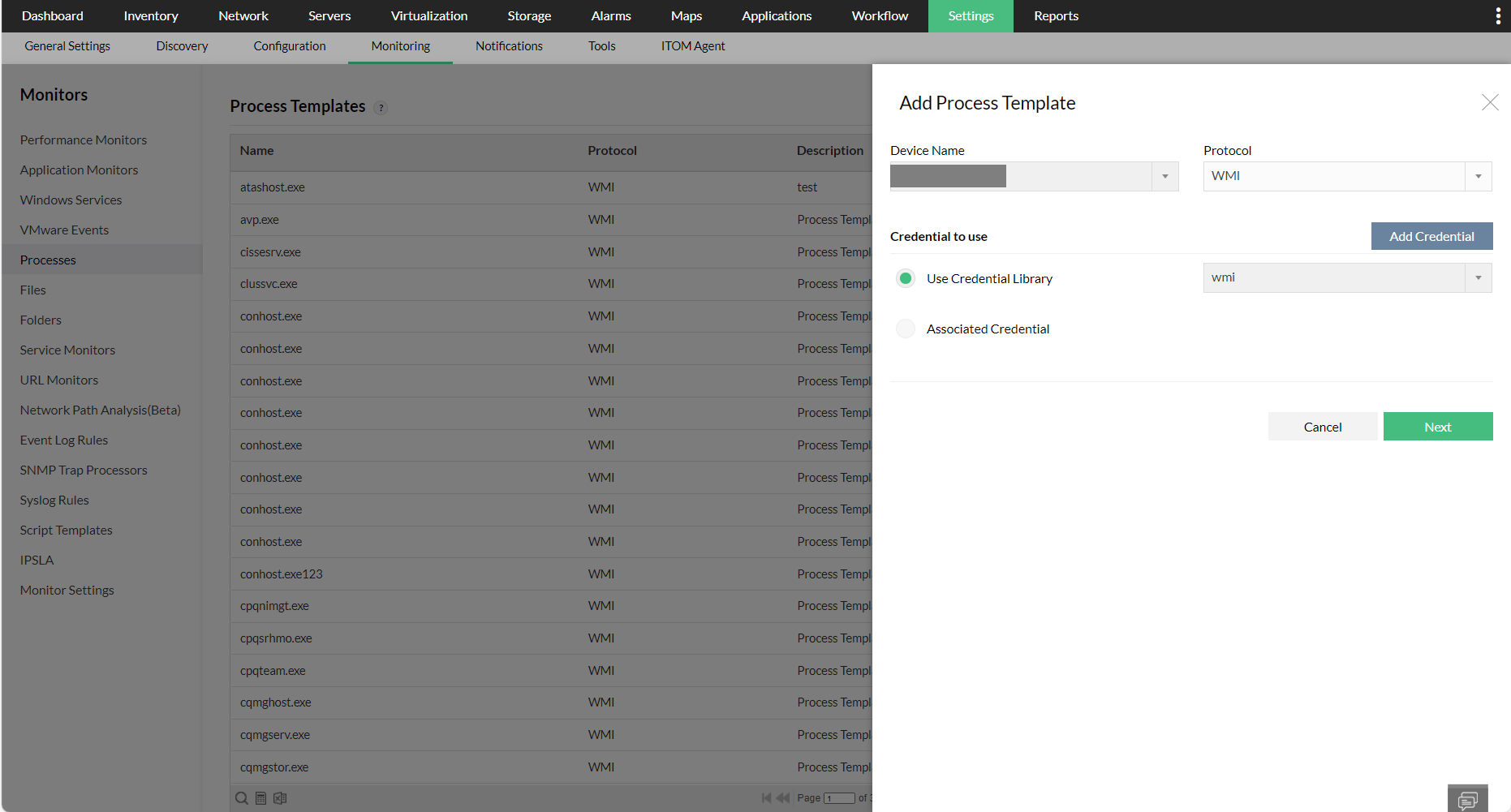
To add a new process template,
- Go to Settings → Monitoring → Processes and click Add.
- Device Name: Select the device which runs the process/processes that need to be converted into template(s).
- Protocol: Select the relevant protocol to access the device.
- Select the relevant credential from the drop-down by clicking on the Use Credential Library radio button or click on the Associated Credential option. Click on the Add Credential button to add new credentials.
- Click Next.
- All the processes that are currently running on the device are listed along with their ID, Path, and Arguments.
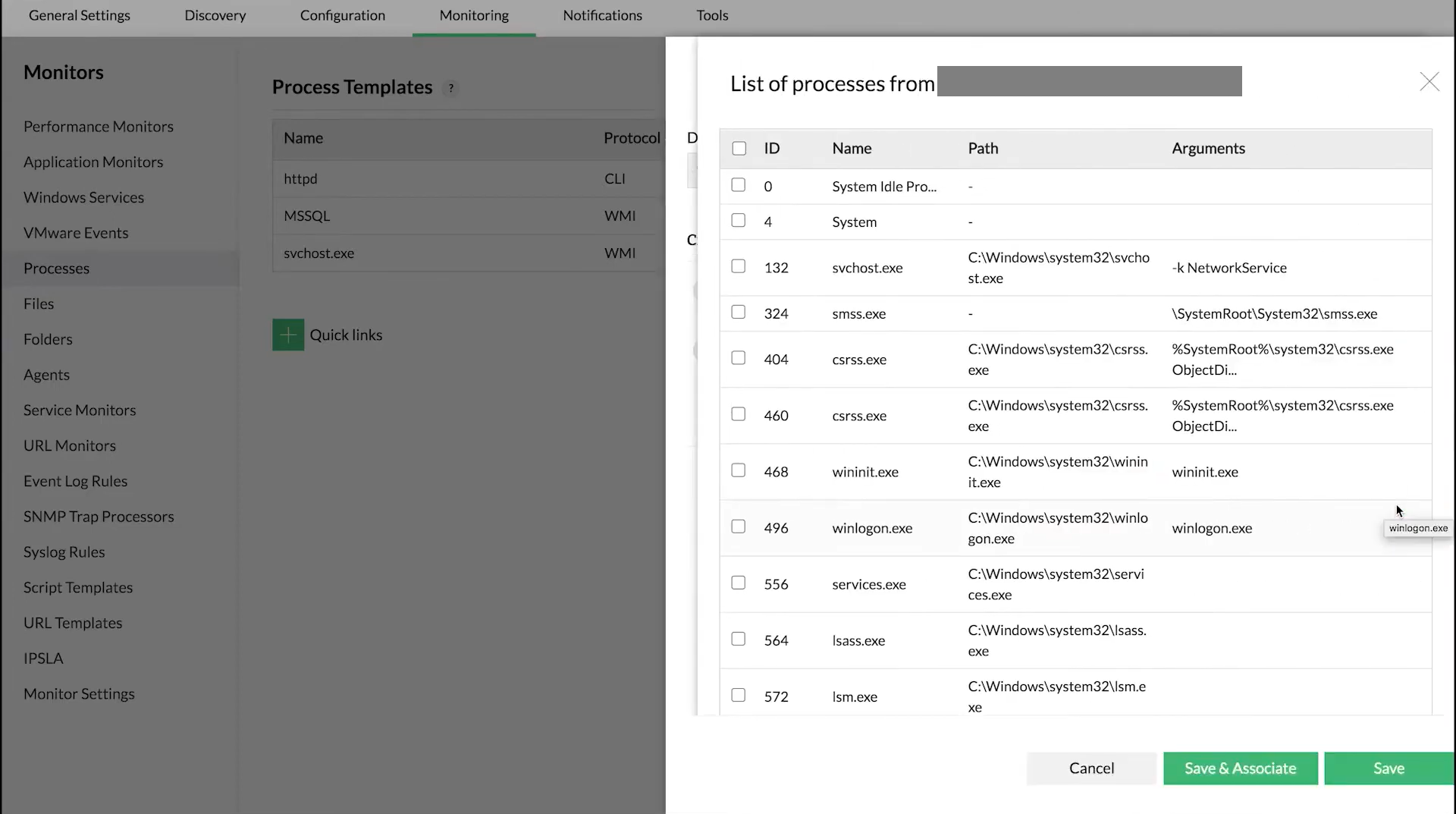
- Select the required process/processes.
- From here, you can either choose to just save the template, or immediately associate it to devices. To associate it to devices right away, click Save and Associate. Select the devices you wish to monitor in the next window, and click Save.
- Else, if you just want to save the process template for now, click Save.
The selected processes are now added and available as templates under Settings → Monitoring → Processes.