Upgrade OpManager Monitoring Agent
Regular agent upgrades keep your monitoring setup stable and secure. OpManager can upgrade agents automatically, or you can run controlled upgrades for a single agent or in bulk.
Auto Upgrade
To enable or disable auto upgrade, go to Settings → Discovery → Deploy Agent → Agent Settings.
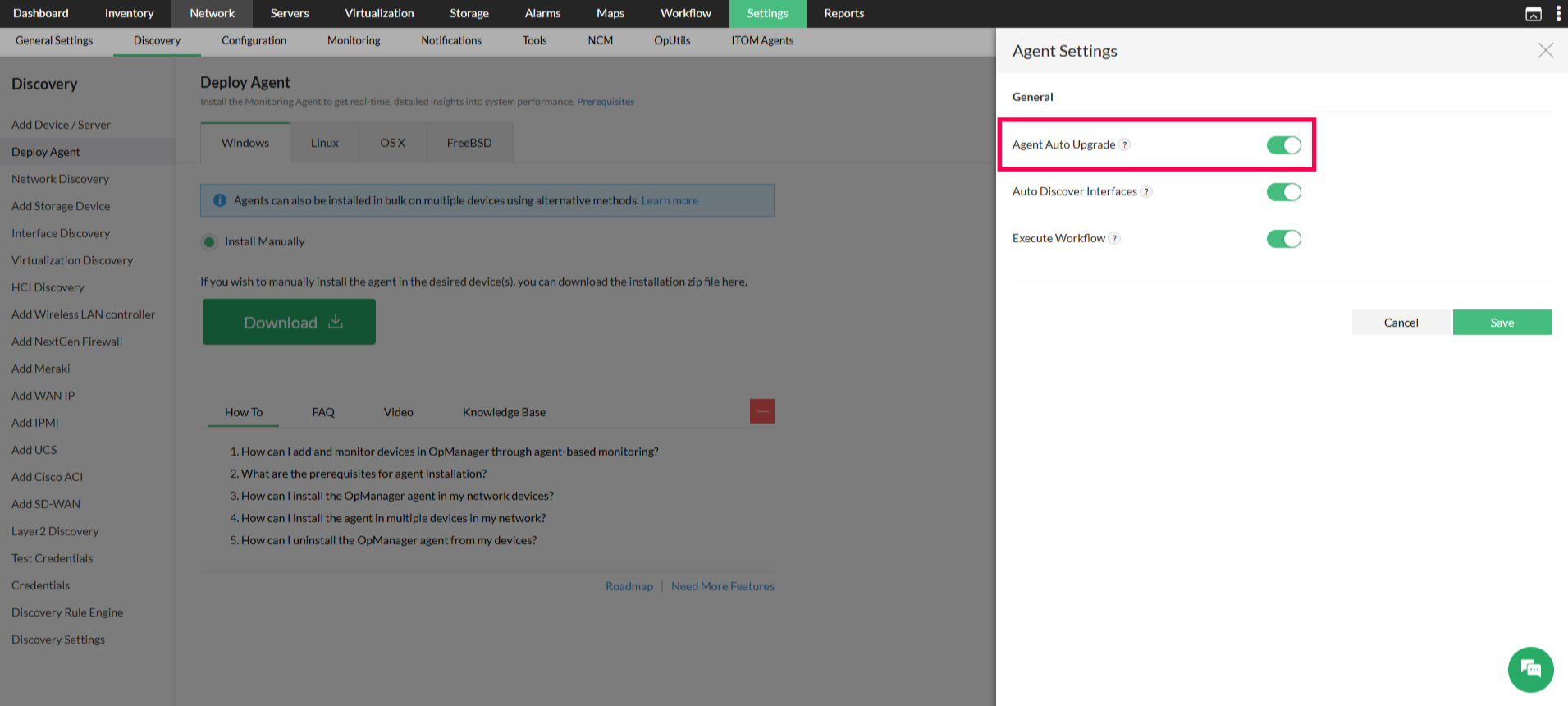
It is recommended to keep Agent Auto Upgrade enabled. When OpManager is upgraded, agents are upgraded to the compatible version automatically, provided the agent upgrade files are available.
Manual Upgrade
If your environment follows a Change Request (CR) or Request for Change (RFC) process, disable Agent Auto Upgrade and start the upgrade manually from the UI for a single agent or multiple agents in bulk.
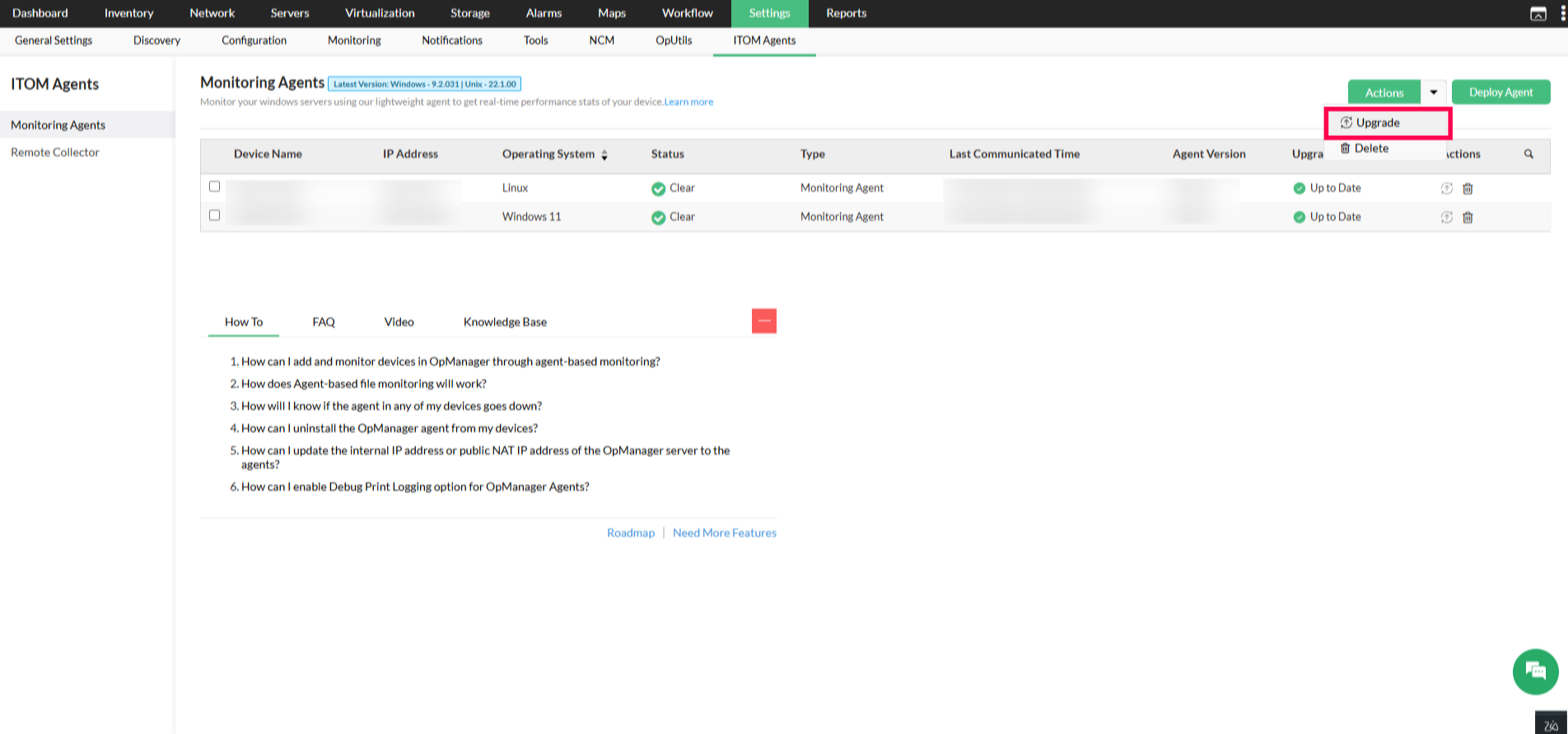
- Go to Settings → ITOM Agents → Monitoring Agents.
- Select the agents you want to upgrade.
- Click Actions → Upgrade.
Note:
- The Upgrade option is enabled only for agents in Clear status, meaning they are communicating properly with OpManager.
- Versions marked as Mandatory Upgrade are applied to all agents automatically, even when Agent Auto Upgrade is disabled, as they may contain security fixes.
Unix Agent Upgrade
Unix agents need the upgrade files for the new version. How you get them depends on your Internet access.
- With Internet access: After OpManager restarts, the files are downloaded automatically from the ManageEngine website. No further action is needed.
- Without Internet access: Download the Unix agent file for your OpManager version from the ManageEngine website. Then follow the manual installation steps or the instructions on the Deploy Agent page (Settings → Discovery → Deploy Agent).