Steps to create a business view with application monitors
To configure a business view with the application monitors, follow these steps:
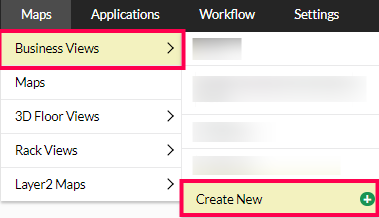
- Navigate to Maps > Business Views > Create New.
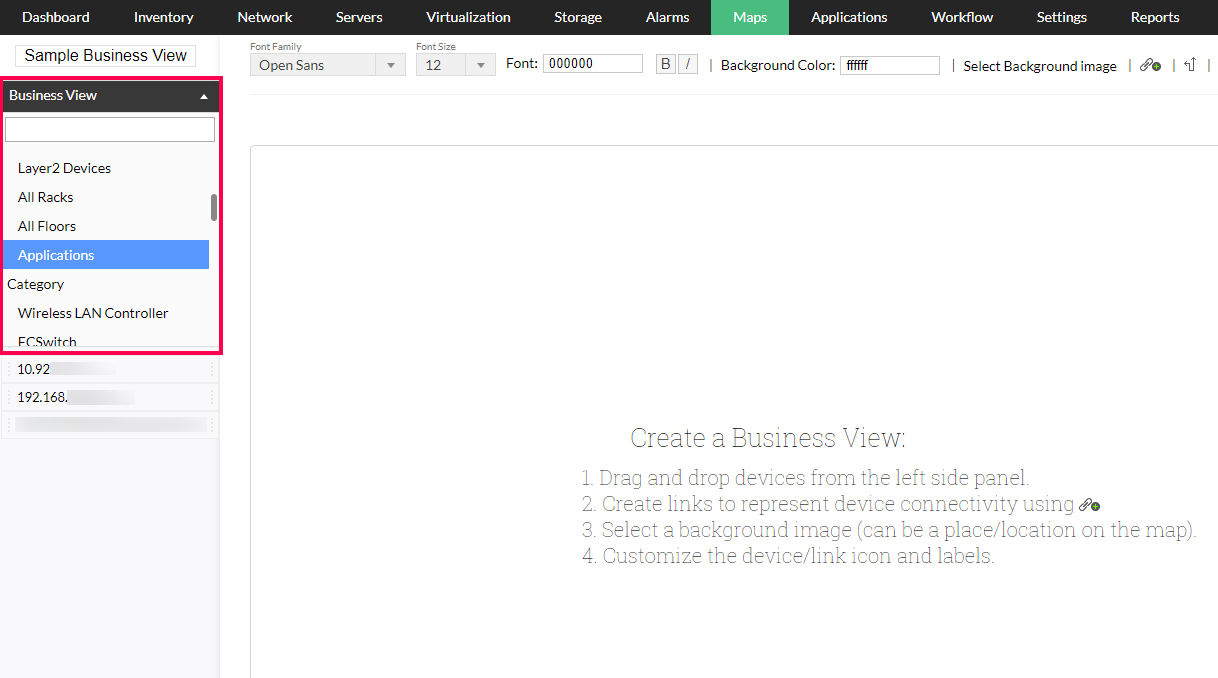
- On the left-side panel, click on the drop-down arrow named Business View. Scroll down, and select Applications.
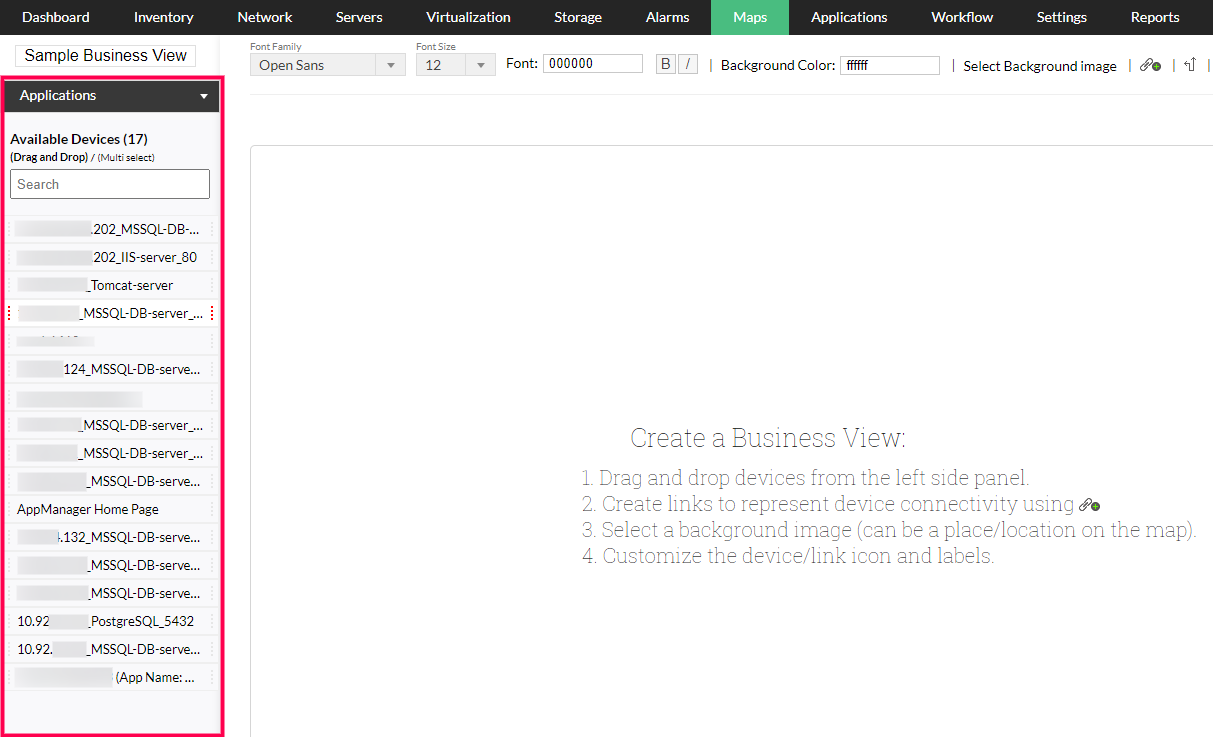
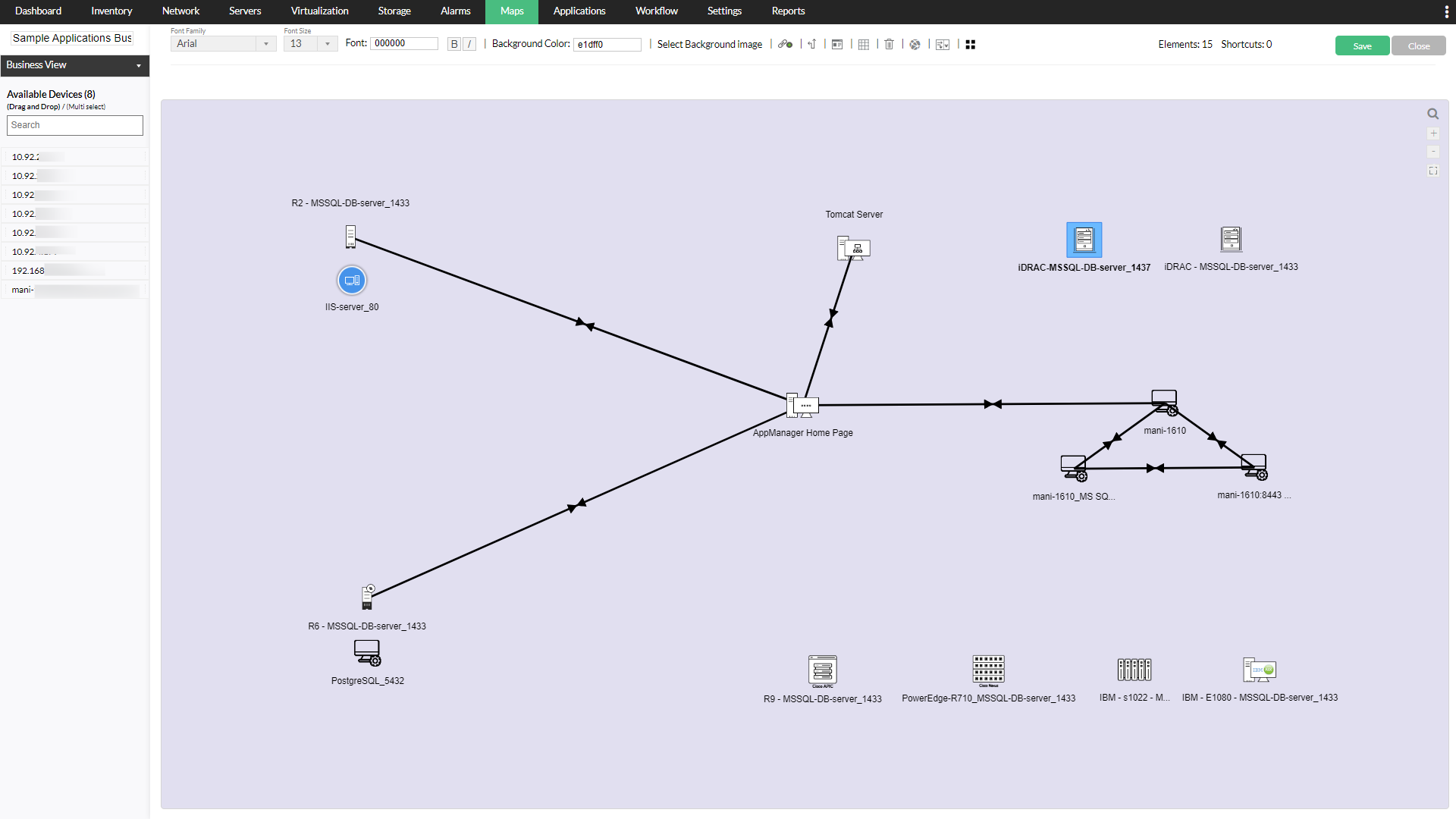
- On the same left-hand panel, OpManager will list the monitors added in the APM plug-in.
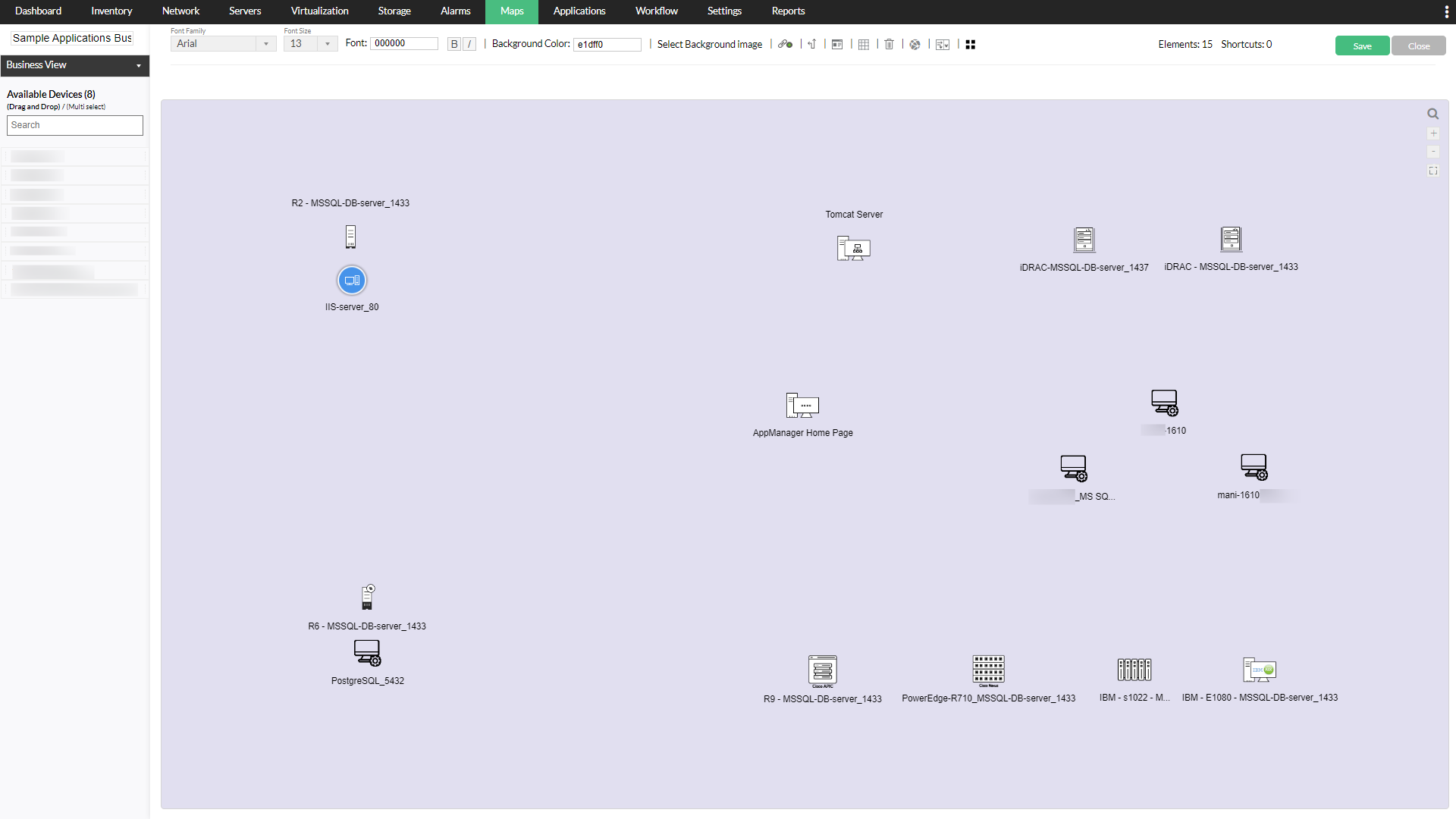
- Drag the individual objects to the business view area and arrange them to fit your architecture.
- Draw the dependencies, if any.
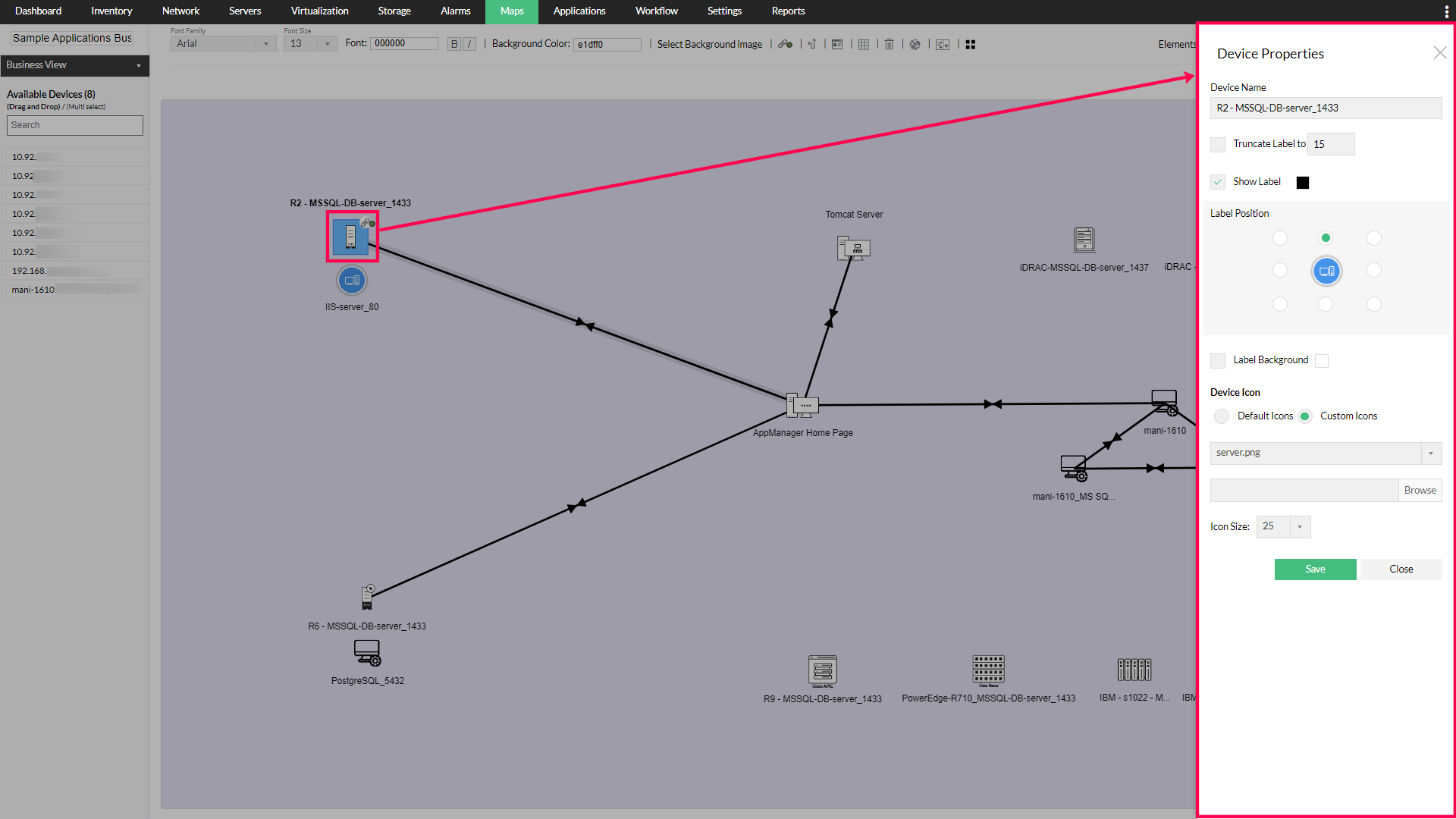
- Configure additional settings related to names, icons, labels, etc. by double clicking on the individual objects.
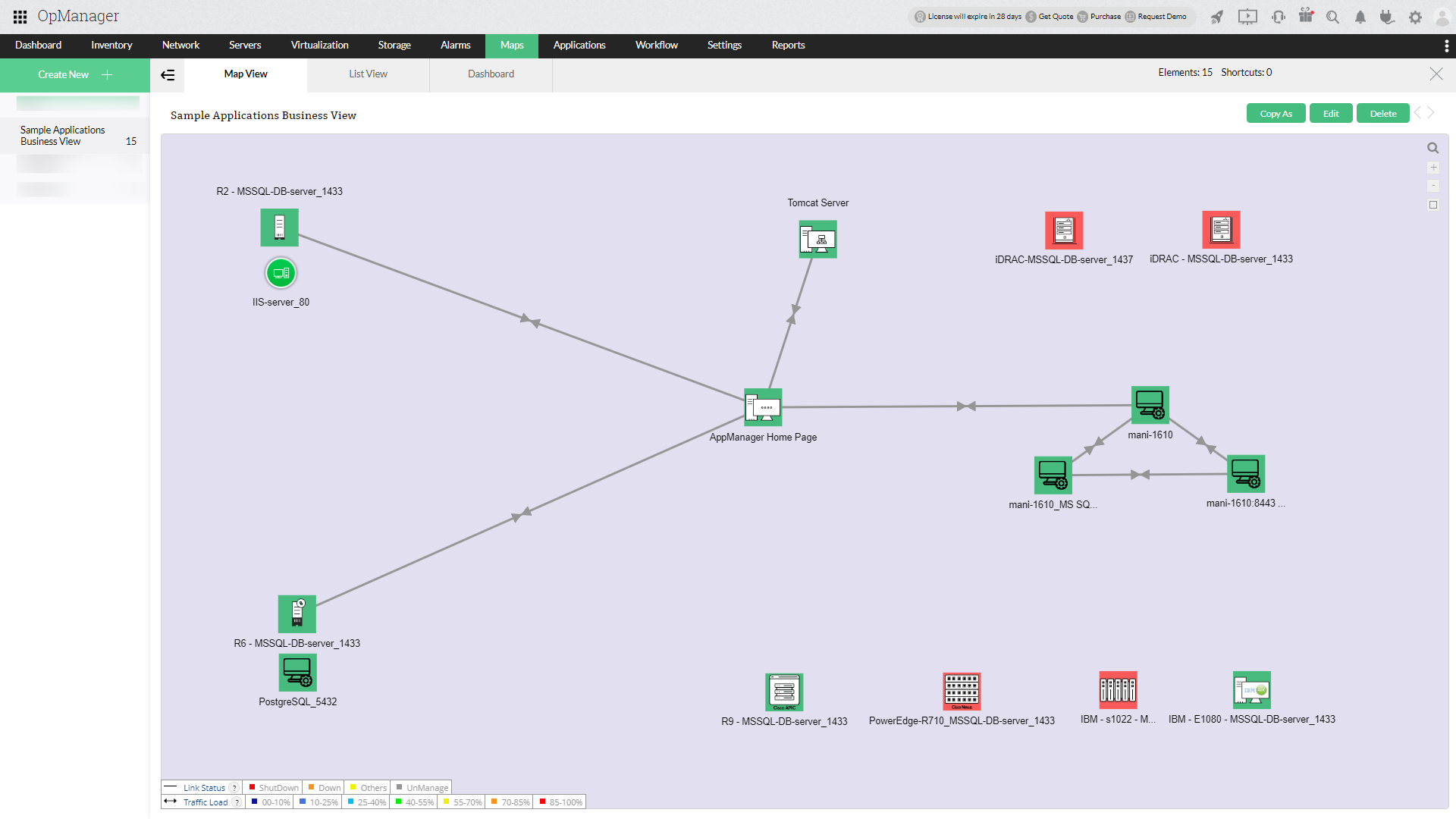
- When done, click on Save. You will find the business view of your applications monitors on the Business Views page.