Associating Script Monitoring Templates
OpManager's script Monitoring templates help you create custom scripts to monitor custom parameters. This helps you retrieve data specific to your needs, and allows you to customize your monitoring efforts. Click here to know about how to add script templates in OpManager.
Follow the steps given below to associate script templates to one or more devices.
- Go to Settings → Monitoring → Script Templates and then click on Associate.
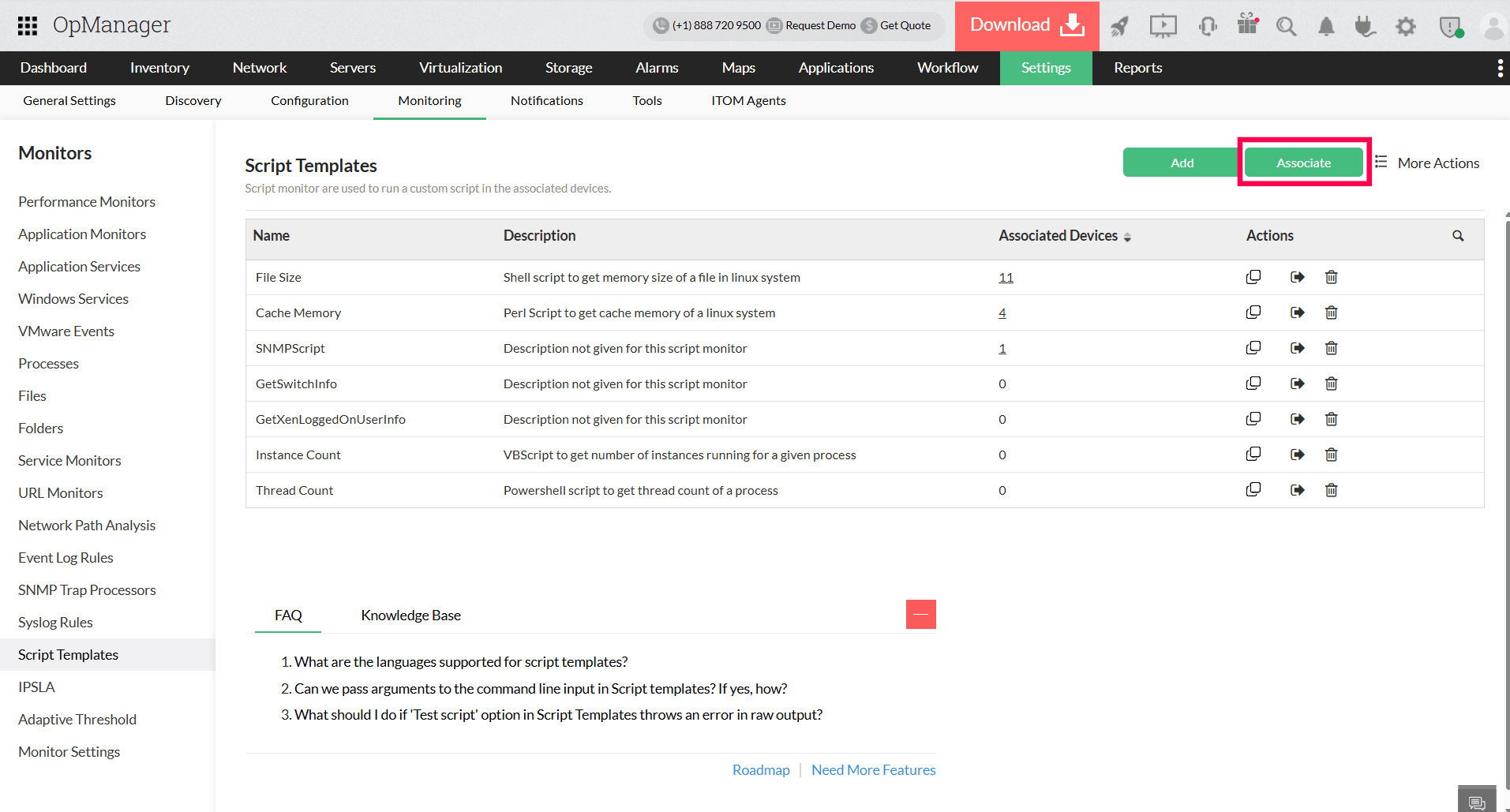
- This will open a page to associate multiple devices to a specific template.
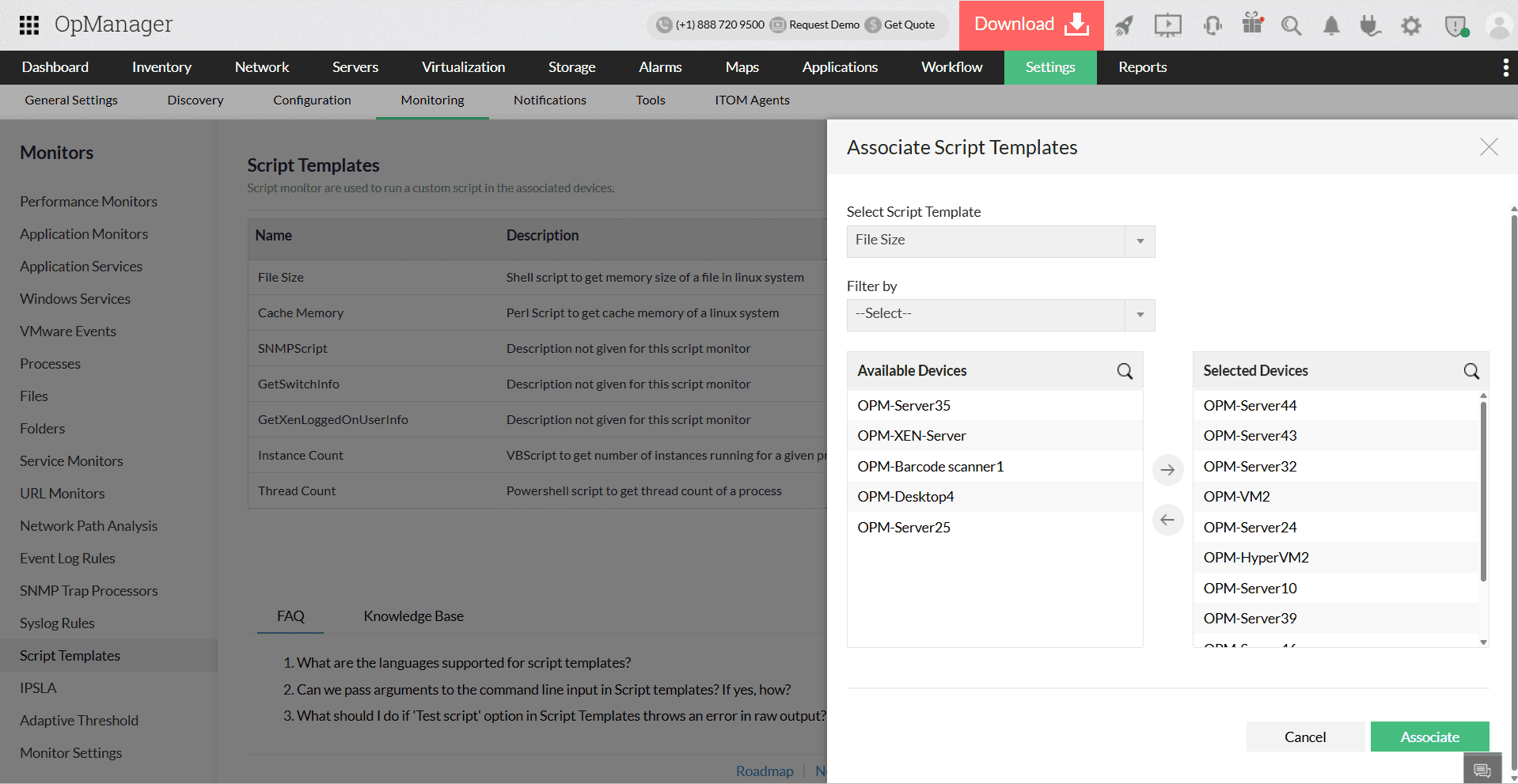
- Select the required script from the Select Script Template drop-down.
- Choose devices from the Available Devices and move them to the Selected Devices for which the script should be associated
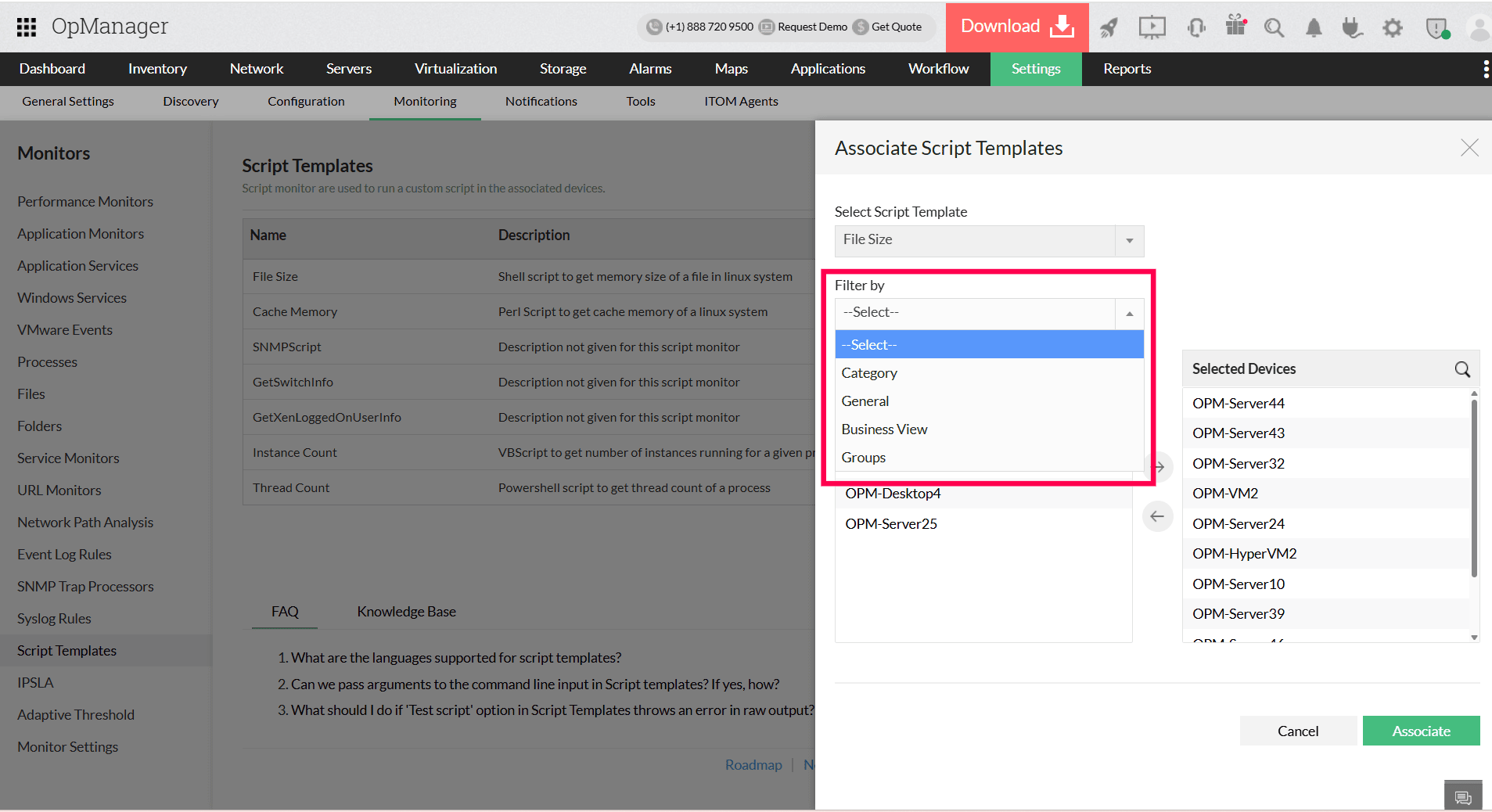
- You can also use the Filter By option to narrow down the available devices based on:
- Category
- Business View
- Groups
- General (to filter devices by operating system or as network devices)
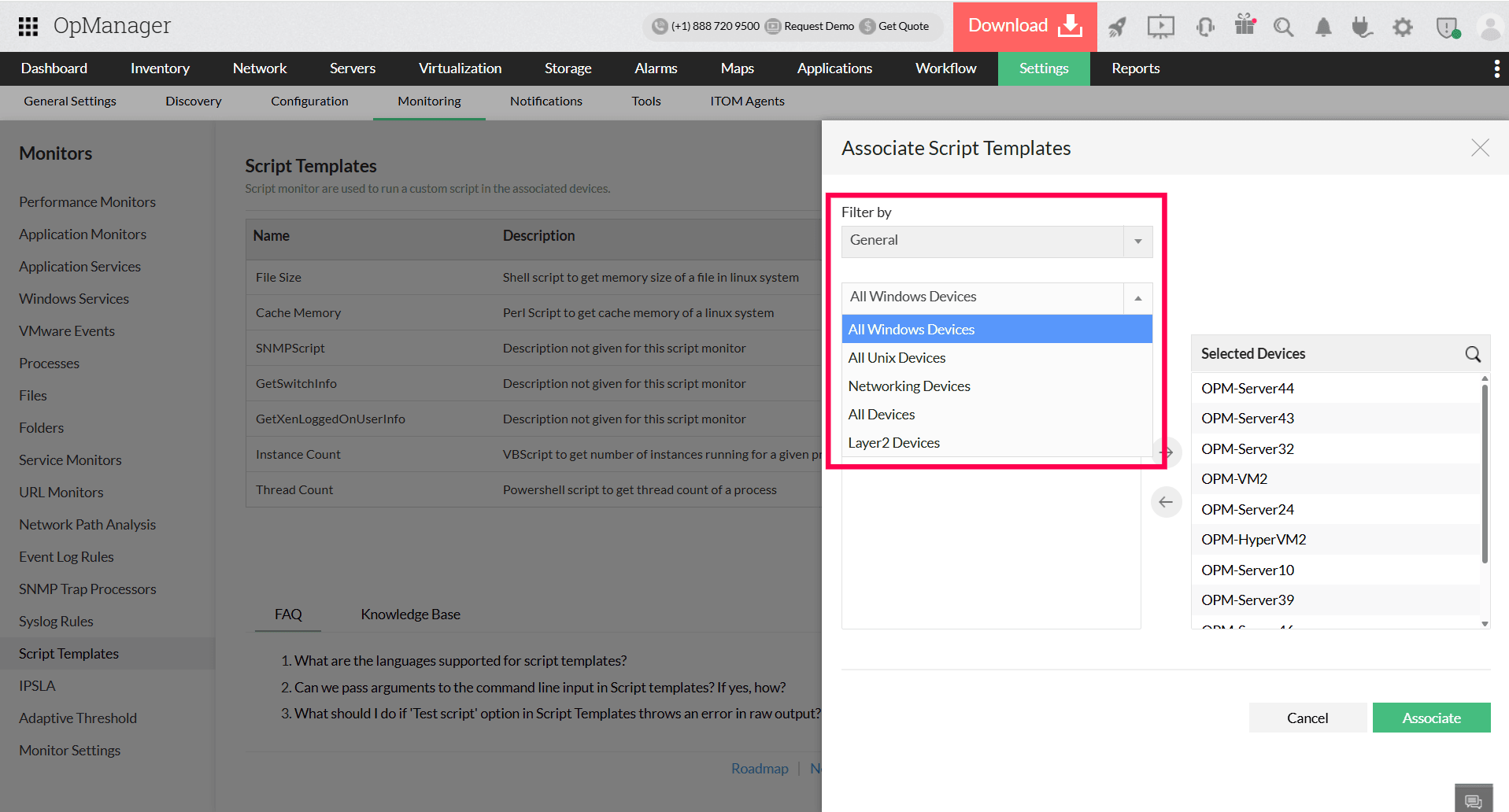
- Once the devices are selected, click Associate to associate the script template with the selected devices.
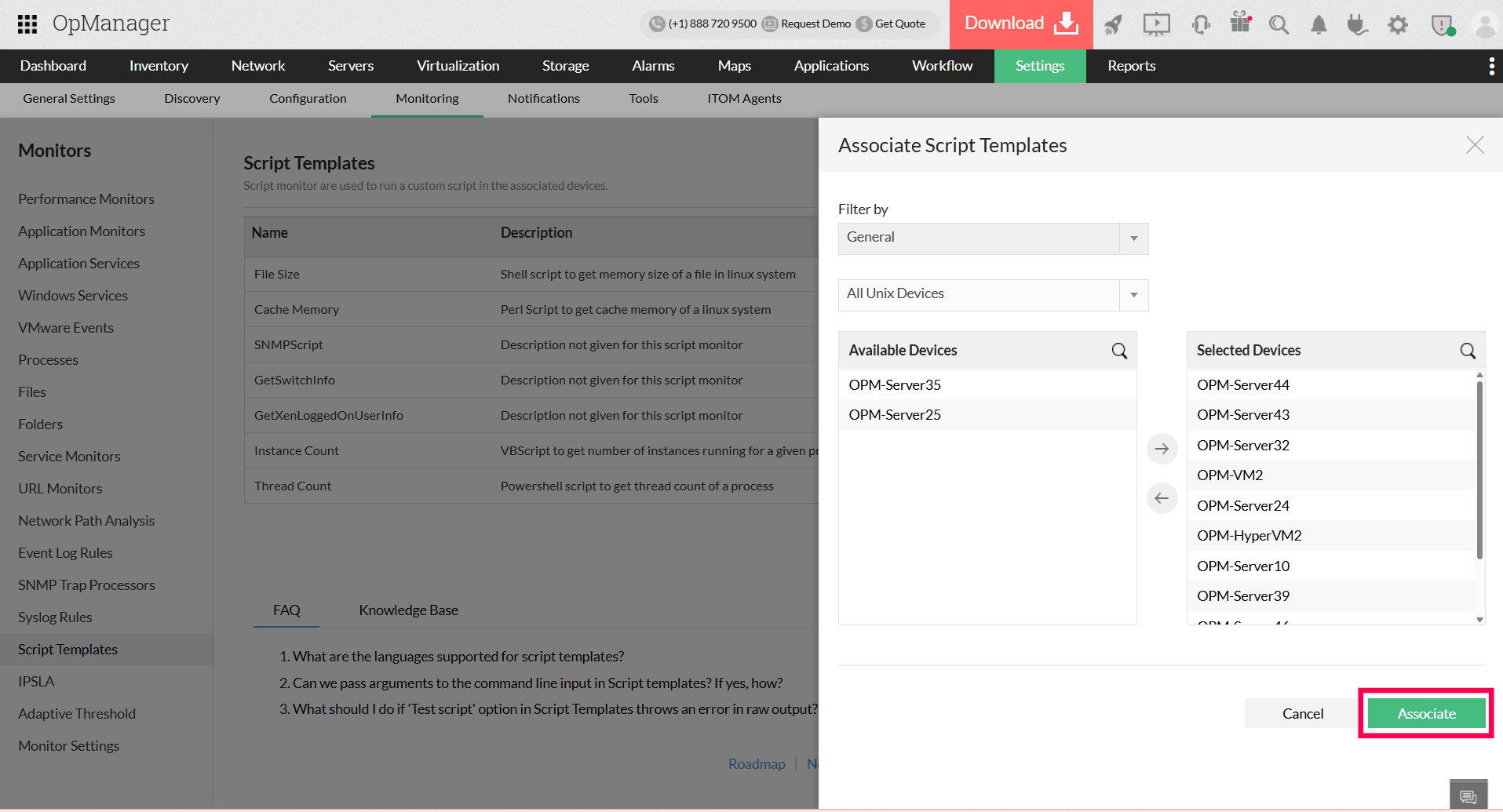
Script template has now been associated successfully to the selected devices.
