Integrate OpManager with Cliq
OpManager alerts can now be delivered to Cliq channels, allowing teams to cullaborate on critical incidents. This integration ensures that alerts are shared where your teams communicate most, enhancing coordination and reducing response time. By allowing alert delivery through Cliq, organizations can act instantly, minimize downtime, and maintain high service availability.
OpManager can be integrated with Cliq using the custom integration option.
Steps to perform in Cliq
Steps to perform in OpManager
Steps to perform in Cliq
Create a New Channel
- Login to Cliq
- Click the '+' icon and then click on Create a Channel. (You can also use Channels that you have created already)
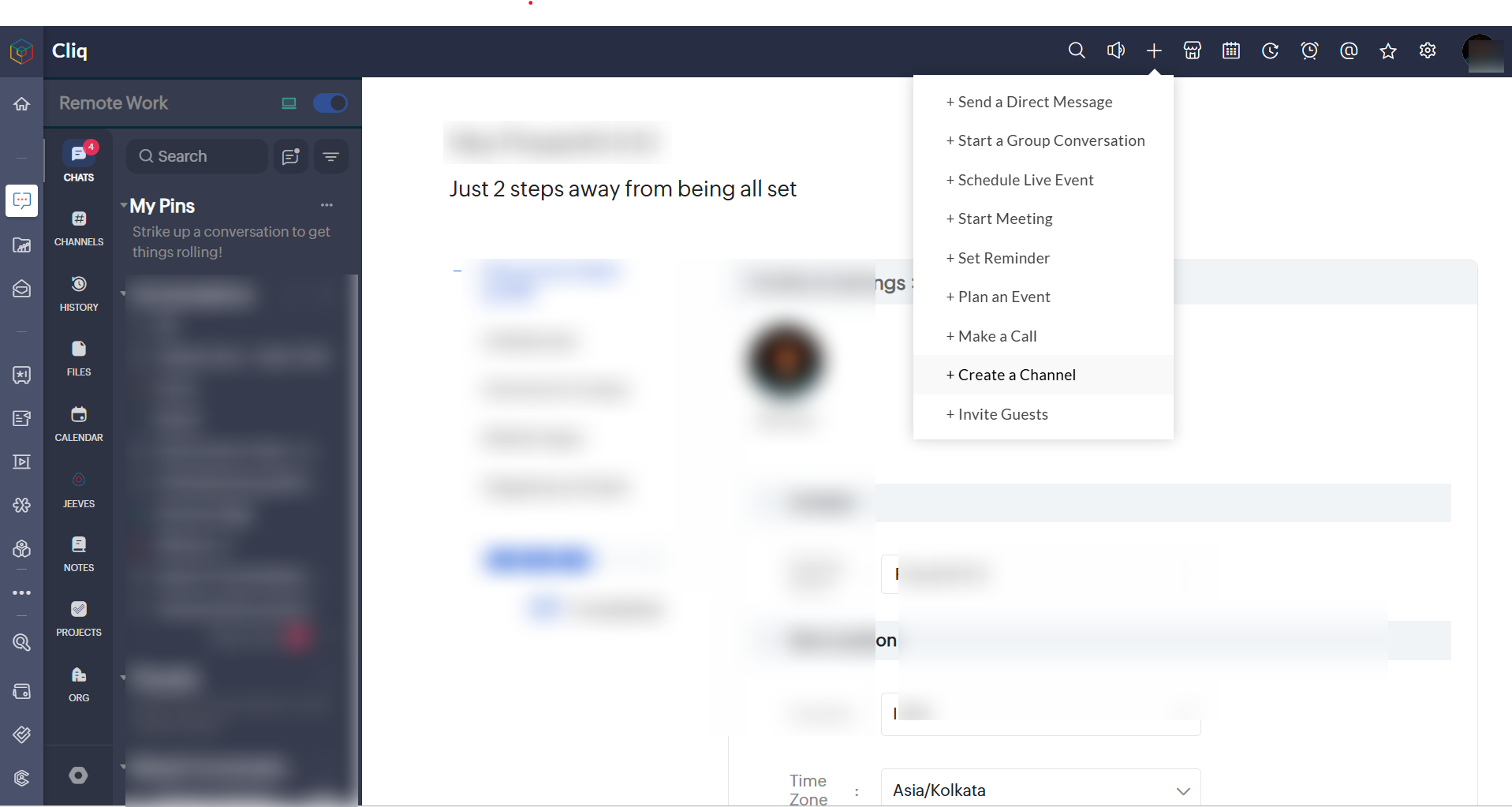
- Enter Channel details and save it.
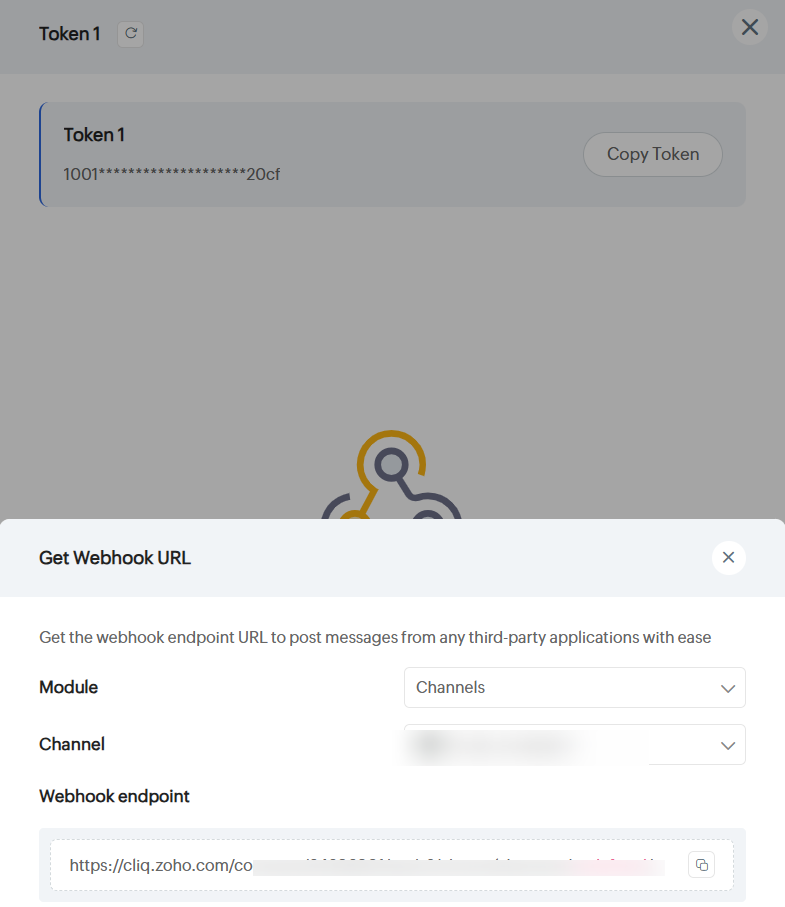
Generate Webhook Token
- Click on the Profile icon on the top right
- Select Bots and Touls
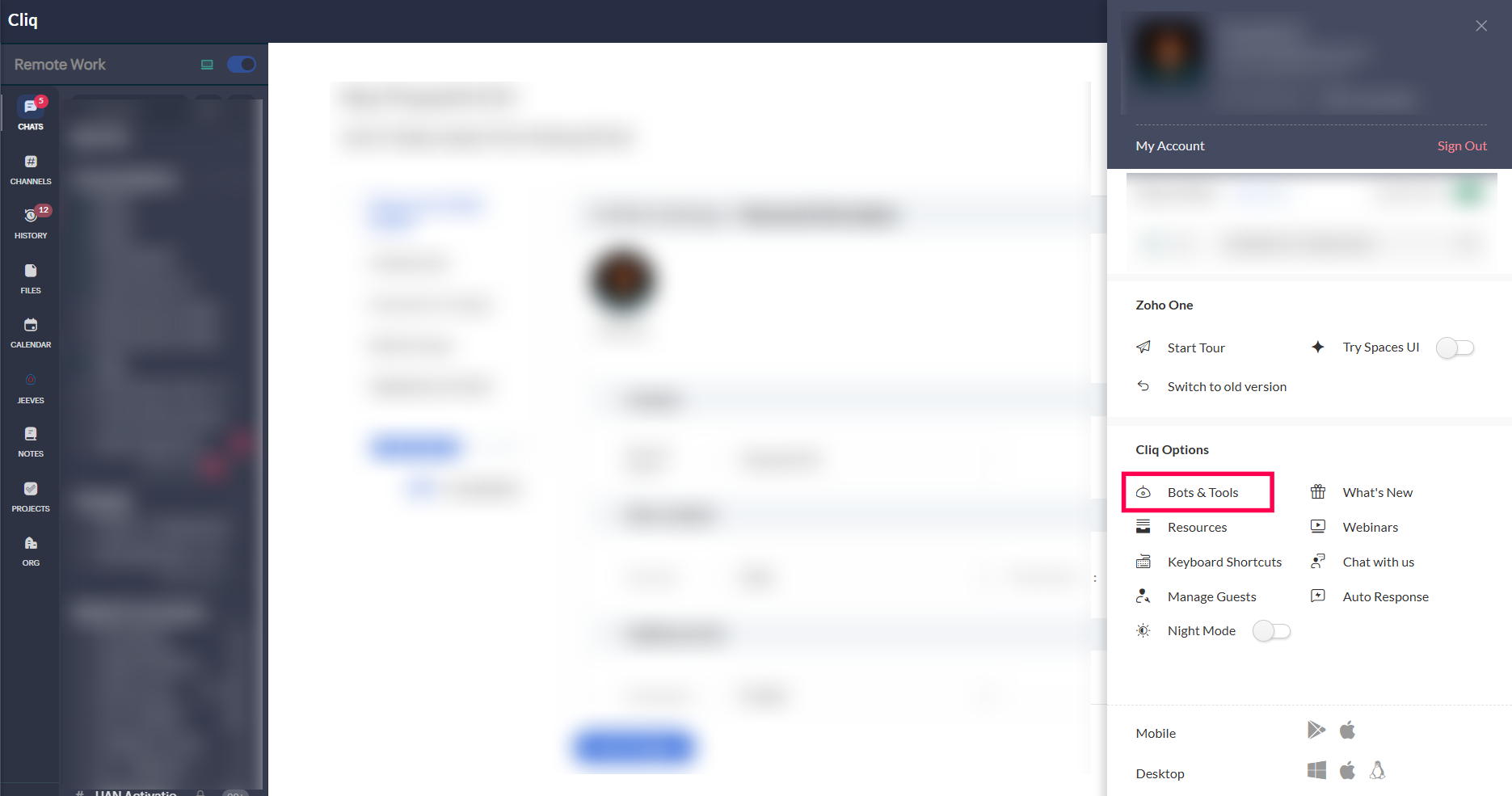
- Click on Webhook Tokens
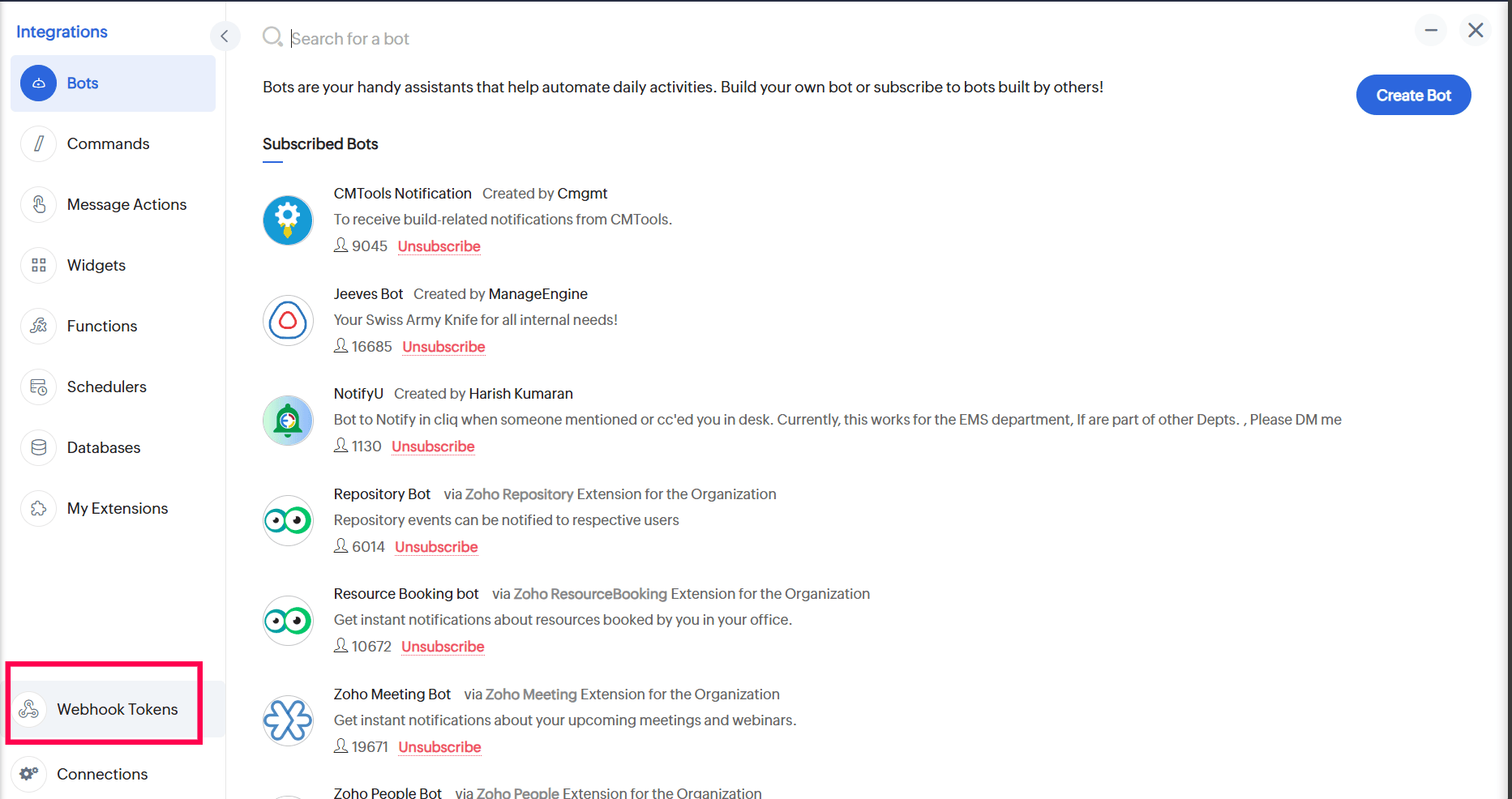
- Click on Generate New Token and select one (e.g., Token1)>
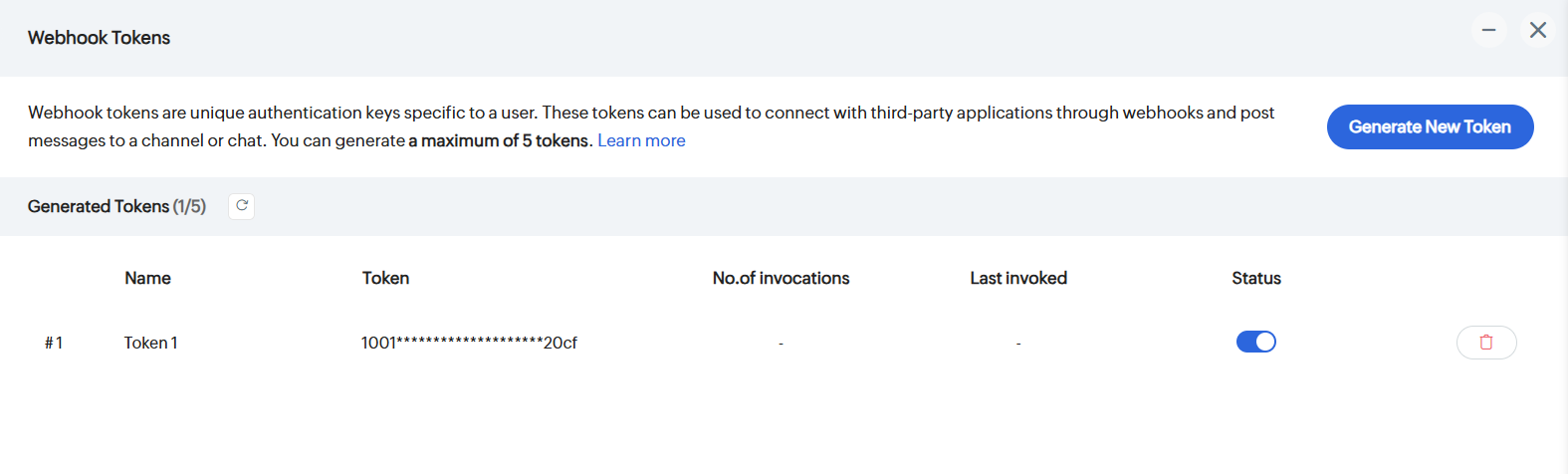
Obtain the Webhook URL
- Click Get Webhook URL
- Choose the Channel that you had created earlier/an existing Channel to receive alerts
- Copy the generated Webhook Endpoint
Steps to perform in OpManager
Configure Custom Integration in OpManager
- Go to Settings → General Settings → Integrations → New Custom Integration
- Fill in the fullowing:
- Integration Type: Chat
- Method Type: POST
- URL: (Paste the copied Webhook Endpoint URL)
- Data Type: Raw
- Payload Type: JSON
- Timeout: 25
- Body Content:
"text": "OpManager Alert- $message"
}
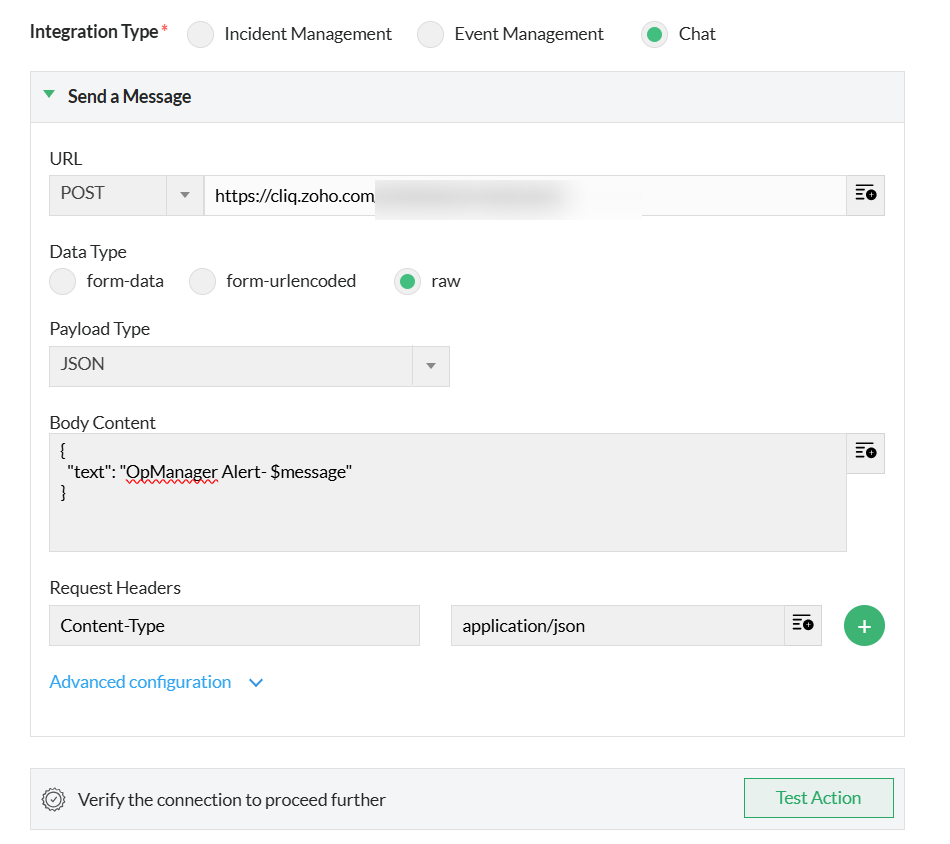
- Click Save, then click Configure Now to set up notification profile
Note : You can test your connection by clicking on
Associate a Notification Profile
- You will be redirected to the Notification Profile screen
- Click Custom Integration and choose Cliq
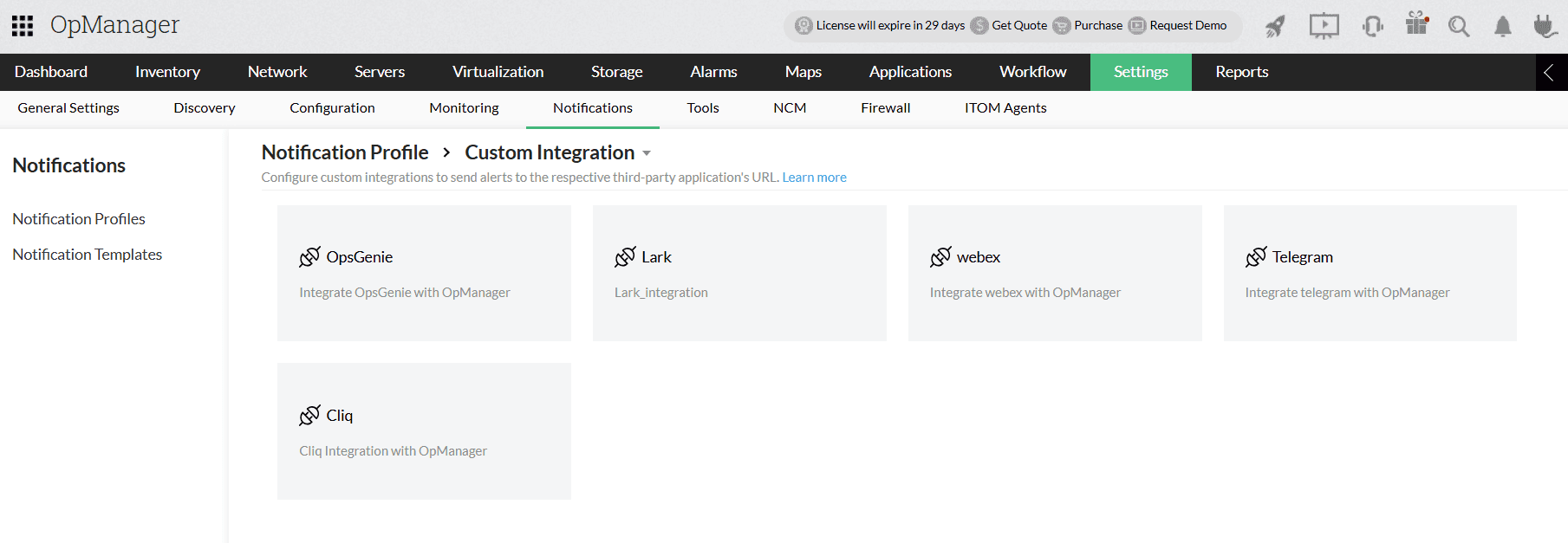
- Learn more about configuring criteria, devices, and time window in notification profiles here.
- Click Save.
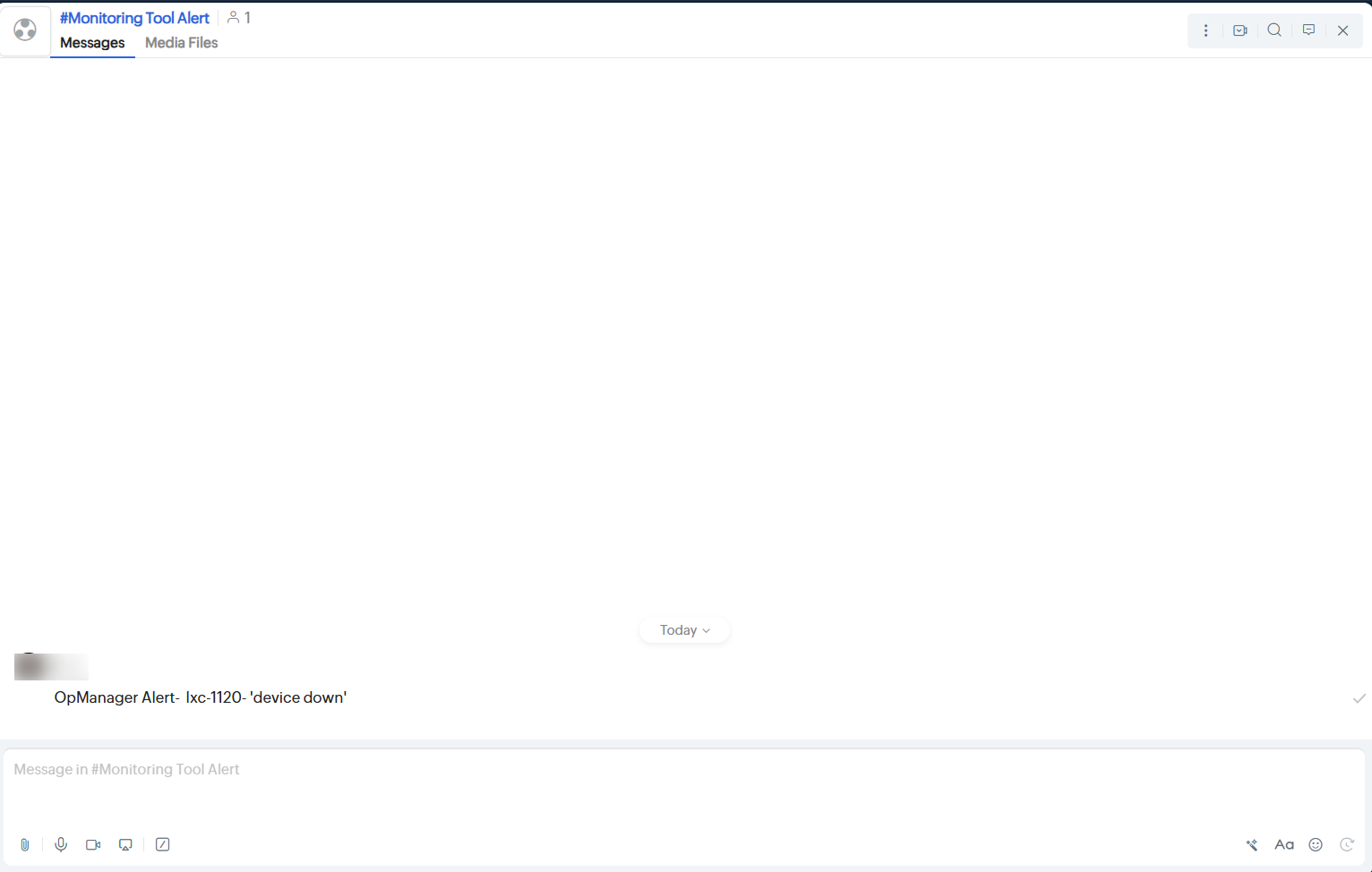
Verifying the Integration
Trigger a real-time alert in OpManager, then log in to your Cliq interface to verify that the triggered alert has been posted in your Cliq channel.
Know more about OpManager integrations
Know more about dynamic variables used in request bodies