Integrate OpManager with Google Chat
OpManager integrates with Google Chat, a communication and collaboration platform that is part of Google Workspace. This integration enables efficient communication through direct and group conversations, allowing OpManager alerts to be sent to individuals or groups in real time, thereby reducing response time and improving task management. Google Chat can be configured as a custom integration within OpManager.
OpManager can be integrated with Google Chat using the custom integration option.
Configuration in Google Chat
To integrate OpManager with Google Chat, you should first configure the settings in Google Chat.
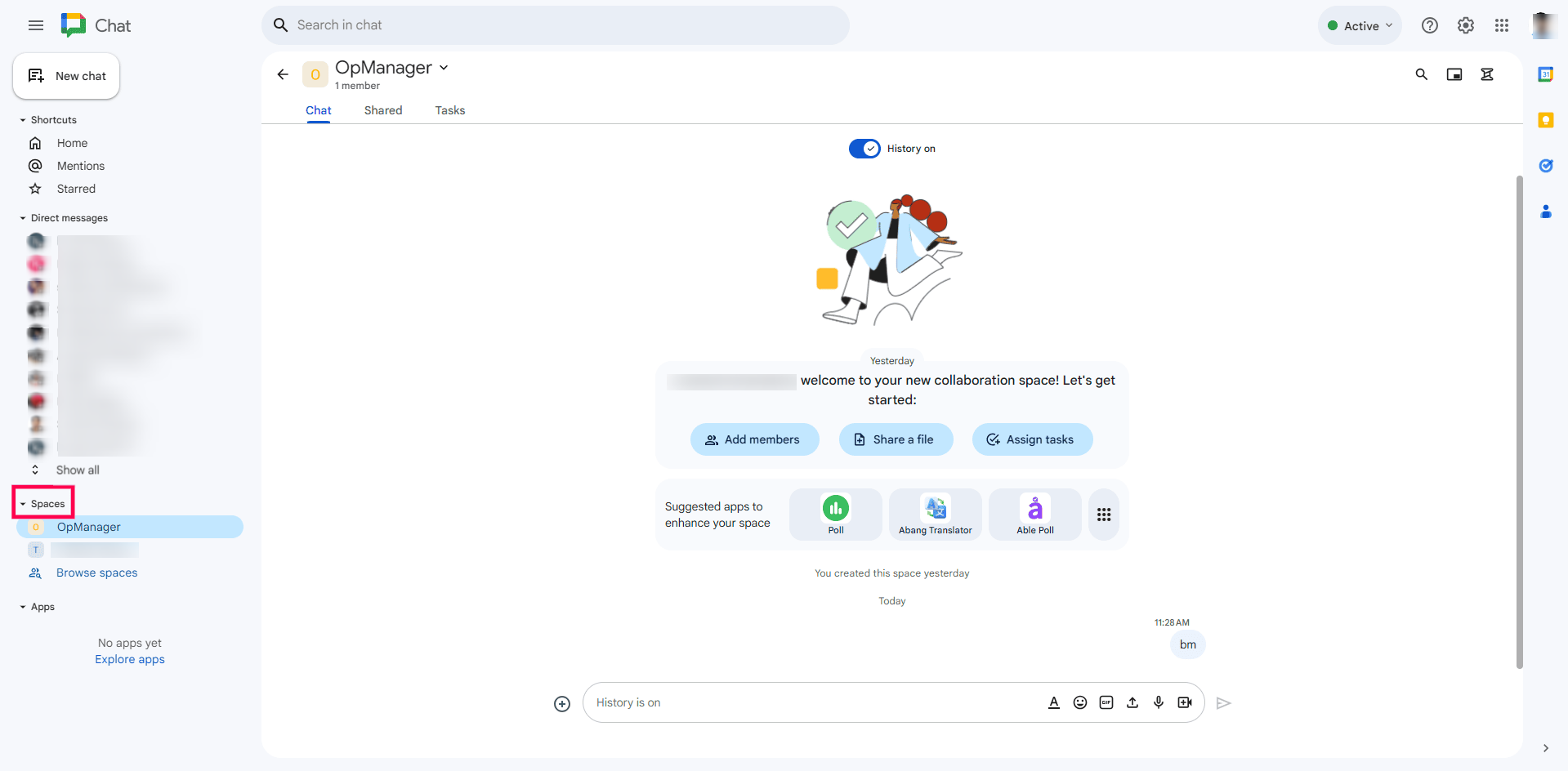
- In Google Chat, navigate to Spaces and hover over it. Click the Section actions icon (three dots), and select Create a space.
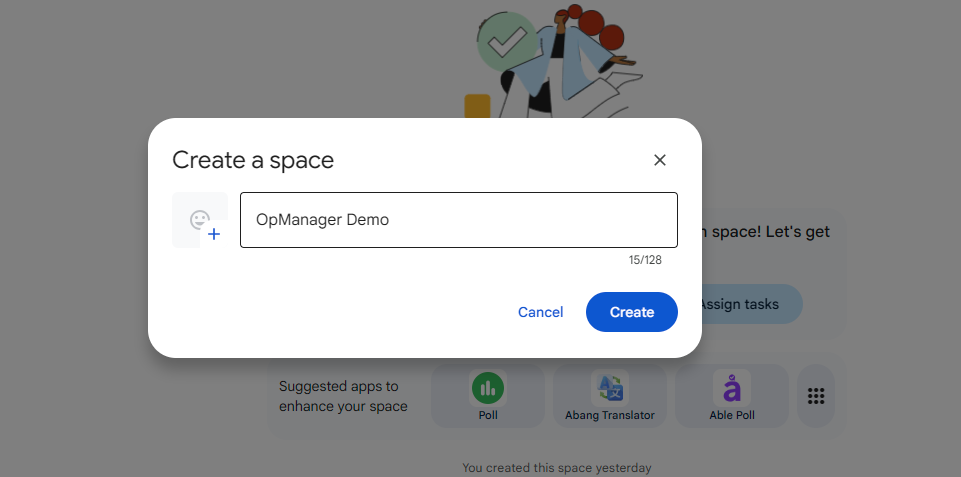
- In the dialogue box, specify a name for the space and click on Create.
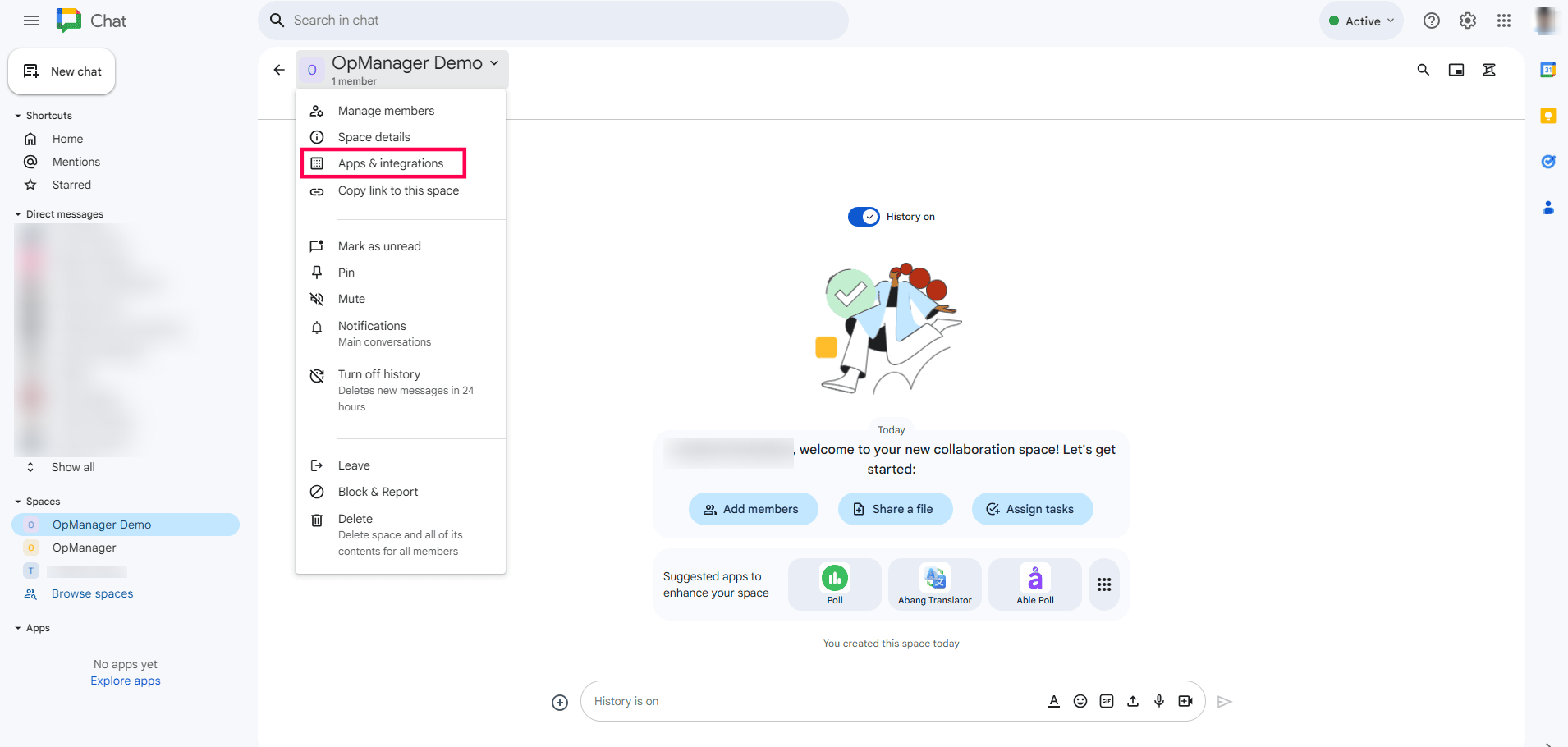
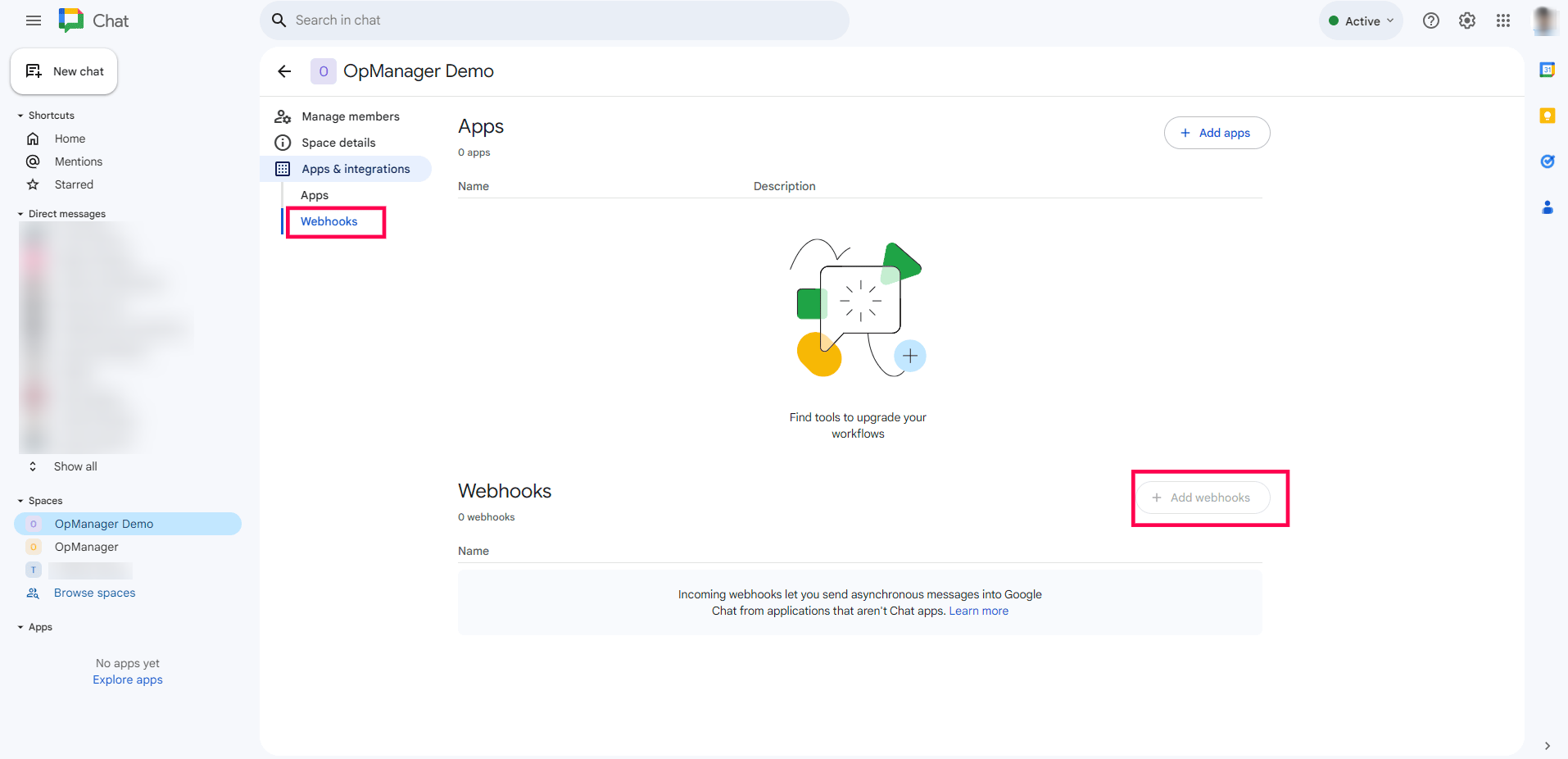
- In the created space, click on the space name and select Apps & Integrations.
- Go to webhooks and click on Add webhooks.
- After adding the webhook, copy the webhook url to configure in OpManager.
Configuration in OpManager
In OpManager, you can configure the integration using the webhook url from Google Chat.
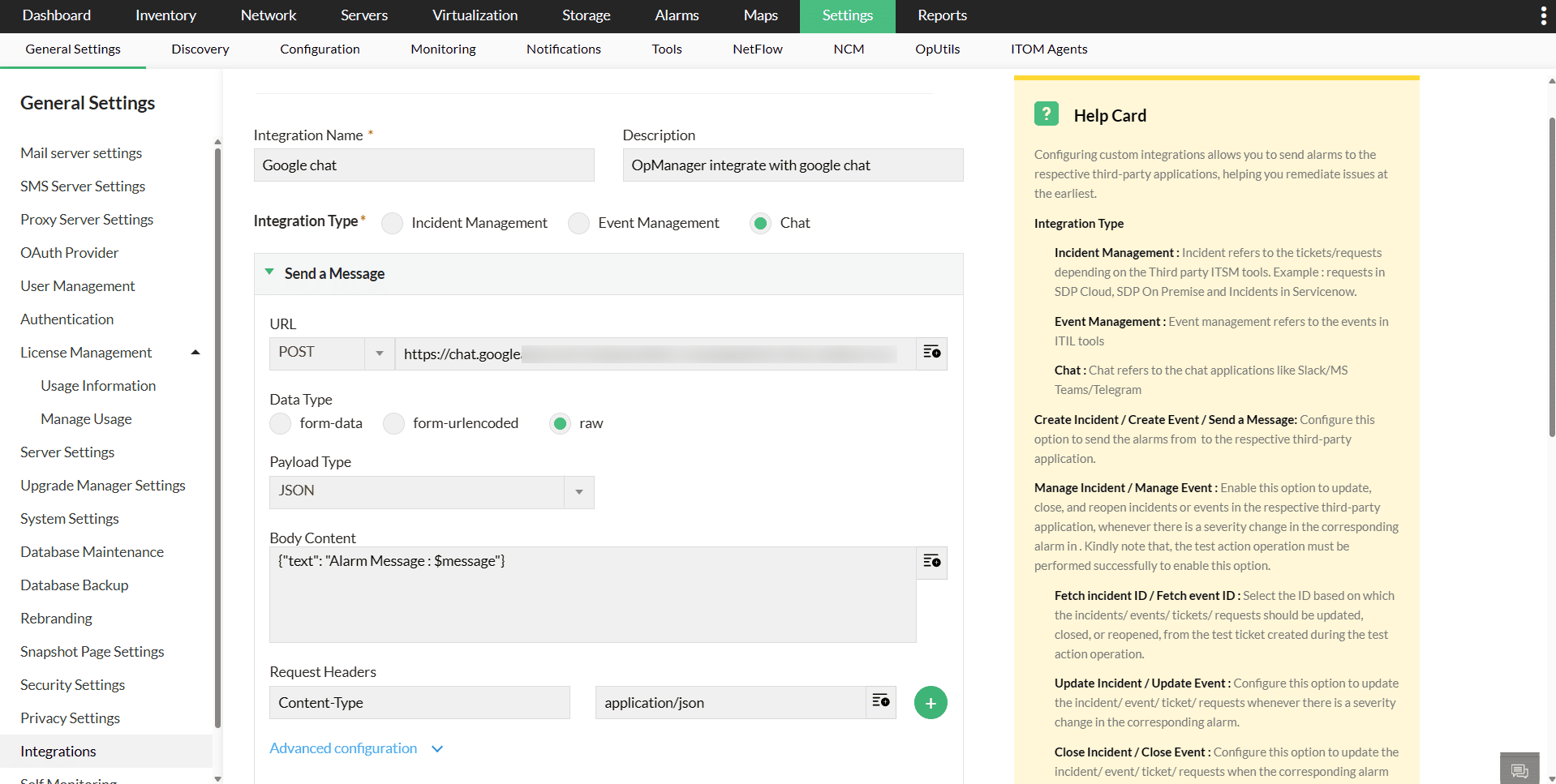
- Go to Settings -> General Settings -> Integrations -> Custom integration -> Add Custom Integration Profile.
- Enter the integration name, description and fill in the following:
- Integration Type: Chat
- Method Type: POST
- URL: ( Provide the webhook url copied from Google chat)
- Data Type: Raw
- Payload Type: JSON
- Request Head:Content-Type and application/json
- Body Content:
- Click on Test Action to verify the integration.
- Click Save, then click Configure Now to set up notification profile.
{
"text": "OpManager Alert- $message"
}
"text": "OpManager Alert- $message"
}
Associate a Notification Profile
You will be redirected to the Notification Profile screen.
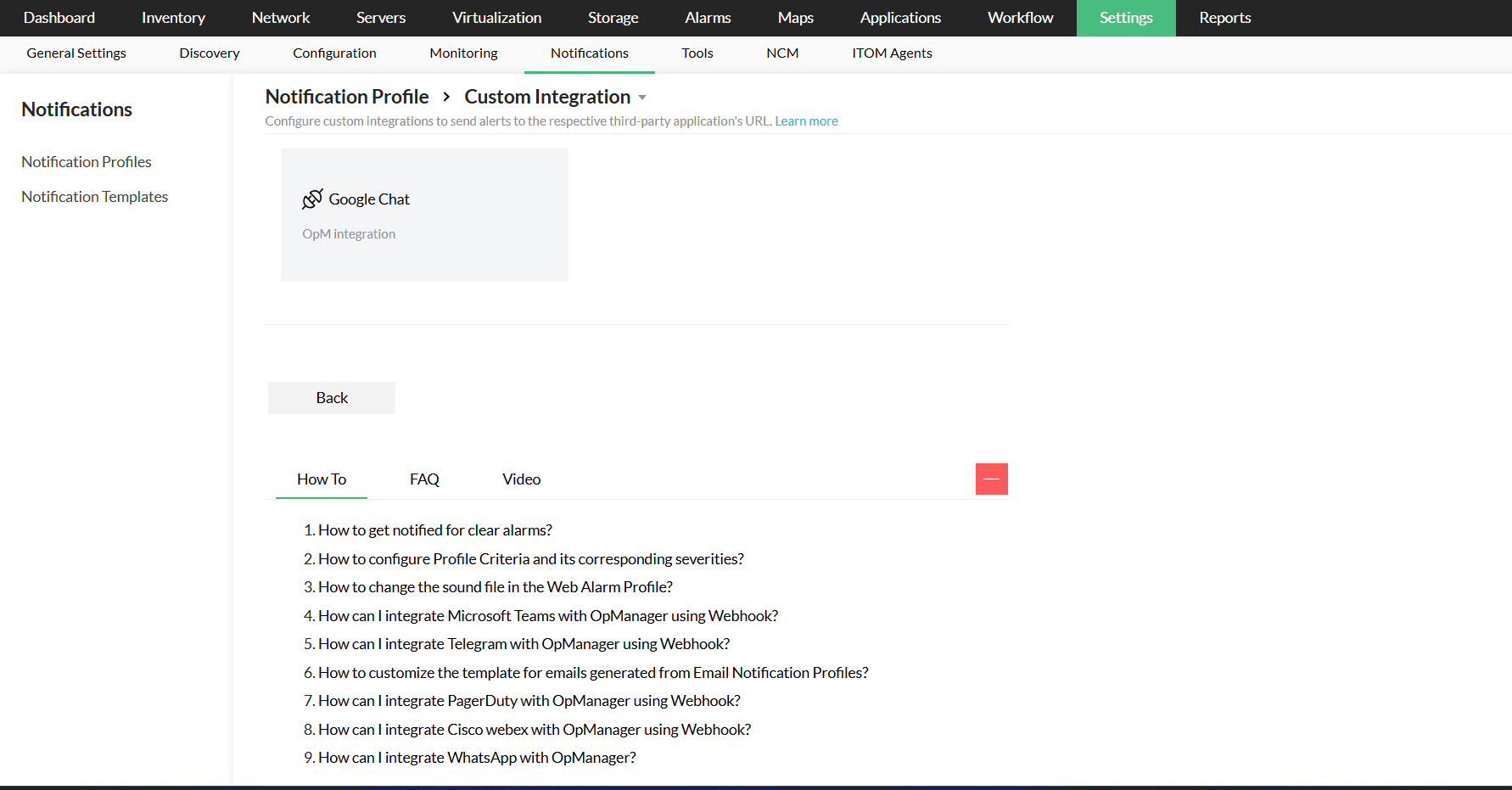
- Select Custom Integration, and click the integration you configured earlier.
- Learn more about configuring criteria, devices, and time window in notification profiles here.
- Enter a name for the notification profile and save.