Integrate OpManager with IBM QRadar
OpManager integrates with IBM QRadar, a SIEM platform that enables detailed analysis of network events and security logs. With this integration, you can forward events through UDP protocol/ syslogs from OpManager to QRadar in real time, strengthening threat detection, improving incident response to potential threats, and reducing downtime.
IBM QRadar Configuration
OpManager Configuration
IBM QRadar Configuration
Steps to configure in IBM
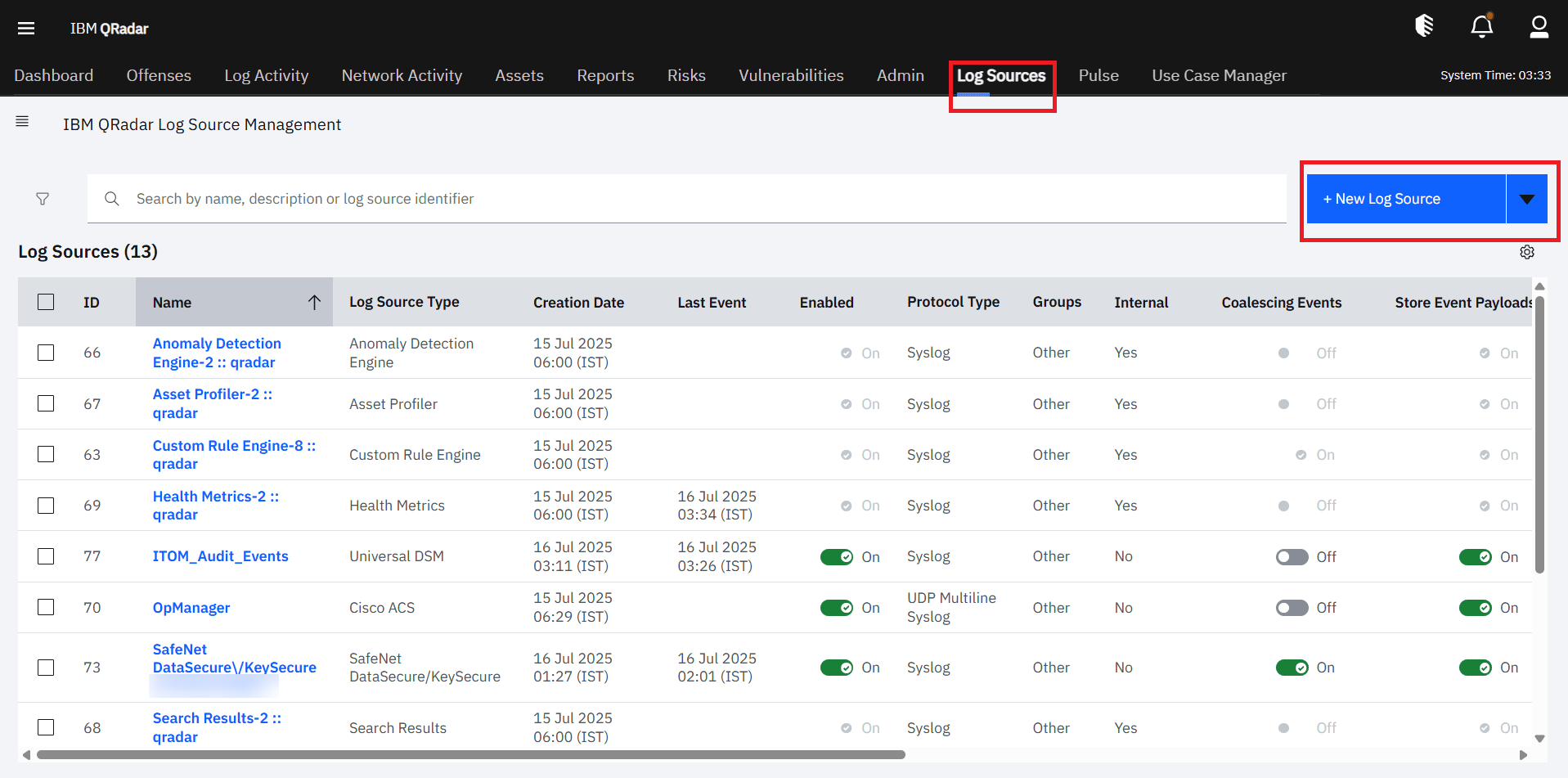
- Go to Log Sources, click on New Log Sources, and choose Single or Multiple Log Sources based on whether syslogs are coming from one or multiple sources.
- Set the Log Source Type to Universal DSM.
- Select the Protocol Type as Syslog.
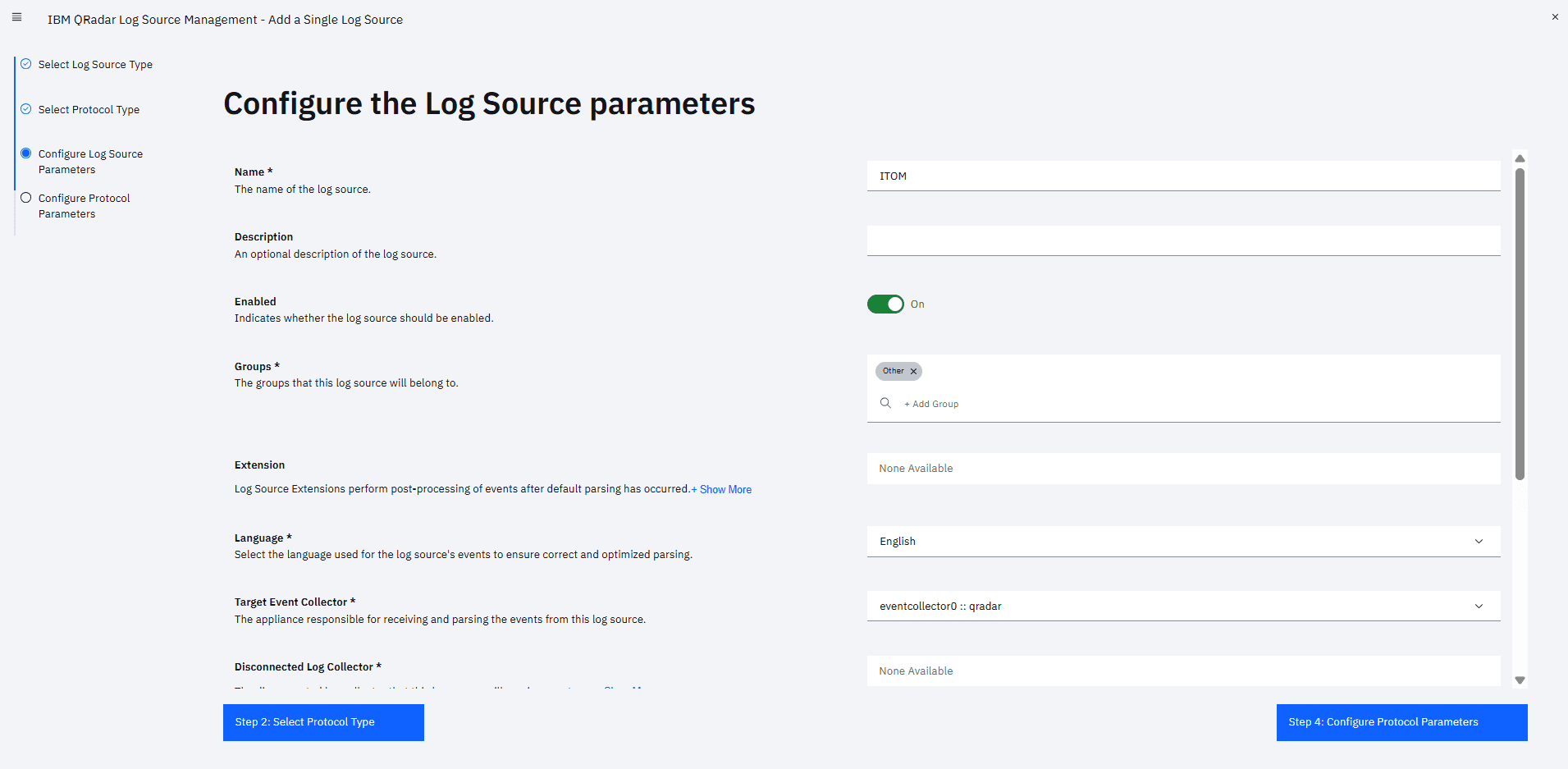
- You can configure the log sources by providing the name, description, and other fields. These fields are optional.
- Configure the protocol parameters by specifying the OpManager server host. Select 'Multi Source' to add multiple IPs or hostnames.
- Click on Finish and deploy the applied changes under Admin.
- Once deployed, you can proceed with the setup through the OpManager UI.
OpManager Configuration
Configure Audit and Access logs
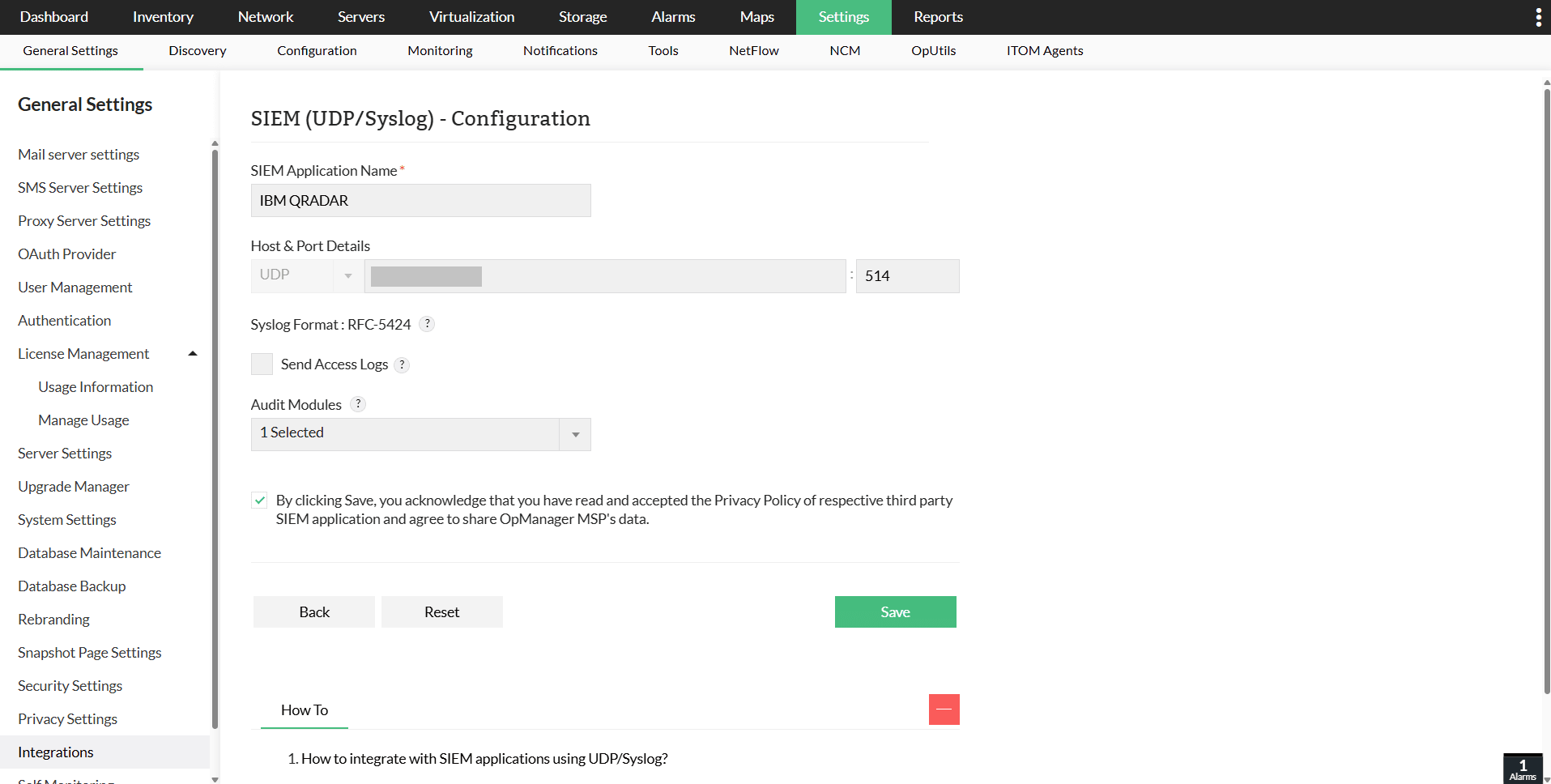
- Go to Settings → General Settings → Integrations → SIEM (UDP/Syslog) - Configuration.
- Provide the SIEM Application Name as 'IBM QRadar'.
- Specify the IP address of the machine where IBM QRadar is hosted.
- Enter the port number as 514 (default syslog port for IBM QRadar).
- Select Send Access logs or choose Audit modules from the dropdown. You can also select both together based on your requirements.
- Click on Save.
Associate a Notification Profile
Follow the steps below to configure notification profile for IBM QRadar
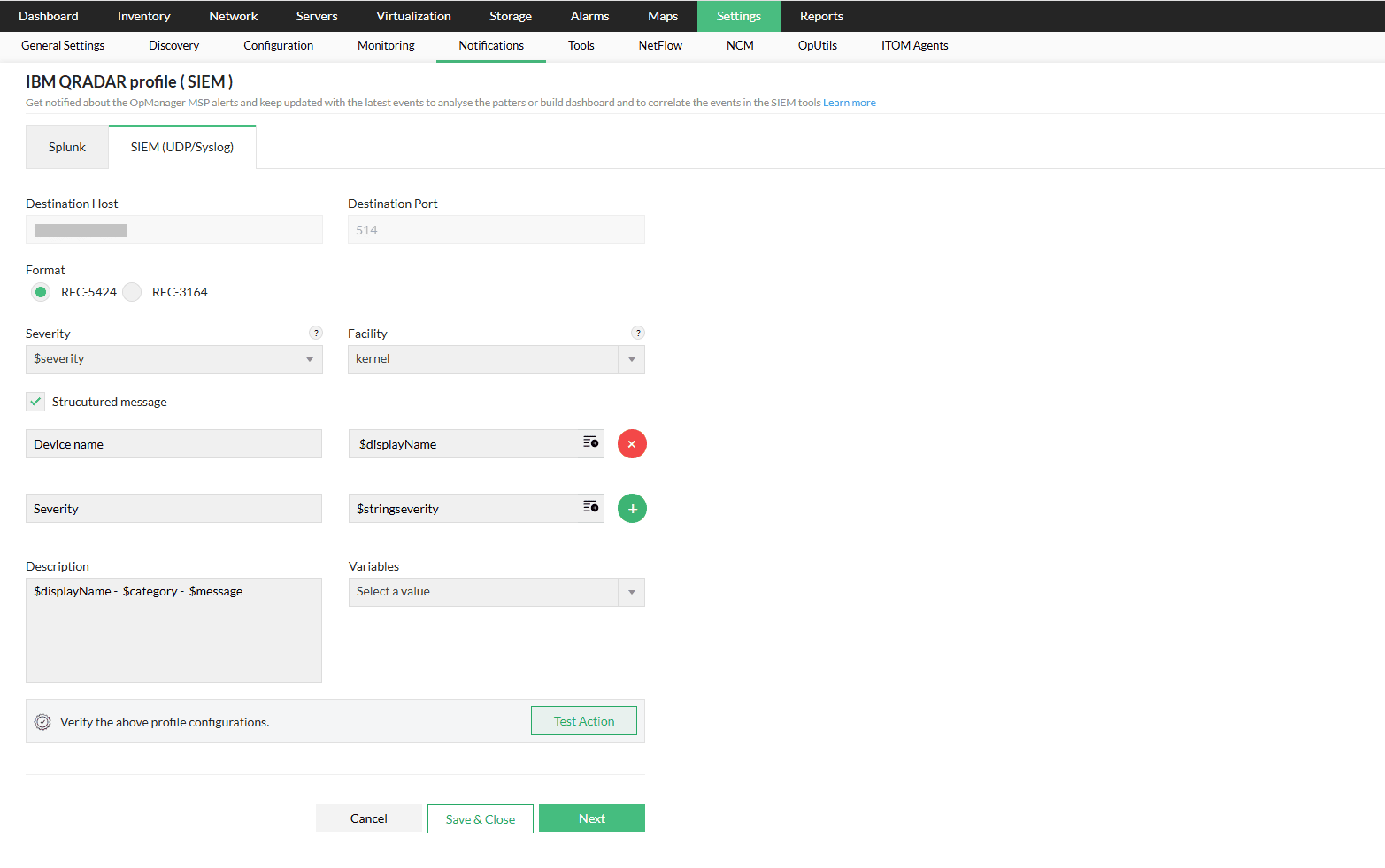
- Go to Settings → Notification Profile and click Add.
- Select SIEM, then choose SIEM (UDP/Syslog).
- Enter the required parameters, including Format, Severity, Facility, Description, and relevant Variables.
- If required, enable structured message and provide the inputs in the required fields.
- Click on Test Action to verify the profile configuration.
- Learn more about configuring criteria, devices, and time window in notification profiles here.
- Click on Save.
Verifying the Integration
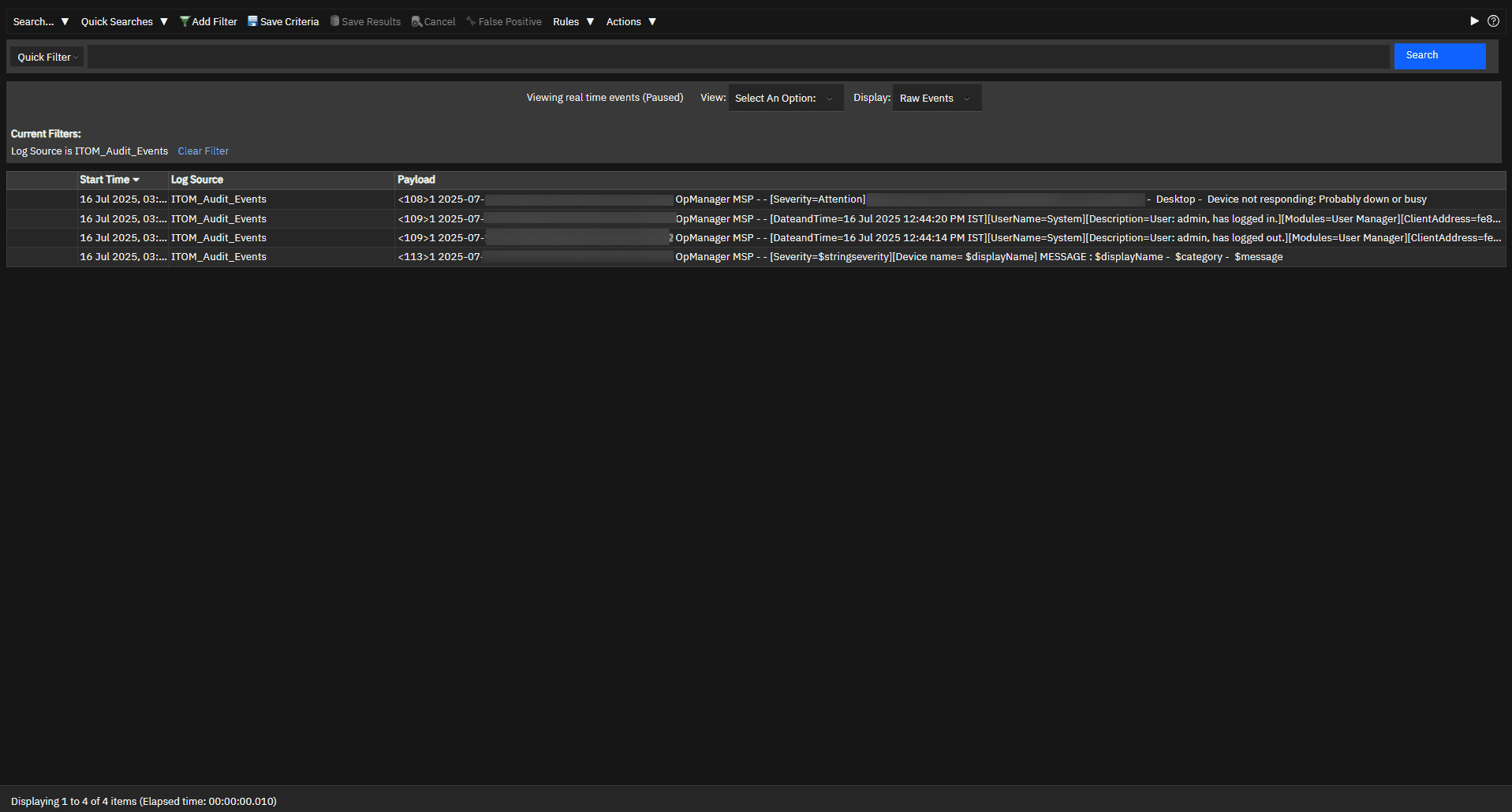
After the integration, IBM QRadar recieves the events from OpManager.