Integrate OpManager with Microsoft Sentinel
OpManager integrates with Microsoft Sentinel using the SIEM integration option. It enables you to improve your IT security operations with its threat intelligence, SOAR capabilities, and unified visibility. OpManager forwards critical alerts, performance issues and network events to Microsoft Sentinel in real-time ensuring improved security.
Configuration in MS Sentinel
Configuration in OpManager
Configuration in MS Sentinel
Steps to configure in MS Sentinel
- Enable Microsoft Sentinel to start the configuration.
- Sign in to Azure portal and go to Microsoft Sentinel.
- Click + Add and then select a Subscription and Resource Group.
- Select or create a Log Analytics Workspace.
- Click on Add Microsoft Sentinel.
- To collect the syslogs, create a Linux VM.
- Install the Log Analytics agent on Linux VM.
- Go to the Log Analytics Workspace → Agents management
- Under Linux Servers, click 'Download agent' and install
- To get workspace ID and key, go to Azure Portal -> Log Analytics Workspace -> Management.
- Configure Syslog on the Linux VM
- Enable Syslog reception on UDP port 514
- Configure Syslog Collection in Sentinel
- Go to Log Analytics Workspace -> Data Sources -> Syslog.
- Click Add, choose the Facility and Severity level, then click Apply.
Note:
- Please refer to MS Sentinel guide for detailed steps.
- Make sure 514 port (or the particular port configured for receiving syslog) is available and listening to the syslogs and not blocked in the firewall.
Configuration in OpManager
Forwarding Access & Audit logs
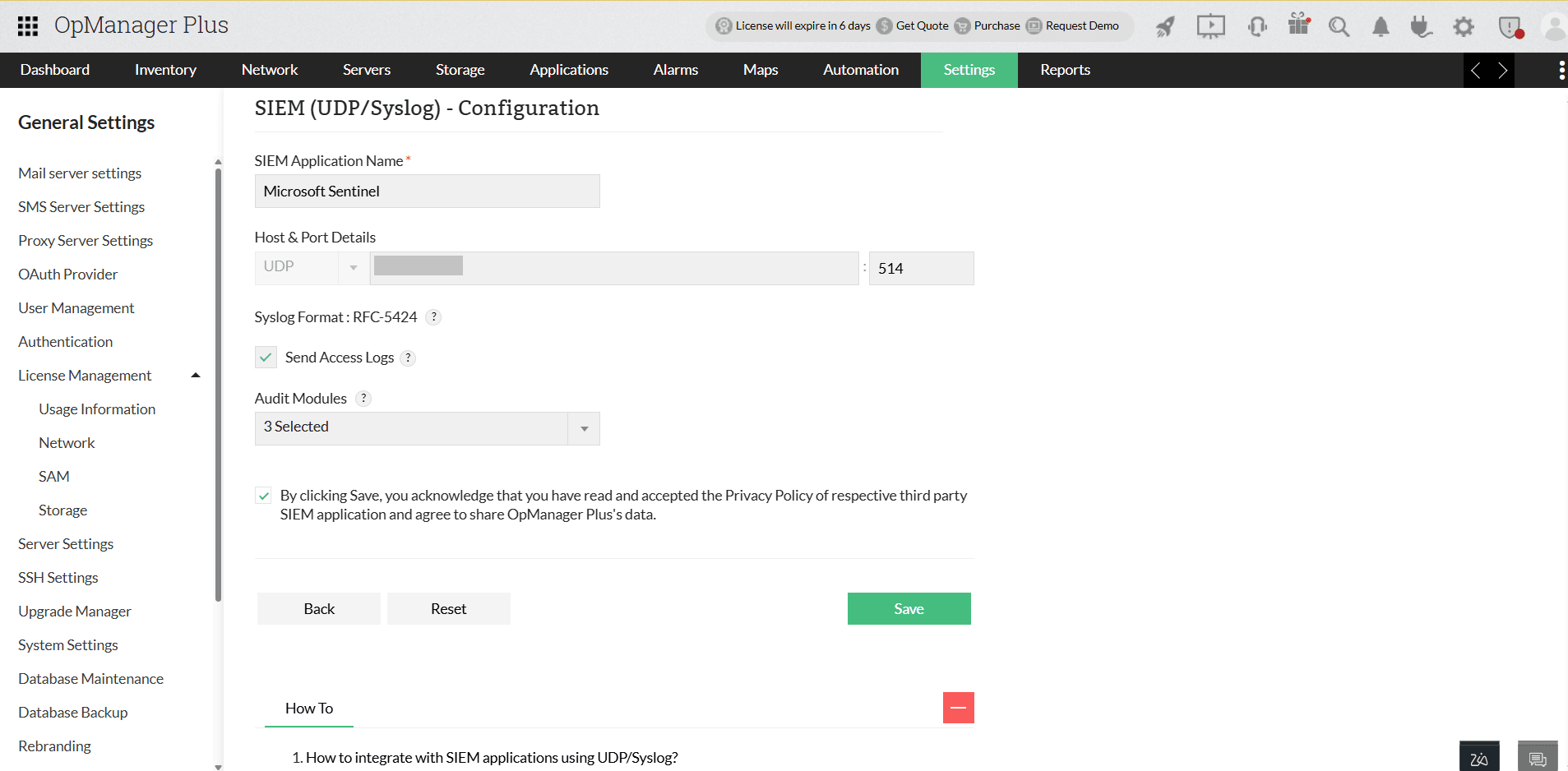
- Go to Settings and select SIEM (UDP/Syslog).
- Provide the SIEM Application Name as 'Microsoft Sentinel'.
- Enter the hostname of your Linux VM.
- Specify the syslog listening port in the Port field.
- Select Send Access logs or choose Audit modules from the dropdown. You can also select both together based on your requirements.
Associate a Notification Profile
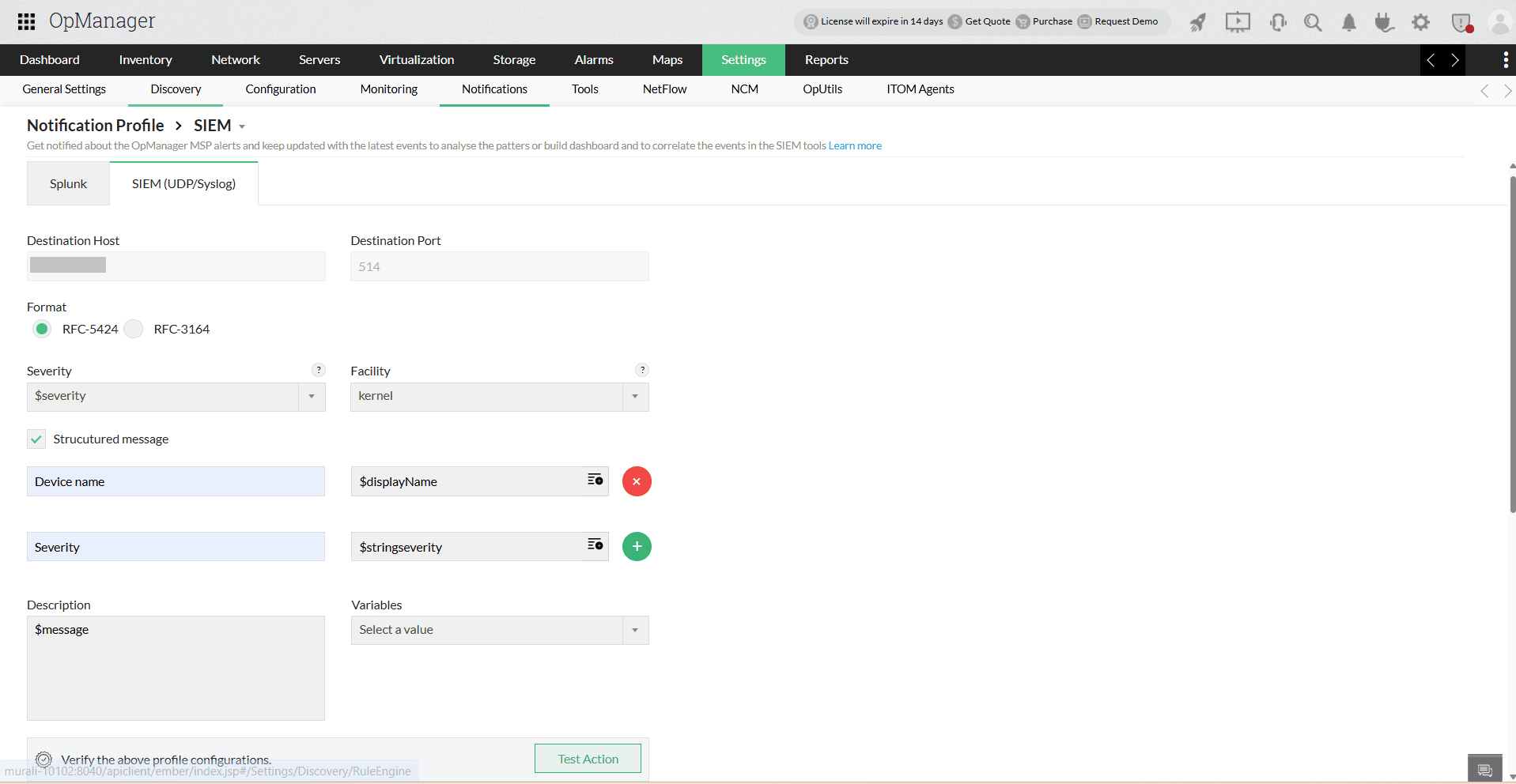
- Go to Settings → Notification Profile and click Add.
- Select SIEM, then choose SIEM (UDP/Syslog).
- Enter the required parameters, including Format, Severity, Facility, Description, and relevant Variables.
- If required, enable structured message and provide the inputs in the required fields.
- Click on Test Action to verify the profile configuration.
- Learn more about configuring criteria, devices, and time window in notification profiles here.
- Finally, click Save to apply the changes.
Verifying the Integration
Once the real-time alert is sent to the Microsoft sentinel after configuration.
- Go to Microsoft Sentinel → Logs
- Use KQL query to view the logs from OpManager.