Copying Reports
OpManager allows you to copy a generated report in order to retain the already configured parameters as template and do some minor changes on them and save as a new report. To copy and save a report follow the steps given below:
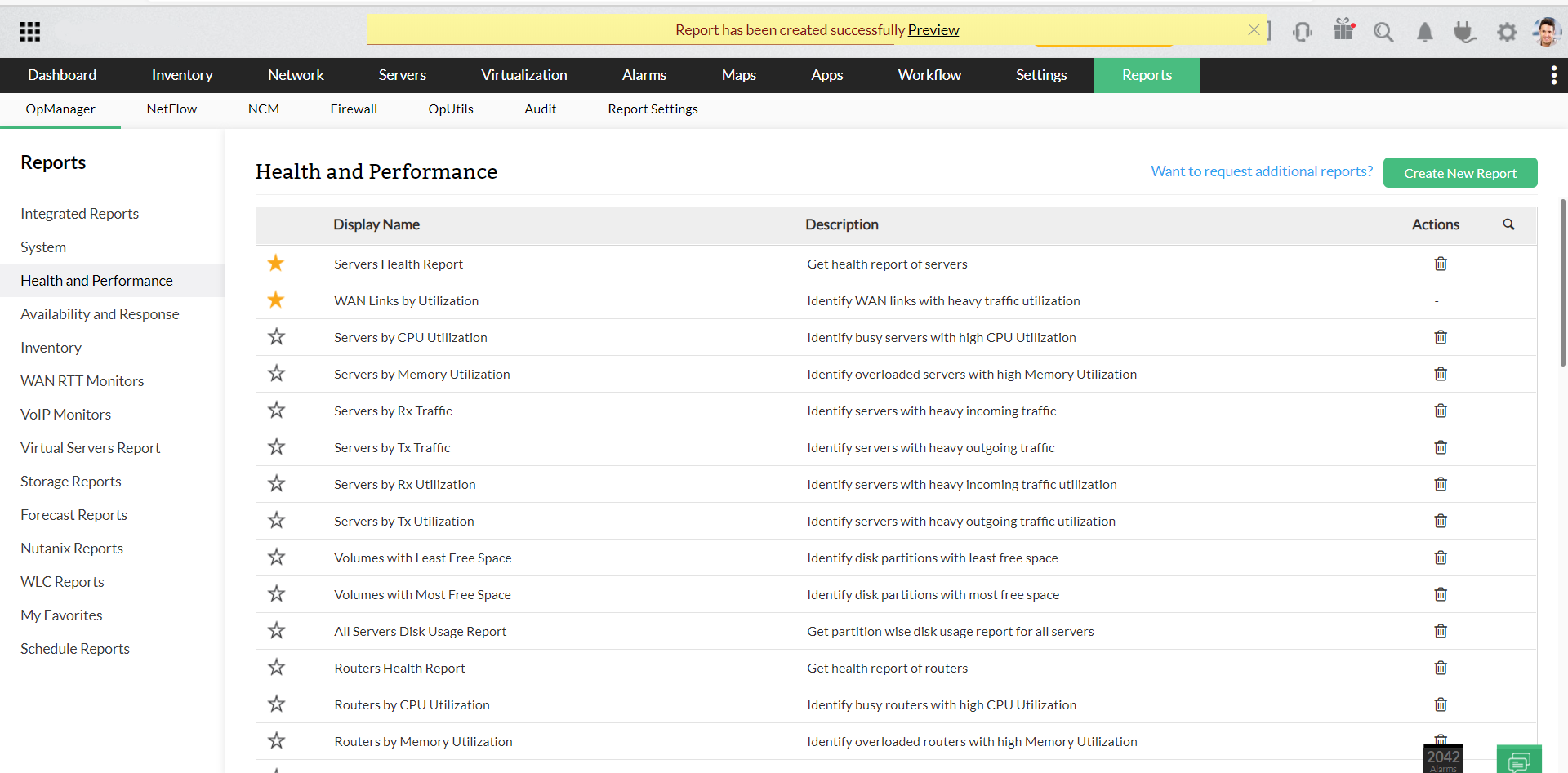
- Navigate to Reports -> OpManager.
- Choose the report that you want to copy.
- After choosing the report, click on More Actions on the top right corner.
- Click Copy As icon available on the top of the report that is generated. A small window opens.
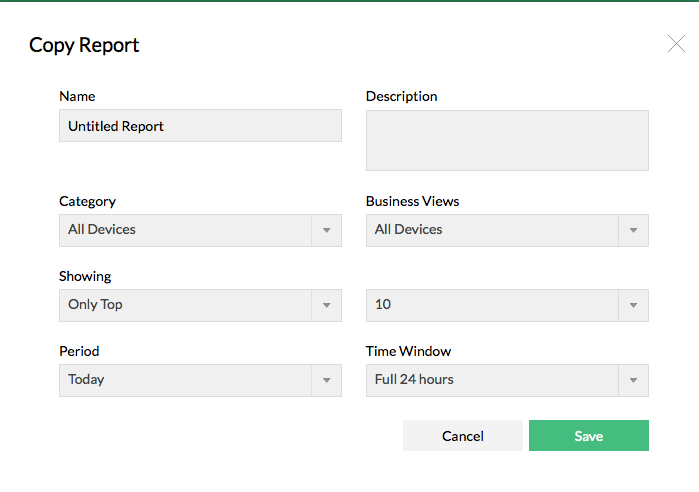
- Enter a unique Name and a brief Description.
- Change the required fields. The various fields that can be altered are Category, Period, Business Views, Time Window and Show all or Top N or Bottom N devices.
- After modifying the required fields, click Save button to save the new report.
- Once the report is generated, it will be notified as a banner message on the top in the OpManager UI (user interface).