Associate Discovery Rule Engines from Central to Probes in Enterprise Edition
From version 12.8.105, users can create a Discovery Rule in the Central server and associate the rule to remote probes.
Steps to associate a Discovery Rule to a remote probe
While creating a Discovery Rule in Central, using the steps given here, users can choose to execute the rule on the Central server or on a Probe server.
- Go to Settings -> Discovery -> Discovery Rule Engine and click Add Rule on the top right.
- Enter the Name, Description, Criteria, and Action for the rule, as explained here.
- Under Execute At, choose Central or Probe depending on where you want the rule to run.
- Click Save.
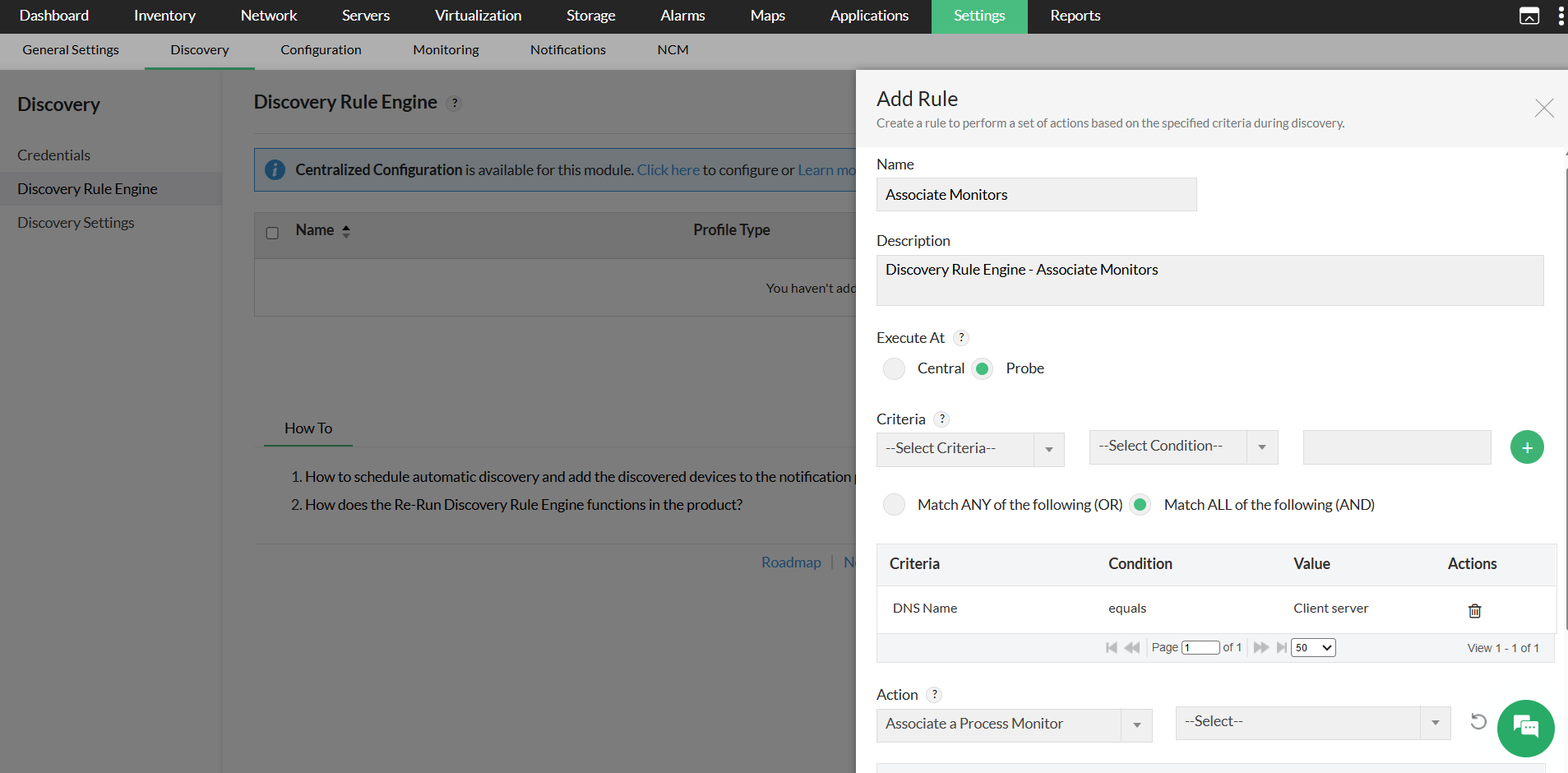
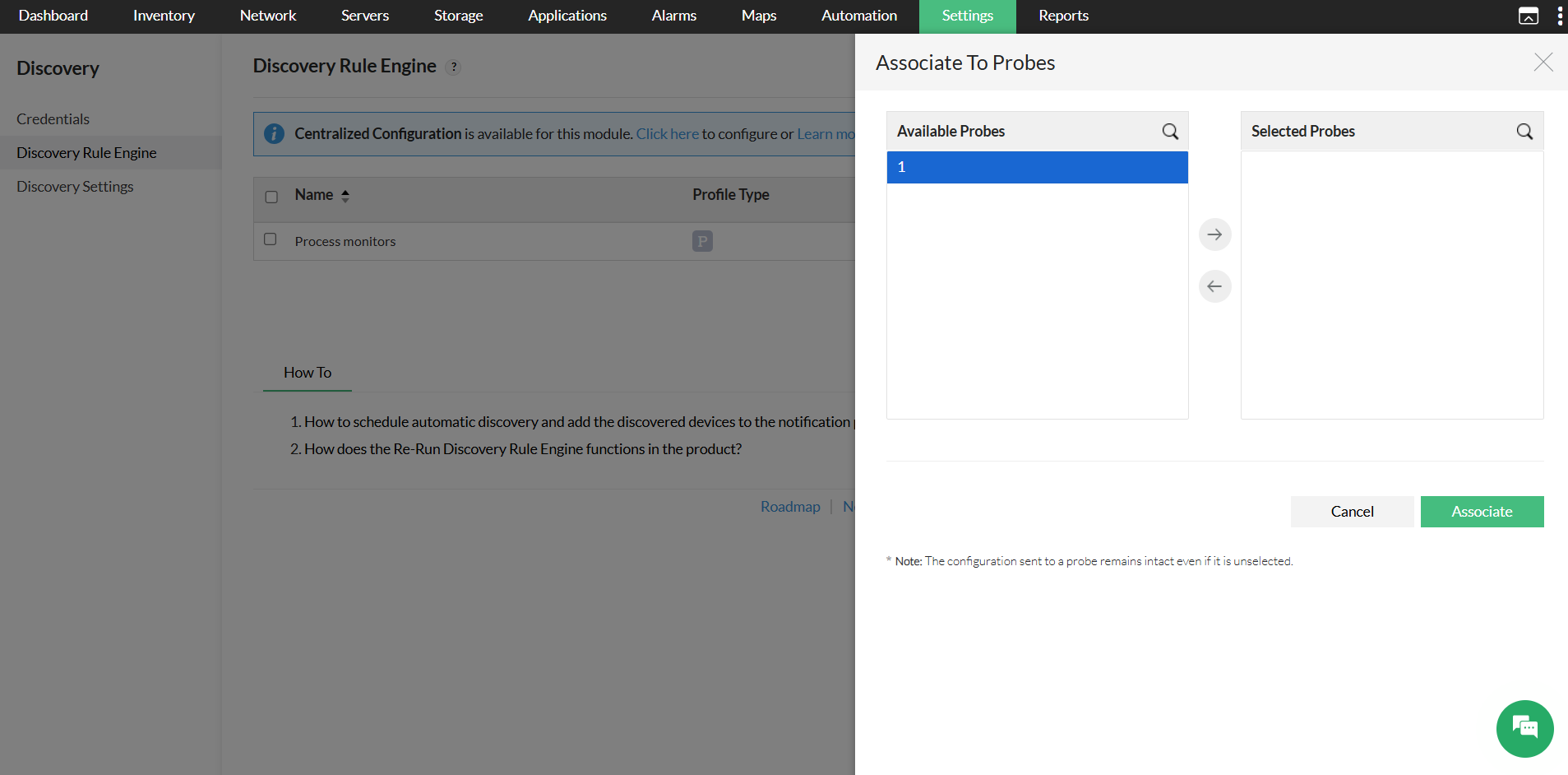
If Execute At is set to Probe, a confirmation prompt appears once the rule is saved, asking if you want to associate the rule with probes.
- Click Yes on the Associate to Probes confirmation prompt. (Click No to associate the probes later from the Discovery Rule Engine listing page.)
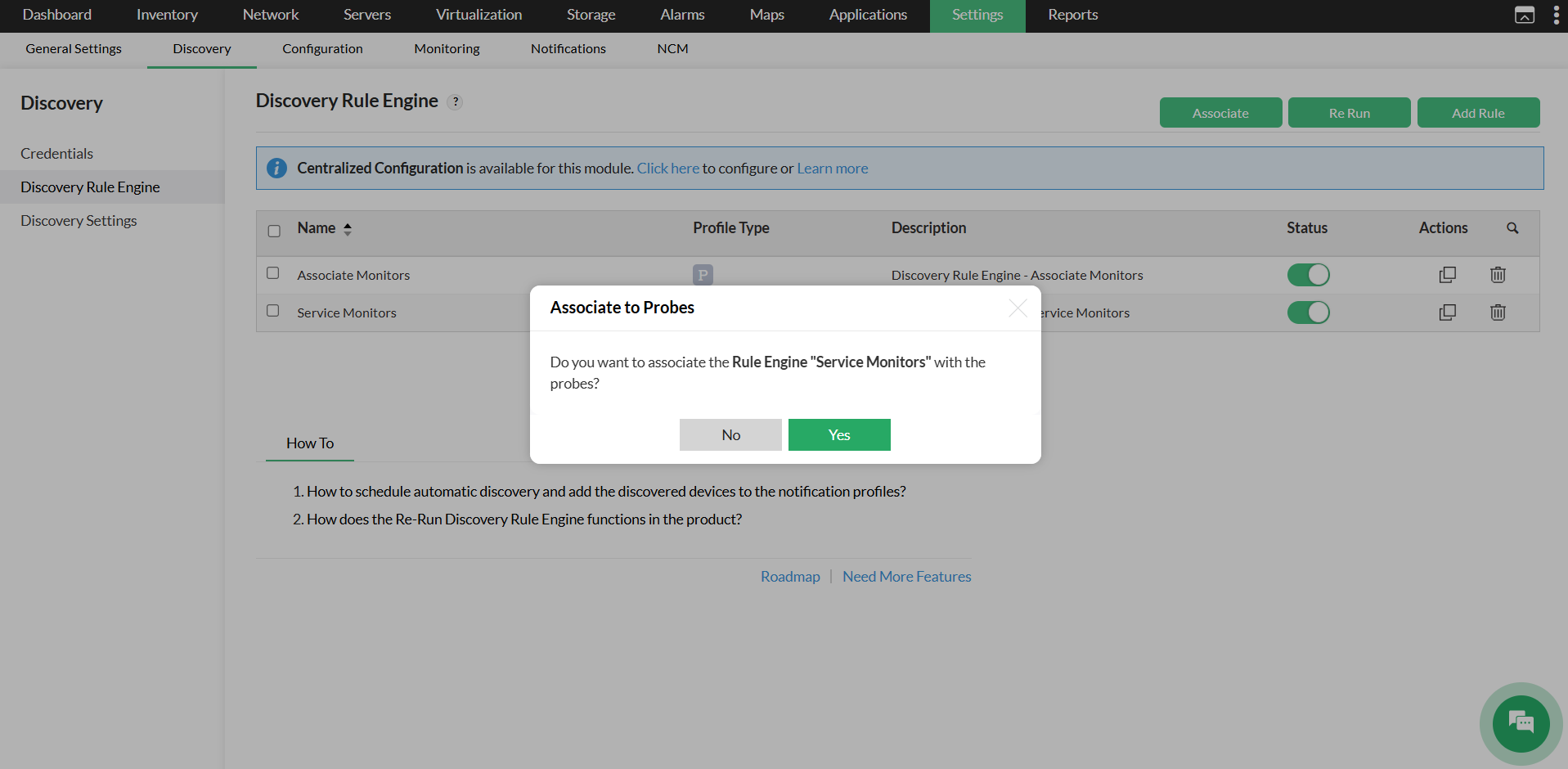
- In the Associate To Probes panel, use the Select dropdown to filter probes, or choose from the Available Probes list.
- Move the required probes to the Selected Probes list using the arrow buttons.
- Click Associate.
You can also associate probes to a rule later, after creating it. Click Associate on the Discovery Rule Engine listing page, select the rule from the dropdown, then move the required probes to Selected Probes and click Associate.
Note:
- On the Discovery Rule Engine listing page, the Profile Type column indicates where each rule is set to execute: C denotes a Central rule, and P denotes a Probe rule.
- The configuration sent to a probe remains intact even if it is unselected later.
Re-running a Discovery Rule Engine
You can re-run a Discovery Rule on demand instead of waiting for its next scheduled execution. The re-run behavior depends on the rule's Profile Type (C for Central, P for Probe), visible on the Discovery Rule Engine listing page.
- Go to Settings -> Discovery -> Discovery Rule Engine.
- Select the rule that you want to re-run.
- Click Re Run.
- In the Device Selection panel, use Filter Devices by Probe and Filter by to narrow down the device list, if required.
- Move the devices you want to run the rule on from Available Devices to Selected Devices.
- Click Run.
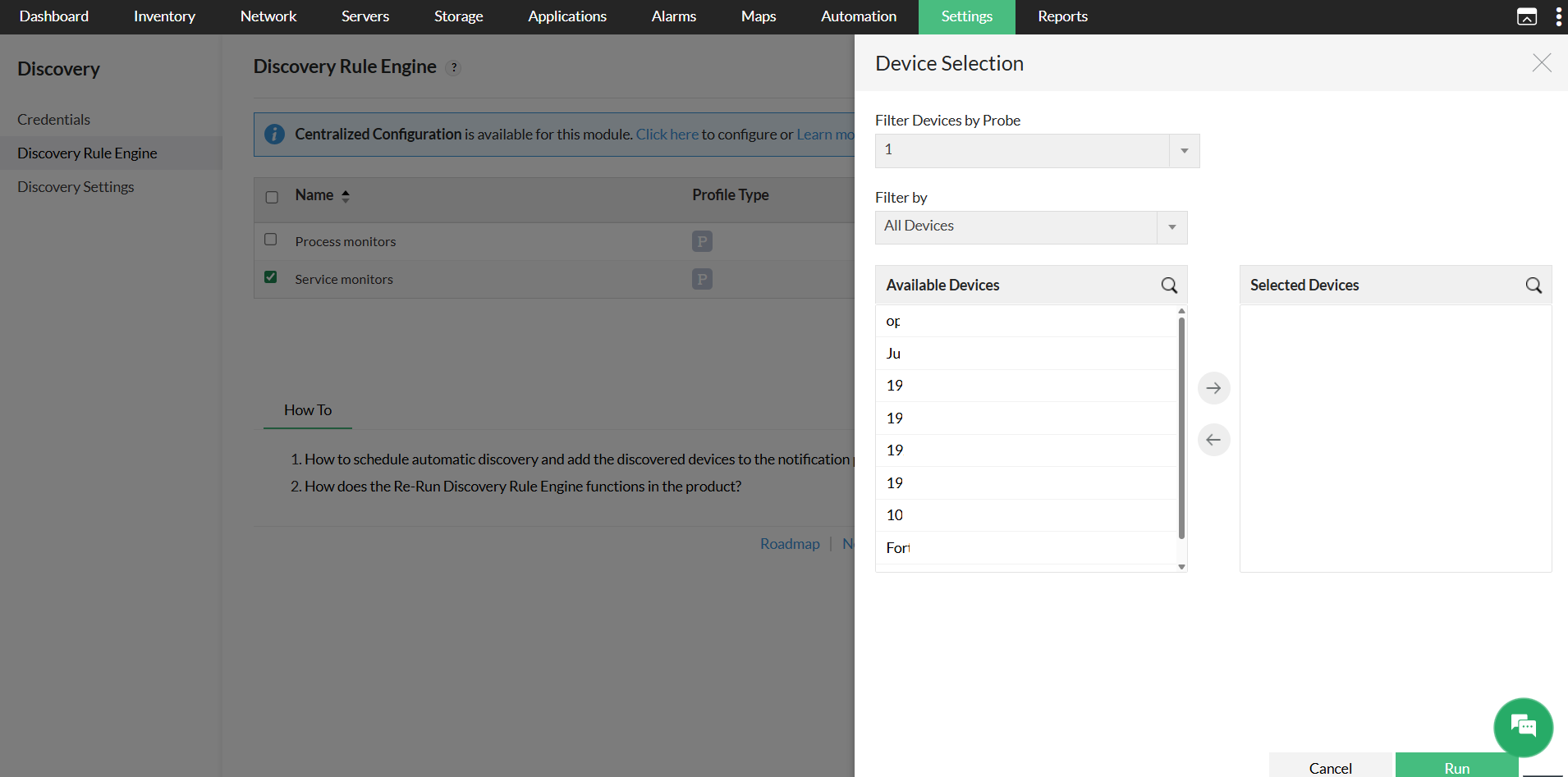
- For Central rules, re-running works as described above; you can filter and select devices across probes as usual.
- For Probe rules, only one rule can be re-run at a time, and the Device Selection panel lists only the devices from the probe(s) the rule is associated with.
Note:
- If you select multiple Probe rules and click Re Run, you'll see the message: "Only one Probe profile can be re-run at a time. Select a single profile to proceed."
- A Probe rule must be associated with a probe before it can be re-run. If it isn't, you'll see the message: "This profile is not associated with any probes. Associate and sync the profile before re-running."
- If you want to re-run the rule for another probe's devices, associate the rule with that probe first, then re-run.