Integrating OpManager with Log360
ManageEngine Log360 is a Security Information and Event Management (SIEM) solution that helps you enhance your network security and comply with government-mandated and organization-level regulations, by collecting and analyzing your network logs. By integrating OpManager with Log360, users can forward their critical logs to Log360, and analyze them to gain deeper insights into user behavior, and identify anomalies and potential threats.
- Configuring Log360 details in OpManager
- How does the OpManager - Log360 integration help network admins?
- What are the various reports that network admins can generate using this integration?
- Configuring Notification Profiles
- Configuring Notification Templates
Configuring Log360 details in OpManager
To integrate OpManager with Log360, kindly follow the below steps:
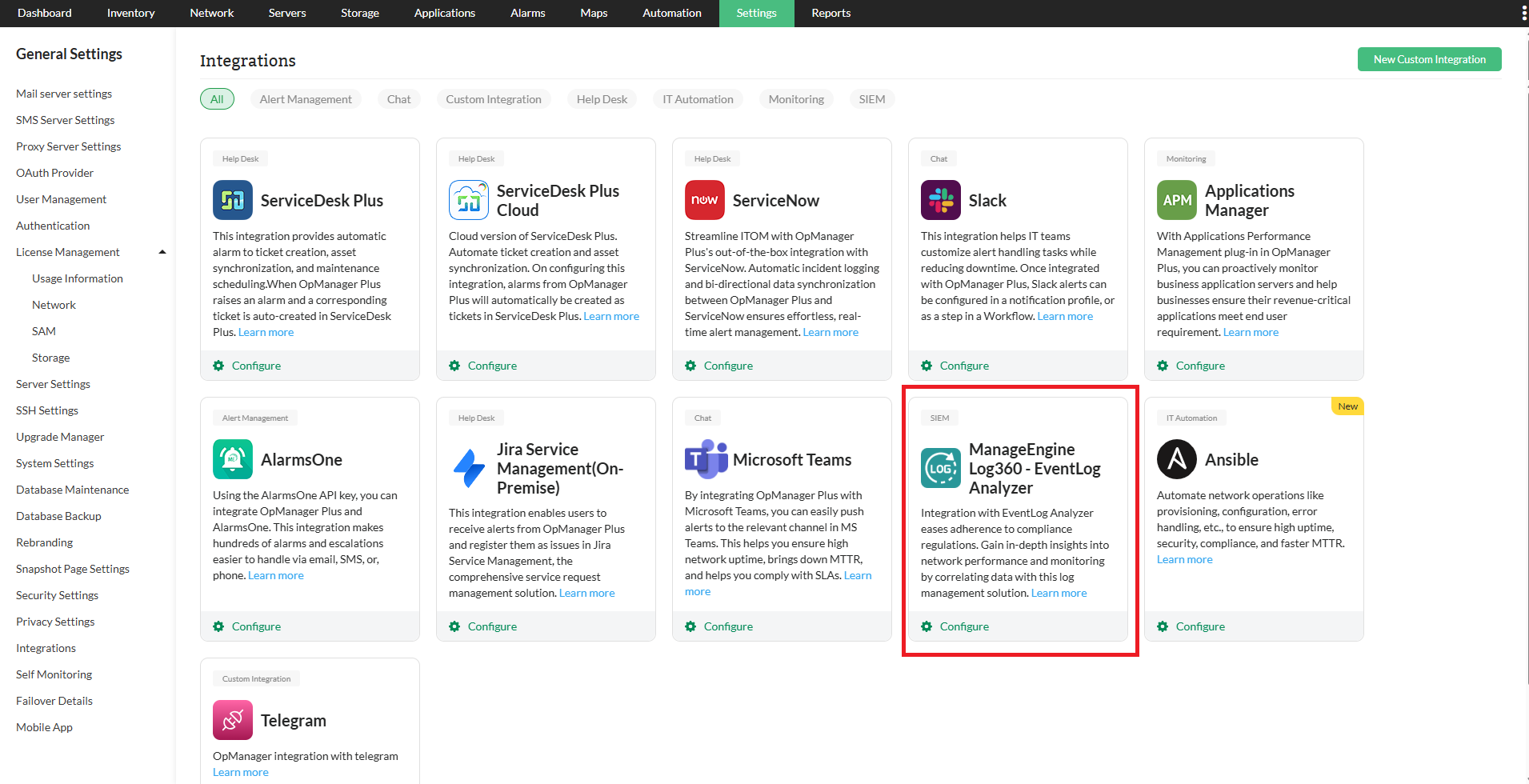
- Go to Settings -> General Settings -> Integrations.
- Now, click on the "Configure" button found at the bottom-right corner of the Log360 Section.
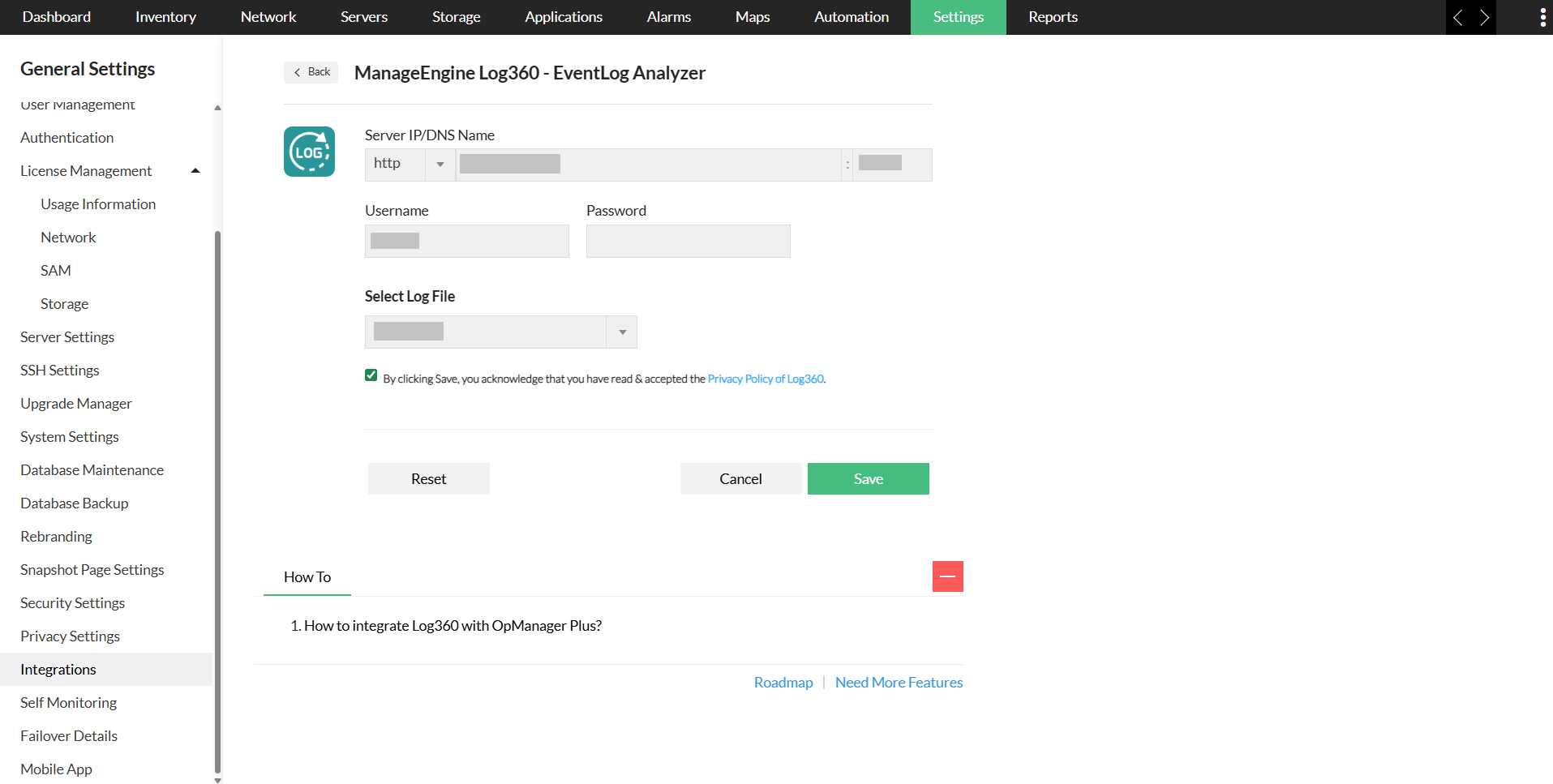
- Now, fill in the following details:
- Server IP/DNS Name: Enter the IP address or the DNS name of the Log360-installed server, along with the port and the protocol.
- Username: Enter the user name of the Log360 user with the admin privilege.
- Password: Enter the password of the Log360 user with the admin privilege.
- Select Log File: Select the logs to be forwarded to Log360, from the Select Log File drop down box.
- Access logs: Logs that contain requests made to a web server, capturing information like the IP address, timestamp, requested resources, and outcomes of each request
- Debug logs: Logs that are generated by OpManager during its operation, containing information used for diagnosing and troubleshooting issues.
- Audit Modules: Select the required audit modules to forward their logs to Log360.
How does the OpManager - Log360 integration help network admins?
By integrating OpManager with Log360, network admins can leverage the following functionalities.
Staying compliant with various regulations and frameworks
Centralized log management and analysis is a crucial mandate for most of the compliance regulations such as HIPAA, PCI-DSS, and so on. By centralizing and analyzing OpManager's debug and access logs, network admins can comply with the above said regulations.
Enhanced security
Since the debug and access logs are forwarded to Log360 for analysis, network admins can know who accessed what in OpManager. Furthermore, network admins can also correlate access logs with debug logs, helping them troubleshoot network issues, fortify network security against potential unauthorized activities, and conduct extensive root cause analysis.
What are the various reports that network admins can generate using this integration?
Once OpManager is integrated with Log360, users' debug and access logs will automatically be forwarded to the Log360 Server via Syslogs. The logs can then be visualized in the form of the following reports:
Product Activity Report
The product activity report category contains the All Activity report, which generates reports for all the logs forwarded from OpManager server.
Debug Reports
The following debug reports can be generated from the serverout & stdout(debug) logs of the OpManager.
- Instance Created: Obtain a detailed report that outlines the product's startup instance with the necessary configurations, within the chosen time period.
- Services Created: Generate a comprehensive report listing the services that were created during OpManager startup within the specified time frame. For example, services like StartupControllerService, PatchUpdaterService, CacheService, and others, were initiated during this process.
- ServerStarted: Obtain a comprehensive report detailing when the OpManager server was started within the selected time period.
- SuccessfulLogins: Access a detailed report showcasing successful OpManager logins, including the respective login times, all within the chosen time frame.
- FailedLogins: Receive a comprehensive report detailing unsuccessful OpManager login attempts, complete with the corresponding login times that occurred within the selected time interval.
Web Access Reports
Web access reports generated from OpManager's access logs encompasses a range of HTTP status codes, such as Status Success, Internal Server Error, Gateway Timeout, etc., each reflecting distinct outcomes of client-server interactions.
This is how users can successfully integrate OpManager with Log360, and enhance their network security by analyzing their logs.
User Audit Reports
The User Audit reports offers comprehensive visibility into all user-related activities and administrative actions within OPM. It monitors authentication events, application configuration changes, device management activities, and identity lifecycle updates.
Each report will have details of metrics such as:
- User Login & Logout: Tracks all user login and logout activities across OpManager, including successful login attempts, session terminations, and timeouts, helping monitor user authentication patterns.
- Devices added: Records all newly added or registered devices in OpManager by users or other administrators, helping maintain an accurate and up-to-date device inventory.
- Configuration changes: Captures critical configuration changes made to the OpManager application by users, ensuring visibility into system modifications.
- Roles Created: Records newly created roles within OpManager along with their assigned permissions, supporting access control governance and helping detect excessive privilege assignments.
Configuring Notification Profiles
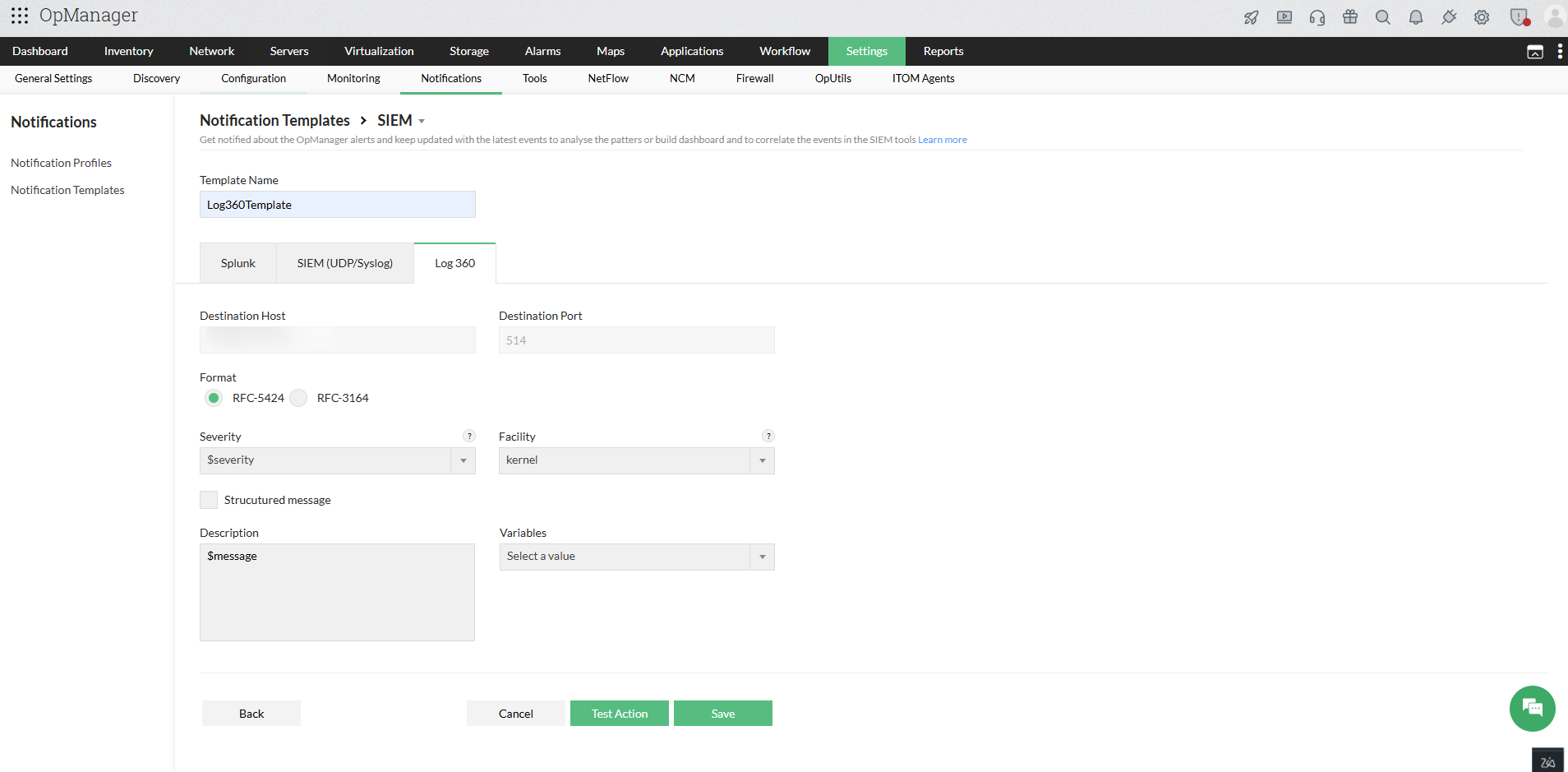
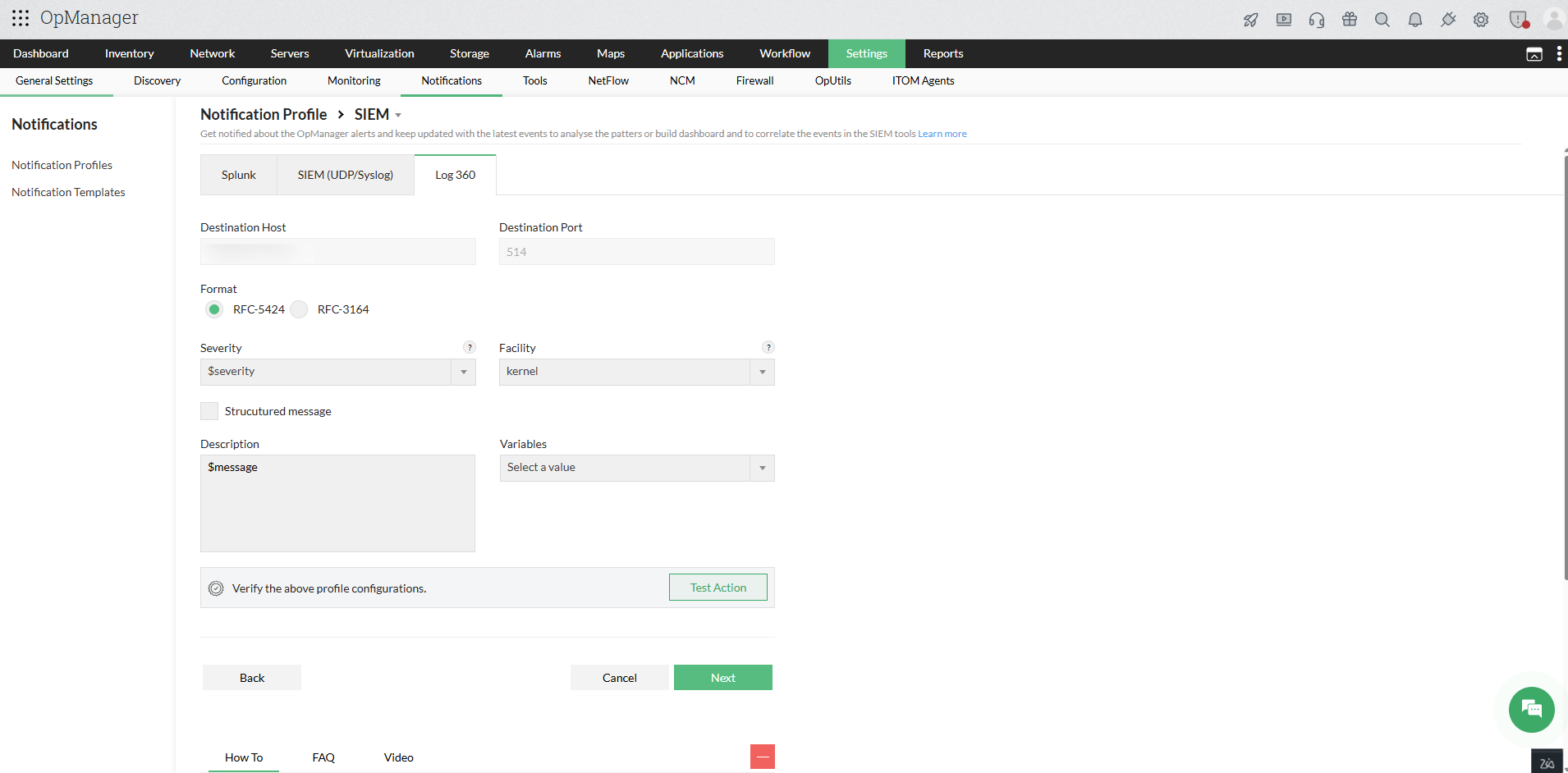
You can configure notification profiles to automatically forward critical alarms to Log360 based on defined criteria and receive notifications whenever such alarms are generated.
Follow the steps below to configure notification profile:
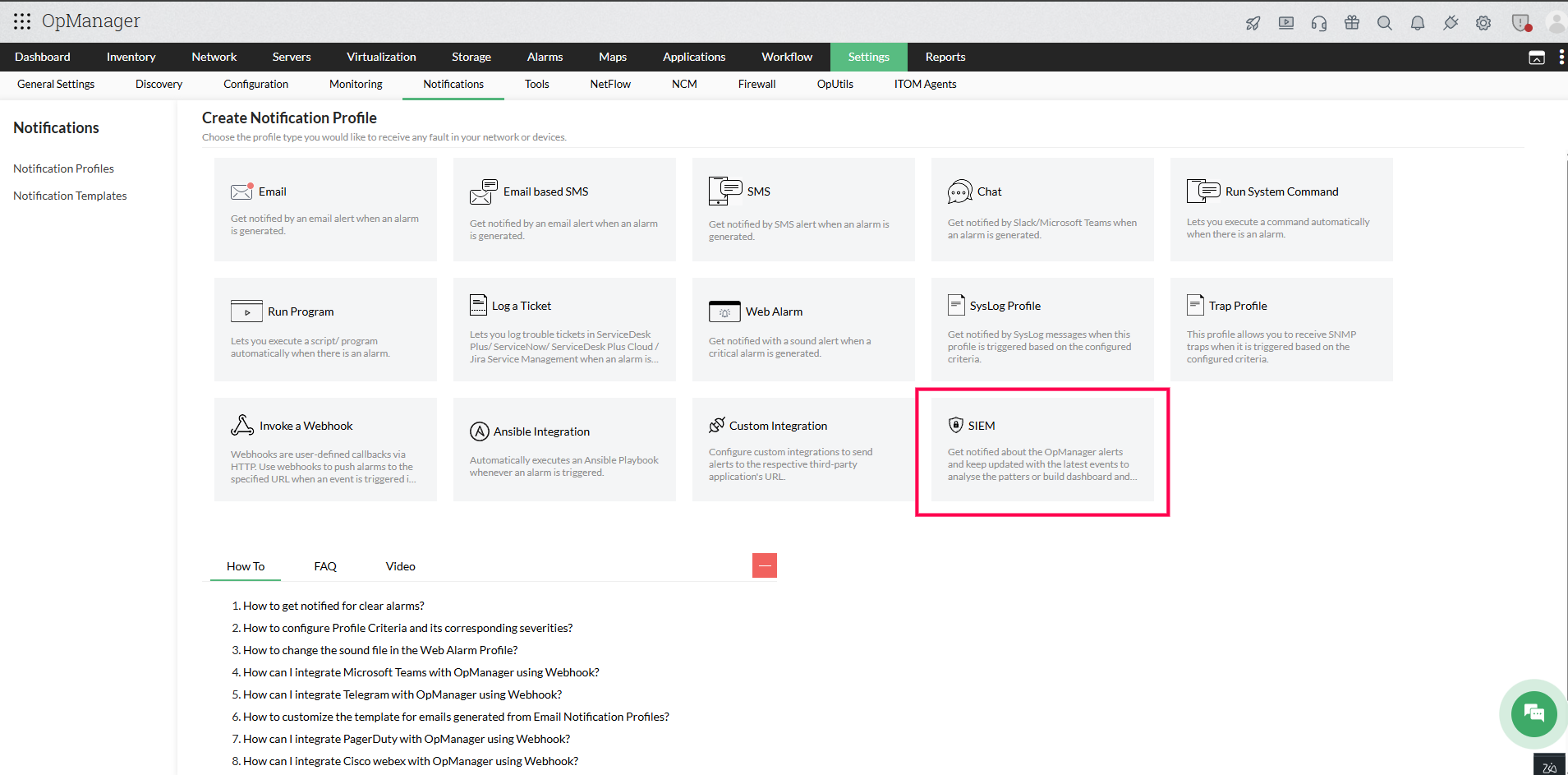
- Go to Settings -> Notifications -> Notification Profile
- Click Add in the top-right corner to create a new notification profile, and select SIEM ->Log360.
- Provide values for the required parameters, such as Format, Severity, Facility, Description, and variables.
- If you enable the Structured message option, enter the required inputs as key-value pairs.
- You can use the Test Action option to send a sample syslog message to the configured host and port to verify the configuration.
- Click Next to select the criteria, device, and configuration time window.
- Click Save.
Configuring Notification Templates
You can create notification templates in OpManager to customize alert delivery when alarms are triggered. These templates can also be used in alarm correlation rules to notify users when predefined event patterns are detected.
- Go to Settings -> Notifications -> Notification templates
- Click on Add navigate to SIEM and select Log360 to add a notification template.
- Enter the required parameters, including Template Name, Format, Severity, Facility, Description, and relevant variables.
- If you enable the Structured Message option, make sure to provide the required key-value pair inputs.
- To verify the template created, click on Test Action.
- Click Save.