Remote Collector — Installation Guide
Remote Collector is an agent installation for OpManager that can function as:
- MiniPoller – Discovers devices and monitors availability in isolated networks, forwarding data to OpManager.
- NetFlow Generator – Passively captures raw packets, converts them into NetFlow packets, and enables monitoring for devices that do not support native flow.
- DPI Engine – Performs deep packet inspection, monitoring application and network response times at the packet level.
- NetSpeed Tracker – Tracks internet speed provided by ISPs, monitors upload/download usage, and provides insights into jitter and latency issues.
Download Remote Collector Agent
Prerequisite: The Remote Collector requires the central OpManager server to be operating in HTTPS mode for successful communication and functionality.
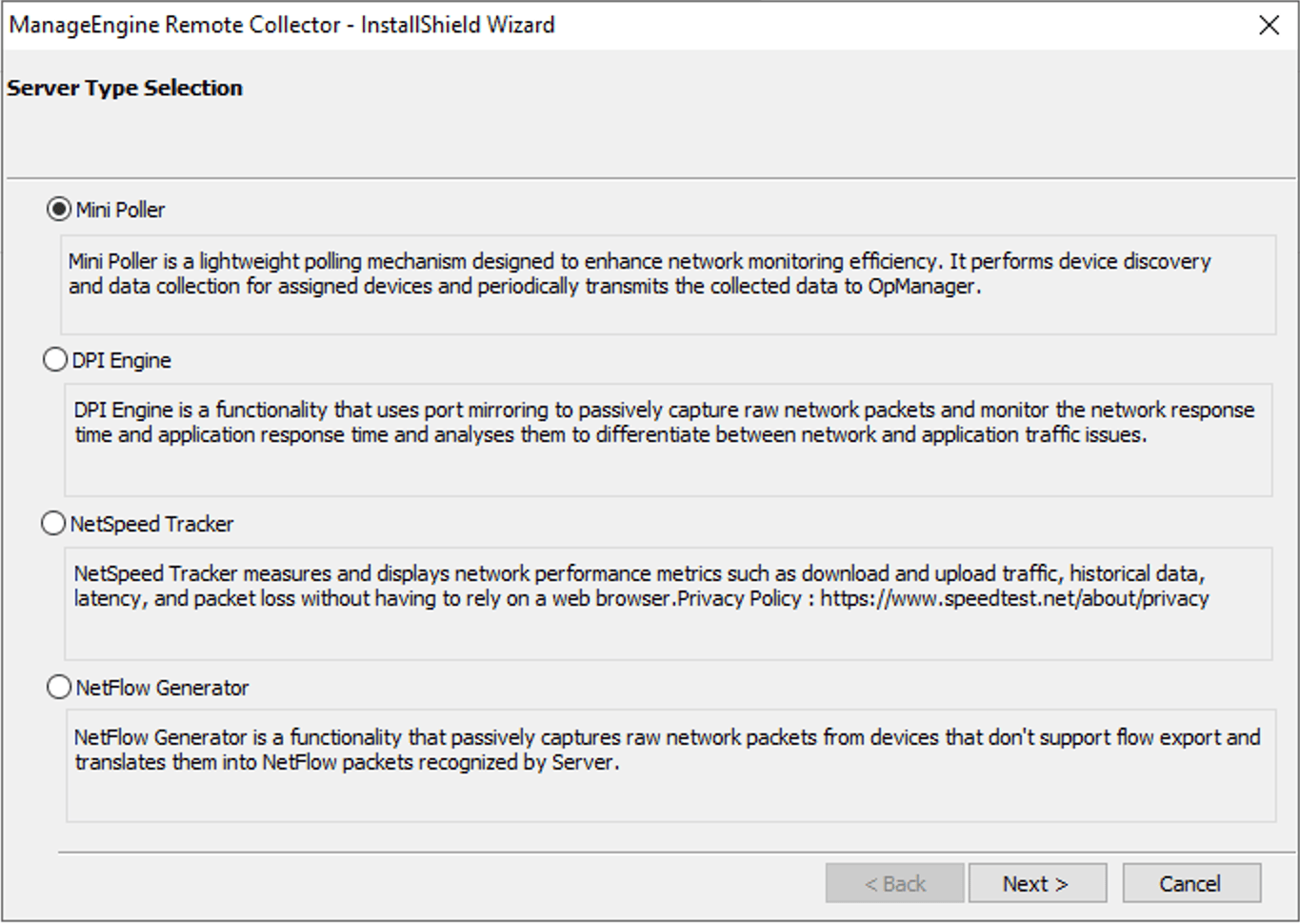
Operational Modes: The Remote Collector package is deployed with one of the following four core operational modes: Mini Poller, NetFlow Generator, DPI Engine, or NetSpeed Tracker. While the Remote Collector inherently supports all four functions, the installer enforces the selection of only one mode during the initial installation phase, based on specific monitoring requirements.
Click here to learn more about the prerequisites for installing Remote Collector.
Steps to Download the Remote Collector
- In the OpManager console, navigate to Settings > ITOM Agent > Remote Collector.
- Enable SSL certificate. Click here to learn how to enable SSL Certificate.
- Remote in or log in to the server that needs to install Remote Collector and open the OpManager GUI.
- Navigate to Settings > ITOM Agent > Remote Collector.
- Download Remote Collectors for Windows or Linux at the bottom of the Remote Collector Page as shown below.
Once the download is complete, proceed with the installation of Remote Collector
Installing Remote Collector in Microsoft Windows
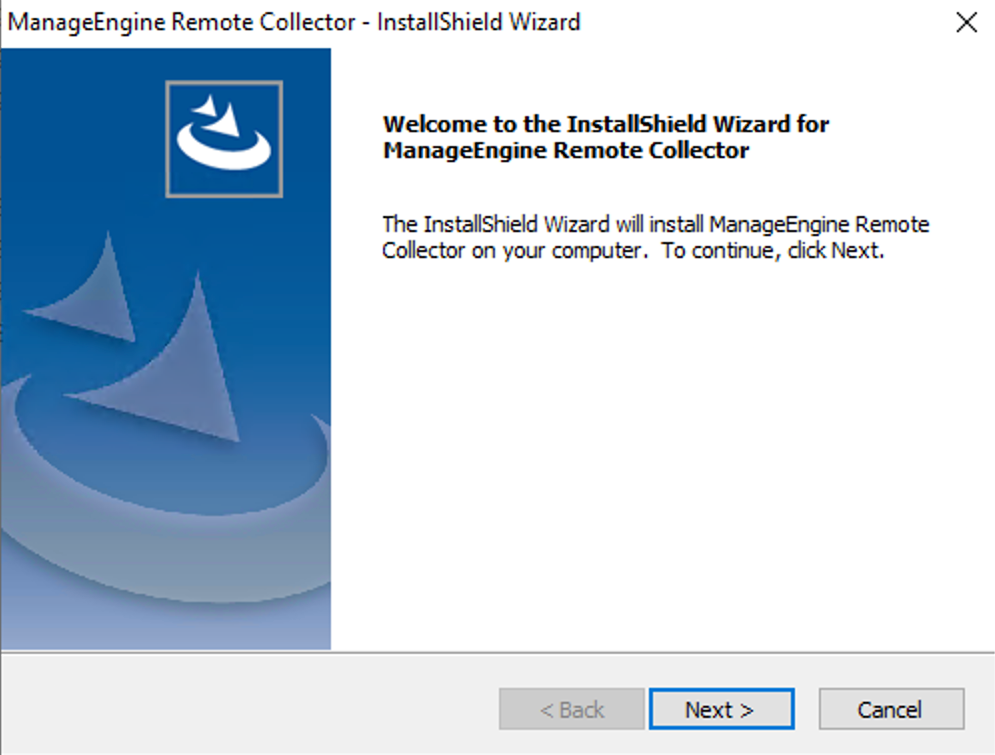
Launch Remote Collector installation (.exe) file and click Next to proceed with the installation
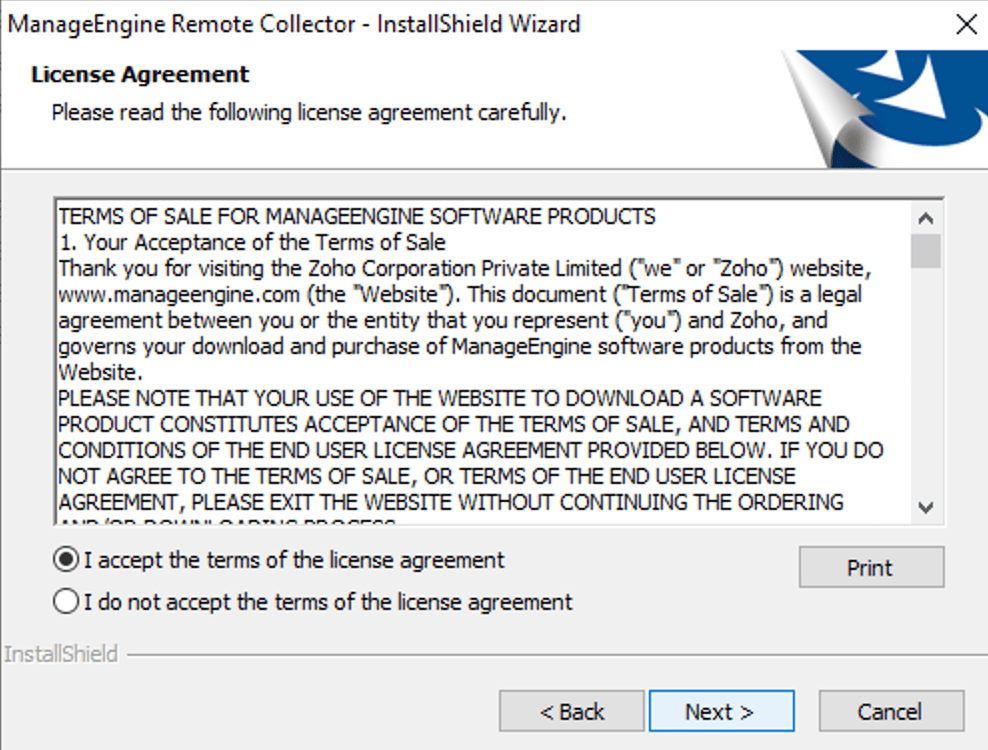
Verify and Accept the license agreement and click Next
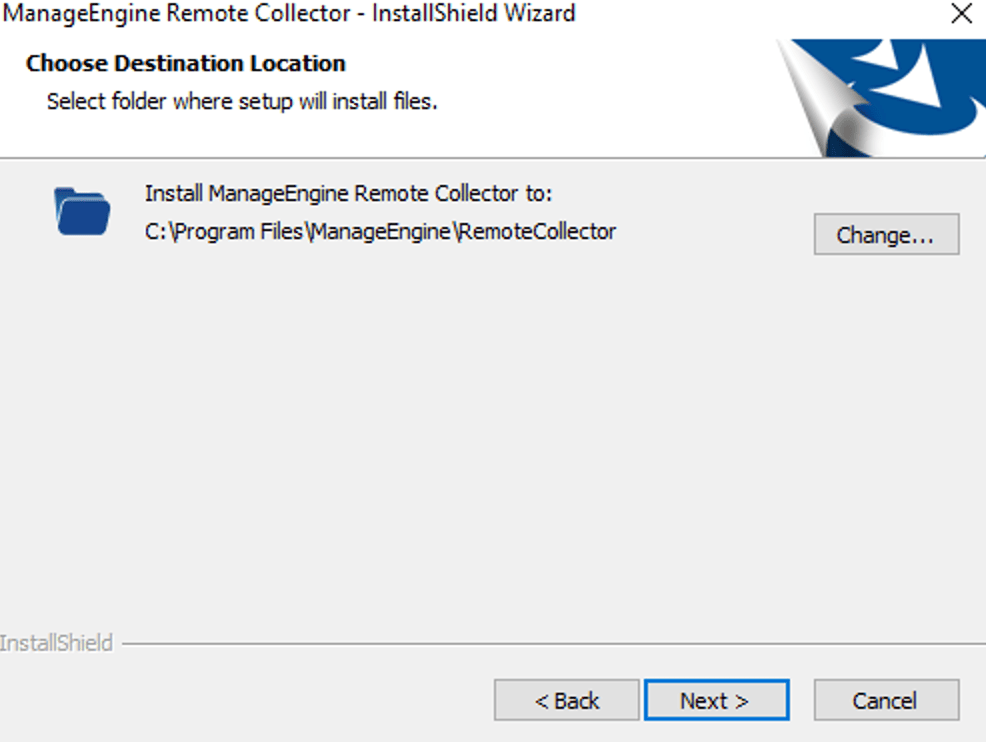
Choose the destination folder location (optional) or click Next to continue.
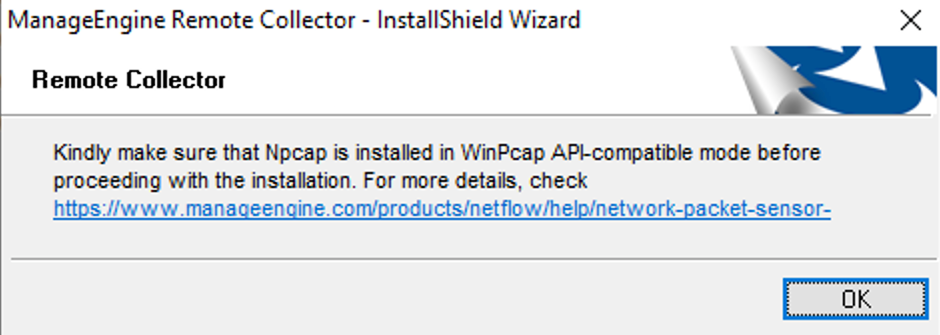
A pop up message to verify the pre-requisites will appear. Click OK to proceed, if the prerequisites are met
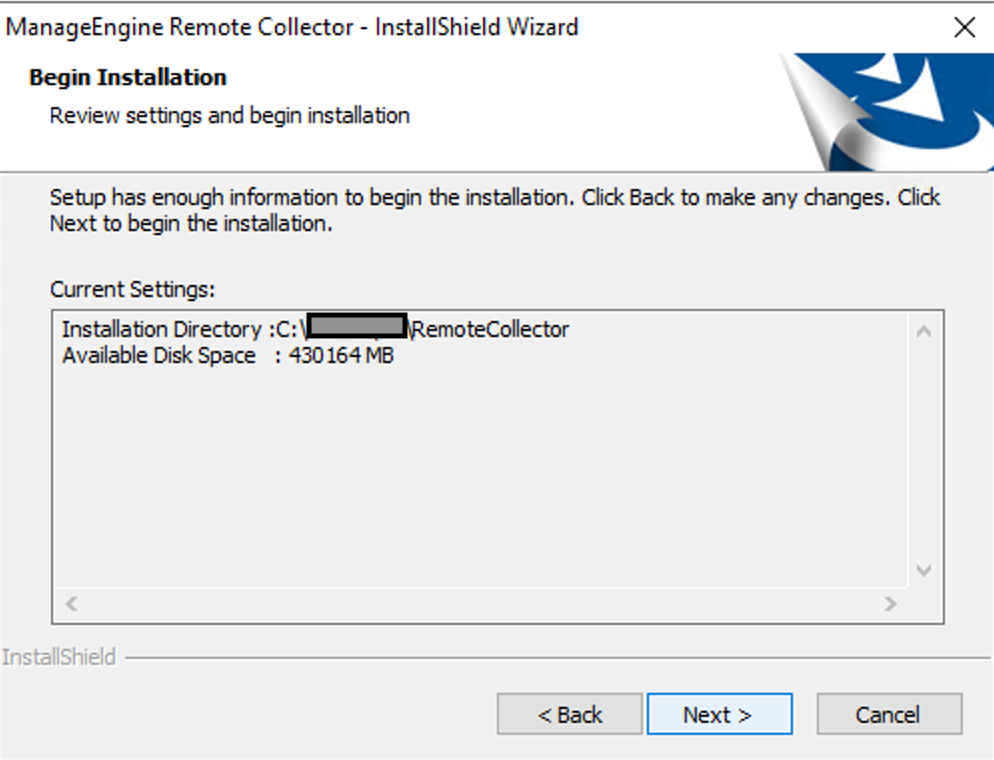
Review the installation path details shown and then click Next.
Select the operation as MiniPoller, NetFlow Generator, Deep Packet Inspection, or NetSpeed Tracker depending upon your requirement and click Next.
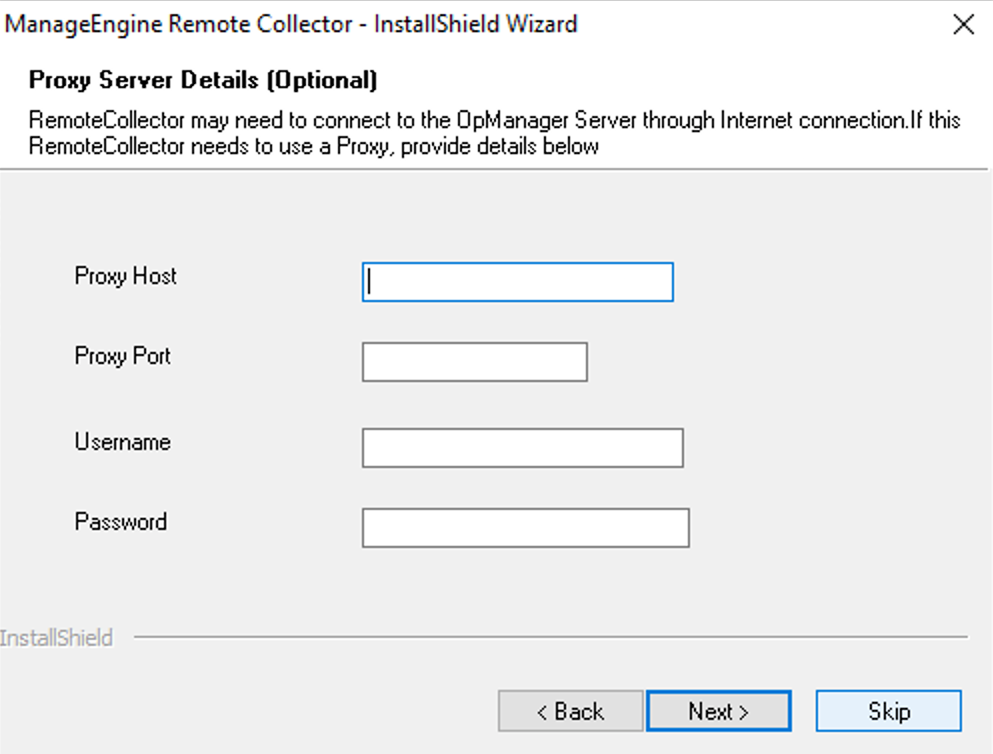
Proxy Configuration (Optional): Enter Proxy Host, Port, Username, and Password (if required), or skip.
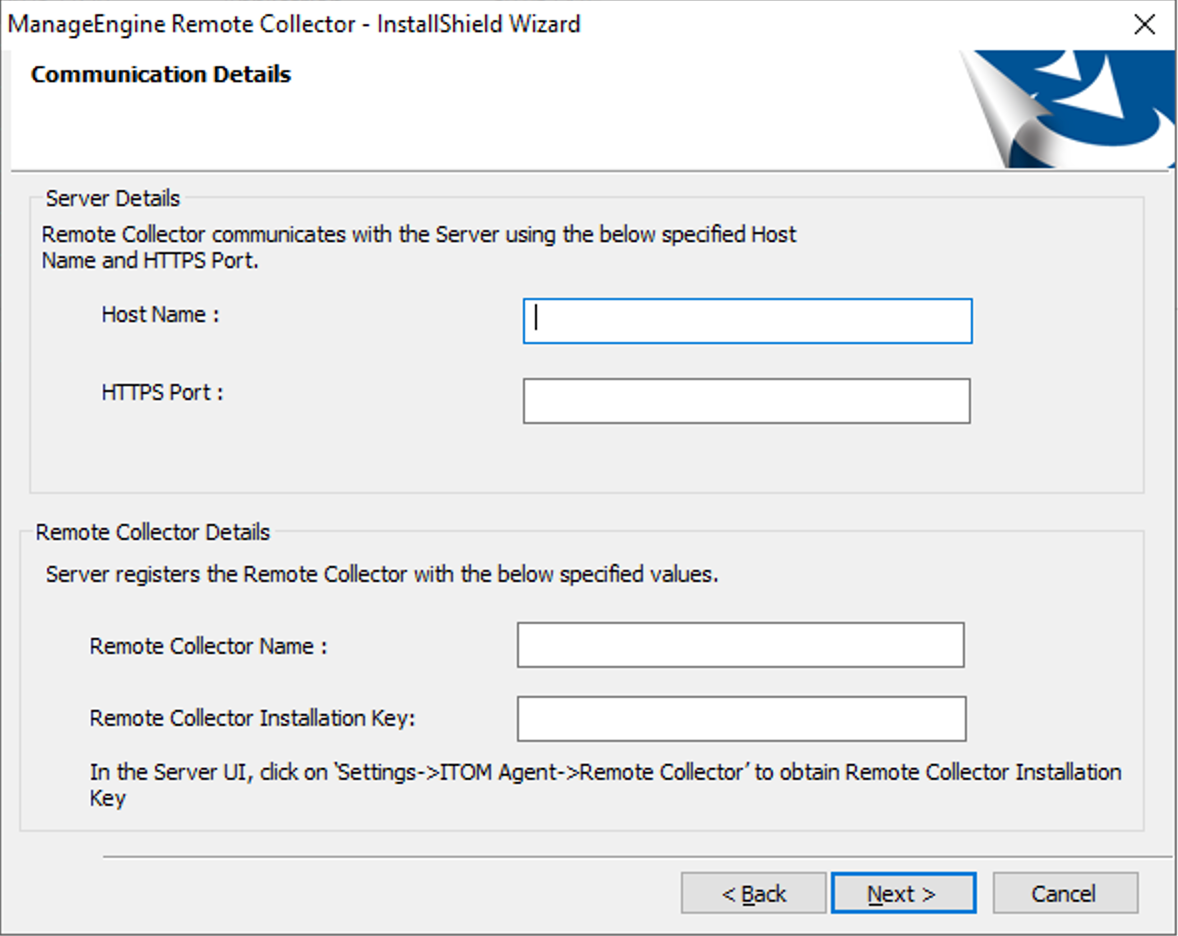
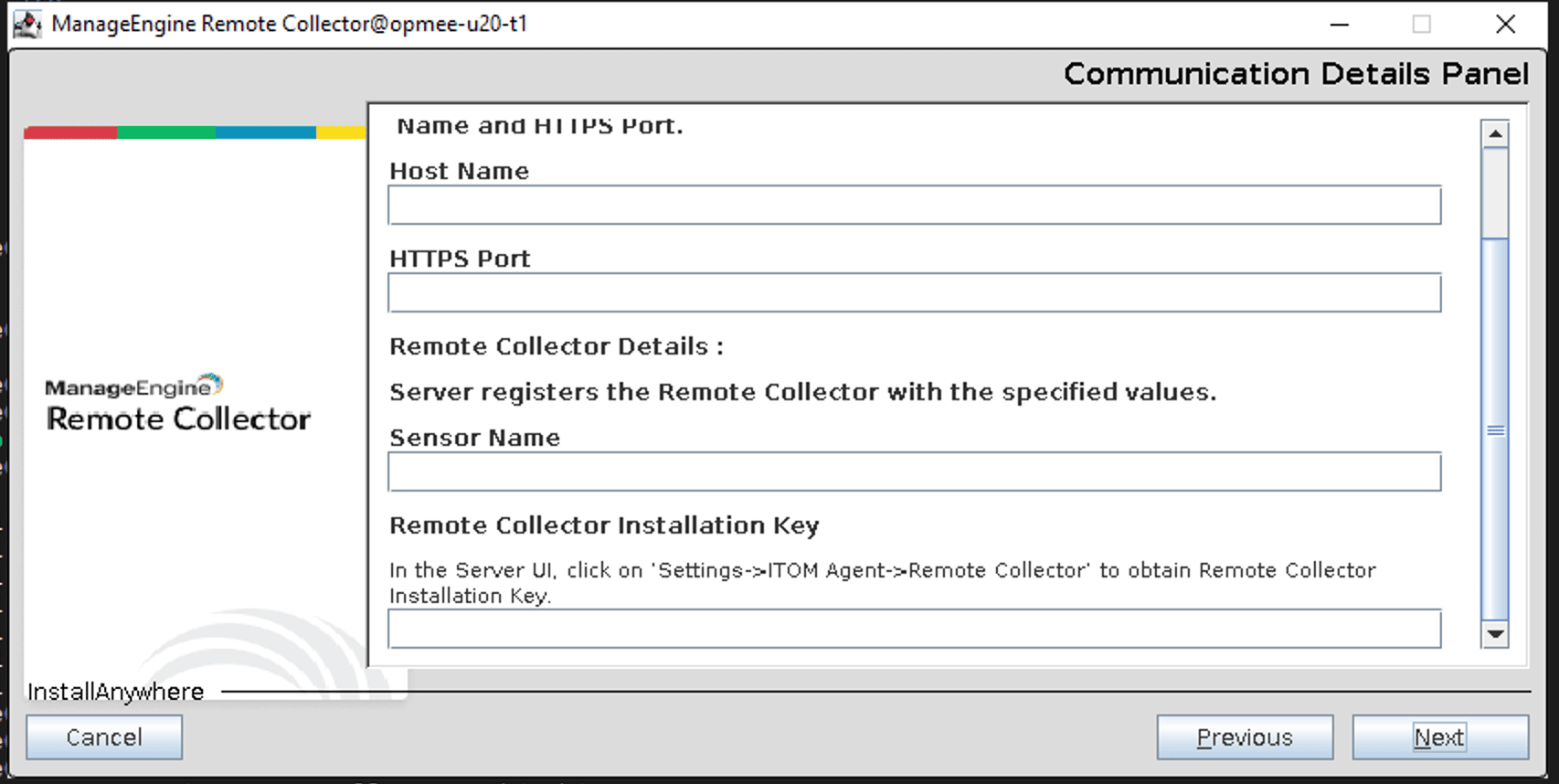
In the communication panel, enter the Host name, HTTPs Port, Sensor Name and Sensor Installation Key. You can copy the Sensor Installation Key details from the OpManager GUI under Settings > ITOM Agent > Remote Collector.
 FieldDescription Host NameHost name of the server in which OpManager is running HTTPs PortPort Number that OpManager runs on Remote Collector Name Name for Remote Collector Remote Collector Installation KeyThe Key displayed in OpManager GUI
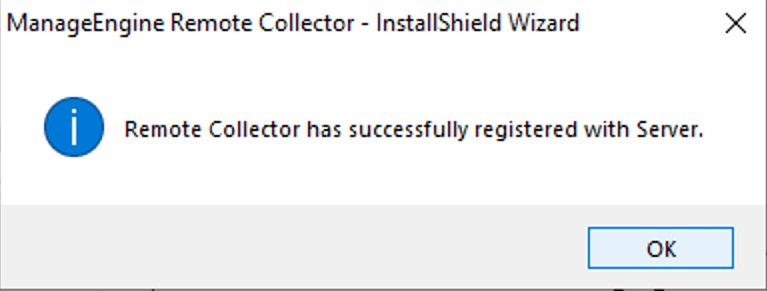
Once the communication between OpManager and Remote Collector is complete, a message "Remote Collector has successfully registered with OpManager server" will pop up. Click OK to proceed
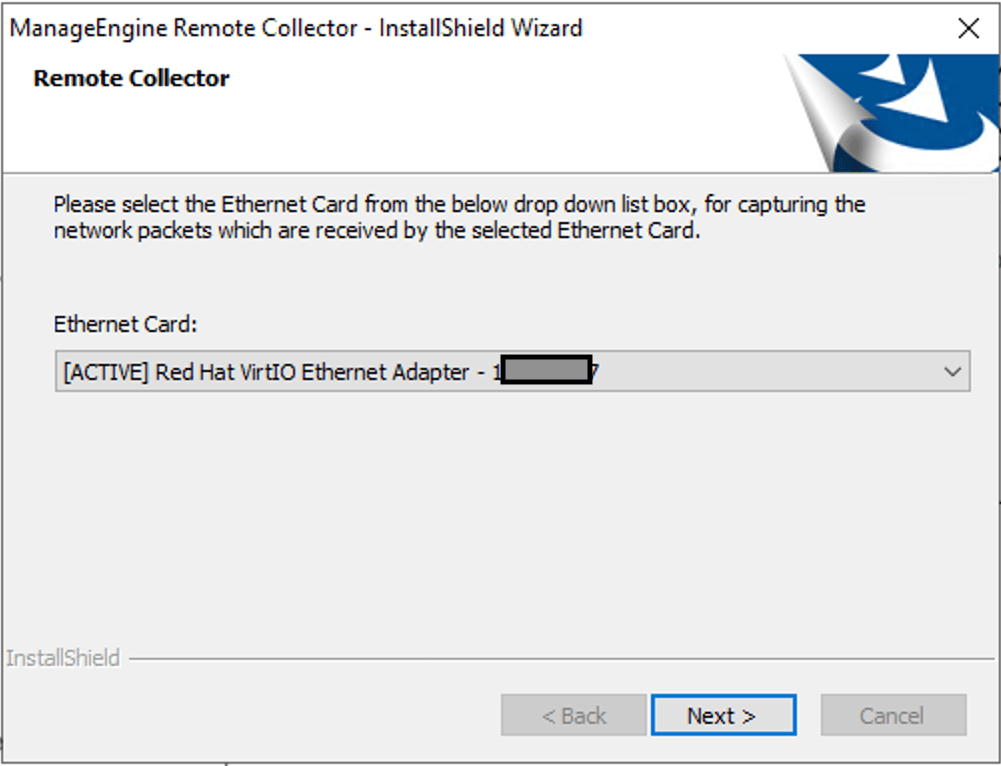
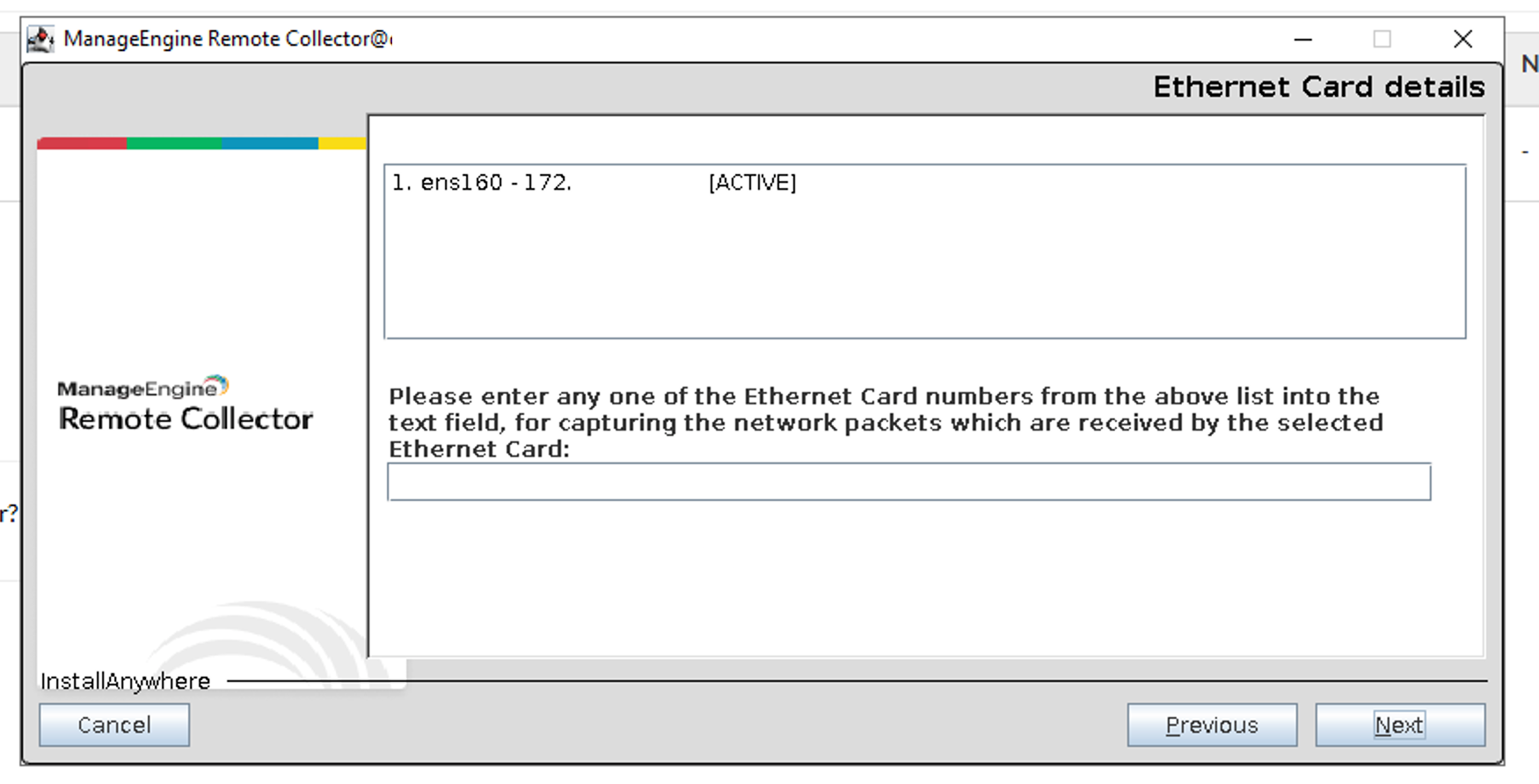
Select Ethernet Card from the drop down list box (EthernetSelection only for NetFlow/DPI/NetSpeed Tracker).
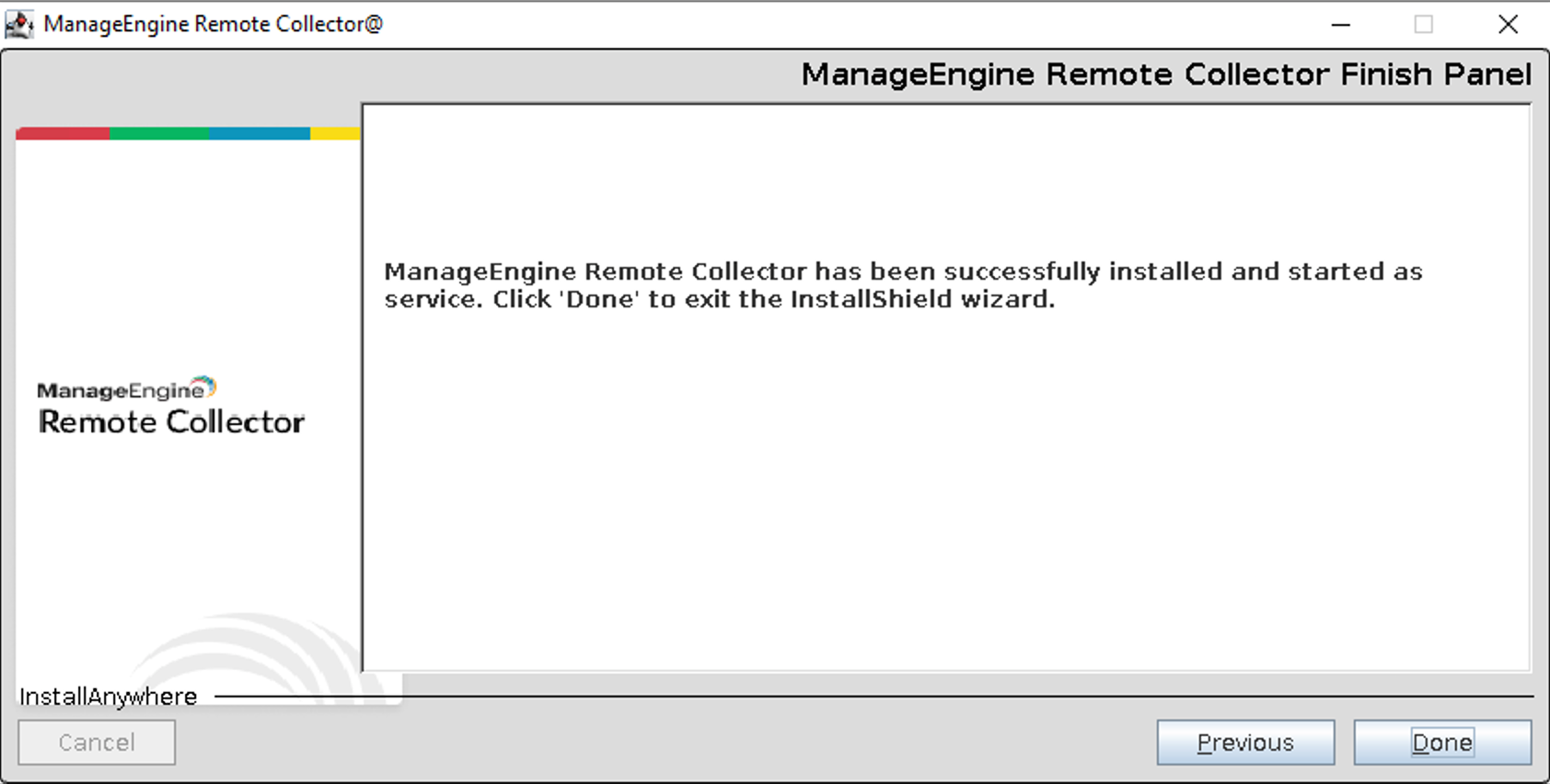
Click Finish to close the installation wizard, and launch the application.
Once the installation is complete, Remote Collector will run as a service in the background.
Installing Remote Collector in Linux (Console)
To launch the installer, type the following commands (where ManageEngine_RemoteCollector_64bit is the name of the downloaded .bin file):
chmod +x ManageEngine_RemoteCollector_64bit.bin
./ManageEngine_RemoteCollector_64bit.bin
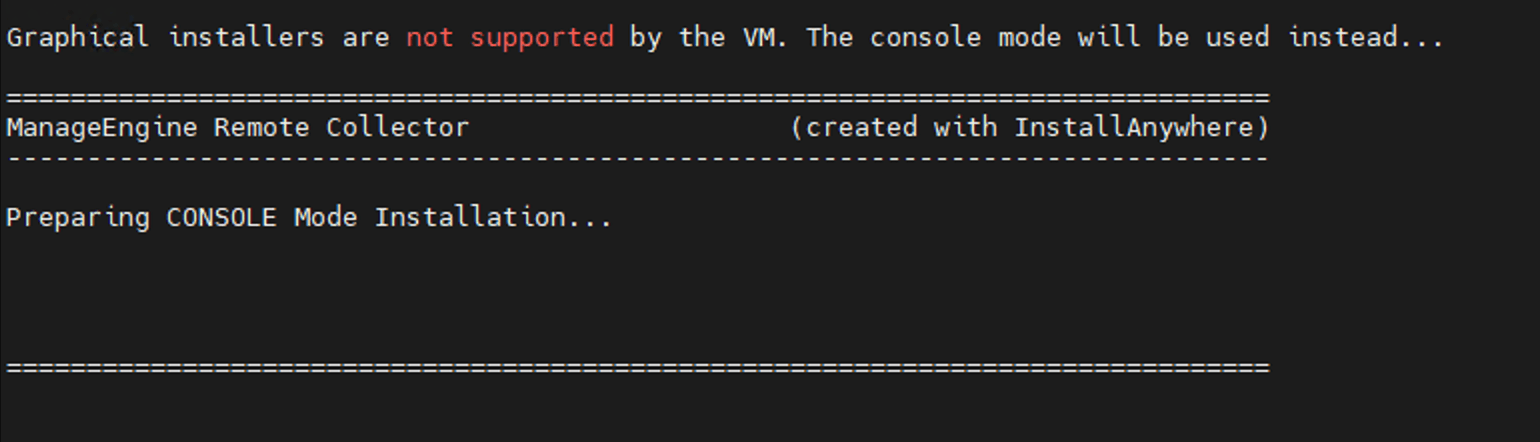
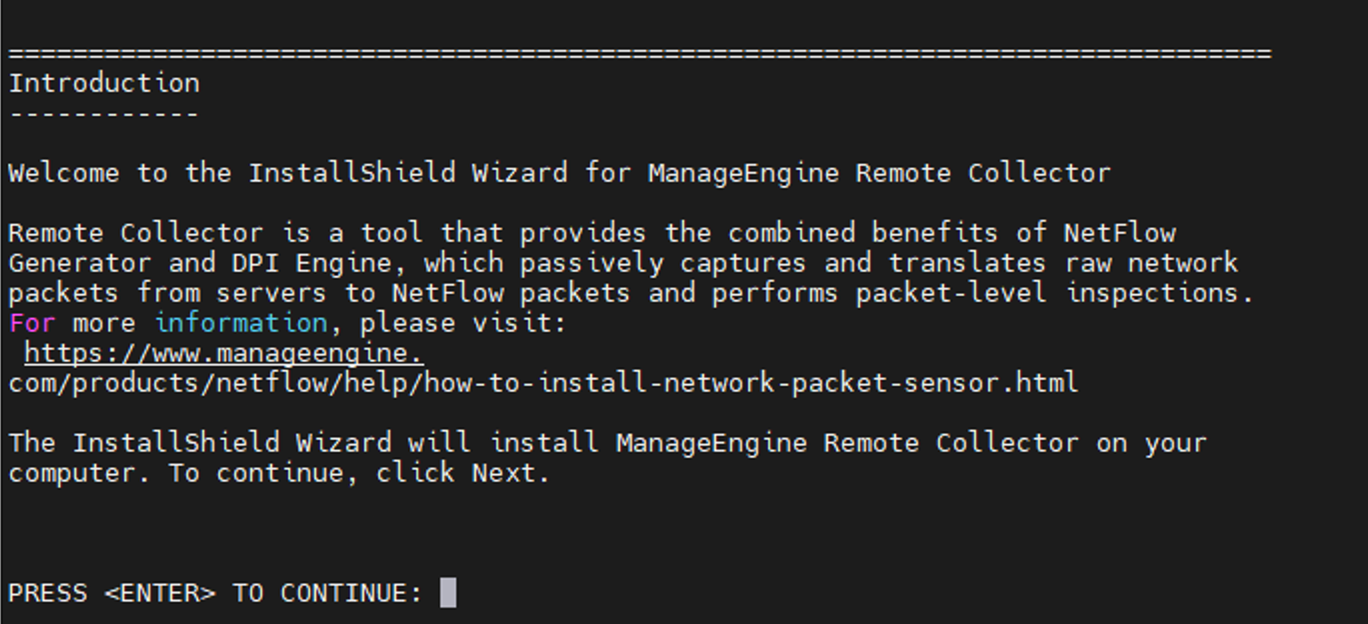
Once the introduction appears, press Enter to continue
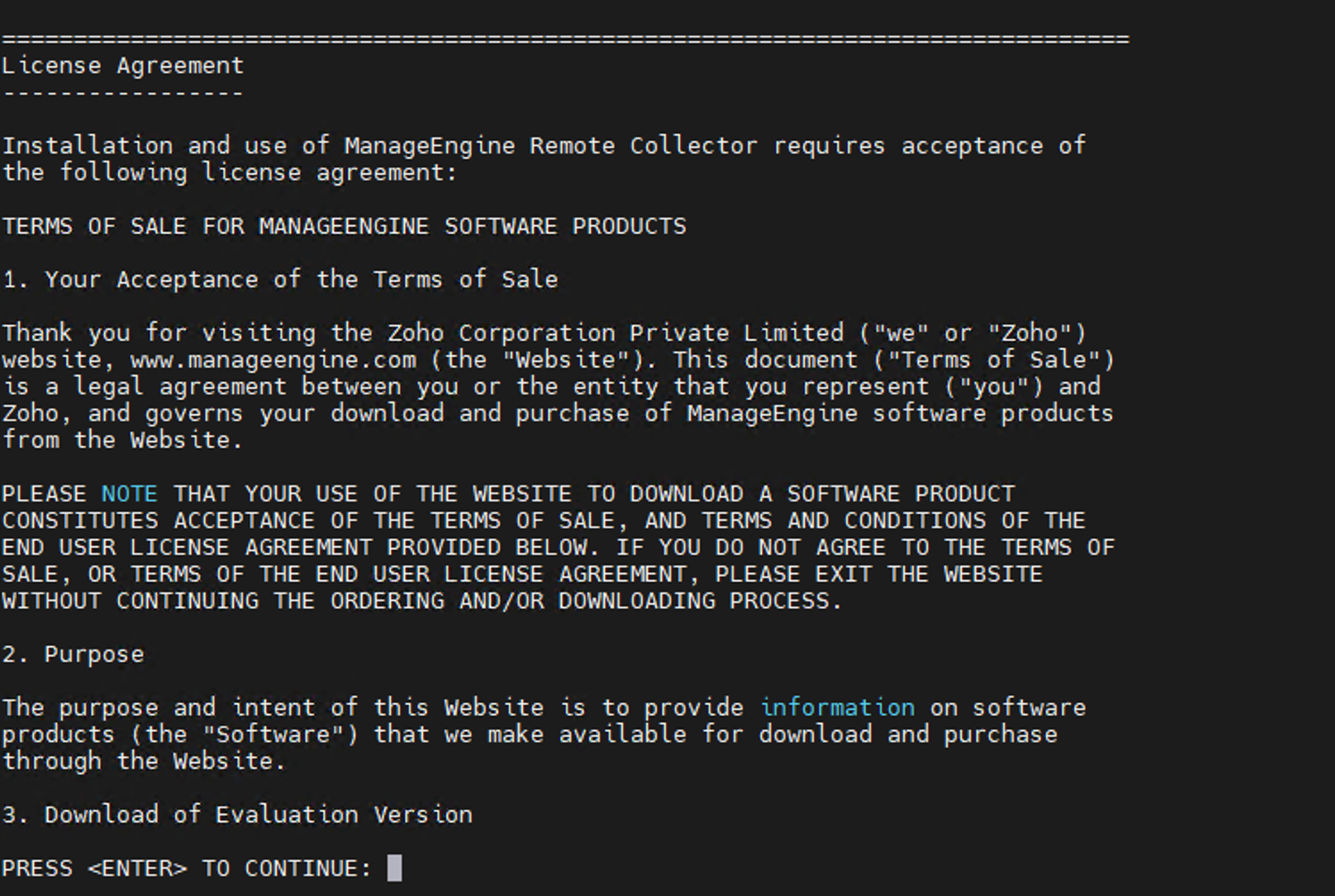
Now the license agreement part is displayed, press Enter to continue
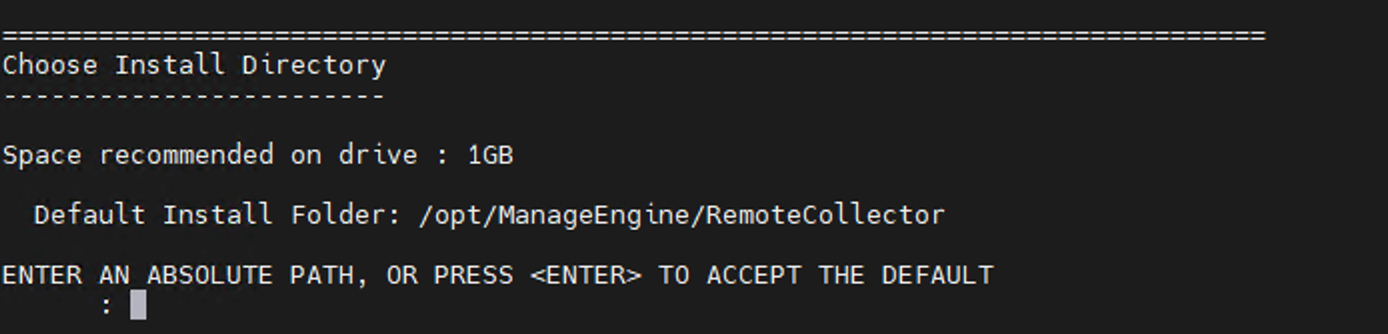
Verify the installation folder, and type Y to continue
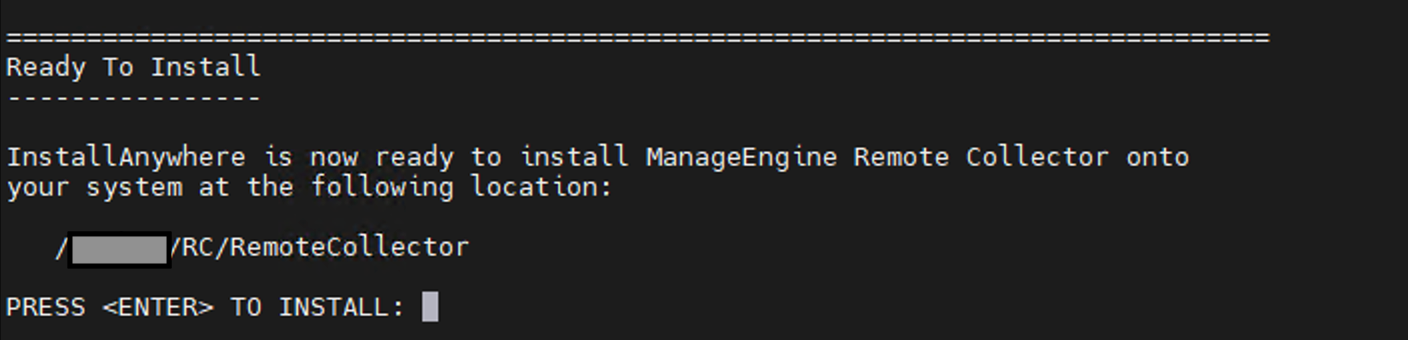
After confirming the pre-installation summary, press Enter to start installing
Select the operation as MiniPoller, NetFlow Generator, Deep Packet Inspection, or NetSpeed Tracker depending upon your requirement and enter the number of your choice or press to accept the default.
Proxy Configuration (Optional): Enter details if required.
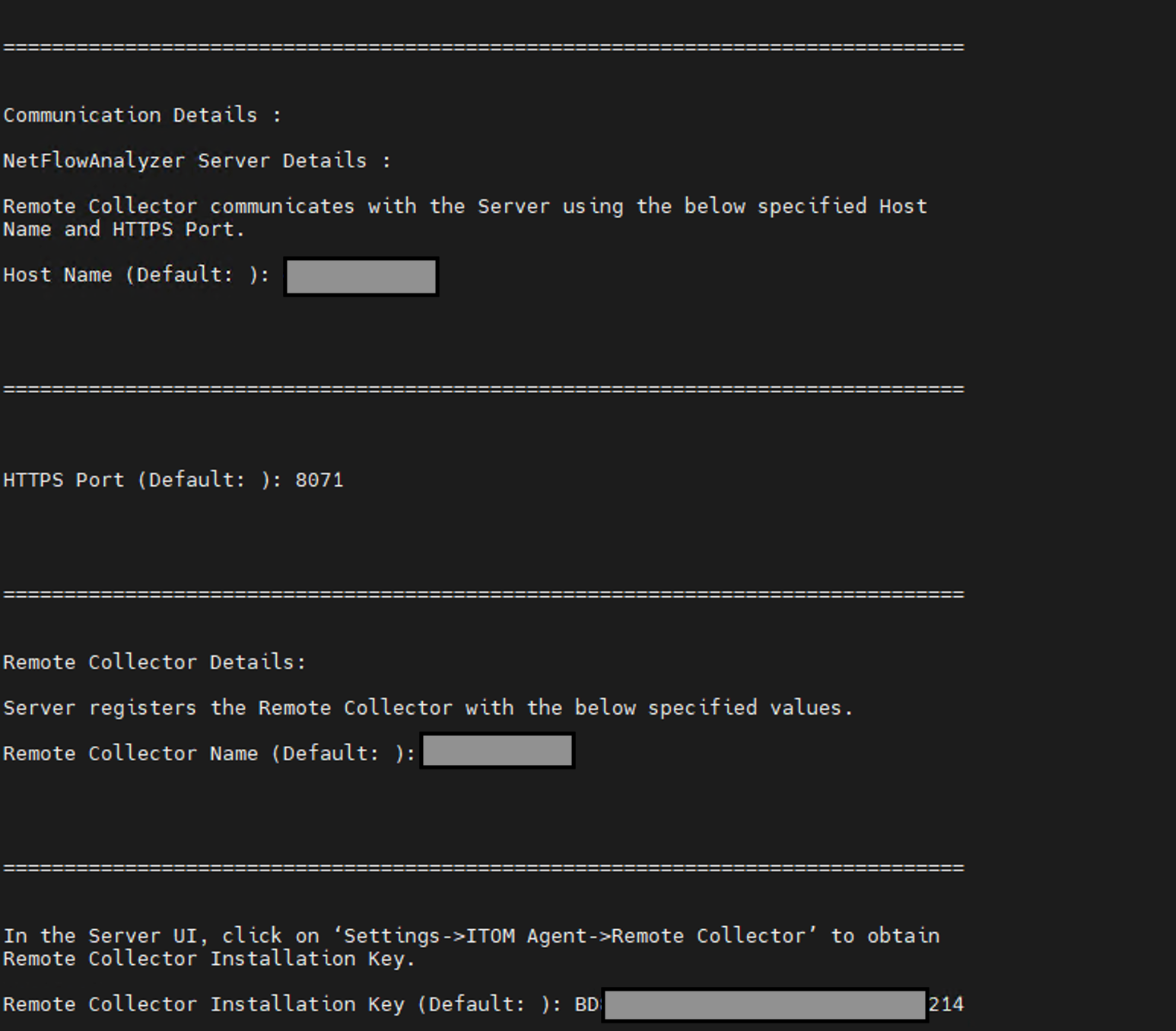
In the communication details section, type in the following details:
Once the installation key is verified and communication with OpManager server is established, Ethernet card details will be shown; select the Ethernet card option number to be used for capturing network packets, from the displayed options (only for NetFlow/DPI/NetSpeed Tracker).

Once this is done, the installation will complete and the Remote Collector will start running as a service.
Installing Remote Collector in Linux (GUI Mode)
Type the following command in the terminal to convert the binary file to executable file:
chmod +x ManageEngine_Remote Collector_64bit.bin
To launch the executable file type the following command:
./ManageEngine_Remote Collector_64bit.bin
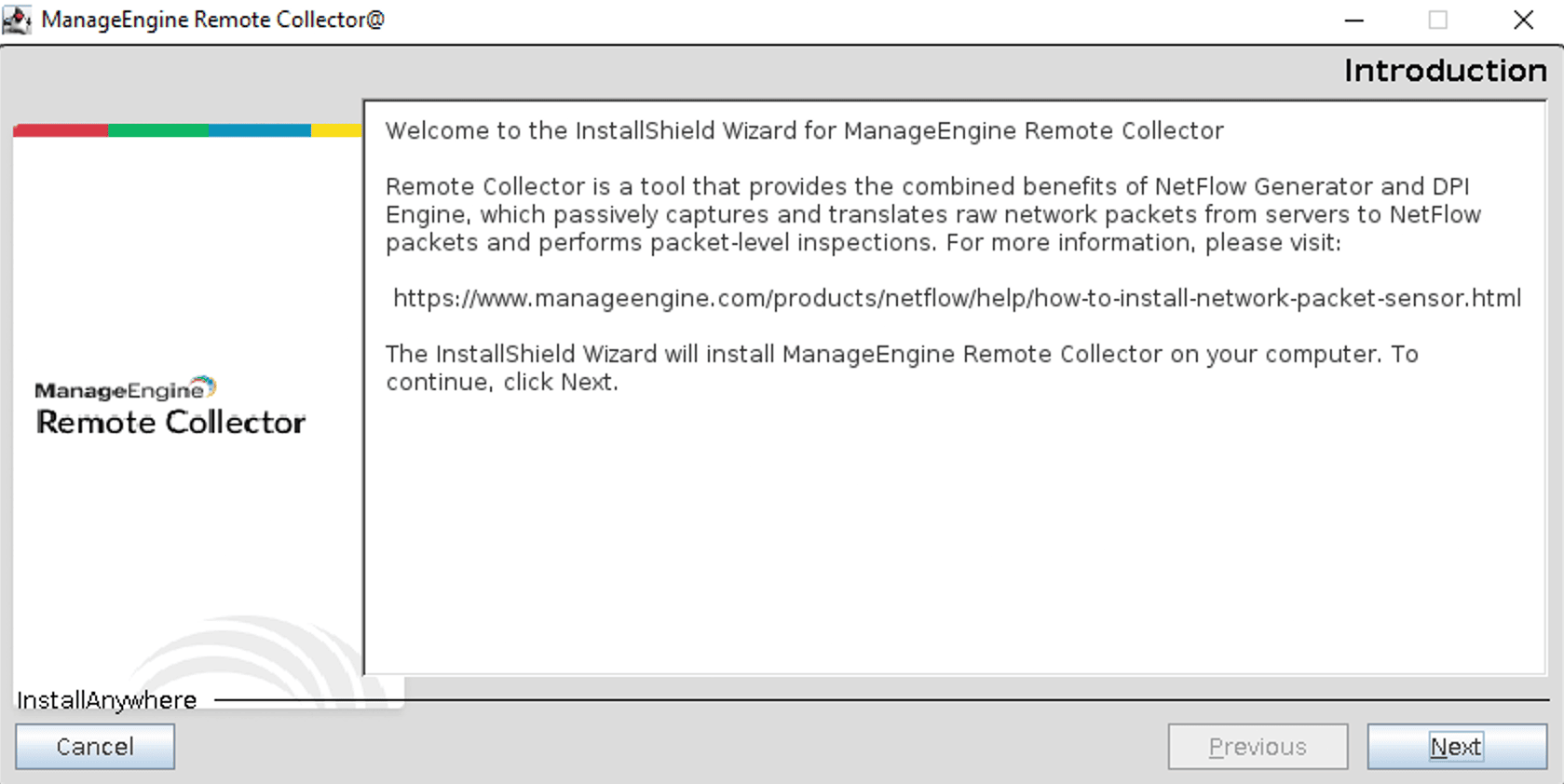
Once the installation wizard opens, click Next to begin installation
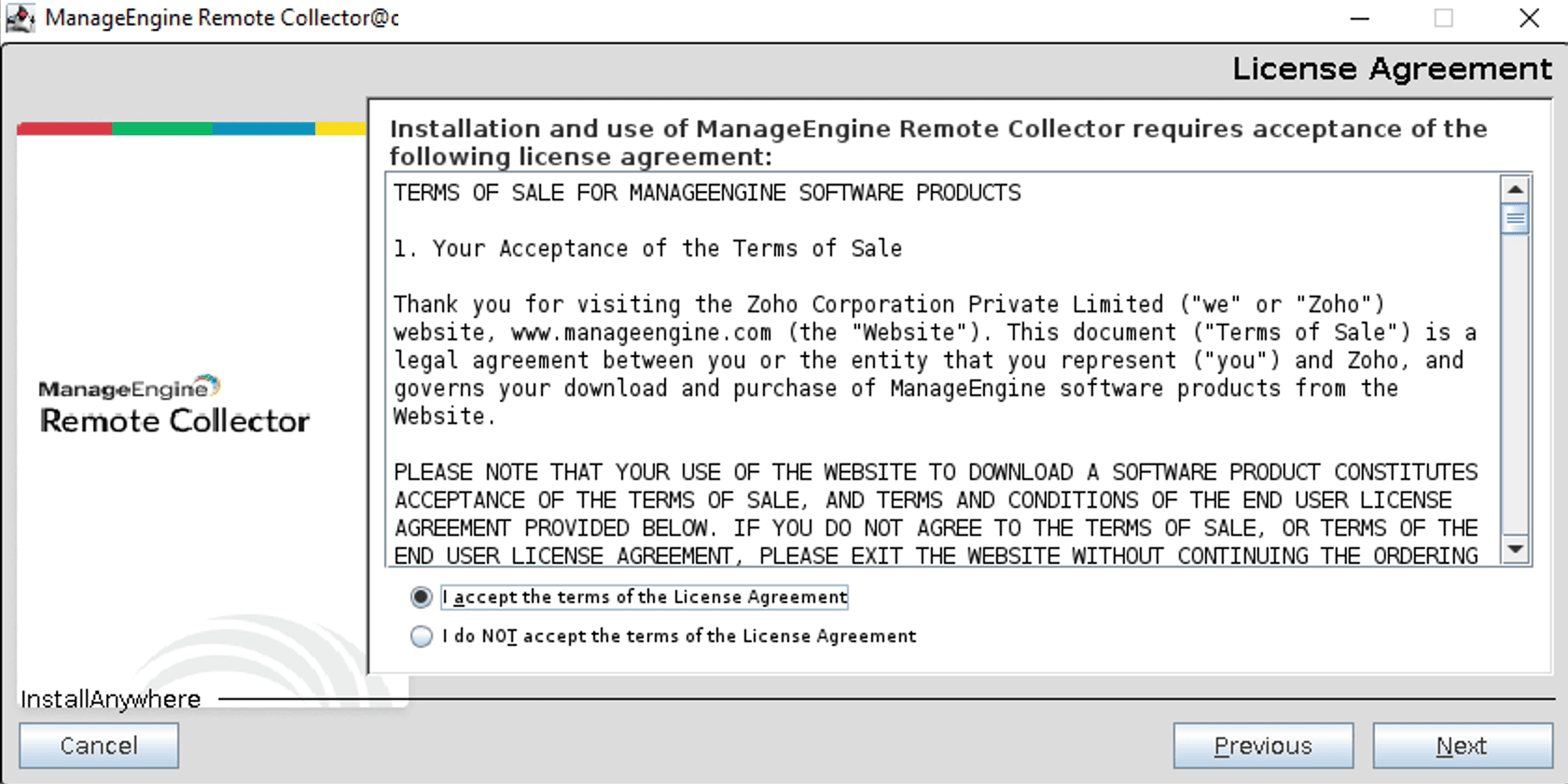
Click on the "I accept the terms of the License Agreement" radio button, and click Next
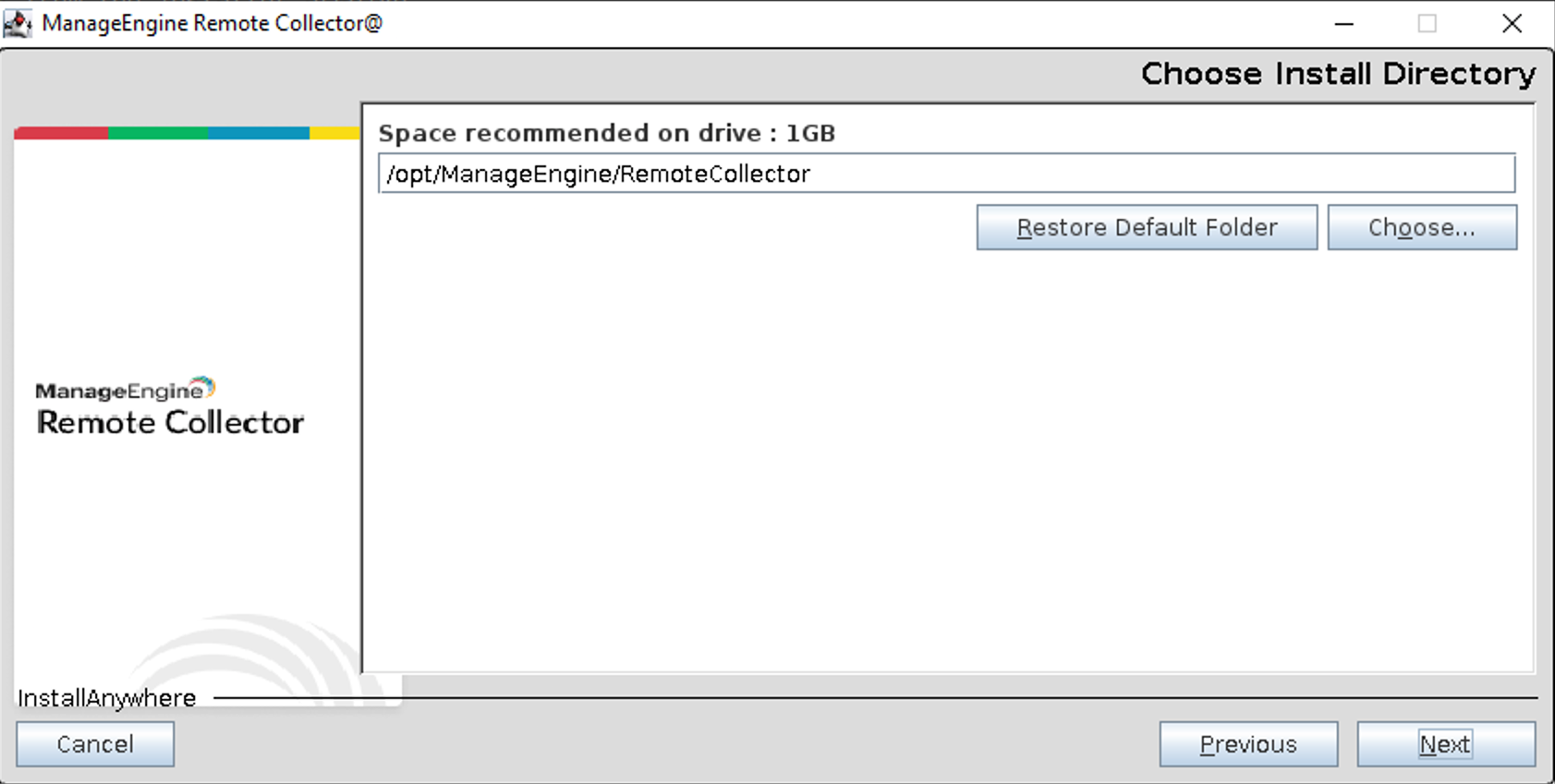
Select the installation directory by clicking on the "Choose" button and click Next
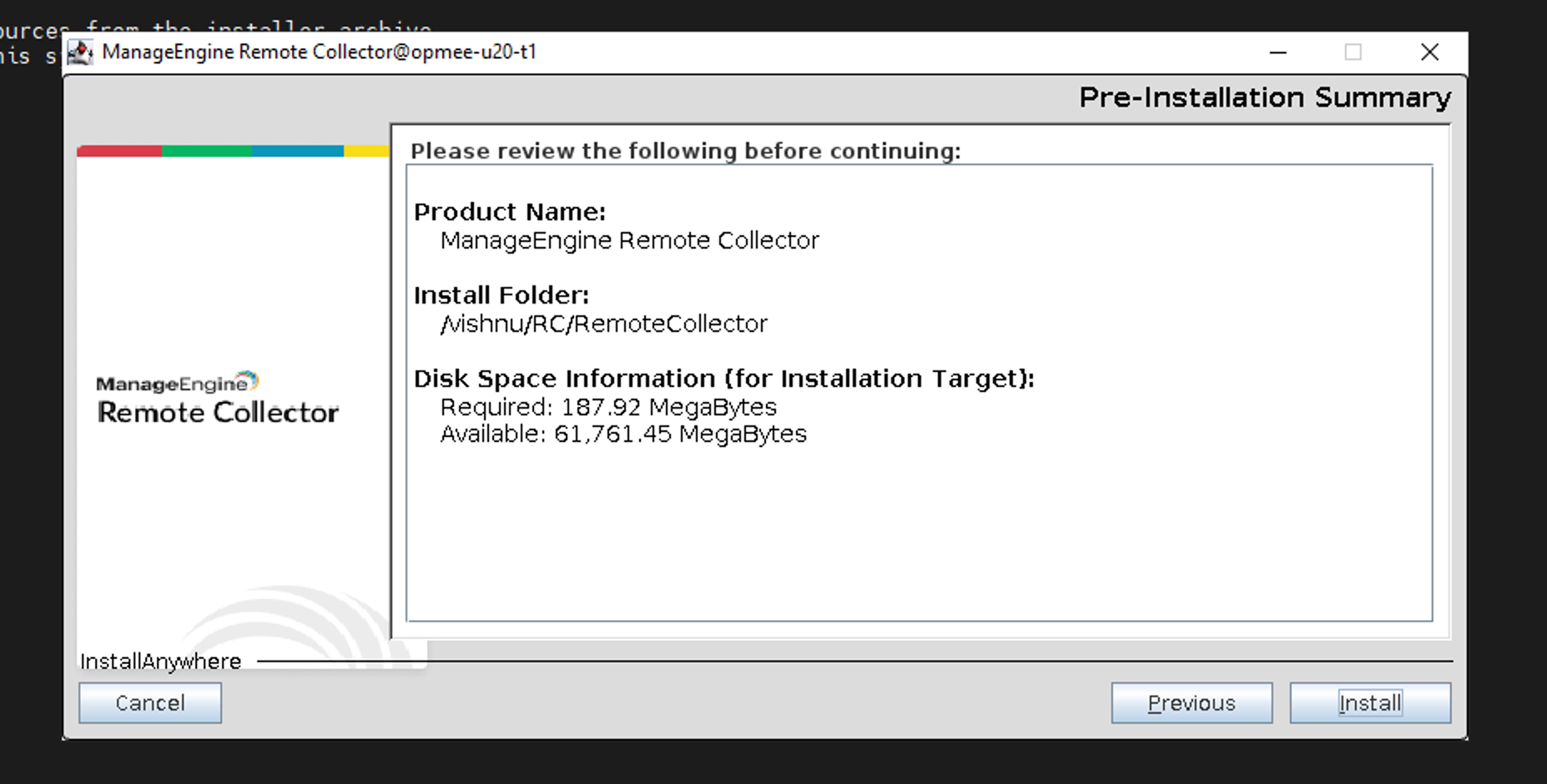
Verify the pre-installation summary and click the Install button to begin extraction
Select the operation as MiniPoller, NetFlow Generator, Deep Packet Inspection, or NetSpeed Tracker depending upon your requirement and click Next.
Proxy Configuration (Optional): Enter details if required.
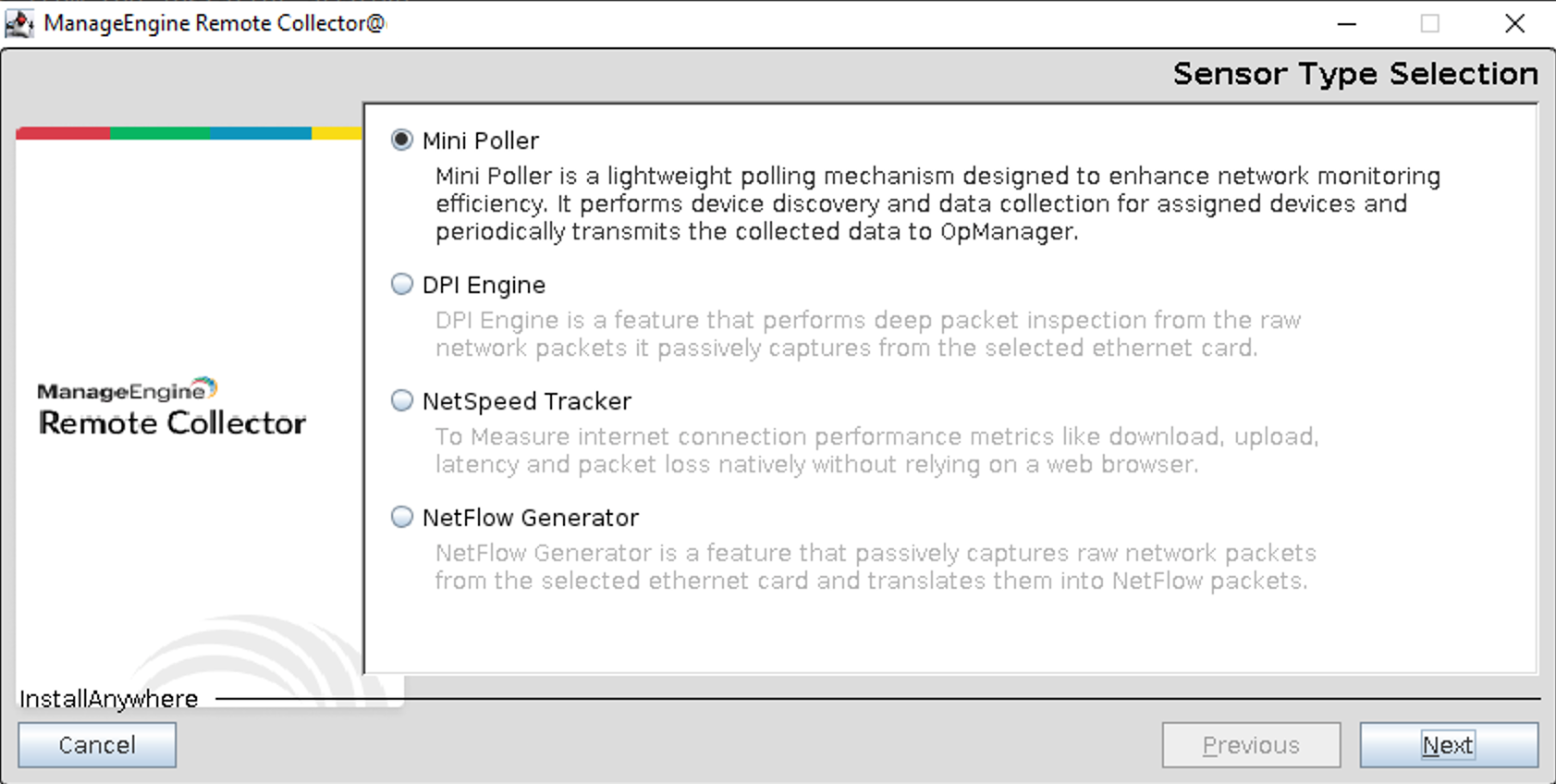
After the Server type selection, type in the Communication details, which includes:
Type in the Ethernet card number in the textbox for capturing network packets, from the Ethernet adapter box, and click Next to finish up the installation (only if Mini Poller is selected)
Once you click the Finish button, the installation will complete and the Remote Collector starts running as a service.
Starting Remote Collector as a service in Windows
- Open Services in taskbar and double click ManageEngine Remote Collector that you intend to start.
- Click the Start button.
Once the steps are complete, ManageEngine Remote Collector will start running on the device.
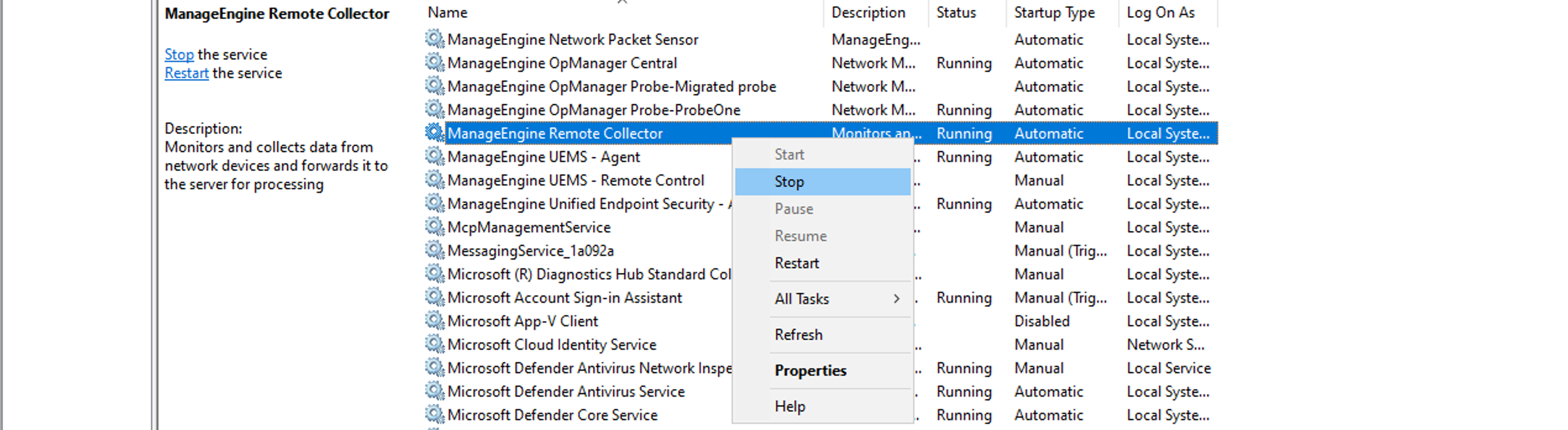
Stopping Remote Collector as a service in Windows
- Open Services in taskbar and double click ManageEngine Remote Collector that you intend to stop.
- Click the Stop button.
Once the steps are complete, ManageEngine Remote Collector will stop running on the device.
Uninstalling Remote Collector as a service in Windows
- Open Control Panel and navigate to Add/Remove programs in which Remote Collector is listed.
- Click the ManageEngine Remote Collector program and click Uninstall or right click on the program and click Uninstall.

Once the steps are complete ManageEngine Remote Collector will be uninstalled from the device.
Starting or stopping Remote Collector as service in Linux
Execute .linkAsService.sh from Remote Collector/bin with root login.
Start Remote Collector by executing systemctl start Remote Collector.service or /etc/init.d/Remote Collector.service start files, depending on your OS version.
Check the status of Remote Collector by executing systemctl status Remote Collector.service or /etc/init.d/Remote Collector.service status commands. Remote Collector will now start as a service.
Stop Remote Collector by executing systemctl stop Remote Collector.service or the /etc/init.d/Remote Collector.service stop commands.
Uninstalling Remote Collector as a service in Linux
- Open installed folder
Remote Collector/bindirectory. - Type the following command:
./SensorService stopand then delete the folder. 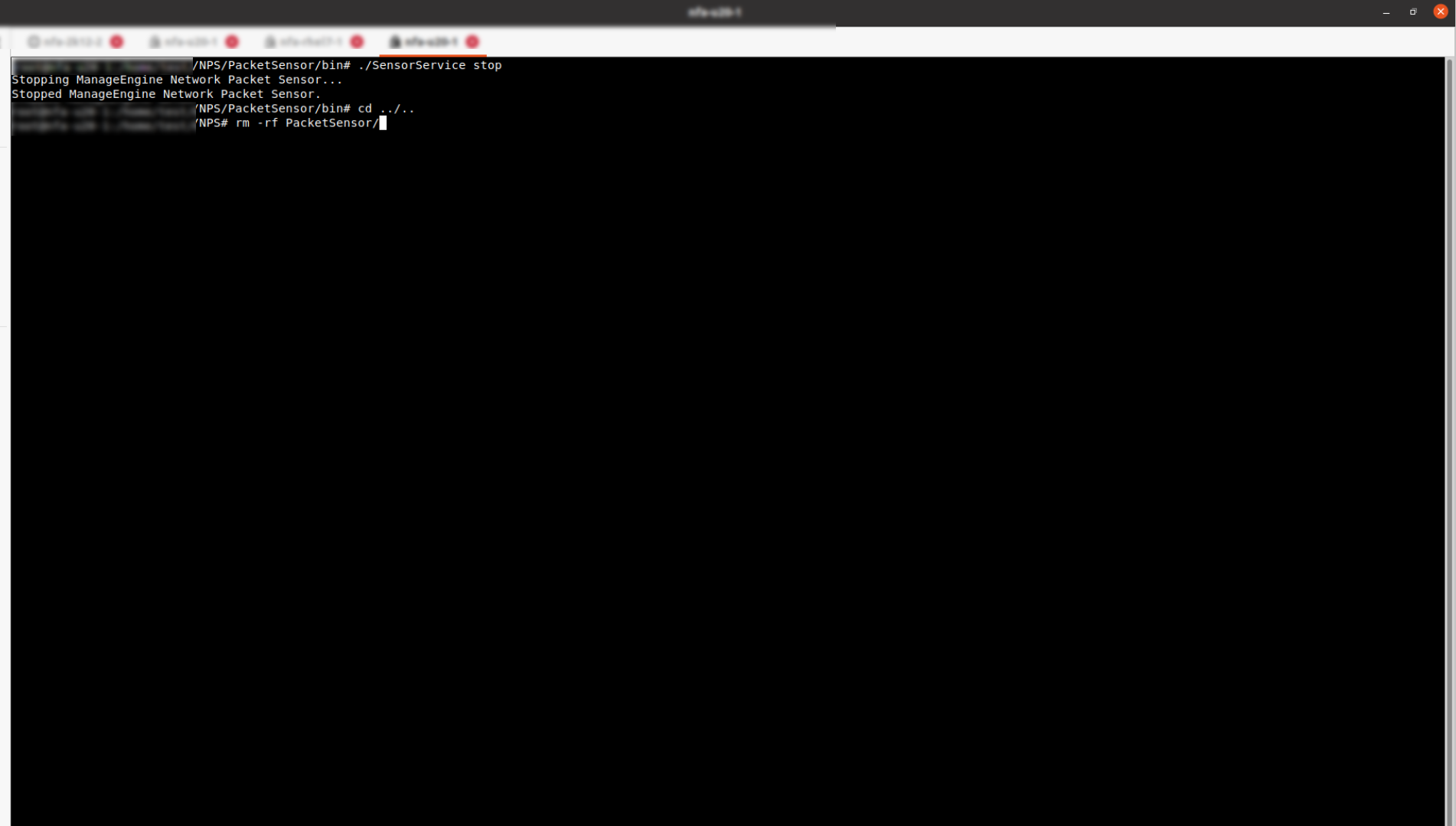
Remote Collector will be removed from your device.