Tabular OID Monitoring in OpManager
Tabular OID Monitoring in OpManager enables you to monitor and visualize SNMP table-based data—such as interfaces, IP tables, and routing tables in a single, consolidated tabular view. This feature provides complete visibility into device-level properties and their associated SNMP OIDs without requiring navigation across multiple screens. By centralizing table-level information into one view, it simplifies troubleshooting, improves visibility, and enhances overall monitoring efficiency.
With Tabular OID Monitoring, you can:
- View all properties associated with an SNMP table in a structured table format
- Monitor multiple instances returned by the corresponding SNMP tabular OID
Tabular OID Monitoring is accessible across multiple areas of OpManager, including:
- Device Snapshot pages (Monitors and Widgets)
- Dashboards and NOC View
- Health and Performance Reports
- Device Templates
How to Add a Tabular OID Monitor
Tabular OID monitoring allows OpManager to collect and display SNMP table—based data such as interface details, IP tables, etc. in a structured tabular format. When a Tabular OID monitor is created, OpManager automatically discovers all available columns associated with the selected SNMP table OID and allows you to choose the columns that need to be monitored.
Configuring Tabular OID monitors via Device Templates provides a consistent configuration model and associates the monitors to all matching devices.
Steps to Add a Tabular OID Monitor from a Device Template
- Go to Settings → Configurations → Device Templates.
- Select an existing device template or create a new one.
- Under Associated Monitors, click Add.
- Under Add Monitor, select the SNMP tab and enter the details:
a. Select the required Device Name from the dropdown list.
b.In the Choose SNMP OID field, click Choose OID and select the required SNMP Table OID.
c.(Optional) Select a Perf Group if grouping is required.
d.Click Query Device to retrieve the available tabular data associated with the selected OID. - Configure polling interval and other monitor settings as required.
- Select the Primary column, which uniquely identifies each instance in the table.
- Columns selected under Select Columns to monitor will be monitored. Choose the required columns from the SNMP table accordingly.
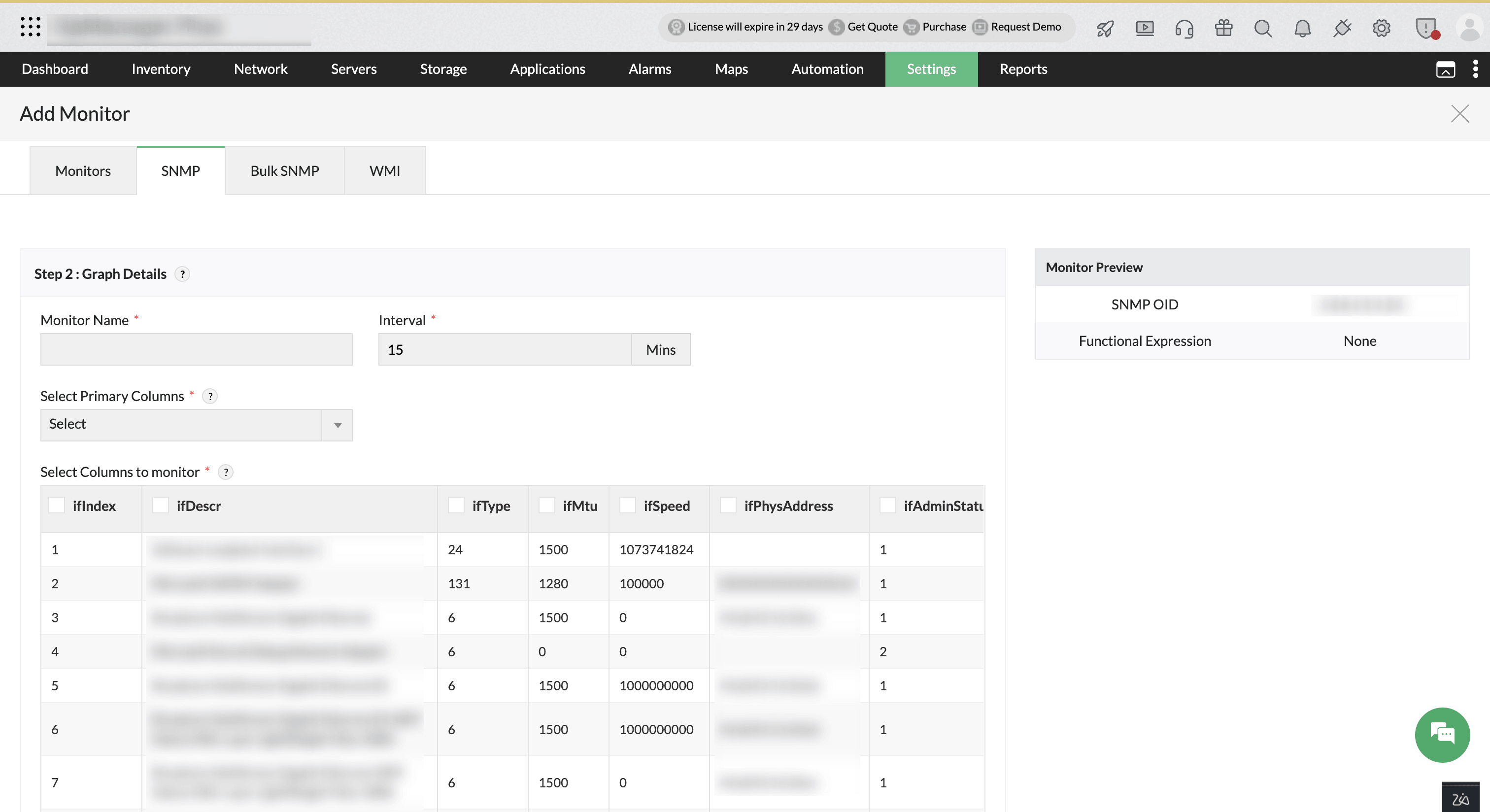
- Click Add.
- To display this specific Tabular OID monitor data in the Device Snapshot as a widget, enable the Show Dial option in the Device Template.
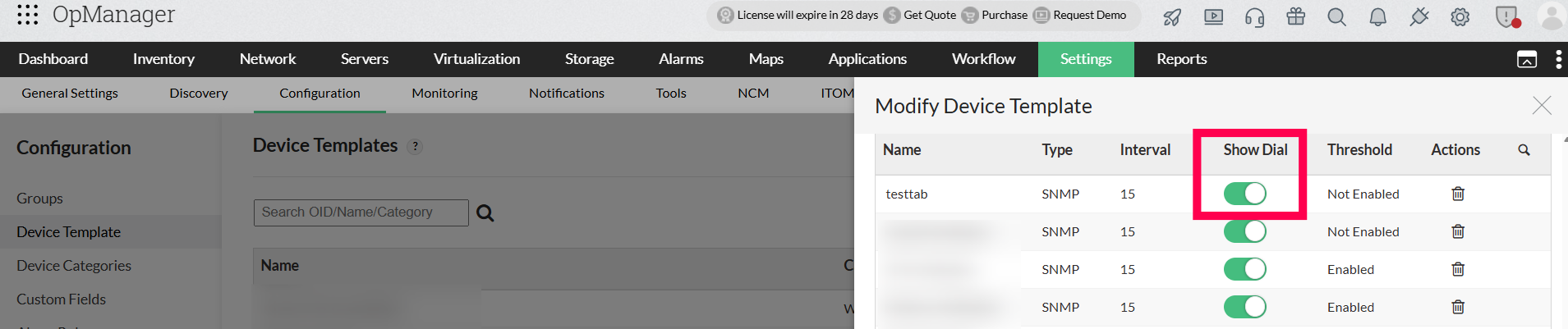
- Save the configuration.
Steps to add a Tabular OID Monitor from the Performance Monitor page
- Navigate to Settings → Performance Monitoring → Monitors.
- Click Add Monitor.
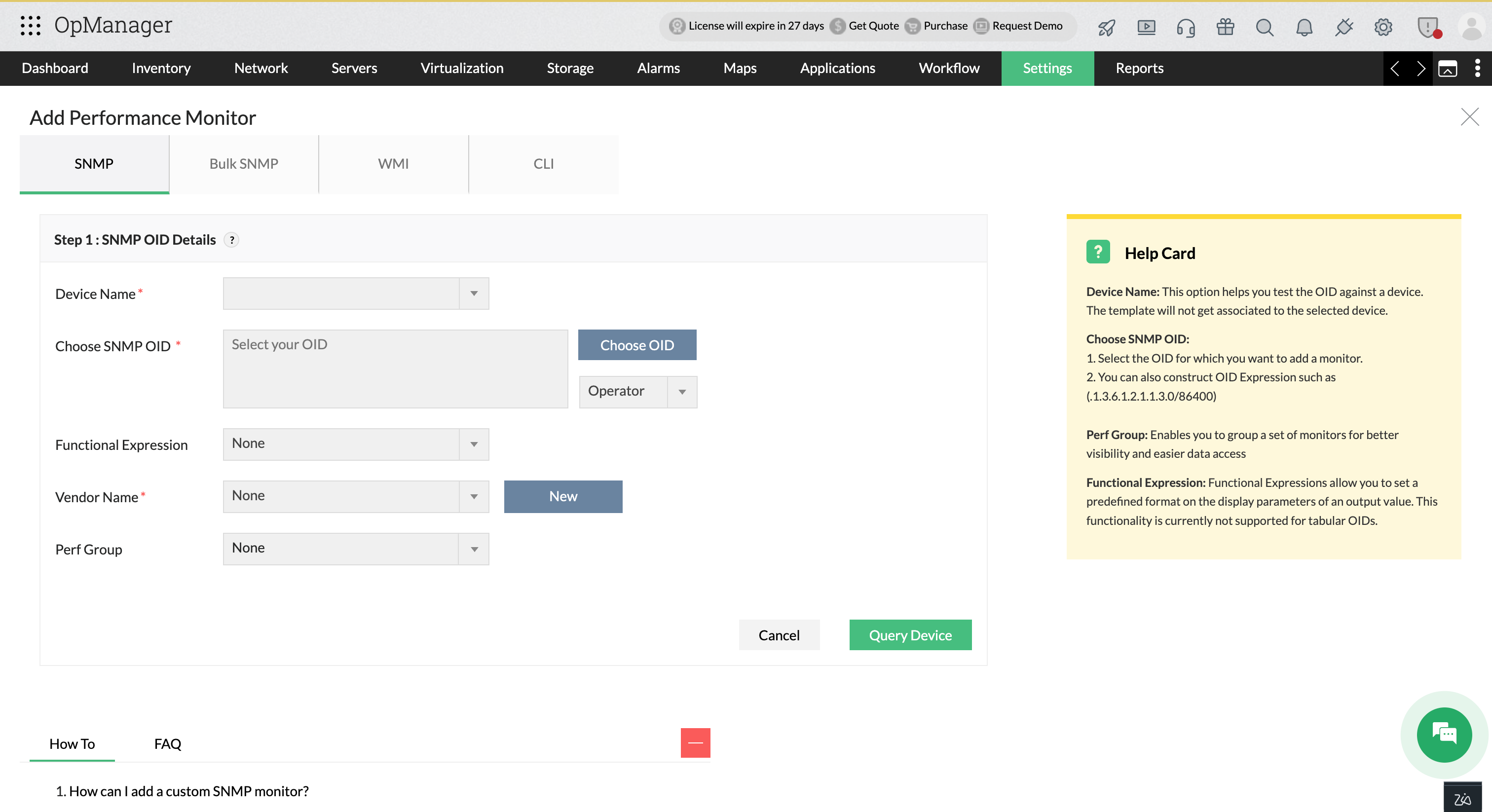
- Under SNMP tab enter the SNMP OID Details :
a. In the Add Performance Monitor window, select the SNMP tab and choose the required Device Name from the dropdown list.
b. Click Choose OID in the Choose SNMP OID field and select the required SNMP Table OID. Then select the required Vendor Name and optionally choose a Perf Group.
c. Click Query Device to retrieve the available tabular data associated with the selected OID. - Configure polling interval and other monitor settings as required.
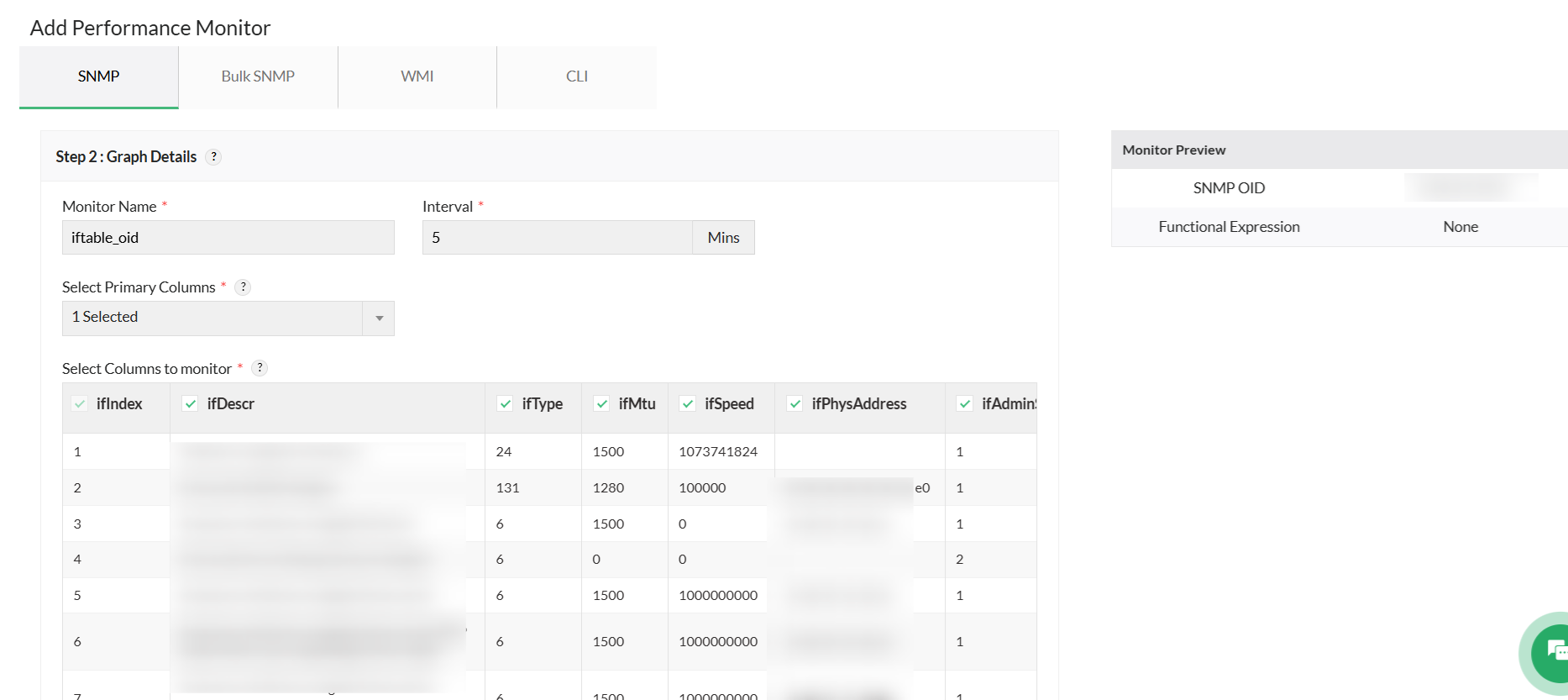
- Select the Primary column, which uniquely identifies each instance in the table.
- Columns selected under Select Columns to monitor will be monitored. Choose the required columns from the SNMP table accordingly.
- Click Add.
Note:
- Currently, Tabular OID monitors do not support functional expressions and threshold configuration.
- Tabular OID monitors display only the last polled values; historical data is not supported.
- A maximum of three Tabular OID widgets can be displayed in the Device Snapshot Summary page, based on the Show Dial option enabled in the corresponding Device Template.
- Each Tabular OID monitor supports monitoring only a single Tabular OID; multiple OIDs cannot be configured within the same monitor.
Where Tabular OID Monitors can be viewed
Tabular OID monitors can be seamlessly viewed across multiple areas of OpManager.
Viewing Tabular OID Monitor Data from the Device Snapshot Page
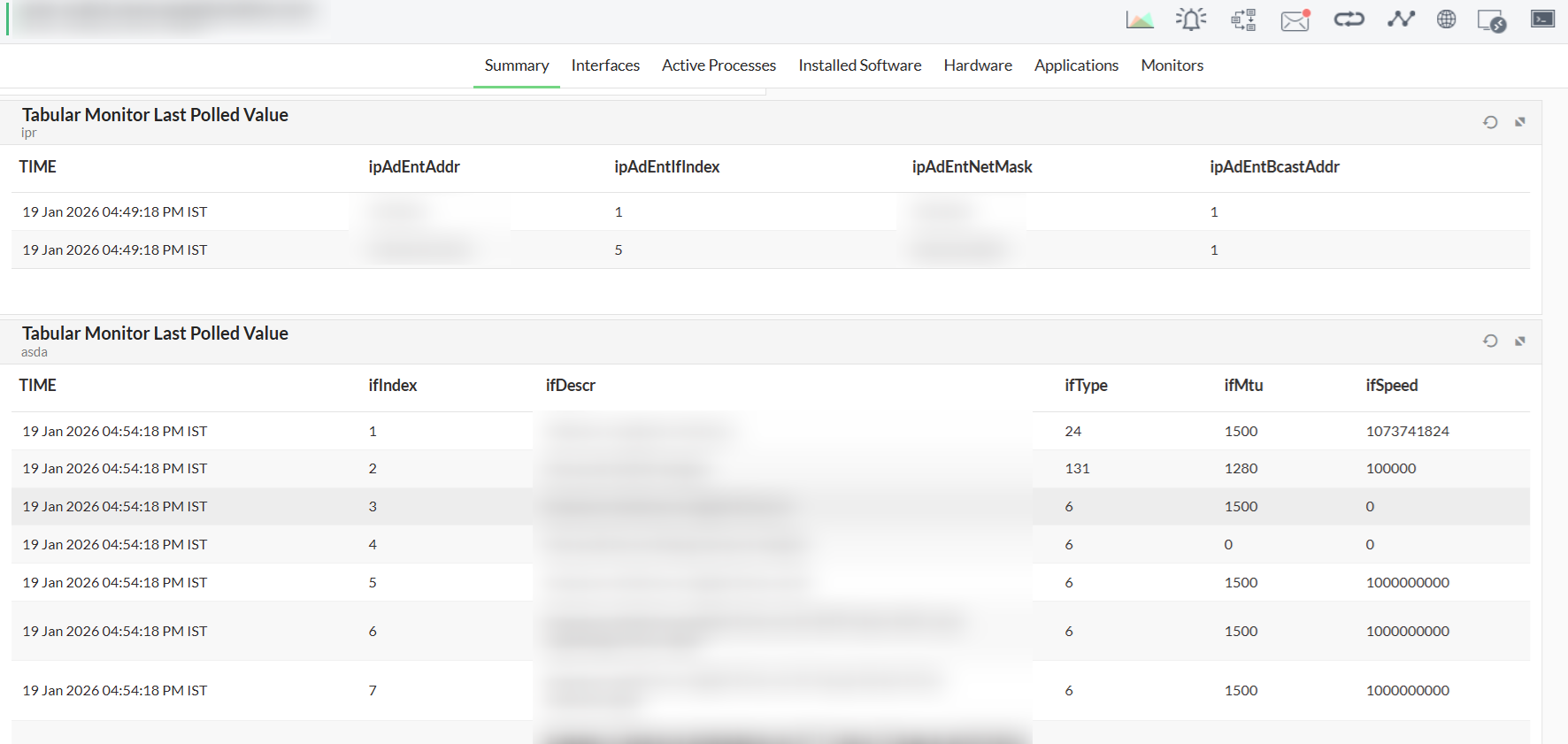
Tabular OID monitors can be viewed from the Device Snapshot page in two ways: through the Summary page and the Monitors tab.
A. Viewing from the Summary Page
- Go to Inventory → Device Snapshot.
- Select the required device.
- In the Summary tab, locate the configured Tabular OID monitor displayed as a dial widget (when the Show Dial option is enabled in the Device Template).
- Click the widget to view the corresponding tabular monitor details.
B. Viewing from the Monitors Tab
- Go to Inventory → Device Snapshot.
- Select the required device.
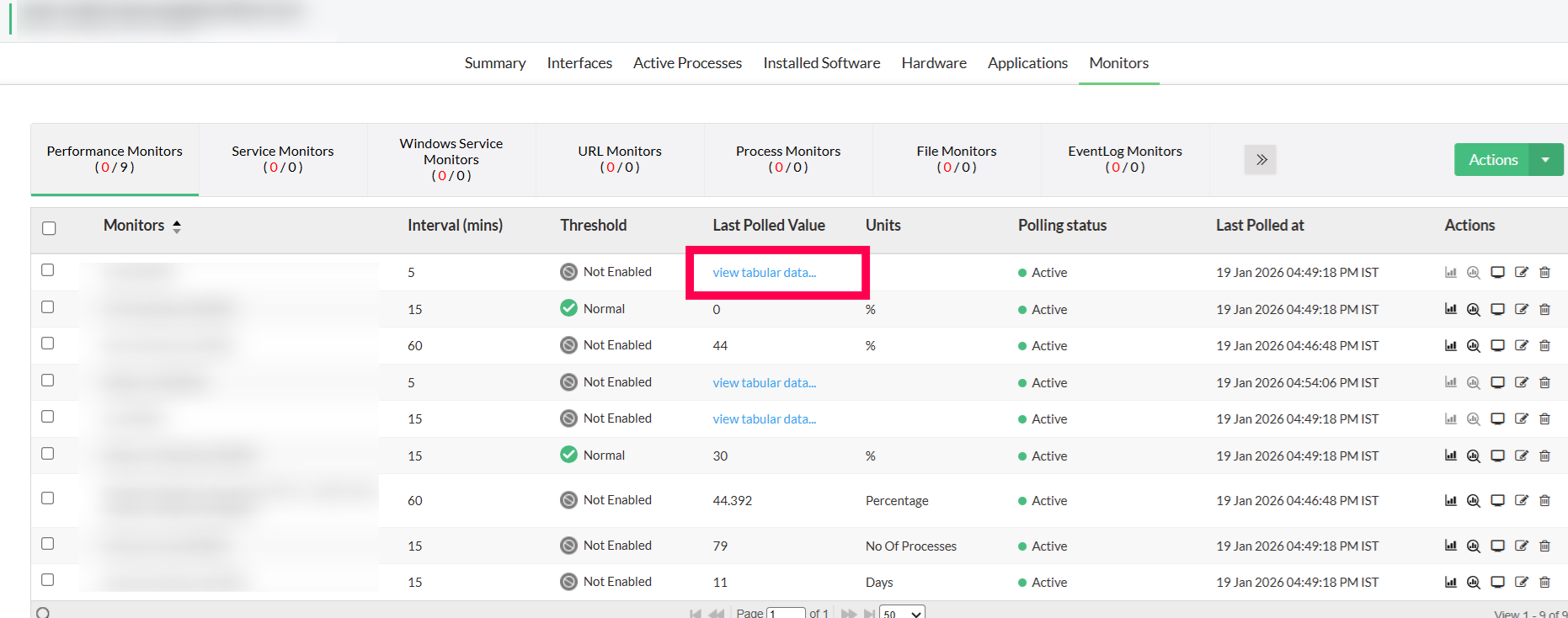
- Navigate to the Monitors tab.
- Select the required Tabular OID Monitor from the monitors list.
- Click View Tabular Data under Last Polled Value to view the monitored tabular values.
Dashboard Widgets
Tabular OID monitors can be displayed as widgets on dashboards for real-time monitoring.
How it works:
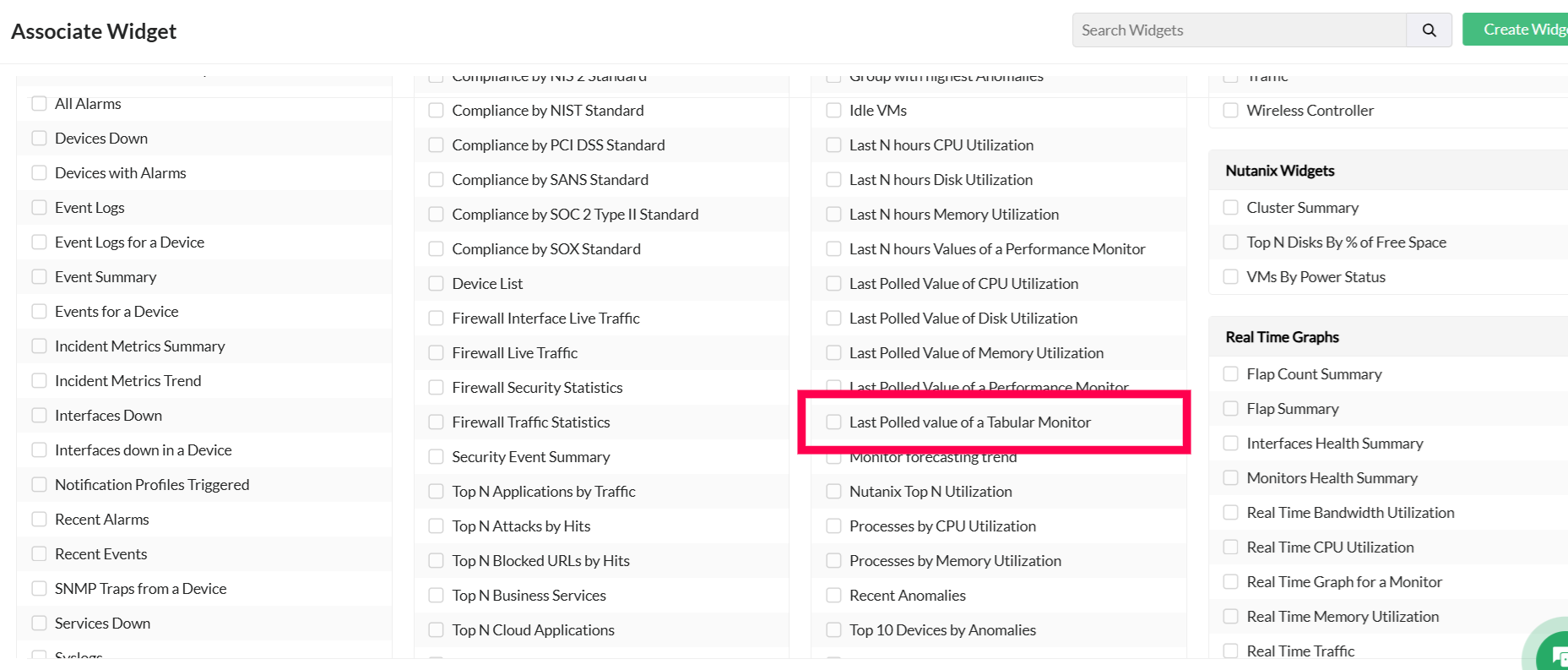
- While creating a Custom Dashboard, select Last Polled value of a Tabular Monitor.
- Configure the Custom Dashboard widget by selecting the Device Name and the associated Tabular Monitor.
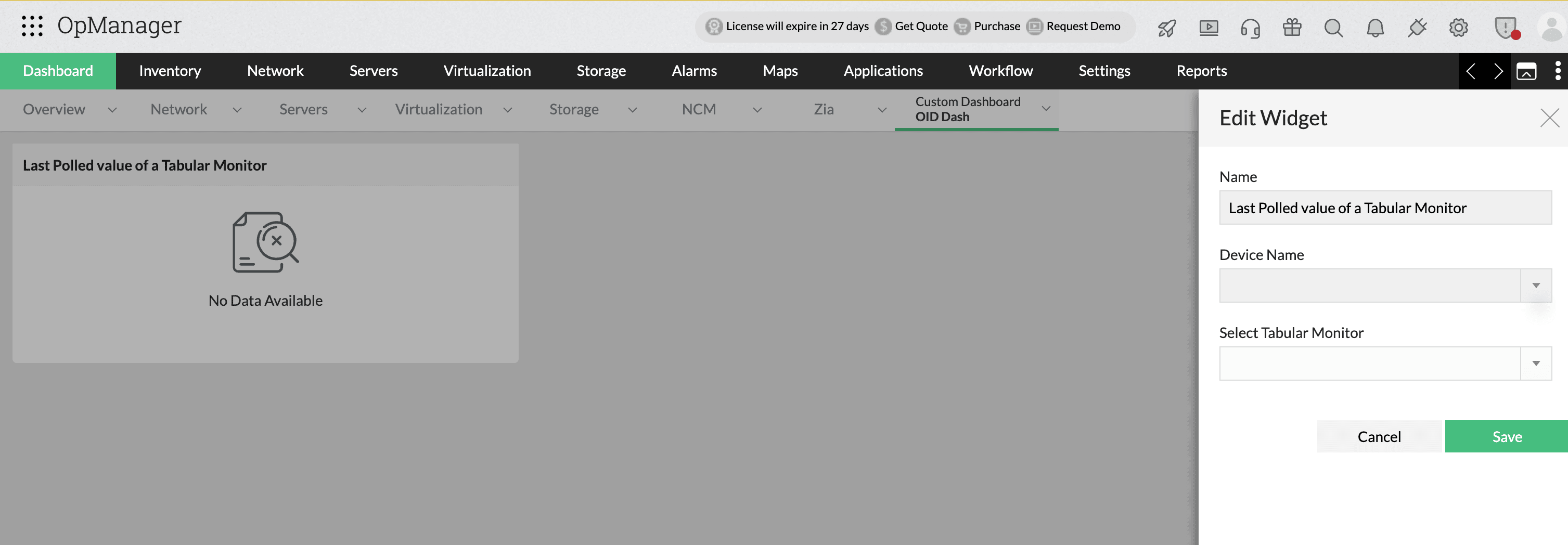
- Click Save, and the Tabular OID monitor data as a widget will appear on the Dashboard page.
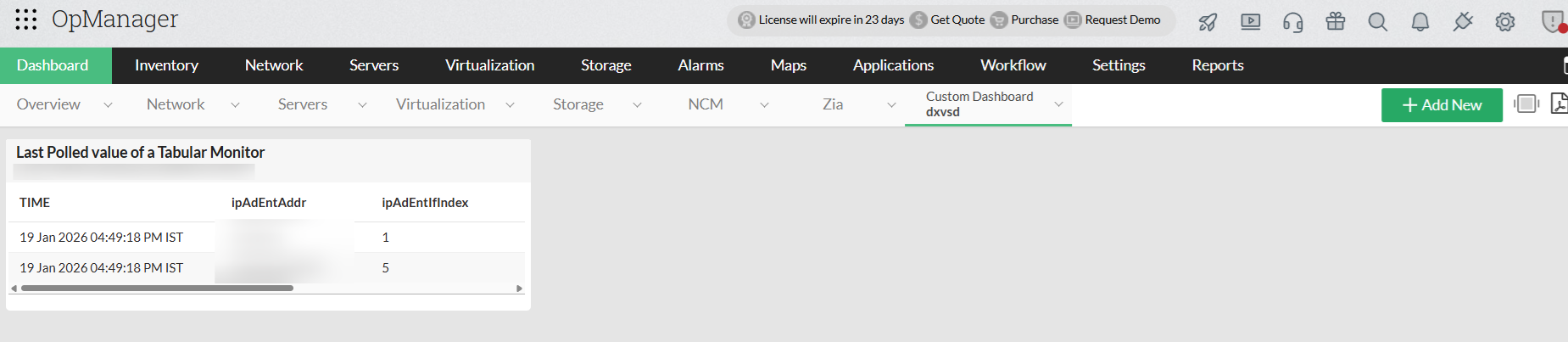
- These widgets are supported in NOC View, making them suitable for large-screen monitoring environments.
Reports
Tabular OID data can be included in reports for performance analysis.
Navigation path:
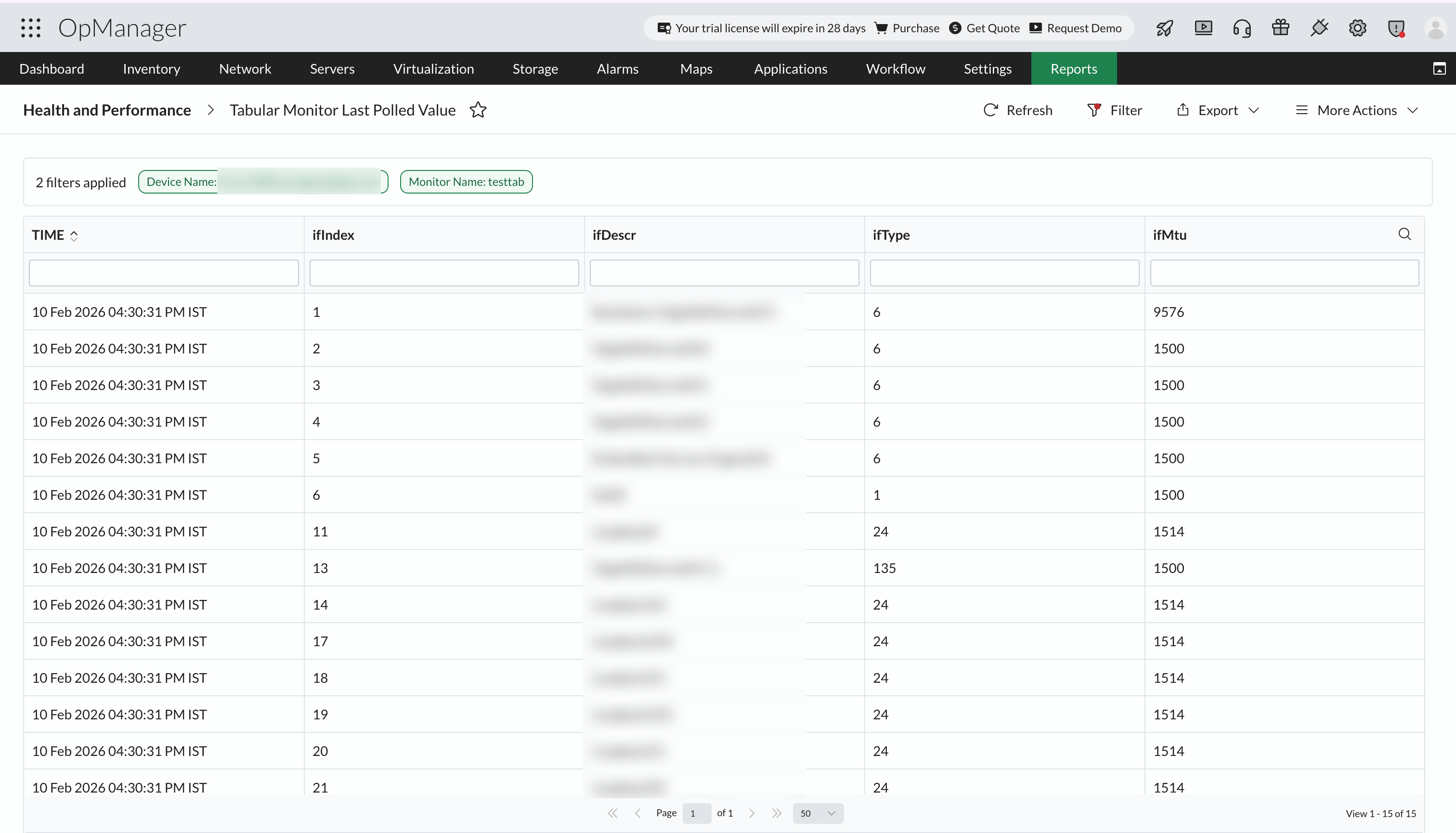
Reports → Health and Performance Reports → Tabular Monitor Last Polled Value
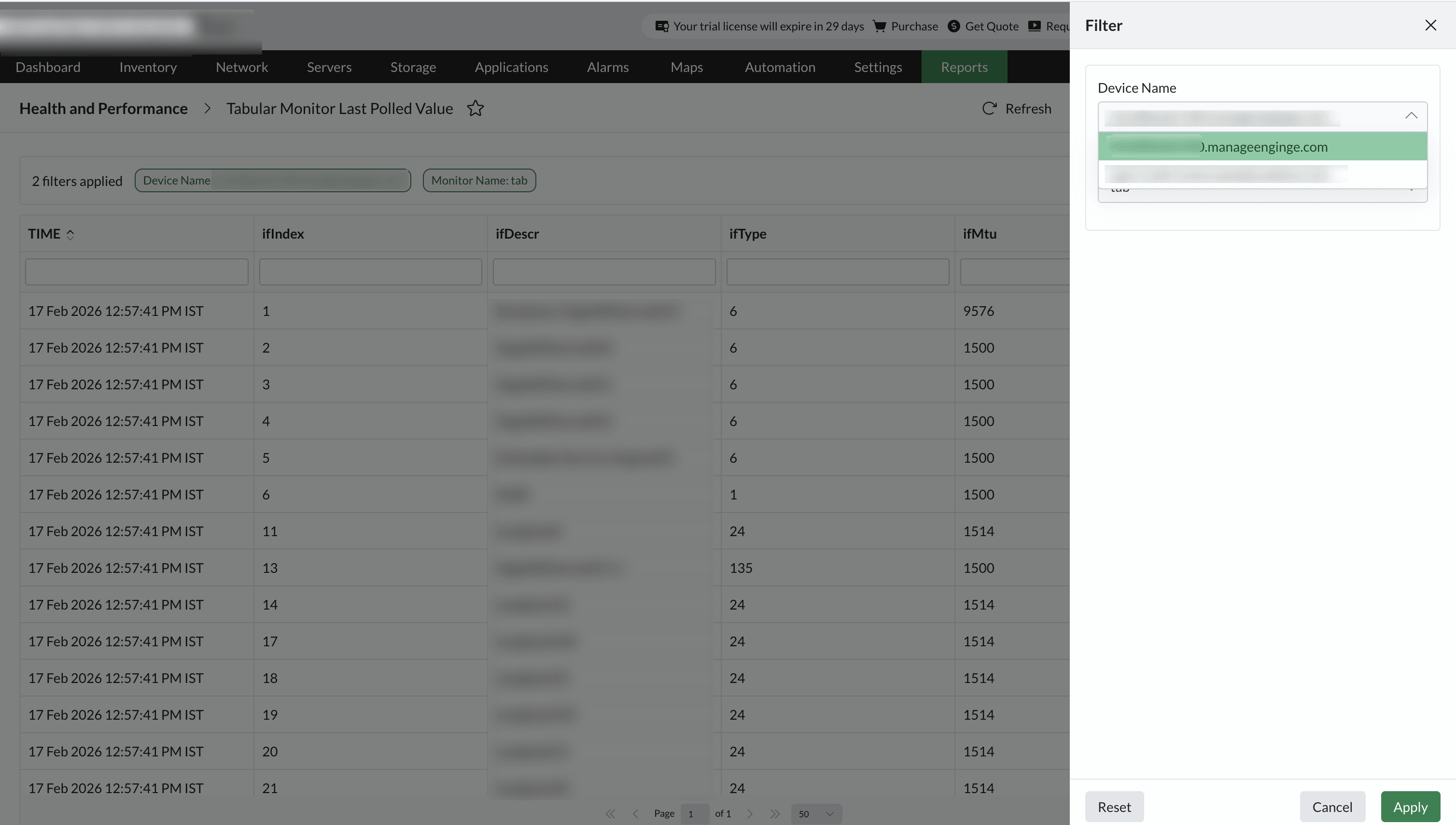
This report displays the last polled values of all configured Tabular OID monitors in a tabular format.
Tabular OID Monitoring in OpManager provides a comprehensive and scalable approach to monitoring SNMP table data. With flexible configuration options, centralized visibility, and seamless integration across device snapshots, dashboards, templates, and reports, it helps organizations efficiently manage and monitor their network infrastructure.