WAN IP Monitoring
WAN IPs are public IP addresses assigned to network devices, facilitating communication between different networks, while WAN sites represent specific locations or network segments connected through wide area networks. OpManager uses ICMP ping to monitor WAN IPs, assessing their availability, response time, and packet loss across multiple ISPs. This help document outlines the steps to configure, monitor and manage WAN IPs in OpManager.
- WAN IP Monitoring
- Steps to Add WAN IPs
- Configuring alert settings
- How to view and manage WAN IPs?
- How to view and manage WAN Sites?
- How to view WAN IP overview?
- WAN IP reports
- Advanced reports for WAN IPs
- WAN IP Notification Templates
Steps to Add WAN IPs
OpManager provides two options for adding WAN IPs: manually or via CSV import.
To Add WAN IPs manually:
- Navigate to Settings > Discovery > Add WAN IP.
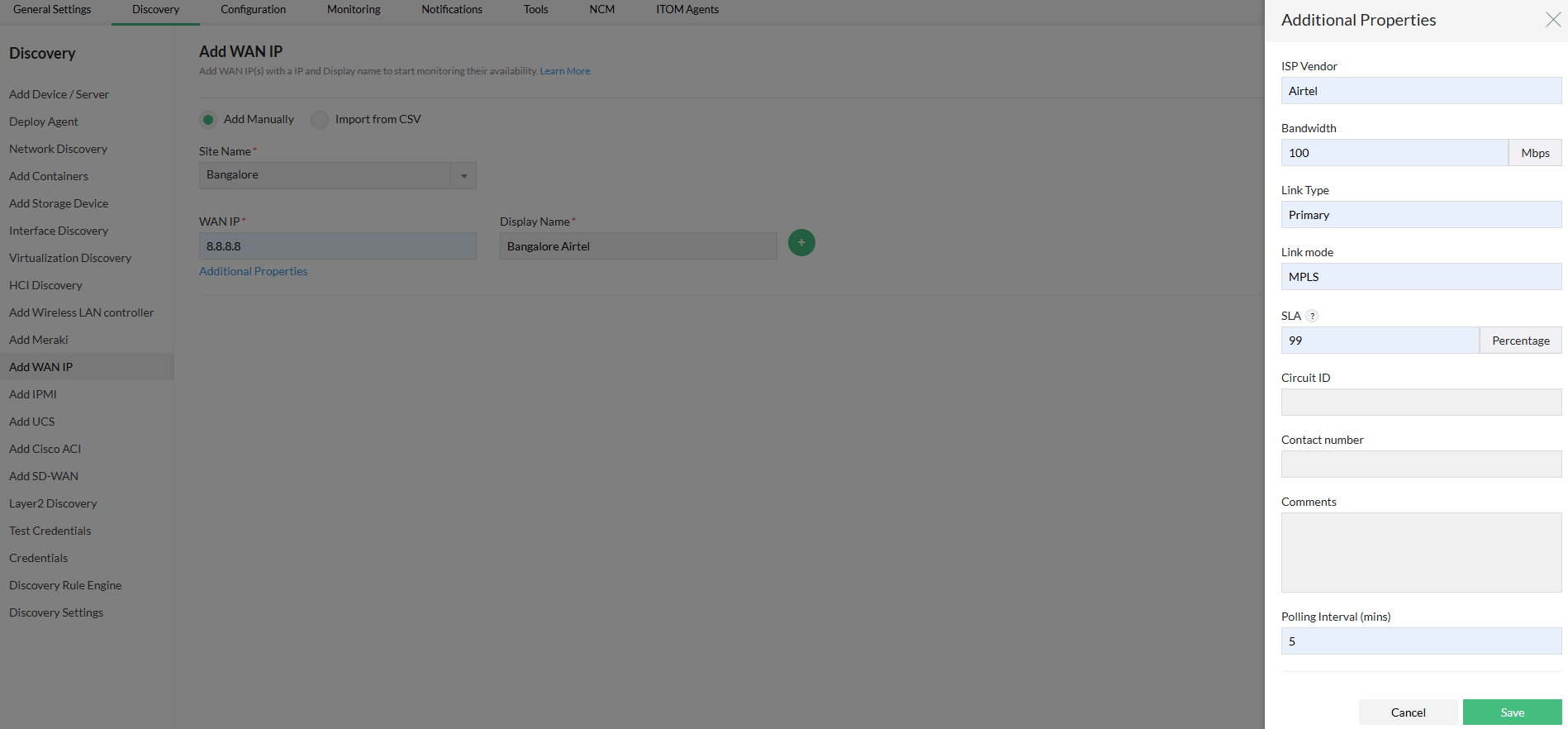
- Enter the Site Name and the WAN IP (the IP address you want to monitor).
- Assign a Display Name for easier identification.
- If adding a new site:
- Select Add New and enter the following details: Site Name, Description, Region, Location, Location Type.
- Click Save.
- Under Additional Properties, configure the following WAN IP details:
- ISP Vendor: The service provider offering the WAN connection.
- Bandwidth: The maximum data transfer capacity of the WAN link.
- Link Type: The technology used for the WAN connection (e.g., MPLS, leased line, NLD, etc.).
- Link Mode: The operational state or configuration of the WAN IP (Primary/Secondary/Tertiary).
- SLA (Service Level Agreement): Provided by the ISP vendor, expressed as a percentage.
- Circuit ID: A unique identifier assigned by the ISP to the WAN connection.
- Contact Number and Comments: The ISP support contact and any additional notes related to the WAN IP.
- Click the green Plus icon to add another WAN IP. You can add multiple WAN IPs under a single site.
- Click Discover to initiate WAN IP discovery.
Add WAN IPs via CSV:
You can also discover WAN IPs in bulk using the Import from CSV option.
- Upload the CSV file, select the required WAN IPs, and click Add WAN IP to discover.
Configuring alert settings
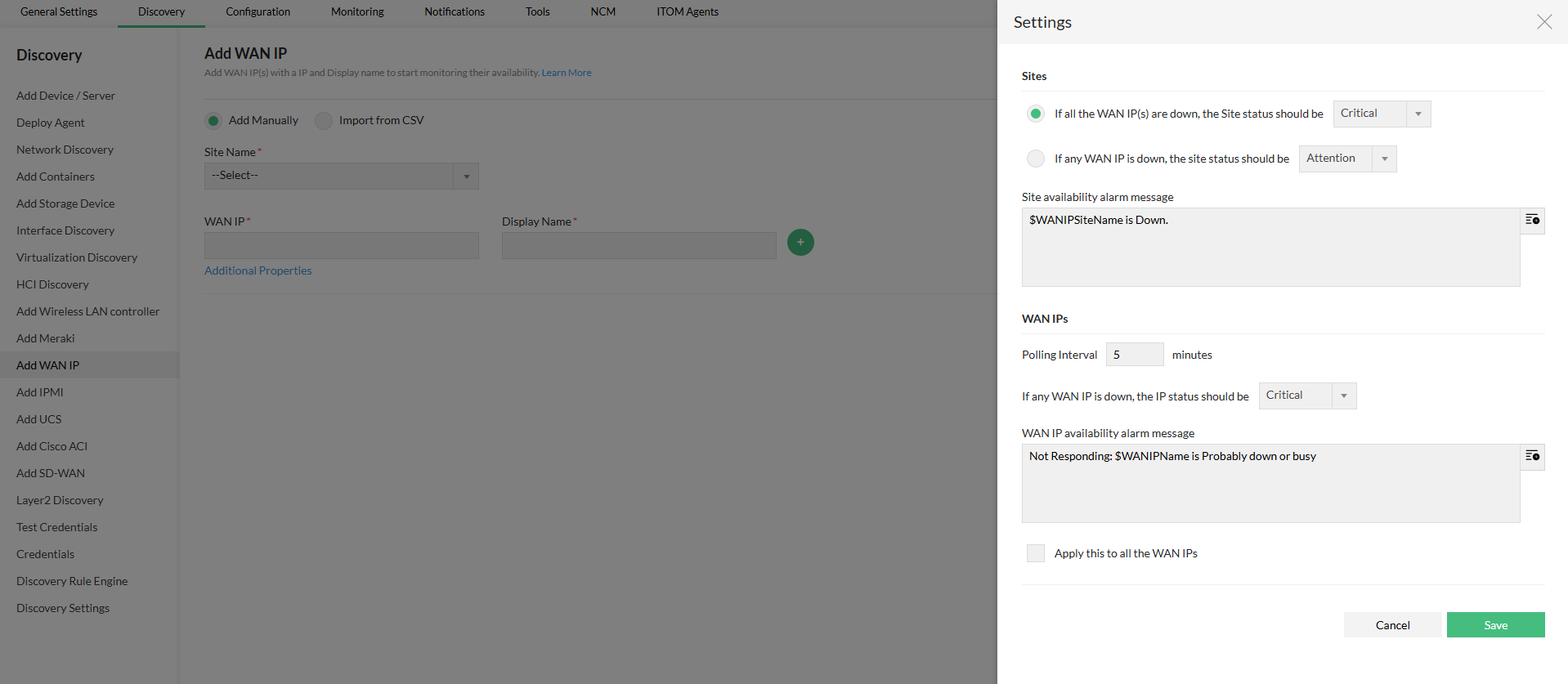
To configure alerts for the sites and WAN IPs, click on the Settings button in the discovering WAN IP tab. You can configure the following:
Site status rules
You can define how the site’s status is determined based on the availability of its WAN IPs:
- If all WAN IPs are down, set the severity for the site (e.g., Critical).
- If any WAN IP is down, set the severity for the site (e.g., Attention or Warning).
Select a custom alarm variable for site availability. You can select variables like $WANIPSiteName to dynamically insert the site name.
Example:$WANIPSiteName is Down.
WAN IP polling and alerts
- Set the polling interval (how often OpManager checks the WAN IP’s availability).
Example: Every 5 minutes. - Define the severity level for alerts when any WAN IP is down (e.g., Critical, Major, Minor).
- Customize the WAN IP alarm message that will be shown when a WAN IP becomes unavailable. You can include variables like
$WANIPName.
Example:Not Responding: $WANIPName is probably down or busy.
Enable the Apply to all WAN IPs option if you want the configured settings to apply automatically to all WAN IPs associated with the selected site.
How to view and manage WAN IPs?
- Go to Network > WAN IP.
- The discovered WAN IPs will be listed in this tab.
- To manage them, select the necessary WAN IPs and click the Actions button.
- You can Ping, Manage/Unmanage, Suppress, Delete WAN IP addresses, Associate Notification templates, and Suppress or Unsuppress the alarms.
- Click on a WAN IP to open its snapshot page where,
- Key metrics like Availability, Packet Loss and Round Trip Time are displayed using gauge meters. You can also edit/set their threshold values directly from there.
- You can navigate to the Alarms tab from the snapshot page to view alarms related to the WAN IP.
- Navigate to the Traffic tab to monitor the interface traffic of the WAN IP.
- If no interface is mapped, click Map Interface to map existing interfaces to the edge device and start monitoring traffic, performance, and status.
- Choose an Edge Device and a Source Device from the drop-down menus.
- Click Save.

How to view and manage WAN sites?
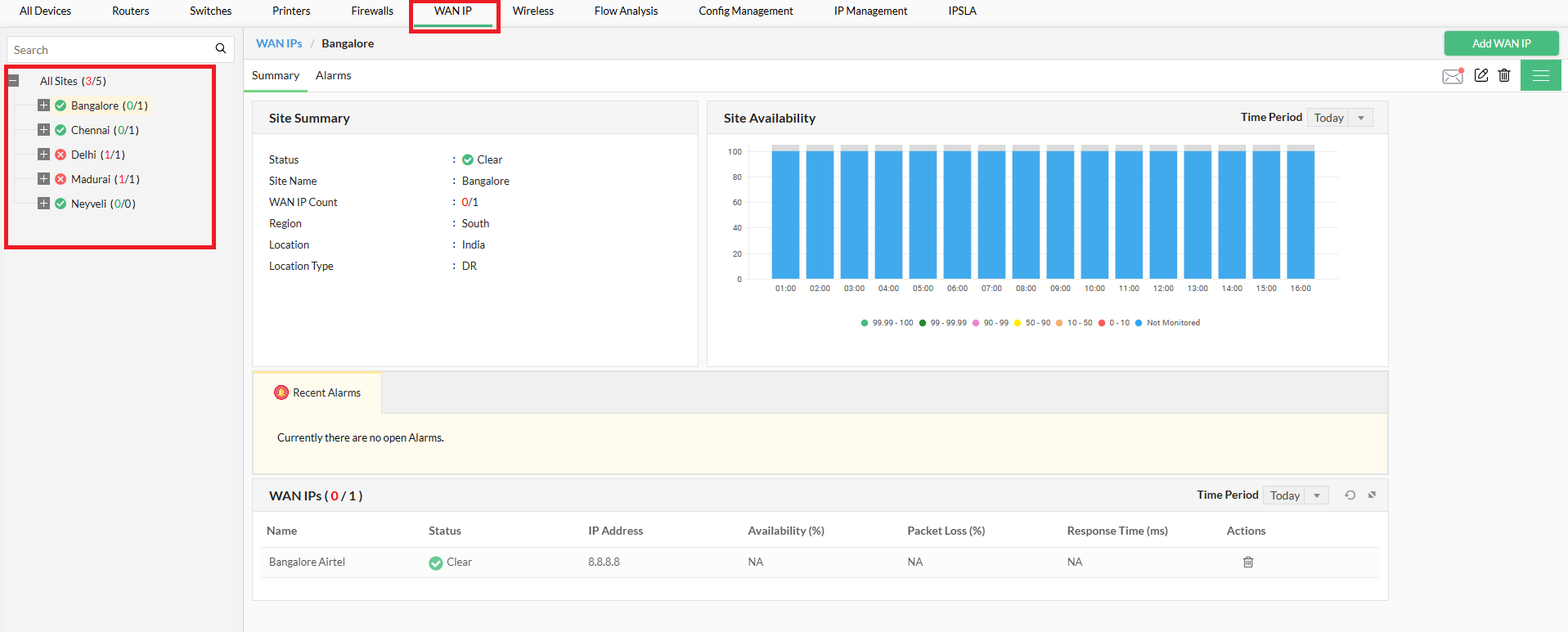
- Navigate to Network > WAN IP.
- All added sites will be listed in the left-hand tree view.
- Select a site to access its Snapshot Page, where you can:
- View a summary of the site.
- Click the Delete icon to remove the WAN IP.
- Click the Edit icon to modify the site details.
- Navigate to the Alarms tab to view alarms related to the site.
How to view WAN IP overview?
- Navigate to Dashboards > Network > WAN IP Overview.
- The overview includes:
- Site heatmaps – Visualize the availability status of all monitored sites at a glance using color-coded indicators.
- WAN link heatmaps – Get a quick view of the health and status of WAN links across your network.
- Availability summary – See aggregated uptime, packet loss, and latency metrics for WAN sites and links.
- Top 10 WAN links by traffic – Identify the most heavily utilized WAN links based on real-time traffic data.
- Edit individual widgets by clicking the Edit icon.
WAN IP reports
- Navigate to Reports > OpManager > WAN IP Reports.
- Default reports include: Site Summary, WAN IP Summary, WAN Link Down Summary, WAN Links Utilization Reports.
- Click on a report to view detailed insights.

Advanced reports for WAN IPs
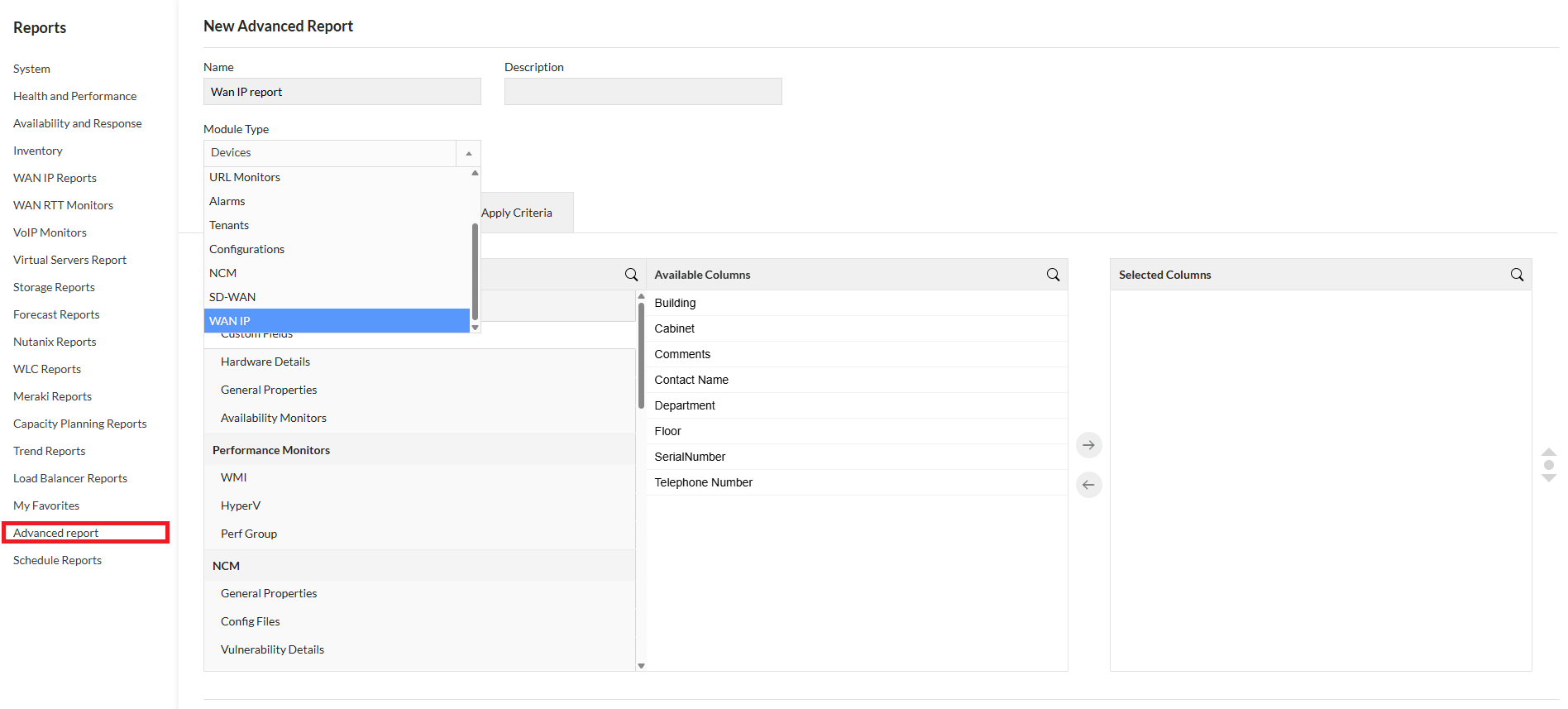
- Go to Reports > Advanced Reports.
- Click Create New Report.
- Provide a Name and Description.
- Select WAN IP as the module type.
- Choose columns from the list of available column groups.
- Click Save.
- The advanced report for WAN IPs will be created.
How to get notified for WAN IP and WAN Site Alerts
OpManager automatically raises alerts for WAN IPs and WAN Sites when availability or connectivity issues are detected. To receive notifications for these alerts, or log them as tickets,etc you need to associate the appropriate notification templates with the respective WAN IPs or Sites.
Create a notification template by navigating to Settings → Notifications → Notification Template. After creating the template to your liking, you need to associate it with the WAN IPs and WAN Sites.
How to associate a WAN IP with a notification template?
To receive notifications for alerts related to WAN IPs:
- Go to Network → WAN IP.
- Click on a specific WAN IP to open its Snapshot Page.
- Click the Notification icon in the top-right corner.
- Choose and associate the required notification template.
For bulk configuration:
- Select multiple WAN IPs from the list.
- Click Actions → Notification Templates → Associate, and select the necessary template.
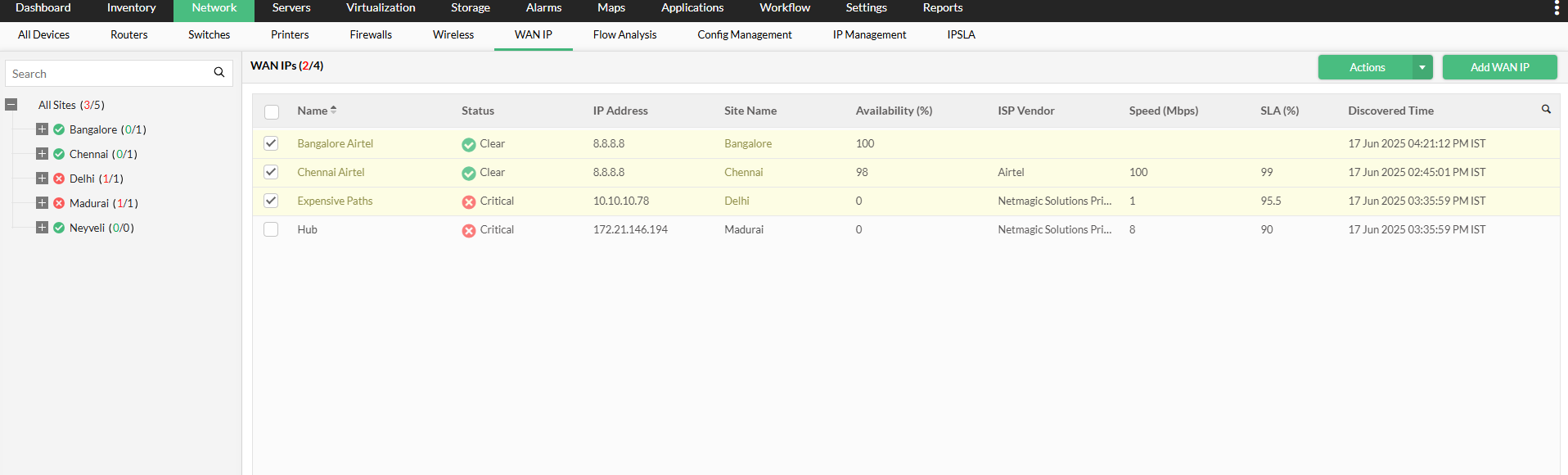
Once associated, OpManager will automatically send notifications whenever alerts are raised for those WAN IPs. The Notification templates can be disassociated from the respective WAN IP via its snapshot page.
How to associate a WAN Site with a notification template?
To receive notifications for alerts related to WAN Sites:
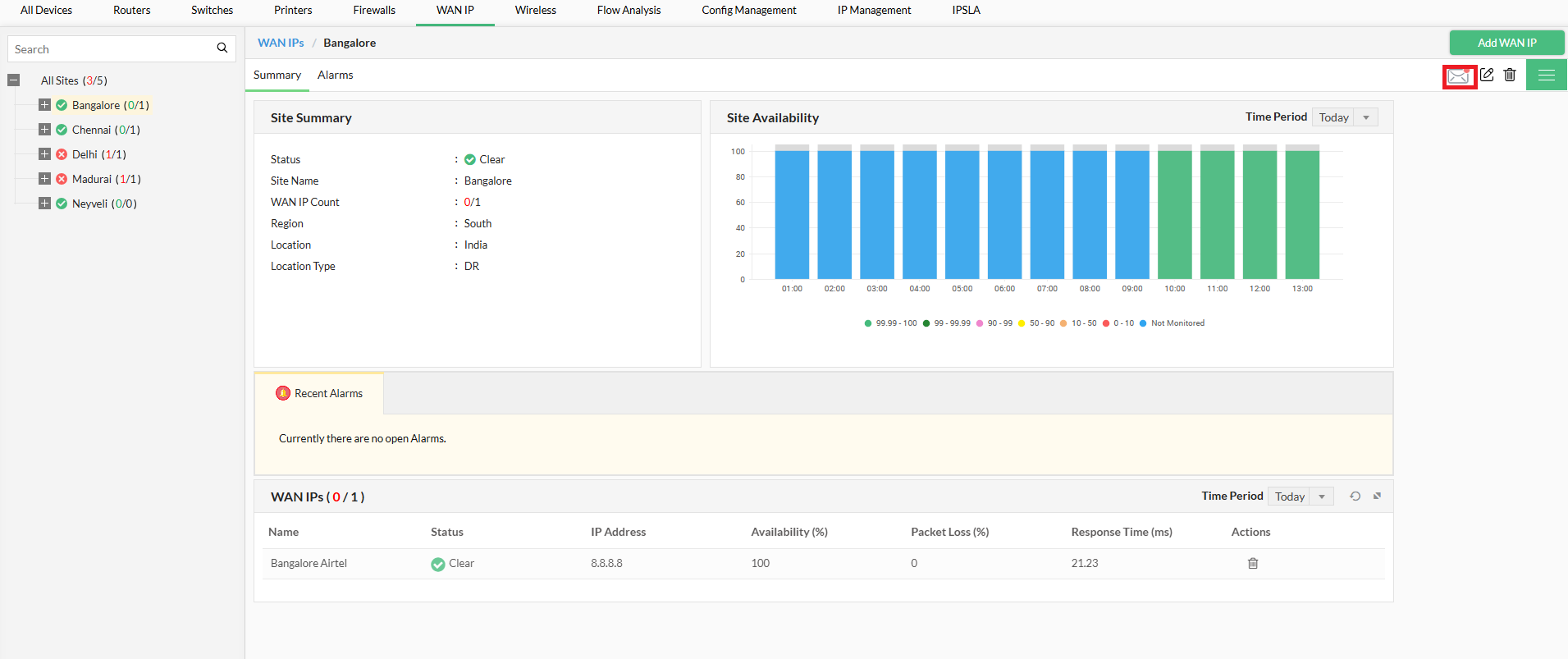
- Open the Site Summary page of the site.
- Click the Notification icon at the top-right.
- Associate the preferred notification template.
Note that the Notification templates can be disassociated from the respective WAN Site via its snapshot page.