Widgets in OpManager
OpManager's Widgets offer a highly customizable and interactive means to display essential data and metrics on your network dashboard. These widgets allow users to personalize their dashboard, presenting real-time insights into various aspects of network management, such as network performance,device status, and traffic flow, and users can also have a comprehensive overview of their network at a glance. This help documentation will guide you through the process of adding, editing,embedding, deleting a widget to your OpManager dashboard.
To add Widgets to Custom Dashboards, Go to Dashboard -> Custom -> Create New Custom Dashboard. Click here to learn more about adding widgets.
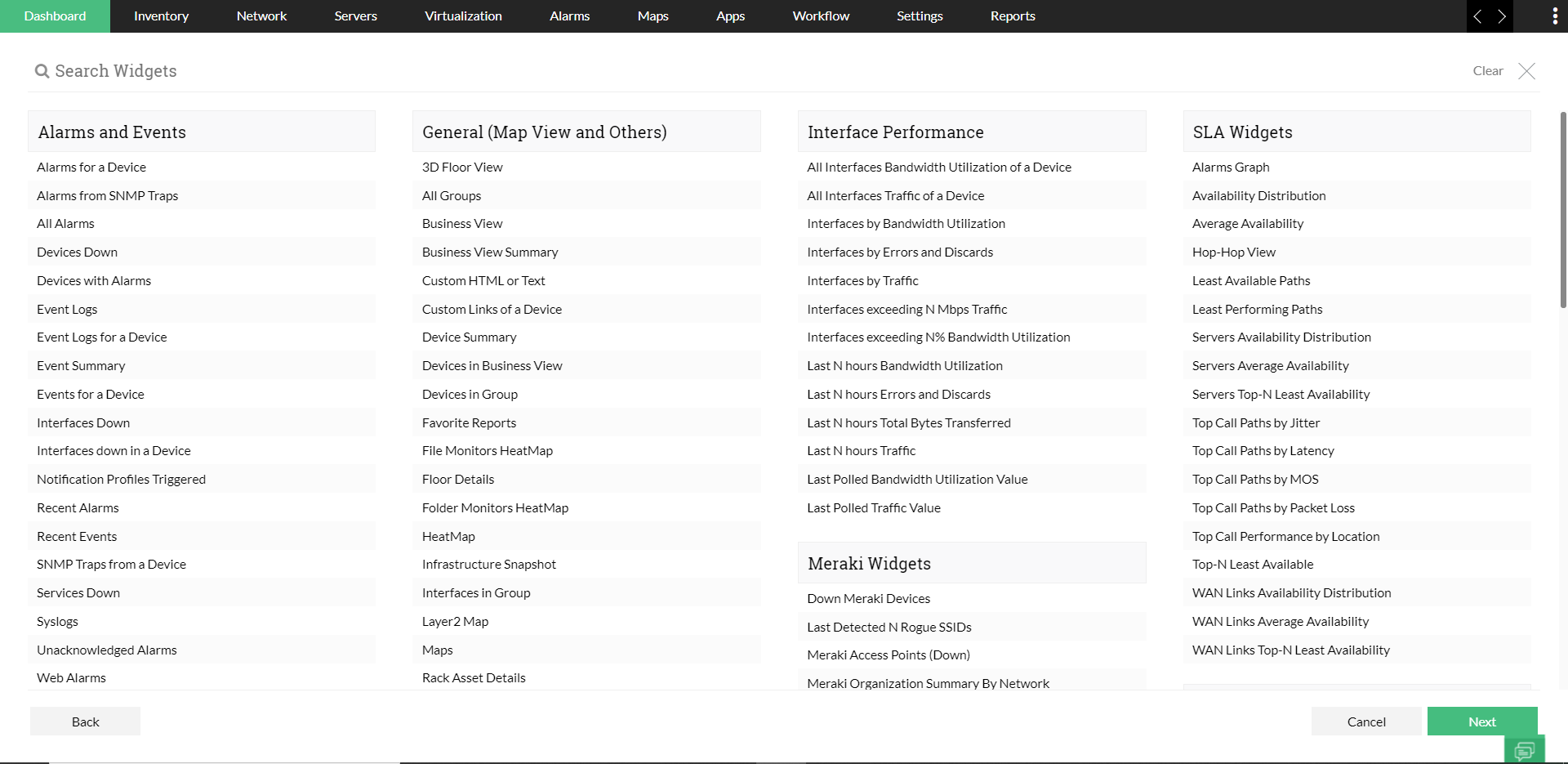
The following are the list of widgets in OpManager,
- Alarms and Events
- Anomaly Detection
- Availability and Response
- DPI Widgets
- Firewall Widgets
- General
- Health and Performance
- Interface Performance
- IPAM & SPM Widgets
- Meraki Widgets
- NCM Widgets
- NFA Widgets
- Nutanix Widgets
- Real Time Graphs
- SDN Widgets
- SD-WAN Widgets
- SLA Widgets
- Storage Widgets
- WLC Widgets
- APM Widgets
Alarms and Events
- Alarms for a Device: Displays all active alarms generated by a specific device.
- Alarms from SNMP Traps: Lists alarms received via SNMP traps across devices.
- All Alarms: Shows every current alarm in the system.
- Devices Down: Identifies devices that are currently unreachable.
- Devices with Alarms: Lists devices that have one or more active alarms.
- Event Logs: Displays chronological event entries across the network.
- Event Logs for a Device: Shows event entries specific to a single device.
- Event Summary: Provides a count of events grouped by type or severity.
- Events for a Device: Lists all recorded events for a given device.
- Interfaces Down: Identifies network interfaces that are currently down.
- Interfaces down in a Device: Shows down interfaces on a particular device.
- Notification Profiles Triggered: Lists notification profiles activated by alarms.
- Recent Alarms: Displays alarms raised in the last specified time window.
- Recent Events: Shows events recorded in the last specified time window.
- SNMP Traps from a Device: Lists SNMP traps sent by a particular device.
- Services Down: Identifies services that are currently not responding.
- Syslogs: Displays collected syslog messages from devices.
- Top N Problematic Devices based on Active Alarms Count: Ranks devices by number of active alarms.
- Unacknowledged Alarms: Lists active alarms that have not been acknowledged.
- Web Alarms: Shows alarms generated from web-monitoring checks.
Anomaly Detection
- Total Anomalies: Displays the total number of anomalies detected across all devices in the network.
- Device with Highest Anomalies: Shows the device that has generated the most anomalies.
- Group with Highest Anomalies: Shows the device group with the highest number of anomalies.
- Recent Anomalies: Displays a list of the most recent anomalies along with details such as expected value, real-time value, deviation, affected device, and time of occurrence.
- Anomaly Trend: Displays a graphical trend of anomalies over a selected time period.
- Anomaly Trend in Group: Shows the trend of anomalies for a specific device group over time.
- Top 10 Devices by Anomalies: Lists the top 10 devices ranked by the number of anomalies.
- Top 10 Groups by Anomalies: Lists the top 10 device groups ranked by the number of anomalies.
Availability and Response
- AD Service Availability: Shows availability metrics for Active Directory services.
- AD Services by Availability: Ranks AD services based on availability percentage.
- Device Availability: Displays the availability status of devices over time.
- Devices by Availability: Lists devices sorted by their availability.
- Devices by Downtime: Ranks devices by total downtime duration.
- Devices by Packet Loss: Shows devices sorted by packet loss percentage.
- Devices by Response Time: Lists devices based on their response times.
- Devices exceeding N % Packet Loss: Identifies devices with packet loss above a threshold.
- Devices exceeding N ms Response Time: Identifies devices with response time above a threshold.
- Interface Availability: Displays availability status of network interfaces.
- Last N hours Response Time: Shows response time data for the last specified hours.
- MS Exchange Service Availability: Shows availability metrics for MS Exchange services.
- MS Exchange Services by Availability: Ranks Exchange services by availability.
- MSSQL Service Availability: Displays availability for MSSQL services.
- MSSQL Services by Availability: Ranks MSSQL services based on availability.
- Packet Loss (%) for a Device: Shows packet loss percentage for a specific device.
- Process Availability: Displays availability metrics of monitored processes.
- Processes by Availability: Lists processes sorted by their availability.
- Response Time of a Device: Shows response time measurements for a given device.
- Service Availability: Displays availability for all monitored services.
- Services by Availability: Lists services sorted by availability percentage.
- Services by Downtime: Ranks services by total downtime.
- Services by Response Time: Shows services sorted by response times.
- URL Availability: Displays availability metrics for monitored URLs.
- URLs by Availability: Lists URLs sorted by availability.
- URLs by Downtime: Ranks URLs by downtime duration.
- URLs by Response Time: Shows URLs sorted by response times.
- VPN Tunnels Down: Identifies VPN tunnels currently down.
- VPN Tunnels Summary: Provides summary metrics for VPN tunnel availability.
- WAN Links by Availability: Lists WAN links sorted by availability.
- WAN Links by Downtime: Ranks WAN links by downtime.
- Web Servers by Availability: Shows availability metrics for web servers.
- Windows Services by Availability: Displays availability for Windows services.
DPI Widgets
- Top N Application by ART: Lists top applications by average response time.
- Top N Application by NRT: Shows top applications by network response time.
- Top N Application by Volume: Ranks applications by traffic volume.
- Top N Protocol by Utilization: Lists protocols by bandwidth utilization.
- Top N URLs by Count: Shows most-accessed URLs by request count.
- Top N URLs by Utilization: Ranks URLs by traffic utilization.
- Top N URL by ART: Identifies URLs with highest average response time.
- Top N URL by NRT: Identifies URLs by network response time.
- Top N URL by Volume: Ranks URLs by volume of traffic.
- Traffic Report by Speed: Displays traffic distribution by speed.
Firewall Widgets
- Active VPN Users: Lists currently connected VPN users.
- Category Usage: Shows traffic distribution by category.
- Compliance by BASEL II Standard: Displays compliance status per BASEL II.
- Compliance by CIS Domain & Standard: Shows CIS domain-based compliance.
- Compliance by CIS Controls v8 Standard: Displays compliance for CIS v8.
- Compliance by DISA STIG Standard: Shows DISA STIG compliance metrics.
- Compliance by GDPR Standard: Displays GDPR compliance status.
- Compliance by GLBA Standard: Shows GLBA compliance metrics.
- Compliance by GSMA Standard: Displays GSMA compliance status.
- Compliance by HIPAA Standard: Shows HIPAA compliance metrics.
- Compliance by ISO 27001 Standard: Displays ISO 27001 compliance status.
- Compliance by ISO Standard: General ISO compliance overview.
- Compliance by NERC CIP Standard: Shows NERC CIP compliance.
- Compliance by NIST Standard: Displays NIST compliance metrics.
- Compliance by PCI DSS Standard: Shows PCI DSS compliance status.
- Compliance by SANS Standard: Displays SANS compliance metrics.
- Compliance by SOC 2 Type II Standard: Shows SOC 2 Type II compliance.
- Compliance by SOX Standard: Displays SOX compliance status.
- Device List: Lists all firewall devices monitored.
- Firewall Interface Live Traffic: Displays live traffic statistics per interface.
- Firewall Live Traffic: Shows real-time firewall traffic.
- Firewall Security Statistics: Provides aggregated security event counts.
- Firewall Traffic Statistics: Displays traffic metrics over time.
- Security Event Summary: Summarizes security events by type.
- Top N Applications by Traffic: Ranks applications by firewall traffic.
- Top N Applications by Threats: Lists applications triggering threats.
- Top N Attacks by Hits: Ranks attack types by hit count.
- Top N Blocked URLs by Hits: Shows most-blocked URLs.
- Top N Business Services: Lists business services by traffic volume.
- Top N Cloud Applications: Ranks cloud apps by usage.
- Top N Cloud Resources: Lists cloud resources by traffic.
- Top N Cloud Services: Ranks cloud services by utilization.
- Top N Cloud Users: Lists cloud users by activity.
- Top N Countries by Traffic: Ranks countries by traffic volume.
- Top N File Sharing Services: Lists file-sharing services by usage.
- Top N Firewalls by Correlation Anomaly: Shows firewalls by anomaly.
- Top N Firewalls by Generalization Anomaly: Ranks firewalls by generalization anomaly.
- Top N Firewalls by Grouping Anomaly: Lists firewalls by grouping anomaly.
- Top N Firewalls by Redundancy Anomaly: Shows firewalls by redundancy anomaly.
- Top N Firewalls by Shadowing Anomaly: Ranks firewalls by shadowing anomaly.
- Top N Hosts by Attack: Lists hosts targeted by attacks.
- Top N Hosts by Traffic: Ranks hosts by traffic volume.
- Top N Intrusions: Lists intrusion events by count.
- Top N Protocols by Traffic: Ranks protocols by traffic volume.
- Top N Security Policy Violations: Shows policy violations by count.
- Top N Social Media Services: Lists social media services by usage.
- Top N Spam Senders by Hits: Ranks spam senders by hit count.
- Top N Users by Denied Logons: Lists users with denied logins.
- Top N Users by Traffic: Ranks users by traffic volume.
- Top N Users by VPN Usage: Lists users by VPN traffic.
- Top N VPN Groups by Traffic: Ranks VPN groups by traffic.
- Top N VPNs by Traffic Usage: Lists VPNs by usage volume.
- Top N Viruses by Hits: Ranks viruses by detection hits.
General (Map View & Others)
- 3D Floor View: Renders a three-dimensional floor layout of devices.
- All Groups: Shows all device groups defined in the system.
- Availability, Health and Alarm Summary: Summarizes availability, health, and alarm counts.
- Business View: Displays devices organized by business-critical views.
- Business View Summary: Provides summary metrics for each business view.
- Custom HTML or Text: Embeds user-defined HTML or text content.
- Custom Links of a Device: Shows custom URLs associated with a device.
- Device Summary: Provides key metrics and status for a device.
- Devices in Business View: Shows devices under a specific business view.
- Devices in Group: Shows devices belonging to a selected group.
- Favorite Reports: Shows user-marked favorite reports.
- File Monitors HeatMap: Heatmap of file monitoring status on servers.
- Floor Details: Displays metadata and layout details of a floor.
- Folder Monitors HeatMap: Heatmap of folder monitoring across servers.
- HeatMap: Generic heatmap for selected metrics.
- Infrastructure Snapshot: Provides a snapshot of network infrastructure status.
- Interfaces in Group: Shows interfaces across devices in a group.
- Layer2 Map: Renders a Layer 2 topology map.
- Maps: Displays geographical or logical maps of devices.
- Network Path Analysis: Shows path trace and performance between endpoints.
- Rack Asset Details: Displays hardware asset details of racks.
- Rack Capacity: Shows capacity utilization of racks.
- Rack Details: Provides detailed information for a rack.
- Rack View: Renders a visual rack layout.
- Tree View: Displays hierarchical device topology.
Health and Performance
- Cisco Buffer Misses: Shows buffer miss counts for Cisco devices.
- Devices by CPU Utilization: Displays devices by CPU usage.
- Devices by Disk Utilization: Displays devices by disk usage.
- Devices by Memory Utilization: Displays devices by memory usage.
- Devices exceeding N % CPU Utilization: Shows devices over CPU usage threshold.
- Devices exceeding N % Disk Utilization: Shows devices over disk usage threshold.
- Devices exceeding N % Memory Utilization: Shows devices over memory usage threshold.
- Forecast Recommendations: Provides capacity forecast suggestions.
- Idle VMs: Shows virtual machines with low activity.
- Last N hours CPU Utilization: Shows CPU usage for the last specified hours.
- Last N hours Disk Utilization: Shows disk usage for the last specified hours.
- Last N hours Memory Utilization: Shows memory usage for the last specified hours.
- Last N hours Values of a Performance Monitor: Displays monitor values for the last hours.
- Last Polled Value of CPU Utilization: Shows most recent CPU usage value.
- Last Polled Value of Disk Utilization: Shows most recent disk usage value.
- Last Polled Value of Memory Utilization: Shows most recent memory usage value.
- Last Polled Value of a Performance Monitor: Shows the latest value for any monitor.
- Monitor forecasting trend: Displays trend lines for forecasted metrics.
- Nutanix Top N Utilization: Displays Nutanix resources by utilization.
- Processes by CPU Utilization: Shows processes sorted by CPU usage.
- Processes by Memory Utilization: Shows processes sorted by memory usage.
- Top N Min/Max/Average CPU Utilization: Shows CPU extremes for top devices.
- Top N Min/Max/Average Memory Utilization: Shows memory extremes for top devices.
- Top N Monitored Values of a Performance Monitor: Shows top N values recorded.
- Top VMs by CPU Over Allocated: Shows VMs allocated more CPU than used.
- Top VMs by CPU Under Allocated: Shows VMs allocated less CPU than needed.
- Top VMs by Memory Over Allocated: Shows VMs allocated more memory than used.
- Top VMs by Memory Under Allocated: Shows VMs allocated less memory than needed.
- Virtual Top N Utilization: Displays virtual resources by utilization.
- Volumes with least Disk Usage: Shows volumes with lowest usage.
- Volumes with most Disk Usage: Shows volumes with highest usage.
Interface Performance
- All Interfaces Bandwidth Utilization of a Device: Shows bandwidth usage per interface on a device.
- All Interfaces Traffic of a Device: Displays traffic volume per interface on a device.
- Interfaces by Bandwidth Utilization: Displays interfaces by bandwidth usage.
- Interfaces by Errors and Discards: Shows interfaces by error/discard counts.
- Interfaces by Traffic: Displays interfaces by traffic volume.
- Interfaces exceeding N Mbps Traffic: Shows interfaces with traffic above threshold.
- Interfaces exceeding N % Bandwidth Utilization: Shows interfaces over bandwidth threshold.
- Last N hours Bandwidth Utilization: Shows interface bandwidth usage over last hours.
- Last N hours Errors and Discards: Shows error/discard stats over last hours.
- Last N hours Total Bytes Transferred: Displays bytes transferred over last hours.
- Last N hours Traffic: Shows traffic volume over last hours.
- Last Polled Bandwidth Utilization Value: Shows most recent interface bandwidth usage.
- Last Polled Traffic Value: Shows most recent traffic measurement.
IPAM & SPM Widgets
- AD & IPAM Summary: Summarizes Active Directory and IPAM status.
- AD Status Summary: Shows health/status of AD servers.
- DNS Status Summary: Displays status of DNS servers and zones.
- IP Availability Summary: Shows summary of IP availability.
- IP Availability Summary HeatMap: Heatmap of IP utilization across subnets.
- IP Usage Summary: Displays IP usage metrics.
- IP Utilization by Traffic: Displays IPs by traffic volume.
- IP by Usage HeatMap: Heatmap of IP usage levels.
- NIC Type Summary: Shows network interface types in use.
- OS Type Summary: Summarizes OS types across monitored devices.
- Port Availability Summary: Shows port availability metrics.
- Port Availability Summary HeatMap: Heatmap of port usage across devices.
- Recently Discovered: Shows newly discovered IP assets.
- Recently Marked as Guest: Shows assets marked as guest.
- Recently Marked as Rogue: Shows assets marked as rogue.
- Recently Marked as Trusted: Shows assets marked as trusted.
- Subnet Summary: Displays summary metrics for subnets.
- Subnet Usage: Shows usage percentages for subnets.
- Top 10 Groups with occupied IPs: Displays groups by occupied IP count.
- Top 10 Subnets with Occupied IPs: Displays subnets by occupied IP count.
- Top Ten Groups with Free ports: Shows groups with most free ports.
- Top Ten Groups with occupied ports: Shows groups with most occupied ports.
- Top Ten Switches with Free ports: Shows switches with most free ports.
- Top Ten Switches with occupied port: Shows switches with most occupied ports.
Meraki Widgets
- Down Meraki Devices: Shows Meraki devices currently offline.
- Last Detected N Rogue SSIDs: Shows recently detected rogue SSIDs.
- Meraki Access Points (Down): Shows offline Meraki APs.
- Meraki Organization Summary By Network: Summarizes metrics by Meraki network.
- Meraki Organization Summary by Category: Shows summary by device category.
NCM Widgets
- Backup Summary: Provides status summary of NCM backups.
- Compliance Summary: Shows compliance status of device configs.
- Configuration Change Trend: Displays trend of configuration changes.
- Configuration Change Summary: Summarizes recent config changes.
- Configuration Changes Summary: Shows all config changes.
- Configuration Report: Generates detailed config reports.
- Configuration Review Summary: Summarizes review status of configs.
- Devices Summary: Provides overall device metrics.
- Device Summary: Duplicate; see above.
- EOL/Ageing Devices: Shows devices nearing end-of-life.
- EOL Announced Devices: Shows devices with announced EOL.
- EOL Summary: Summarizes end-of-life statuses.
- High Risk Firmwares: Shows devices with risky firmware.
- High Risk Vulnerabilities: Shows critical vulnerabilities.
- High Vulnerable Devices: Shows devices with multiple vulnerabilities.
- Inventory Snapshot: Shows current inventory status.
- NCM DashBoard: Provides main NCM dashboard metrics.
- Pending Devices: Shows devices pending configuration.
- Policy Compliance Summary: Shows compliance of devices against policies.
- Push Config Results: Displays results of push config jobs.
- Recent 10 Config Changes: Shows most recent ten changes.
- Recent Backups: Shows last backup statuses.
- Recent Config Changes: Duplicate; see above.
- Recent NCM Alarms: Shows alarms from NCM module.
- Recent ROLLBACK Changes: Shows rollback operations.
- Running Configs: Displays currently running configs.
- Scheduled Config Changes: Shows upcoming scheduled changes.
- Startup/Running Config Comparison: Compares startup & running configs.
- Startup vs Running Conflict Summary: Summarizes conflicts between configs.
- Syslog Message Trend: Shows trend of syslog messages.
- Vault Summary: Details vault-stored credentials usage.
- Vulnerability Scan Summary: Summarizes recent scans.
- Vulnerabilities Over Time: Shows vulnerability trend.
- Vulnerability Age Matrix: Displays age distribution of vulnerabilities.
- Vulnerability Severity Summary: Displays vulnerabilities by severity.
NFA Widgets
- Application: Shows NFA application traffic breakdown.
- Autonomous Systems: Displays traffic by autonomous system.
- CBQoS: Shows Class-Based QoS statistics.
- Conversation: Shows top conversation flows.
- Destination: Displays traffic by destination IP.
- Device Summary: Provides NFA device metrics.
- Flow Summary: Summarizes flow data.
- Protocol: Displays traffic by protocol.
- QoS: Shows QoS policy metrics.
- Recent Alarms: Shows recent alarms in NFA context.
- Security: Summarizes security flows.
- Source: Displays traffic by source IP.
- Traffic: Shows overall traffic metrics.
- Wireless Controller: Provides wireless controller stats.
Nutanix Widgets
- Cluster Summary: Displays overall cluster health and utilization.
- Top N Disks By % of Free Space: Displays disks by free space percentage.
- VMs By Power Status: Shows VMs by their power state.
Real Time Graphs
- Flap Count Summary: Shows flap counts over time.
- Flap Summary: Summarizes interface flaps.
- Interfaces Health Summary: Displays health metrics of interfaces.
- Monitors Health Summary: Shows health status of monitors.
- Real Time Bandwidth Utilization: Displays live bandwidth usage.
- Real Time CPU Utilization: Shows live CPU usage.
- Real Time Graph for a Monitor: Displays live data for a specific monitor.
- Real Time Memory Utilization: Shows live memory usage.
- Real Time Traffic: Displays live traffic metrics.
- Realtime Alarms: Shows alarms in real time.
SDN Widgets
- Devices by CPU Utilization: Displays SDN devices by CPU usage.
- Fabric Health Score (less than N): Shows fabrics below health threshold.
- Fabric Heat Map: Displays fabric health heatmap.
- Infrastructure Health Status: Shows SDN infrastructure health metrics.
- Leaves with least Health Score: Shows leaf nodes with low health.
- Recent Alarms: Shows recent SDN alarms.
- Spine with number of Leaves: Displays spine nodes and leaf count.
- Spines with least Health Score: Shows spines with low health.
- Tenant Health Score (less than N): Displays tenants below health threshold.
- Tenants with least Health Score: Shows tenants with low health.
SD-WAN Widgets
- SD-WAN Site Summary: Summarizes SD-WAN site metrics.
- SD-WAN Summary: Provides overall SD-WAN stats.
- SD-WAN Tunnel Summary: Shows tunnel status and metrics.
SLA Widgets
- Alarms Graph: Plots alarm counts against SLA targets.
- Availability Distribution: Shows SLA availability distributions.
- Average Availability: Displays average SLA compliance.
- Hop-Hop View: Visualizes SLA hops performance.
- Least Available Paths: Shows paths with lowest availability.
- Least Performing Paths: Shows paths with poorest performance.
- Servers Availability Distribution: Shows server SLA distributions.
- Servers Average Availability: Displays average server SLA.
- Servers Top-N Least Availability: Displays servers by poor SLA.
- Top Call Paths by Jitter: Shows call paths by jitter.
- Top Call Paths by Latency: Shows call paths by latency.
- Top Call Paths by MOS: Shows call paths by MOS.
- Top Call Paths by Packet Loss: Shows call paths by packet loss.
- Top Call Performance by Location: Displays call performance geographically.
- Top-N Least Available: Shows least available resources.
- WAN Links Availability Distribution: Shows distribution of link availability.
- WAN Links Average Availability: Displays average link SLA.
- WAN Links Top-N Least Availability: Displays links by least availability.
Storage Widgets
- Disk IOPS: Shows input/output operations per second.
- Disk IO Rate: Displays disk throughput rate.
- Disk Reads/second: Shows read operations per second.
- Disk Writes/second: Shows write operations per second.
- RAID Summary: Provides an overview of RAID status.
- Raid Capacity Utilization: Shows RAID capacity usage.
- Raid Controller IO Rate: Displays controller I/O throughput.
- Raid Controller Reads: Shows controller read ops.
- Raid Controller Writes: Shows controller write ops.
- Raid IO Rate: Displays RAID I/O rate.
- Raid Latency: Shows RAID operation latency.
- Storage Forecasting: Provides storage usage forecasts.
- Storage Growth Trend: Displays historical storage growth.
- Storage Overview: Summarizes overall storage metrics.
WLC Widgets
- AP Traffic Usage: Shows traffic usage per access point.
- SSID AP Count: Shows number of APs per SSID.
- Top N AP Client Count for SSID: Displays SSIDs by client count.
- Top N SSID Client count: Shows SSIDs by total clients.
- WLC Summary: Provides overall wireless controller stats.
APM Widgets
- Application Monitors Summary: Provides an overview of all application monitors and their statuses.
- Application Monitors Status: Shows current status (up/down) of configured application monitors.
- Application Monitor Availability: Displays availability percentage for each application monitor.
- Applications Health & Availability: Summarizes both health metrics and availability for applications.
- Application Monitors HeatMap: Visual heatmap of monitor performance across applications.
- Application Monitor Groups Summary: Lists summary metrics for grouped application monitors.
- Application Monitor Groups Tree view: Shows hierarchical view of application monitor groups.
- Application Monitors Health Summary: Provides a concise health summary of all application monitors.