How to trust the SSL certificate for InsightVM (On-Prem) integration?
Description
You cannot integrate with InsightVM (On-Prem) server if the SSL certificate is not trusted. You can see the error message Certificate not trusted while configuring insightvm (On-Prem) Integration Settings.
In case InsightVM (On-Prem) integration isn't available in your Patch Manager Plus server, kindly contact support.
Steps
The following steps will help in resolution:
- Download the certificate listed in the browser for InsightVM on the endpoint where Patch Manager Plus is installed.
- Open Command Prompt as administrator and set the command prompt path to cd %Server_Home_Dir%\jre\bin directory.
- Run the command keytool -importcert -file "%.Certificate_path%\%cert_name%" -keystore "%Server_Home_Dir%\conf\sslcerts\insightvm_OP.keystore" -alias " <unique_alias_name>;" to create a InsightVM keystore, then add each certificate using this command and every certificate must be given a unique alias name.
- Enter the keystore password : insightvm
- Press y (yes) to trust the certificate.
- The certificate trust has been successfully established. You will now be able to integrate with InsightVM (On-Prem) server.
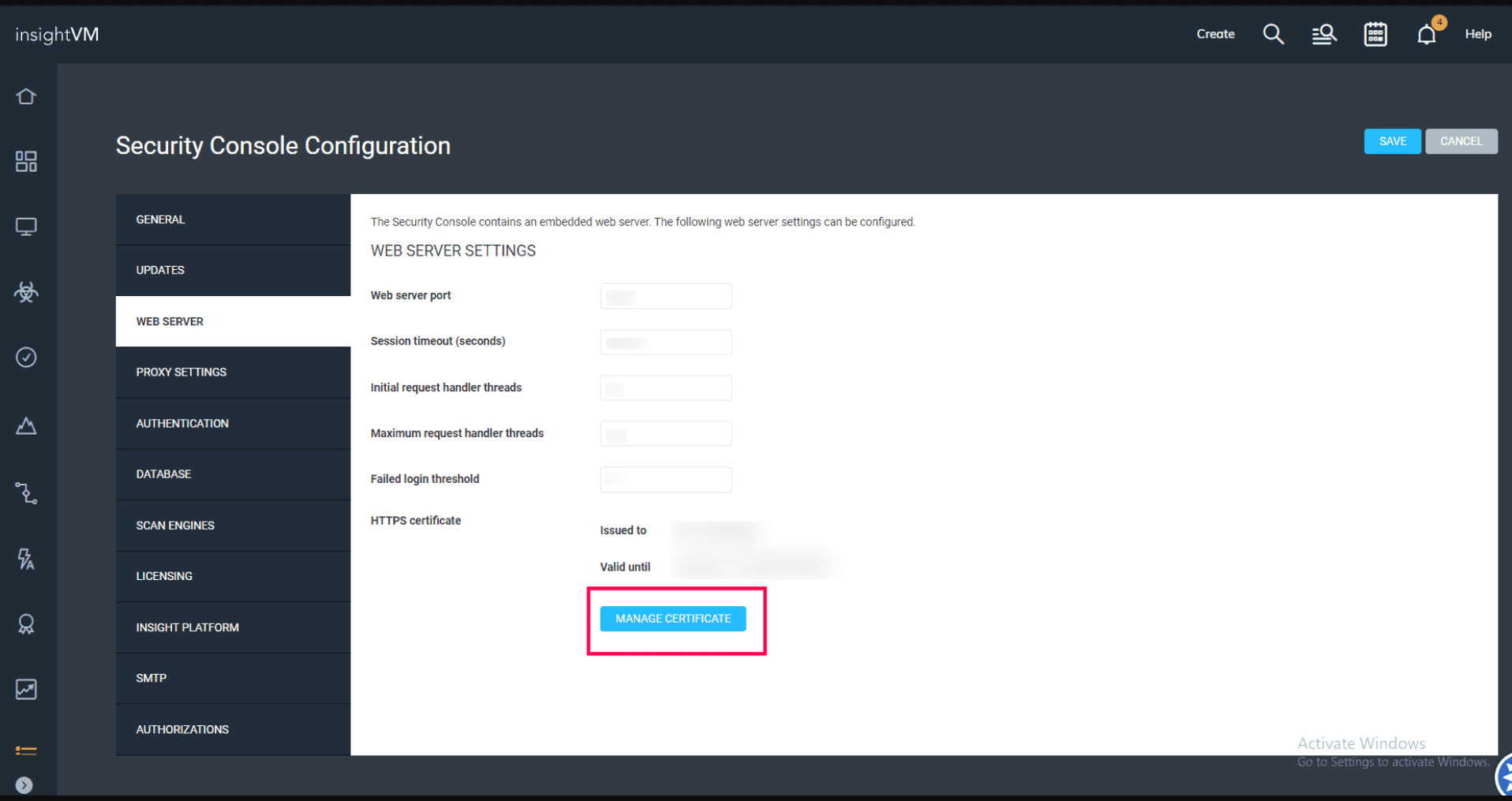
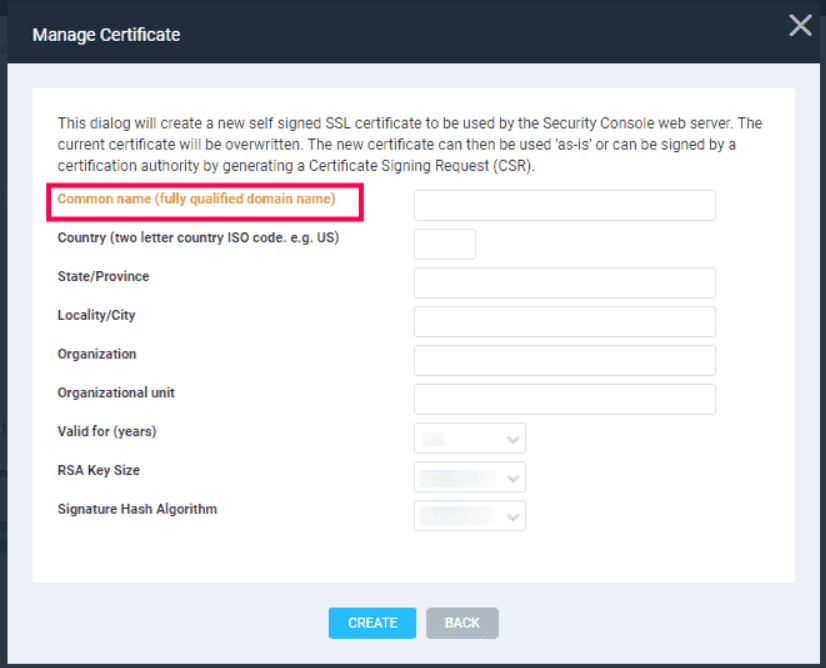
- Open the Rapid7 InsightVM console with administrator privileges. Navigate to Administration -> Security Console Configuration -> Web Server -> Manage Certificates and proceed to create a new certificate.
- Provide the Base URL Common Name and other details to add the certificate. Once added, restart the InsightVm server to ensure the changes reflect in the browser.
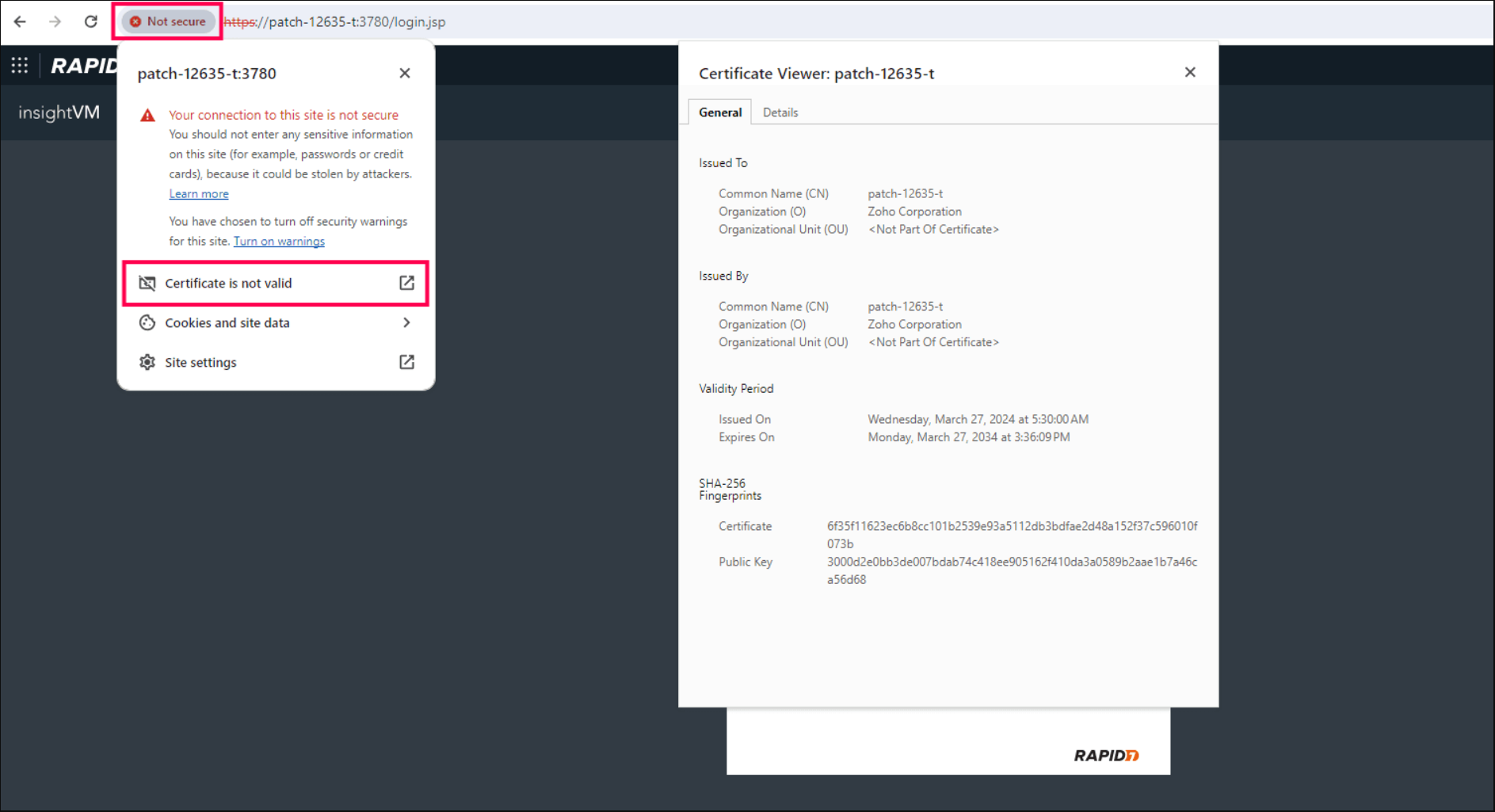
Add each certificate using the below-mentioned procedure:
The current keystore password is insightvm and avoid making any modifications to it.
In the product console, before configuring base URL in InsightVM (On-Prem) Integration Settings, ensure that the base URL of InsightVM (On-Prem) host/IP address is same as the DNS/IP address in the Subject Alternative Name field of the certificate's Details section. Also ensure the Common Name matches with the base URL in InsightVM (On-Prem) Integration Settings.
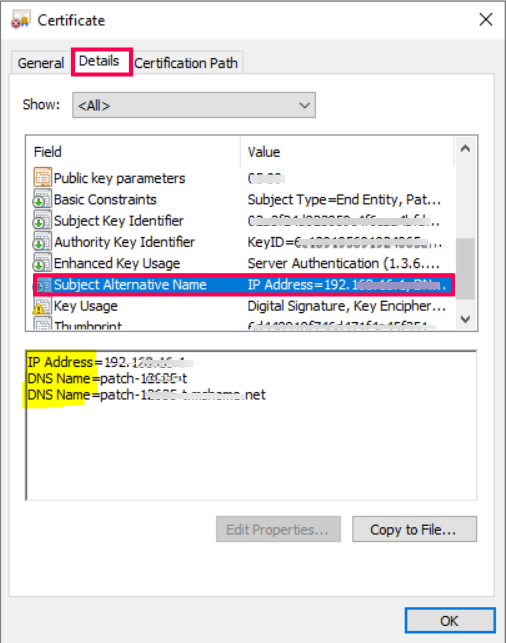
If the Common Name is not same in the certificate then follow these steps,
Kindly contact support for any queries.