How to deploy Windows 10 feature packs using Patch management?
Deploy the Windows 10, version 1903 (May 2019) feature pack to cloud-managed endpoints using Patch Manager Plus by downloading the dependency ISO file, adding it to the Distribution store, and deploying it as a configuration or Automated Patch Deployment task.
Before deployment, run through the Compatibility Check available under the Important Notes section to find if you meet all the minimum requirements that impact upgradeability. This document covers the steps to manage the Windows 10 version 1903 May 2019 update using Patch Manager Plus.
If you're looking to deploy Windows 10 version 1809, click here.
To deploy Windows 10 feature packs, follow the steps below:
- Add the dependency patch (ISO file) to the Distribution store.
- Deploy the feature pack as a configuration.
To add the ISO file to the Distribution store
Follow the steps below to add the respective ISO file to the patch store:
- Download the Windows 10 ISO file from the Volume Licensing Service Center or from here.
- For Professional Edition: Rename the 32-bit ISO file to
106986-Win10_1903_enx32.iso(ensure the file is saved with the .iso extension). - Rename the 64-bit ISO file to
106982-Win10_1903_enx64.iso(ensure the file is saved with the .iso extension). - For Enterprise Edition: Rename the 32-bit ISO file to
106988-Win10_1903_en_enterprisex32.iso(ensure the file is saved with the .iso extension). - Rename the 64-bit ISO file to
106984-Win10_1903_en_enterprisex64.iso(ensure the file is saved with the .iso extension). - Patch Manager Plus supports the deployment of feature packs for multiple languages.
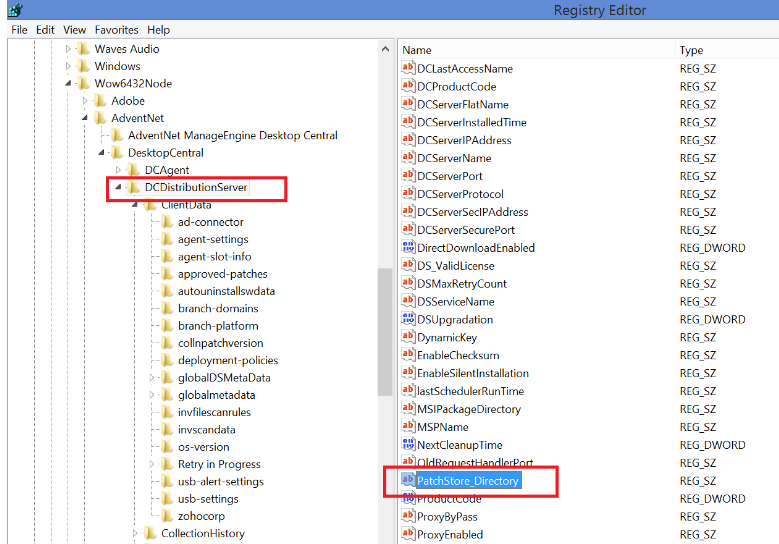
- Navigate to the patch store location: go to the Patch Manager Plus console → Admin → Patch Settings → Cleanup Settings, then copy the downloaded ISO file manually into the Store directory and rename the files accordingly.
To find the Distribution store location: Navigate to <DS_INSTALL_DIR> → Replication → Store.
To deploy the feature pack
- Create a configuration
- For Professional Edition: After following the above steps, create a configuration from the missing patches (Patch ID: 106987 and 106983 for 32-bit and 64-bit respectively) and deploy it.
- For Enterprise Edition: After following the above steps, create a configuration from the missing patches (Patch ID: 106989 and 106985 for 32-bit and 64-bit respectively) and deploy it.
- If the configuration you created before following the above steps failed, repeat the steps and redeploy the configuration.
- Automated Patch Deployment (APD):
- To create an APD task for deploying feature packs, make sure to select the feature pack check box while defining the patch task.
- Once the dependency patch is downloaded and stored in the Patch Store, "Feature Packs" will be successfully deployed to the target computers during the subsequent deployment window. A separate configuration can be created for the particular patch on demand.
Are you facing issues while installing or upgrading to Windows 10? Refer to the knowledge base for resolution.