Deploy Google Chrome patches using upload option
Description
According to Google's advisory, the company has discontinued Chrome support for Windows 7, Windows 8, Windows 8.1, Windows Server 2012 and Windows Server 2012 R2. These OSs will not receive any further updates beyond Chrome 109. However, the download URLs provided by Google for downloading updates are common for all the OS versions and direct to the latest Chrome 113 series. In this case, you can manually download the patch and upload it to the patch store folder directly from the Patch Manager Plus console using the upload patches option.
Steps
The following steps are only applicable if you already have the Chrome 109 file downloaded. If not, kindly contact the vendor.
For Distribution Server,
Follow the steps below to deploy the Google Chrome patches.
- Rename the downloaded file in the format: <PatchID>-<PatchName>
- Navigate to <DS_INSTALL_DIR> -> Replication -> Store and place the renamed files.
- Then go to Missing Patches -> Search for the Bulletin ID TU-017 which has the same Patch Name and click on Install/Publish Patches.
Note: To find the Patch Name, navigate to Patches -> Downloaded Patches -> Search for the Bulletin ID TU-017 and click on the Patch ID. There'll be a pop-up in which you'll find the Patch Name listed.
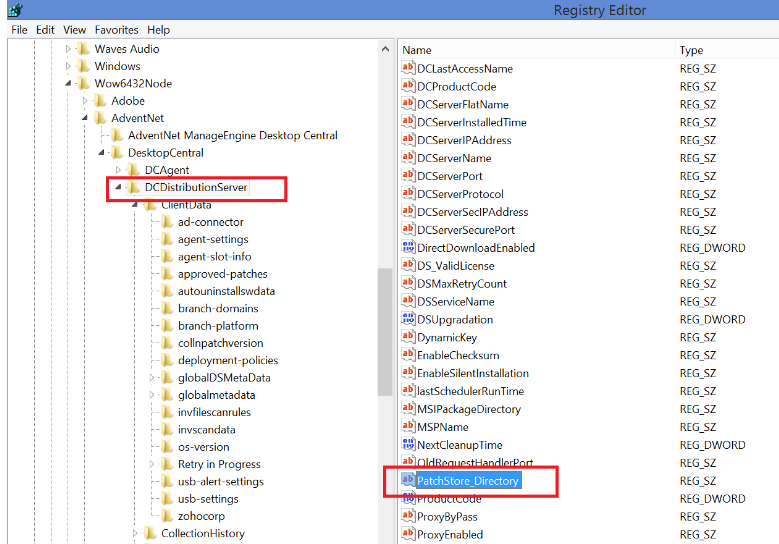
If you have changed the location of the patch store, then navigate to the path mentioned in the registry value which has been highlighted in the screenshot below:
For cloud roaming agents,
Follow the steps given below to resolve this issue:
- Click on Upload near the download failed error message. Using the Upload option you can install this patch.
- Otherwise, navigate to Patches -> Downloaded Patches -> Upload Patches -> Search for the Bulletin ID TU-017 and click on Upload under Action.
- Then select Install/Publish Patches to deploy.
If any issue persists even after you have followed the steps above, please feel free to contact support.