How to integrate Patch Manager Plus with ManageEngine Analytics Plus?
ManageEngine Analytics Plus provides you with easy-to-understand visual representations and automates insights to expedite your strategic decision-making process. Integrating Analytics Plus with Patch Manager Plus empowers you with enhanced insights into the severity of risks, system health, and critical vulnerabilities. This enables you to prioritize patches, giving immediate attention to the most pressing vulnerabilities. Analytics Plus offers out-of-the-box reporting capabilities empowering you to seamlessly transform data from the following modules into actionable insights with intuitive visualizations.
- Custom groups
- Custom groups and associated computers
- Custom groups and associated users
- Users
- Computers
- Technicians
You can automatically generate reports with real-time data, apply timeline filters, and obtain comprehensive insights through module-specific dashboards.
- Analytics Plus On-Premises
- Analytics Plus Cloud
Pre-requisites
- The Patch Manager Plus build number should be 10.0.419 or above.
- Patch Manager Plus should be reachable from the server on which Analytics Plus is running.
- The Patch Manager Plus and Analytics Plus servers should be running in the same time zone.
- The technician account used to connect must have admin privileges in Patch Manager Plus.
Steps to integrate Analytics Plus (On-premises) with Patch Manager Plus (On-premises)
To integrate Analytics Plus On-premises with Patch Manager Plus On-premises, follow the steps mentioned below:
- Download and install Analytics Plus if you're already not a user.
- On the Patch Manager Plus console, navigate to Admin -> Integrations -> API Explorer.
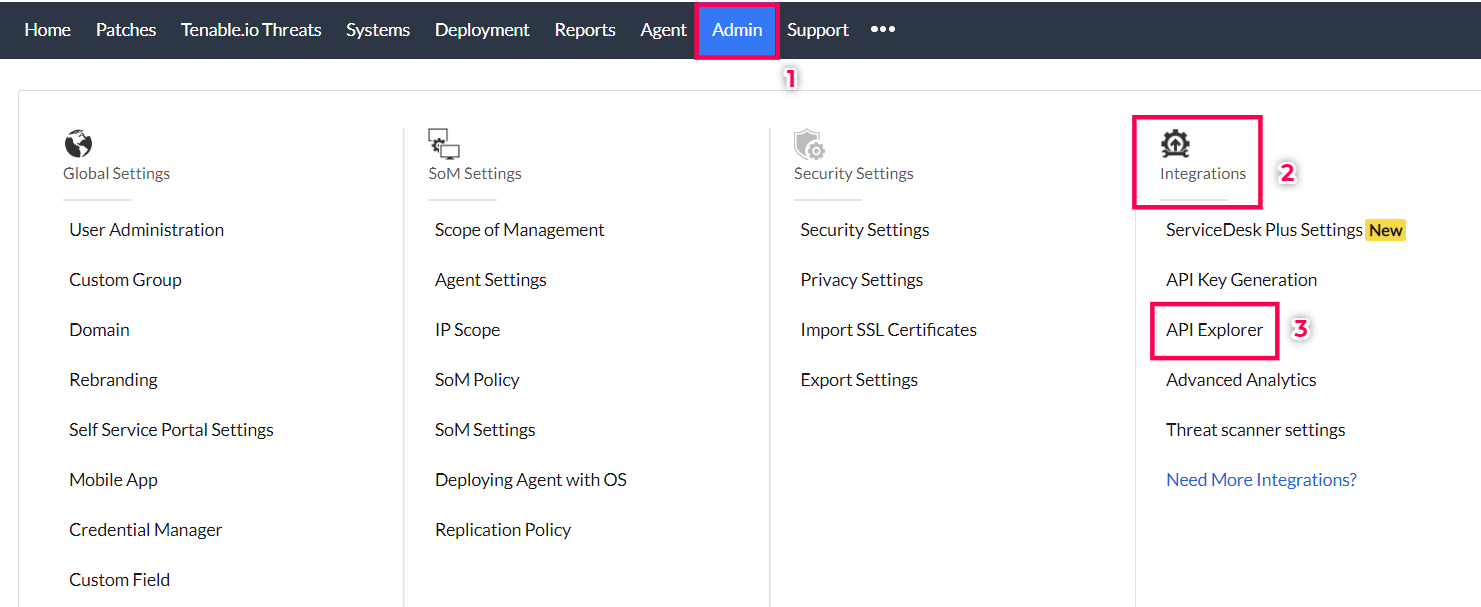
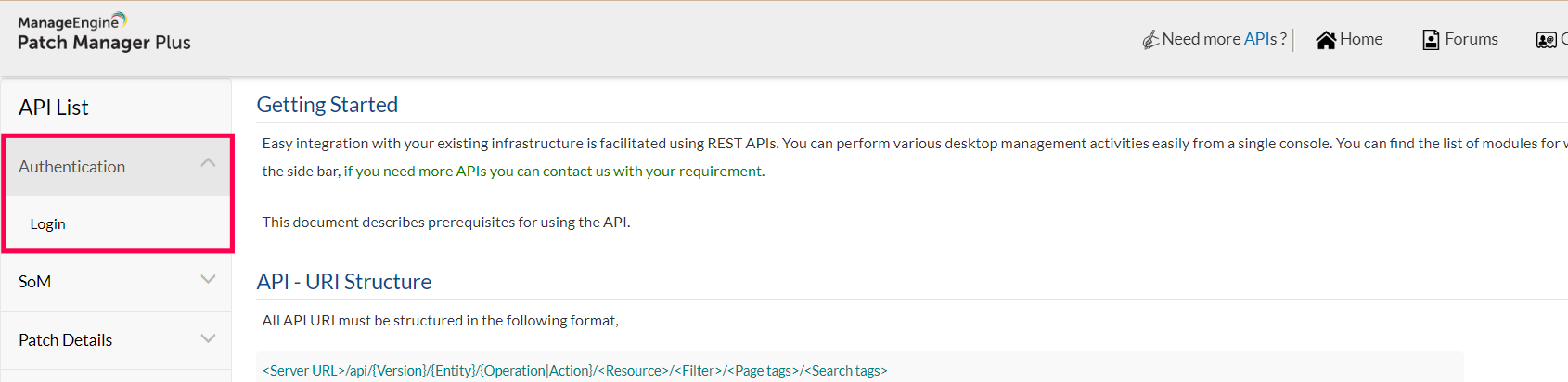
- The API Explorer opens in a new tab. Click the Authentication on the left pane.
- Select the Login option under Authentication.
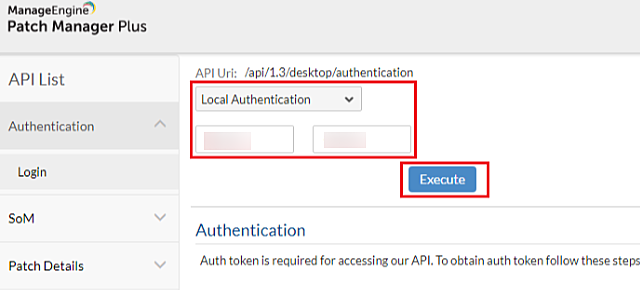
- Select your authentication type from the drop-down and provide the login credentials.
- Click on Execute to generate the API key.
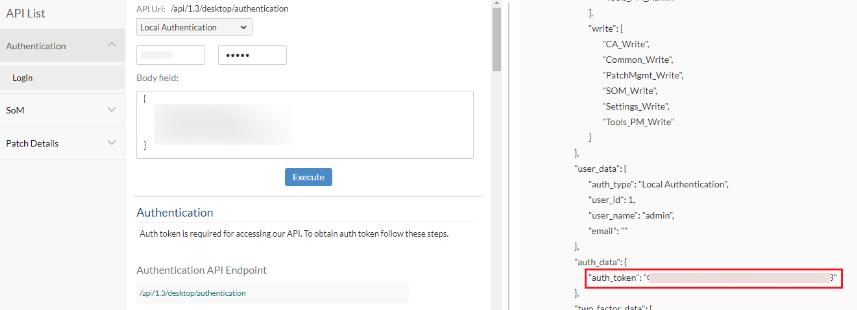
- The API key will be generated as an auth token on the right pane. Copy the API key.
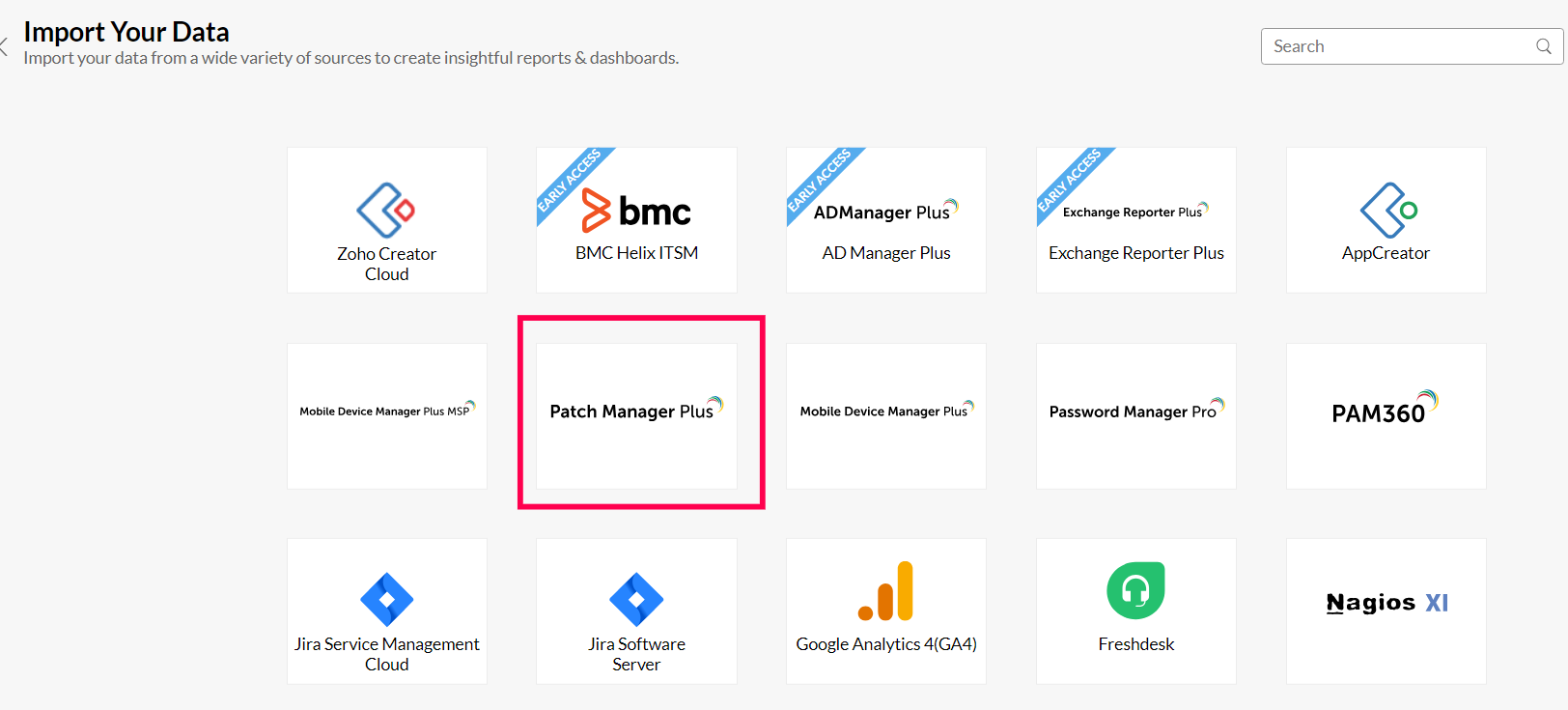
- On the Analytics Plus console, click Import your data from the home screen.
- Then select the ManageEngine Patch Manager Plus tile.
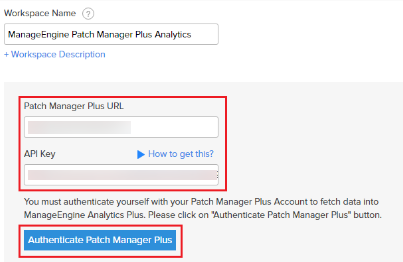
- In the pop-up window, provide the Workspace Name and the Patch Manager Plus server URL.
- Paste the API key generated on the Patch Manager Plus console and click on Authenticate Patch Manager Plus.
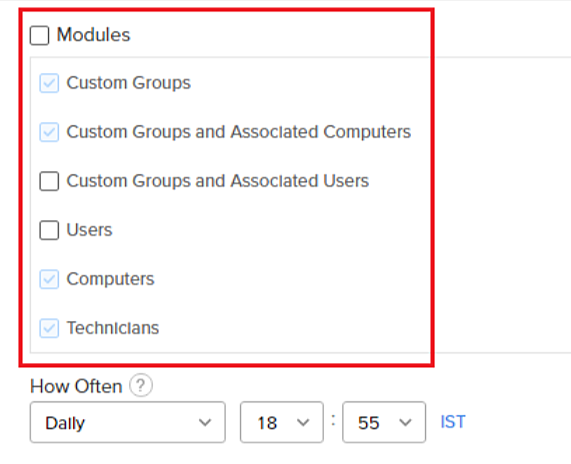
- Upon successful authentication, you can choose the modules you want to import and then set up a synchronization interval.
- A success message is then displayed. Click on OK to view the Patch Manager Plus analytics. You can now access the interactive dashboards and reports from this workspace.
Pre-requisites
- The Patch Manager Plus build number should be 10.0.419 or above.
- For users of the Enterprise edition of Patch Manager Plus, note that the integration should be performed on the Patch Manager Plus server, rather than on the Distribution Servers.
- Install ManageEngine Databridge to import data from Patch Manager Plus. It should be installed on a server from where Patch Manager Plus is reachable.
- The Databridge should also be able to reach https://analyticsplus.manageengine.com/.
Steps to integrate Analytics Plus (Cloud) with Patch Manager Plus (On-premises)
To integrate Analytics Plus Cloud with Patch Manager Plus On-premises, it's essential to use ManageEngine Databridge. ManageEngine Databridge serves as a lightweight tool that establishes a seamless connection between your local database and the Analytics Plus Cloud, facilitating effortless data transfer. To install Databridge:
- Log in to the Analytics Plus console, navigate to Settings -> Data Administration and click on Download Databridge.
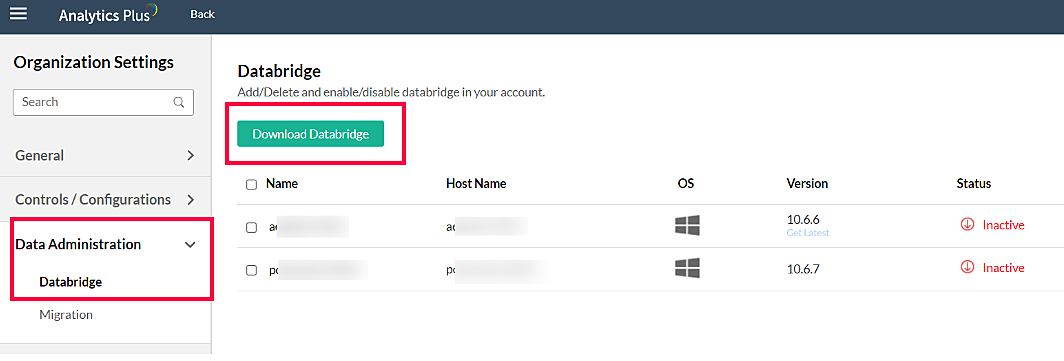
- You can download the Databridge version compatible with your platform.
- Copy the installation key as it is needed during setup.

- Now, set up the Databridge and paste the key in the installation wizard and click on Next.
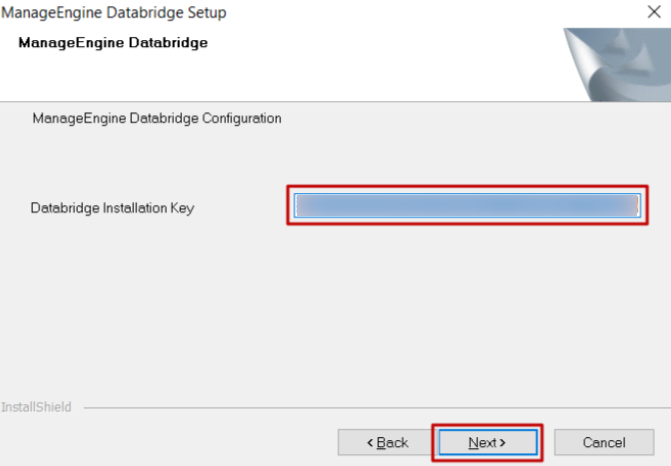
- You can modify the Databridge installation path as required by clicking on Browse.
- In case, you are using a proxy server to connect to the Internet, select the Use Proxy Server checkbox.
- You can then review the configured settings and click on Next to install the ManageEngine Databridge.
- Click on Finish to complete the installation process.

To integrate Analytics Plus Cloud with Patch Manager Plus On-premises, follow the steps mentioned below:
- On the Patch Manager Plus console, navigate to Admin -> Integrations -> API Explorer.
- The API Explorer opens in a new tab. Click on Authentication on the left pane.
- Select the Login option under Authentication.
- Select your authentication type from the drop-down and provide the login credentials.
- Click on Execute to generate the API key.
- The API key is generated as an auth token on the right pane. Copy the API key.
- On the Analytics Plus console, click Import your data from the home screen.
- Then select the ManageEngine Patch Manager Plus tile.

- In the pop-up window, provide the Workspace Name and the Patch Manager Plus server URL.
- Paste the API key that was obtained from the Patch Manager Plus console and select the required ManageEngine Databridge from the Databridge drop-down. Then click on Authenticate Patch Manager Plus.
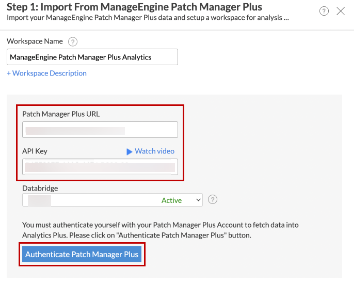
- Upon successful authentication, you can choose the modules you want to import and then set up a synchronization interval.
- Click on Create to complete the setup. You can now access the interactive dashboards and reports from this workspace.