How to migrate from Patch Manager Plus to Endpoint Central?
You can seamlessly migrate in both directions between the following products:
- Patch Manager Plus (on-premises) to Endpoint Central (on-premises)
- Patch Manager Plus (on-premises) to Endpoint Central (cloud)
- Patch Manager Plus (on-premises) to Patch Manager Plus (cloud)
- Patch Manager Plus (cloud) to Endpoint Central (cloud)
Note:
- It is recommended to upgrade both servers to the latest version before migration.
- Both Patch Manager Plus and Endpoint Central should be of the same editions to prevent feature loss post-migration.
- The Vulnerability Database must be updated before performing the migration.
Steps to migrate:
Follow the steps mentioned below to perform a successful migration:
- Patch Manager Plus to Endpoint Central (on-premises)
- Patch Manager Plus to Endpoint Central (cloud)
- Patch Manager Plus (on-premises to cloud)
Configuring the migration tool
- Download and install the migration tool.
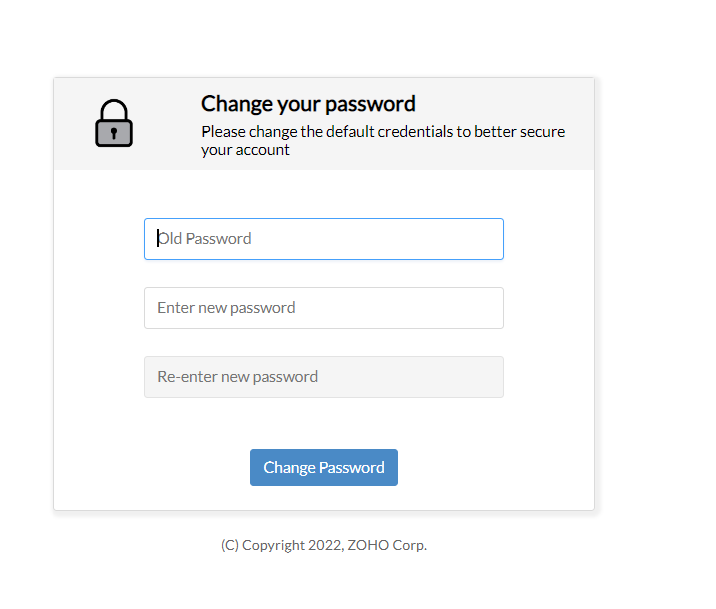
- Once the EXE file is downloaded, login to the tool and set up the credential. (Use admin as the default username and password).
- Create a secure password before moving to the next step.
- Configure the Proxy Settings. The following proxy settings are supported:
- No Connection to Internet
- Direct Connection to Internet
- HTTP Proxy configuration
- Automatic configuration using script
- To set up proxy settings, click on Settings -> Proxy -> Choose the Connection type from the drop-down, and Save. Refer here to learn more.
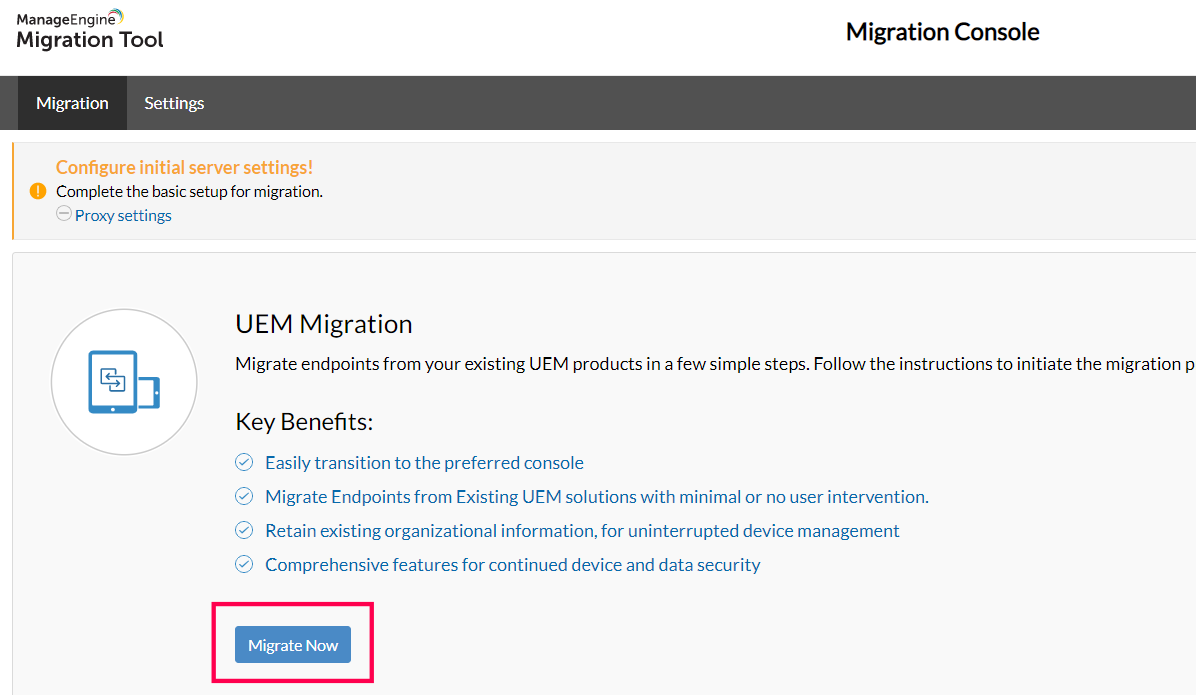
- Once the proxy settings have been configured, click on Migrate Now.
- Once the Migration Tool is configured, configure the source and the destination server.
Configuring the source server (Patch Manager Plus server)
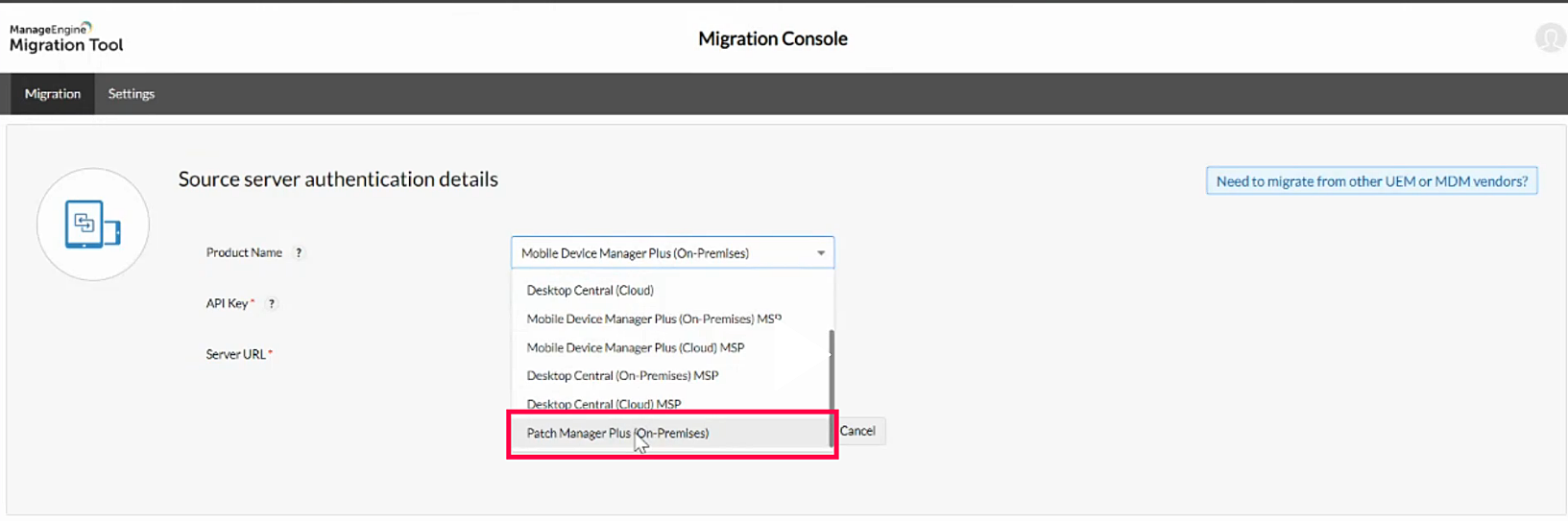
- Once the Migration tool is configured, select Patch Manager Plus (on-premises) from the dropdown under Source server authentication details.
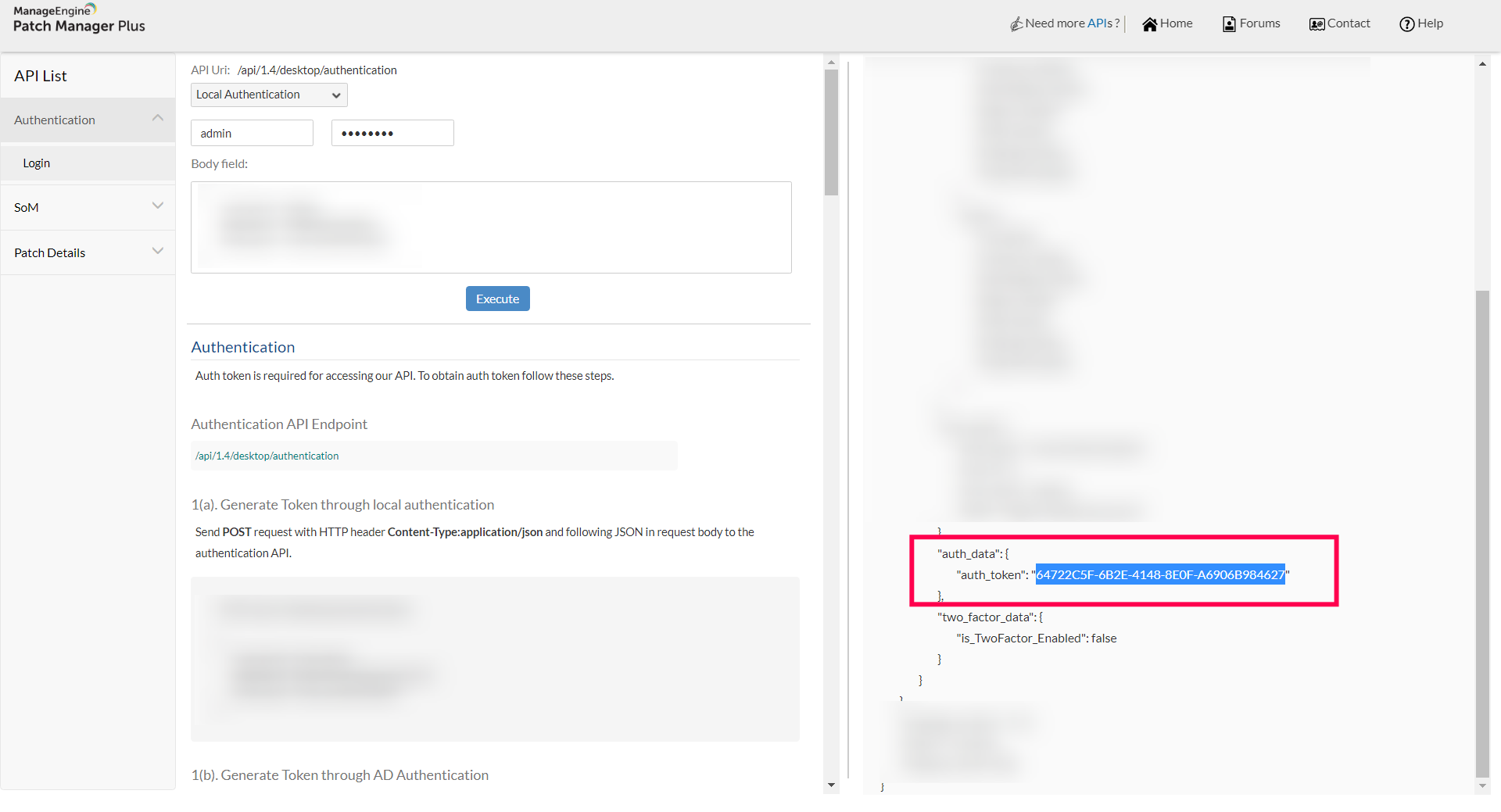
- To generate the API Key, login to the Patch Manager Plus console and navigate to Admin > API Explorer > Authentication (in the left pane) Login
- Choose the type of authentication (Local Authentication or AD Authentication), fill in the login credentials, and click on Execute.
- On the right panel, scroll down to the "auth_data" section and copy the "auth_token" value (refer to the screenshot below)
- Enter the "auth_token" value as the API Key in the migration tool and enter the URL of the Patch Manager Plus server and click on Proceed.
Configuring the destination server (Endpoint Central server)
For migrating from Patch Manager Plus (on-premises) to Endpoint Central (on-premises):
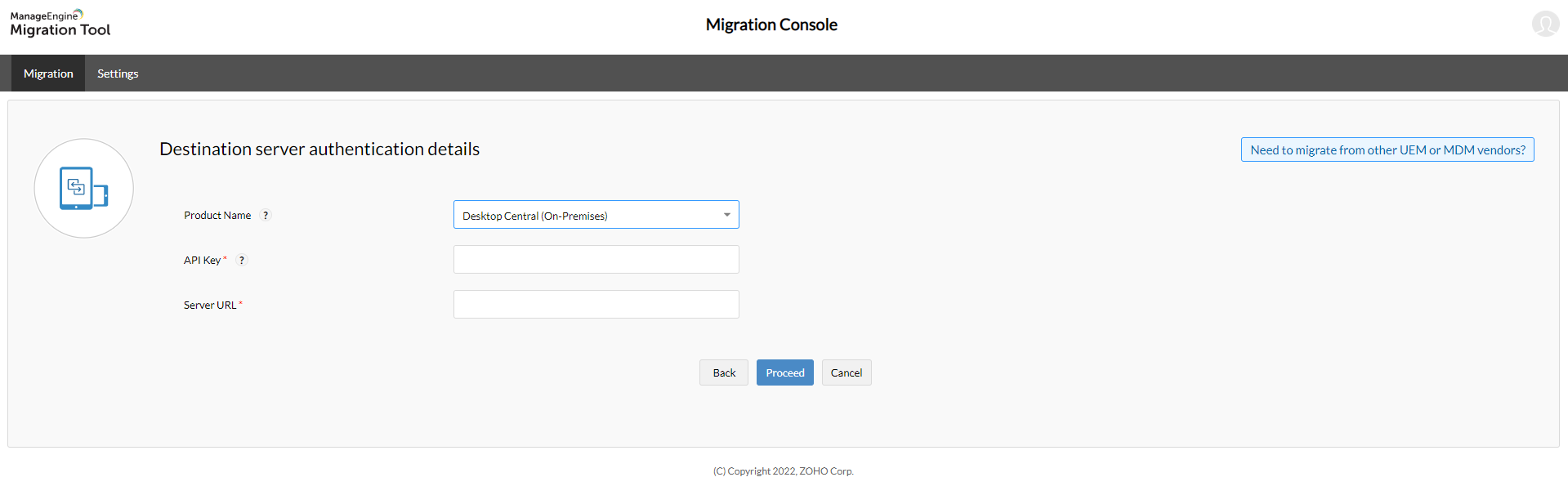
- In the Destination server authentication details, choose Endpoint Central (on-premises) from the drop-down.
- Generate the API Key by following the steps mentioned above.
- Under Server URL, enter the URL of the destination server, i.e. the Endpoint Central server, and click on Proceed.
For migrating from Patch Manager Plus (on-premises) to Endpoint Central (cloud):
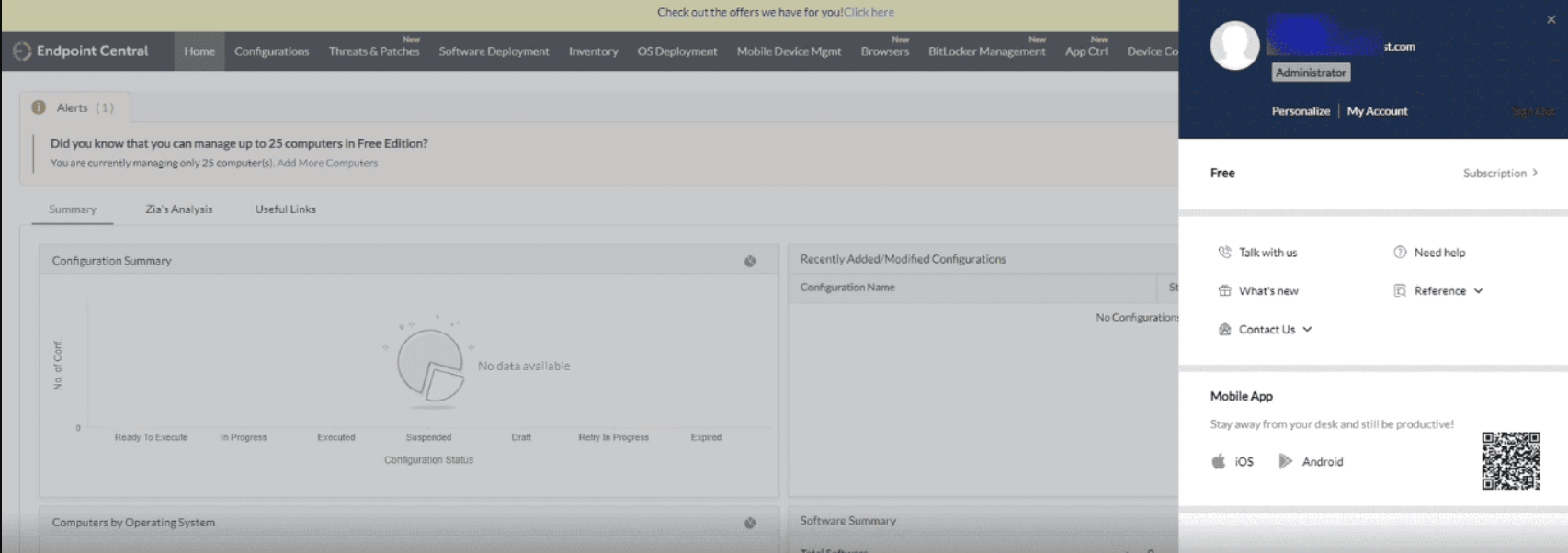
- In another tab of the same browser, log in to the Endpoint Central (cloud) console using the Admin credentials for your destination server.
- In the authentication details for the destination server, choose Endpoint Central (cloud) from the drop-down menu, select the corresponding data center, and authenticate it similarly to how we did for the source server.
- After authenticating the account, click on Proceed.
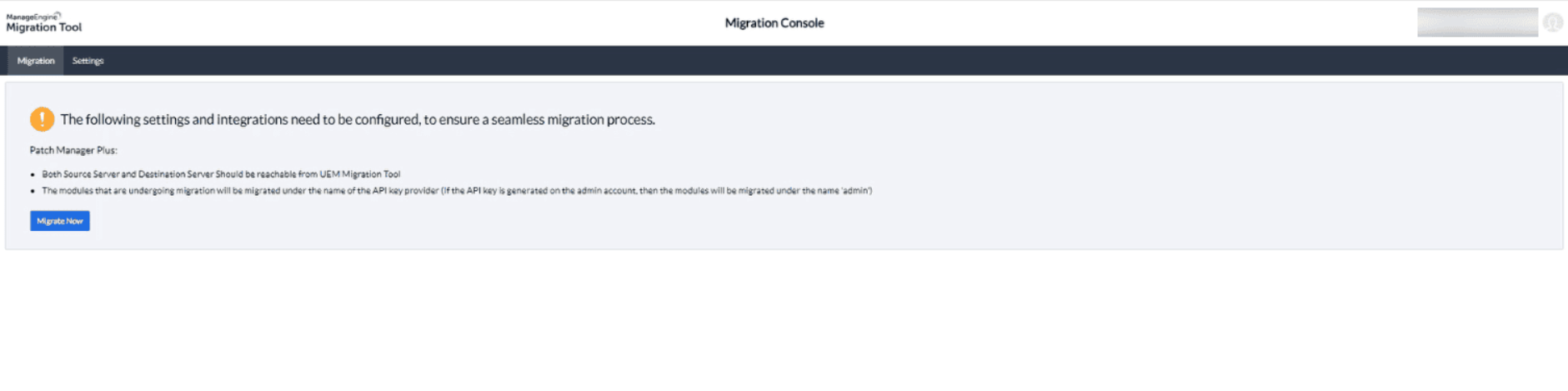
- Ensure that all prerequisites are verified before clicking Migrate Now to start the migration process.
For migrating from Patch Manager Plus (on-premises) to Patch Manager Plus (cloud):
- In the web browser, log in to the Patch Manager Plus (cloud) console with your Admin credentials.
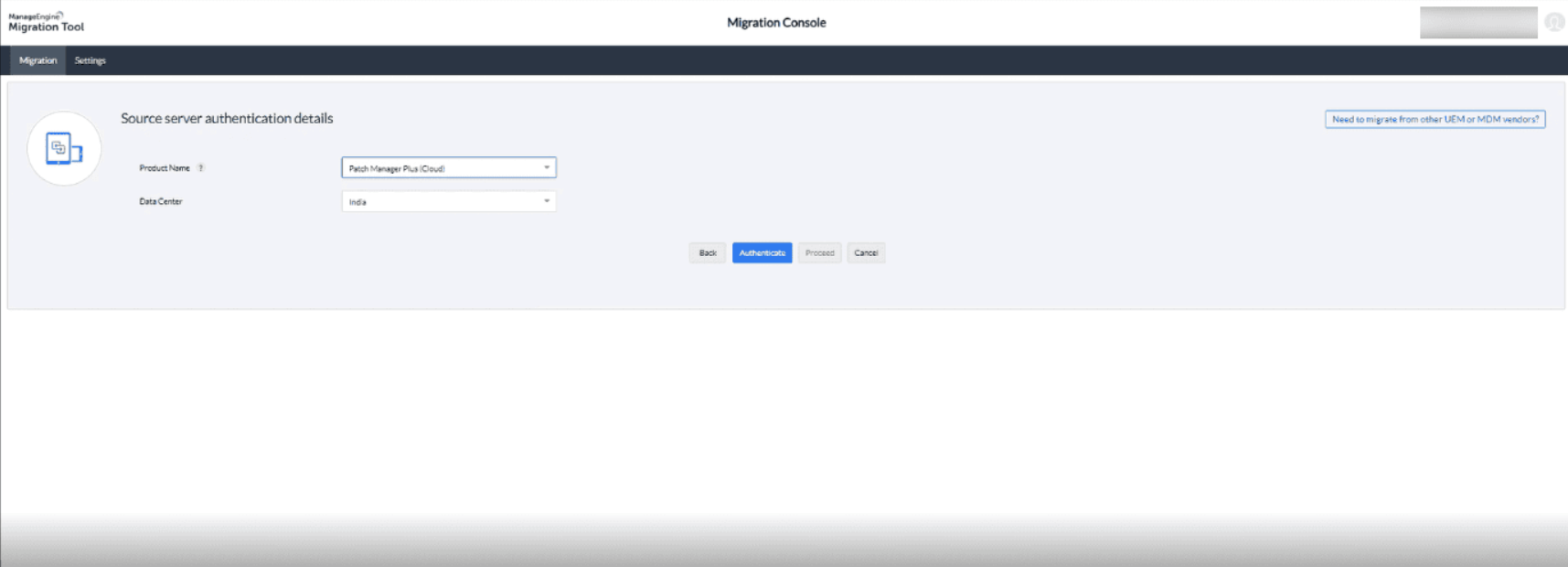
- In another tab of the same browser, open the Migration Tool window. Select Patch Manager Plus (cloud) as your destination server product, choose the appropriate data center, and click Authenticate.
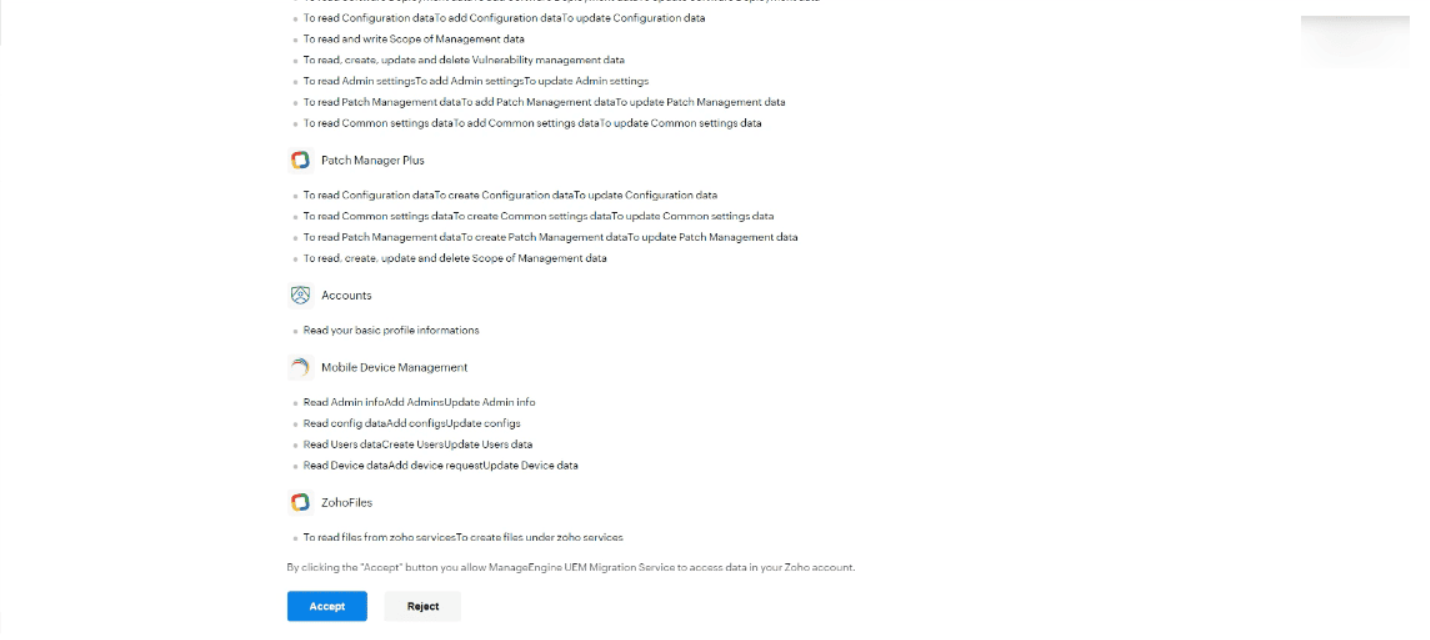
- You will be prompted to authenticate your Zoho account. You can read the terms and conditions, then click Accept.
- After authenticating the account, click on Proceed.
- Verify the pre-requisites and click on Migrate Now to initiate the migration process.
For migrating from Patch Manager Plus (cloud) to Endpoint Central (cloud):
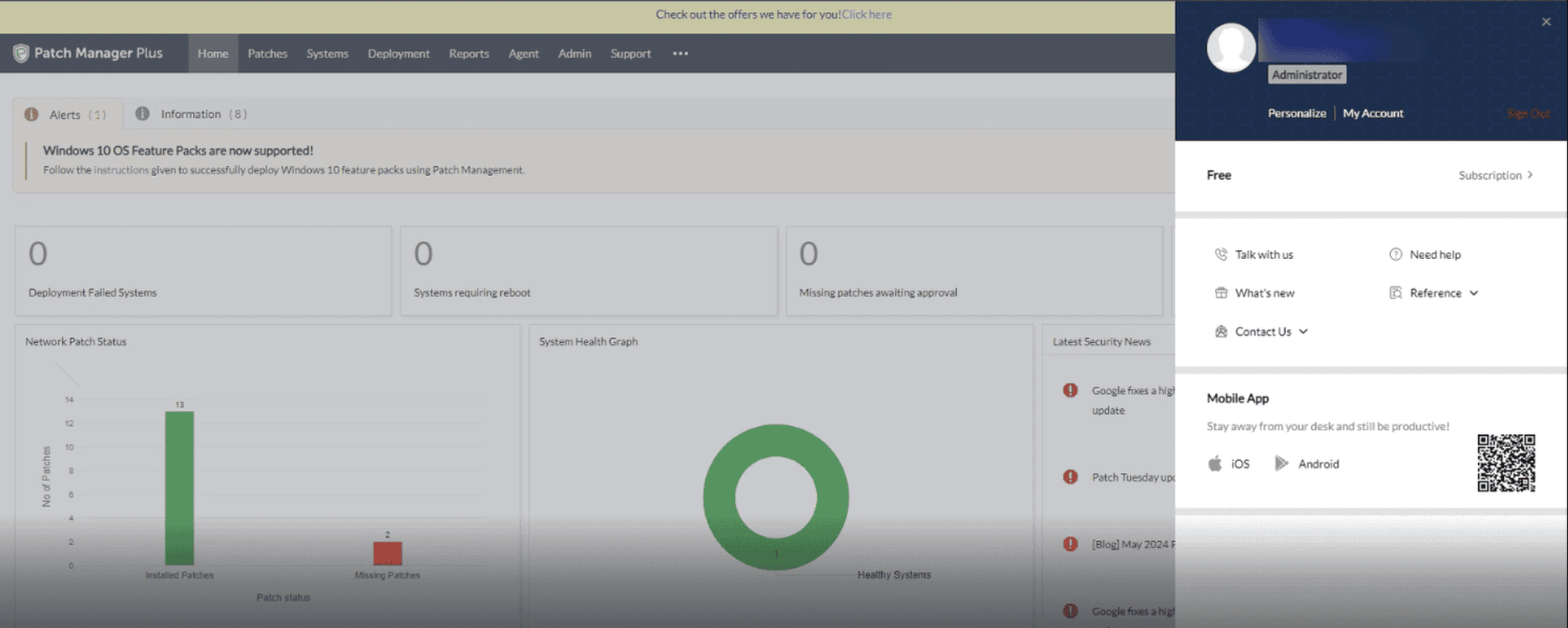
- In the web browser, log in to the Patch Manager Plus (cloud) console with your Admin credentials.
- In another tab of the same browser, open the Migration Tool window. Select Patch Manager Plus (cloud) as your source server product, choose the appropriate data center, and click Authenticate.
- You will be prompted to authenticate your Zoho account. You can read the terms and conditions, then click Accept.
- After authenticating the account, click on Proceed.
- Now, in another tab of the same browser, log in to the Endpoint Central (cloud) console using the Admin credentials for your destination server.
- In the authentication details for the destination server, choose Endpoint Central (cloud) from the drop-down menu, select the corresponding data center, and authenticate it similarly to how we did for the source server.
- After authenticating the account, click on Proceed.
- Ensure that all prerequisites are verified before clicking Migrate Now to start the migration process.
- System Health Policy
- Patch Database
- Script Repository
- Deployment Policy
- Office Click To Run
- Automate Patch Deployment
- Decline Patches (upcoming release)
- Test and Approve (upcoming release)
4) Data migration
The following data will be migrated from the Patch Manager Plus server to the Endpoint Central server automatically: