BIOS and Driver Updates
Overview
As new hardware components are released, BIOS patches are necessary to ensure that the system can fully support them. This is particularly important for newer CPUs, RAM, and storage devices, where BIOS updates may be required for optimal performance or new features. Some BIOS updates optimize the system's performance by refining hardware initialization, improving power management, or enabling better control over system resources.
Drivers are a critical part of a computer system. As operating systems and software evolve, outdated drivers may no longer be compatible with newer software or operating system versions. Patching drivers ensures continued compatibility, enhancing system functionality and stability. Driver patches introduce new features, optimizations, or better integration with modern hardware, such as supporting newer graphics technologies or offering new functionality for devices.
Update your system BIOS and drivers regularly. Using Patch Manager Plus, you can deploy driver updates through an Automate Patch Deployment task or manually. BIOS updates must be deployed manually. Password-protected BIOS can also be updated after the BIOS credentials are mapped.
Prerequisites
If you want the BIOS updates and Driver Updates to be managed by Patch Manager Plus, go to Threats & Patches → Settings → Patch Database Settings.
Under Select the patches that you wish to manage, ensure that Driver and BIOS are selected under Windows, and then click on Save.
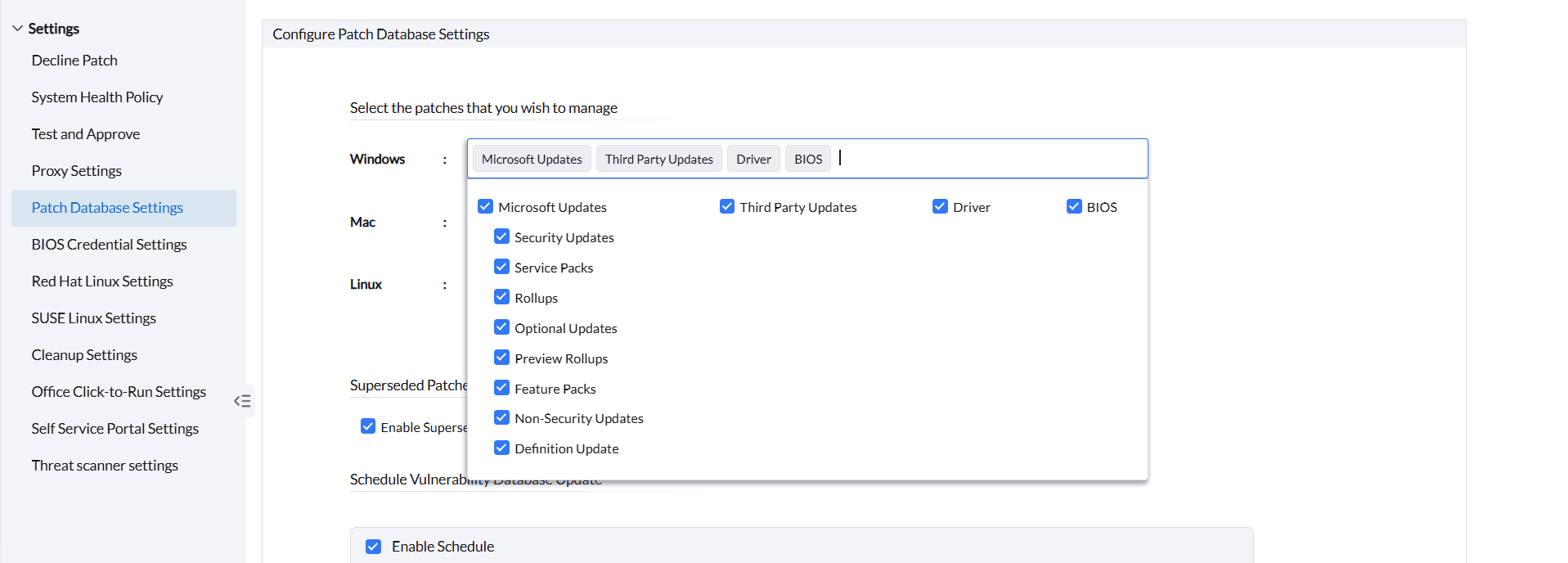
Supported BIOS and Drivers
Refer to this page for the list of supported devices for Driver and BIOS updates.
Edition support
Why are BIOS and driver patches missing in the Professional edition?
BIOS and driver updates are available in the Enterprise edition. They are not deployed from the Professional edition.
If a vendor or model is not listed, download the applicable BIOS or driver package from the hardware vendor and test it on a representative endpoint. Deploy the tested package through Software Deployment. An unlisted package cannot be deployed through the BIOS and Driver Updates feature.
Patching of Password-Protected BIOS
Configuring password protection for the BIOS in the systems of the network is often the first step of defense in preventing unauthorized access to the system. In addition, this also forbids malicious/unauthorized users from making changes to the system's hardware and software configurations.
Password-protected BIOS updates require credentials before installation. Asking end users to enter these credentials can interrupt their work or prevent installation when they are unavailable.
The Password-protected BIOS Patching functionality lets you deploy updates for the protected BIOS, without having to rely on the end-user for password authentication.
To support BIOS patching with password protection on Dell machines, it's essential to have the Dell PowerShell module installed on each endpoint.
- Navigate to Threats & Patches > Supported Patches and search for the Patch ID - 111808 and click Install/Publish Patches.

Store the pre-configured BIOS passwords on the product server. During BIOS update deployment, the product automatically retrieves the stored password for authentication.
BIOS credentials are required only when the target BIOS is password-protected. These are BIOS passwords, not domain administrator credentials.
For password-protected BIOS, add and map the credentials before deploying the patches. Here are the steps:
Adding and mapping BIOS credentials
- On the product console, navigate to Admin > BIOS Credential Settings (under Patch Settings)
- Click on Add BIOS Credential
- Enter the Credential Name, Description (optional) and the Password.
- You can map the credentials to any of the following:
- All Computers: Maps the BIOS credentials to all of the computers in the network.
- Vendor(s): Maps the credentials to specific vendor(s) (Such as Dell and HP).
- Custom Group(s): Maps the credentials to one or more Custom Groups as required.
- Once done, click on Save to add and map the credentials to the required systems.
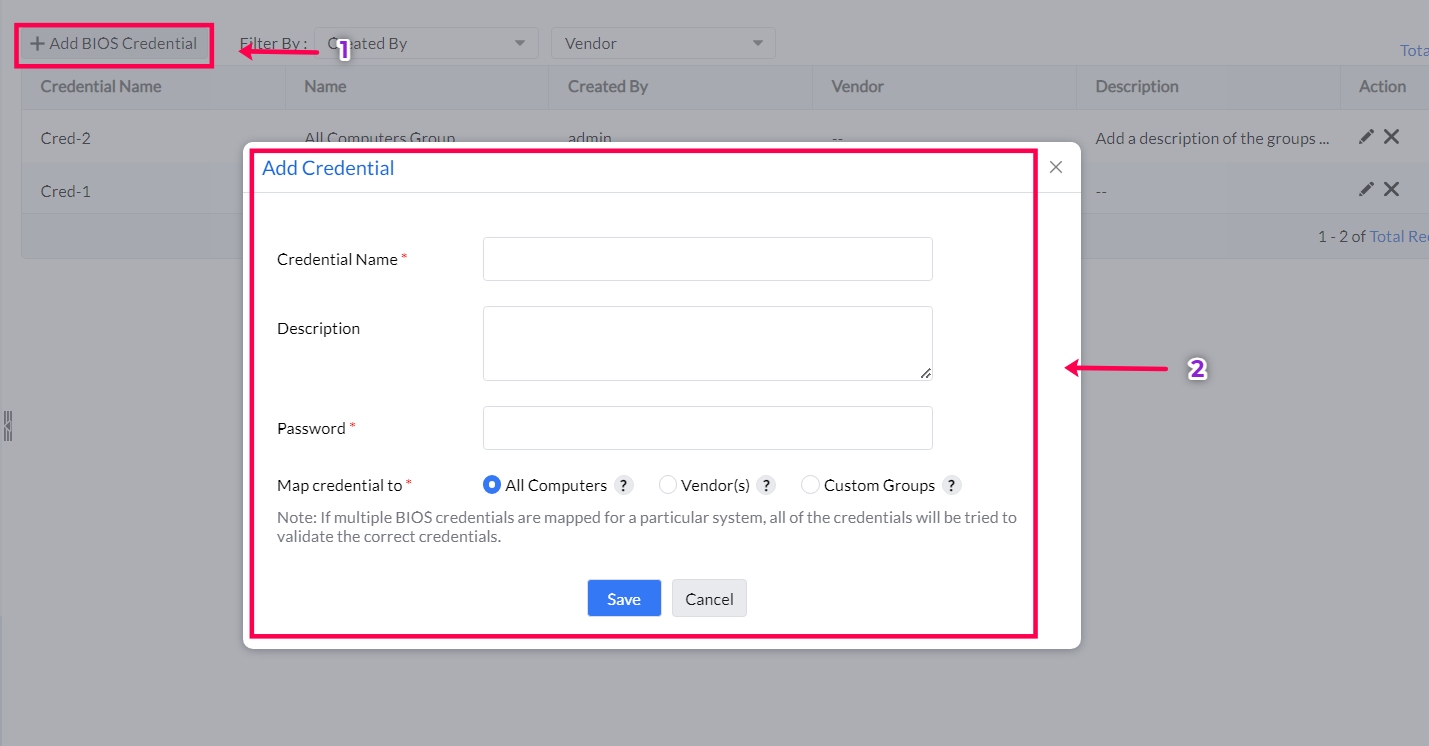
Deploying BIOS updates
After you map the credentials when required, deploy BIOS updates to the systems manually. BIOS updates are not deployed by Automate Patch Deployment. Do not mix BIOS patches with other patches in the same task.
A BIOS version installed on a golden machine is not captured as part of its operating system image. After imaging a device, deploy the BIOS update separately. If required, automate the post-imaging update with a vendor-supported command or script after validating it on representative hardware.
Resolve BIOS Update Failures
If an update appears older than the installed driver, compare the exact device model, hardware identifier, driver provider and version with the vendor package. Follow the vendor-version comparison before forcing an installation.
For a failed or rolled-back driver update, record the full vendor result and the affected hardware model before retrying. Follow the hardware vendor’s guidance for that result and validate the applicable update on representative pilot computers before a wider rollout. See Test and Approve.
- Exit Code 2: Restart the endpoint once, then deploy the BIOS update again.
- Another BIOS update is in progress: Wait for the current update to finish, then redeploy the failed BIOS update as a separate task.
If the failure reports an invalid password, verify that the correct BIOS credential is mapped to the endpoint. For other vendor-specific exit codes, use the vendor's result details before retrying the deployment.
Review the BIOS-Mapping Status of the Systems
You can review and monitor the BIOS-mapping status of all the systems in the network from a single dashboard. To know more about how to review the status of these systems on the console, refer to this page