PAM360 Operations via ADManager Plus Event-Driven Automation
Currently, the integration between PAM360 and ADManager Plus for Identity Governance and Administration (IGA) supports event-driven automation for the following user-centric operations:
- User Provisioning - Onboarding AD Users into PAM360
- User Deprovisioning - Offboarding AD Users from PAM360
1. User Provisioning - Onboarding AD Users into PAM360
The below section brief you in detail about configuring event-driven automation for automated user onboarding from ADMP to PAM360. It involves four major processes:
- Creating Custom Attributes and Event Template for User Provisioning
- Defining an Outbound Webhook to PAM360
- Creating an Orchestration Template for Event-Driven Operation
- Creating an Event-Driven Automation for User Provisioning
1.1 Creating Custom Attributes and Event Template for User Provisioning
Certain events in ADManager Plus may need additional details to ensure the successful execution of event-driven operations in PAM360. For example, when a Create Single User event is triggered, it creates the user in the directory services and, via a preconfigured webhook, in PAM360 as well. However, the default ADManager Plus template may not include mandatory details like user role, two-factor permission, or preferred language required by PAM360. To resolve this, define custom attributes in ADManager Plus and create event-specific templates tailored to PAM360's webhook requirements. The below is the sample steps for creating the customized attributes in ADManager Plus. Follow these steps to create the customized attributes as required for executing the PAM360 webhooks.
Caution
A maximum of 15 customized attributes (extensionAttribute*) can only be configured to use in event-driven automation between ADManager Plus and PAM360.
- Navigate to Admin >> Custom Settings >> LDAP Attribute.
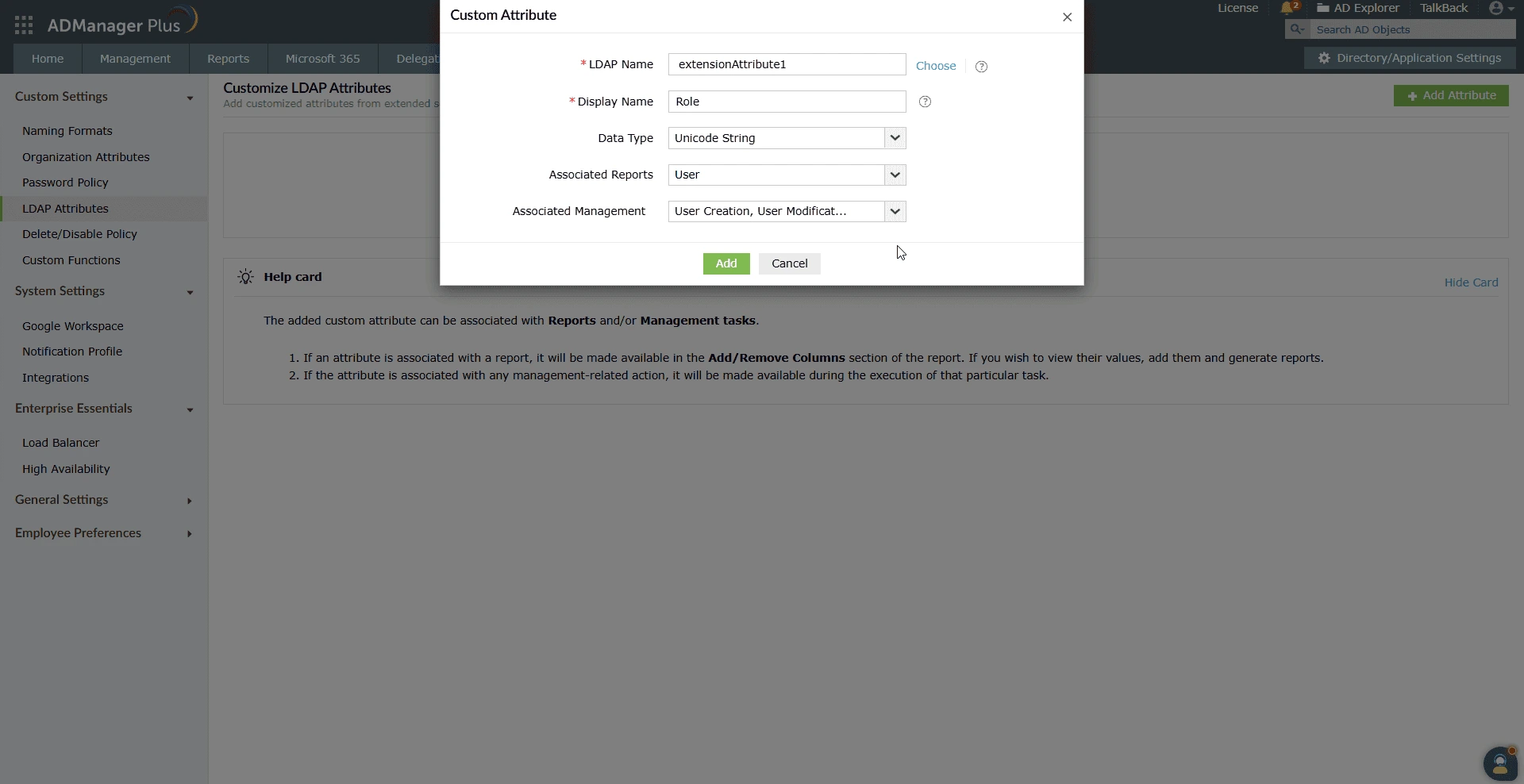
- Beside Customize LDAP Attributes, click Add Attributes. In the dialog box that opens:
- Set the LDAP Name to 'extensionAttribute1'. For further new attributes, use 'extensionAttribute2' until 'extensionAttribute15'.
- Provide a Display Name as Role.
- Select the Data Type as Unicode String.
- Set Associated Reports to User and set Associated Management to User Creation and User Modification.
- Click Add to save the attribute.
- Create another custom attribute for Two-Factor Authentication.
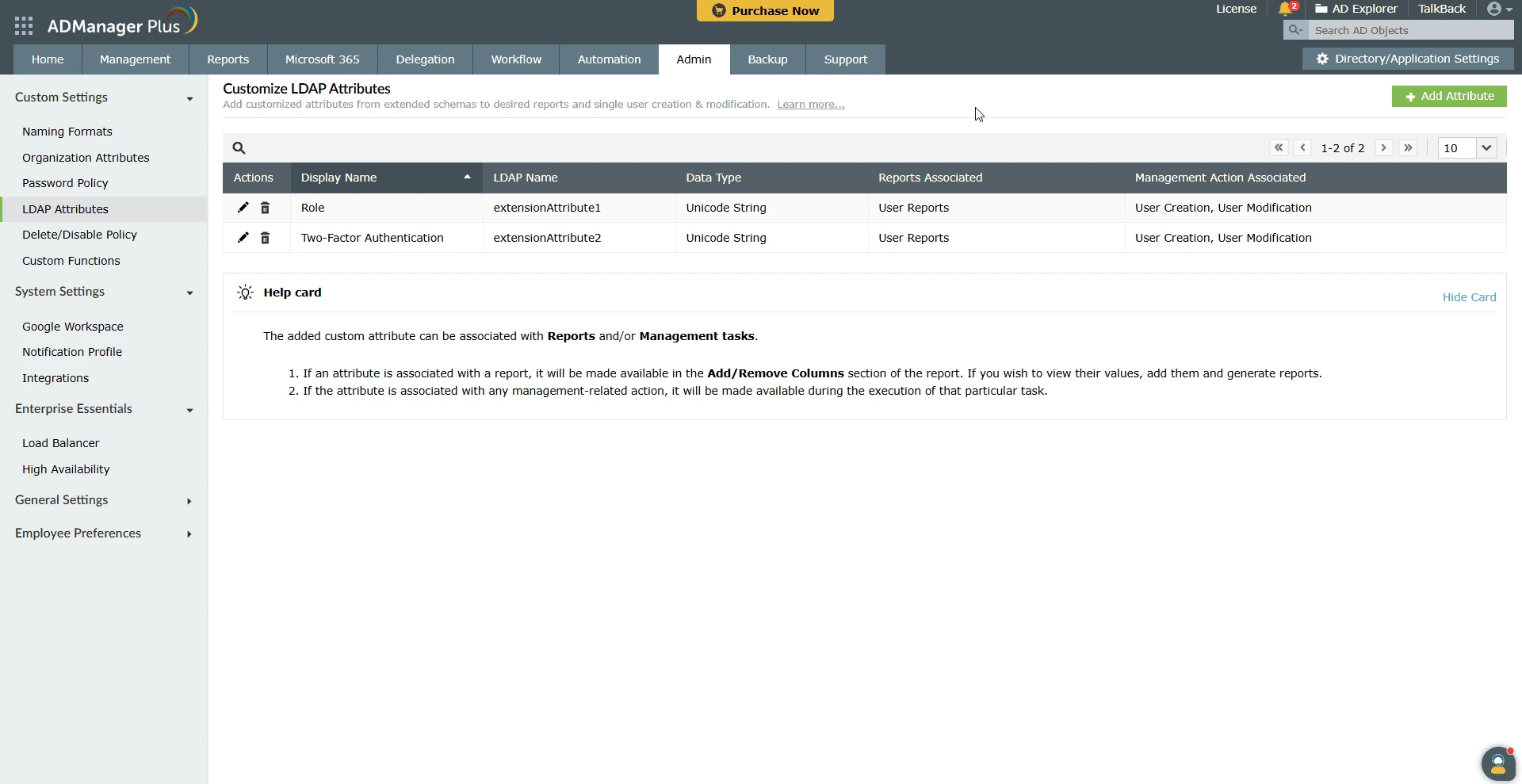
To ensure the required data for user creation in PAM360 via event-driven automation, create an event template specifically tailored to meet PAM360's webhook data requirements. To do so, follow these steps:
- Navigate to Management >> User Management >> User Creation >> Create Single User.
- On the page that opens, click + Create New Template.
- Enter a Template Name, select the relevant Domain, and provide a template Description.
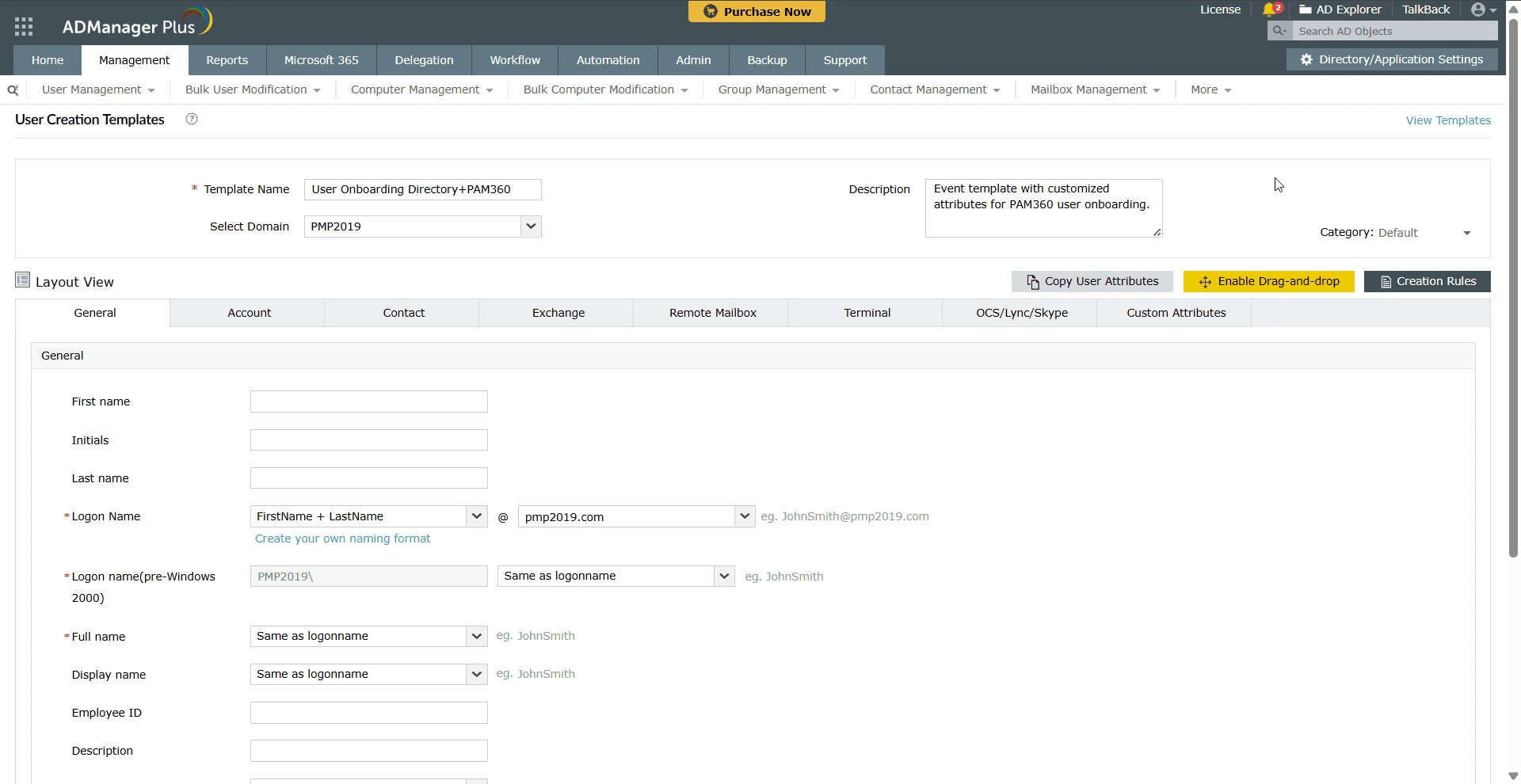
- Click the Enable Drag-and-Drop button on the top-right pane, navigate to the Custom Attributes section, and click Edit next to the custom attribute.
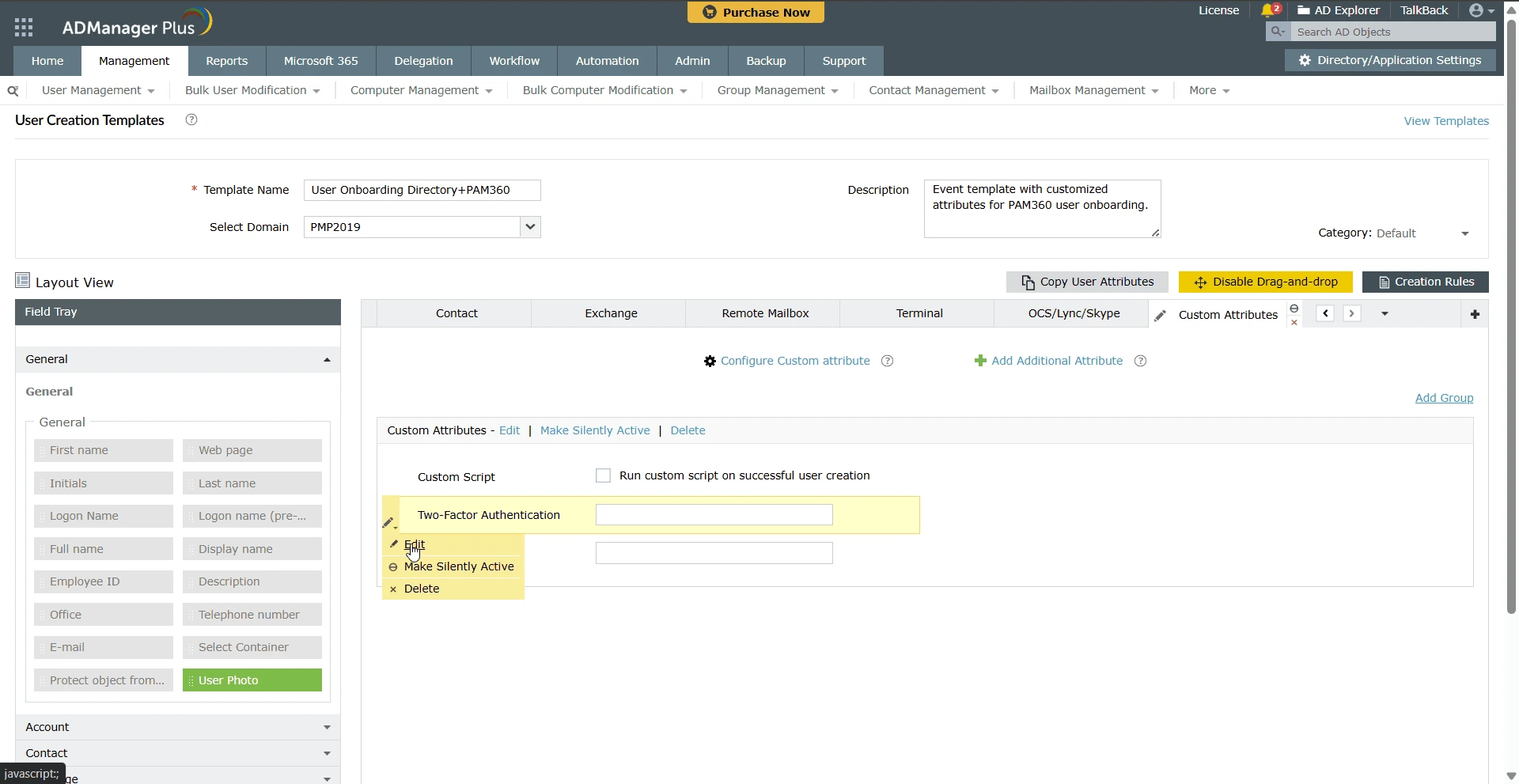
- Add the following necessary values to the custom attributes that are to be shown while creating an event using this template.
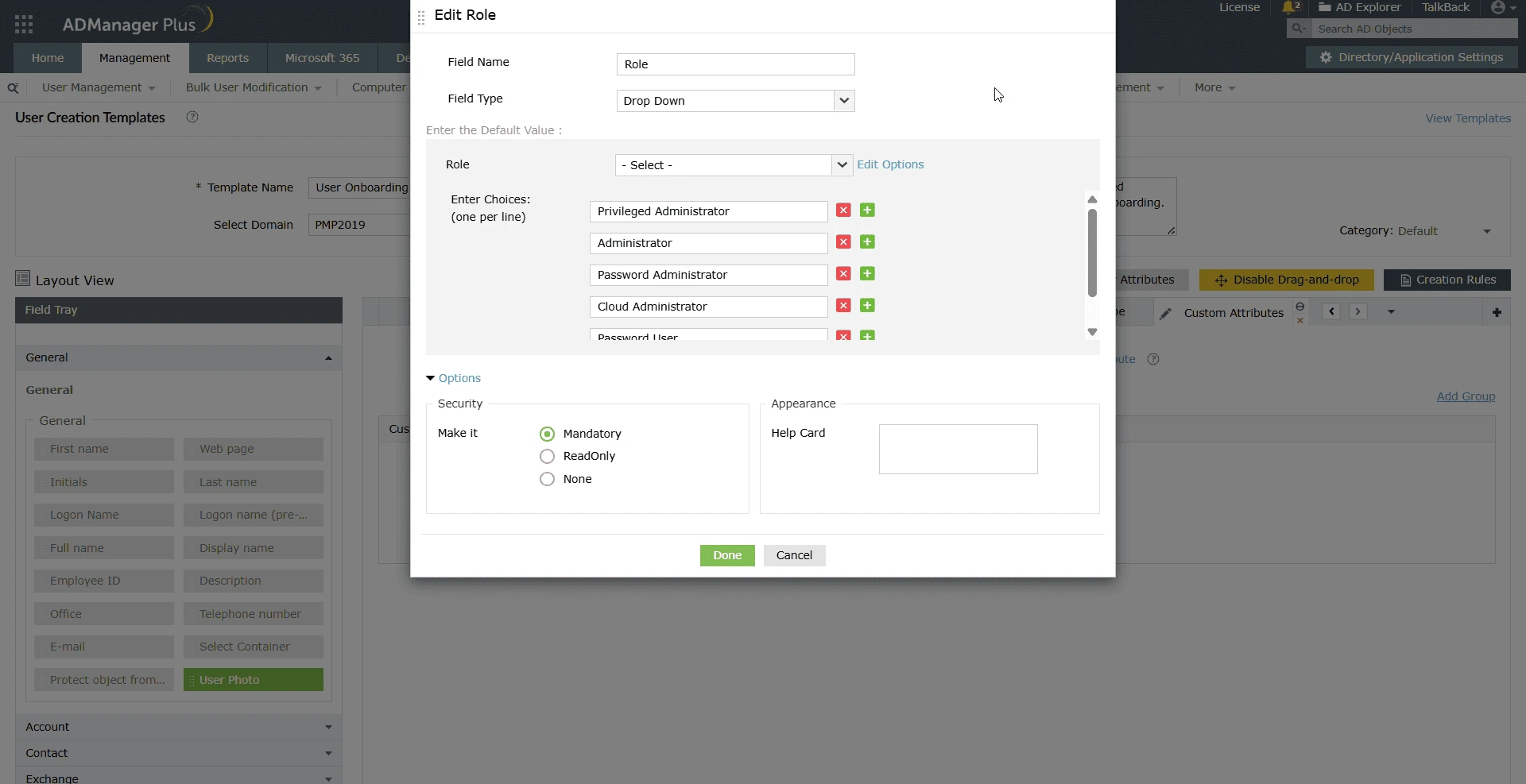
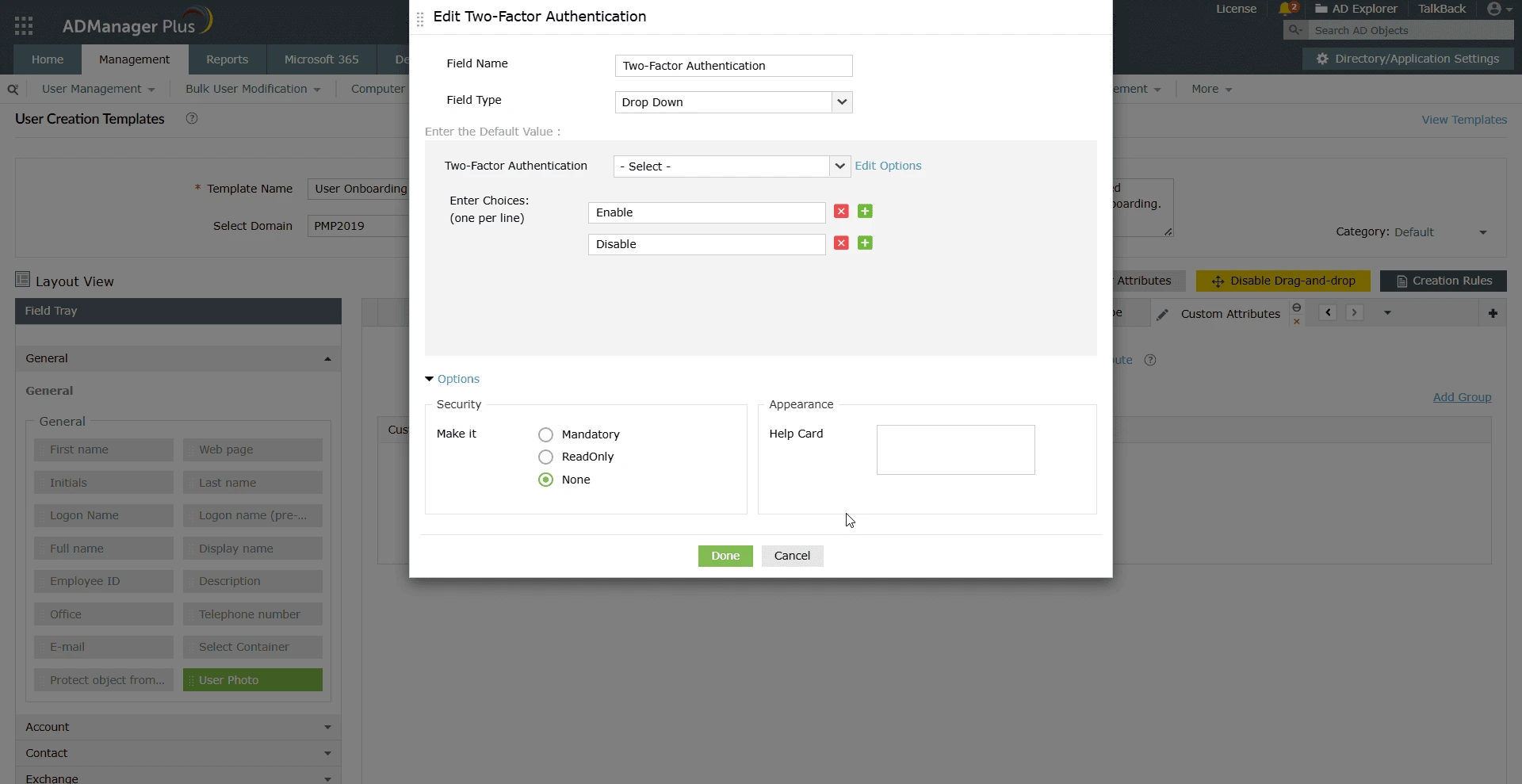
- Click SaveTemplate to create the template.
Once the setup is complete, any event triggered using the configured template will require input for the defined custom attributes, ensuring that all mandatory information needed by PAM360 is captured. These custom attribute fields will be further leveraged to retrieve object-specific data within the PAM360 outbound webhooks using macros.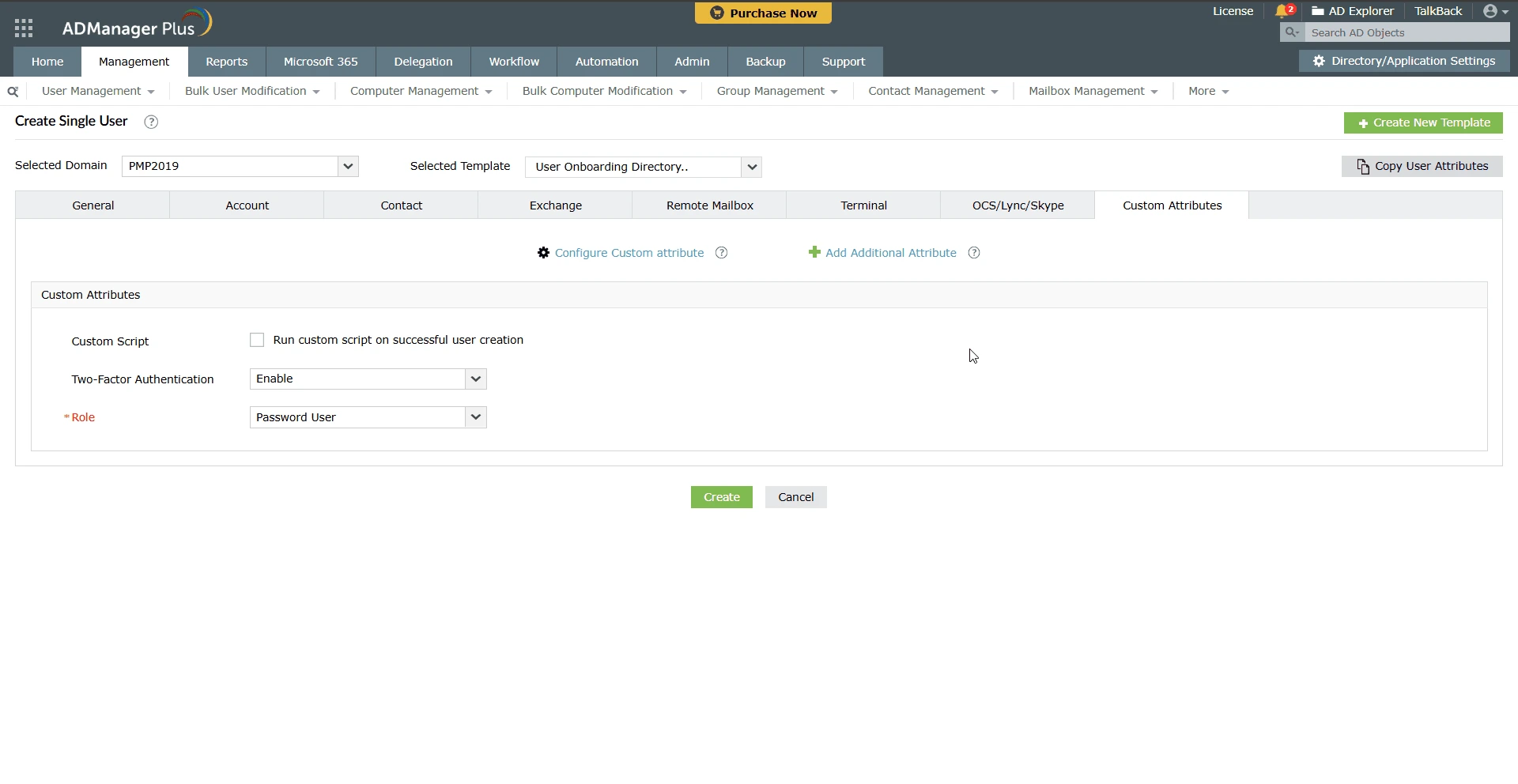
1.2 Defining an Outbound Webhook to PAM360
- Navigate to Automation >> Application Integration and locate the PAM360 application in the list.
- In the integration page that appears, click Add Webhook under the Outbound Webhook section.
- Provide a valid webhook name. For example, Import AD User to PAM360.
- In the method field, select the HTTP method as POST.
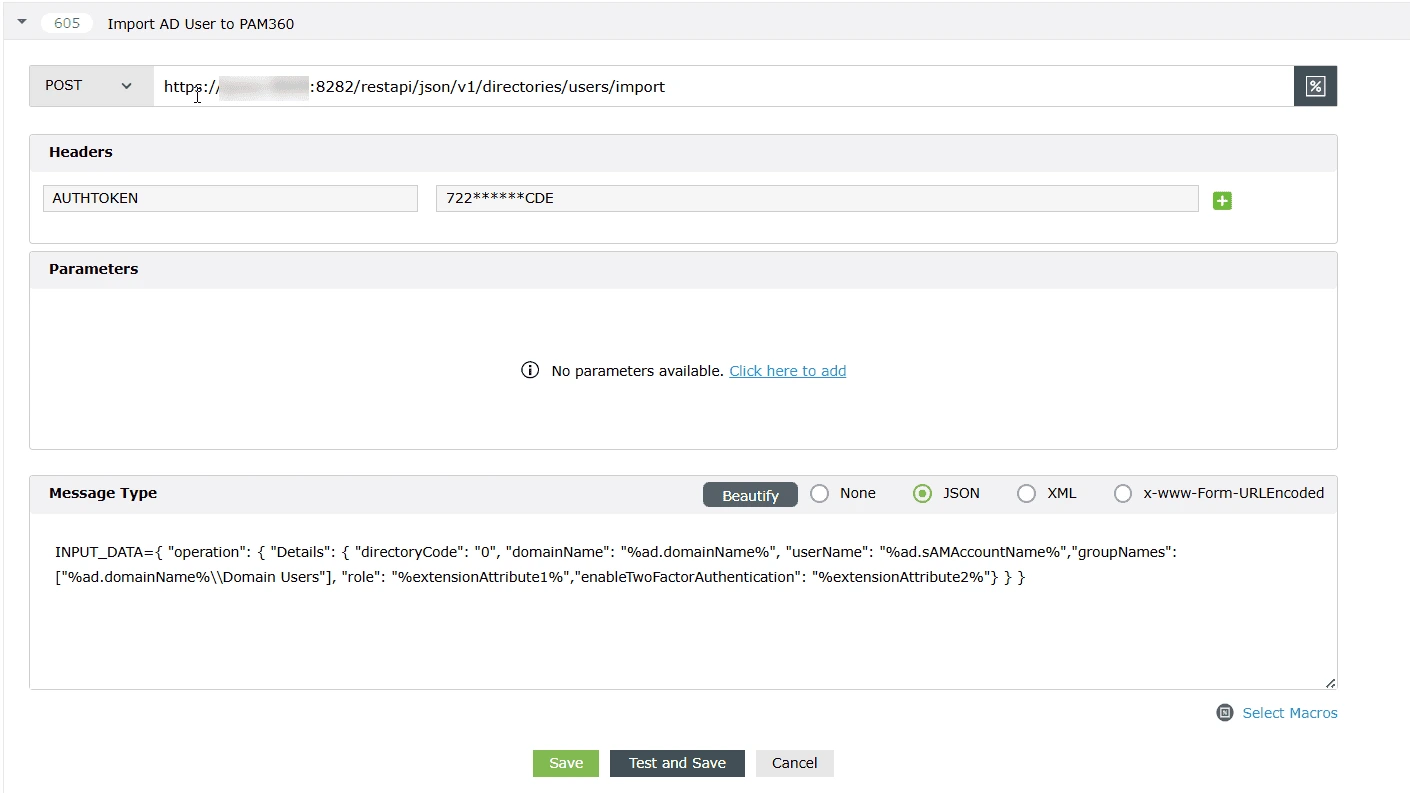
- In the URL field, enter the PAM360 API URL of importing users from AD:
https://<Host-Name-of-PAM360-Server (or) IP address>:<Port>/restapi/json/v1/directories/users/import - Set the Body Message Type to JSON and enter the request in the format as defined by the PAM360 API:
INPUT_DATA={ "operation": { "Details": { "directoryCode": "0", "domainName": "%ad.domainName%", "userName": "%ad.sAMAccountName%", "groupNames": ["%ad.memberOf%",..], "role": "%extensionAttribute1%","enableTwoFactorAuthentication": "%extensionAttribute2%"} } } - Click Test and Save to validate the webhook in real-time using specific users or groups, or simply click Skip and Save to finish.
1.3 Creating an Orchestration Template for Event-Driven Operation
- Navigate to Automation >> Configuration >> Orchestration Template.
- Click the + Create New Template button.
- Enter a suitable orchestration Template Name and Description.
- Under Custom Actions, drag and drop the Webhook block into the orchestration builder, then perform the following steps:
- Enter a meaningful Block Name and Description.
- Select the previously created Outbound Webhook of the PAM360 operation in the Select Template field.
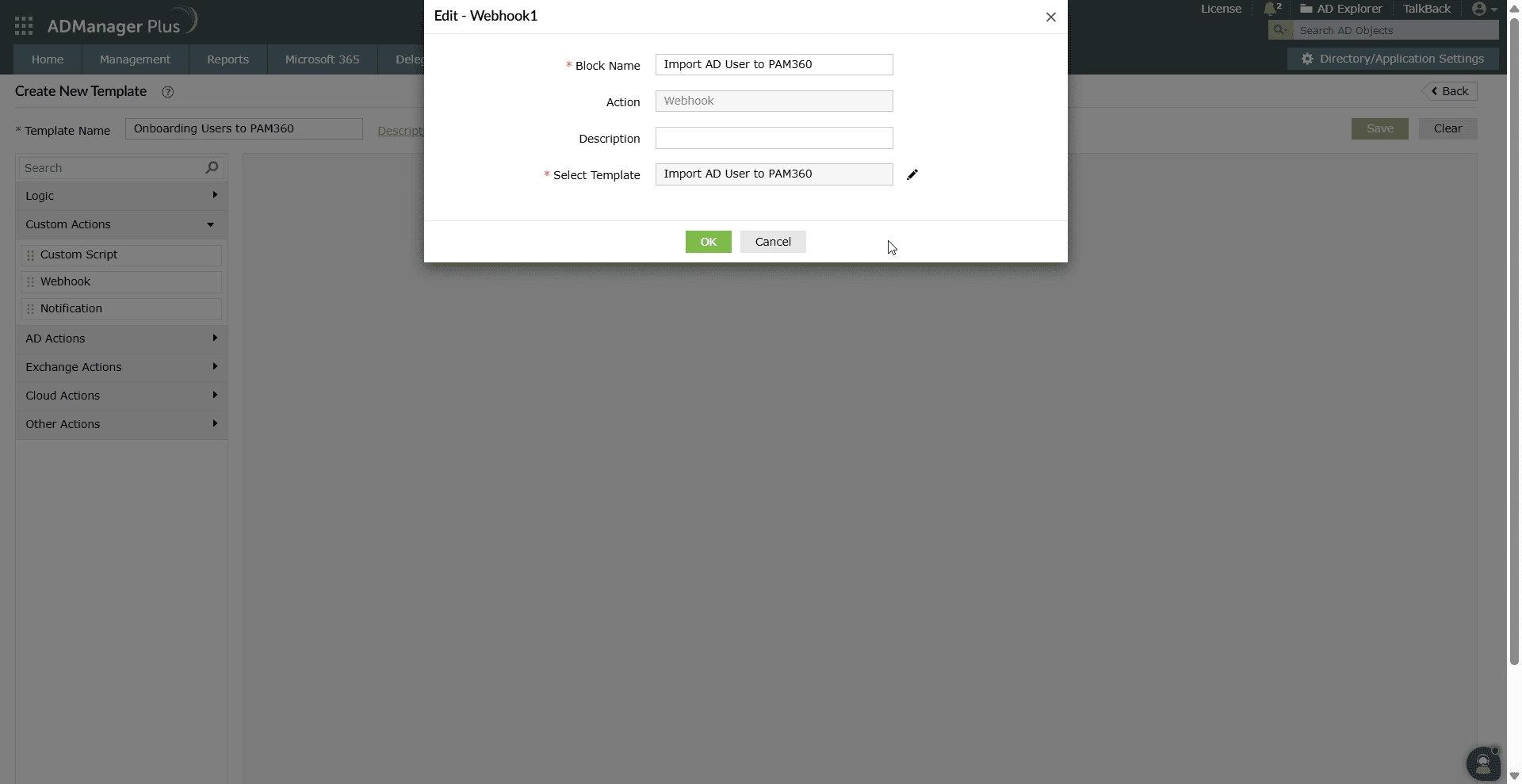
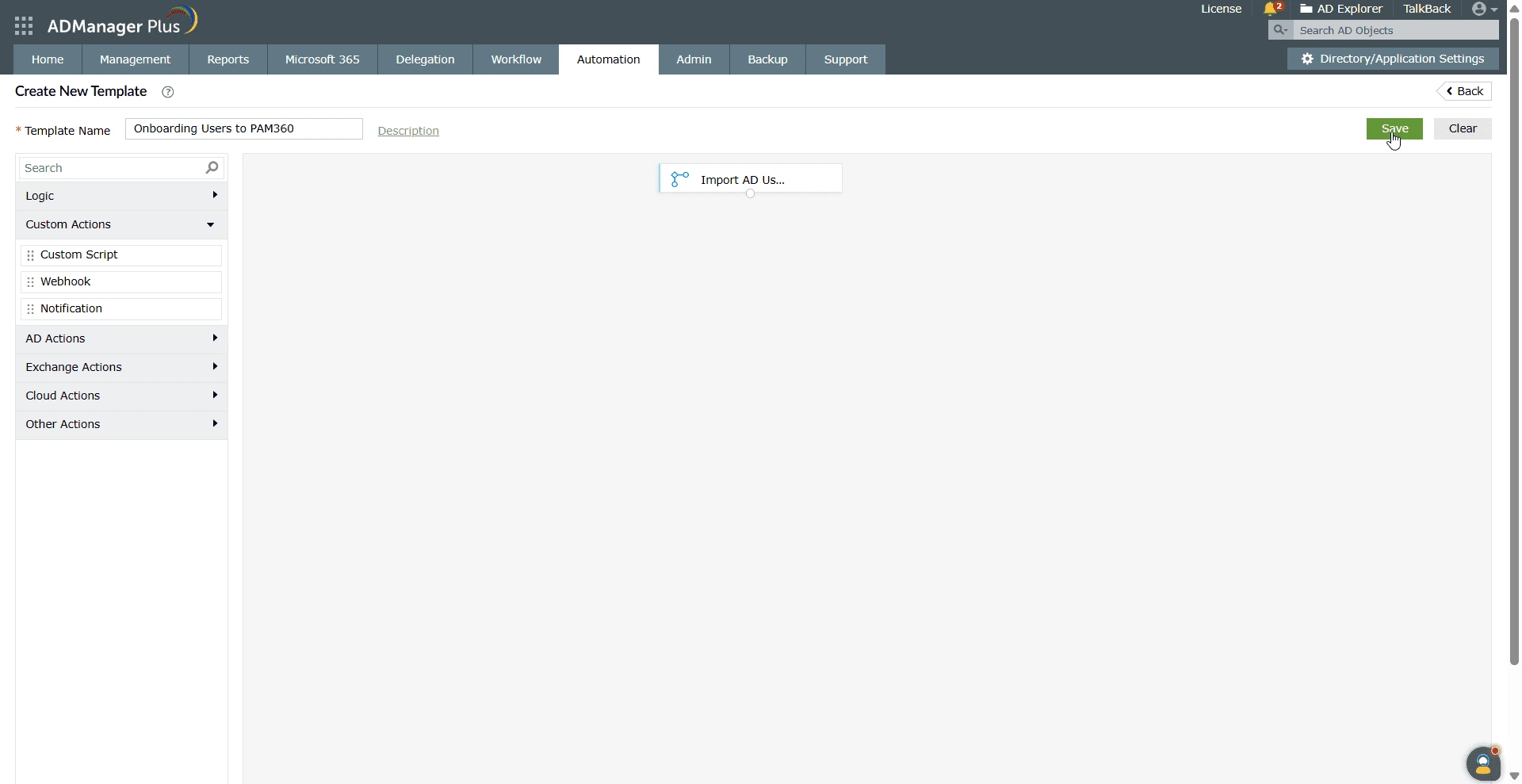
- Click OK to add the webhook block to the template.
- Click Save to finalize and create the orchestration template.
1.4 Creating an Event-Driven Automation for User Provisioning
- Now, navigate to Automation >> Event-driven Automation and click + Create New Automation located at the top-right corner of the page.
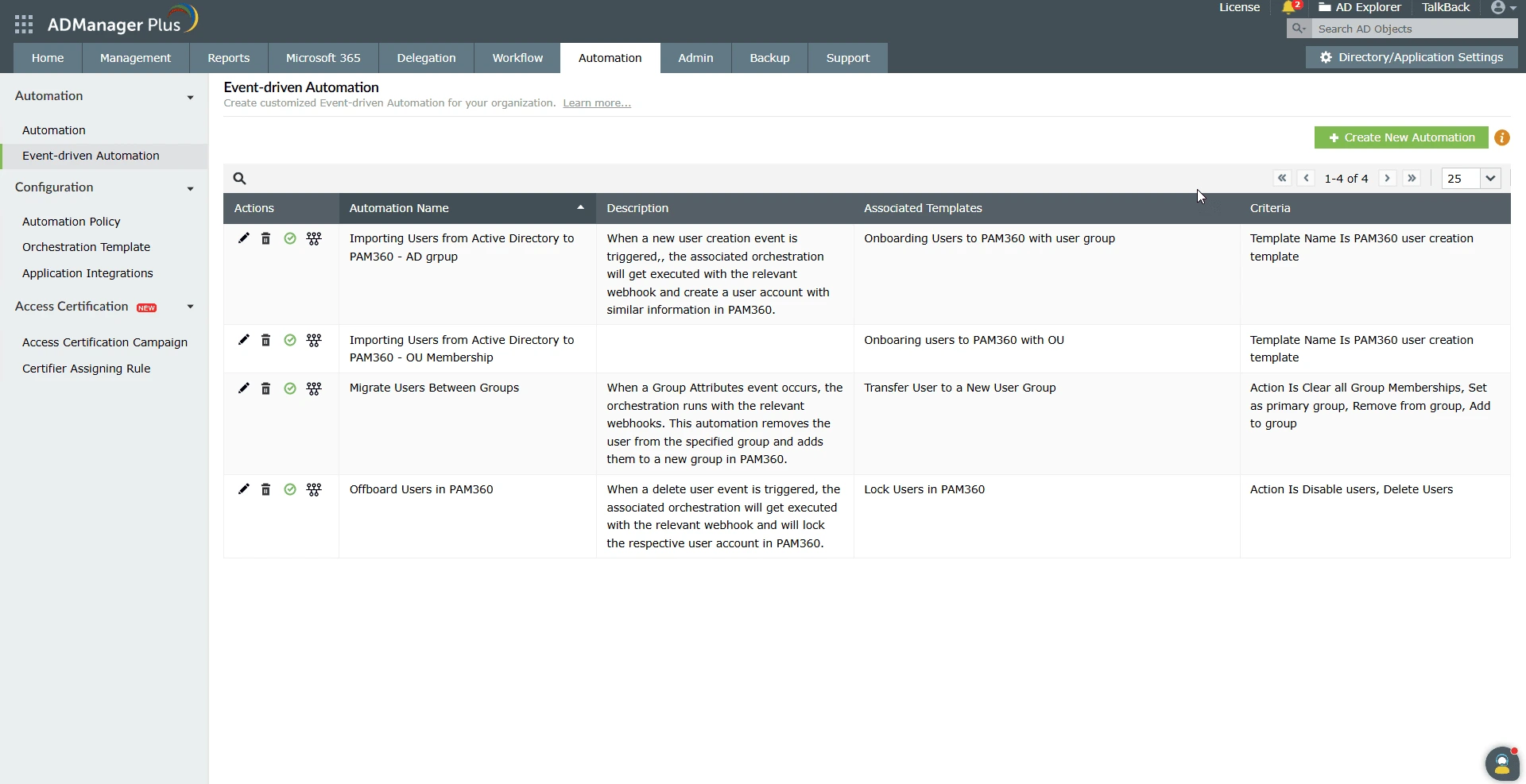
- Provide a suitable Automation Name and Description for the automation.
- In the Action field, select all actions.
- In the Criteria field, select Template Name and choose the user creation template created earlier.
- In the Orchestration Template field, select the relevant orchestration template with the webhook that you want to execute upon event trigger.
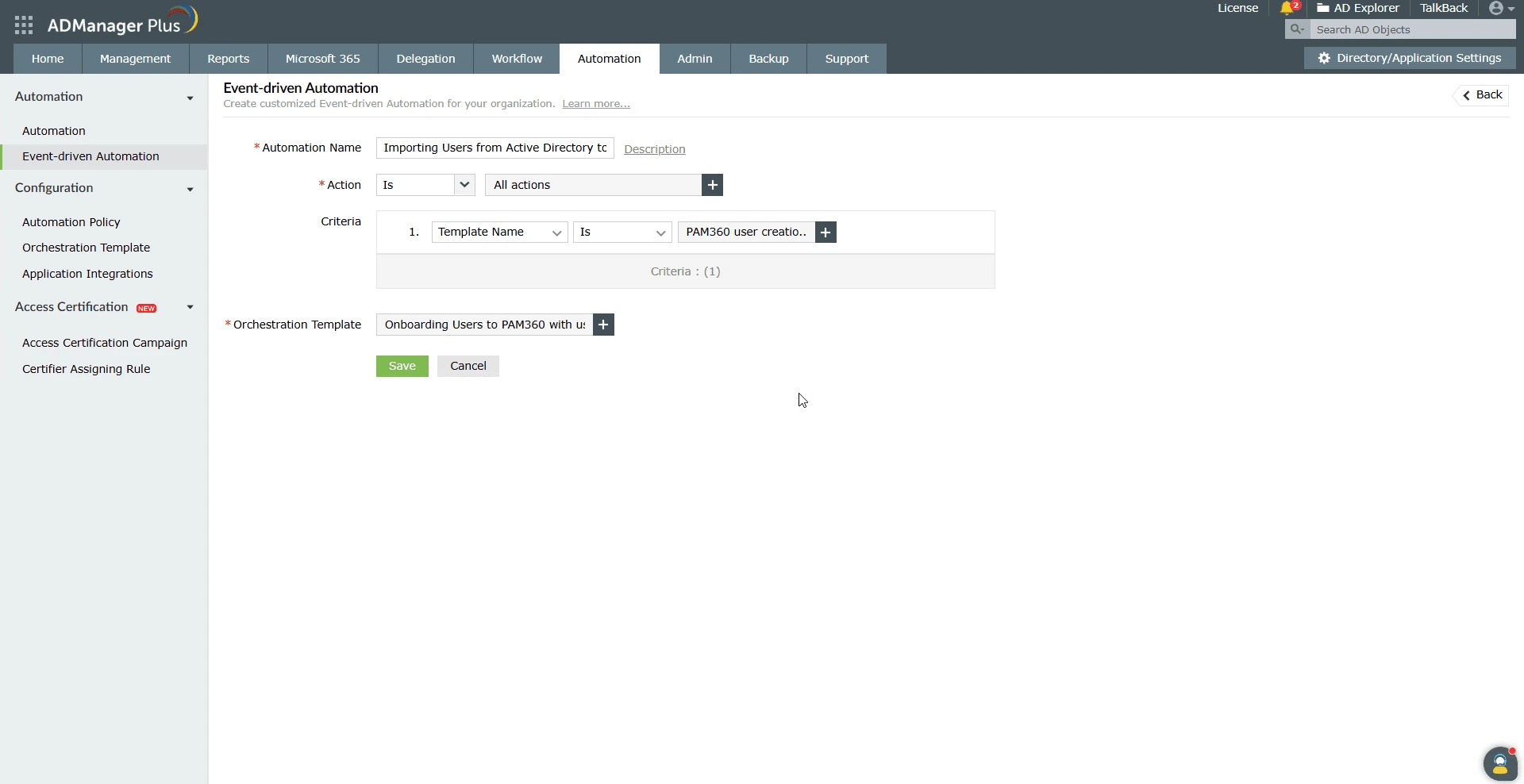
Once configured, whenever a directory event associated with the specified user creation template is triggered in ADManager Plus, the corresponding user account is automatically created in Active Directory. This event simultaneously initiates the configured event-driven automation. Upon activation, the relevant orchestration template is launched, which then invokes the designated outbound webhook containing PAM360 details to carry out the appropriate operations within the PAM360 application.
2. User Deprovisioning - Offboarding AD Users from PAM360
The below section brief in you in detail about configuring event-driven automation for automated user deprovisioning from ADMP to PAM360. It involves three major processes:
- Defining an Outbound Webhook to PAM360
- Creating an Orchestration Template for Event-Driven Operation
- Creating an Event-Driven Automation for User Deprovisioning
2.1 Defining an Outbound Webhook to PAM360
- Navigate to Automation >> Application Integration and locate the PAM360 application in the list.
- In the integration page that appears, click Add Webhook under the Outbound Webhook section.
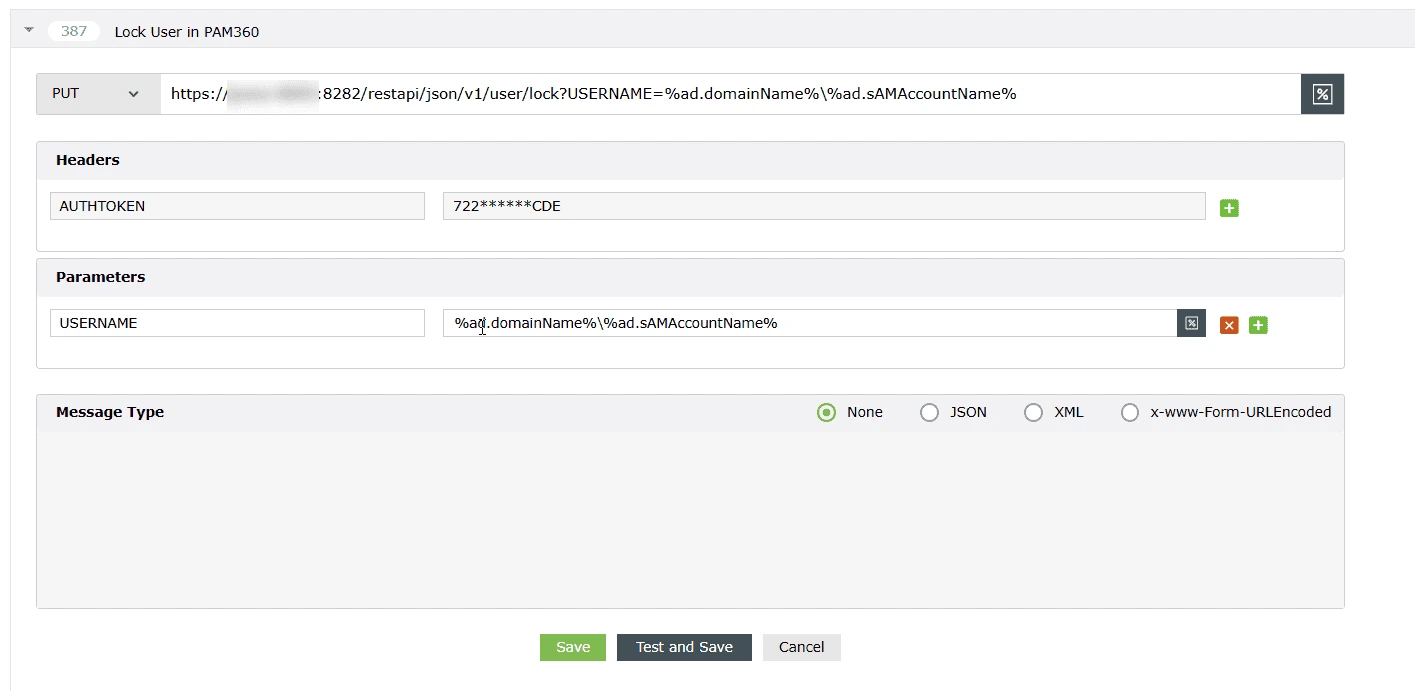
- Provide a valid webhook name for further reference. For example, Lock User in PAM360.
- In the method field, select the HTTP method as PUT.
- In the URL field, enter the PAM360 API URL to lock the user:
https://<Host-Name-of-PAM360-Server (or) IP address>:<Port>/restapi/json/v1/user/lock?USERNAME=%ad.domainName%\%ad.sAMAccountName% - Under the Parameters section, set USERNAME with the relevant macros to retrieve object-specific data for PAM360 outbound webhooks:
%ad.domainName%\%ad.sAMAccountName% - Click Test and Save to validate the webhook in real-time using specific users or groups, or simply click Save to finish.
2.2 Creating an Orchestration Template for Event-Driven Operation
- Navigate to Automation >> Configuration >> Orchestration Template.
- Click the + Create New Template button.
- Enter a suitable orchestration Template Name and Description.
- Under Custom Actions, drag and drop the Webhook block into the orchestration builder, then perform the following steps:
- Enter a meaningful Block Name and Description.
- Select the previously created Outbound Webhook for the PAM360 operation in the Select Template field.
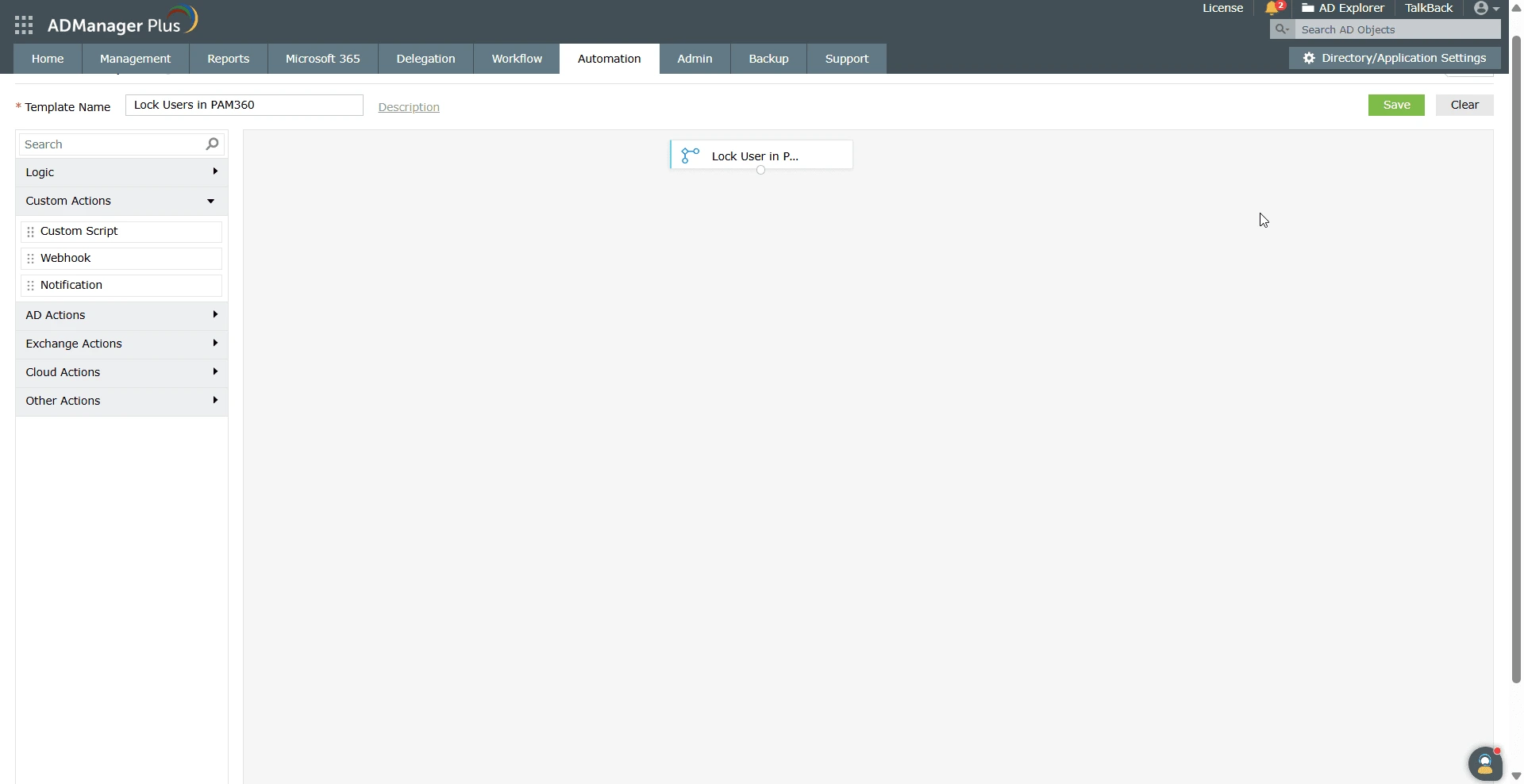
- Click OK to add the webhook block to the template.
- Click Save to finalize and create the orchestration template.
2.3 Creating an Event-Driven Automation for User Deprovisioning
- Log in to your ADManager Plus account and navigate to Automation >> Event-driven Automation.
- Click the + Create New Automation button located at the top-right corner of the page.
- Provide a suitable Automation Name and Description for the automation.
- In the Action field, select the operator as Is with the events Delete Users and Disable Users.
- In the Orchestration Template field, select the relevant orchestration templates you want to execute upon the trigger event.
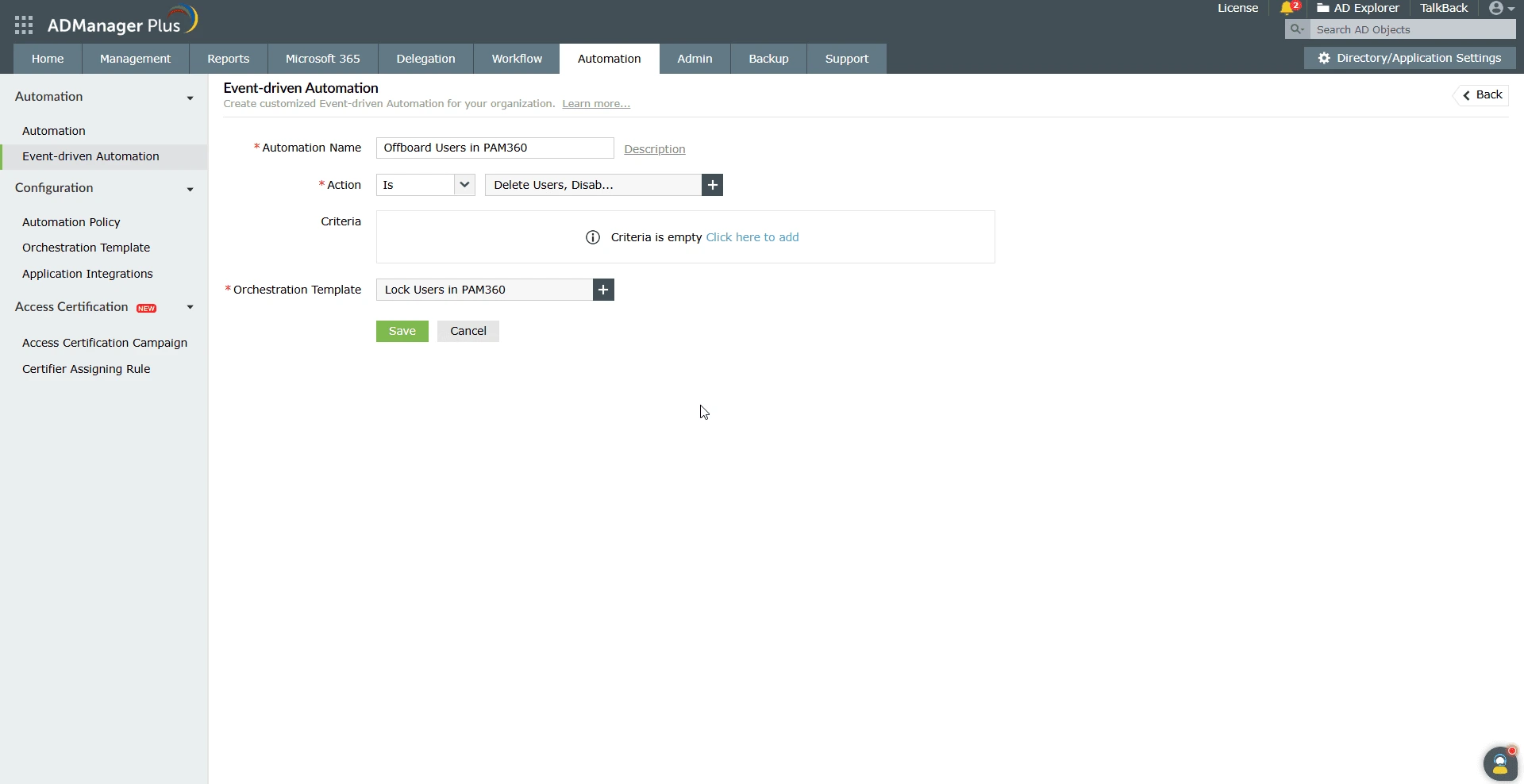
Upon configuration, whenever the directory events - Delete Users or Disable Users is triggered in ADManagerPlus, it performs the respective action in the directory and trigger the configured event-driven automation. Upon trigger, the relevant orchestration template will initiate and invoke the respective outbound webhook configured with the PAM360 details for executing relevant changes in the PAM360 application.