Deploying PAM360 Application Gateways
In organizations with complex network setups, such as DMZs, segmented networks, and secure subnets, managing privileged resources can be challenging, as there will be no direct communication between the PAM360 server and the privileged resources due to strict security policies. This document offers comprehensive guidance on deploying PAM360 Application Gateways to support the efficient management of privileged resources in such scenarios. By following the steps outlined in this guide, administrators can ensure secure and seamless privileged access management across segmented networks without compromising compliance or network isolation policies.
1. Prerequisites
- When deploying the Application Gateway, ensure that the server hosting the Application Gateway has seamless connectivity to the PAM360 server and the network where the remote resources reside.
- Ensure that port 8288 is open on the machine where the PAM360 server is hosted to facilitate secure communication between the PAM360 server and the Application Gateway. If port 8288 is already in use, you can configure a custom port for secure communication while setting up the Application Gateway.
- Additionally, you will need the following details from the PAM360 server for a successful deployment:
- PAM360 server certificate to establish a secure connection between the PAM360 web server and the Application Gateway.
- Hostname or IP address of the PAM360 server to ensure the accurate Application Gateway configuration.
- If you are deploying the Application Gateway on a Windows machine, ensure Microsoft Visual C++ Redistributable for Visual Studio 2015 and above is available on that machine.
- Ensure the Microsoft .NET framework is available on the machine where you are deploying the Application Gateway.
- A service account that has either domain admin rights or local admin rights in the PAM360 server and in the target systems that you would like to manage.
- Ensure that port 8283 is open on the machine where the Application Gateway is being deployed to allow secure remote access to the resources it manages. If port 8283 is already in use, you can configure a custom port and update the port number in the gateway.conf file located within the <PAM360ApplicationGateway_Installation_Directory>/Conf folder.
Additional Detail
It is not necessary to open this port for external communication. The Application Gateway server will utilize this port exclusively to facilitate secure remote sessions.
- Ensure that port 8289 is open on the machine where the PAM360 server is hosted to facilitate secure remote sessions to the resources managed using Application Gateways. If you want to configure a custom port in your environment for this purpose, you should update the corresponding port number in the PAM360 server. To configure a custom port, navigate to Admin >> Server Settings >> PAM360 Server Configuration. In the PAM360 Server Configuration pop-up window that appears, switch to the Auto Logon tab, enter the desired port number in the Application Gateway Session Port field, and click the Save button.
Caution
It is essential to restart the PAM360 service after updating the port number for the changes to take effect.
2. System Requirements
This section covers the hardware and software requirements for the PAM360 Application Gateway.
2.1 Software Requirements
| Windows | Linux |
|---|---|
|
|
Additional Detail
The PAM360 Application Gateway generally works well with all flavors of Windows and Linux and can also be deployed on virtual machines running these operating systems.
2.2 Hardware Requirements
| Environment Size | Processor | RAM | Hard Disk |
|---|---|---|---|
Small (<2500 servers) | Dual Core or above | 8GB | 2GB for Product |
Medium (<8000 servers) | Quad Core or above | 16GB | 2GB for Product |
Large (>8000 servers) | Octa Core or above | 32GB | 2GB for Product |
3. Roles and Privileges
By default, users with the Privileged Administrator, Cloud Administrator, and Administrator roles can add, configure, and manage Application Gateways. Additionally, any user with the Application Gateway privilege enabled in their role is permitted to add and manage the Application Gateways.
4. Deploying Application Gateways
The process involves downloading the application gateway configuration file from the PAM360 web interface, installing the Application Gateway on the desired machine, and configuring the Application Gateway using the configuration file downloaded from the PAM360 web interface. This section covers the detailed steps to deploy an Application Gateway in your environment.
4.1 Downloading the Application Gateway Configuration File
Follow these steps to add an Application Gateway and download the configuration file from the PAM360 web interface:
- Navigate to Admin >> PAM360 Gateways >> Application Gateway.
- In the PAM360 Application Gateway window that opens, click the Add button.
- In the Add Application Gateway window, enter the following details:
- PAM360 Server Hostname / IP Address - Enter the hostname or IP address of the PAM360 server to which the Application Gateway should establish a secure communication channel. You can enter a maximum of three values in the comma-separated format.
Best Practice
We recommend providing both the hostname and IP address of the PAM360 server in this field to ensure seamless communication and task execution.
- Application Gateway Name - Enter a suitable name to uniquely identify this Application Gateway on the PAM360 Application Gateway window.
- Hostname / IP Address - Specify the hostname or IP address of the machine where you wish to deploy the Application Gateway. You can enter the values in a comma-separated format. You enter a maximum of three values in this field.
Best Practice
We recommend providing both the hostname and IP address of the machine where you want to deploy the Application Gateway in your environment to ensure seamless communication and task execution.
- Description - Provide a brief description of the Application Gateway for easy reference.
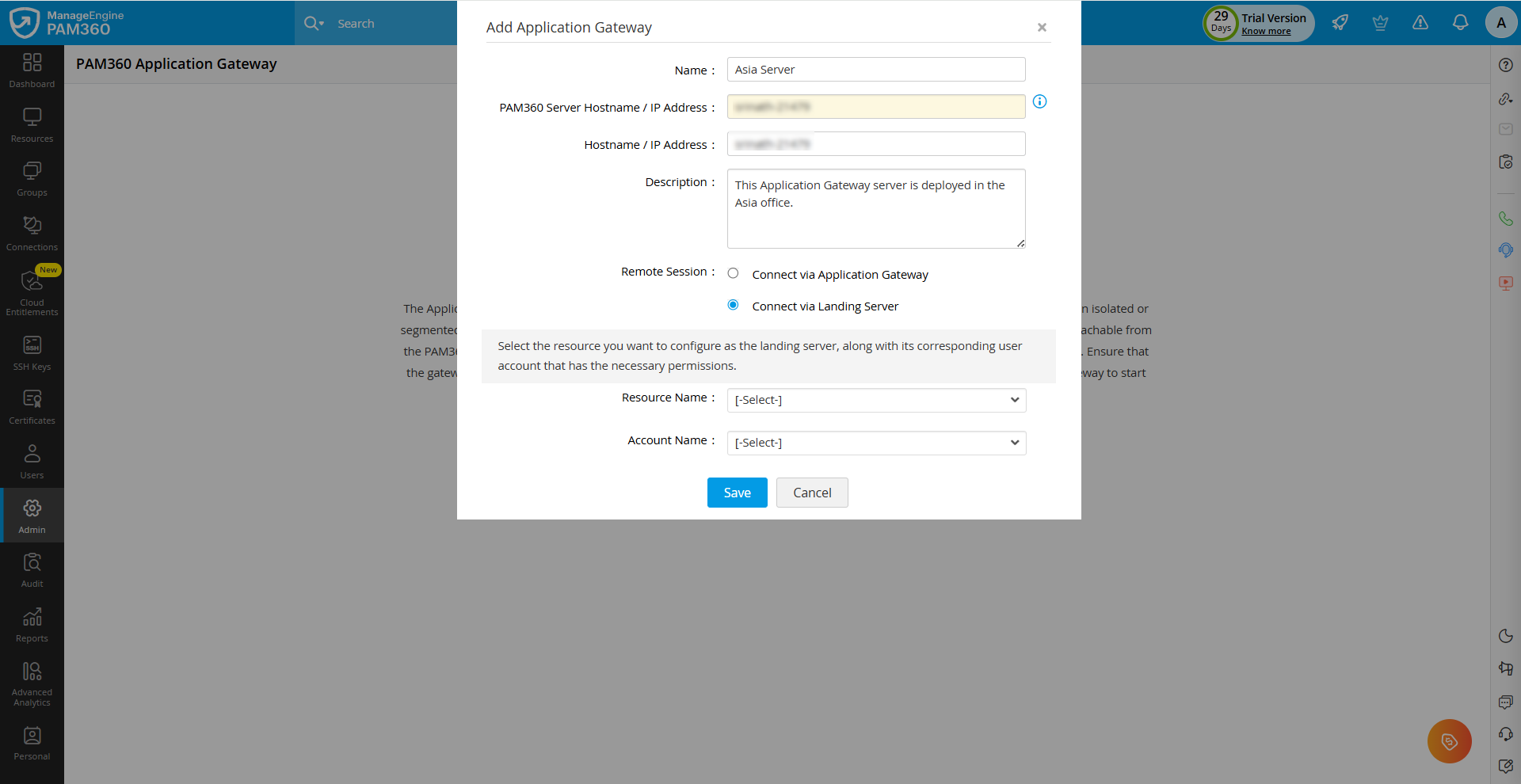
- Remote Sessions - Select how the remote sessions to the resources managed by this Application Gateway should be routed.
- Connect Via Application Gateway - To establish remote sessions directly through the Application Gateway.
- Connect Via Landing Server - To route the remote sessions through a designated landing server. Select the landing server machine (added as a resource in PAM360) and its corresponding account from the respective drop-down fields.
Caution
If you choose to tunnel remote sessions through a landing server for resources managed by Application Gateways, ensure the following:
- Ensure that the landing server is added as a resource in PAM360 and has connectivity to the PAM360 server.
- The landing server should reside in the same network as the target machines while maintaining connectivity with the PAM360 server as it facilitates the connection.
- PAM360 Server Hostname / IP Address - Enter the hostname or IP address of the PAM360 server to which the Application Gateway should establish a secure communication channel. You can enter a maximum of three values in the comma-separated format.
- Click Save to configure the Application Gateway details successfully.
- In the Download Configuration File window, click the Download button to download the configuration file to your machine.
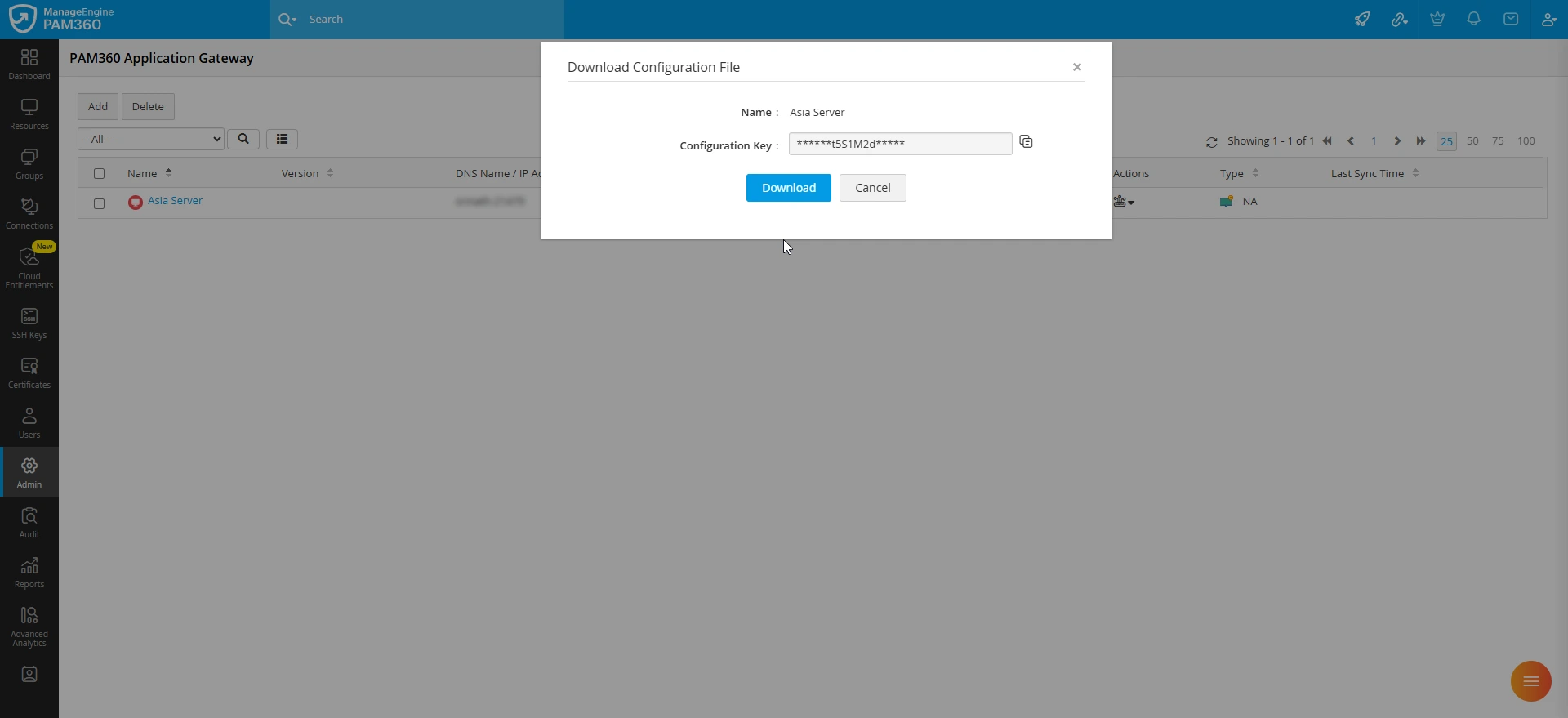
- Alternatively, you can click the Copy icon beside the Configuration Key field, paste the key in a .txt file, and save it. You need to upload this file while configuring the Application Gateway.
4.2 Installing the PAM360 Application Gateway
i Installing the PAM360 Application Gateway on Windows
This section outlines the steps to download and install ManageEngine's PAM360 Application Gateway on a Windows machine.
- Visit PAM360's official Website and download the PAM360 Application Gateway software to your target system.
Caution
Before downloading the software, make sure your system meets all the required prerequisites. This step is essential for a seamless installation.
- Double-click the downloaded ManageEngine_PAM360_Applicationgateway.exe to proceed with the installation.
- When you double-click the installer, the InstallShield Wizard for PAM360 Application Gateway will launch. Click Next to continue with the installation.
- The Software License Agreement will appear on the screen. Read the agreement carefully, and click Yes to agree and proceed with the installation. Click Back to return to the previous section, or click No to exit the setup. You can also Print the License Agreement for future reference.
- Choose the destination folder to install the PAM360 Application Gateway on your machine. You can either go with the default location, C:\Program Files\ManageEngine\ManageEngine_PAM360_ApplicationGateway, or click Browse to install the Application Gateway at a different location. Click Next to proceed with the installation or click Back to go back to the previous section.
- After the installation is complete, click the Configure button to configure the PAM360 server details.
- On the next screen, click Browse and select the applicationgateway.config file that you previously downloaded from the PAM360 web server. Refer to the previous section for detailed instructions on adding an Application Gateway configuration in the PAM360 interface and downloading the configuration file.
- Now, click the Configure button to save the uploaded configuration file.
- In the subsequent window, enter the following details:
- Hostname / IP Address - The hostname or IP address of the machine where the PAM360 server is hosted.
- WSS Port - The WSS port number opened on the PAM360 server.
- HTTPS Port - The HTTPS port number opened on the PAM360 server.
- PAM360 Server Certificate - Click Browse and select the PAM360 server certificate from your machine. Click Configure to configure the Application Gateway on your machine.
Caution
- If you are using a self-signed certificate for the PAM360 server, ensure that the certificate includes the Subject Alternative Name (SAN) field for secure communication.
- If you are an existing PAM360 customer upgrading to PAM360 Build 8000 or above, follow these steps to update the SAN field in the PAM360 server certificate.
- Navigate to the <PAM360-Installation-Directory>/scripts folder and execute the command updateCertSAN.bat (Windows) or sh updateCertSAN.sh (Linux) depending on the OS type of the machine where the PAM360 server is deployed.
- Restart the PAM360 service, download the updated PAM360 server certificate, and use it while configuring the Application Gateway.
- Once the configuration is complete, you will see the success message on the screen. Access your PAM360 instance and navigate to the PAM360 Application Gateway page to see the details and status of the deployed Application Gateway.
ii. Installing the PAM360 Application Gateway on Linux
This section outlines the steps to download and install ManageEngine's PAM360 Application Gateway on a Linux machine.
- Visit PAM360's official Website and download the PAM360 Application Gateway software to your target system.
Caution
Before downloading the software, make sure your system meets all the required prerequisites. This step is essential for a seamless installation.
- Execute the command chmod a+x <file-name> to assign the executable permission.
- The InstallAnywhere wizard for PAM360 Application Gateway will appear on the screen. Click Next to continue the installation.
- The Software License Agreement will appear on the screen. Read the agreement carefully, and click Yes to agree and proceed with the installation. Click Back to return to the previous section, or click No to exit the setup. You can also Print the License Agreement for future reference.
- Choose the destination folder to install the PAM360 Application Gateway on your machine. You can either install the Application Gateway in the default location or click Choose to install it in a different location. Click Next to proceed to the next step, and click the Back button to go back to the previous section.
- After the installation is complete, click the Configure button to configure the PAM360 server details.
- On the next screen, click Browse and select the applicationgateway.config file that you previously downloaded from the PAM360 web server. Refer to the previous section for detailed instructions on adding an Application Gateway configuration in the PAM360 interface and downloading the configuration file.
- Now, click the Configure button to save the uploaded configuration file.
- In the subsequent window, enter the following details:
- Hostname / IP Address - The hostname or IP address of the machine where the PAM360 server is hosted.
- WSS Port - The WSS port number opened on the PAM360 server.
- HTTPS Port - The HTTPS port number opened on the PAM360 server.
- PAM360 Server Certificate - Click Browse, select the PAM360 server certificate from your machine, and click Open. Click Configure to configure the Application Gateway on your machine.
Caution
- If you are using a self-signed certificate for the PAM360 server, ensure that the certificate includes the Subject Alternative Name (SAN) field for secure communication.
- If you are an existing PAM360 customer upgrading to PAM360 Build 8000 or above, follow these steps to update the SAN field in the PAM360 server certificate.
- Navigate to the <PAM360-Installation-Directory>/scripts folder and execute the command updateCertSAN.bat (Windows) or sh updateCertSAN.sh (Linux) depending on the OS type of the machine where the PAM360 server is deployed.
- Restart the PAM360 service, download the updated PAM360 server certificate, and use it while configuring the Application Gateway.
- Once the configuration is complete, you will see the success message on the screen. Access your PAM360 account and navigate to the PAM360 Application Gateway page to see the details and status of the deployed Application Gateway.
Follow these steps if you are installing the Application Gateway on a headless Linux server:
- Download the file PAM360_ApplicationGateway.bin for linux.
- Execute the chmod a+x <file-name> command to assign the executable permission.
- Execute the command ./<file_name> or ./<file_name> -i console.
- Follow the step-by-step instructions as they appear on the screen. Now, PAM360 Application Gateway will be installed in your machine in the chosen location.
- Once the installation is complete, navigate to the <PAM360ApplicationGateway-Installation-Directory>/bin folder and execute the command sh importCert.sh to import the PAM360 server certificate.
- Copy the applicationgateway.config file downloaded from the PAM360 server and paste it into the <PAM360ApplicationGateway-Installation-Directory>/conf folder.
Caution
Ensure the configuration file is named as applicationgateway.config.
- Navigate to <PAM360ApplicationGateway-Installation-Directory>/bin folder and execute the ./wrapper -c ../conf/wrapper_lin.conf command. Upon successful execution, a success message will be displayed. Execute the same command again to start the Application Gateway service.
You have successfully deployed and configured the Application Gateway on the desired machine within your environment. Once the installation is complete, the Application Gateway will be enabled on the PAM360 Application Gateway page. You can hover over the Application Gateway name to check its status and the last sync time.
4.3 Starting the Application Gateway as a Service
i. Starting the Application Gateway as a Service on Windows
Once the Application Gateway executable (.exe) has been successfully installed, you can start or manage the service using either of the following methods:
- Using the Tray icon - Click the Show Hidden Icons option on the bottom-right corner of the Taskbar, right-click on the Application Gateway tray icon, and select Start Application Gateway from the displayed options.
- From the Services console - Press Windows + R, type services.msc, and click OK. In the Services window, locate the service named ManageEngine PAM360 - ApplicationGateway, right-click the service and select Start.
ii.Starting the Application Gateway as a Service on Linux
Follow these steps to install PAM360 Application Gateway as a start up service on a Linux machine:
- Log in as a root user.
- Open the console and navigate to <PAM360ApplicationGateway-Installation-Directory>/bin folder.
- Execute the sh applicationGateway.sh install (In Ubuntu, execute bash applicationGateway.sh install) command.
- Subsequently, execute the following commands:This command will start the Application Gateway service.
systemctl start pam360ApplicationGateway.service
This command will restart the Application Gateway service.systemctl restart pam360ApplicationGateway.service
- To check the status of the Application Gateway service, execute the following command:
systemctl status pam360ApplicationGateway.service
You have successfully started the Application Gateway on the desired machine as a service within your environment.
Refer to this document for detailed guidance on managing Application Gateways and administering privileged resources through the Application Gateway.