Managing Certificate Groups in PAM360
PAM360 simplifies the organization and management of certificates through certificate groups. Certificate groups allow administrators to logically group certificates, making it easier to monitor, manage, and perform operations like expiry notifications effectively. Certificates can be created with specific certificates or criteria as desired. At the end of this document, you will have learned about creating, editing, and deleting the certificate groups.
1. Creating a Certificate Group
To create a certificate group for managing the certificates in bulk, follow these steps:
- Navigate to the Certificates section and click the Certificate Group icon in the top-right corner of the Certificates tab.
- Click Add Group to create a new certificate group.
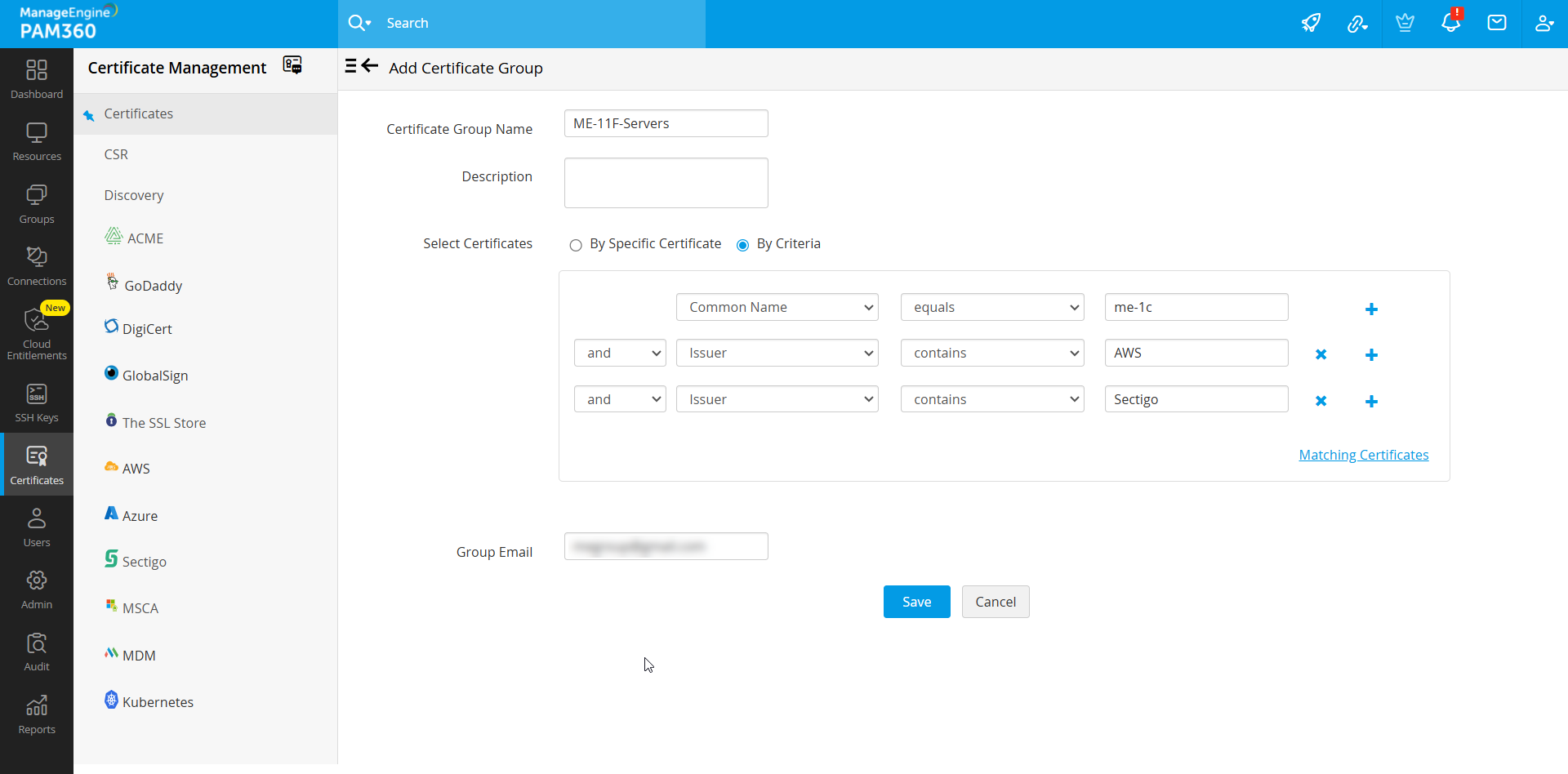
- In the page that opens, provide a unique Certificate Group Name (non-editable later) and an optional Description for the group.
- Add certificates to the certificate group using either of the following methods:
- By Specific Certificate - Select individual certificates to include them in the certificate group.
- By Criteria - Use a dynamic method to create groups based on parameters like Issuer, Common Name, Key Algorithm, Key Size, etc. You can apply fine-grained filters such as equals, contains, does not contain, starts with, etc. Use the Matching Certificates option to review certificates meeting the criteria.
- Add a Group Email address for expiry alerts.
- Click Save to create the certificate group.
Additional Detail
If you choose to group certificates By Criteria, the conditions will be applied to certificates discovered in the future and they will automatically be added to groups that match the criteria.
2. Modifying a Certificate Group
To modify an existing certificate group, follow these steps:
- Navigate to the Certificate Group icon in the Certificates tab.
- Click the Edit icon present in the right corner of the table view.
- Update the certificate groups by changing the selection type, modifying the certificates in the group, and adjusting or deleting applied filters.
- Save the changes to confirm the updates.
Caution
The certificate group name cannot be changed, but certificates and descriptions can be updated.
3. Deleting a Certificate Group
To delete a certificate group, follow these steps:
- Click the Certificate Group icon on the top-right corner of the Certificates tab.
- Select the groups to delete and click Delete.
- Confirm the deletion in the pop-up window to permanently remove the groups.