Secure Cloud Storages for Anytime, Anywhere Access to Passwords
PAM360 extends its password export capabilities beyond plain-text spreadsheets and encrypted HTML files by providing secure cloud storage options. This feature enables seamless, anytime, anywhere access to passwords through auto-synchronization of encrypted HTML files with authorized users' mobile devices via platforms like Dropbox, Amazon S3, and Box. Here are typical use cases for this functionality:
- Managed Service Providers (MSPs): MSPs utilizing PAM360 to manage and store shared client and technician passwords can benefit from this feature when they lack access to the application within a client’s network during on-site visits.
- Technicians in DMZs: Professionals working in Demilitarized Zones (DMZs) with restricted access to the application's web interface can securely retrieve passwords without compromising operational efficiency.
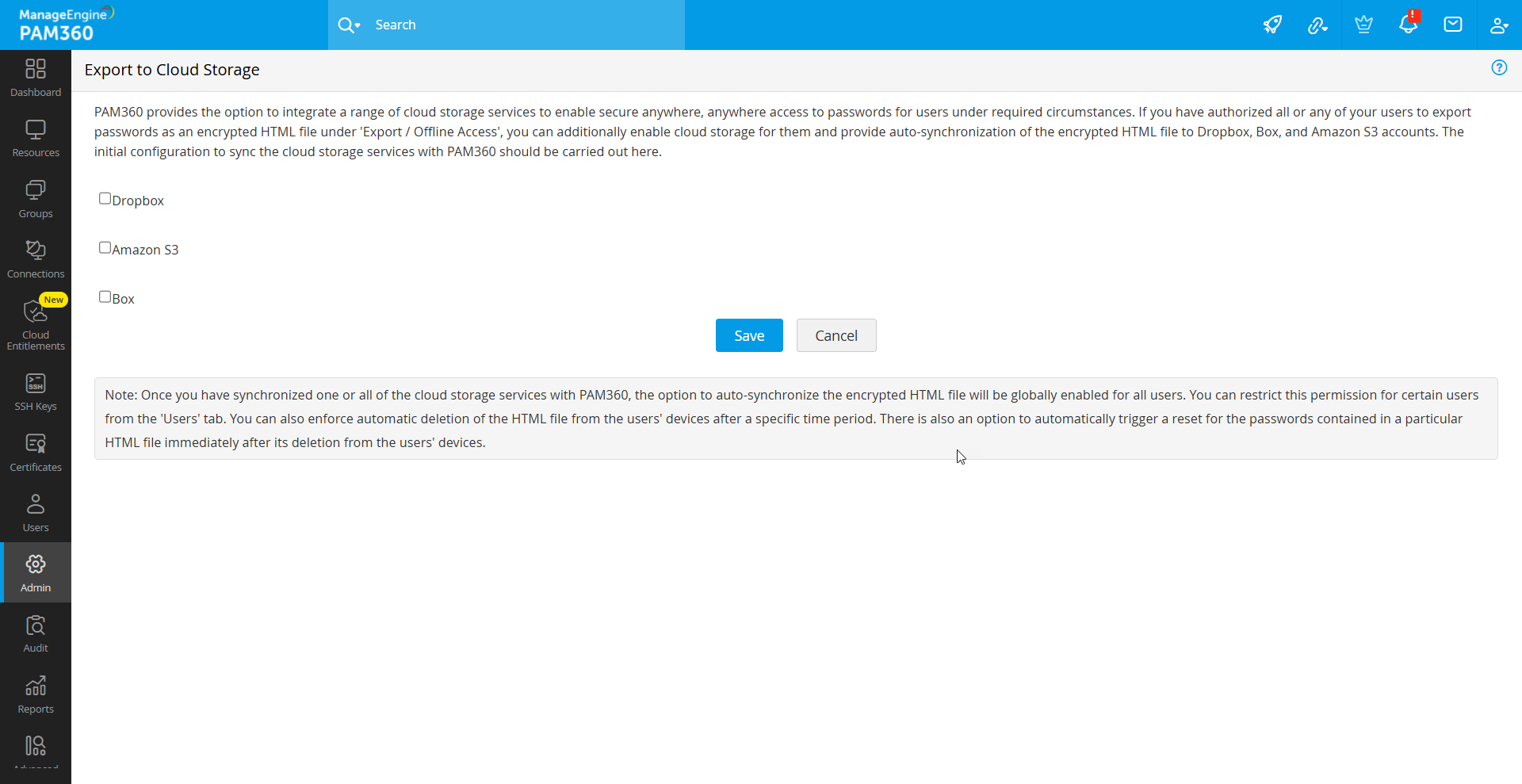
To enable a cloud storage for users and to set up synchronization, refer to any of the following desired cloud storage section:
1. Configuring Dropbox Cloud Storage
To enable Dropbox synchronization for your users, follow the below steps:
- Navigate to Admin >> Integrations >> Cloud Storage.
- In the window that appears, select Dropbox and click Test Dropbox Connection for this PAM360 Installation. This action verifies the proxy settings (if applicable in your environment) and initiates the necessary background processes to establish a connection with the Dropbox app named ManageEngine PAM360, which PAM360 creates specifically for this purpose. Upon successful connection, users can securely upload the encrypted HTML file to their Dropbox account, ensuring seamless password access and management.
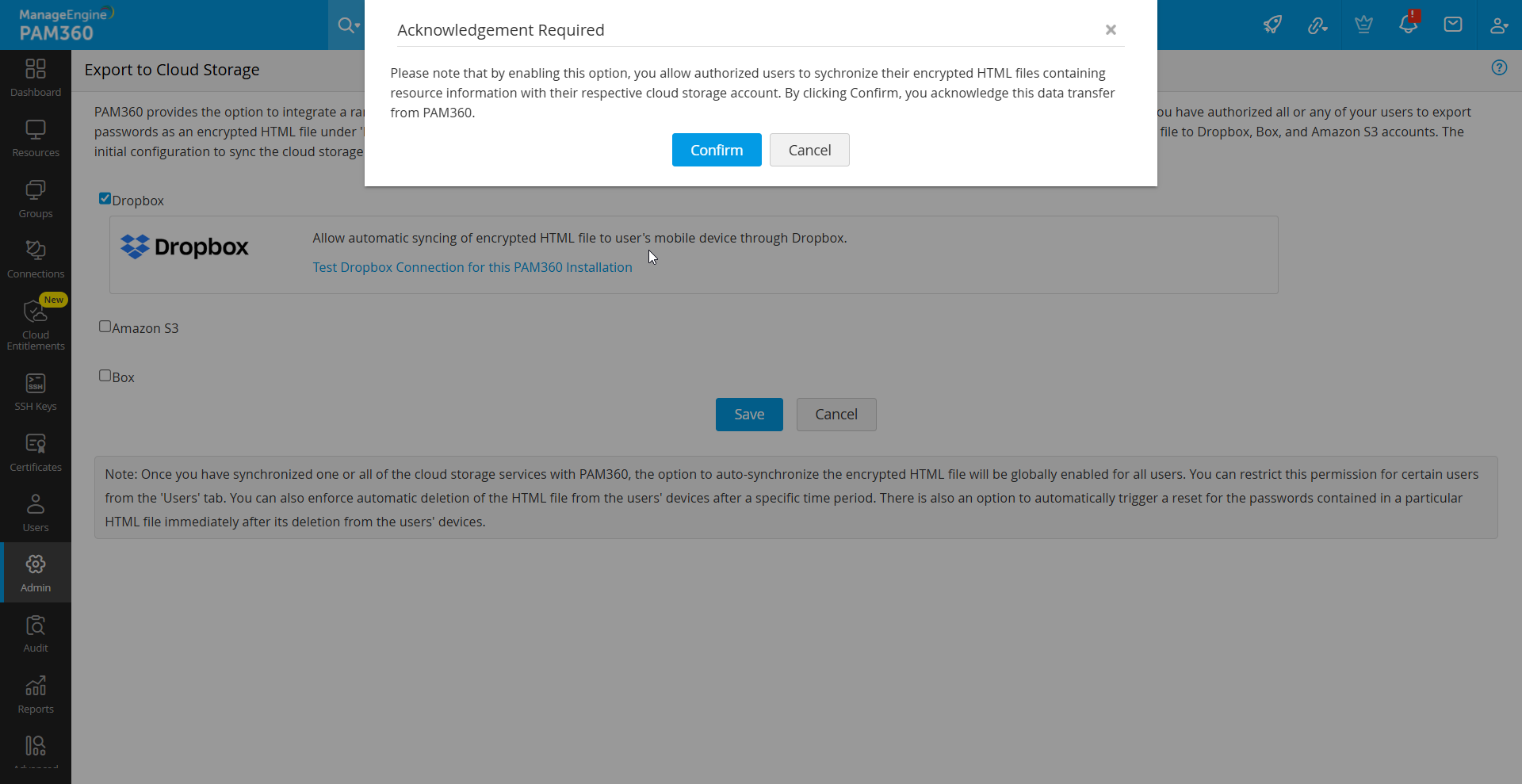
- Now, click Save. Dropbox synchronization will be enabled for users in your organization.
1.1 Exporting and Synchronizing Encrypted HTML Files to Dropbox
If you want to export and synchronize an encrypted HTML file to your Dropbox account, ensure you have an active Dropbox account. If not, create one before proceeding with the steps below:
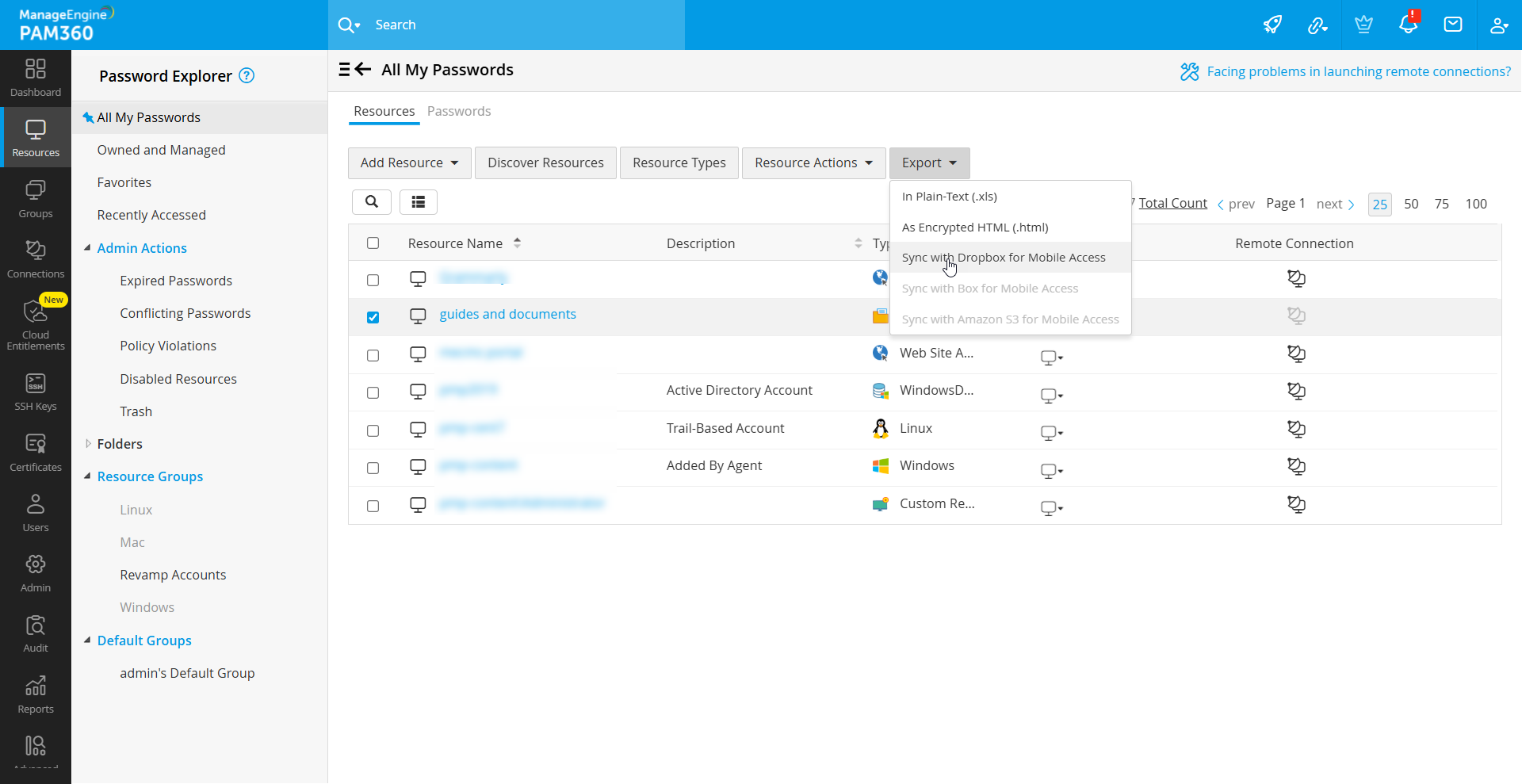
- Navigate to Resources >> Export >> Sync with Dropbox for Mobile Access.
- In the dialog box that opens, click Authorize. A new window will appear, prompting you to log in to your Dropbox account. Once logged in, a request from PAM360 will be displayed, seeking access to its designated folder, ManageEngine PAM360, within your Dropbox account. Click Allow to grant access.
- A unique Dropbox code will be generated and displayed. Copy the code, switch back to the active PAM360 session in your browser, and paste the code into the provided text field. Click Save to complete the authorization process.
- After completing the authorization, click Export again and select Sync with Dropbox for Mobile Access.
- In the dialog box that opens, set a passphrase for the HTML file you are about to export. This passphrase will encrypt the file using the AES-256 bit algorithm, ensuring secure access. If required by your PAM360 administrator, provide a reason for the export in the designated field.
- Click Proceed. Once the file is successfully synchronized, PAM360 will display a confirmation message in the bottom-left corner of the user interface. To verify synchronization, you can click the confirmation message or log in to your Dropbox account, where the encrypted HTML file will be stored in a newly created folder named ManageEngine PAM360.
This process ensures secure storage and accessibility of the exported password file through Dropbox while maintaining encryption standards.
2. Configuring Amazon S3 Cloud Storage
To enable Amazon S3 synchronization for your users, follow the below steps:
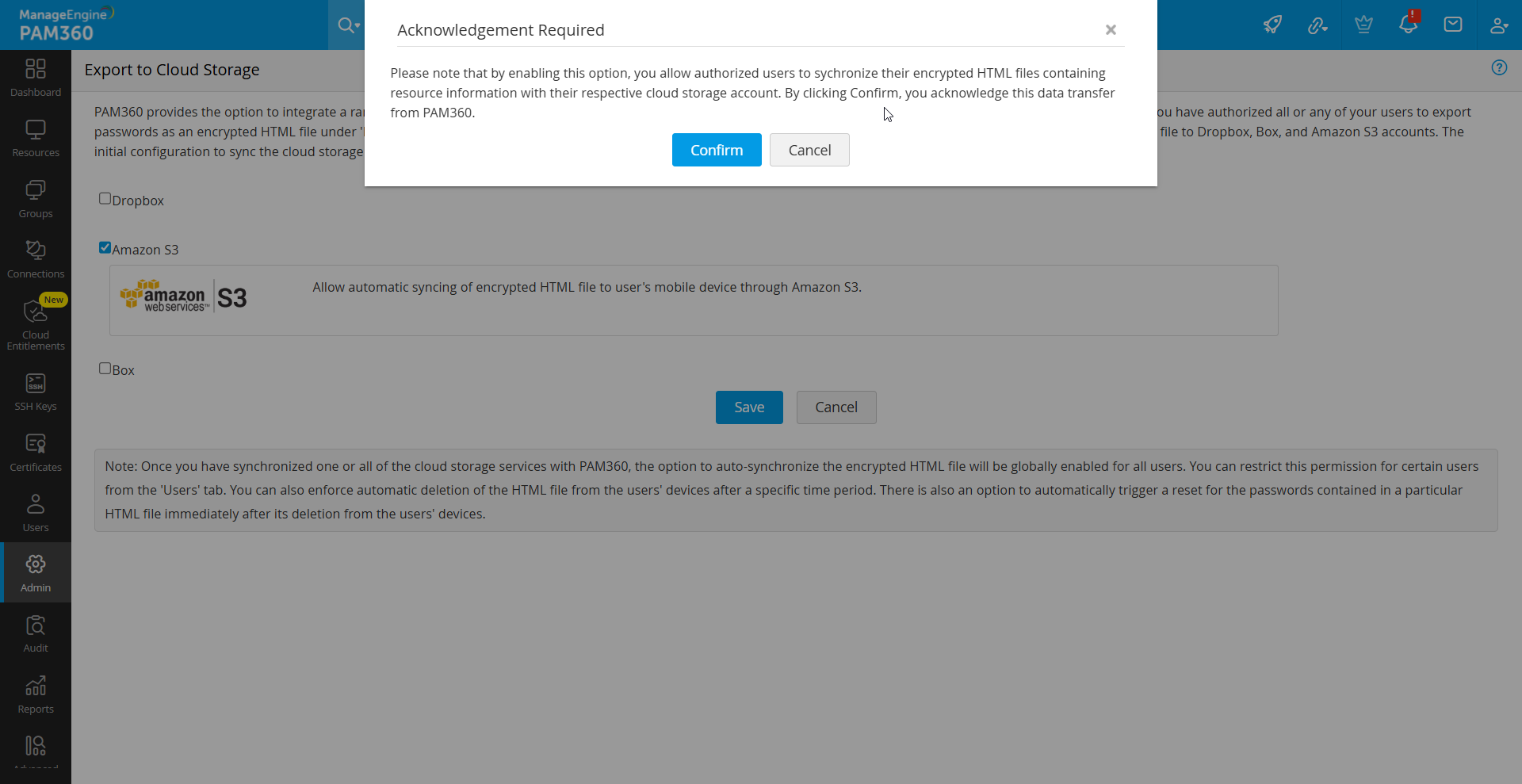
- Navigate to Admin >> Integrations >> Cloud Storage.
- In the new window that opens, select Amazon S3 and click Save. Amazon S3 synchronization will be enabled for users in your organization.
2.1 Exporting and Synchronizing Encrypted HTML Files to Amazon S3
To export and synchronize an encrypted HTML file to your Amazon S3 account, ensure you have an active Amazon S3 account. If you do not have one, create an account before proceeding. Follow the steps below:
- Navigate to Resources >> Export >> Sync with Amazon S3 for Mobile Access.
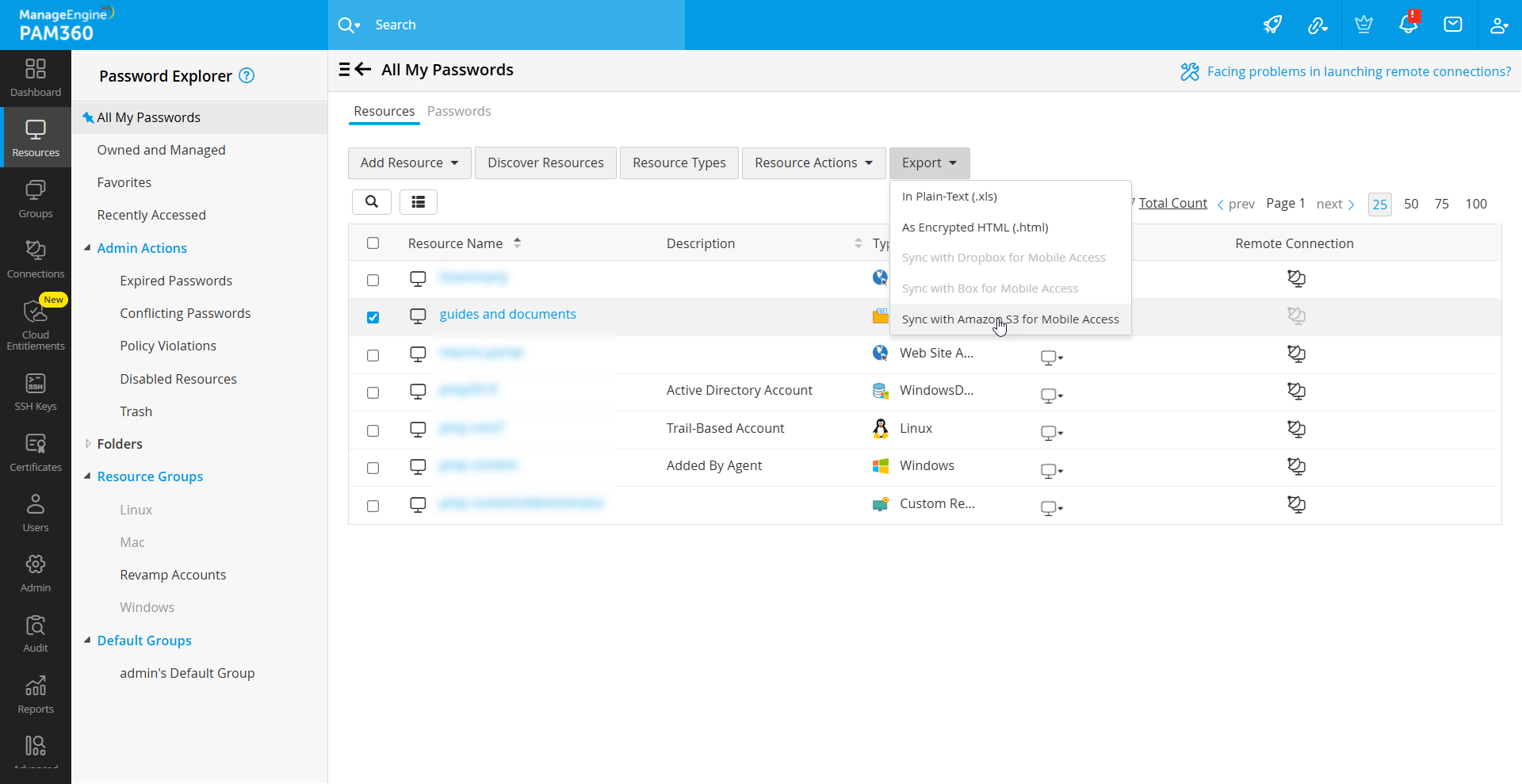
- In the dialog box that appears, provide the following details:
- Access Key ID: A unique identifier assigned as part of your AWS user security credentials.
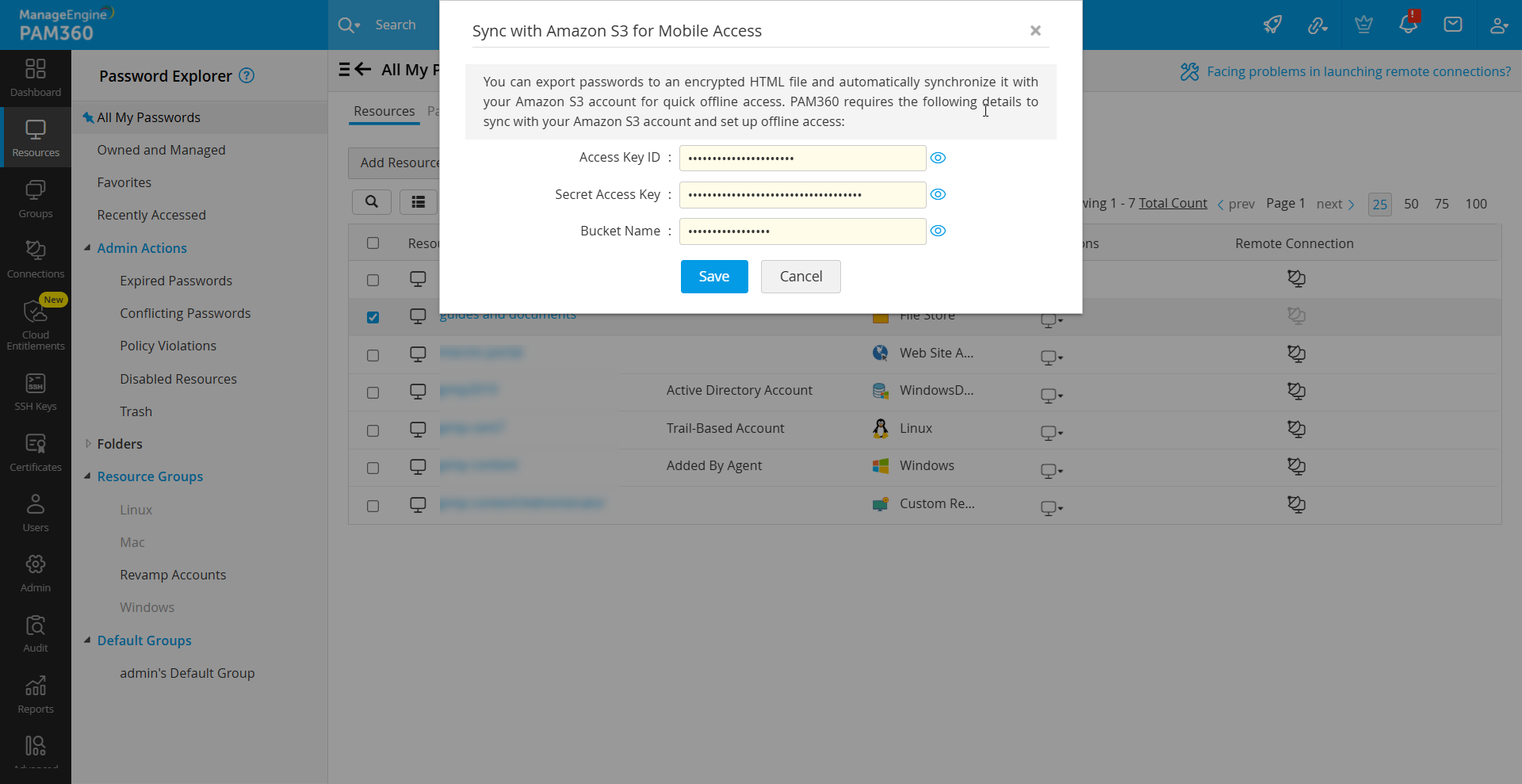
- Secret Access Key: The secret component of your AWS credentials that works in conjunction with the Access Key ID.
- Bucket Name: Specify the name of an existing folder (bucket) in your Amazon S3 account where the encrypted HTML file will be stored.
Additional Detail
Access Key ID and Secret Access Key are typically provided by your AWS administrator when your user profile is created in your organization’s AWS account. These credentials are often sent via email. If you do not have them, contact your AWS administrator for assistance.
- Access Key ID: A unique identifier assigned as part of your AWS user security credentials.
- After entering the required details, click Save.
- Click Export again and select Sync with Amazon S3 for Mobile Access.
- In the dialog box that opens, set a passphrase for the HTML file you are exporting. This passphrase will encrypt the file using the AES-256 bit algorithm, ensuring secure storage. If required by your PAM360 administrator, provide a reason for the export in the designated field.
- Click Proceed. Once the file is successfully synchronized, PAM360 will display a confirmation message in the bottom-left corner of the user interface. To verify synchronization, you can click the confirmation message in PAM360 or log in to your Amazon S3 account, where the encrypted HTML file will be located in the specified bucket.
This process ensures that the exported password file is securely stored in Amazon S3 with robust encryption and easy accessibility for authorized users.
3. Configuring Box Cloud Storage
To synchronize Box with PAM360, you need an active Box account. If you do not already have one, visit the Box website and create an account. Once your account is ready, follow the steps below:
- Navigate to the Box Developer Console and log in using your Box credentials
- Click on My Platform Apps, then select Create Platform App.
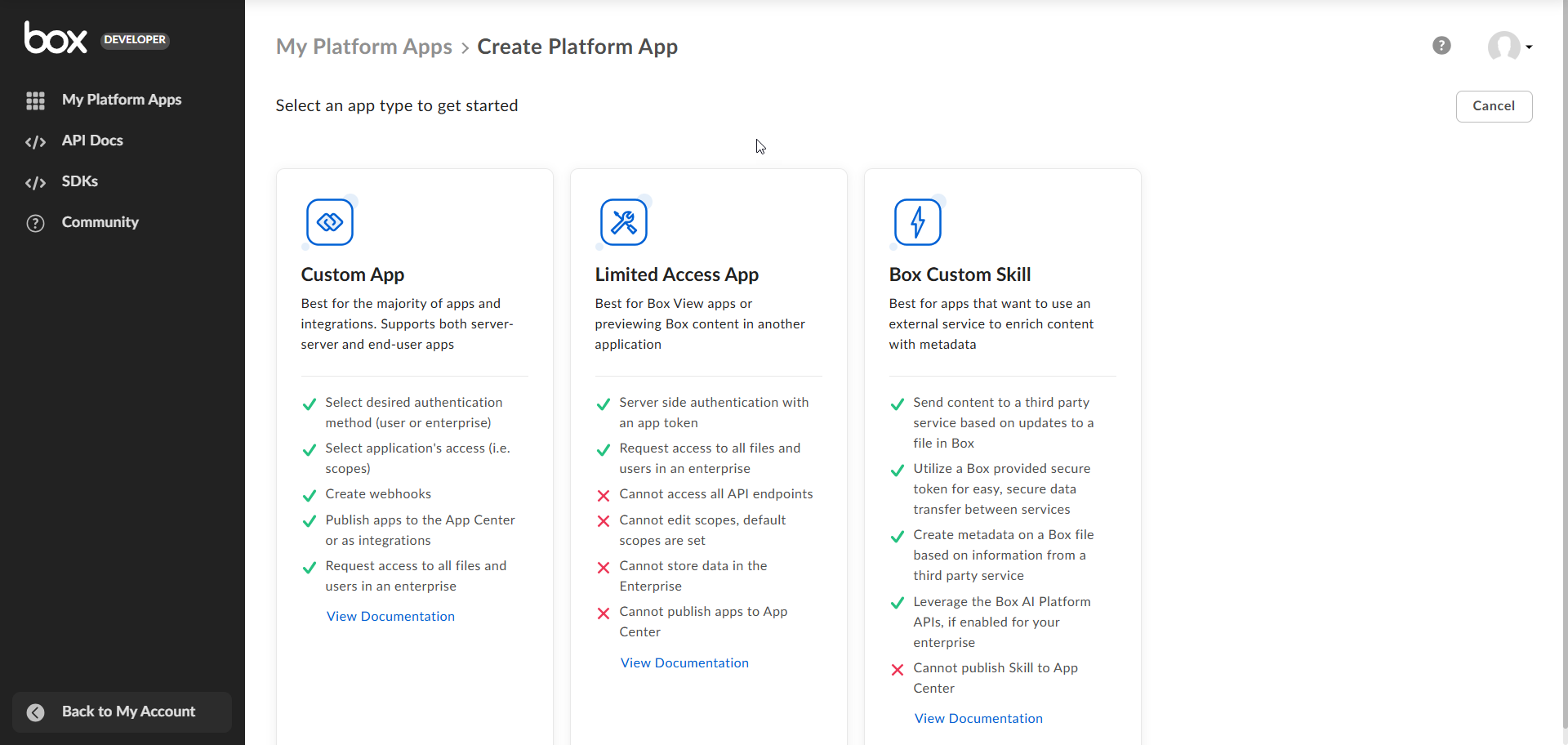
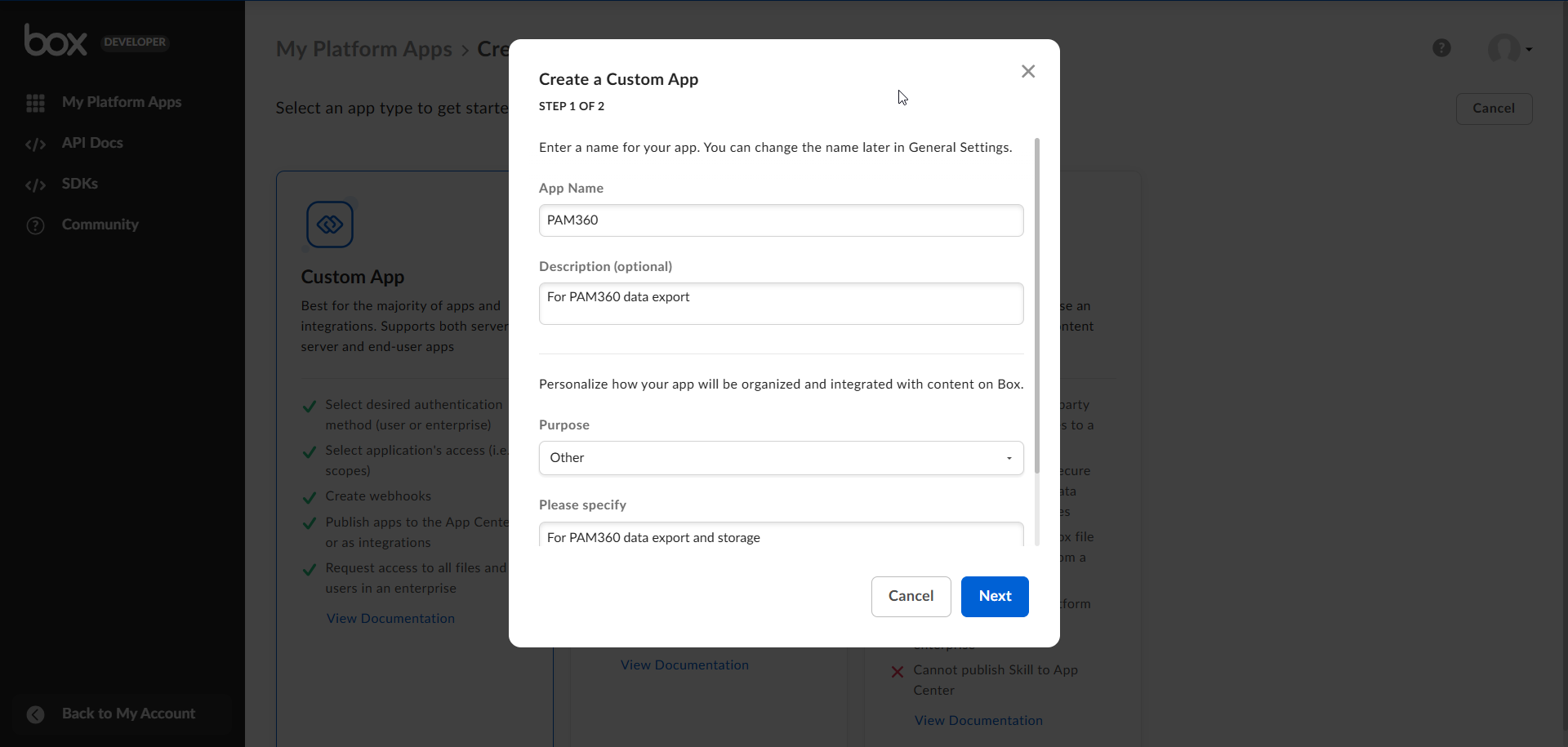
- In the new window, choose Custom App and provide the required details and click Create App to proceed:
- Application Name: Enter a name for your application.
- Description: Add a brief description of the application's purpose.
- Authentication Method: Select User Authentication (OAuth 2.0).
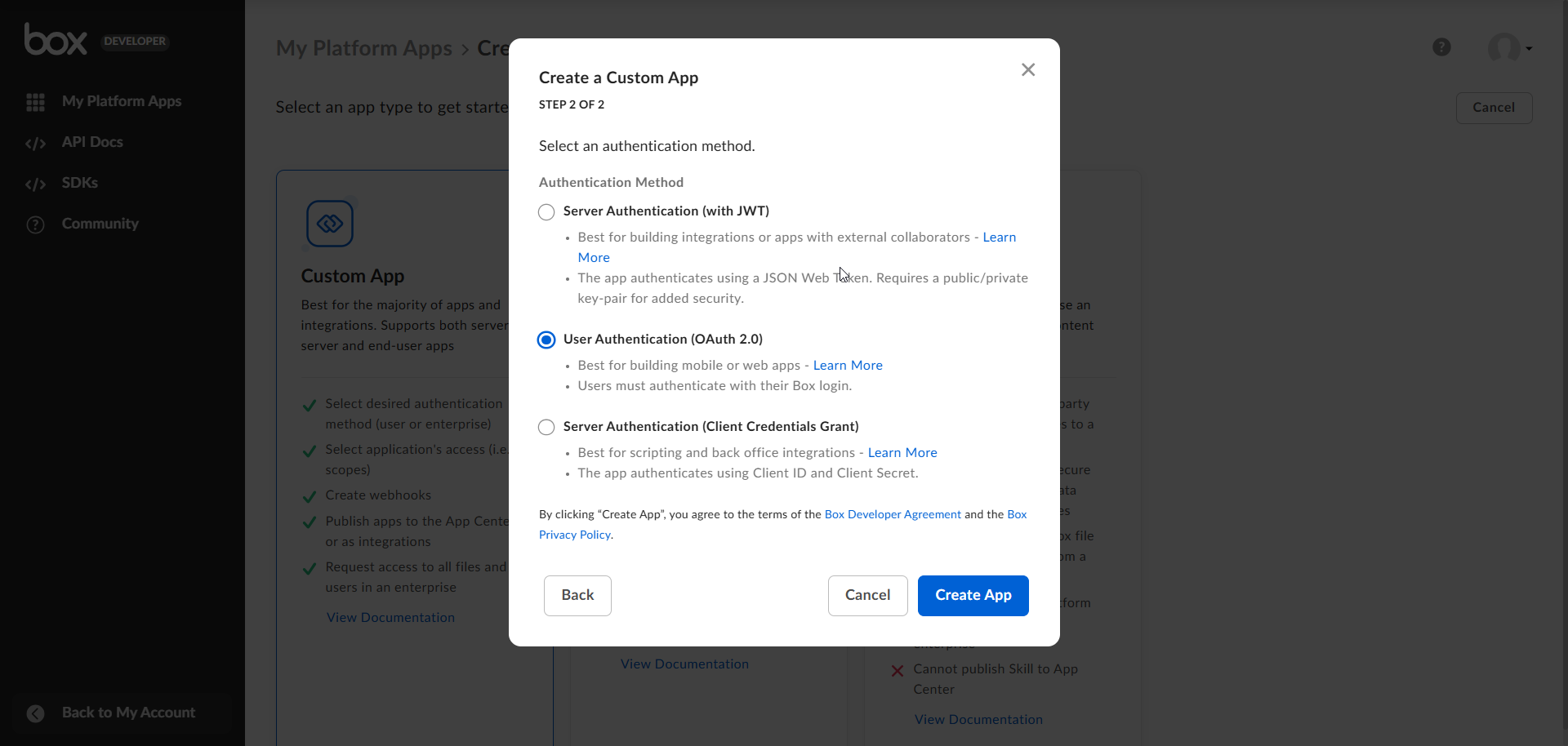
- Ensure the selected Authentication Method is OAuth 2.0 (User or Client Authentication).
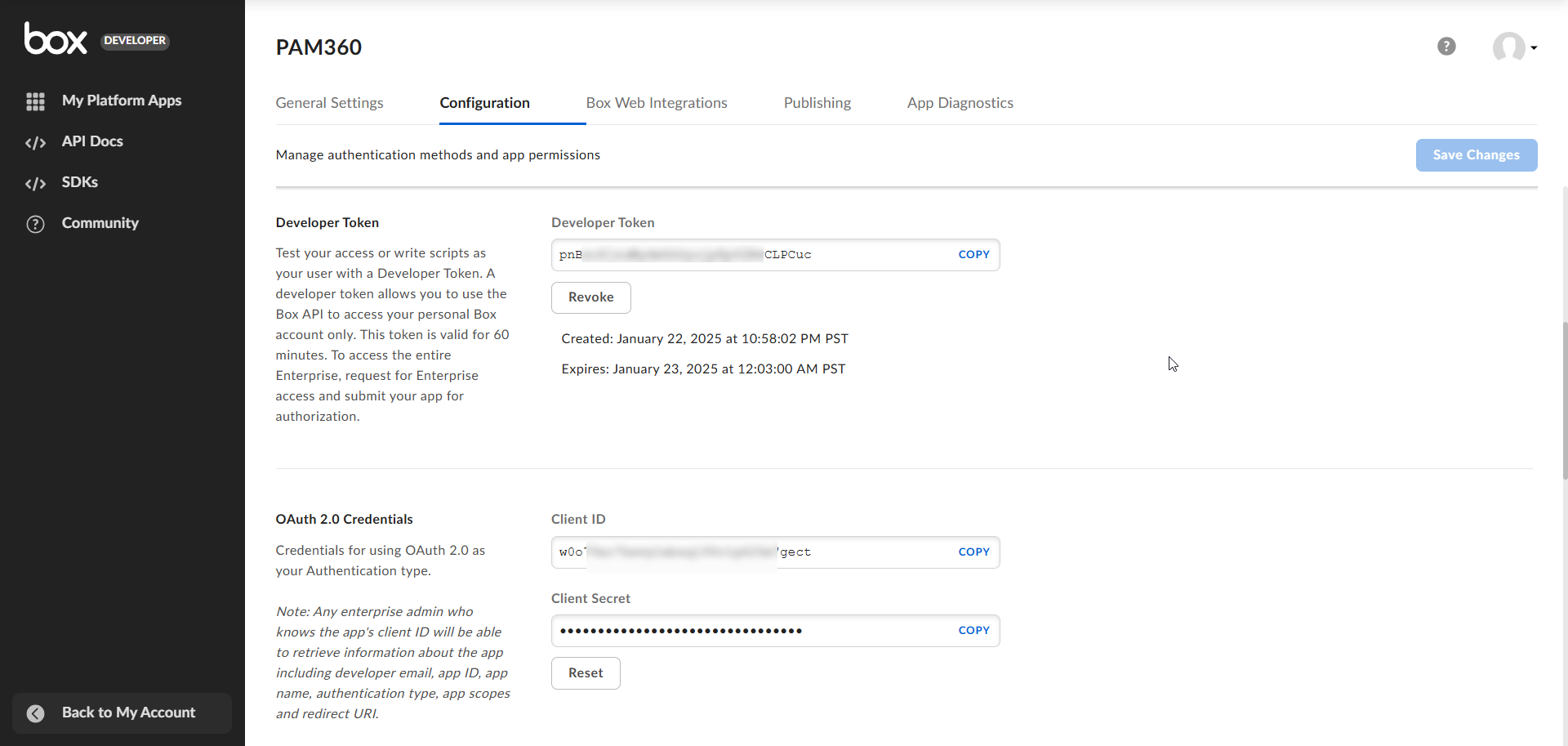
- Copy the Client ID and Client Secret from the OAuth 2.0 Credentials section and save them securely. These credentials will be needed to complete the integration with PAM360.
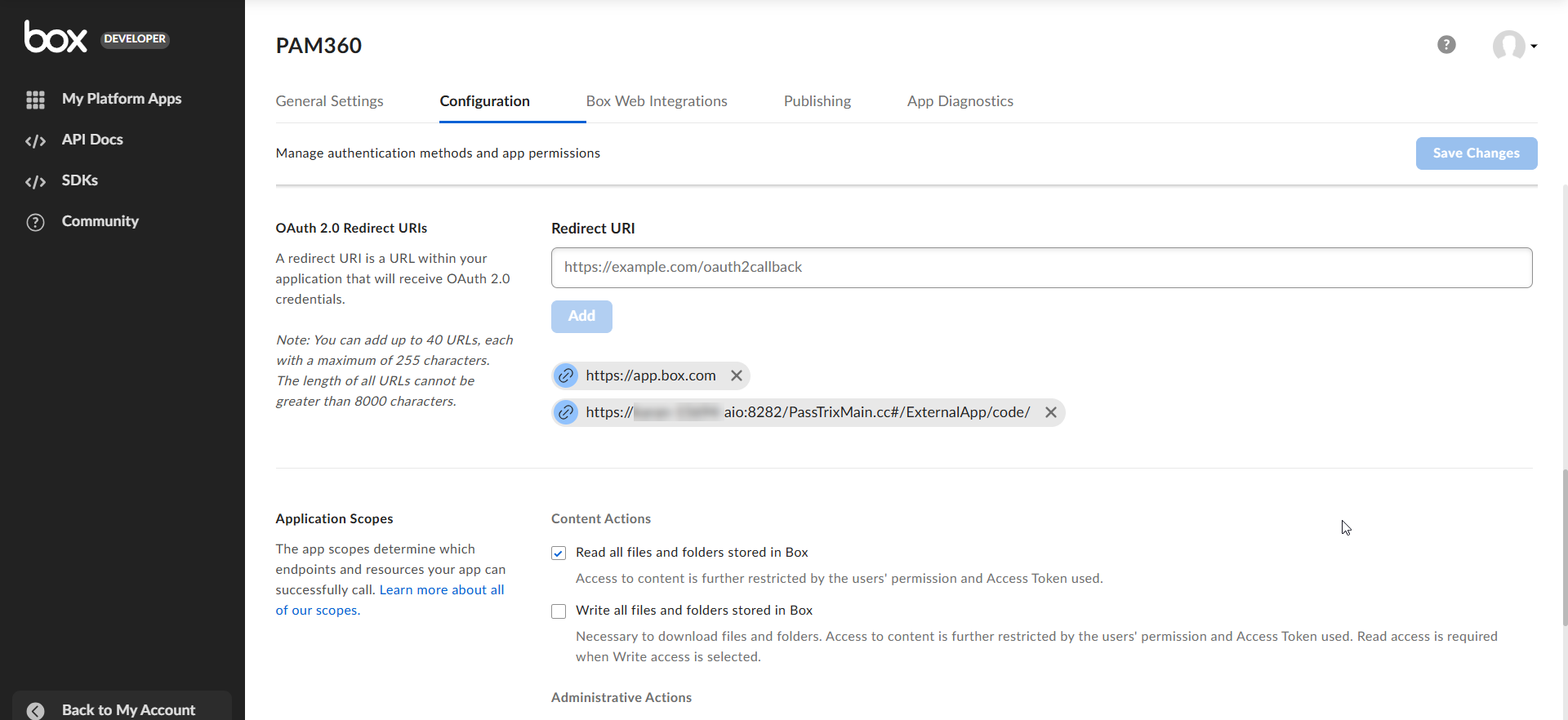
- Under OAuth 2.0 Redirect URI, enter your PAM360 server URL in the following format: https://<Hostname-of-PAM360-Server OR IP Address>:<Port>/PassTrixMain.cc/ExternalApp/code/
Caution
If high availability is configured for your PAM360 installation and the primary server is down, update the redirect URL in Box settings to match the secondary server's address.
- In the Application Scopes section, ensure the Read and write all files and folders stored in Box permission is selected.
- Click Save Changes to complete the configuration.
Once you have carried out all the aforementioned steps in the Box Developers console, follow the below steps to complete the configuration in PAM360:
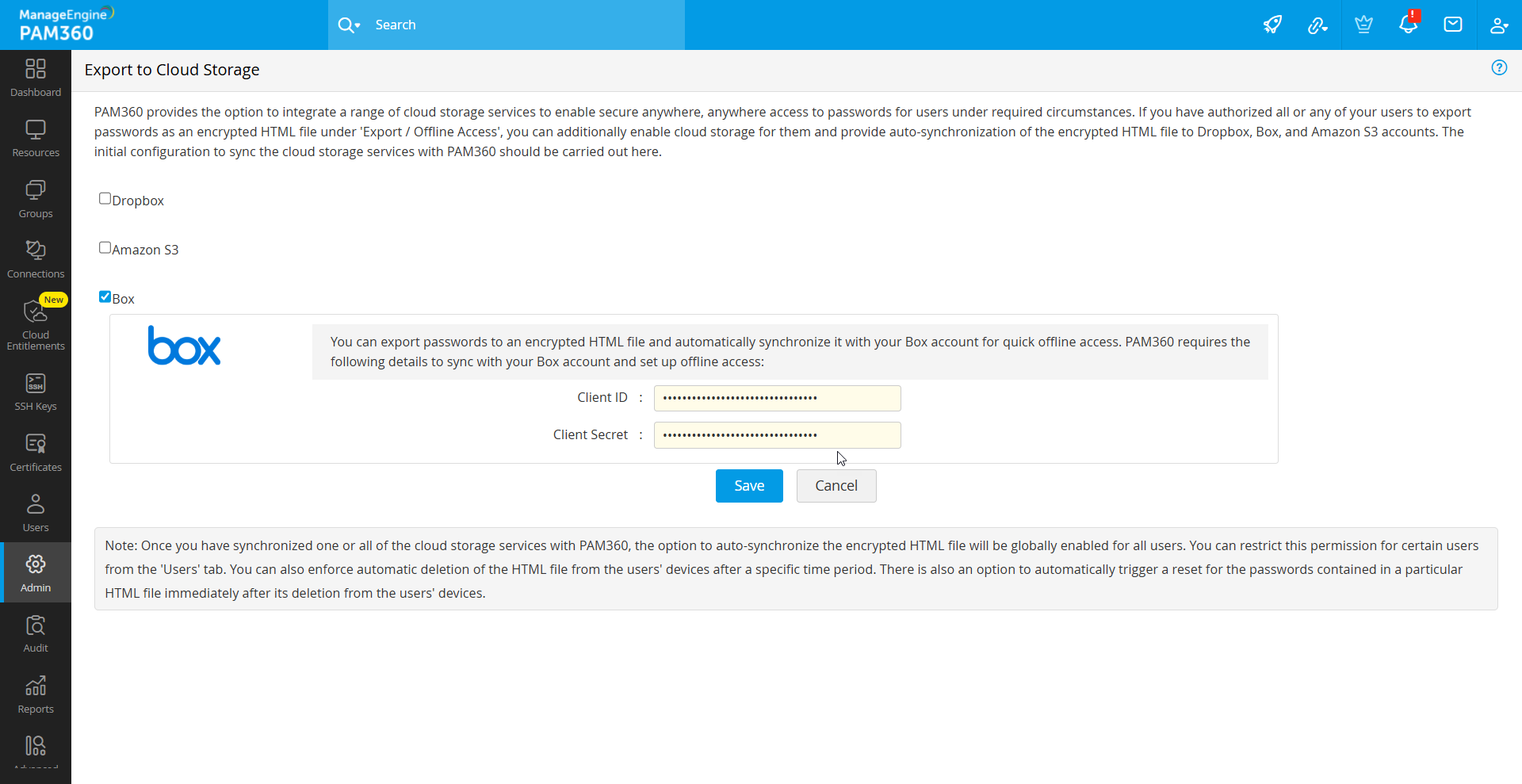
- Log into your PAM360 account and navigate to Admin >> Integrations >> Cloud Storage.
- Select Box and enter the Client ID and Client Secret copied from the Box console. Click Save to enable Box synchronization for your organization.
3.1 Exporting and Synchronizing Encrypted HTML Files to Box
If you want to export and synchronize an encrypted HTML file to your Box account, follow these steps:
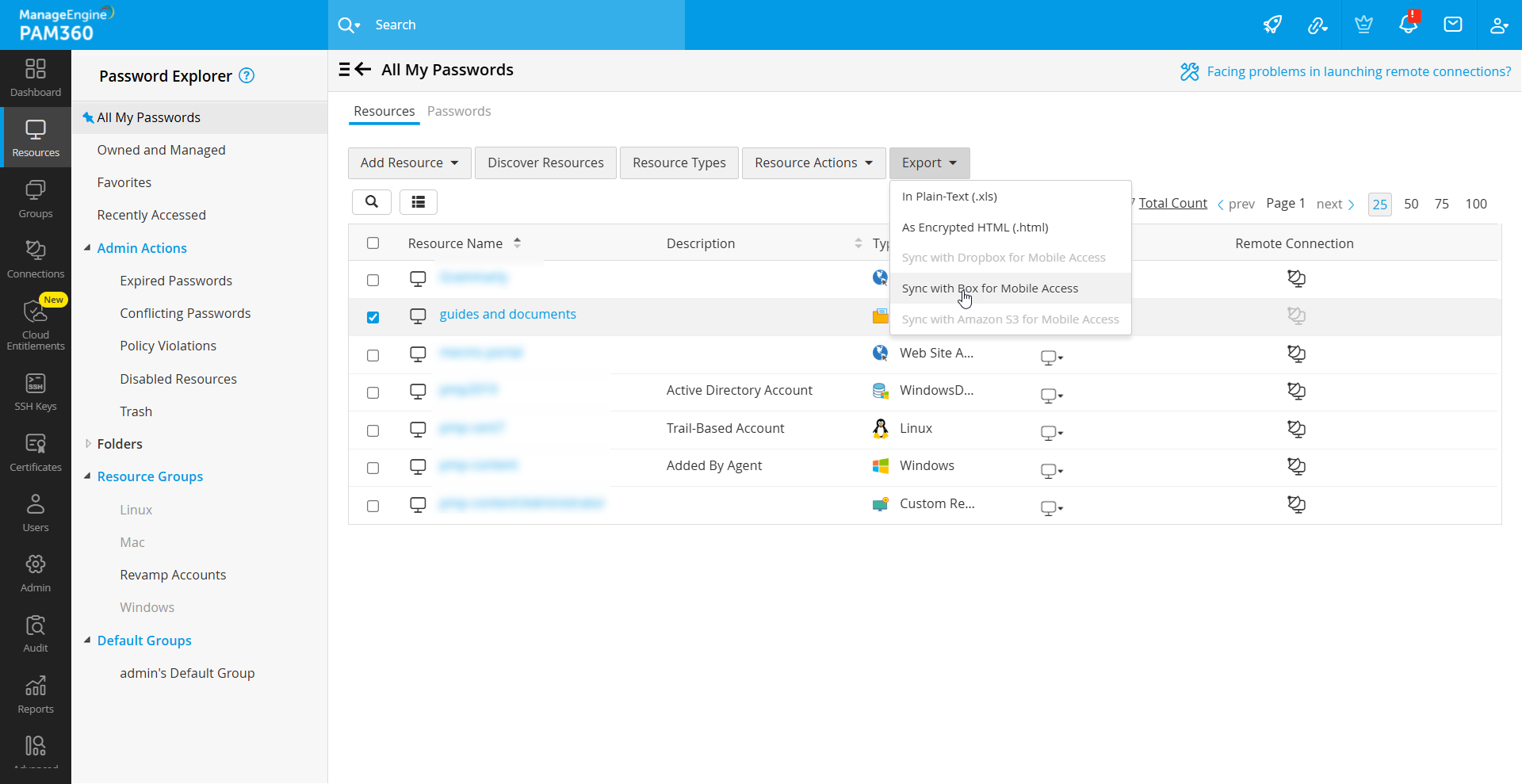
- Navigate to Resources >> Export >> Sync with Box for Mobile Access.
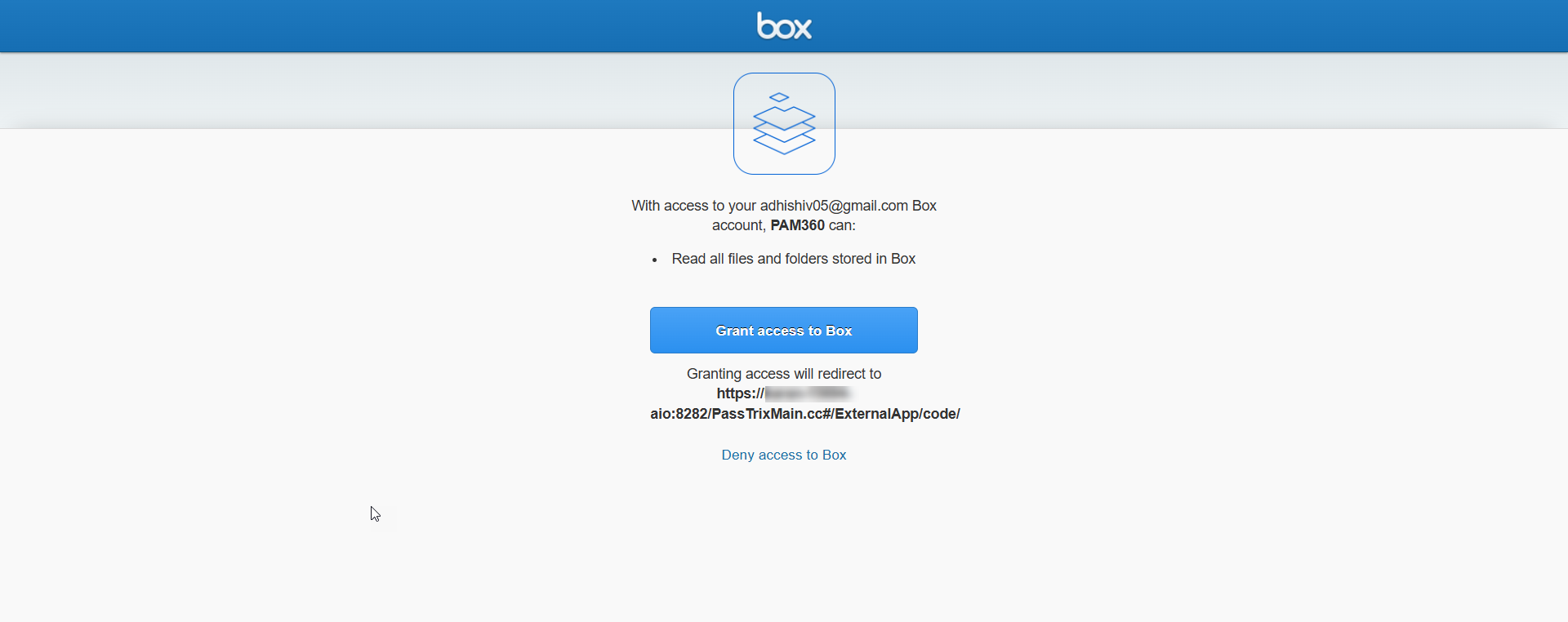
- In the dialog box that opens, click Authorize. A new window will open with Box's login page. Log in using your Box credentials and in the following page that opens, click Grant access to Box.
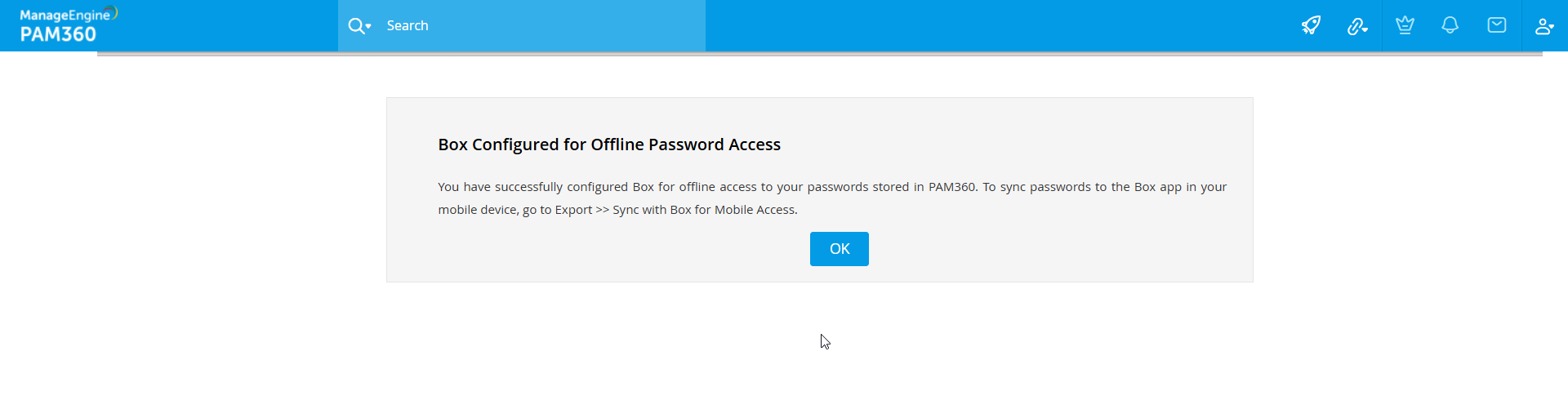
- Once authorization is successful, a confirmation message will be displayed. Click OK, and you will be redirected back to the PAM360 interface.
- Navigate back to Resources >> Export and select Sync with Box for Mobile Access again.
- In the dialog box that opens, set a passphrase for the HTML file. This passphrase will encrypt the file using the AES-256 bit algorithm. If required, provide a reason for the export in the designated field.
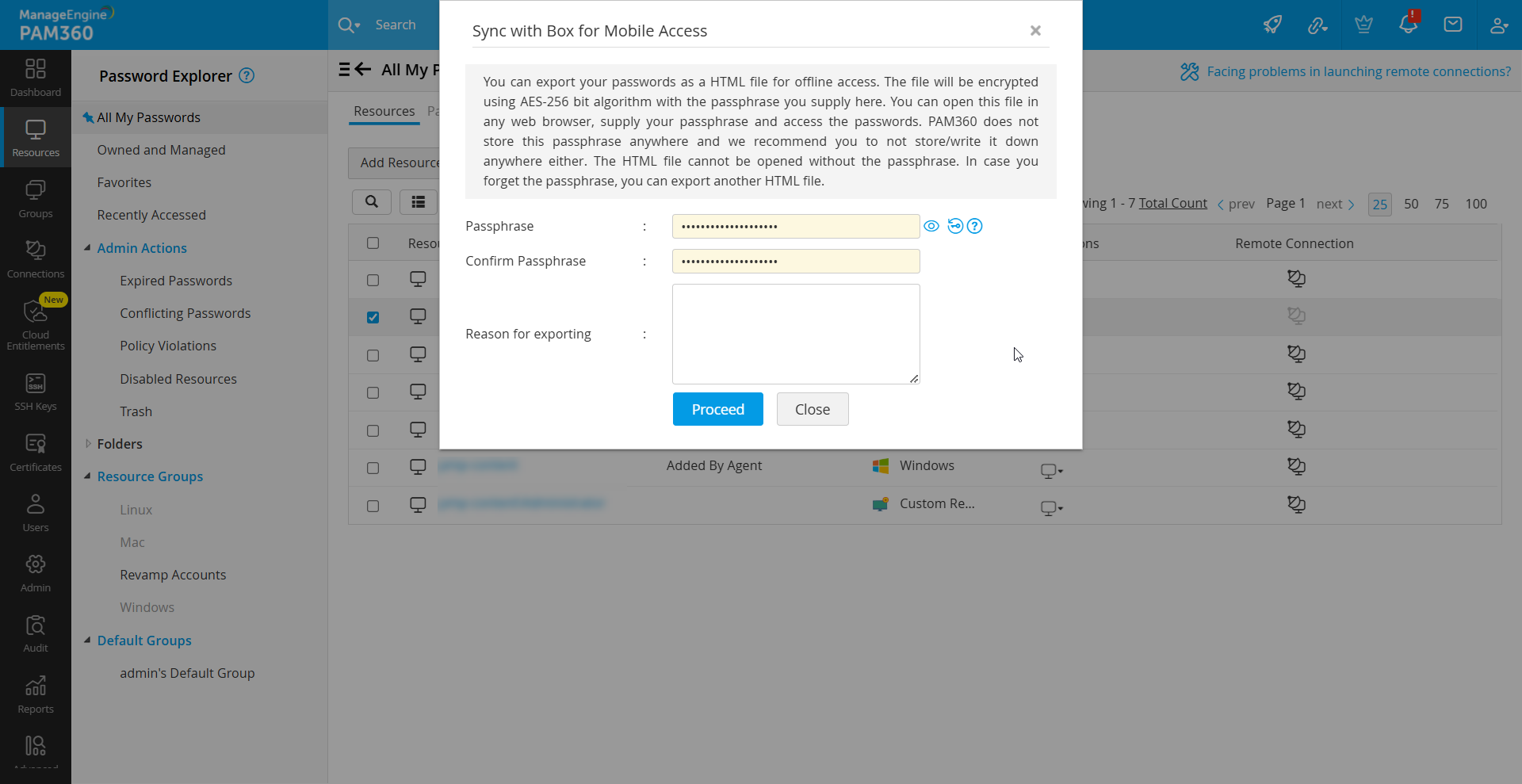
- Click Proceed. Once synchronization is successful, PAM360 will display a confirmation message in the bottom-left corner of the user interface.
- To verify, log in to your Box account, where the encrypted HTML file will be stored in a newly created folder named PAM360.
This seamless integration with Box ensures secure storage and accessibility of encrypted password files while maintaining robust security through encryption and user authentication.