Folders in PAM360
For procedures prior to build 8100, refer to this help document.
Folders in PAM360 allow users to organize and manage the resources and accounts they own, manage, or those shared with them. Users can create custom folders seamlessly and group frequently accessed resources and accounts based on their specific requirements. Folders are accessible from both the Resources and Connections tabs in PAM360. However, folders can be created and managed only from the Resources tab. Any changes made in this tab will be automatically reflected in the Connections tab. Folders are user-specific and private to the individual user who created them. Users can create folders based on resource type or geographic location to streamline resource access and operations.
- A user managing resources distributed across Asia, Europe, and Africa can create location-specific folders and add relevant accounts to each of these folders for easy access.
- A user handling different types of resources can create folders for each resource type, such as Operating Systems, Database Servers, and Network Devices, and organize the resources accordingly.
Users can create any number of folders and add multiple resources and accounts to each folder. PAM360 also supports bulk addition and removal of resources and accounts from folders, streamlining management, improving accessibility, and enabling users to tailor their workspace for improved efficiency.
Additional Details
- Administrators can enable or disable the management of resources and accounts via folders from Admin >> Customization >> General Settings >> Miscellaneous. Tick the Disable Folders checkbox to disable the folders feature for all users in your environment.
- The decision to retain resources and accounts within a folder is entirely user-defined.
- An account or resource can be added to multiple folders as required.
This help document covers the following topics in detail:
- Creating a Folder
- Adding Resources and Accounts to a Folder
- Removing Resources and Accounts from a Folder
- Deleting a Folder
1. Creating a Folder
Follow these steps to create a new folder:
- Navigate to the Resources tab and click the + icon beside the Folders section in the left pane.
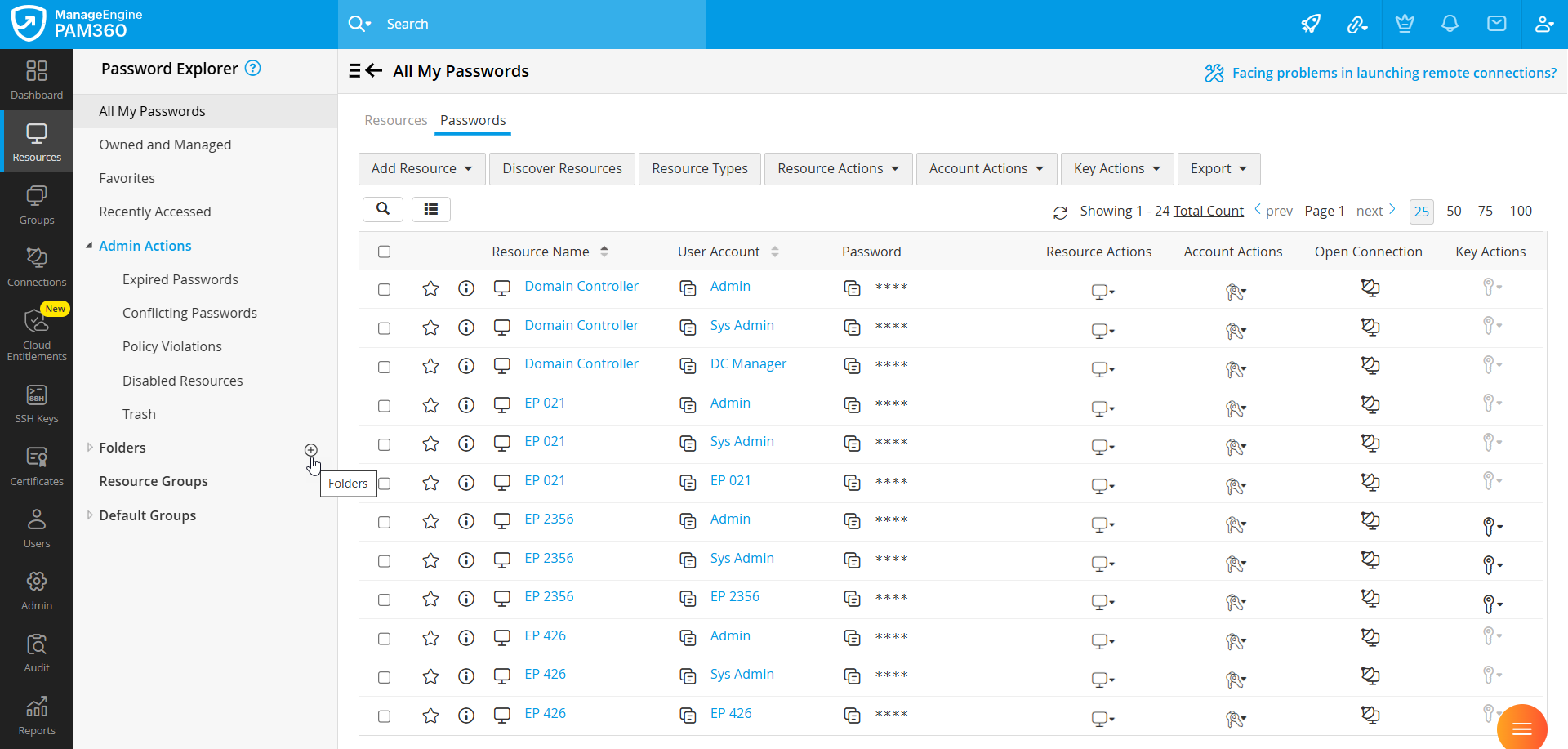
- In the field that appears, enter a name for the new folder and press Enter to create a new folder.
You have successfully created a new folder. You can proceed with adding resources and accounts to the folder for easy accessibility and management.
To rename an existing folder, hover over the desired folder you wish to edit, click the Edit icon, enter a new name for the folder in the field that appears, and click Enter to rename the folder.
2. Adding Resources and Accounts to a Folder
You can add both resources and accounts to folders in PAM360 based on your requirements. The resources added to a folder will feature all the associated accounts with that resource. However, when you add an account to a folder, the folder will contain the resource only with the specific account added to that folder and not all the member accounts.
Follow these steps to add the desired resources to a folder:
- Navigate to the Resources tab, click the Resource Actions icon beside the desired resource you wish to add to a folder, and select Manage Folder Association from the displayed options.
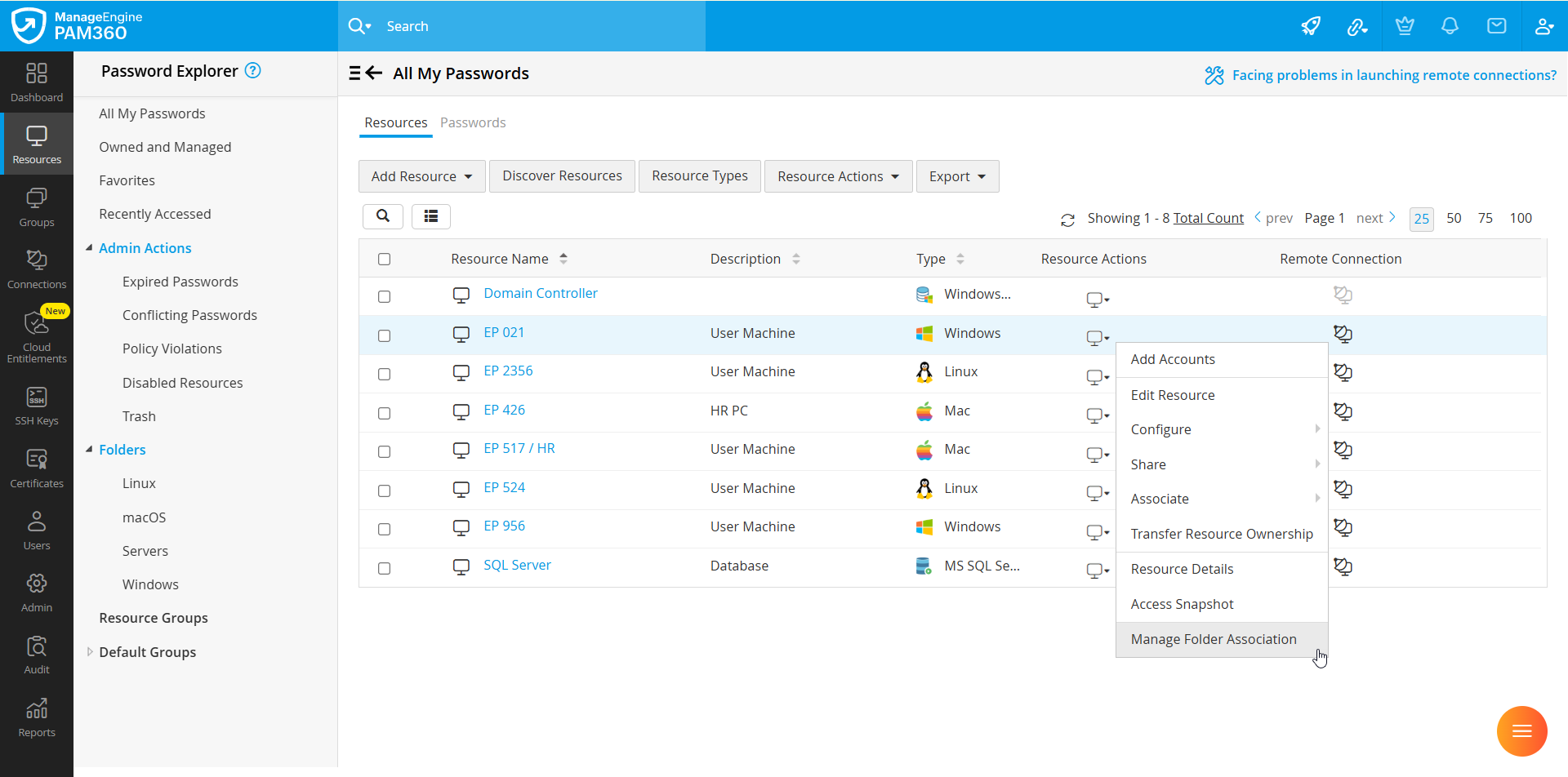
- If you wish to add resources in bulk to a folder, select the desired resources on the Resources page, click the Resource Actions button in the top pane, and select Manage Folder Association from the displayed options.
- In the Manage Folder Association window that appears, you will see the list of all the folders you have created.
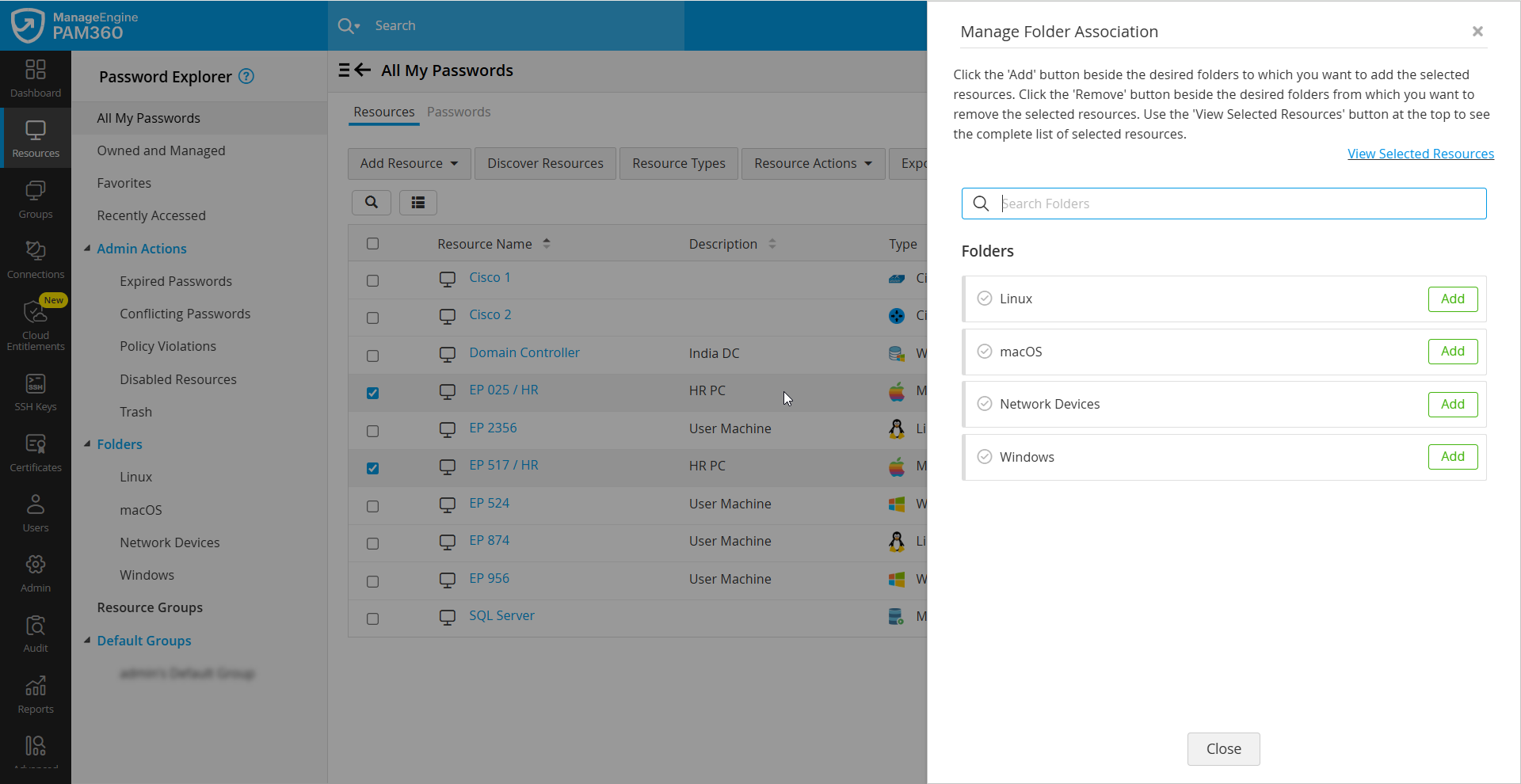
- If you have selected multiple resources, click the View Selected Resources button to see the list of all the selected resources.
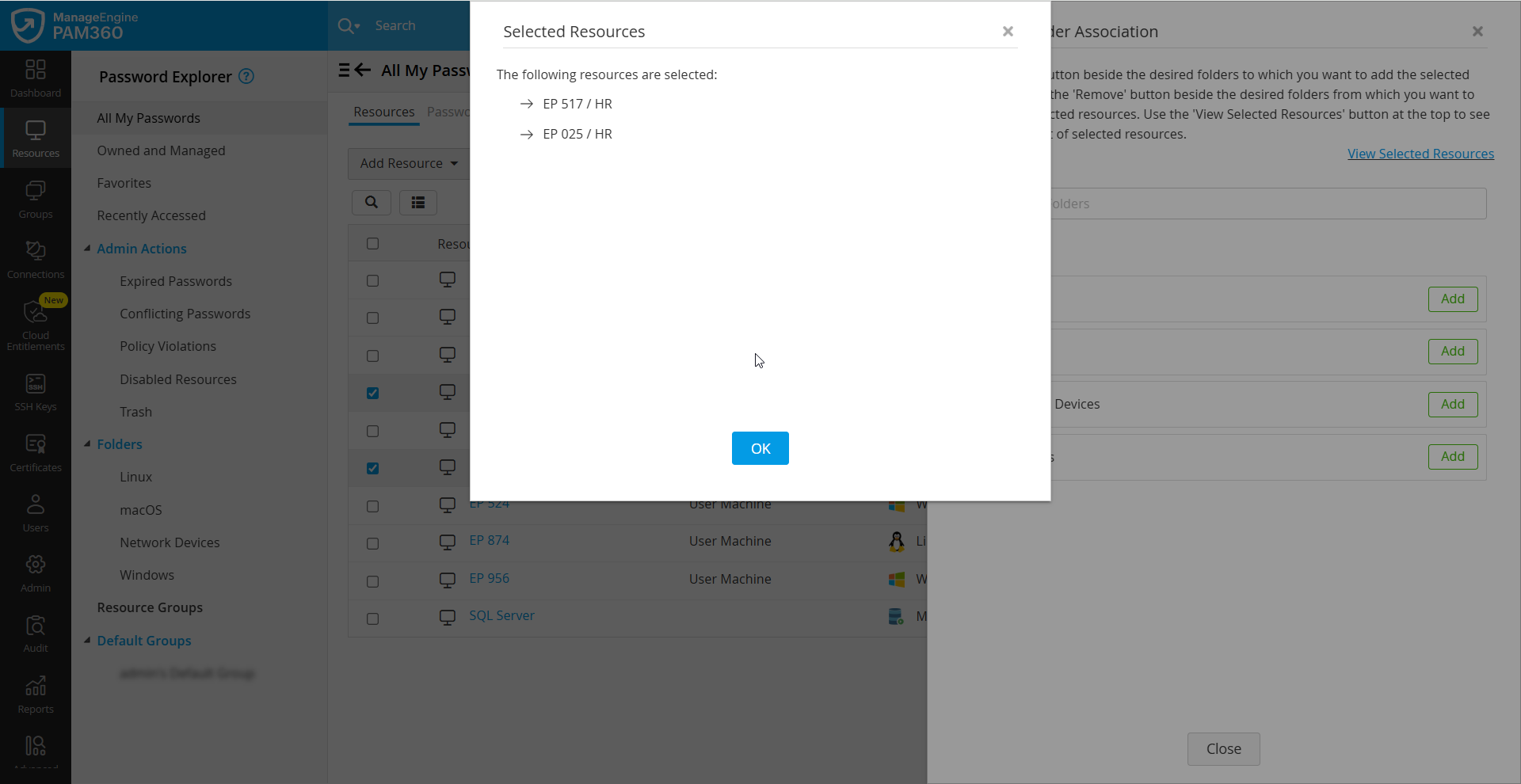
- Click the Add button beside the desired folders to which you wish to add the selected resources. The resources will be successfully added to the selected folders.
Follow these steps to add the desired accounts to a folder:
- Navigate to the Resources tab and click on the resource whose account you wish to add to a folder. In the Account Details window that appears, click the Accounts Actions icon beside the desired account and select Manage Folder Association from the displayed options.
- Alternatively, navigate to the Resources tab, switch to the Passwords window, click the Account Actions icon beside the desired account you wish to add to a folder, and select Manage Folder Association from the displayed options.
- If you wish to add accounts in bulk to a folder, select the desired accounts in the Account Details window or the Passwords page, click the Account Actions button in the top pane, and select Manage Folder Association from the displayed options.
- In the Manage Folder Association window that appears, you will see the list of all the folders you have created.
- If you have selected multiple accounts, click the View Selected Accounts button to see the list of all the selected accounts.
- Click the Add button beside the desired folders to which you wish to add the selected accounts. The accounts will be successfully added to the selected folders.
You have successfully added the desired resources and accounts to the folders of your choice. You can also add resources and accounts from one folder to another by accessing the source folder that contains them and following the procedures mentioned above.
3. Removing Resources and Accounts from a Folder
You can remove both resources and accounts from folders once they are no longer required. This section covers the detailed procedure to remove resources and accounts from folders.
Follow these steps to remove the desired resources from a folder.
- Navigate to the Resources tab and click the desired folder from the Password Explorer tree from which you wish to remove resources.
- In the Folders page, click the Resource Actions button beside the desired resource you wish to remove from the selected folder, and select Manage Folder Association from the displayed options.
- If you want to remove multiple resources in bulk from the folder, select the desired resources in the Resources page, click the Resource Actions button in the top pane, and select Manage Folder Association from the displayed options.
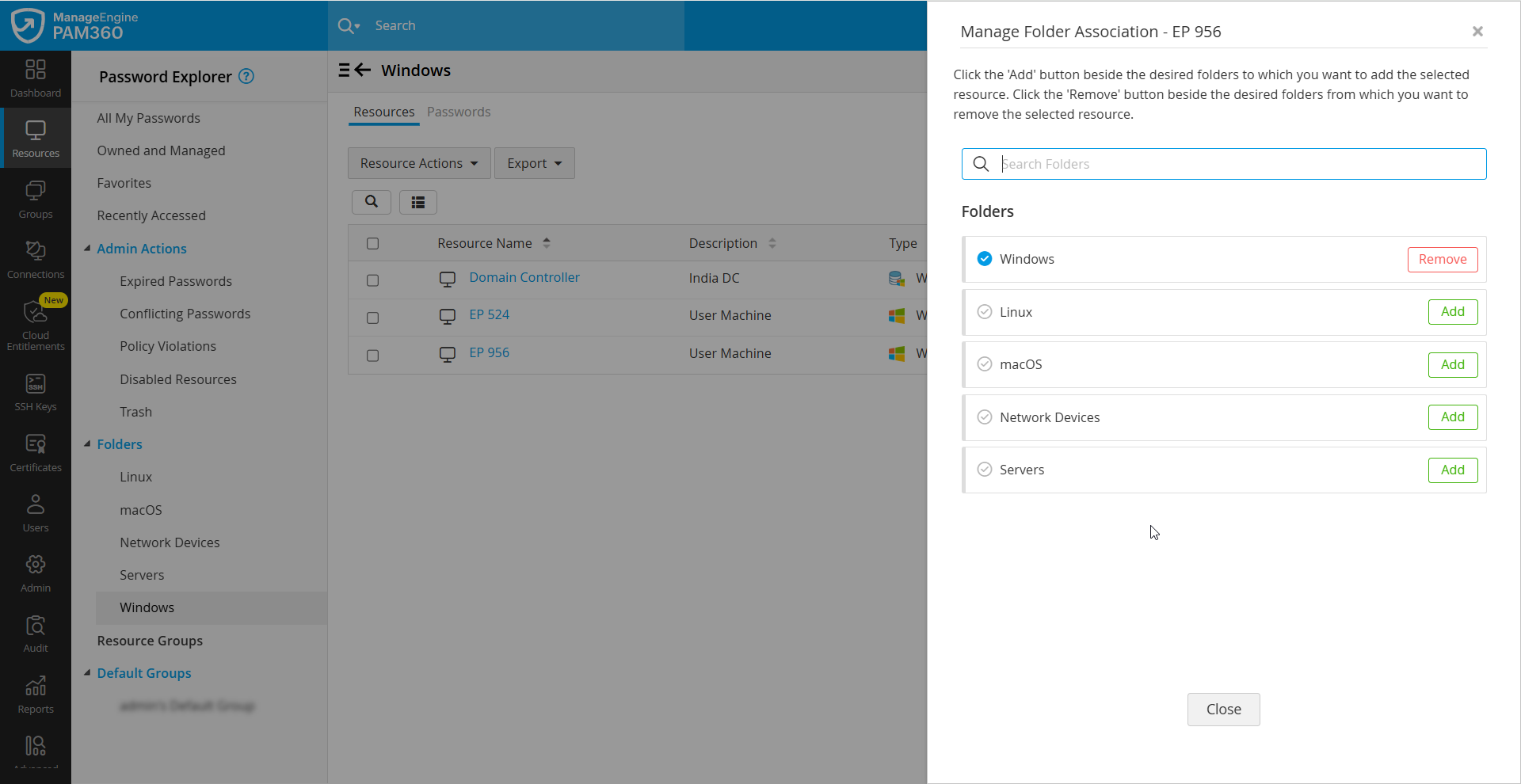
- In the Manage Folder Association window that appears, you will see the list of all the folders you have added to your account.
- If you have selected multiple resources, click the View Selected Resources button to see the list of all the selected resources.
- Click the Remove button beside the desired folders from which you wish to remove the selected resources. The resources will be successfully removed from the selected folders.
Follow these steps to remove the desired accounts from a folder:
- Navigate to the Resources tab and click the desired folder from the Password Explorer tree from which you wish to remove accounts.
- In the Folders page, switch to the Passwords tab, click the Account Actions button beside the desired account you wish to remove from the selected folder, and select Manage Folder Association from the displayed options.
- If you want to remove multiple accounts in bulk from the folder, select the desired accounts in the Passwords page, click the Account Actions button in the top pane, and select Manage Folder Association from the displayed options.
- In the Manage Folder Association window that appears, you will see the list of all the folders you have created.
- If you have selected multiple accounts, click the View Selected Accounts button to see the list of all the selected accounts.
- Click the Remove button beside the desired folders from which you wish to remove the selected accounts. The accounts will be successfully removed from the selected folders.
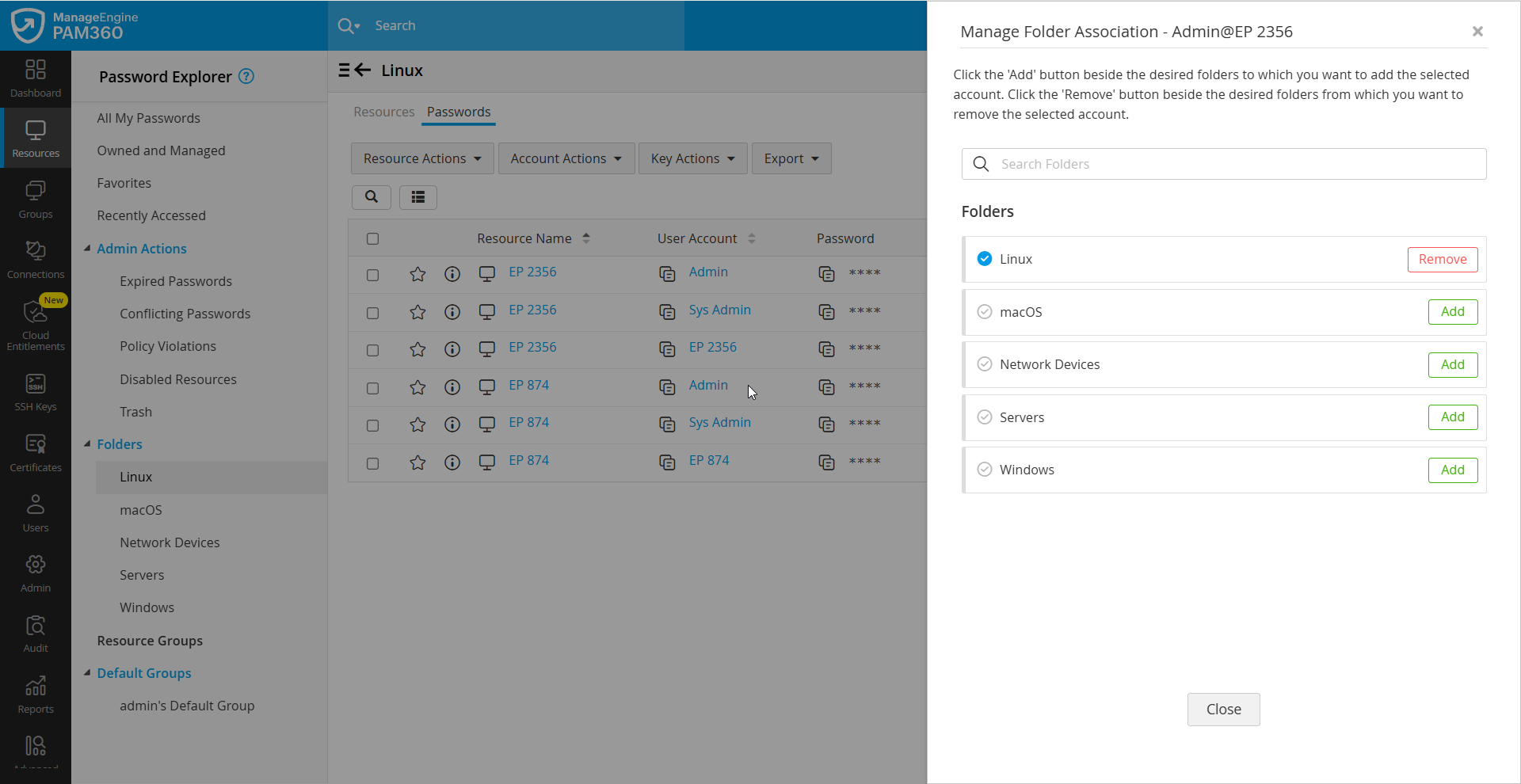
You have successfully removed the desired resources and accounts from the folders of your choice. Alternatively, you can remove resources and accounts from a folder directly from the All My Passwords or Owned and Managed sections.
Caution
- Although the accounts added to the folders are displayed along with the resource container, to remove an account from a folder, you should remove the respective account rather than the resource itself.
- Similarly, when a resource is added to a folder, all the accounts within the resource container are added to the folder. Therefore, to remove them, you should remove the resource container itself and not its member accounts.
4. Deleting a Folder
Follow these steps to delete a folder:
- Navigate to the Resources tab and hover over the desired folder you wish to delete.
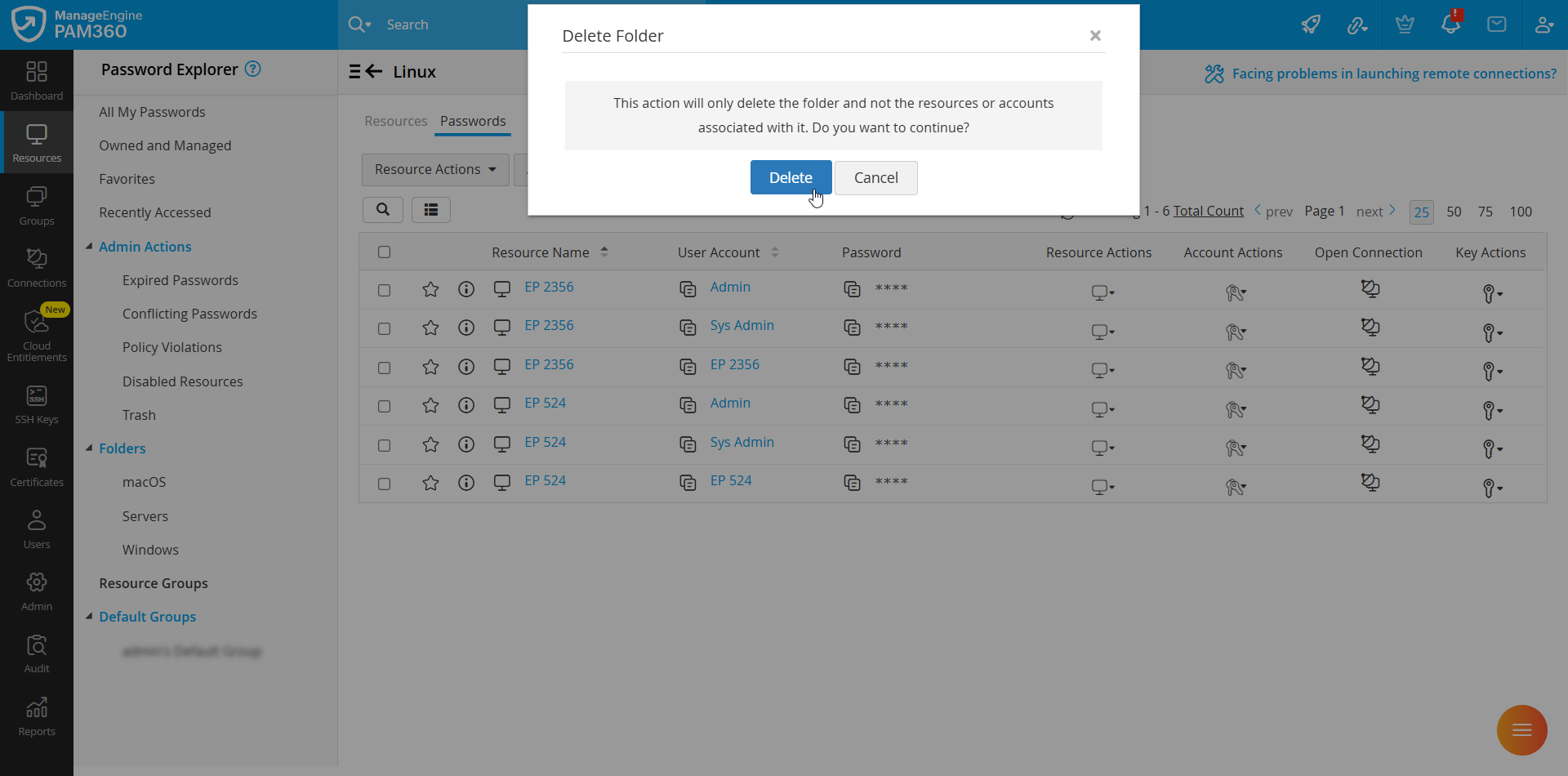
- In the Delete Folder confirmation window that appears, click the Delete button to delete the folder successfully.
Additional Details
- Deleting a folder will only remove the resources and accounts from the folder and delete the folder itself. The associated resources and accounts will not be deleted from the PAM360 inventory.
- The folder set for the default view cannot be deleted.