Configuring Google Cloud SQL for PostgreSQL as the Backend Database
PAM360 uses bundled PostgreSQL as the default backend database. However, you can configure the product with other database servers such as PostgreSQL cluster, MS SQL (both standalone and cluster), Azure SQL, Amazon RDS, and Google Cloud SQL. Google Cloud SQL is a fully managed relational database service that makes it easy to set up, maintain, manage, and administer your PostgreSQL databases on Google Cloud.
Benefits of using Google Cloud SQL Instance
- Automates backups, replication, patches, and updates to keep your database reliable and up to date.
- Ensures high availability with automatic failover and regional persistent disk storage for data durability.
- Supports seamless vertical and horizontal scaling of compute and storage resources to meet demand.
- Provides built-in encryption at rest and in transit, along with IAM-based access control for enhanced security.
Caution
Do not start the PAM360 service after installation. The service should only be started after the database configuration steps below are completed.
Here, in this document, you will learn how to set up Google Cloud SQL for PostgreSQL as the backend database in the following topics:
- Creating a Google Cloud SQL for PostgreSQL Instance
- Configuring Google Cloud SQL for PostgreSQL as the Backend Database for PAM360
Additional Details
Please note that the settings and configurations provided during the database setup serve as educational samples. You have the flexibility to customize these configurations according to your specific needs. If you encounter any challenges while customizing these settings, please do not hesitate to reach our support team for further assistance and clarification.
1. Creating a Google Cloud SQL for PostgreSQL Instance
- Sign in to Google Cloud using your Google account.
- In the left navigation menu, go to Cloud SQL >> Instances and click New Instance under Create Instance on the Instances page.
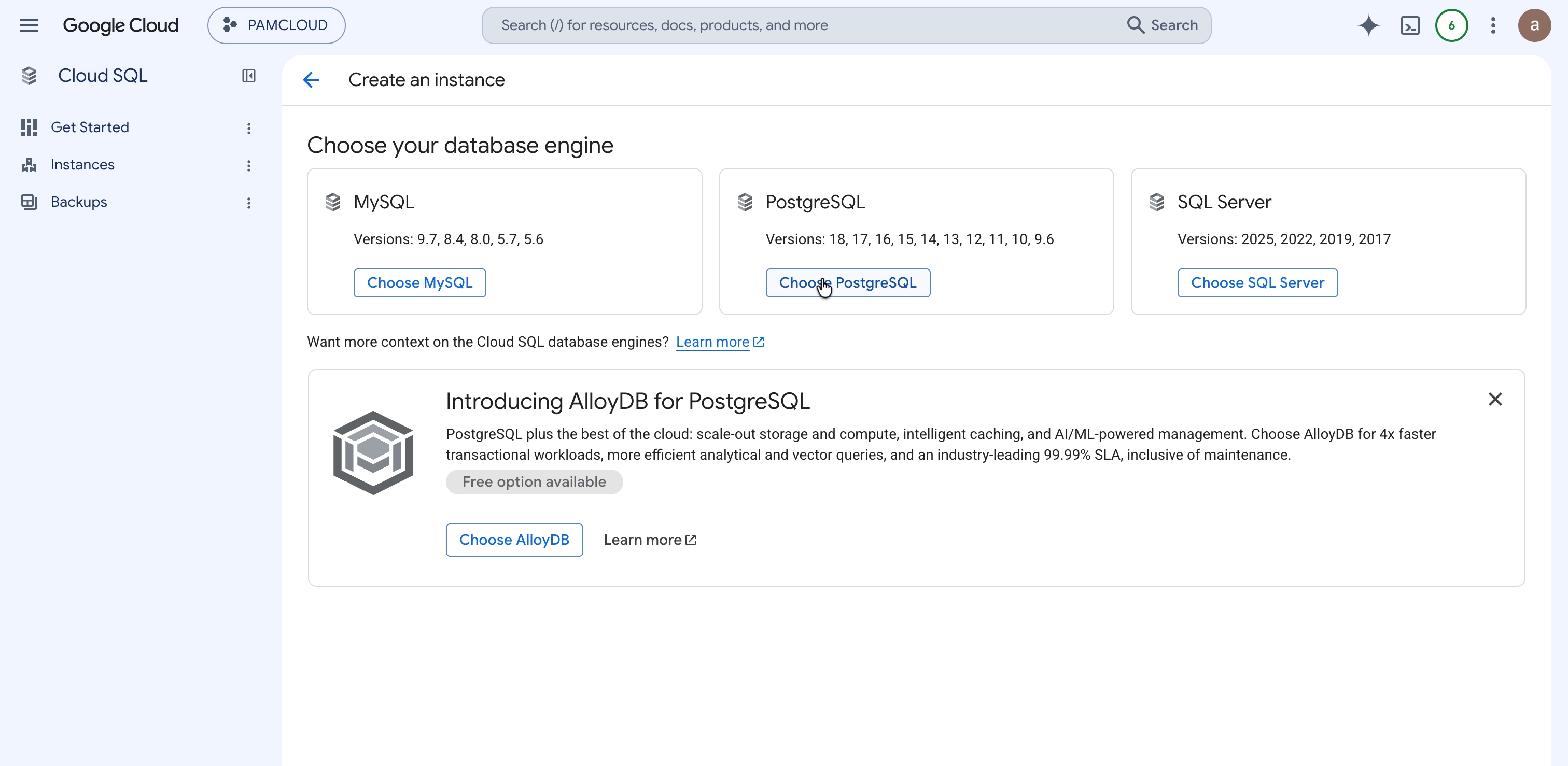
- On the Choose your database engine page that appears, Choose PostgreSQL.
- On the Create a PostgreSQL instance page that appears, follow these steps:
- Under the Instance info, select the Database version, enter a unique identifier (Instance ID) for your Cloud SQL instance (e.g., pam360-pgsql) and set a strong password for the default PostgreSQL superuser account postgres.
Additional Details
- PostgreSQL 15 or higher database version is recommended for PAM360 compatibility.
- The password will be used when connecting to the SQL server using the postgres superuser account.
Caution
Store this password securely. It is required for administrative access to the Cloud SQL instance and for creating databases for PAM360.
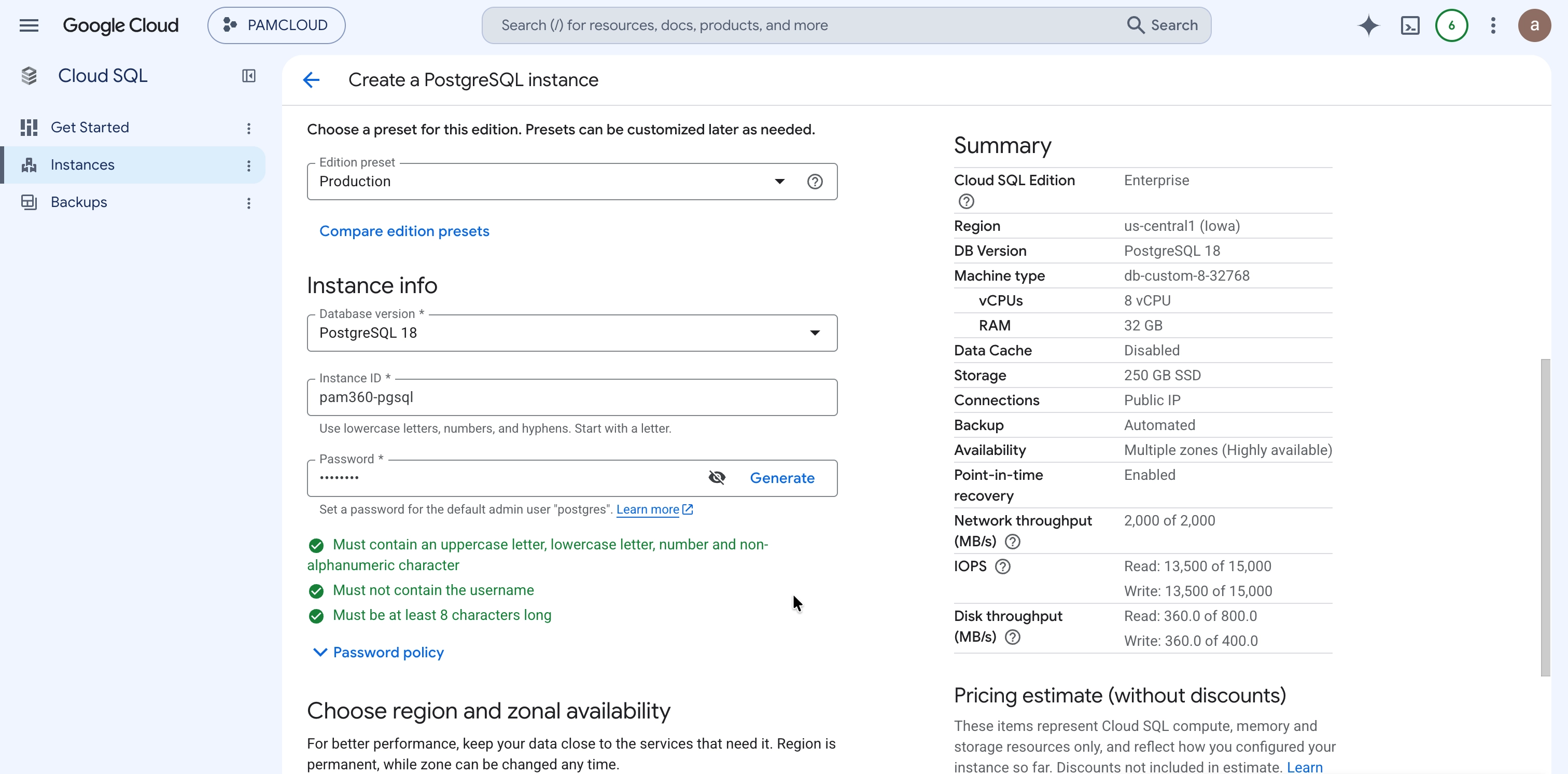
- Select the Region closest to the geographic location of your PAM360 server to minimize network latency.
- Under Customize your instance >> Machine configuration, select a configuration suitable for your workload. For production PAM360 deployments, a minimum of 4 vCPUs and 16 GB memory is recommended.
- Under Storage, select SSD for better performance and set the Storage capacity as per your production requirements. Enable automatic storage increases to prevent the database from running out of space as PAM360 data grows.
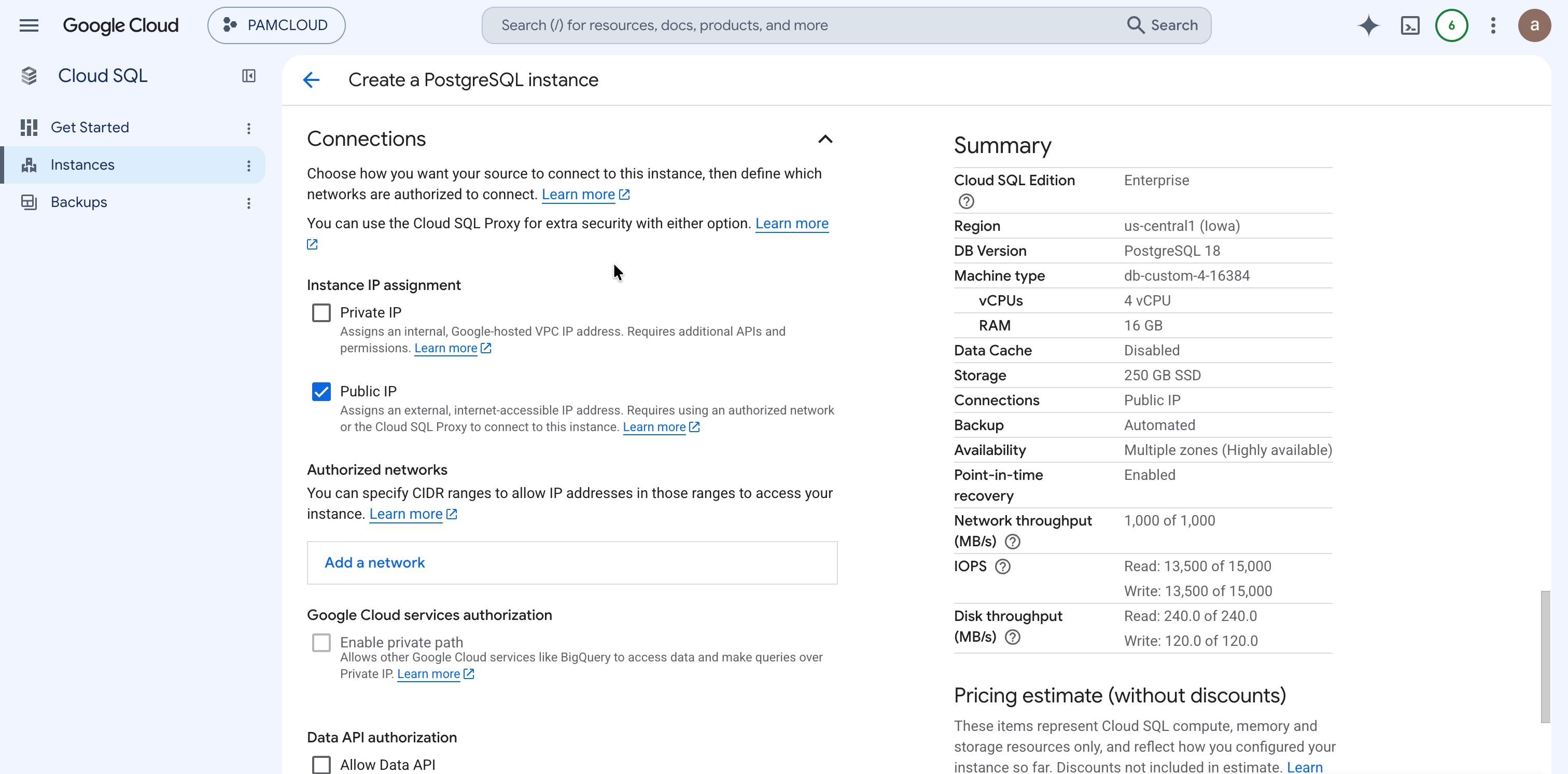
- Under Connections, configure how the Cloud SQL instance will be accessed:
- Private IP: Enable this option to allow connectivity from within the same VPC network. This is the recommended approach for secure internal communication between the PAM360 server and the Cloud SQL instance.
- Public IP: Enable this option if the Cloud SQL instance needs to be accessed from outside Google Cloud, such as from a remote or on-premises machine hosting PAM360. Under Authorized networks, click Add a network and enter the external IP address of the remote machine (or VM instance) that will access the Cloud SQL instance. This restricts access to only the specified IP addresses.
Best Practices
It is strongly recommended to use Private IP for production deployments to avoid exposing the database to the public internet. If Public IP is used, ensure only the specific IP addresses of authorized machines are added under Authorized networks.
- Click Create instance.
The provisioning process may take a few minutes. Once complete, the instance status will change to Runnable.
2. Configuring Google Cloud SQL for PostgreSQL as the Backend Database
- Connect to the Cloud SQL for PostgreSQL instance using the superuser credentials (postgres) via a PostgreSQL client (e.g., pgAdmin, DBeaver, or the psql command-line tool).
- Run the following command to create a dedicated database for PAM360:
CREATE DATABASE pam360;
- Optionally, create a dedicated database user for PAM360 and grant the required privileges:
   CREATE USER pam360user WITH PASSWORD 'your_password';
   GRANT ALL PRIVILEGES ON DATABASE pam360 TO pam360user;
- Navigate to the PAM360 installation directory and open the database_params.conf file located in the conf folder.
- Update the following parameters with your Cloud SQL instance details and save the file:
- username - The database username (e.g., pam360user or postgres)
- password - The password for the database user
- host - The IP address of the Cloud SQL instance (Private IP or Public IP as configured)
- db_name - The name of the database created for PAM360 (e.g., pam360)
- db.password.encrypted - Set to false since the password is being entered in plain text
Additional Details
PAM360 will automatically encrypt the plain-text password in the configuration file upon the first successful startup.
- Navigate to the PAM360 installation directory and open the customer-config.xml file located in the conf folder.
- Locate the StartDBServer parameter, change its value from true to false and save the file. This instructs PAM360 not to start the bundled PostgreSQL database server, as the external Google Cloud SQL instance will be used instead.
- Now, start the PAM360 service.
If you have started the PAM360 application service, even once with the default PostgreSQL database before, proceed with the following additional steps:
- Move/delete the manage_key.conf and pam360_key.key from the <PAM360 Installation Directory>/conf folder. Ensure no copies of these files are present inside the conf folder.
- Make a copy of server.xml present inside <PAM360 Installation Directory>\conf directory and make the following changes:
- Search for the keyword keystorepass= and change the keystorepass to passtrix, so it should be keystorepass="passtrix".
- Also, change the entry keystorePassEncrypted="true" to keystorePassEncrypted="false"
- Now, start the PAM360 service.
You have now successfully configured the Google Cloud SQL for PostgreSQL as the backend database for PAM360.