Integrating PAM360 with ManageEngine ServiceDesk Plus Cloud
By integrating PAM360 with ManageEngine ServiceDesk Plus (SDP) Cloud, technicians can access target endpoints for privileged sessions to resolve the issues easily. This integration ensures data security by eliminating the need to share sensitive passwords and allowing technicians to access remote systems directly from the ServiceDesk Plus Cloud portal with a single click. Administrators can ensure that only authorized technicians with the request have access to privileged accounts without sharing credentials. This integration also eliminates the need for technicians to switch between platforms constantly, enhancing efficiency and security in IT management workflows.
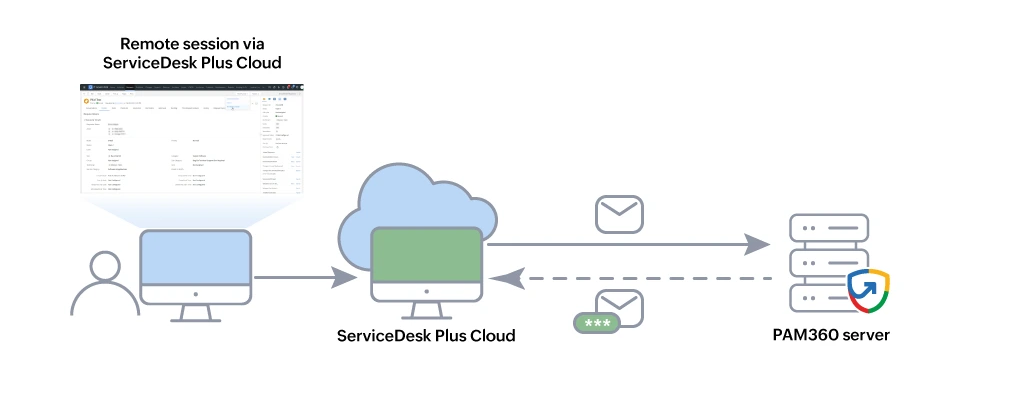
At the end of this document you will learn about following process involved in integrating PAM360 with ServiceDesk Plus Cloud:
- Prerequisites
- Installing the Probe to Establish Communication between PAM360 and SDPOD
- Installing a PAM360 Extension to Integrate PAM360 with the ServiceDesk Plus Cloud
- How Do Technicians Benefit from the Integration?
1. Prerequisites
Before commencing the integration, verify if all of the below prerequisites are satisfied.
- An active ServiceDesk Plus Cloud portal for configuration.
- The user performing the integration should have an SDAdmin role in the ServiceDesk Plus Cloud portal.
- All technicians using SDP Cloud should also be PAM360 users. The email ID should match exactly on both platforms and should be unique for all the PAM360 users utilizing the SDP Cloud integration.
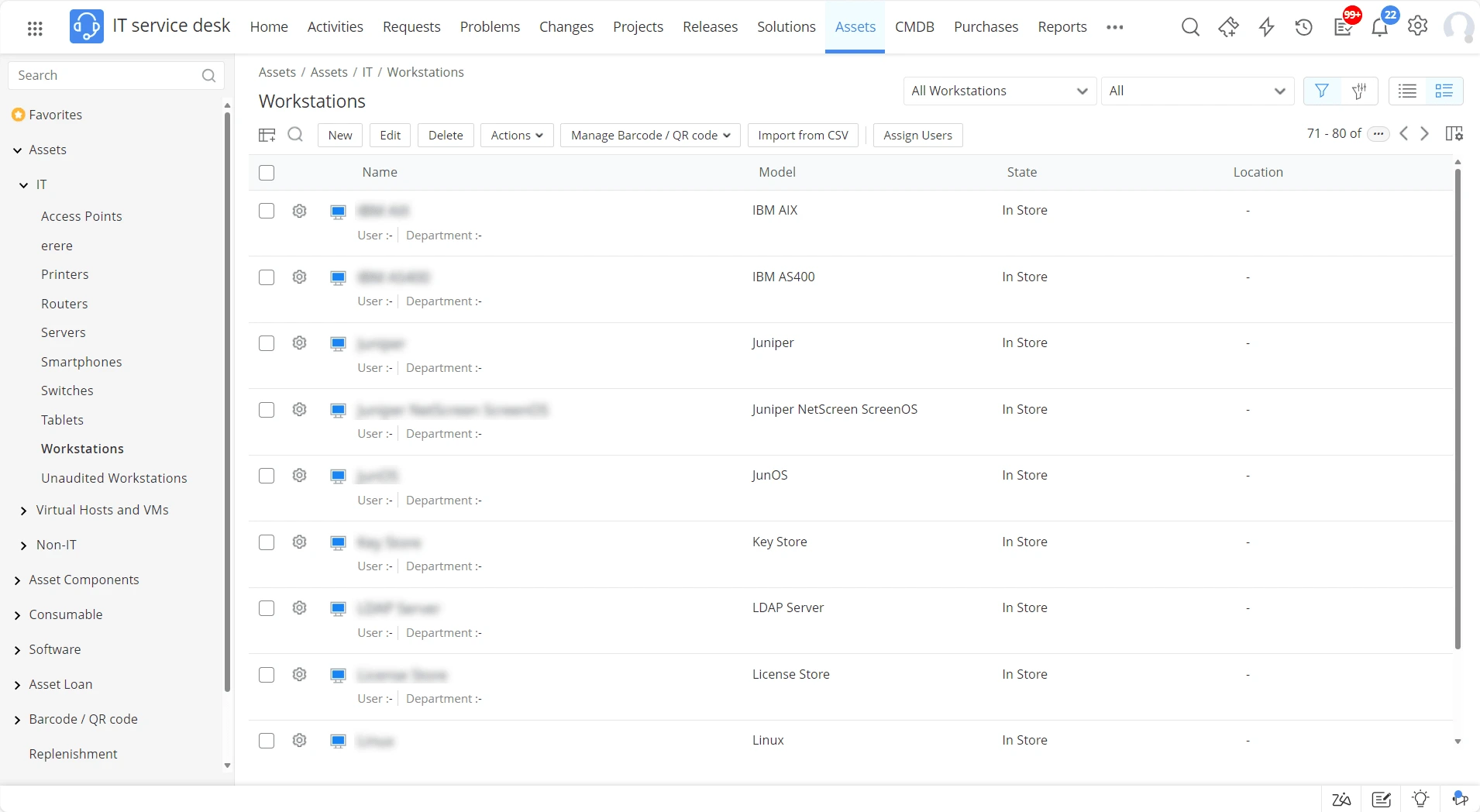
- Privileged resources in PAM360 should be added as workstations under Assets >> IT >> Workstations in the ServiceDesk Plus Cloud platform.
- The resource name in PAM360 should exactly match (including case) the workstation name in SDP Cloud to initiate a privileged remote session from SDP Cloud.
- You can add PAM360 resources to SDP Cloud either individually or in bulk using the Import from CSV option.
- Communication between SDP Cloud platform and the PAM360 server is established exclusively via a probe. Therefore, ensure that a probe is installed to facilitate the integration.
- During the integration, an Authentication Token (Auth Token) will be generated. Ensure you copy and store this token, as it is unique to your SDP Cloud instance and required for communication.
2. Installing the Probe to Establish Communication between PAM360 and SDPOD
Since PAM360 is an on-premise application, a remote probe application must be installed on a server that resides in the LAN of the PAM360 server to connect with the cloud version of ServiceDesk Plus. To install a remote probe application in the PAM360 server, follow these steps:
- Log in to the ServiceDesk Plus Cloud application and navigate to Setup >> Probes & Discovery >> Probe.
- Click Add Probe to add a new probe for PAM360 integration.
- Provide the Probe Name as Pam Probe and click Add.
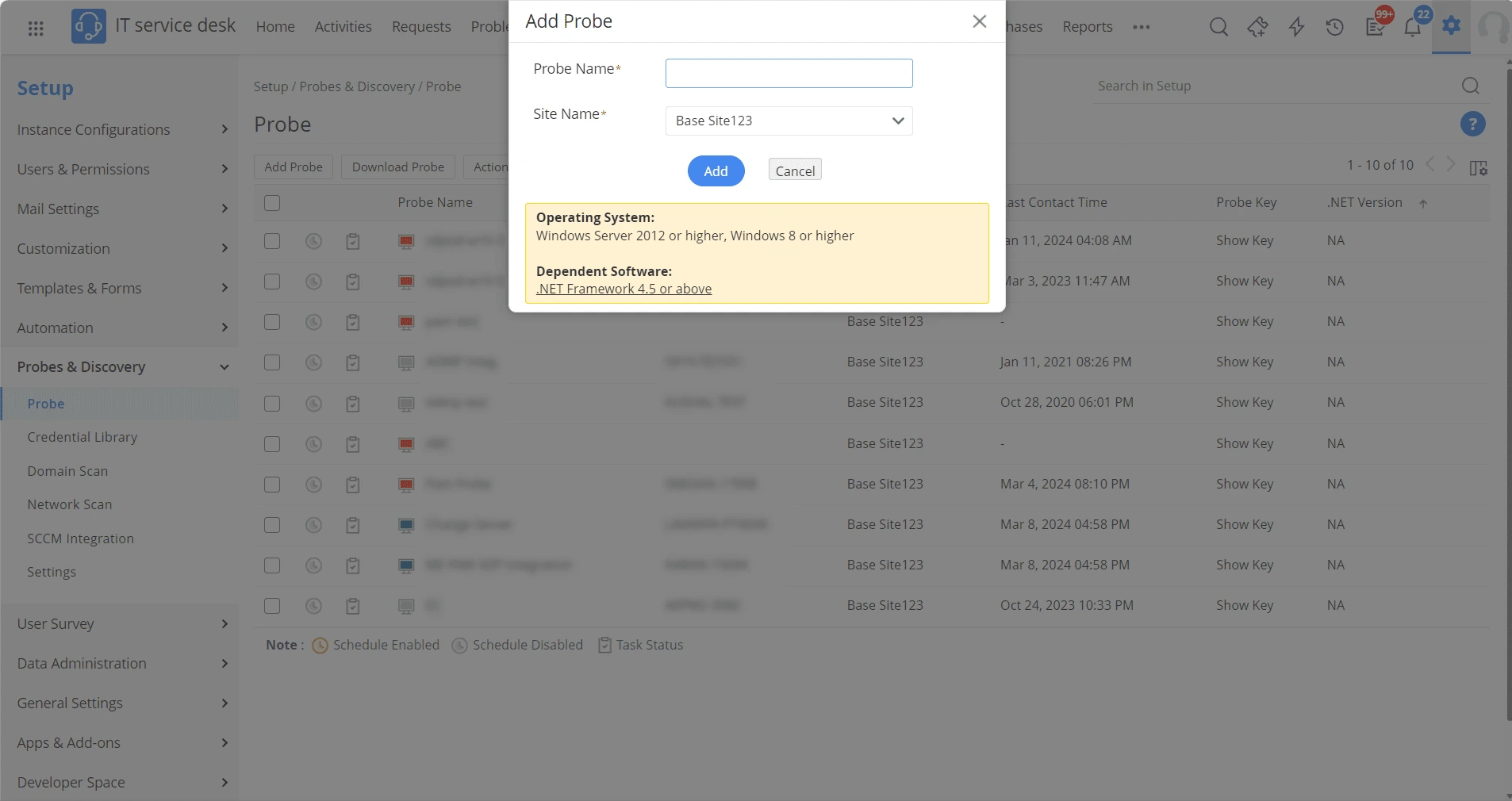
- Upon adding the probe, click Show Key and copy the probe key for further installation process.
- Now, download the probe using the Download Probe button from the top pane and execute the downloaded .msi file in the PAM360 server to install the probe.
- After successful installation, provide the probe key copied previously to register. If you are using a proxy server, then provide proxy server details such as proxy host and proxy port, proxy username, and password.
- Upon registering, the probe created in the ServiceDesk Plus cloud will become active for successful communication with the PAM360 server.
For more details on managing the Probe, refer to this ServiceDesk Plus cloud help document.
3. Installing a PAM360 Extension to Integrate PAM360 with the ServiceDesk Plus Cloud
Upon completing the probe installation, a further PAM360 extension installation in the SDP cloud is required to complete the integration process. To do so, perform the following steps:
- Log in to the PAM360 application and navigate to Admin >> Integrations >> ManageEngine.
- In the page that appears, you will see the ServiceDesk Plus Cloud tile with an integration enabled or disabled.
- Click Enable to proceed with the integration process.
- In the dialogue box that opens, click Generate to generate the AUTH Token for the PAM360-ServiceDesk Plus integration.
- Copy the generated AUTH Token and click Save.
- Now, log in to the ServiceDesk Plus Cloud application and navigate to Setup >> Apps & Add-ons >> Extensions >> Installed Extensions.
- In the window that appears, look out for the ManageEngine PAM360 extension and Install it.
- Upon successful installation, go to the Installed Extension and click on the PAM360 extension to update the Extension Variables with the PAM360 information.
- In the window that appears, enter the AUTH Token copied from the PAM360 interface in the pam_authtoken field.
- Enter the PAM360 service URL in the pam_domain_url.
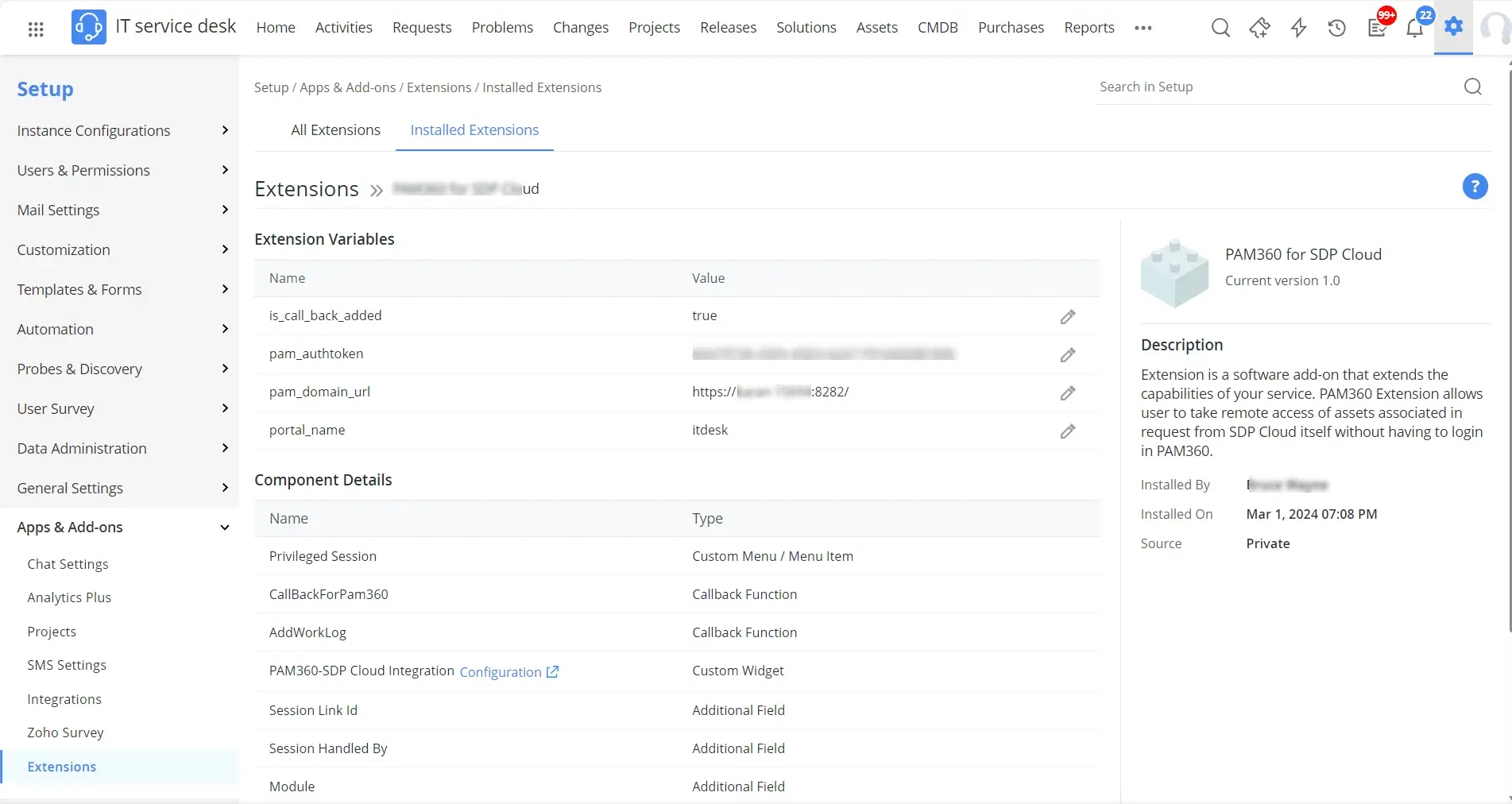
Now, you have successfully integrated PAM360 with the SDP cloud application.
4. How this Integration Benefits?
Vision - To streamline the remote session process and to ensure that the technician has immediate access to the relevant asset/endpoint required to address the user's request directly from the SDP cloud interface.
Scenario - A user in an organization creates a request in the IT service desk of the SDP cloud. While creating the request, the user mapped an asset (i.e., a privileged endpoint/machine) on which the request was to be handled.
Action After Request Creation - The request will automatically link the asset mapped by the user as a privileged resource for a remote session if it exists as a workstation in the SDP Cloud's asset section and as a resource in PAM360.
4.1 How Does this Integration Helps the Technicians in the Above Scenario?
To facilitate the necessary actions, such as troubleshooting/installation/maintenance, the technician requires privileged access to the target resource. With the active integration between PAM360 and SDP Cloud and the above-satisfied prerequisites, this is seamlessly achieved.
By navigating to the respective assigned request and selecting More Actions followed by Privileged Session, the technician can initiate a privileged remote session to the machine directly from the SDP cloud request interface. This integration not only enhances efficiency but also ensures secure and controlled access to critical resources, thereby empowering technicians to fulfill user requests effectively.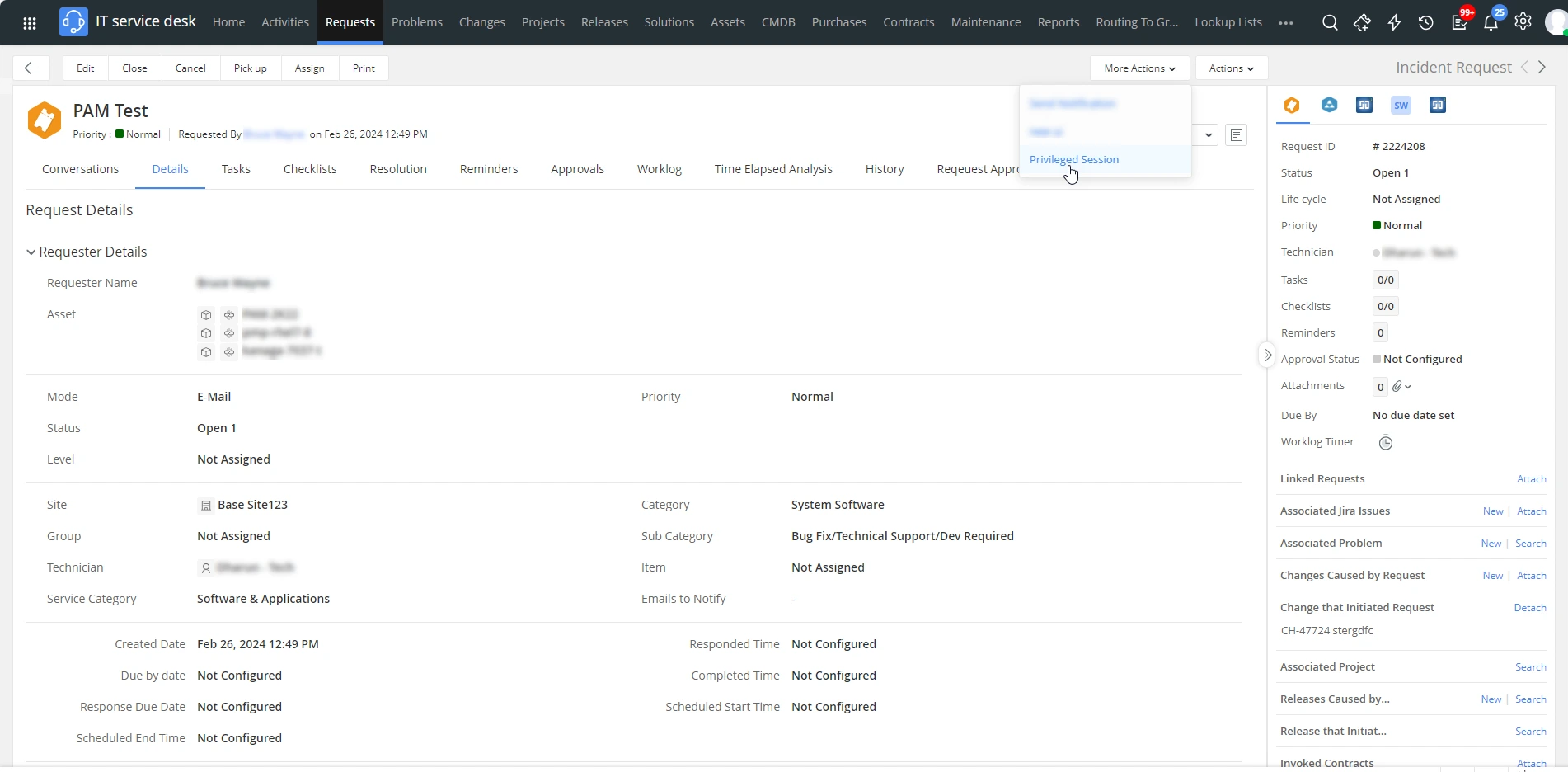
Best Practice
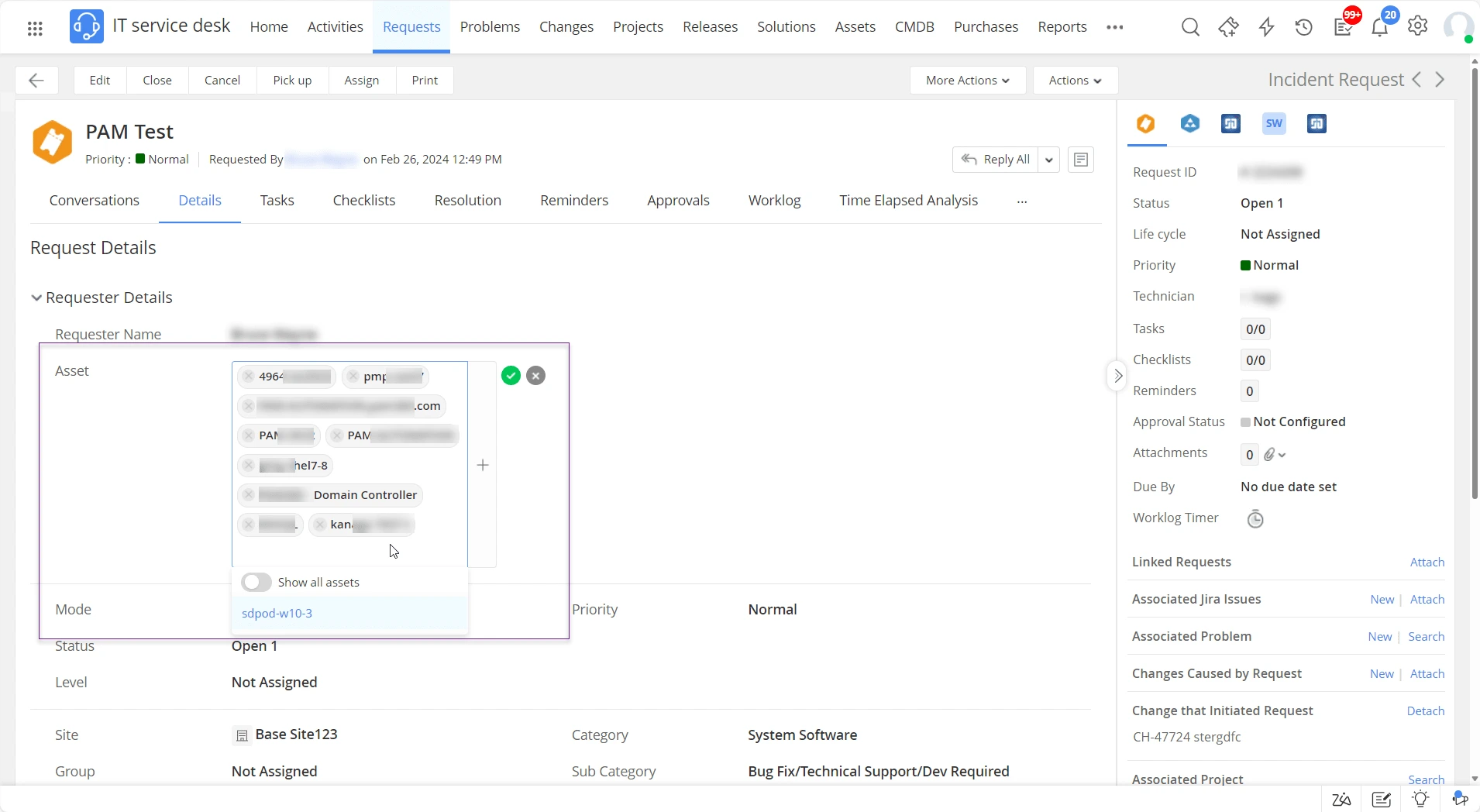
If a user submits a request to install several applications on a group of machines belonging to a privileged group but provides only the name of the group instead of specifying individual assets in the request, the administrator or technician must manually associate the required group of machines as the assets with the request to facilitate the necessary privileged remote sessions.