Configuring Other Mail Servers
Organizations using SMTP-compatible mail servers other than Microsoft Exchange Online and Gmail can configure them in PAM360 to send user onboarding messages, notifications, alerts, and other product-generated emails. PAM360 supports SMTP connections with configurable server, port, encryption, sender email address, and access URL settings. This help page provides comprehensive guidance on how to configure an SMTP mail server in PAM360.
Follow the steps below to configure SMTP mail servers other than Microsoft Exchange Online and Gmail.
- Navigate to Admin >> Server Settings >> Mail Server Settings.
- In the Mail Server Settings window, select SMTP as the email sending method and Others as the email provider.
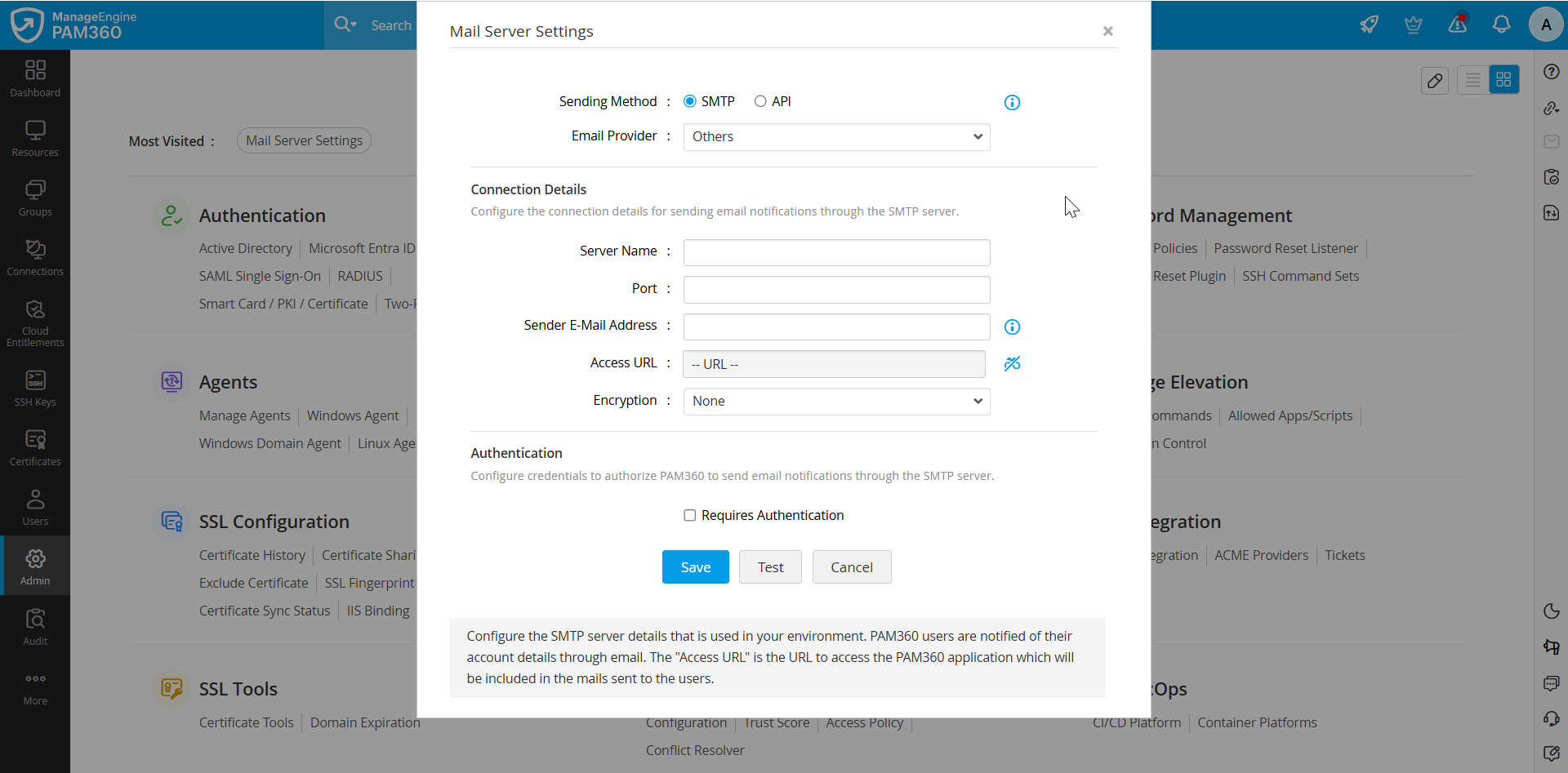
- Under the Connection Details section, enter the following details:
- Server Name - Enter the name of the SMTP server configured in your environment.
- Port - Enter the port number configured for the SMTP connection, such as 587 for TLS or 465 for SSL.
- Sender E-mail Address - Enter the email address PAM360 should use to send onboarding messages, notifications, alerts, and other emails.
- Access URL - Enter the PAM360 access URL to be included in email notifications sent to users.
- Encryption - Select the encryption method used for the SMTP connection.
- SSL - Secure Sockets Layer (SSL) is a cryptographic protocol that enables a secure connection over the internet.
- TLS - Transport Layer Security (TLS) is a new version of SSL that enables a secure connection over the internet.
- If the SMTP server requires authentication, enable Requires Authentication and configure the credentials using one of the following options:
- Specify a Username and Password Manually - Select this option to enter the credentials manually. Specify the username and password in the respective fields.
- Use an account stored in PAM360 - Alternatively, if the mail server credentials are stored in PAM360, click Fetch beside the Resource Name field, then select the appropriate resource and account stored in PAM360 that holds the required mail server credentials.
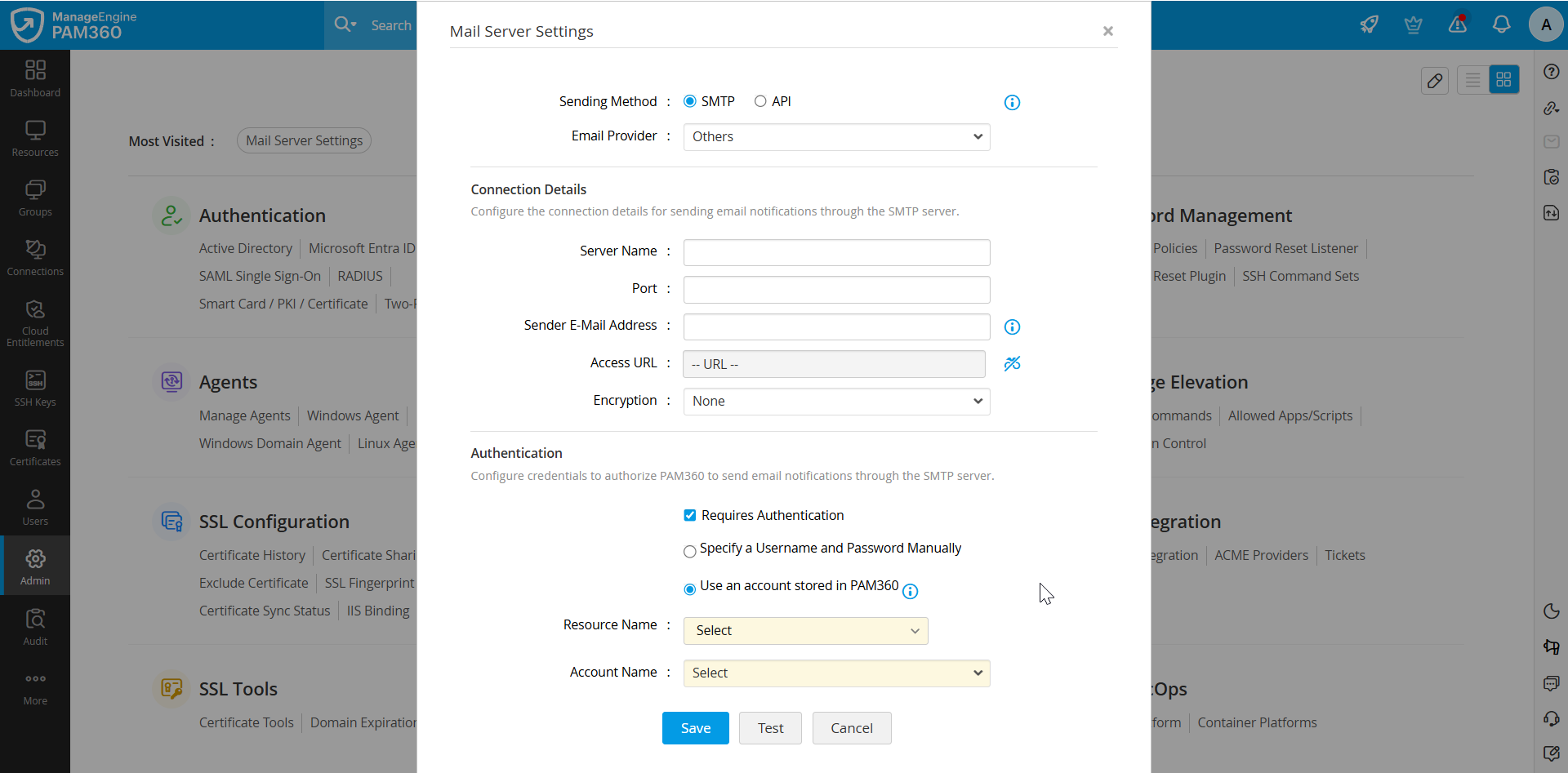
- After entering the required details, click Save to save the configuration.
You have successfully configured the required email provider and the mail server in PAM360.
Best Practices
- We recommend using SSL/TLS options for secure communication over the internet/intranet.
- If the mail server uses a self-signed certificate, import the certificate into the PAM360 certificate store.
- Copy the mail server certificate to the <PAM360 Installation Folder>/bin directory.
- From the <PAM360 Installation Folder>/bin directory, execute the command importCert.bat <name of the server certificate>. This command adds the certificate to the PAM360 certificate store.
Top