Remote File Transfer in SSH Sessions
PAM360 allows you to initiate secure SSH sessions with any SSH resources by utilizing credentials stored in its centralized vault. This automated authentication process eliminates the need for manual password entry, ensuring a seamless and secure login experience. Once the SSH session is established through PAM360’s session gateway, you can effortlessly transfer files between your local machine and the remote SSH resource without needing to exit the session or use additional tools.
PAM360 supports the following file transfer operations for an end-user during an active SSH session:
- Upload Files from Local Machine to Remote SSH Resource
- Download Files from Remote SSH Resource to Local Machine
1. Upload Files from Local Machine to Remote SSH Resource
To upload files from your local machine to a remote SSH resource through an SSH session in PAM360, follow the steps below:
- From PAM360’s web interface, navigate to either the Connections tab or the Resources tab and launch a secure SSH session to the desired SSH resource. PAM360 uses the credentials stored in its vault to authenticate the session automatically.
- Once inside the SSH session, click the My Files icon located at the top of the screen. This will open the file transfer panel within the SSH session console.
- In the newly opened panel, browse to the directory on the remote machine where you wish to upload your files.
- Click the Choose Files button to select the files from your local machine. Once selected, the files will be uploaded automatically to the specified directory on the remote SSH resource.
This streamlined process enables secure, efficient file transfers during SSH sessions without disrupting workflow or requiring external tools.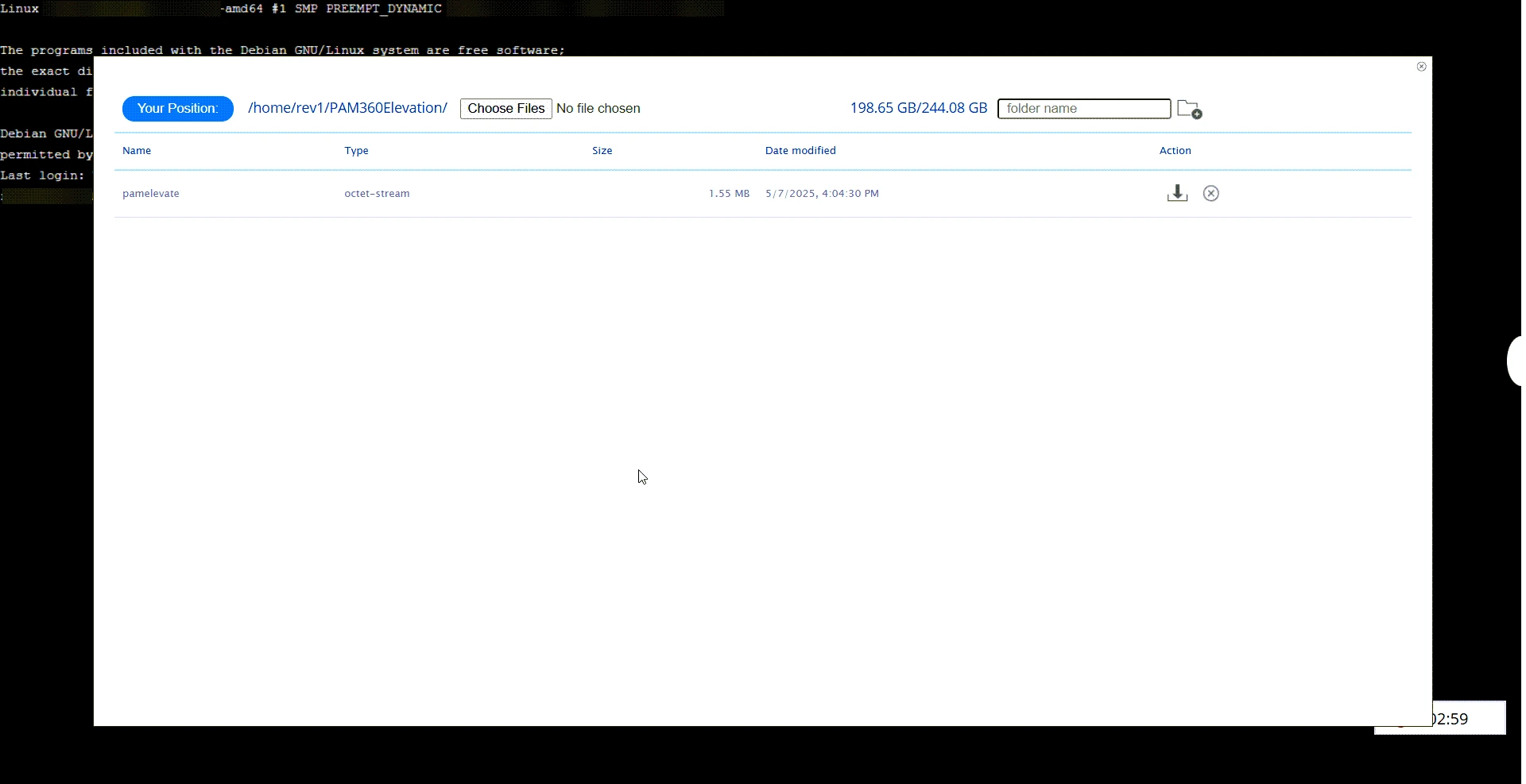
2. Download Files from Remote SSH Resource to Local Machine
To download files from a remote SSH resource to your local machine during an SSH session in PAM360, follow the steps below:
- From PAM360’s web interface, navigate to either the Connections tab or the Resources tab and launch a secure SSH session to the desired SSH resource. PAM360 uses the credentials stored in its vault to authenticate the session automatically.
- Once inside the SSH session, click the My Files icon located at the top of the screen. This will open the file transfer panel within the SSH session console.
- Within the SSH session console, navigate to the directory containing the file you wish to download.
- Click the Download icon next to the desired file. The file will then be securely downloaded and saved to your local machine.
By following these steps, you can securely and efficiently transfer files from a remote SSH resource to your local machine, all within the PAM360 SSH session.
Caution
This file transfer feature of PAM360 is primarily for the convenience of technicians and analysts who need to upload and download simple scripts, configuration files, logs, and similar items. However, it should not be considered a substitute for proper file transfer and management solutions within your organization. This is because the files are transferred through the PAM360 gateway server, and it is advisable to keep the file sizes to 100 MB or less.
In addition to file transfer operations, you can also delete files or folders from the remote resource. All actions performed are audited to ensure security and compliance.