Configuring Credentials for Remote Password Reset
PAM360 allows you to perform remote password reset across a wide range of resource types. To reset a password for any specific resource, you should provide administrator account credentials with the necessary privileges. These credentials enable PAM360 to securely connect to the target resource and execute the password reset operation. PAM360 supports several resource categories, including Operating Systems, Cisco Devices, Network Devices, Database Servers, Cloud Devices, File Stores, MQ Applications, and more.
By the end of this document, you will learn how to configure the required administrative credentials and resource-specific details to successfully perform remote password resets.
Refer to this section to learn about configuring administrative credentials for multiple resources at once.
- Operating Systems
- Cisco Devices
- Database Servers
- Network Devices
- Cloud Devices
- MQ Applications
- Enterprise Applications
- Others
1. Operating Systems
1.1 Windows
PAM360 supports remote password resets for local accounts across all Windows resources in your domain. It can be performed using a Service Account, Local Account, or Domain Account.
Remote Password Reset Configuration using the PAM360 Service Account
By default, PAM360 uses the service account under which it runs to reset passwords for all Windows local accounts. To view or modify this service account, follow the steps below:
- Log in to the PAM360 server.
- Open the Services console (services.msc).
- Update the service account used by the PAM360 service. If the PAM360 service runs under a privileged service account (such as a domain administrator or a local administrator with access to all member servers), it can forcibly reset Windows passwords without requiring the existing password.
Caution
To execute remote password reset operations successfully, the service account should have either domain administrator rights or local administrator rights on both the PAM360 server and the target systems.
Remote Password Reset Configuration using the Windows Local Account or Domain Account
You can override the default service account configuration for remote password resets and instead use a local account or a domain account. Follow these steps to configure the credentials required to perform remote password resets using a Windows local account or domain account:
- Log in to your PAM360 account and navigate to the Resources tab.
- Click the Resource Actions icon beside the desired Windows resource and select Configure >> Remote Password Reset.
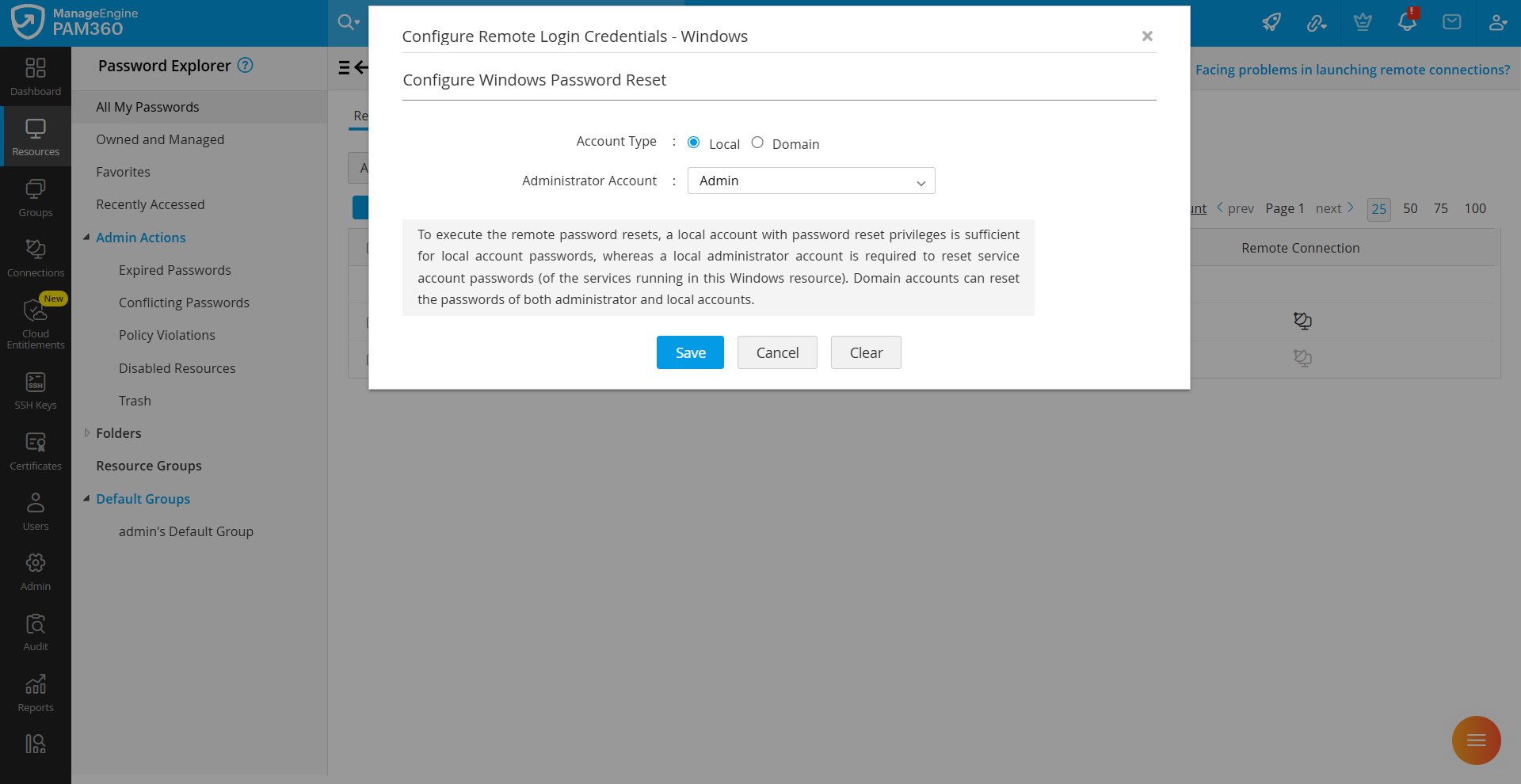
- On the Configure Remote Login Credentials page that appears:
- Select Account Type as Local, and choose a local account with the necessary privileges to perform the password reset operation on the target machine.
- Select Account Type as Domain, then choose the Domain Controller and a domain account from the Resource Name and Administrator Account dropdown fields, respectively. PAM360 will use the selected domain account to perform the password reset operation on the target machine.
or
- Click Save to apply the configured remote password reset settings.
1.2 Windows Domain
Follow the steps below to configure the credentials required to perform remote password resets on Windows Domain resources:
- Navigate to the Resources tab, click the Resource Actions icon beside the desired Windows Domain resource, then select Configure >> Remote Password Reset.
- On the Configure Remote Login Credentials page that appears:
- Select the domain account as the administrator account.
- If you prefer to use an administrator account of another Windows Domain resource, select Other Domain Accounts from the Configure Using field and select the respective administrator account in the Administrator Account field.
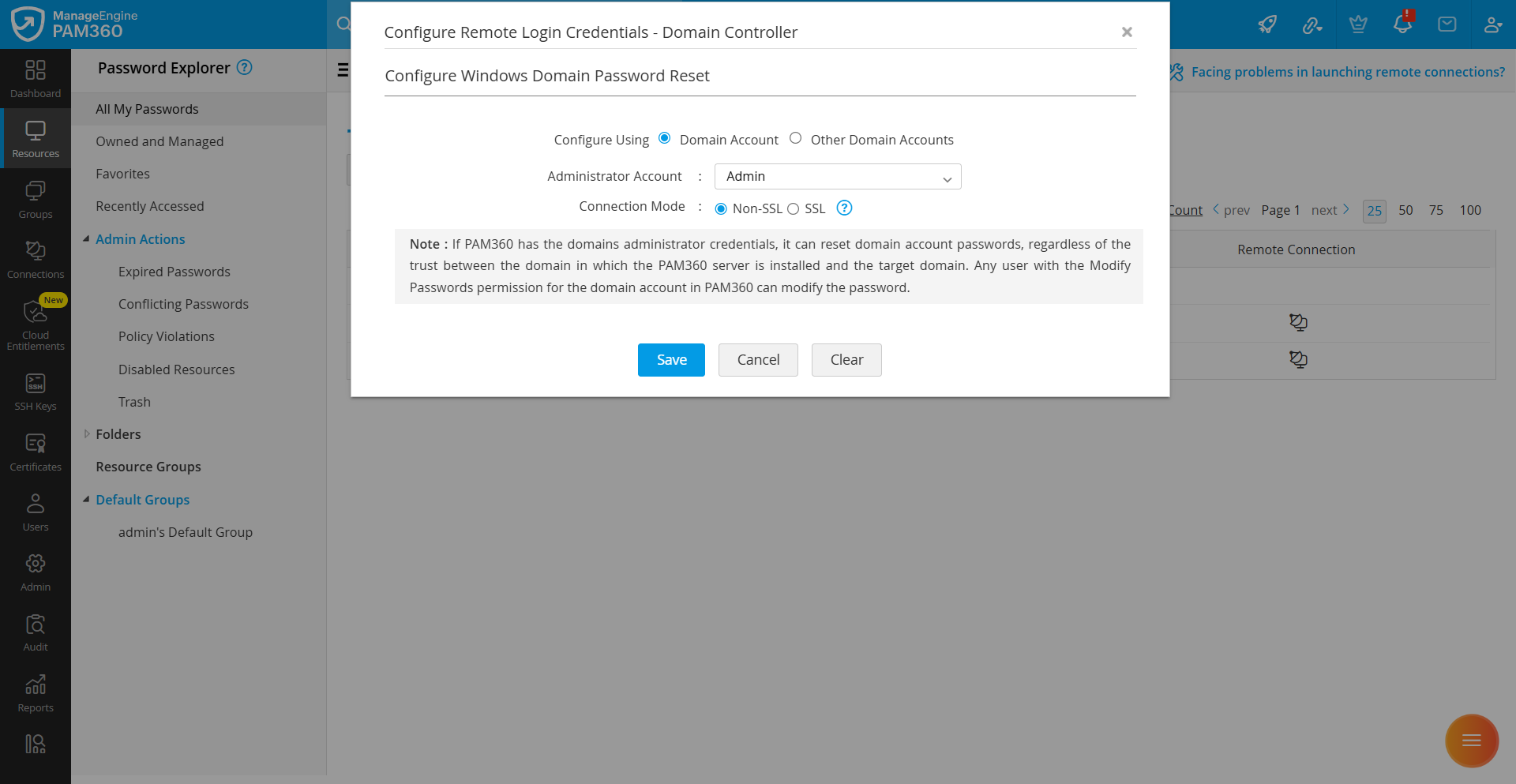
- If you choose to perform the remote password reset over an encrypted channel, set the Connection Mode to SSL. When set to SSL, the domain controller’s root certificate should be imported into the PAM360 server machine's certificate store. For detailed steps on importing certificates, see Question 11 in the Certificates section of the FAQ.
- After a successful import, restart the PAM360 server to apply the certificate changes before performing the remote password reset.
Caution
- If PAM360 is installed in one domain but needs to perform remote password resets for accounts in another domain, you should import the root and intermediate (or private) certificates of the target domain into the Trusted Root Certification Authorities store in the Microsoft Management Console (MMC) on the PAM360 server. This ensures that PAM360 can establish a trusted connection with the remote domain.
- If PAM360 has domain administrator credentials, it can reset domain account passwords regardless of the trust relationship between the domain in which PAM360 is installed and the target domain. Any user with the Modify password permission for the domain account in PAM360 will be able to reset the password.
Best Practice
It is recommended to use the same PAM360 service account here to facilitate Active Directory audit purposes.
1.3 Linux, Mac, Solaris, HP UNIX or IBM AIX
To perform remote password resets on Unix-based resources, PAM360 requires a remote login account with access to the target system. Since resetting passwords requires elevated privileges, PAM360 can either switch to the root account using su or, if supported by the target system, execute the necessary password reset commands directly using sudo.
Follow the steps below to configure the credentials required to perform remote password resets on Unix-based devices:
- Navigate to the Resources tab, click the Resource Actions icon beside the desired resource, and select Configure >> Remote Password Reset.
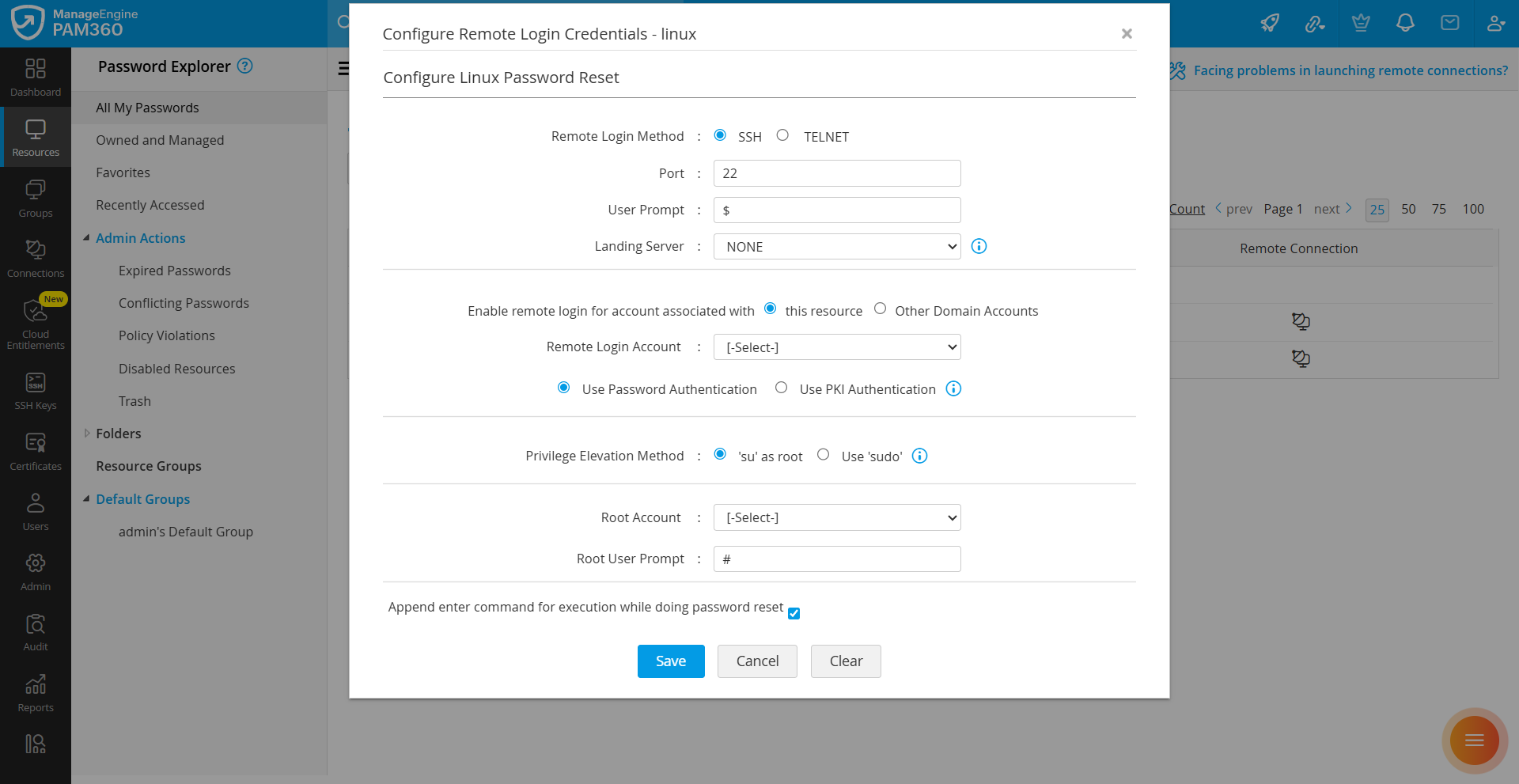
- On the Configure Remote Login Credentials page that appears, specify the following details:
- Remote Login Method: PAM360 supports SSH and Telnet protocols to establish a connection with the device for password reset. Select the required protocol.
- Port: Enter the port number. By default, it occupies port 22.
- User Prompt: Enter the user prompt displayed after successful login. The default is $.
- Landing Server: Choose the landing server through which PAM360 should connect to the target device. Select NONE if a landing server is not required.
- Remote Login Account: Select the account that PAM360 should use to establish a connection with the device. You can choose an account of the same resource type for which you are configuring the password reset, or any Windows Domain account stored in PAM360. To use a Windows Domain account, select Other Domain Accounts and provide the Resource Name and Remote Login Account.
- Authentication Method: Specify the authentication method for establishing the connection. PAM360 supports two methods: Password Authentication and Public Key Infrastructure (PKI) Authentication. For PKI authentication, ensure the public key is present on the remote system under the specified remote login account, typically in the $Home/.ssh directory. Then, browse and upload the corresponding private key in PAM360.
Caution
PAM360 supports SSH2 and above only.
- Privilege Elevation Method: To execute remote password reset commands, PAM360 can either switch to the root account using su or directly execute the required commands using sudo.
- Root Account: If you selected the 'su' as root, select the root account to perform privileged operations.
- Root User Prompt: Enter the prompt associated with the root account. The default is #.
- Append enter command for execution while doing password reset: Enable this option if the target system requires an additional 'Enter' keystroke after sending commands.
- Click Save to apply the configuration.
Additional Detail
You can also use SSH Command sets to configure remote password reset for Linux, Mac OS, Solaris, HP UNIX, IBM AIX, and other Linux or Unix-based resource types. Click here to learn more.
1.4 HP UX or JunOS
Follow the steps below to configure the credentials required to perform remote password resets on HP-UX and JunOS devices:
- Navigate to the Resources tab, click the Resource Actions icon beside the desired resource, and select Configure >> Remote Password Reset.
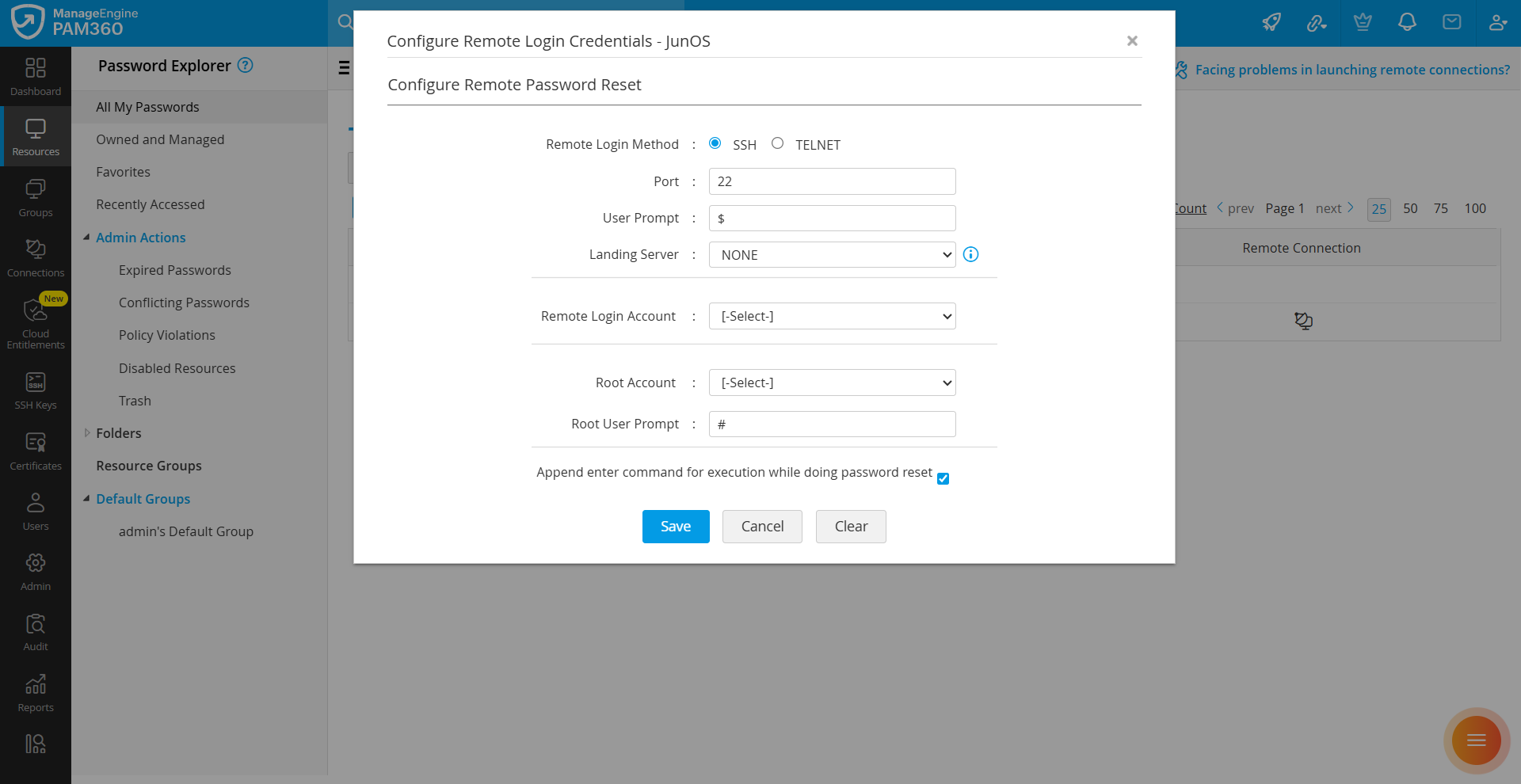
- On the Configure Remote Login Credentials page that appears, specify the following details:
- Remote Login Method: PAM360 supports SSH and Telnet protocols to establish a connection with the device for password reset. Select the required protocol.
- Port: Enter the port number. By default, it occupies port 22.
- User Prompt: Enter the user prompt displayed after successful login. The default is $.
- Landing Server: Choose the landing server through which PAM360 should connect to the target device. Select NONE if a landing server is not required.
- Remote Login Account: Select the account that PAM360 should use to establish a connection with the device.
- Root Account: Select the root account to perform privileged operations.
- Root User Prompt: Enter the prompt associated with the root account. The default is #.
- Append enter command for execution while doing password reset: Enable this option if the target system requires an additional “Enter” keystroke after sending commands.
- Click Save to apply the configuration.
2. Cisco Devices
2.1 IOS, PIX, Cat OS, Management Integration Center, Cisco Catalyst, sg300, UCS, Wireless LAN Controller
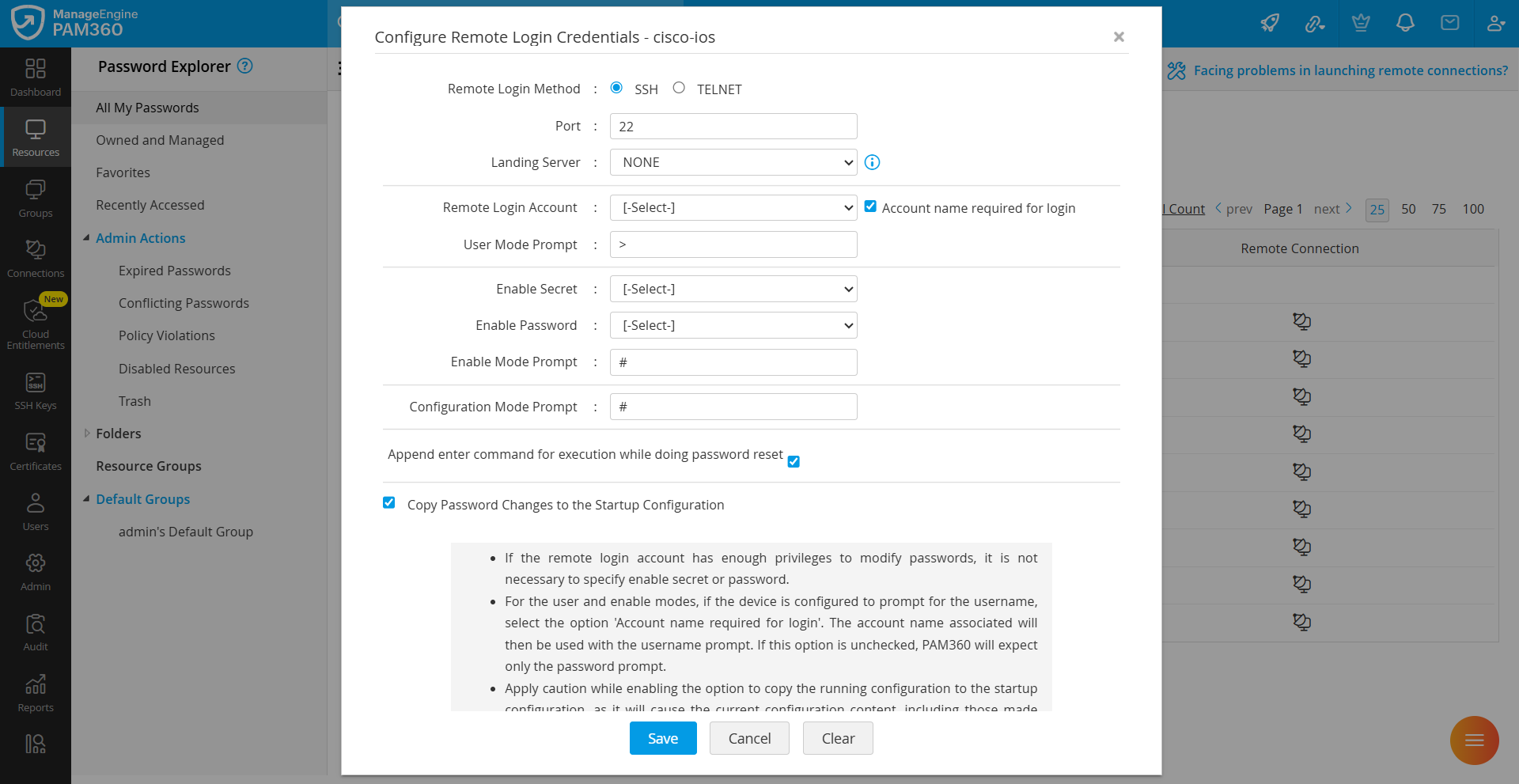
To perform remote password resets on Cisco devices, PAM360 requires either the Telnet or SSH service to be running on the target device. Both the user account password and the enable mode password are needed for PAM360 to log in and gain the necessary privileges. Once connected, PAM360 switches to the configuration terminal mode (configure terminal) to execute the password reset commands.
Follow the steps below to configure the credentials required to perform remote password resets on Cisco devices:
- Navigate to the Resources tab, click the Resource Actions icon beside the desired resource, and select Configure >> Remote Password Reset.
- On the Configure Remote Login Credentials page that appears, specify the following details:
- Remote Login Method: PAM360 supports SSH and Telnet protocols to establish a connection with the device for password reset. Select the appropriate protocol.
- Port: Enter the port number. By default, SSH uses port 22 and telnet uses port 23.
- Landing Server: Choose the landing server through which PAM360 should connect to the target device. Select NONE if a landing server is not required.
- Remote Login Account: Select the account that PAM360 should use to establish a connection with the device.
- Account Name Required for Login: Enable this option if the device prompts for a username in either user or enable mode. PAM360 will use the account name associated with the login account to respond to the username prompt. If this option is not selected, PAM360 will assume that only a password prompt appears during login.
- User Mode Prompt: Enter the prompt displayed after a successful login. By default, it is <.
- Enable Secret: This is used to enter privileged mode for performing the password reset. If the remote login account already has sufficient privileges to modify passwords, specifying the Enable Secret is not necessary.
- Enable Password: This is also used to enter privileged mode for performing the password reset. If the remote login account already has sufficient privileges to modify passwords, specifying the Enable Password is not required.
- Enable Mode Prompt: Enter the prompt displayed after entering enable mode. For example, #.
- Configuration Mode Prompt: To make any configuration changes on the device, entering configuration mode is necessary. Enter the prompt that appears in configuration mode here. For example, #.
- Append enter command for execution while doing password reset: Enable this option if the target system requires an additional “Enter” keystroke after sending commands.
- Copy Password Changes to the Startup Configuration: Select this option to copy the password changes made in the running configuration to the startup configuration.
Caution
Enabling the option to copy the running configuration to the startup configuration will immediately replicate the current configuration (including any changes made outside of PAM360) to the startup configuration.
- Click Save to apply the configuration.
2.2 Cisco Nexus OS
Follow the steps below to configure the credentials required to perform remote password resets on Cisco Nexus devices running NX-OS:
- Navigate to the Resources tab, click the Resource Actions icon beside the desired resource, and select Configure >> Remote Password Reset.
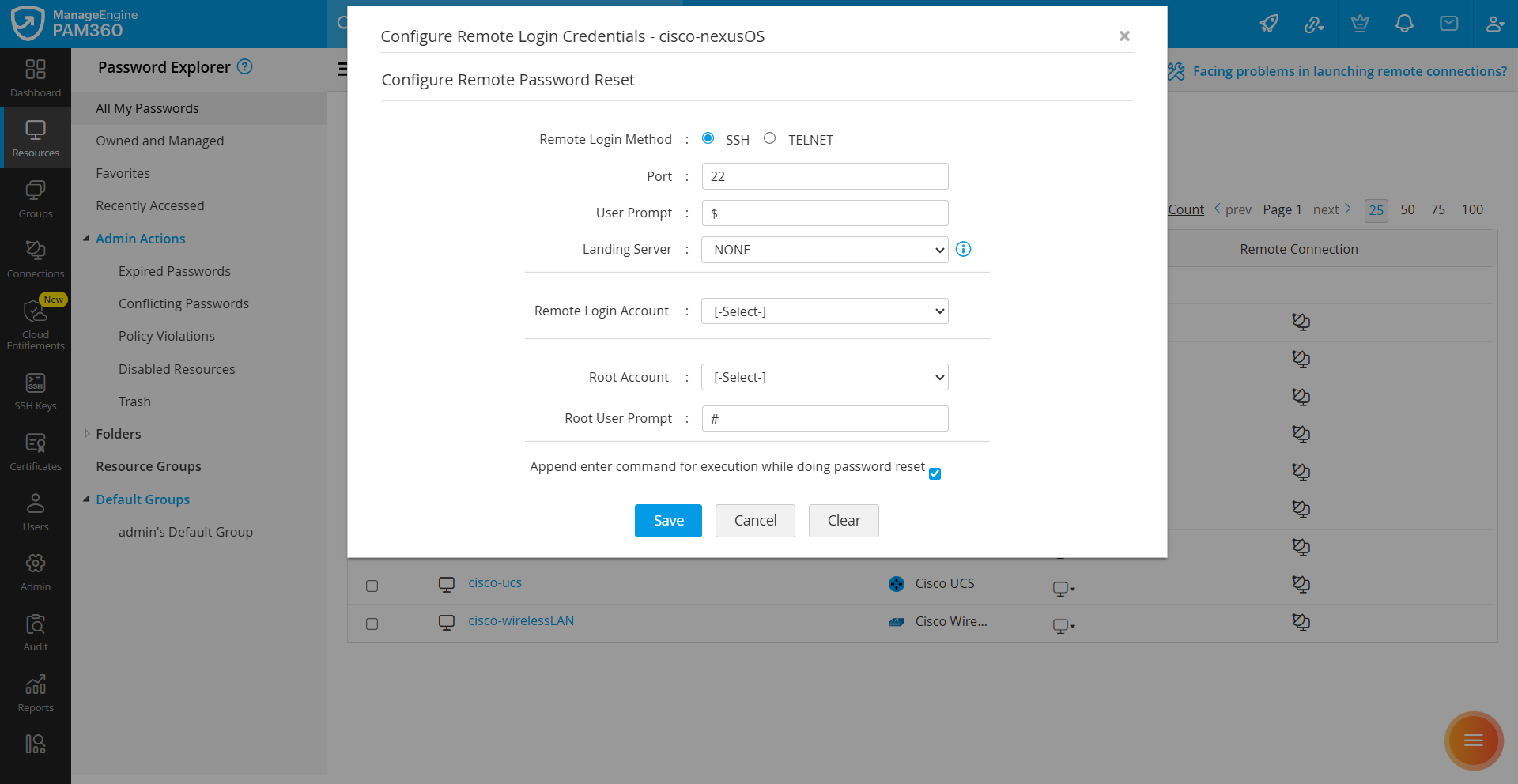
- On the Configure Remote Login Credentials page that appears, specify the following details:
- Remote Login Method: PAM360 supports SSH and Telnet protocols to establish a connection with the device for password reset. Select the required protocol.
- Port: Enter the port number. By default, it occupies port 22.
- User Prompt: Enter the user prompt displayed after successful login. The default is $.
- Landing Server: Choose the landing server through which PAM360 should connect to the target device. Select NONE if a landing server is not required.
- Remote Login Account: Select the account that PAM360 should use to establish a connection with the device.
- Root Account: Select the root account to perform privileged operations.
- Root User Prompt: Enter the prompt associated with the root account. The default is #.
- Append enter command for execution while doing password reset: Enable this option if the target system requires an additional “Enter” keystroke after sending commands.
- Click Save to apply the configuration.
3. Database Servers
3.1 MS SQL Server
As a password reset for MS SQL Server is performed over JDBC, it is required to provide either the MS SQL administrator credentials or a domain account credentials with sufficient privileges to modify SQL server passwords.
Follow the steps below to configure the credentials required to perform remote password resets for MS SQL Server accounts:
- Navigate to the Resources tab, click the Resource Actions icon beside the desired resource, and select Configure >> Remote Password Reset.
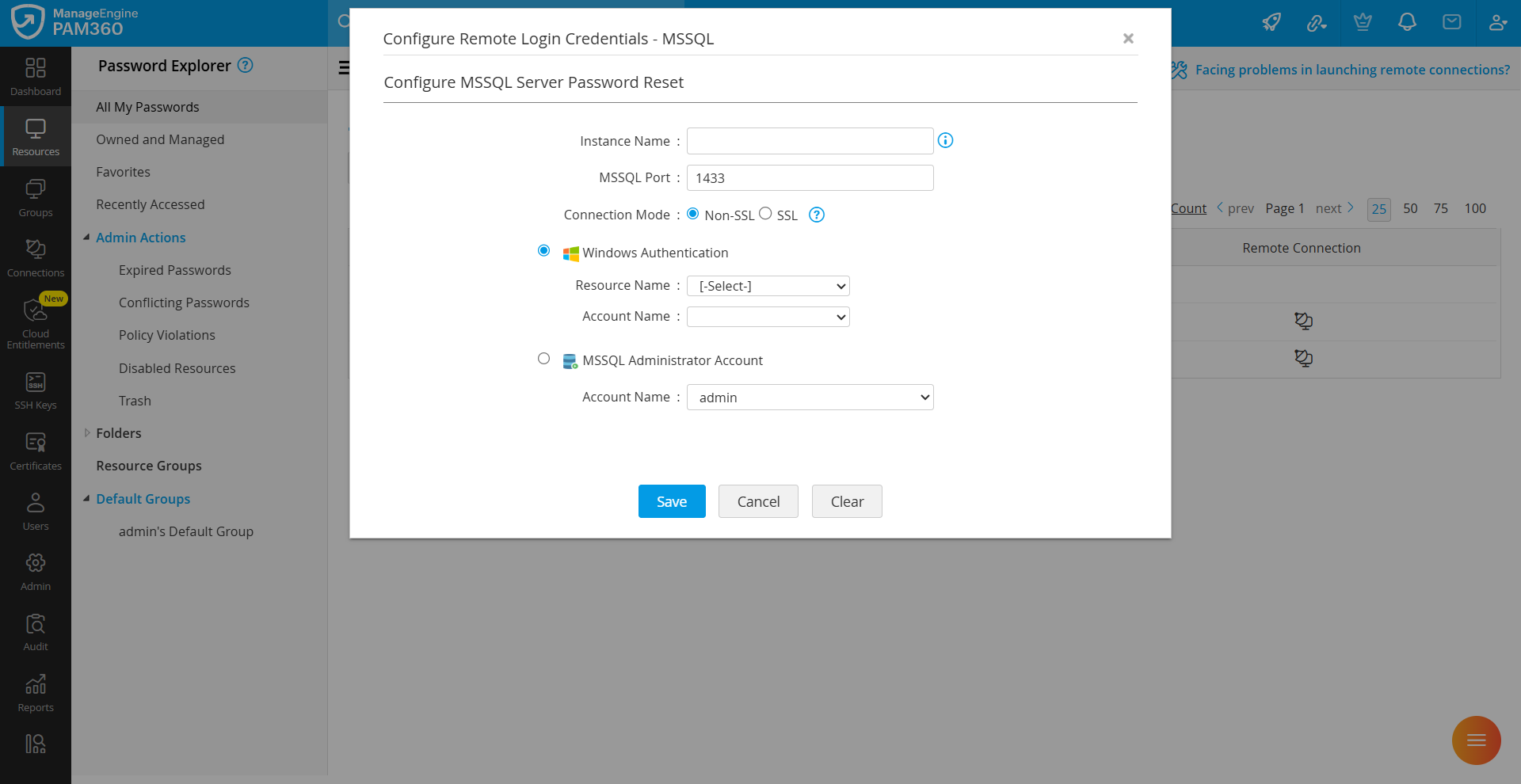
- On the Configure Remote Login Credentials page that appears:
- Specify the instance name of MS SQL server. If the instance name is specified, PAM360 will try to establish a connection with the specified instance. If not, PAM360 will try to establish connection with the specified port.
- Specify the port where the MS SQL Server is running. By default, MS SQL uses port 1433.
- Specify the connection mode. You can configure the connection between MS SQL Server and PAM360 to be over an encrypted channel (SSL) or Non-SSL.
- When set to SSL, the MS SQL Server’s root certificate should be imported into the PAM360 server machine's certificate store. Import all certificates in the respective root certificate chain, including the PAM360 server machine's certificate and any intermediate certificates, if applicable. For detailed steps on importing certificates, see Question 11 in the Certificates section of the FAQ.
- After a successful import, restart the PAM360 server to apply the certificate changes before performing the remote password reset. Then, continue with the following steps:
- To enable PAM360 to access the MS SQL Server, provide either Windows Authentication or MS SQL Administrator Account credentials. Select the domain name to which the MS SQL Server belongs, and then select an account within that domain.
- Click Save to apply the settings.
3.2 MySQL Server or PostgreSQL Server
Additional Detail
This procedure is also applicable to Amazon Aurora MySQL and Amazon Aurora PostgreSQL.
As a password reset for the MySQL / PostgreSQL Server is performed over JDBC, the MySQL / PostgreSQL administrator credential is required. Follow the steps below to configure the credentials required to perform remote password resets for MySQL / PostgreSQL Server accounts:
- Navigate to the Resources tab, click the Resource Actions icon beside the desired resource, and select Configure >> Remote Password Reset.
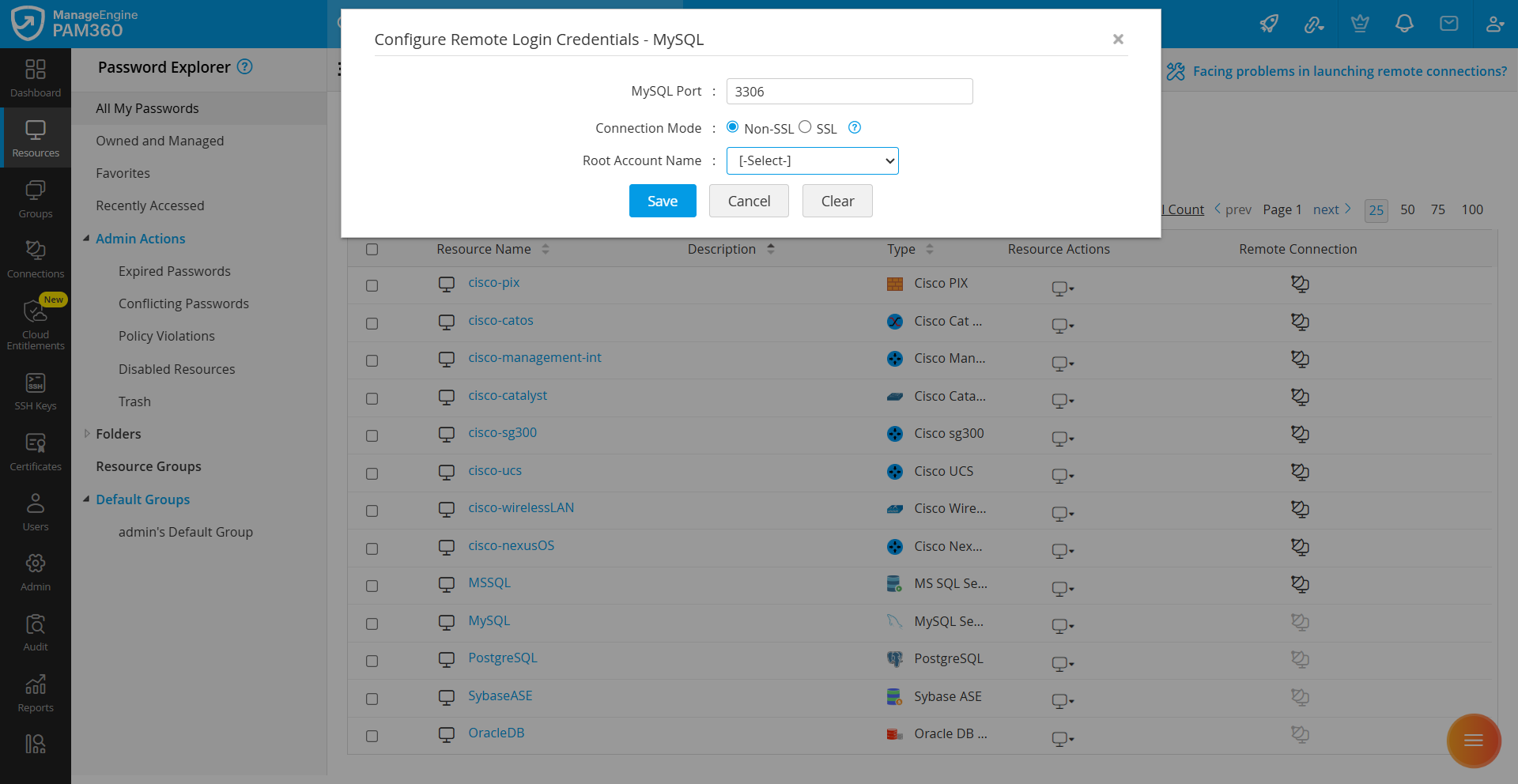
- On the Configure Remote Login Credentials page that appears:
- Specify the port where the MySQL/PostgreSQL server is running. By default, MySQL/PostgreSQL uses port 3306.
- Specify the connection mode. You can configure the connection between MySQL/PostgreSQL Server and PAM360 to be over an encrypted channel (SSL) or Non-SSL.
- When set to SSL, the MySQL/PostgreSQL server’s root certificate should be imported into the PAM360 server machine's certificate store. Import all certificates in the respective root certificate chain, including the PAM360 server machine's certificate and any intermediate certificates, if applicable. For detailed steps on importing certificates, see Question 11 in the Certificates section of the FAQ.
- After a successful import, restart the PAM360 server to apply the certificate changes before performing the remote password reset. Then, continue with the following steps:
- To enable PAM360 to access the MySQL server, provide the MySQL Root Account name.
- Click Save to apply the settings.
3.3 Sybase ASE
Caution
- To perform a remote password reset for Sybase ASE accounts, the jConnect 6.0 JDBC driver is required. This driver is a file named jconn3.jar, which can be found in the <Sybase_Install_Directory>\jConnect_6_0\classes directory in Sybase ASE 15.0.
- Copy the jconn3.jar file and save it under <pam360_install_directory>\lib folder on the machine where the PAM360 server is running.
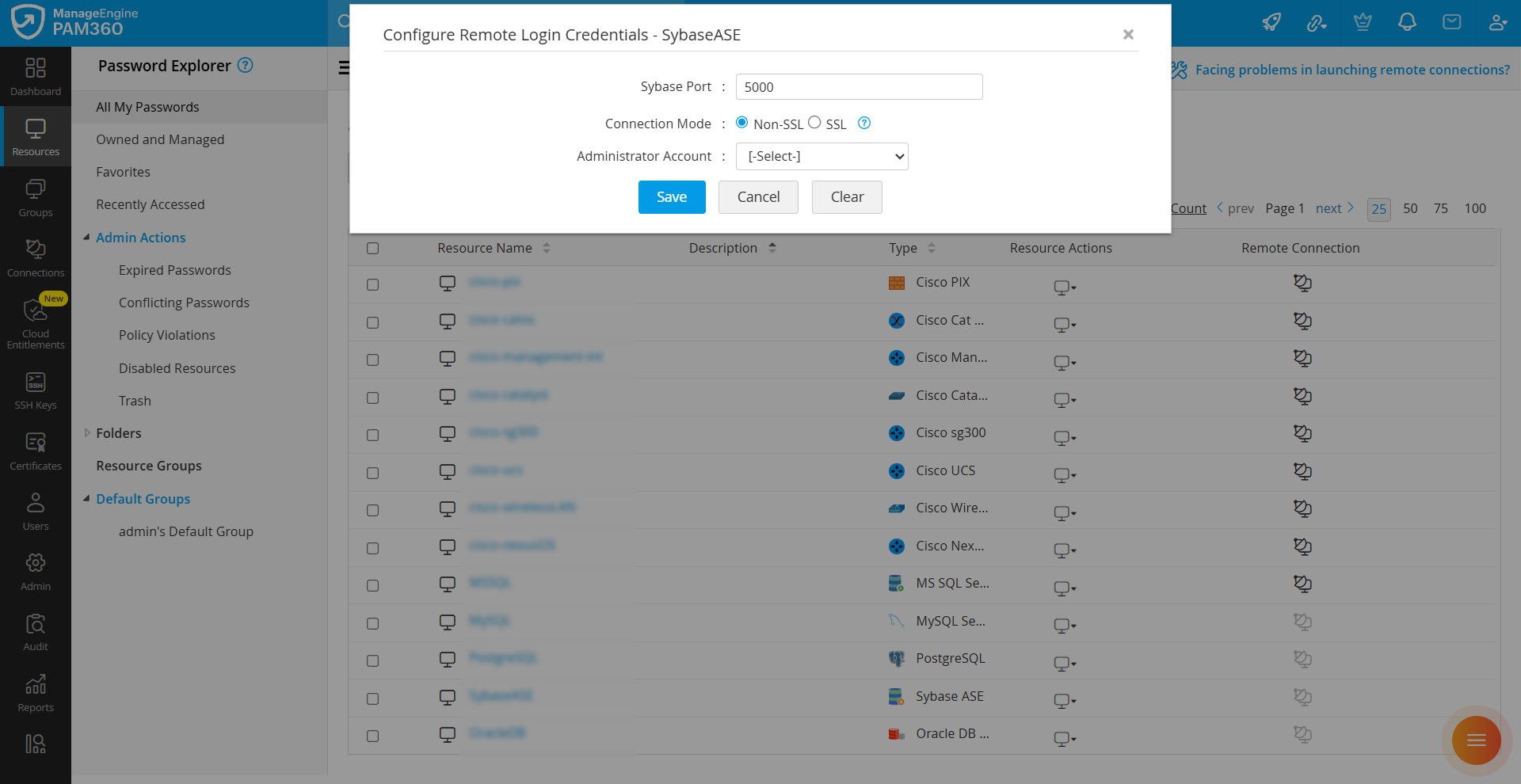
Apart from the above prerequisites, an administrator account in the Sybase ASE is required to perform the remote password reset. Follow the steps below to configure the credentials required to perform remote password resets for Sybase ASE accounts:
- Navigate to the Resources tab, click the Resource Actions icon beside the desired resource, and select Configure >> Remote Password Reset.
- On the Configure Remote Login Credentials page that appears, specify the Sybase ASE Port. By default, it uses port 5000.
- Specify the connection mode. You can configure the connection between Sybase ASE and PAM360 to be over an encrypted channel (SSL) or Non-SSL. When set to SSL, follow these steps:
- Copy the trust root certificate of the Sybase server, located under <sybase_home>\ASE-15_0\certificates (in Sybase ASE 15.0), and save it in the <pam360_install_directory>\conf\ folder.
- Execute the following command to import the certificate into PAM360:<rootcert.txt> is the root certificate of the Sybase ASE and is usually named as <hostname>.txt.
<pam360_home>\jre\bin\keytool.exe -import -v -alias sybase -file <rootcert.txt> -keystore server.keystore -keypass passtrix -storepass passtrix -noprompt
- Specify an Administrator Account of Sybase ASE and click Save to apply the changes.
3.4 Oracle DB Server
Caution
As of August 2022, Oracle provides support only for Oracle Database versions 18c, 19c, and 21c. Therefore, PAM360 will also support only these three versions of Oracle DB in the product. For more information, please refer to the Oracle Lifetime Support Policy Guide.
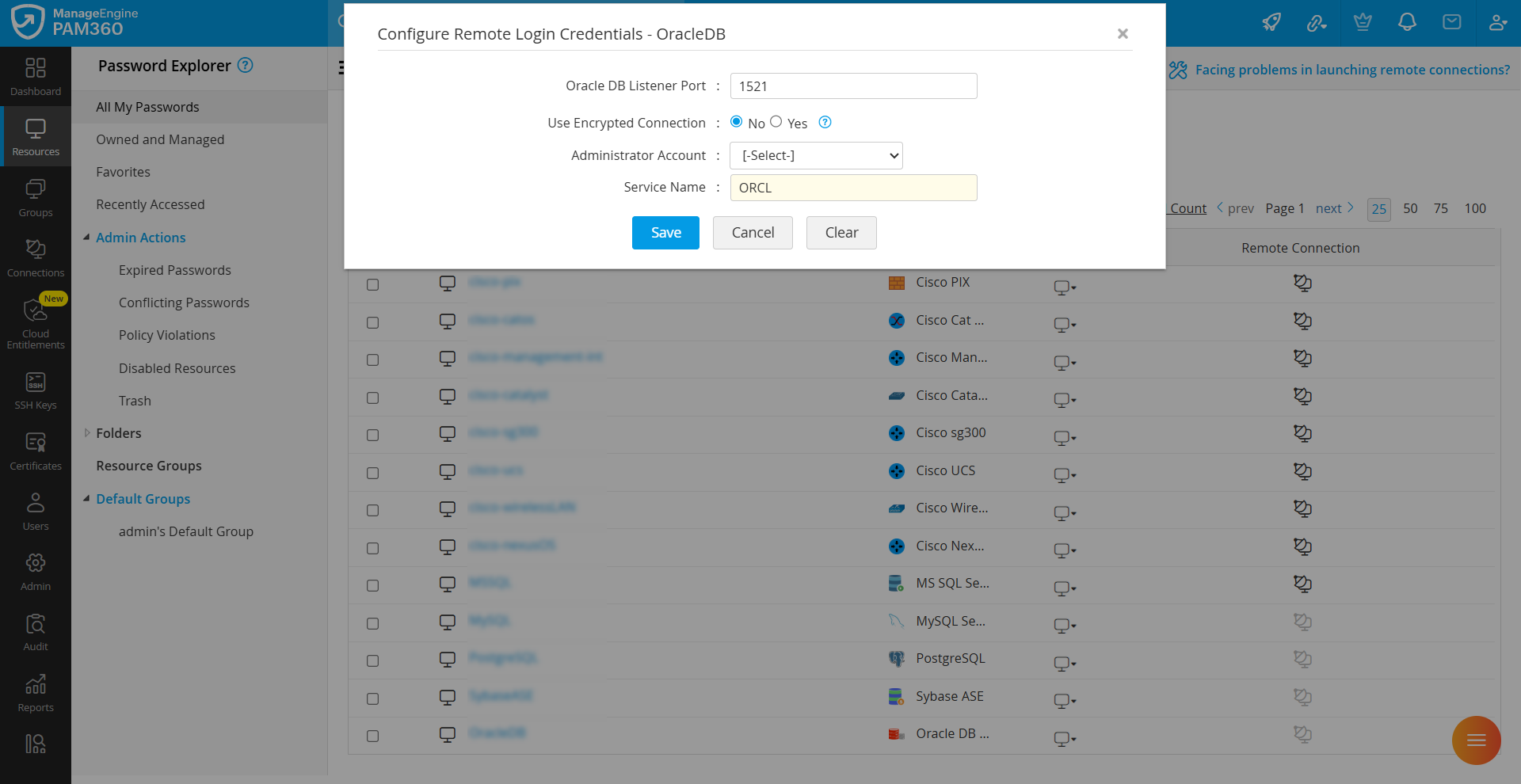
Follow the steps below to configure the credentials required to perform remote password resets for Oracle DB Server accounts:
- Navigate to the Resources tab, click the Resource Actions icon beside the desired resource, and select Configure >> Remote Password Reset.
- On the Configure Remote Login Credentials page that appears, specify the Oracle DB Listener Port. By default, the Oracle DB server listens to the port 1521.
- Specify the connection mode. You can configure the connection between Oracle DB Server and PAM360 to be over an encrypted channel (AES 256). If you choose the option YES (encrypted mode), follow these steps:
- Start Oracle Net Manager.
- In the Navigator window, select Oracle Net Configuration.
- Expand the option Local >> Profile.
- From the list in the right side pane, select the option Oracle Advanced Security.
- In the tabbed window that appears, click the Encryption tab.
- In the drop-down list for Encryption, select the option Server.
- For the Encryption Type list, select the option Accepted.
- For the Encryption Seed text field, either leave it blank or enter random characters between 10 and 70.
- Select the algorithm AES 256.
- Specify an Oracle Administrator Account.
- Specify the Oracle Service Name. By default, the service name is taken as ORCL.
- Click Save to apply the changes.
4. Network Devices
4.1 HP ProCurve
To perform remote password resets on HP ProCurve devices, PAM360 requires either the Telnet or SSH service to be running on the target device. Login credentials are needed for PAM360 to log in and gain the necessary privileges. Once connected, PAM360 switches to the configuration terminal mode (configure terminal) to execute the password reset commands.
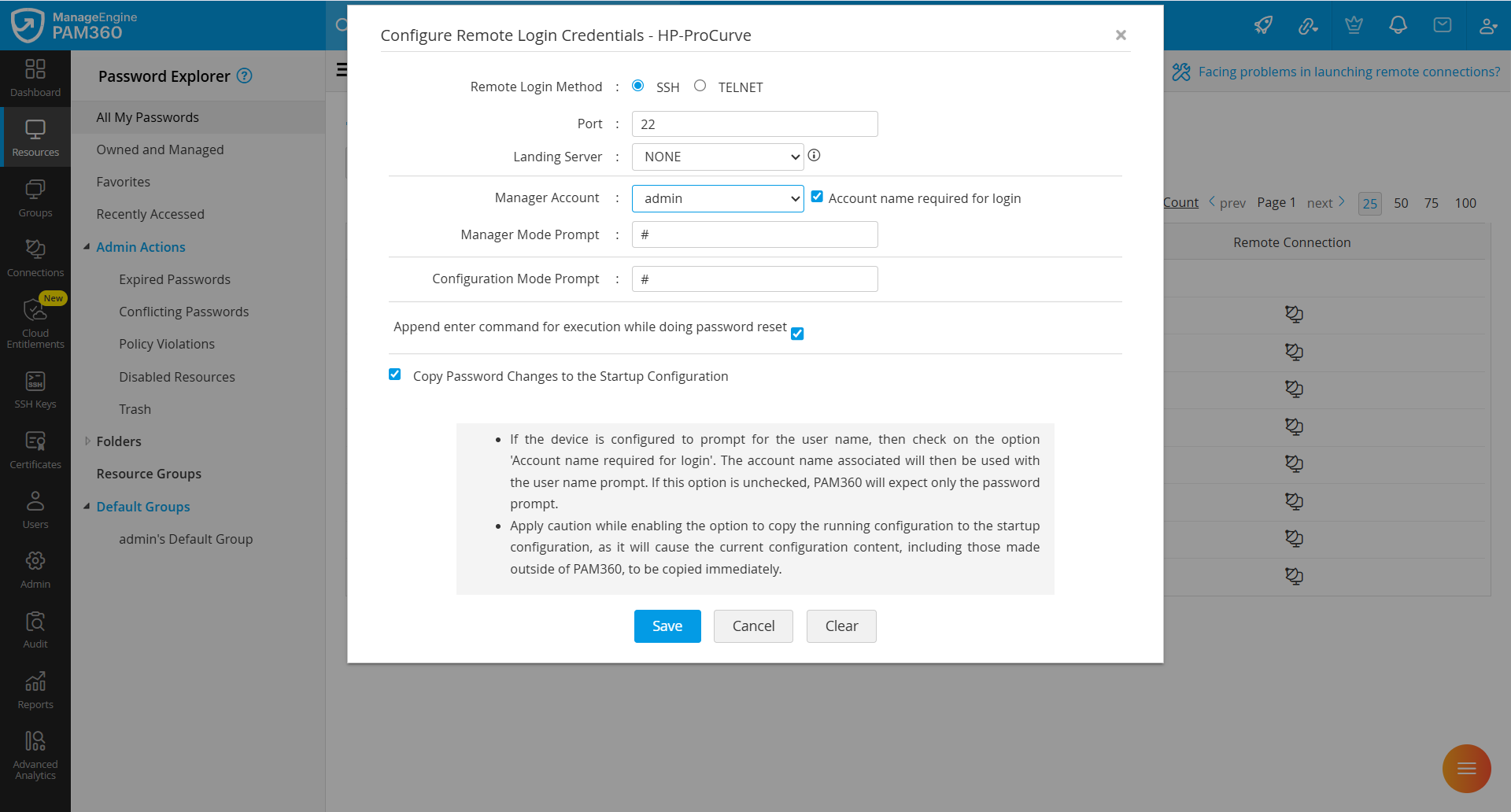
Follow the steps below to configure the credentials required to perform remote password resets on HP ProCurve devices:
- Navigate to the Resources tab, click the Resource Actions icon beside the desired resource, and select Configure >> Remote Password Reset.
- On the Configure Remote Login Credentials page that appears, specify the following details:
- Remote Login Method: PAM360 supports SSH and Telnet protocols to establish a connection with the device for password reset. Select the required protocol.
- Port: Enter the port number. By default, SSH uses port 22 and telnet uses port 23.
- Landing Server: Choose the landing server through which PAM360 should connect to the target device. Select NONE if a landing server is not required.
- Manager Account: Select the login account used to establish the connection.
- Account name required for login: Enable this option if the device prompts for a username in either user or enable mode. PAM360 will use the account name associated with the login account to respond to the username prompt. If this option is not selected, PAM360 will assume that only a password prompt appears during login.
- Manager Mode Prompt: Enter the prompt displayed after a successful login.
- Configuration Mode Prompt: Enter the prompt displayed when entering privileged mode to perform the password reset.
- Append enter command for execution while doing password reset: Enable this option if the target system requires an additional “Enter” keystroke after sending commands.
- Copy Password Changes to the Startup Configuration: Select this option to apply password changes made to the running configuration in PAM360 to the startup configuration.
Caution:
Enabling the option to copy the running configuration to the startup configuration will immediately replicate the current configuration (including any changes made outside of PAM360) to the startup configuration.
- Click Save to apply the settings.
4.2 Juniper NetScreen ScreenOS
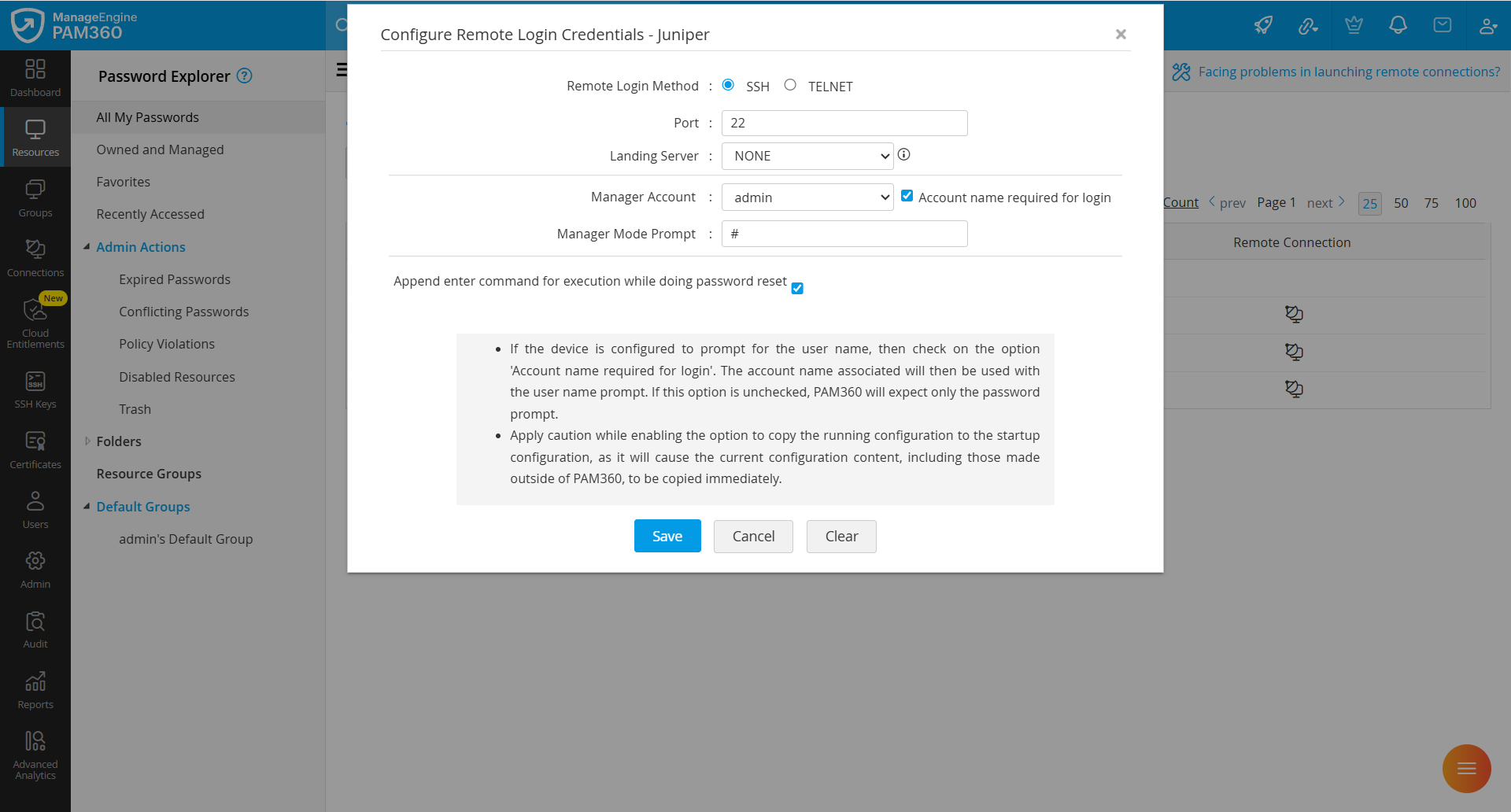
PAM360 requires either Telnet or SSH service to be running in the resource. An Admin Account and its associated Prompt are required for PAM360 to login to the resource. Follow the steps below to configure the credentials required to perform remote password reset on Netscreen devices:
- Navigate to the Resources tab, click the Resource Actions icon beside the desired resource, and select Configure >> Remote Password Reset.
- On the Configure Remote Login Credentials page that appears, specify the following details:
- Remote Login Method: PAM360 supports SSH and Telnet protocols to establish a connection with the device for password reset. Select the required protocol.
- Port: Enter the port number. By default, SSH uses port 22 and telnet uses port 23.
- Landing Server: Choose the landing server through which PAM360 should connect to the target device. Select NONE if a landing server is not required.
- Manager Account: Select the login account used to establish the connection with the device.
- Account name required for login: Enable this option if the device prompts for a username in either user or enable mode. PAM360 will use the account name associated with the login account to respond to the username prompt. If this option is not selected, PAM360 will assume that only a password prompt appears during login.
- Manager Mode Prompt: Enter the prompt displayed after a successful login.
- Append enter command for execution while doing password reset: Enable this option if the target system requires an additional “Enter” keystroke after sending commands.
- Click Save to apply the configuration.
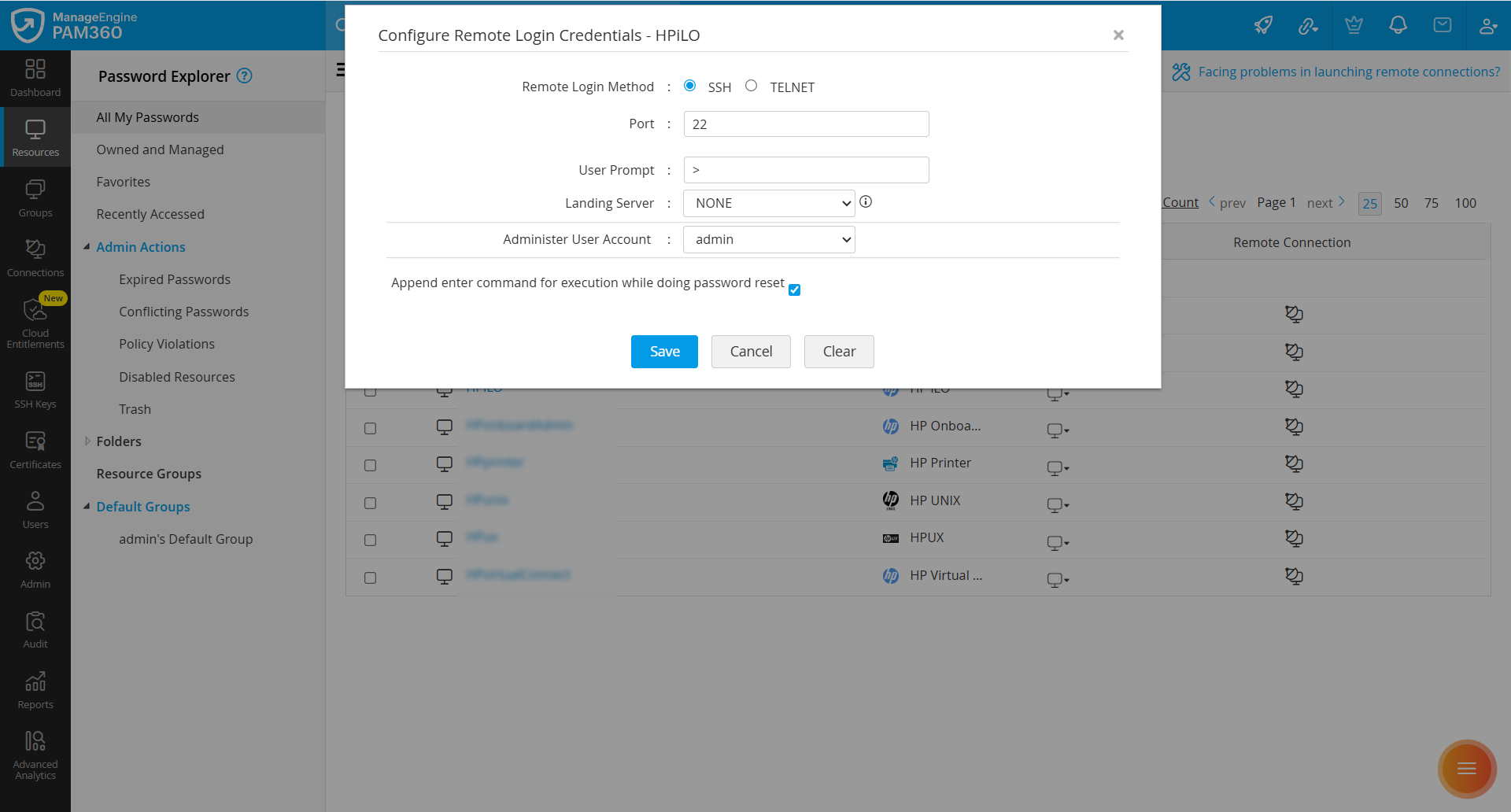
4.3 HP iLO
Follow the steps below to configure the credentials required to perform remote password reset on HP iLO devices:
- Navigate to the Resources tab, click the Resource Actions icon beside the desired resource, and select Configure >> Remote Password Reset.
- On the Configure Remote Login Credentials page that appears, specify the following details:
- Remote Login Method: PAM360 supports SSH and Telnet protocols to establish a connection with the device for password reset. It is required that either the Telnet or SSH service is running on the resource.
- Port: Enter the port number. By default, SSH uses port 22 and telnet uses port 23.
- User prompt: Enter the prompt that appears upon successful user login.
- Landing Server: Choose the landing server through which PAM360 should connect to the target device. Select NONE if a landing server is not required.
- Administer User Account: Select the account with administrator privileges to be used for performing the password reset operation.
- Append enter command for execution while doing password reset: Enable this option if the target system requires an additional “Enter” keystroke after sending commands.
- Click Save to apply the configuration.
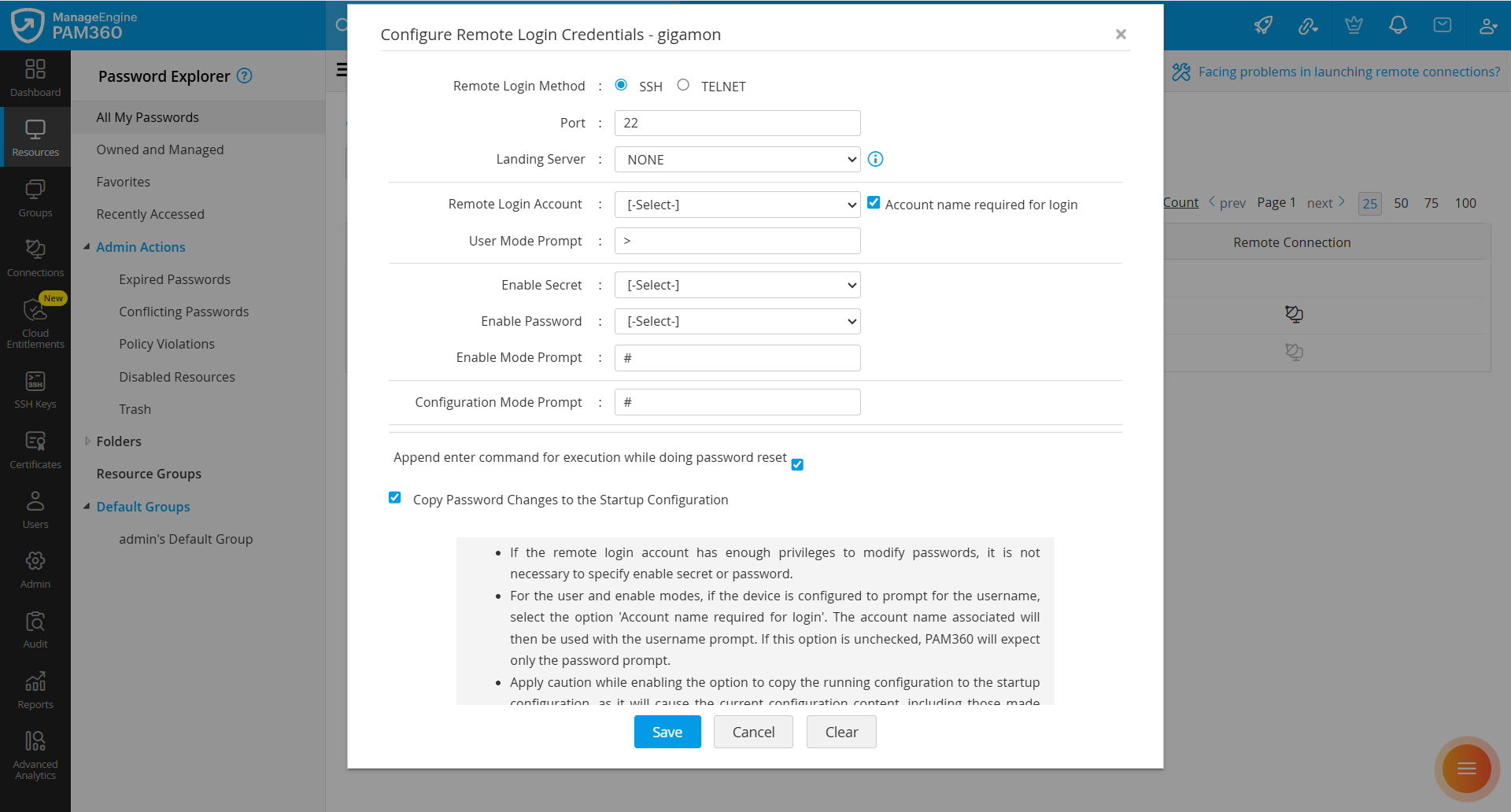
4.4 Gigamon, Orange Firewall or Ruijie
Follow the steps below to configure the credentials required to perform remote password reset on Gigamon, Orange Firewall, and Ruijie devices:
- Navigate to the Resources tab, click the Resource Actions icon beside the desired resource, and select Configure >> Remote Password Reset.
- On the Configure Remote Login Credentials page that appears, specify the following details:
- Remote Login Method: PAM360 supports SSH and Telnet protocols to establish a connection with the device for password reset. Select the required protocol.
- Port: Enter the port number. By default, SSH uses port 22 and telnet uses port 23.
- Landing Server: Choose the landing server through which PAM360 should connect to the target device. Select NONE if a landing server is not required.
- Remote Login Account: Select the account that PAM360 should use to establish a connection with the device.
- Account Name Required for Login: Enable this option if the device prompts for a username in either user or enable mode. PAM360 will use the account name associated with the login account to respond to the username prompt. If this option is not selected, PAM360 will assume that only a password prompt appears during login.
- User Mode Prompt: Enter the prompt displayed after a successful login.
- Enable Secret: This is used to enter privileged mode for performing the password reset. If the remote login account already has sufficient privileges to modify passwords, specifying the Enable Secret is not necessary.
- Enable Password: This is also used to enter privileged mode for performing the password reset. If the remote login account already has sufficient privileges to modify passwords, specifying the Enable Password is not required.
- Enable Mode Prompt: Enter the prompt displayed after entering enable mode. For example, #.
- Configuration Mode Prompt: To make any configuration changes on the device, entering configuration mode is necessary. Enter the prompt that appears in configuration mode here. For example, #.
- Append enter command for execution while doing password reset: Enable this option if the target system requires an additional “Enter” keystroke after sending commands.
- Copy Password Changes to the Startup Configuration: Select this option to copy the password changes made in the running configuration to the startup configuration.
Caution
Enabling the option to copy the running configuration to the startup configuration will immediately replicate the current configuration (including any changes made outside of PAM360) to the startup configuration.
- Click Save to apply the configuration.
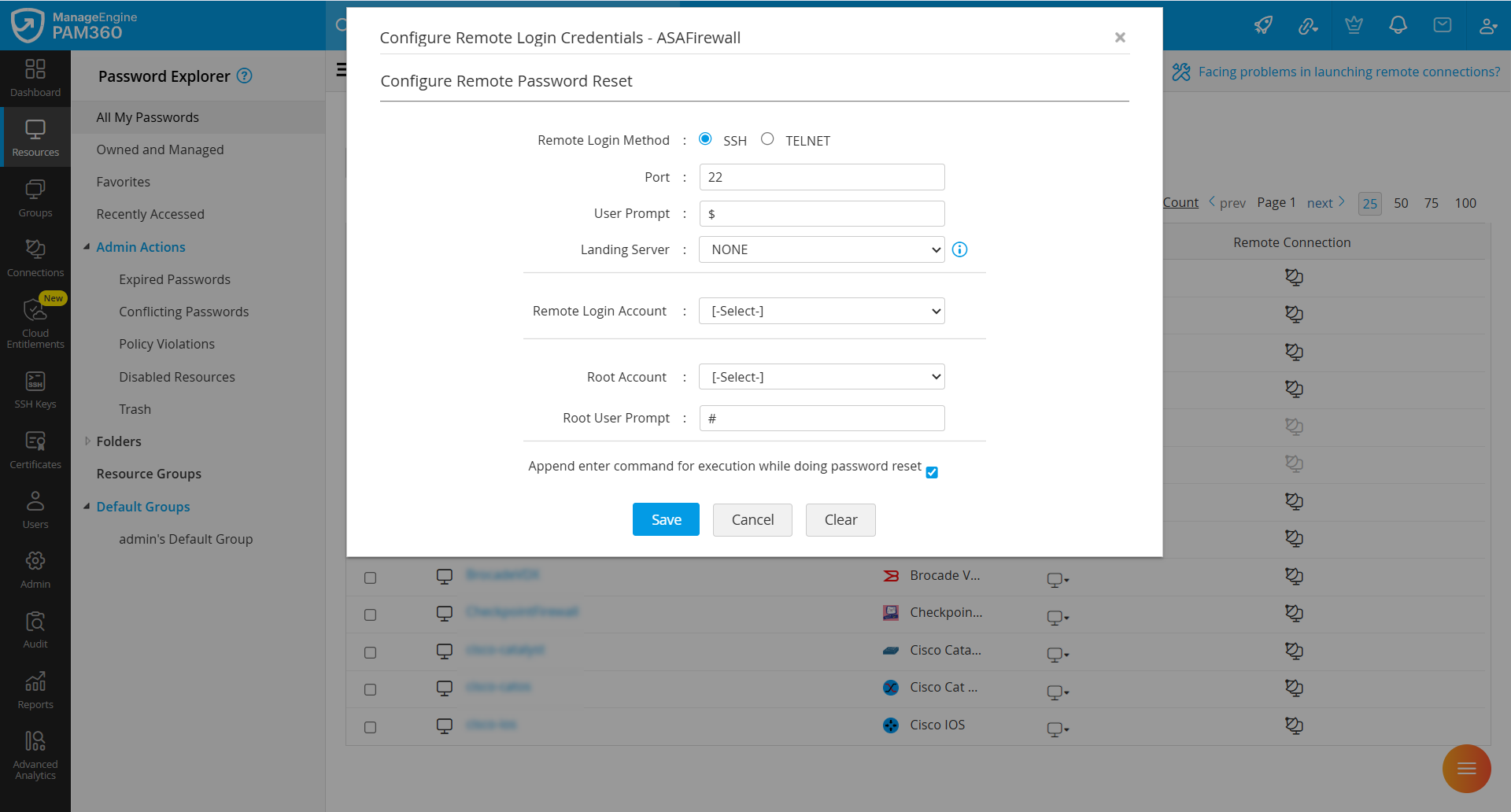
4.5 Other Network Devices
Applicability
This procedure is applicable for the following resource types: ASA Firewall, Audiocode, Brocade, Brocade VDX, Brocade SAN Switch, Checkpoint Firewall, Extreme Networks, F5, Fortinet, Fortigate Firewall, Fortimail, Fujitsu Switch, H3C, HMC, HP Printer, HP Onboard Administrator, HP Virtual Connect, Huawei, Juniper, Mikrotik, OpenGear, Palo Alto Networks, Pfsense, Routerboard, Sonicwall, TPLINK and VMware VCenter.
Follow the steps below to configure the credentials required to perform remote password resets on the other network devices:
- Navigate to the Resources tab, click the Resource Actions icon beside the desired resource, and select Configure >> Remote Password Reset.
- On the Configure Remote Login Credentials page that appears, specify the following details:
- Remote Login Method: PAM360 supports SSH and Telnet protocols to establish a connection with the device for password reset. Select the required protocol.
- Port: Enter the port number. By default, it occupies port 22.
- User Prompt: Enter the user prompt displayed after successful login. The default is $.
- Landing Server: Choose the landing server through which PAM360 should connect to the target device. Select NONE if a landing server is not required.
- Remote Login Account: Select the account that PAM360 should use to establish a connection with the device.
- Root Account: Select the root account to perform privileged operations.
- Root User Prompt: Enter the prompt associated with the root account. The default is #.
- Append enter command for execution while doing password reset: Enable this option if the target system requires an additional “Enter” keystroke after sending commands.
- Click Save to apply the configuration.
5. Cloud Devices
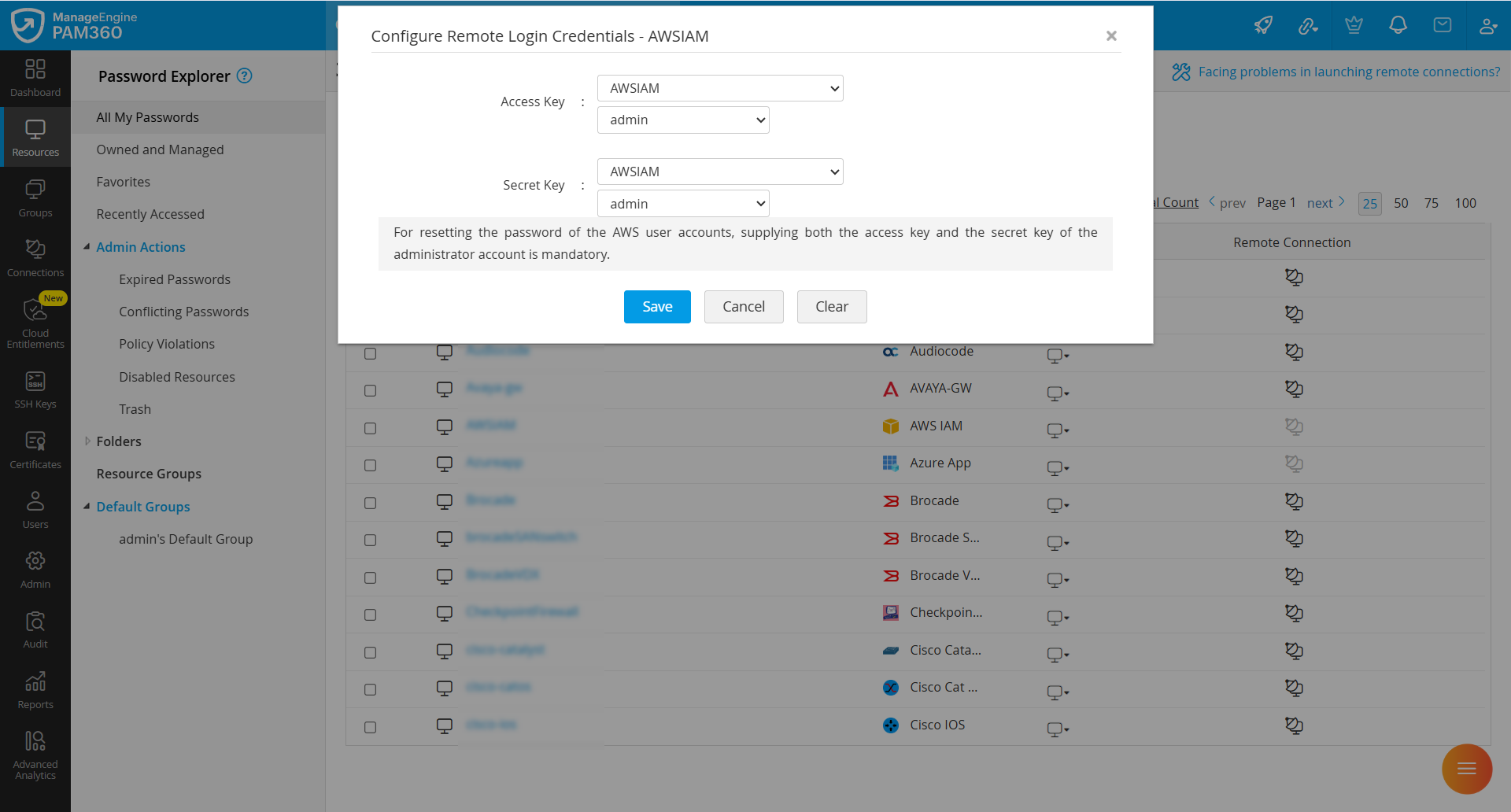
5.1 AWS IAM
Password resets for AWS IAM user accounts are performed using the AWS SDK. Follow the steps below to configure the credentials required to perform remote password resets for the AWS IAM accounts:
- Navigate to the Resources tab, click the Resource Actions icon beside the desired resource, and select Configure >> Remote Password Reset.
- On the Configure Remote Login Credentials page that appears:
- The administrator account's Access Key and Secret Key are required.
- The access key and secret key should be stored as passwords in PAM360. These credentials can be associated with an account of any resource type, which can then be used for remote synchronization.
- Click Save to apply the configuration.
5.2 Google Workspace
Caution
Google has updated the password reset flow for Google Workspace resources using OAuth 2.0. Therefore, the passwords of Google Workspace accounts can no longer be reset using an administrator account alone. Please upgrade to the 7200 version of PAM360 for a seamless password rotation.
Additional Detail
Due to Google's enforcement of OAuth 2.0 authentication, PAM360 supports OAuth 2.0 for server-to-server communication during remote password resets of Google Workspace resources, thereby enhancing security.
To configure the credentials required to perform remote password resets of your Google accounts, perform the actions that follow:
- Set up a service account in your Google Workspace domain, grant it the necessary scopes and permissions to execute remote password resets, and download the service account key file. Explore this link for the detailed steps on setting up a service account within your domain.
- Configure remote password reset for the desired Google Workspace accounts in PAM360 using the service account key file with the steps below:
- Import the service account key file obtained from the Google Cloud Console into PAM360 as a Filestore resource.
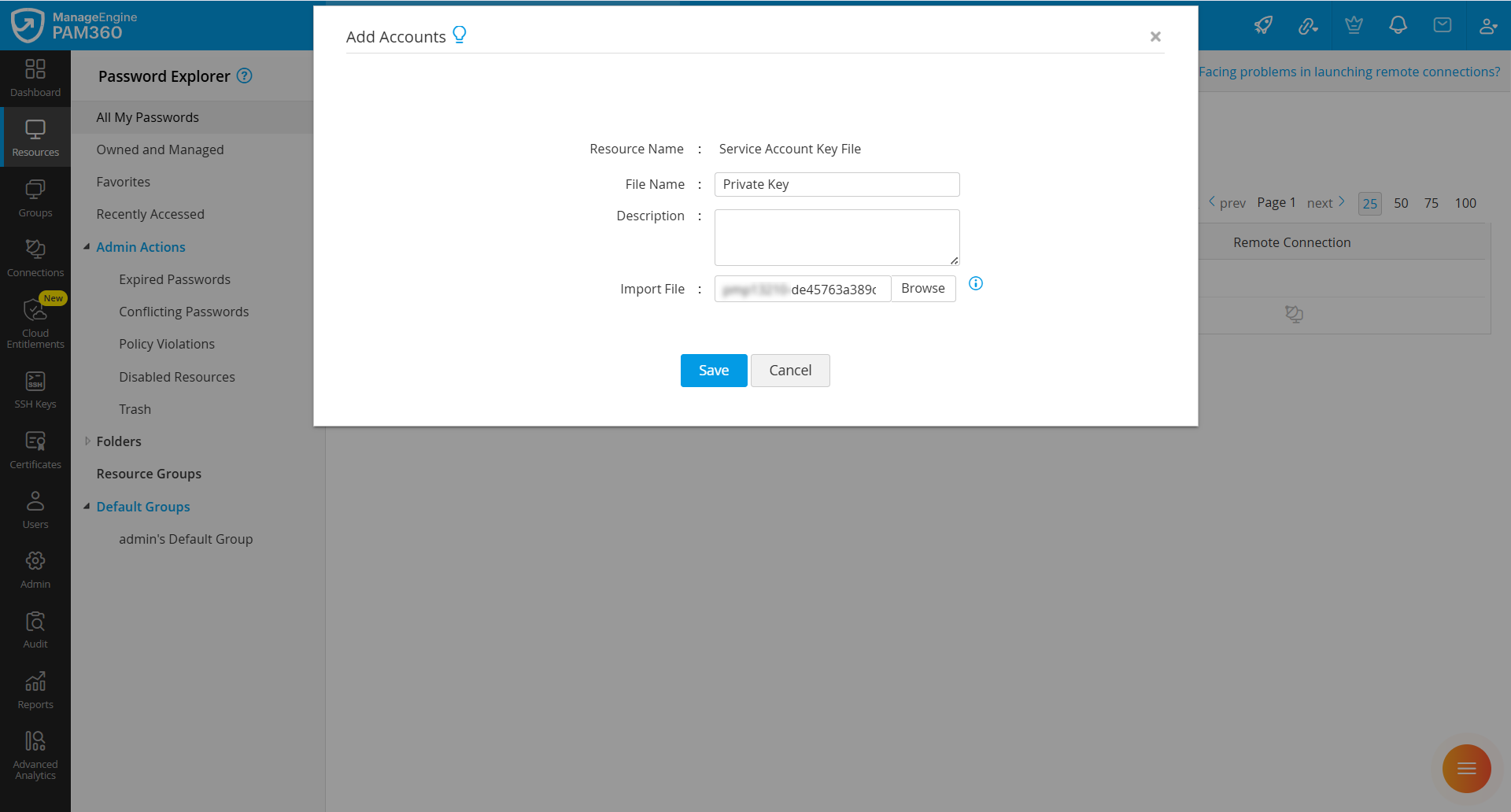
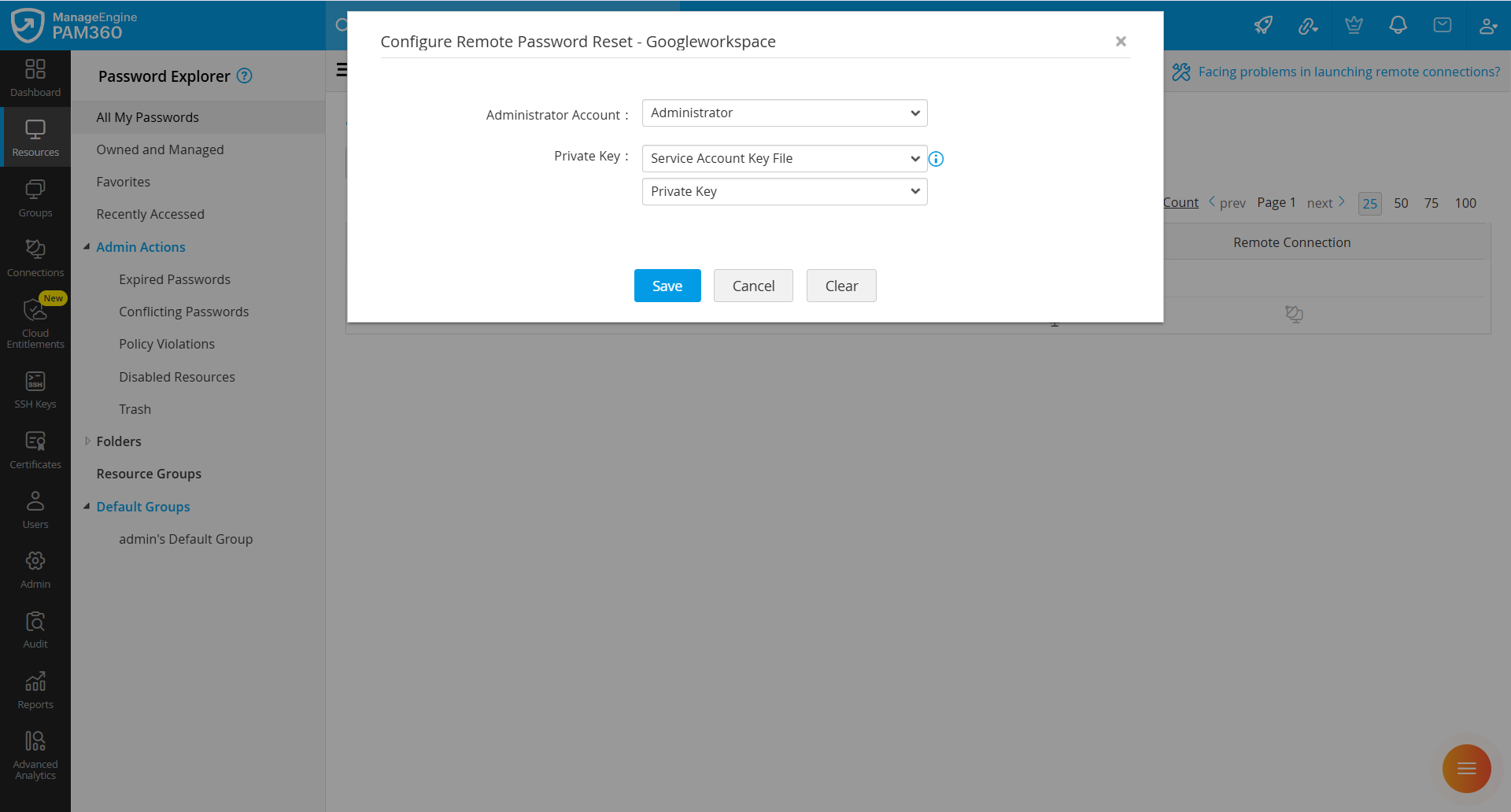
- Click the Resource Actions icon beside the desired Google Workspace resource and select Configure >> Remote Password Reset.
- In the Configure Remote Password Reset window that appears, select the administrator account and the Filestore resource and account that contains the service account key file, and click Save.
- Import the service account key file obtained from the Google Cloud Console into PAM360 as a Filestore resource.
Caution
When setting up or resetting passwords for Google Workspace accounts, it is important to follow the password requirements mandated by Google to ensure the security and integrity of user accounts. If the new password does not meet these requirements, the password reset for the Google Workspace account will fail due to the password not meeting the mandated password policy. To ensure a seamless password reset experience, we recommend creating a custom password policy for the Google Workspace resources that aligns with Google's password requirements. Explore this link to learn more about the password requirements for your Google Workspace accounts.
5.3 Microsoft Entra ID
Caution
As per Microsoft's enforcement of mandatory Multi-Factor Authentication (MFA) for administrator accounts, remote password resets using traditional administrator accounts for IAM users in Microsoft Entra ID are no longer supported in PAM360 versions prior to 8000. To enable remote password resets for IAM user accounts, please upgrade to PAM360 version 8000 or later, which includes updated support aligning with Microsoft’s MFA requirements.
PAM360 allows you to manage IAM user accounts in Microsoft Entra ID, with the ability to rotate their passwords directly from the interface, either on demand or on a scheduled basis. To enable remote password reset, an application should be created in Entra ID with the necessary credentials and assigned an appropriate administrator role. Follow the steps detailed below to create an application in Microsoft Entra ID and assign it the required administrator role:
- Log in to the Microsoft Azure portal.
- Create a new application that PAM360 will use to communicate with Entra ID's IAM user accounts for password rotation. Ensure that the application is only granted with User.ReadWrite.All permission under both Delegated and Application types. For guidance, refer to section 1 of this document for a sample procedure on creating an application.
- To assign an administrator role to the application, follow these steps:
- In the Microsoft Azure portal, navigate to Entra ID.
- From the left-hand menu, select Manage and click Roles and Administrators.
- Use the search bar to locate a suitable administrator role, such as Privileged Authentication Administrator or Global Administrator.
- On the role page that opens, click Add assignments.
- Search and select the application configured for remote password resets, and click Add to assign the administrator role to it.
Best Practice
We recommend assigning the Privileged Authentication Administrator role to the application, as it offers the least privileged permissions required for password resets.
Once the above prerequisites are completed, follow the steps below to configure the credentials required to perform remote password resets for Microsoft Entra ID user accounts:
- Navigate to the Resources tab within your PAM360 account and locate the Microsoft Entra ID resource with user accounts for which you want to configure remote password reset.
- Click the Resource Actions drop-down menu next to the resource and select Configure >> Remote Password Reset.
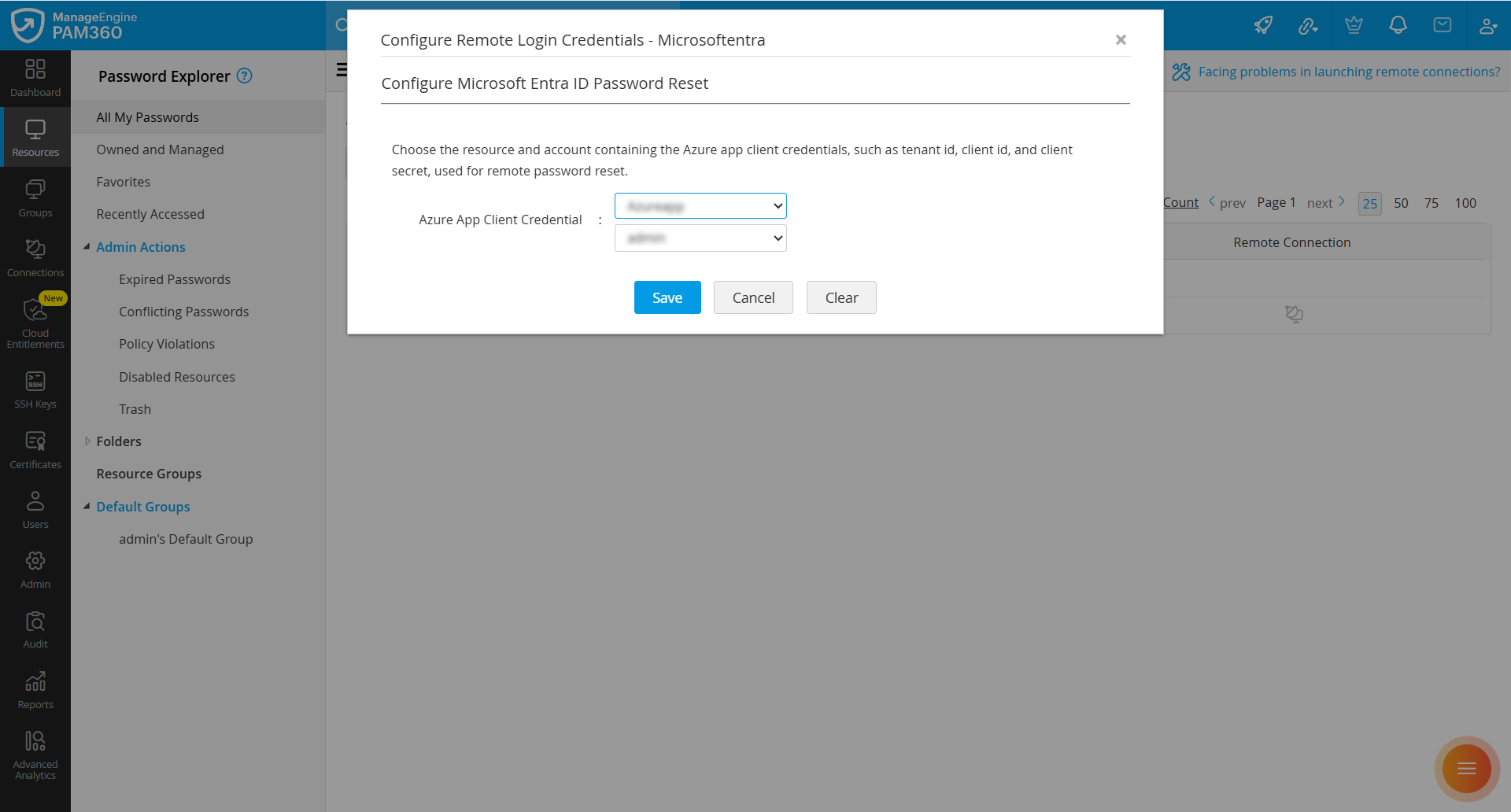
- On the Configure Remote Login Credentials page that appears:
- From the Select Resource dropdown, choose the application you created and added as an Azure App resource in PAM360.
- From the Select Account dropdown, select the client secret that was added as an account within the Azure App resource.
- Click Save to complete the configuration and enable remote password reset for the selected Microsoft Entra ID resource with user accounts.
5.4 Rackspace
Password resets for Rackspace user accounts are performed using the Rackspace REST APIs. Follow the steps below to configure the credentials required to perform remote password resets for the Rackspace user accounts:
- Navigate to the Resources tab, click the Resource Actions icon beside the desired resource, and select Configure >> Remote Password Reset.
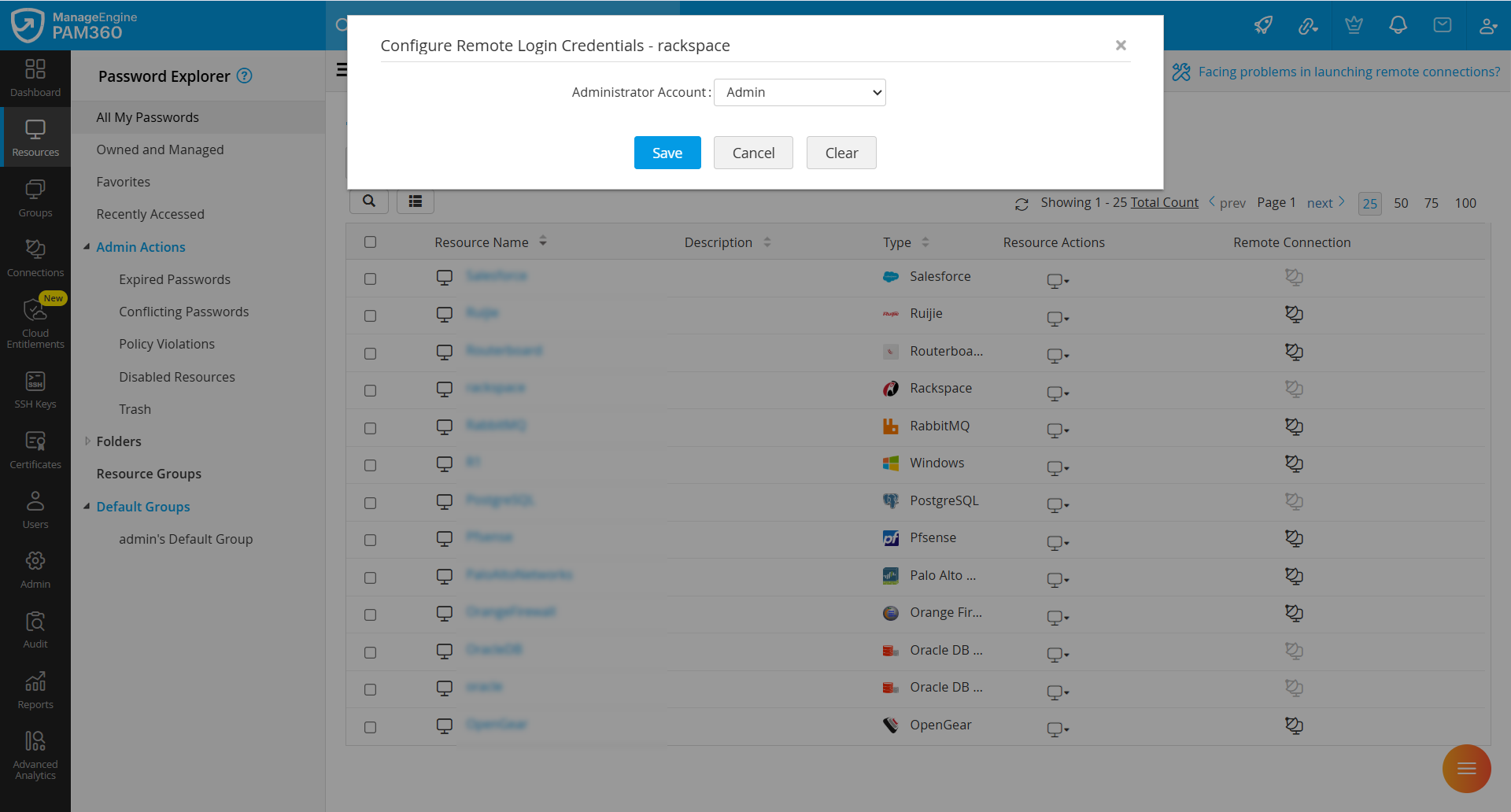
- On the Configure Remote Login Credentials page that appears:
- Select a Rackspace administrative credential to be used as the administrator account.
- Click Save to apply the configuration.
Additional Details
The following are the location-based authentication endpoints available for connecting to the server:
- US-based end point: https://identity.api.rackspacecloud.com/v2.0
- UK-based end point: https://lon.identity.api.rackspacecloud.com/v2.0
5.5 Salesforce
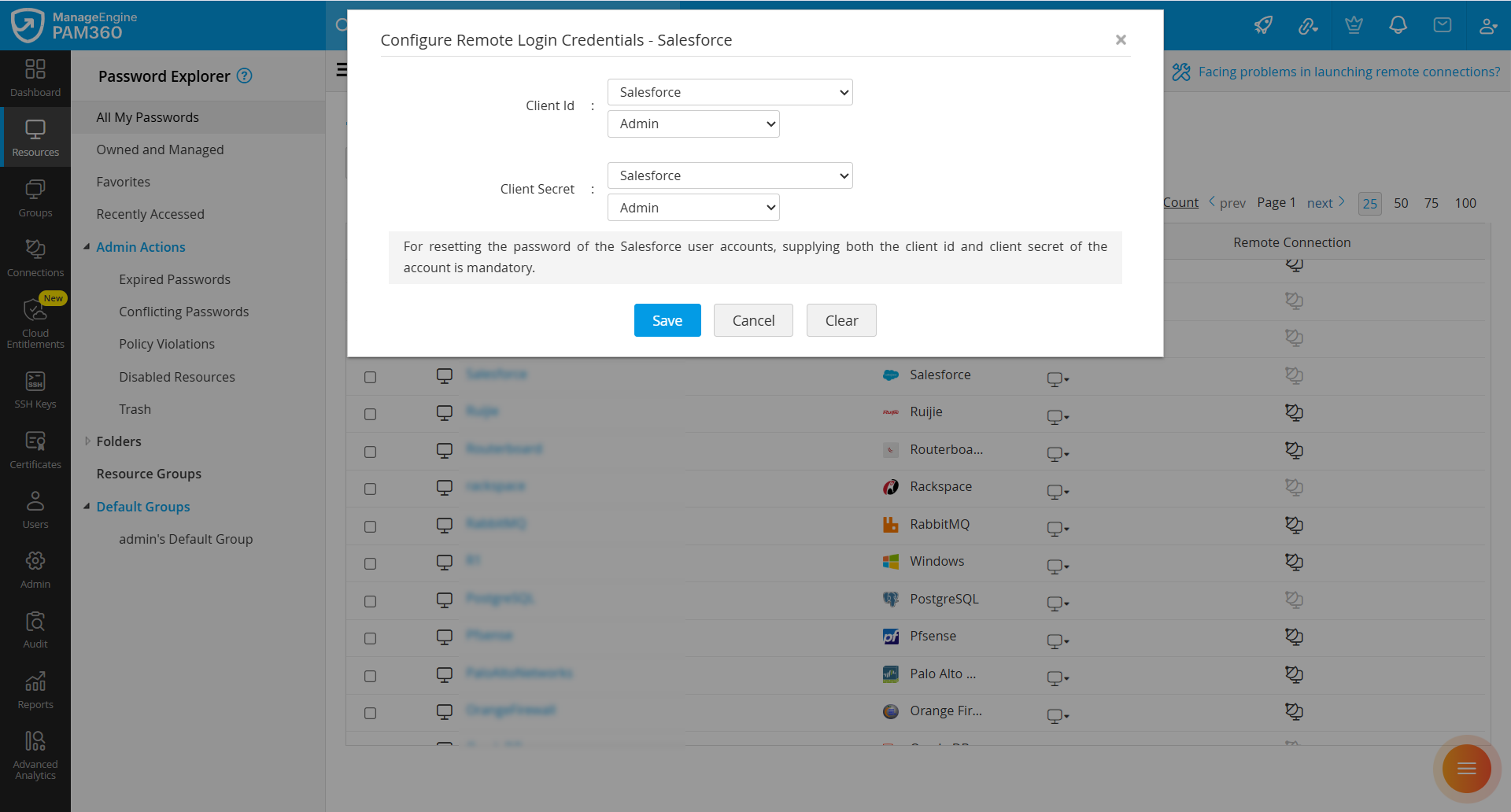
Password resets for Salesforce user accounts are performed using the Force.com REST API. Follow the steps below to configure the credentials required to perform remote password resets for Salesforce user accounts:
- Navigate to the Resources tab, click the Resource Actions icon beside the desired resource, and select Configure >> Remote Password Reset.
- On the Configure Remote Login Credentials page that appears:
- The administrator account's Client ID and Client Secret are required.
- The Client ID and Client Secret should be added as passwords in PAM360. These passwords can be associated with an account of any resource type, which can be used for remote synchronization.
- Click Save to apply the configuration.
5.6 Citrix Netscaler SDK, Citrix Netscaler VPX, Magento, Netapp 7mode or Netapp CDot
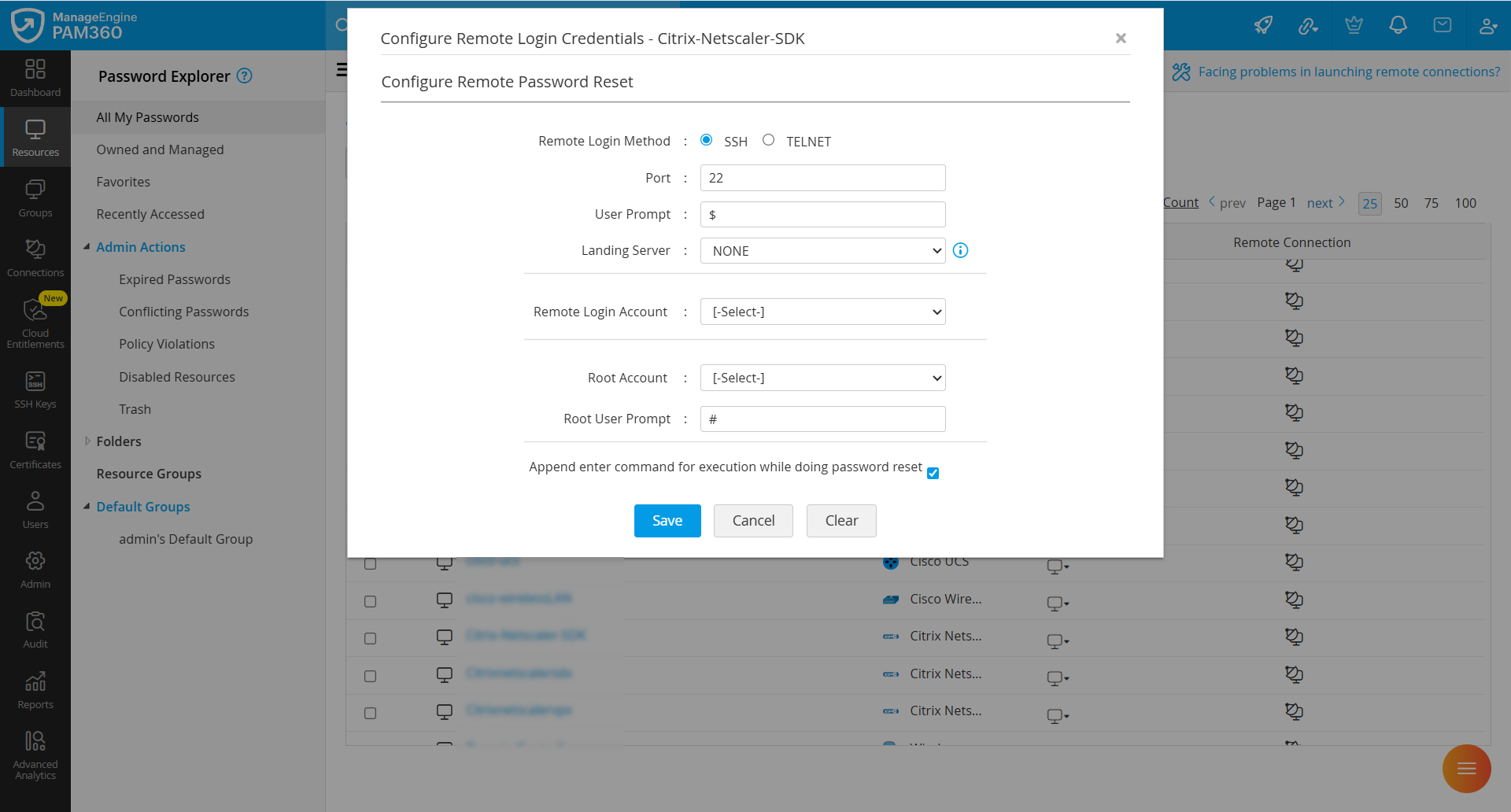
Follow the steps below to configure the credentials required to perform remote password reset for Citrix Netscaler SDK, Citrix Netscaler VPX, Magento, Netapp 7mode, and Netapp CDot:
- Navigate to the Resources tab, click the Resource Actions icon beside the desired resource, and select Configure >> Remote Password Reset.
- On the Configure Remote Login Credentials window, specify the following details:
- Remote Login Method: PAM360 supports SSH and Telnet protocols to establish a connection with the device for password reset. Select the required protocol.
- Port: Enter the port number. By default, it occupies port 22.
- User Prompt: Enter the user prompt displayed after successful login. The default is $.
- Landing Server: Choose the landing server through which PAM360 should connect to the target device. Select NONE if a landing server is not required.
- Remote Login Account: Select the account that PAM360 should use to establish a connection with the device.
- Root Account: Select the root account to perform privileged operations.
- Root User Prompt: Enter the prompt associated with the root account. The default is #.
- Append enter command for execution while doing password reset: Enable this option if the target system requires an additional “Enter” keystroke after sending commands.
- Click Save to apply the configuration.
6. MQ Applications
6.1 RabbitMQ
Caution
To perform a remote password reset for a RabbitMQ resource in PAM360, you should use an account with RabbitMQ administrator privileges. Additionally, ensure that a valid HTTPS URL is specified in the Resource URL field, as this is mandatory for establishing a secure connection with the target RabbitMQ server.
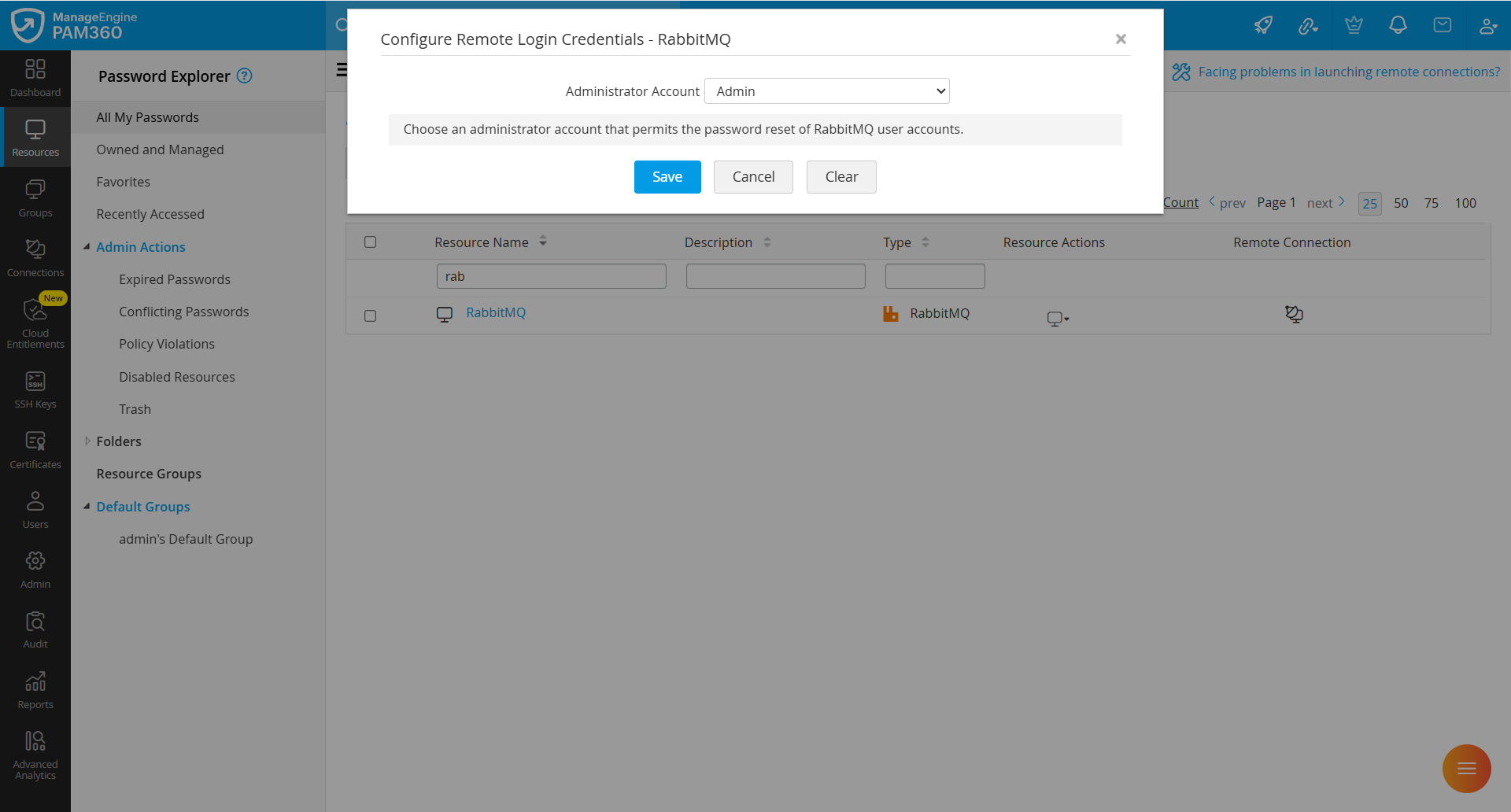
Follow the below steps to configure the credentials required to perform remote password reset for RabbitMQ:
- Navigate to the Resources tab, click the Resource Actions icon beside the desired resource, and select Configure >> Remote Password Reset.
- On the Configure Remote Login Credentials page that appears:
- From the Administrator Account dropdown, select the RabbitMQ administrator account that has the necessary privileges to reset passwords for RabbitMQ user accounts.
- Click Save to apply the changes.
7. Enterprise Applications
7.1 SAP Systems
PAM360 enables centralized management of SAP user accounts, allowing administrators to rotate SAP user passwords directly from the PAM360 interface either on demand or on a scheduled basis. To support password management operations, the following prerequisites should be met:
- The SAP Java Connector SDK files should be available on the PAM360 server. Download the required SDK files from here using a valid SAP account and place them in the PAM360 installation directory as outlined below:
- sapjcoXX.jar in <PAM360-Installation-Directory>/lib
- sapjcoXX.dll in <PAM360-Installation-Directory>/lib/native
- An SAP administrator account with the required RFC and user group authorizations is required to perform password management operations.
Required RFC AuthorizationsACTVT RFC_NAME RFC_TYPE Purpose 16
RFCPING
FUNC
Verifies RFC connectivity and credentials before executing business login
16
BAPI_USER_GETLIST
FUNC
Retrieves the list of SAP users for validation, display, and API lookup
16
SUSR_USER_CHANGE_
PASSWORD_RFCFUNC
Resets or updates SAP user passwords through programmatic interface
16
RFC_GET_FUNCTION_INTERFACE
FUNC
Allows the SDK to read metadata and dynamically inspect BAPI input/output structures
16
DDIF_FIELDINFO_GET
FUNC
Retrieves data dictionary field definitions required during dynamic BAPI execution
OBJECT FIELD VALUE REASON S_USER_GRP
ACTVT
02
Grants permission to modify users in authorized groups
S_USER_GRP
USERGROUP
Specific group names or "*" for all
Defines the scope of users that can be modified
Caution
Depending on the SAP SDK version in use, additional RFC authorizations may be required.
Once the above prerequisites are completed, follow the steps below to configure the remote login credentials required to perform password management for SAP user accounts:
- Navigate to the Resources tab within your PAM360 account and locate the SAP resource with user accounts for which you want to configure remote password reset.
- Click the Resource Actions drop-down menu next to the resource and select Configure >> Remote Password Reset.
- On the Configure Remote Login Credentials page that appears:
- Enter the SAP System Number.
- Select an SAP Administrator Account that has the necessary authorizations privileges to manage passwords for other SAP user accounts.
- Click Save to apply the configuration.
Caution
- For a successful password reset of SAP user accounts, the current password of the SAP account should match the password stored in the PAM360 database. Use the Verify Password option under Account Actions for password verification.
- SAP user accounts can be discovered from individual SAP resources. If you intend to perform bulk discovery using resource group-based periodic account discovery, only SAP user accounts with the Dialog user type will be discovered.
8. Others
8.1 LDAP Server
Caution
Specify a Distinguished Name for the LDAP server account in PAM360. For example, c=administrator, cn=people, dc=test, dc=com.
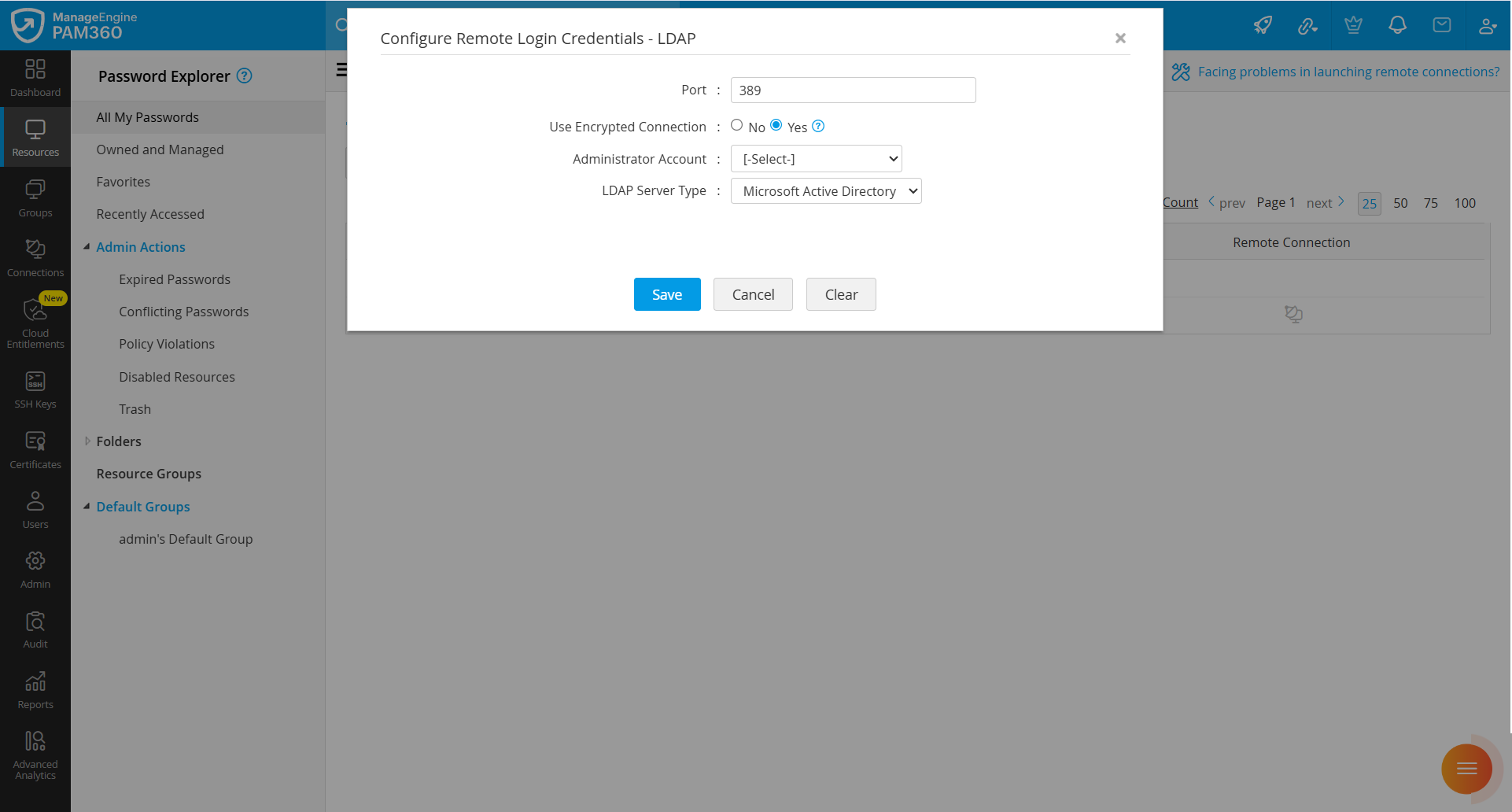
Follow the steps below to configure the credentials required to perform remote password reset for the LDAP server:
- Navigate to the Resources tab, click the Resource Actions icon beside the desired resource, and select Configure >> Remote Password Reset.
- On the Configure Remote Login Credentials page that appears, specify the following details:
- Specify the LDAP server port. By default, it occupies the port 389, and for SSL mode, the default port is 636.
- Specify the LDAP Server Type. For remote password reset, PAM360 supports the following types of LDAP servers: Microsoft Active Directory, OpenLDAP, Oracle Internet Directory and Novell eDirectory
- Specify the connection mode. You can configure the connection between LDAP server and PAM360 to be over an encrypted channel (SSL) or Non-SSL. For LDAP servers other than Microsoft Active Directory, you may choose either SSL or Non-SSL. If the selected LDAP server is Microsoft Active Directory, the connection has to be through SSL only.
- When set to SSL, the LDAP server’s root certificate should be imported into the PAM360 server machine's certificate store. Import all certificates in the root certificate chain, including the PAM360 server machine's certificate and any intermediate certificates, if applicable. For detailed steps on importing certificates, see Question 11 in the Certificates section of the FAQ.
- After a successful import, restart the PAM360 server to apply the certificate changes before performing the remote password reset. Then, continue with the following steps.
- Specify an administrator account of LDAP server.
- Click Save to apply the changes.
8.2 VMware ESXi
Follow the steps below to configure the credentials required to perform remote password reset for VMware ESXi:
- Navigate to the Resources tab, click the Resource Actions icon beside the desired resource, and select Configure >> Remote Password Reset.
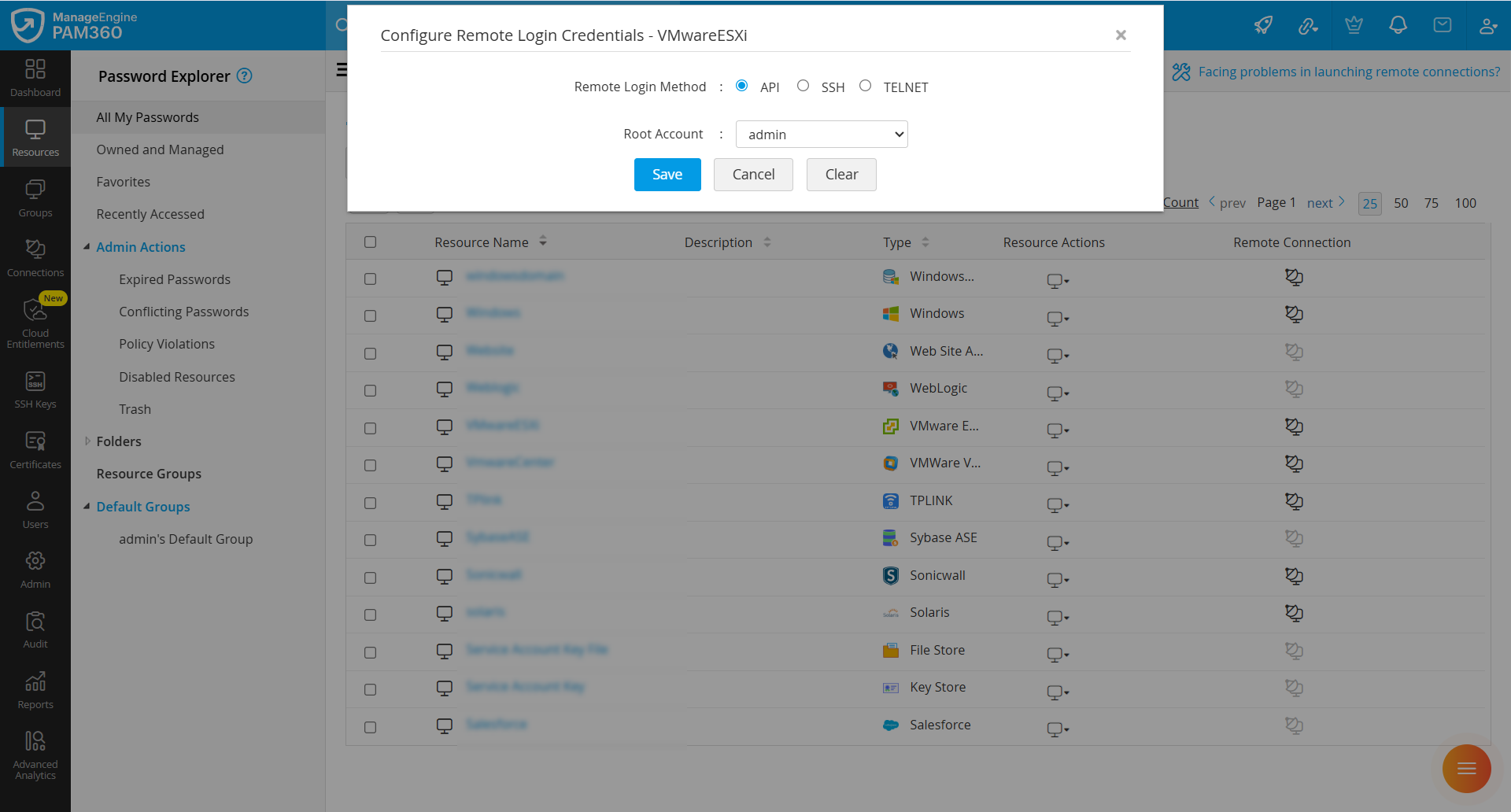
- PAM360 supports three remote login methods to reset passwords for VMware ESXi devices: API, SSH, and TELNET.
- If you select API as the remote login method, configure the following:
- Root Account: Select the root account to be used for API authentication.
- Click Save to apply the configuration.
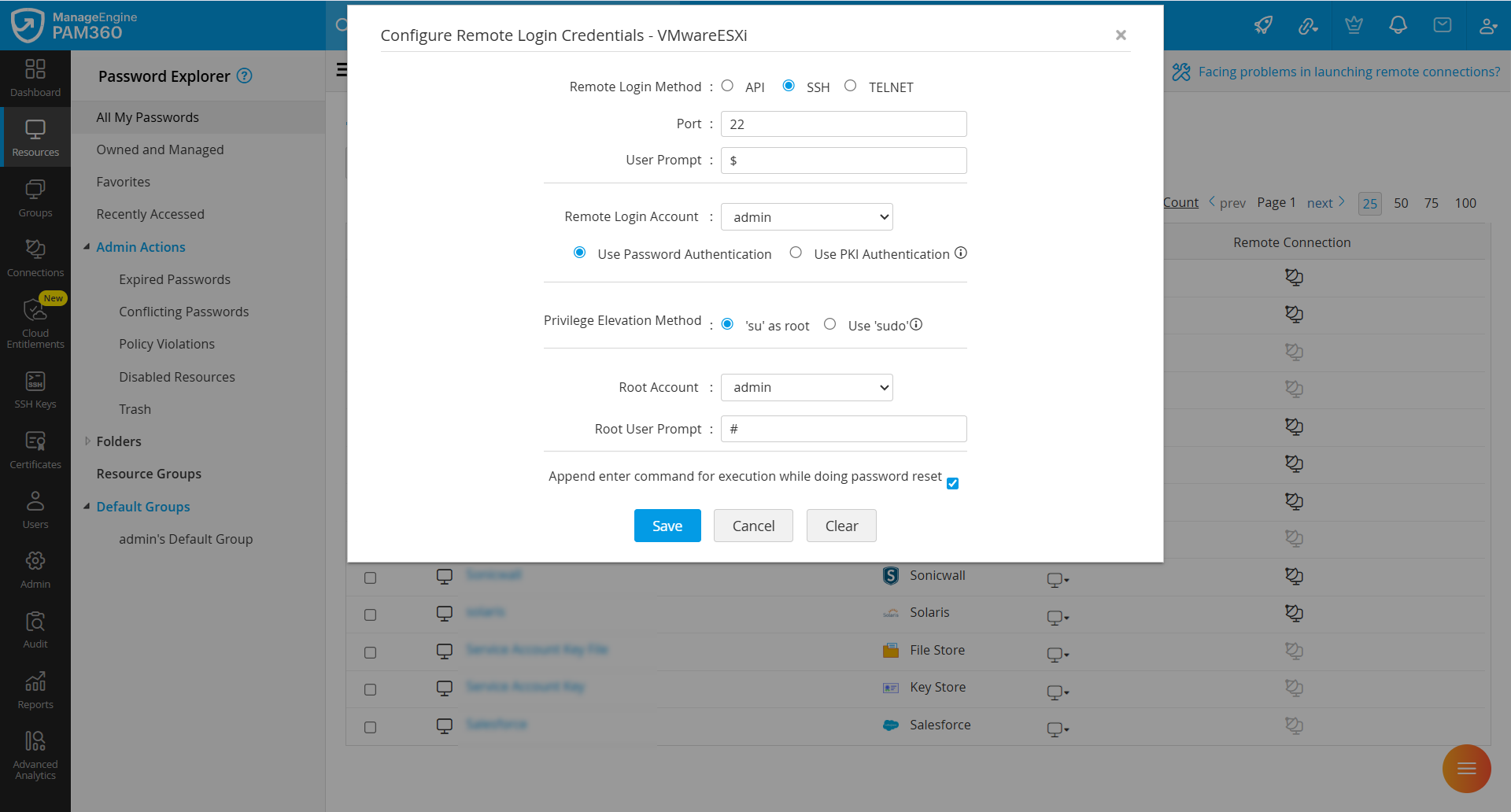
- If you select SSH as the remote login method, configure the following:
- Port: Specify the port. By default, it occupies port 22.
- User Prompt: Specify the prompt displayed after successful login, default is $.
- Remote Login Account: Select the account that PAM360 should use to establish a connection with the device.
- Authentication Method: Specify the authentication method for establishing the connection. PAM360 supports two methods: Password Authentication and Public Key Infrastructure (PKI) Authentication. For PKI authentication, ensure the public key is present on the remote system under the specified remote login account, typically in the $Home/.ssh directory. Then, browse and upload the corresponding private key in PAM360.
Caution
PAM360 supports SSH2 and above only.
- Privilege Elevation Method: To execute remote password reset commands, PAM360 can either switch to the root account using su or directly execute the required commands using sudo.
- Root Account: If you selected the 'su' as root, select the root account to perform privileged operations.
- Root User Prompt: Enter the prompt associated with the root account. The default is #.
- Append enter command for execution while doing password reset: Enable this option if the target system requires an additional “Enter” keystroke after sending commands.
- Click Save to apply the configuration.
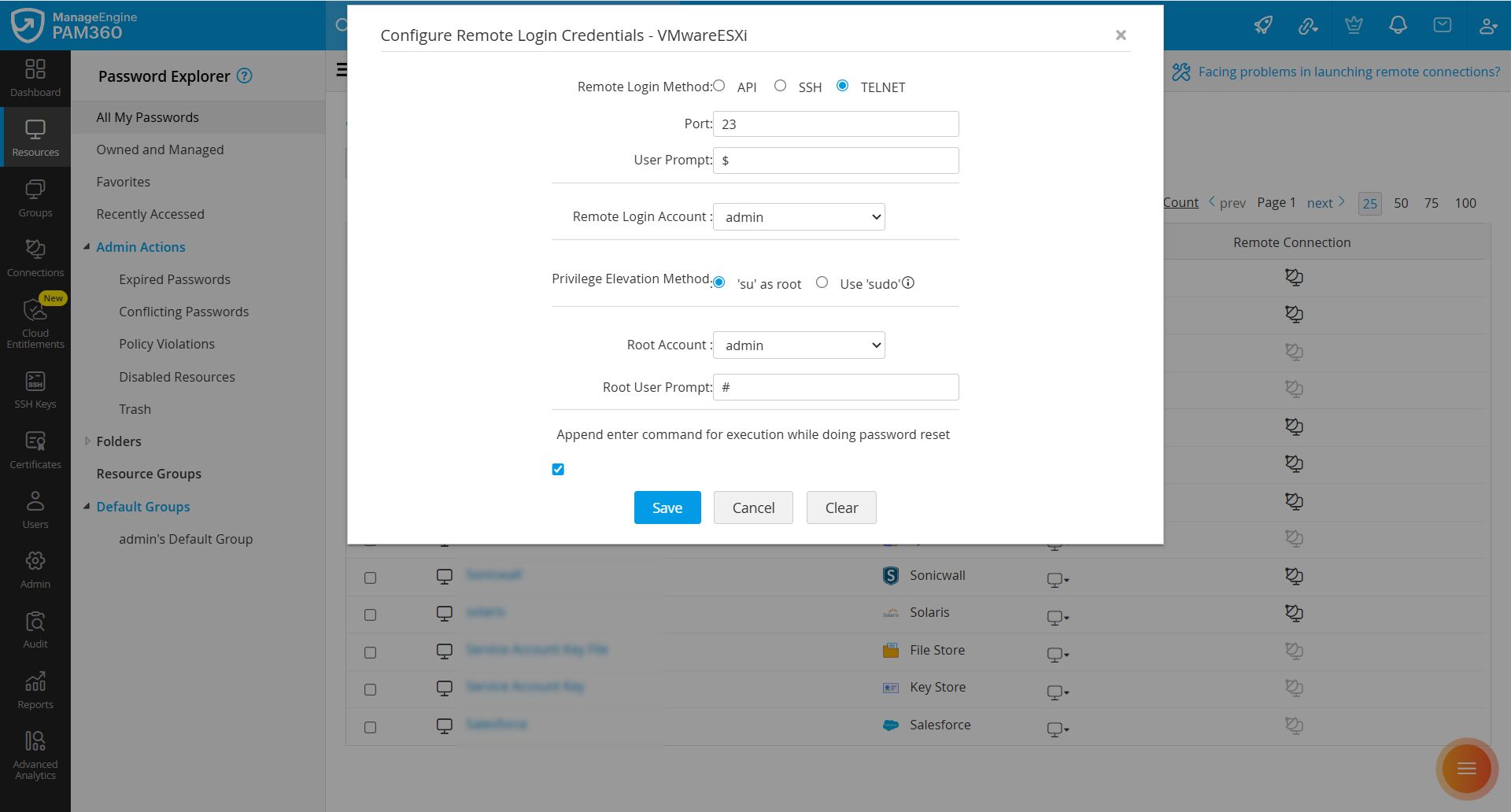
- If you select TELNET as the remote login method, configure the following:
- Port: Specify the port. By default, it occupies port 23.
- User Prompt: Specify the prompt displayed after successful login, default is $.
- Remote Login Account: Select the account that PAM360 should use to establish a connection with the device.
- Privilege Elevation Method: To execute remote password reset commands, PAM360 can either switch to the root account using su or directly execute the required commands using sudo.
- Root Account: If you selected the 'su' as root, select the root account to perform privileged operations.
- Root User Prompt: Enter the prompt associated with the root account. The default is #.
- Append enter command for execution while doing password reset: Enable this option if the target system requires an additional “Enter” keystroke after sending commands.
- Click Save to apply the configuration.
8.3 WebLogic
Password reset for a WebLogic server is performed over JMX; therefore, administrator credentials should be specified before proceeding with the configuration steps. Also, copy the JAR files wljmxclient.jar, wlclient.jar, rmic.jar, and weblogic.jar from the <WebLogic_Install_Directory>\wlserver\server\lib directory on the WebLogic server to the <PAM360_Install_Directory>\lib folder on the server where PAM360 is installed.
Follow the steps below to configure the credentials required to perform remote password resets on the WebLogic server:
- Navigate to the Resources tab, click the Resource Actions icon beside the desired resource, and select Configure >> Remote Password Reset.
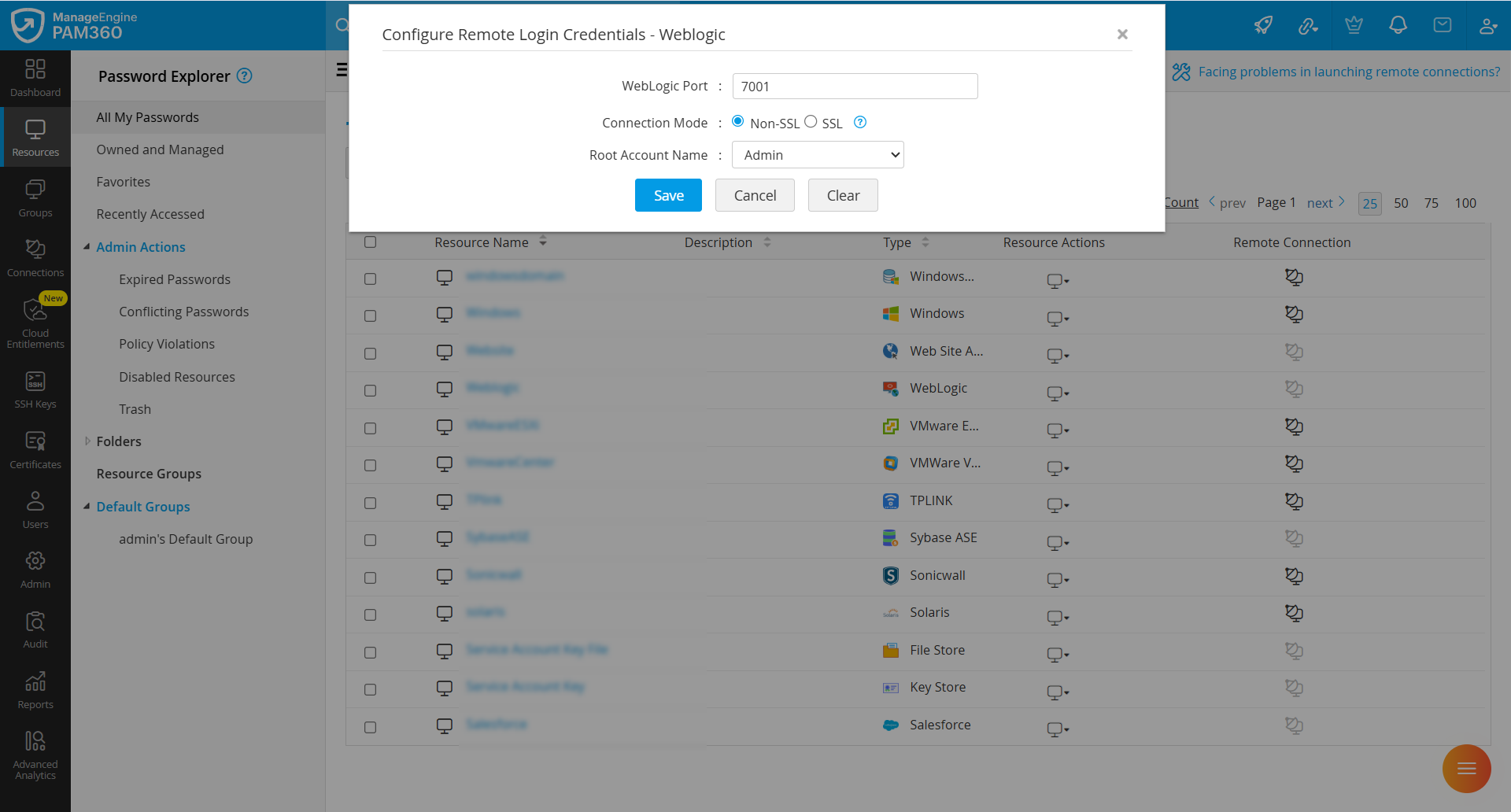
- On the Configure Remote Login Credentials page that appears, specify the following details:
- Specify the port on which the WebLogic server is running. By default, the WebLogic server uses port 7001.
- Specify the connection mode. You can configure the connection between WebLogic Server and PAM360 to be over an encrypted channel (SSL) or Non-SSL.
- When set to SSL, the WebLogic server’s root certificate should be imported into the PAM360 server machine's certificate store. Import all certificates in the root certificate chain, including the PAM360 server machine's certificate and any intermediate certificates, if applicable. For detailed steps on importing certificates, see Question 11 in the Certificates section of the FAQ.
- After a successful import, restart the PAM360 server to apply the certificate changes before performing the remote password reset. Then, continue with the following steps.
- To enable PAM360 access the WebLogic server, provide the WebLogic Root Account Name.
- Click Save to apply the changes.
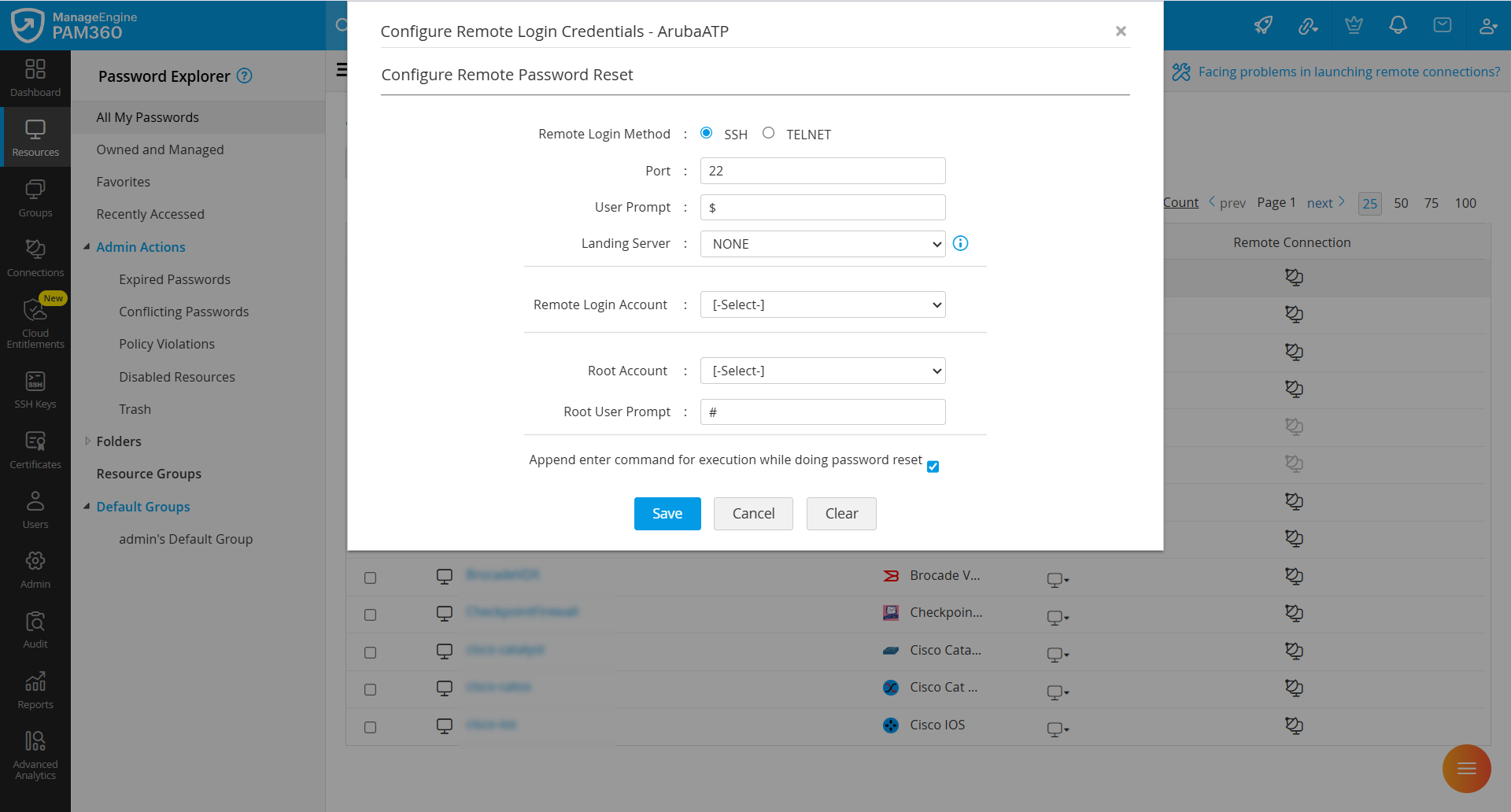
8.4 Aruba ATP, AVAYA-GW, FortiManager-FortiAnalyzer, HPE StoreOnce or Nimble Storage
Follow the steps below to configure the credentials required to perform remote password resets for Aruba ATP, AVAYA-GW, FortiManager-FortiAnalyzer, HPE StoreOnce, and Nimble Storage:
- Navigate to the Resources tab, click the Resource Actions icon beside the desired resource, and select Configure >> Remote Password Reset.
- On the Configure Remote Login Credentials page that appears, specify the following details:
- Remote Login Method: PAM360 supports SSH and Telnet protocols to establish a connection with the device for password reset. Select the required protocol.
- Port: Enter the port number. By default, it occupies port 22.
- User Prompt: Enter the user prompt displayed after successful login. The default is $.
- Landing Server: Choose the landing server through which PAM360 should connect to the target device. Select NONE if a landing server is not required.
- Remote Login Account: Select the account that PAM360 should use to establish a connection with the device.
- Root Account: Select the root account to perform privileged operations.
- Root User Prompt: Enter the prompt associated with the root account. The default is #.
- Append enter command for execution while doing password reset: Enable this option if the target system requires an additional “Enter” keystroke after sending commands.
- Click Save to apply the configuration.
8.5 Nortel
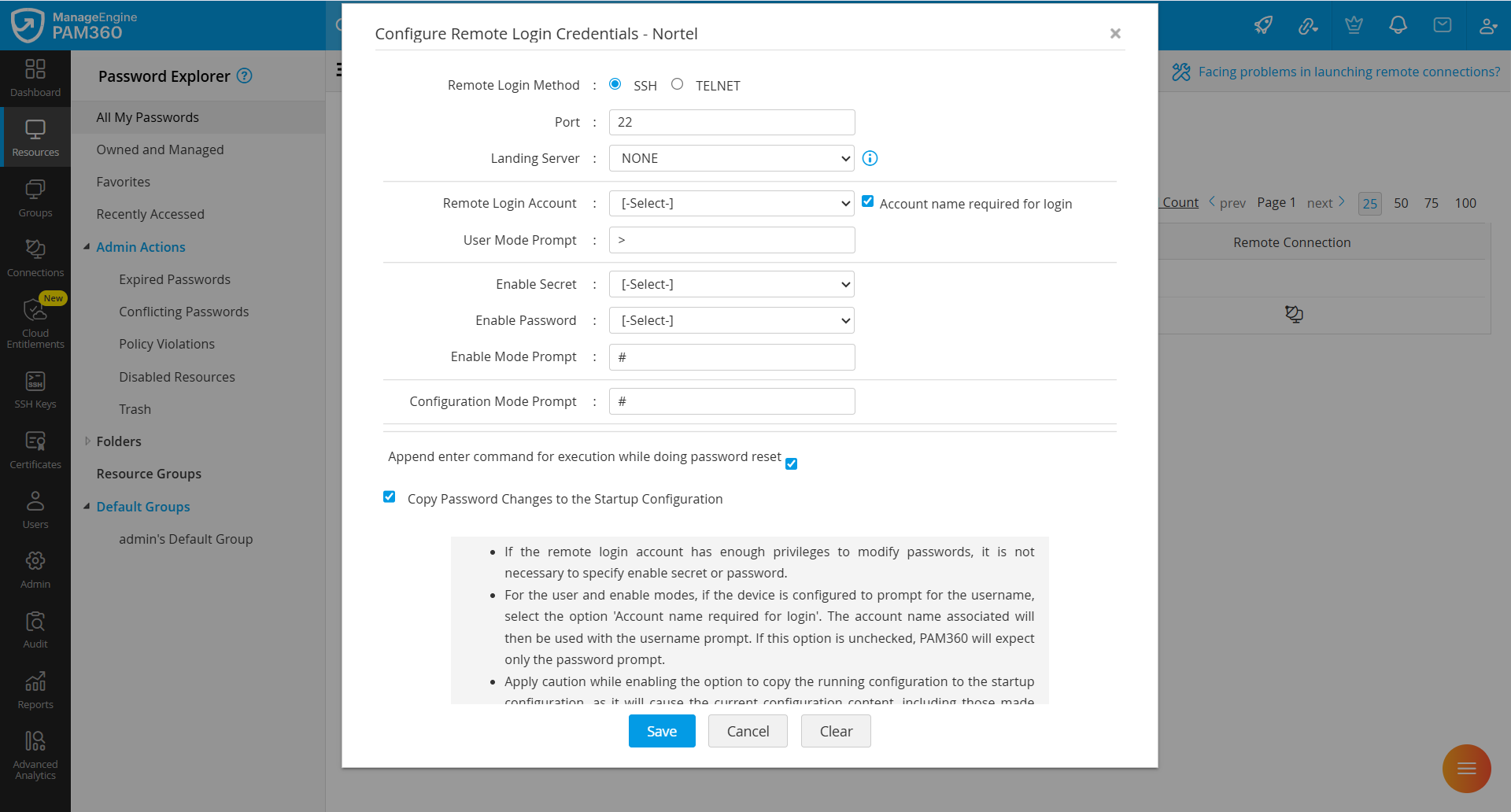
Follow the steps below to configure the credentials required to perform remote password resets on Nortel:
- Navigate to the Resources tab, click the Resource Actions icon beside the desired resource, and select Configure >> Remote Password Reset.
- On the Configure Remote Login Credentials page that appears, specify the following details:
- Remote Login Method: PAM360 supports SSH and Telnet protocols to establish a connection with the device for password reset. Select the required protocol.
- Port: Enter the port number. By default, SSH uses port 22 and telnet uses port 23.
- Landing Server: Choose the landing server through which PAM360 should connect to the target device. Select NONE if a landing server is not required.
- Remote Login Account: Select the account that PAM360 should use to establish a connection with the device.
- Account Name Required for Login: Enable this option if the device prompts for a username in either user or enable mode. PAM360 will use the account name associated with the login account to respond to the username prompt. If this option is not selected, PAM360 will assume that only a password prompt appears during login.
- User Mode Prompt: Enter the prompt displayed after a successful login.
- Enable Secret: This is used to enter privileged mode for performing the password reset. If the remote login account already has sufficient privileges to modify passwords, specifying the Enable Secret is not necessary.
- Enable Password: This is also used to enter privileged mode for performing the password reset. If the remote login account already has sufficient privileges to modify passwords, specifying the Enable Password is not required.
- Enable Mode Prompt: Enter the prompt displayed after entering enable mode. For example, #.
- Configuration Mode Prompt: To make any configuration changes on the device, entering configuration mode is necessary. Enter the prompt that appears in configuration mode here. For example, # Primary Credentials.
- Append enter command for execution while doing password reset: Enable this option if the target system requires an additional “Enter” keystroke after sending commands.
- Copy Password Changes to the Startup Configuration: Select this option to copy the password changes made in the running configuration to the startup configuration.
Caution
Enabling the option to copy the running configuration to the startup configuration will immediately replicate the current configuration (including any changes made outside of PAM360) to the startup configuration.
- Click Save to apply the configuration.
8.6 IBM AS400/Oracle XSCF/Oracle ALOM/Oracle ILOM
No specific password reset configuration is required for these resource types. PAM360 will use the accounts added to the respective resources to perform the password reset.
Configuring Credentials in Bulk for Different Resources
When importing resources in bulk, manually associating administrator credentials with each resource can be time-consuming and inefficient. To simplify this process, PAM360 offers a bulk edit option that allows you to update credentials for multiple resources at once. You can select one or more resources and configure remote password reset settings in bulk. For each resource type, enter the required details needed to perform the password reset.
The bulk edit operation applies the same configuration to all resources of a specific type. For example, if you select 20 resources — 10 Windows and 10 Linux, the credential configuration page will open with the tab corresponding to the resource type you select first (e.g., Windows). After configuring the credentials for Windows resources, you can then switch to the other resource type tab (e.g., Linux) to configure credentials for those resources. If the same credentials are used across all resources for performing remote password resets, this bulk edit method is highly recommended, as it saves time and ensures consistency across configurations.
Best Practice
Always select resources of the same type when performing bulk edits to ensure the configuration is applied correctly.
Caution
Bulk edit operation will overwrite any existing password reset configuration of the selected resources.
To configure remote password reset in bulk for the supported resource, follow these steps:
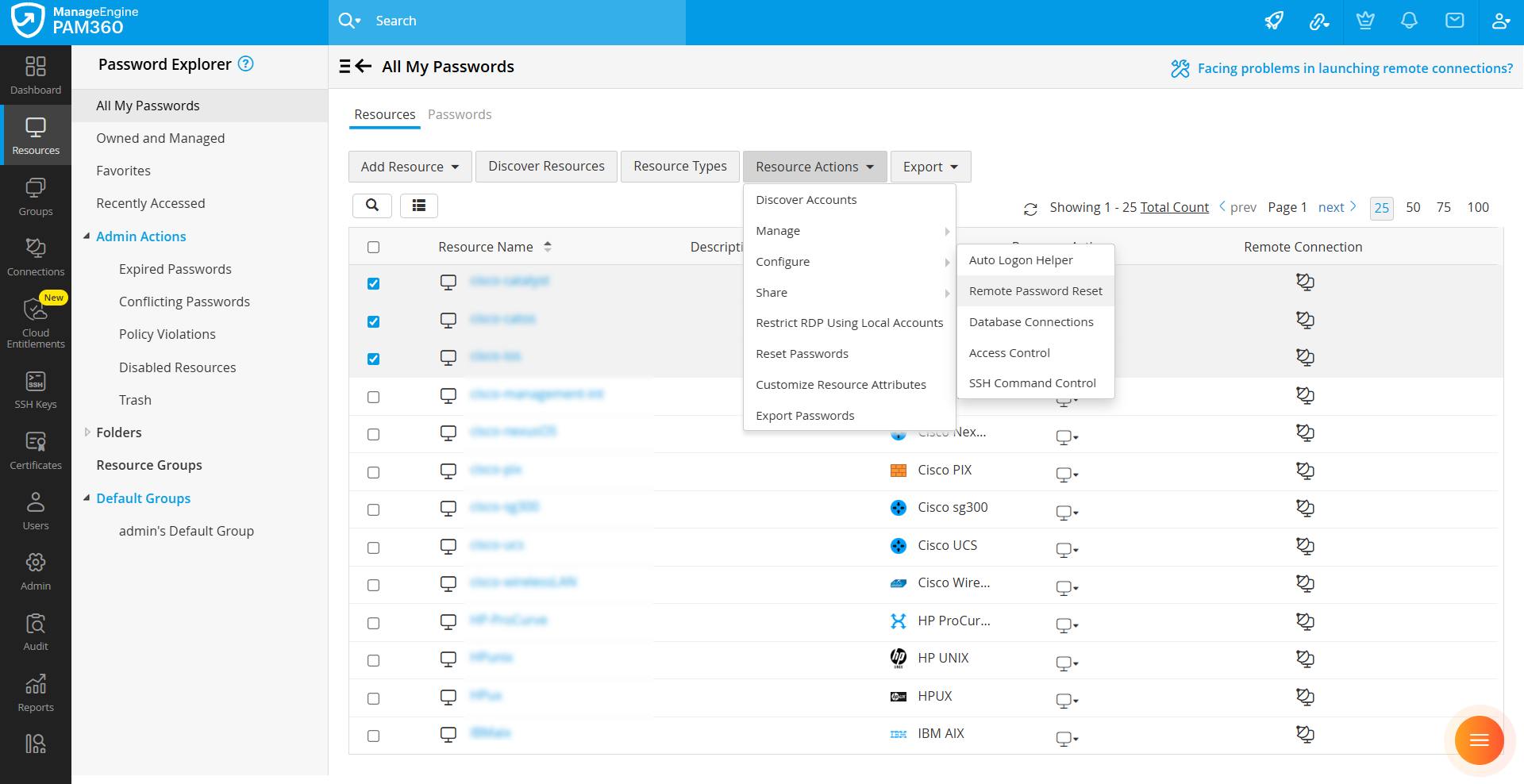
- Navigate to the Resources tab and select the required resources to configure remote password reset.
- Click Resource Actions at the top and select Configure >> Remote Password Reset from the drop-down menu.
- In the Configure Remote Password Reset window that appears, all the available resources will be listed.
- Select the required resource type from the list on the left-hand side and enter the credentials based on the chosen resource type.
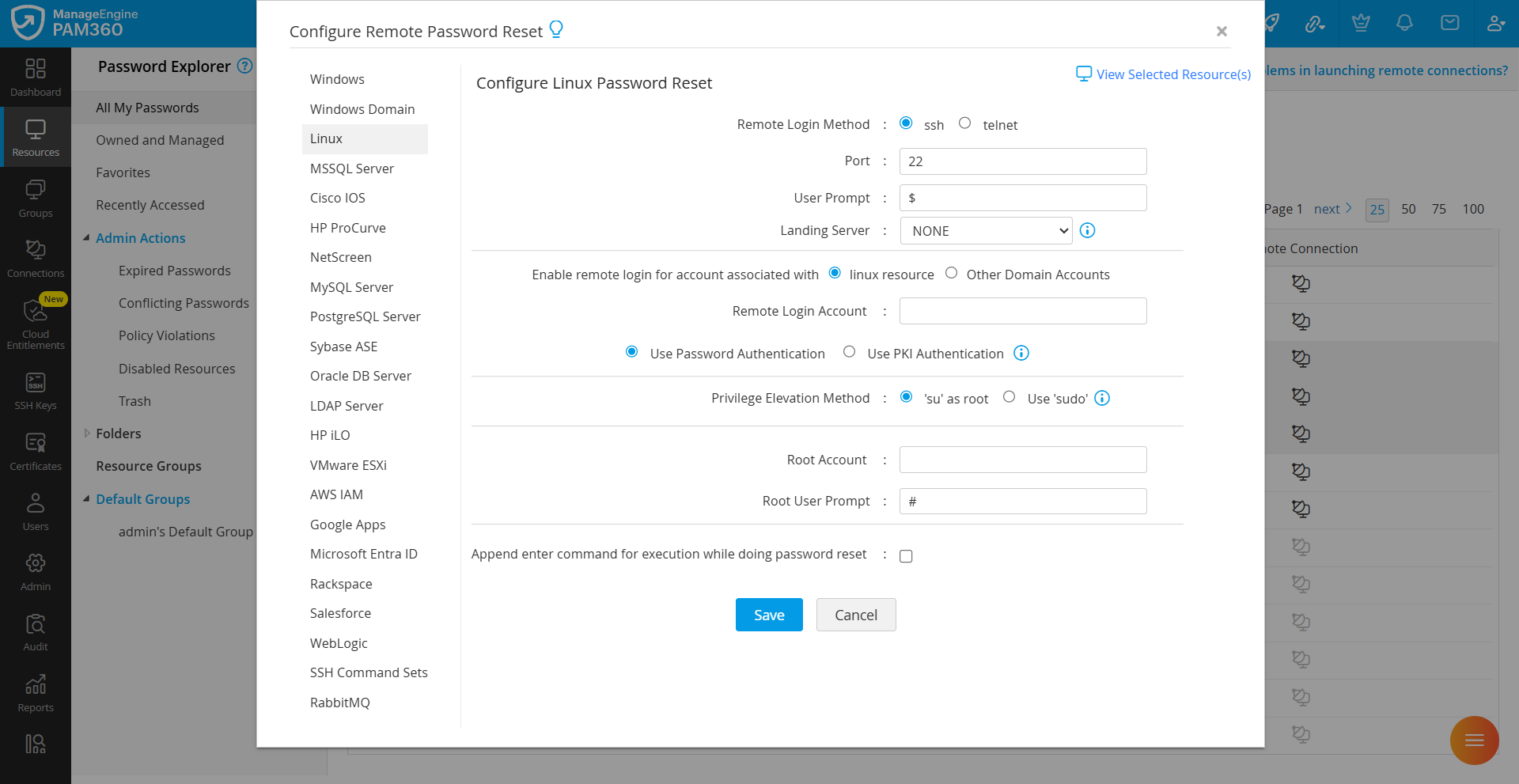
- Click Save to apply the changes. All selected resources will be updated with the new credentials.